Year 7 Digital Technologies Unit of Work: -, 2016
Topic CODING, GAMING AND ROBOTICS Length: Term 2 and ½ Term 3
Yearleveldescription
Learning in Digital Technologies focuses on further developing understanding and skills in computational thinking such as decomposing problems and prototyping; and engaging students with a wider range of information systems
as they broaden their experiences and involvement in national, regional and global activities.
By the end of Year 8, students will have had opportunities to create a range of digital solutions, such as interactive web applications or programmable multimedia assets or simulations of relationships between objects in the real
world.
In Year 7 and 8, students analyse the properties of networked systems and their suitability and use for the transmission of data types. They acquire, analyse, validate and evaluate various types of data, and appreciate the
complexities of storing and transmitting that data in digital systems. Students use structured data to model objects and events that shape the communities they actively engage with. They further develop their understanding of the
vital role that data plays in their lives, and how the data and related systems define and are limited by technical, environmental, economic and social constraints.
They further develop abstractions by identifying common elements while decomposing apparently different problems and systems to define requirements, and recognise that abstractions hide irrelevant details for particular
purposes. When defining problems, students identify the key elements of the problems and the factors and constraints at play. They design increasingly complex algorithms that allow data to be manipulated automatically, and
explore different ways of showing the relationship between data elements to help computation, such as using pivot tables, graphs and clearly defined mark-up or rules. They progress from designing the user interface to
considering user experience factors such as user expertise, accessibility and usability requirements.
They broaden their programming experiences to include general-purpose programming languages, and incorporate subprograms into their solutions. They predict and evaluate their developed and existing solutions, considering
time, tasks, data and the safe and sustainable use of information systems, and anticipate any risks associated with the use or adoption of such systems.
Students plan and manage individual and team projects with some autonomy. They consider ways of managing the exchange of ideas, tasks and files, and techniques for monitoring progress and feedback. When communicating
and collaborating online, students develop an understanding of different social contexts, for example acknowledging cultural practices and meeting legal obligations.
Achievementstandard
By the end of Year 8, students explain how social, ethical, technical and sustainability considerations influence the design of innovative and enterprising solutions to meet a range of present and future needs. They explain how
the features of technologies influence design and production decisions. Students make choices between different types of networks for defined purposes.
Students explain a range of needs, opportunities or problems and define them in terms of functional requirements and constraints. They collect, authenticate and interpret data from a range of sources to assist in making informed
judgements. Students generate and document in digital and non-digital form, design ideas for different audiences using appropriate technical terms, and graphical representation techniques including algorithms. They
independently and safely plan, design, test, modify and create a range of digital solutions that meet intended purposes including user interfaces and the use of a programming language. They plan, document and effectively
manage processes and resources to produce designed solutions for each of the prescribed technologies contexts. They develop criteria for success, including innovation and sustainability considerations, and use these to judge
the suitability of their ideas, solutions and processes. Students use appropriate protocols when collaborating, and creating and communicating ideas, information and solutions face-to-face and online.
ContentDescriptors
Acquire data from a range of sources and evaluate authenticity, accuracy and timeliness (ACTDIP025)
Design the user experience of a digital system, generating, evaluating and communicating alternative designs
Design algorithms represented diagrammatically and in English, and trace algorithms to predict output for a given input and to identify errors(ACTDIP029)
Implement and modify programs with user interfaces involving branching, iteration and functions in a general-purpose programming language (ACTDIP030)
General
Capabiliti
es
Literacy
Navigate, read and view learning area texts
Interpret and analyse learning area texts
Understand learning area vocabulary
Compose spoken, written, visual and multimodal
learning area texts
Numeracy
Visualise 2D shapes and 3D objects
Interpret maps and diagrams
Recognise and use patterns and relationships
ICT capability
Define and plan information searches
Locate, generate and access data and information
Select and evaluate data and information
Generate ideas, plans and processes
Generate solutions to challenges and learning area
tasks
Critical and creative thinking
Identify and clarify information and ideas Organise and
process information
Consider alternatives
Seek solutions and put ideas into action
Apply logic and reasoning
CrossCurricular
Priorities
o Aboriginal & Torres Strait Islander histories & cultures
o Asia & Australia’s engagementwith Asia
Report outcomes
1. Designs and programs an online game
2. Explains gaming algorithms using programming language
3. Acquires, stores and identifies differenttypes ofdata
Week Learning & teaching strategies and Assessment
1-10 Introduction to coding
TASK: Students watch the videos below. URL’s are provided below, however, teachers can access them through SharePoint
https://portal.sac.sa.edu.au/sites/studentlearn/Year5/SitePages/Introduction%20to%20coding.aspx
Videos:
https://www.youtube.com/watch?v=THOEQ5soVpY
https://www.youtube.com/watch?v=tfZTg-n_-7g
https://www.youtube.com/watch?v=CvSOaYi89B4
Words and concepts about coding:
Algorithm https://www.youtube.com/watch?v=FHsuEh1kJ18
Loops https://www.youtube.com/watch?v=JoKTqHCni0M https://www.youtube.com/watch?v=mgooqyWMTxk
Debugging https://www.youtube.com/watch?v=g9lQgtcHGRg https://www.youtube.com/watch?v=ILgKunIAdqM
TASK: Students choose a course from one of the levels below, depending on their level of coding. Students spend 1-2 lessons getting familiar with coding.
Beginner: https://studio.code.org/s/course1
Intermediate: https://studio.code.org/s/course2
Advanced 1: https://studio.code.org/s/course3
Advanced 2: https://studio.code.org/s/course4
GAME DESIGN
TASK: Give student their SCRATCH GAME Assessment Rubric/task so they are aware of their long term goal (ie to design and make a game using Scratch).Discuss criteria but don’t let them
start yet.
TASK: As a class, discuss what makes a good game. Useful website:
http://www.bbc.co.uk/guides/zw96tfr#zpxbgk7
TASK: Students then go to https://scratch.mit.edu/explore/projects/games/ and explore Scratch game designs. Students play games and look inside games and read code. Students are
encouraged to take notes on the following features of games:
- features that make an effective game (ie storyline, goal, rewards, gameplay and environment)
- Identify features of games which hold the viewers’ attention (ie identifying which colour combinations or framing elements keep different audiences engaged with on-screen activity)
TASK: Scratch Game Review
Students choose two games to review, a good game and a not so good game.
Students complete Scratch Game Review Assessment Chart
Scratch introduction
Introduce students to Scratch. Work through, step by step as a class how to make a maze game.
Useful video link tutorial:
https://www.youtube.com/watch?v=jFnTQ34dZcY
Useful resource: Maze code explained word doc.
Work though, step by step as a class how to make a pong game.
Useful video link tutorials:
https://www.youtube.com/watch?v=9TYA3XTpYGM
https://www.youtube.com/watch?list=PL2E6EED8E1A69F2A5&v=DwVPy0iAJ2M
Useful resources: Stick code and pong game code explained word documents.
Word though, step by step as a class how to make a space invaders game
Useful video link tutorial:
https://www.youtube.com/watch?v=8RIJqEqZ_zU
ASSESSMENT 2: Scratch Game Design (Report outcome 2)
Using the good fame which the student chose, they look inside the game and screen capture scripts for sprites and backgrounds using the insert screen shot function in Microsoft word. Then,
using arrows and text boxes students identify parts of the code (ie explain the function of the bricks). Students then think of one way to improve or change the game, and write the code using
Scratch.
SCRATCH ASSIGNMENT: Game design
 Copy right: As a class read through the terms and conditions of Scratch https://scratch.mit.edu/help/faq/#about-scratch
 Students will need to create a folder on their h-drive called Scratch. Inside this file they need to create 2 other folders, one for images and the other for audio.
 When working with Scratch students need to save their projects within Scratch. The file extension is .sb
 Students can insert their own images and audio into their Scratch games as long as they fall under Creative Commons. Show students the websites below which can be used to locate
images:
https://pixabay.com/
http://photopin.com/
http://pics.tech4learning.com/
 Using the sites below, students can download sounds to use for their Scratch game. Most downloads are in .mp3 format.
http://soundbible.com/
http://www.purple-planet.com/
http://www.bensound.com/royalty-free-music/2
Scratch audio formats are usually WAV or AIFF. If students download an audio file from one of the sites they can change the file extension by doing the following.
1. Download the audio file you'd like to use and save it.
2. Open Audacity (you can install this from the SAC application catalogue).
3. Click, file, import audio
4. Once audio has imported, select file, export audio
5. From the file type drop down menu select AIFF or WAV then save
6. You audio is ready to import into your Scratch project.
7. Open Scratch project.
8. Select your sprite or background (which ever you want the sound on)
9. Select sound, import and find your audio file. This will import it into your Scratch project.
 Go through the assessment rubric with students. Make sure they are clear of what is expected.
 Students should brainstorm ideas, theme for their game before they begin designing their game.
 Students will need to create a free Scratch account. Before doing this, class teachers will need to send home a permission letter.
 Once parental permission has been received class teachers will need to assist students setting up their account. They need to:
 Create a unique online Scratch name. Their name choice needs to be recognizable by other class members (ie Natmoose for Natalia, CatD11 for Cartia D etc).
 Students can then create online or offline and upload. They need to be shown how to do this.
 Class teachers will need to create a free class Scratch account. This will enable students to upload and share their Scratch projects collaboratively as a group. Limit student uploads to 3
uploads each. They can always delete a game if they’d like to add another. Example of 5JV Scratch class studio: https://scratch.mit.edu/studios/1986772/
ASSESSMENT 3: Scratch Game Design (Report outcome 1)
AIM: Design a game using scratch with multiple levels.
TASK 1 : Create a flow chart explaining how your Scratch game will work
CRITERIA HIGH MEDIUM DEVELOPING
Theme Flow chart clearly
outlines the
goal/purpose of the
game
Flow chart outlines
the goal/purpose of
the game with
Flow chart does not
outline the
goal/purpose of the
game
Gameplay Flowchart clearly
outlines results of
user input (if a player
does something) and
game output (there is
a result)
Flowchart outlines
results of user input (if
a player does
something) and game
output (there is a
result)
Flowchart does not
outline results of user
input (if a player does
something) and game
output (there is a
result)
Gameplay Flowchart clearly
shows multiple levels
with a progression of
game complexity
Flowchart shows
multiple levels with a
some progression of
game complexity
Flowchart does not
have multiple levels
and or no progression
of game complexity
Task 2: Explain the features of your game which will make it effective and hold the viewers’ attention
CRITERIA EXPLANATION
Storyline/goal
Theme
Gameplay
Framing
Colour
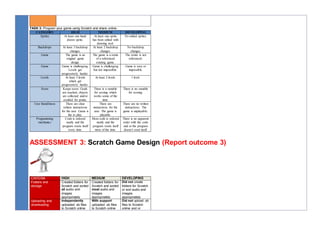
TASK 3: Program your game using Scratch and share online.
CATEGORY HIGH MEDIUM DEVELOPING
Sprites At least one hand
drawn sprite.
At least one sprite
has been edited with
drawing tool.
No edited sprites.
Backdrops At least 3 backdrop
changes.
At least 2 backdrop
changes.
No backdrop
changes.
Game The game is an
original game
design.
The game is a remix
of a referenced
existing game.
The remix is not
referenced.
Game Game is challenging.
Levels get
progressively harder.
Game is challenging
but not impossible.
Game is easy or
impossible.
Levels At least 3 levels
which get
progressively harder.
At least 2 levels. 1 level.
Score Keeps score. Goals
are reached, objects
are collected and/or
avoided for points.
There is a variable
for scoring which
works some of the
time.
There is no variable
for scoring.
User friendliness There are clear
written instructions
for the user. Game is
fun to play.
There are
instructions for the
user. The game is
playable.
There are no written
instructions. The
game is unplayable.
Programming
mechanics
Code is ordered
neatly and the
program resets itself
every time.
Most code is ordered
neatly and the
program resets itself
most of the time.
There is no apparent
order with the code
and or the program
doesn’t reset itself.
ASSESSMENT 3: Scratch Game Design (Report outcome 3)
CRITERIA HIGH MEDIUM DEVELOPING
Folders and
storage
Created folders for
Scratch and sorted
all audio and
images
appropriately
Created folders for
Scratch and sorted
most audio and
images
appropriately
Did not create
folders for Scratch
or sort audio and
images
appropriately
Uploading and
downloading
Independently
uploaded .sb files
to Scratch online
With support
uploaded .sb files
to Scratch online
Did not upload .sb
files to Scratch
online and or
and downloaded
image/audio files
and downloaded
image/audio files
downloaded
image/audio files
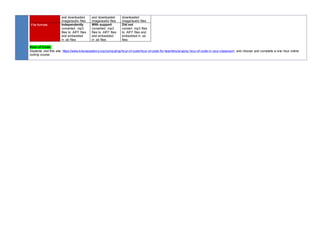
File formats Independently
converted .mp3
files to .AIFF files
and embedded
in .sb files
With support
converted .mp3
files to .AIFF files
and embedded
in .sb files
Did not
convert .mp3 files
to .AIFF files and
embedded in .sb
files
Hour of Code:
Students visit this site https://www.khanacademy.org/computing/hour-of-code/hour-of-code-for-teachers/a/using-hour-of-code-in-your-classroom and choose and complete a one hour online
coding course.