®        ®
Microsoft Outlook 2010 Training

Working Faster

                     NaveenKumar Namachivayam
                         Founder - testTalk Academy
                               http://naveenkumarn.in
Course contents
•   Customize the To-Do Bar
•   Customize the Navigation Pane
•   Customize the Reading Pane
•   Empty Your Deleted Items Folders
•   Run a Mailbox Cleanup
•   Archiving
•   Use Conditional Formatting to Customize Your Message
•   Appearance
•   Summary
Customize the To-Do Bar
•   By default, Outlook appointments, meetings, and all-day events appear in the Appointments section of the
    To-Do Bar.

•   Double-click any item in the appointment section to open it. You can also click an item, and then use the
    Calendar Tools commands that appear on the ribbon.

•   To turn on or off the appointment section, do the following:

•   On the View tab, in the Layout group, click To-Do Bar.

•   Click Appointments.

•   To view more appointments in the Appointments section, hide or reduce the size of the other To-Do Bar
    parts. To change the number of appointments shown in the To-Do Bar, do the following:

•   Point to the bar between the Appointments section and Task List. When the pointer changes, drag up or
    down to increase or decrease the size of the Appointments section.

•   When you release the mouse button, the number of appointments increases or decreases to fill the
    available space.
Customize the To-Do Bar
•   To change the information that is shown in the Appointments section, do the following:

•   In any Outlook folder, on the View tab, in the Layout group, click To-Do Bar, and then click Options.

•   Under Show Appointments, select or clear the check boxes of the options that you want.

•   Clear the Show Appointments check box to hide the Appointments section.
Customize the To-Do Bar
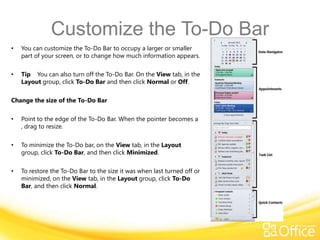
•   You can customize the To-Do Bar to occupy a larger or smaller
    part of your screen, or to change how much information appears.

•   Tip You can also turn off the To-Do Bar. On the View tab, in the
    Layout group, click To-Do Bar and then click Normal or Off.

Change the size of the To-Do Bar

•   Point to the edge of the To-Do Bar. When the pointer becomes a
    , drag to resize.

•   To minimize the To-Do bar, on the View tab, in the Layout
    group, click To-Do Bar, and then click Minimized.

•   To restore the To-Do Bar to the size it was when last turned off or
    minimized, on the View tab, in the Layout group, click To-Do
    Bar, and then click Normal.
Customize the Navigation Pane
Change the Navigation Pane font

•   You can change the font and size of the text in the Navigation Pane, from any view in Outlook.

•   On the View tab, in the Layout group, click Navigation Pane, click Options, and then click Font.

•   Enter the settings that you want in the Font, Font style, and Size boxes.

•   Click OK twice to close the open dialog boxes.

Use the Folder List view in the Navigation Pane

•   In this view, all your folders, including your Inbox folders, remain visible in the Navigation Pane when you
    switch to other views such as Calendar or Contacts. Click Folder List at the bottom of the Navigation Pane.

•   If you click one of the buttons in the Navigation Pane, such as Mail, Calendar or Contacts, the Navigation
    Pane is changed back to pane view mode.

•   If you want to keep the Folder List as your main view, do not use the buttons at the bottom of the pane to
    access other views. Click the appropriate folder, icon, or name in the Folder List itself.
Customize the Reading Pane
•   You can preview Microsoft Outlook items without opening them by using the Reading Pane (Reading Pane:
    A window in Outlook where you can preview an item without opening it. To display the item in the Reading
    Pane, click the item.). You can also customize the Reading Pane according to your preferences.

Turn on, turn off, or reposition the Reading Pane

•   You can reposition or turn off the Reading Pane in any folder in Outlook. The other options described in
    this article, however, are available only in mail folders.

•   You must turn on or off the Reading Pane each of your mail folders individually.

•   The Reading Pane is turned on by default. Do one of the following:

•   To turn off the Reading Pane      On the View tab, in the Layout group, click Reading Pane, and then click
    Off.

•   To turn on or reposition the Reading Pane       On the View tab, in the Layout group, click Reading
    Pane, and then click Right or Bottom.
Customize the Reading Pane
Mark messages as read after previewing in the Reading Pane

•   Click the File tab.

•   Click Options.

•   Click Advanced.

•   Under Outlook panes, click Reading Pane.

•   To turn this feature on, select the check box at Mark items as read when viewed in the Reading
    Pane, and then enter a number in the Wait n seconds before marking item as read box.

•   To turn off this feature, clear the check box at Mark items as read when viewed in the Reading Pane
Customize the Reading Pane
Turn on or off single key reading

•   Single key reading using the space bar lets you move quickly through your messages in the Reading Pane.
    Each time that you press the space bar, the Reading Pane content scrolls down one page. At the end of the
    item, the next unread item in your message list appears.

•   Single key reading is turned on by default, but you can turn it on or off at any time.

•   Click the File tab.

•   Click Options.

•   Click Advanced.

•   Under Outlook panes, click Reading Pane.

•   Select or clear the Single key reading using the space bar check box.
Empty Your Deleted Items Folders
•   Items that you delete are moved to the Deleted Items folder, but aren’t permanently deleted until that
    folder is emptied. Over time, the contents of the Deleted Items folder can consume a large amount of
    your data file or email server storage quota.

Automatically empty the Deleted Items folder

•   Click the File tab.

•   Click Options.

•   On the Advanced tab, under Outlook Start and Exit, select the Empty the Deleted Items folder upon
    exiting check box.

•   To be notified before the Deleted Items folder is emptied automatically, on the Advanced tab, under
    Other, select the Prompt for confirmation before permanently deleting items check box.
Empty Your Deleted Items Folders
Manually empty the Deleted Items folder

•   To open the Folder List view, at the bottom of the Navigation Pane, click Folder List or press CTRL+6.

•   Right-click the Deleted Items folder, and then click Empty Folder.

•   You can also do this procedure in Mail, in the Navigation Pane.
Run a Mailbox Cleanup
•   Your Microsoft Outlook mailbox grows as you create and receive items. When you delete
    items, the size of the Outlook Data File (.pst and .ost) file might not decrease in proportion to
    the data that you deleted. There are several ways to manage your mailbox and reduce the size
    of the data file.

•   The Mailbox Cleanup tool is used to view the size of your mailbox and individual folders. You
    can also archive older items to an archive Outlook Data File (.pst) (Outlook Data File (.pst):
    Data file that saves your messages and other items on your computer. You can assign a .pst
    file to be the default delivery location for email messages. You can use a .pst to organize and
    back up items for safekeeping.) and empty your Deleted Items folder.

•   Click the File tab.

•   Click Cleanup Tools.

•   Click Mailbox Cleanup.
Run a Mailbox Cleanup
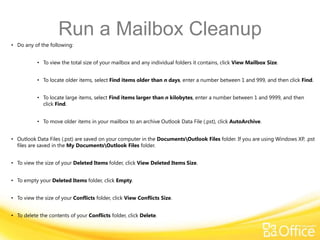
• Do any of the following:


           • To view the total size of your mailbox and any individual folders it contains, click View Mailbox Size.


           • To locate older items, select Find items older than n days, enter a number between 1 and 999, and then click Find.


           • To locate large items, select Find items larger than n kilobytes, enter a number between 1 and 9999, and then
             click Find.


           • To move older items in your mailbox to an archive Outlook Data File (.pst), click AutoArchive.


• Outlook Data Files (.pst) are saved on your computer in the DocumentsOutlook Files folder. If you are using Windows XP, .pst
  files are saved in the My DocumentsOutlook Files folder.


• To view the size of your Deleted Items folder, click View Deleted Items Size.


• To empty your Deleted Items folder, click Empty.


• To view the size of your Conflicts folder, click View Conflicts Size.


• To delete the contents of your Conflicts folder, click Delete.
Reduce the size of an Outlook
•
              Data File (.pst)
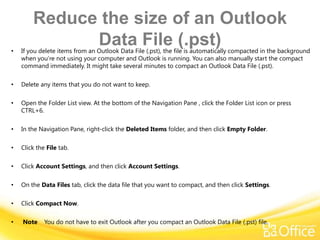
    If you delete items from an Outlook Data File (.pst), the file is automatically compacted in the background
    when you’re not using your computer and Outlook is running. You can also manually start the compact
    command immediately. It might take several minutes to compact an Outlook Data File (.pst).

•   Delete any items that you do not want to keep.

•   Open the Folder List view. At the bottom of the Navigation Pane , click the Folder List icon or press
    CTRL+6.

•   In the Navigation Pane, right-click the Deleted Items folder, and then click Empty Folder.

•   Click the File tab.

•   Click Account Settings, and then click Account Settings.

•   On the Data Files tab, click the data file that you want to compact, and then click Settings.

•   Click Compact Now.

•   Note     You do not have to exit Outlook after you compact an Outlook Data File (.pst) file.
Reduce the size of an offline
             Outlook Data File (.ost)
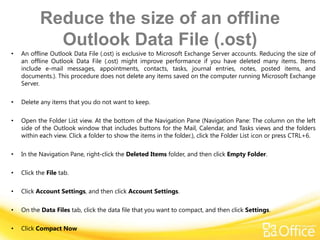
•   An offline Outlook Data File (.ost) is exclusive to Microsoft Exchange Server accounts. Reducing the size of
    an offline Outlook Data File (.ost) might improve performance if you have deleted many items. Items
    include e-mail messages, appointments, contacts, tasks, journal entries, notes, posted items, and
    documents.). This procedure does not delete any items saved on the computer running Microsoft Exchange
    Server.

•   Delete any items that you do not want to keep.

•   Open the Folder List view. At the bottom of the Navigation Pane (Navigation Pane: The column on the left
    side of the Outlook window that includes buttons for the Mail, Calendar, and Tasks views and the folders
    within each view. Click a folder to show the items in the folder.), click the Folder List icon or press CTRL+6.

•   In the Navigation Pane, right-click the Deleted Items folder, and then click Empty Folder.

•   Click the File tab.

•   Click Account Settings, and then click Account Settings.

•   On the Data Files tab, click the data file that you want to compact, and then click Settings.

•   Click Compact Now
Archiving
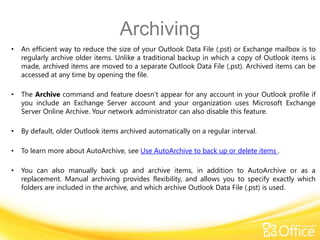
•   An efficient way to reduce the size of your Outlook Data File (.pst) or Exchange mailbox is to
    regularly archive older items. Unlike a traditional backup in which a copy of Outlook items is
    made, archived items are moved to a separate Outlook Data File (.pst). Archived items can be
    accessed at any time by opening the file.

•   The Archive command and feature doesn’t appear for any account in your Outlook profile if
    you include an Exchange Server account and your organization uses Microsoft Exchange
    Server Online Archive. Your network administrator can also disable this feature.

•   By default, older Outlook items archived automatically on a regular interval.

•   To learn more about AutoArchive, see Use AutoArchive to back up or delete items .

•   You can also manually back up and archive items, in addition to AutoArchive or as a
    replacement. Manual archiving provides flexibility, and allows you to specify exactly which
    folders are included in the archive, and which archive Outlook Data File (.pst) is used.
Archiving
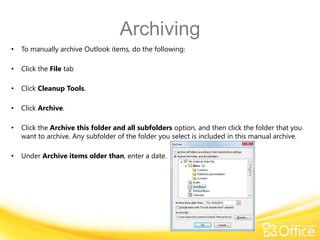
•   To manually archive Outlook items, do the following:

•   Click the File tab

•   Click Cleanup Tools.

•   Click Archive.

•   Click the Archive this folder and all subfolders option, and then click the folder that you
    want to archive. Any subfolder of the folder you select is included in this manual archive.

•   Under Archive items older than, enter a date.
Archiving
•   If you do not want to use the default file or location, under Archive file, click Browse to
    specify a new file or location. Browse to find the file that you want, or enter the file
    name, then click OK. The destination file location appears in the Archive file box.

•   Select the Include items with “Do not AutoArchive” checked check box to include any
    items that might be individually marked to be excluded from automatic archiving. This option
    does not remove that exclusion from these items, but instead ignores the Do not
    AutoArchive check box for this archive only.

Turn off AutoArchive

•   If you want to archive only manually, you must turn off AutoArchive. Do the following:

•   Click the File tab.

•   Click Options.

•   On the Advanced tab, under AutoArchive, click AutoArchive Settings.

•   Clear the Run AutoArchive every n days check box.
Use Conditional Formatting
•   Conditional formatting is a way to make messages that meet defined conditions stand out in
    the message list by using color, fonts, and styles. You specify conditions that an incoming
    message should meet, such as a sender’s name or email address, and then conditional
    formatting is applied only to those messages.

Create a conditional formatting rule

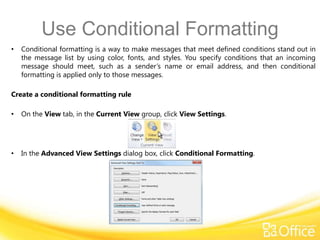
•   On the View tab, in the Current View group, click View Settings.


•   In the Advanced View Settings dialog box, click Conditional Formatting.
Use Conditional Formatting
•   A set of default rules appears. This includes the Unread messages rule. This rule makes
    unread messages appear bold in the message list. In addition, any conditional formatting
    rules that you created in the Organize pane with an earlier version of Outlook appear.

•   Do any of the following:

•   To delete a rule, click the rule, and then click Delete.

•   To temporarily turn off a rule, clear the check box for that rule.

•   To change the criteria for a rule, click the rule, and then click Condition.

•   To change the text formatting, click the rule, and then click Font.

•   To add a new conditional formatting rule, click Add, in the Name box, type a name, click Font
    to specify the formatting, and then click Condition to specify the criteria for this rule.
Summary
•Customize the To-Do Bar
•Customize the Navigation Pane
•Customize the Reading Pane
•Empty Your Deleted Items Folders
•Run a Mailbox Cleanup
•Archiving
•Use Conditional Formatting to Customize Your Message
•Appearance