Quick  Intro  to  Android  Development
Jussi Pohjolainen
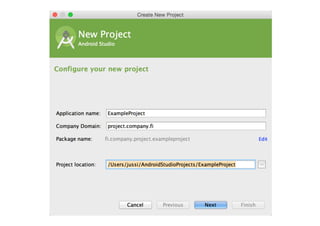
Android  Studio
• Android  Studio  replaces  Eclipse  as  Google’s  
primary  IDE for  native  Android  Development
• Features
– WYSIWYG  Editor
– Template  wizards
– Support  for  Android  Wear
– Lint  tools
– Etc
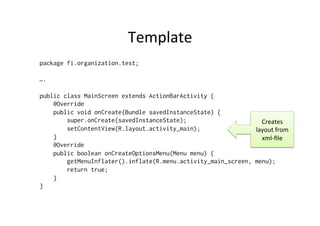
Template
public class MainScreen extends ActionBarActivity {
@Override
public void onCreate(Bundle savedInstanceState) {
super.onCreate(savedInstanceState);
setContentView(R.layout.activity_main);
}
@Override
public boolean onCreateOptionsMenu(Menu menu) {
getMenuInflater().inflate(R.menu.activity_main_screen, menu);
return true;
}
}
Creates  
layout  from  
xml-­‐file
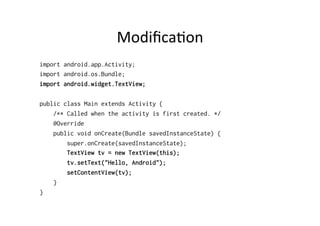
Modification
import android.app.Activity;
import android.os.Bundle;
import android.widget.TextView;
public class Main extends Activity {
/** Called when the activity is first created. */
@Override
public void onCreate(Bundle savedInstanceState) {
super.onCreate(savedInstanceState);
TextView tv = new TextView(this);
tv.setText("Hello, Android");
setContentView(tv);
}
}
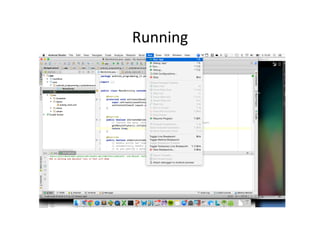
Running
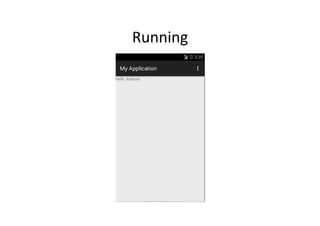
Running
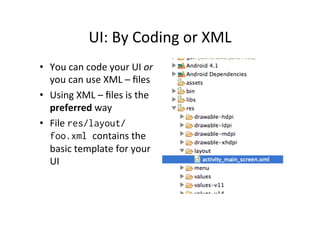
UI:  By  Coding  or  XML
• You  can  code  your  UI  or  
you  can  use  XML  – files
• Using  XML  – files  is  the  
preferred way
• File  
res/layout/foo.xml
contains  the  basic  
template  for  your  UI
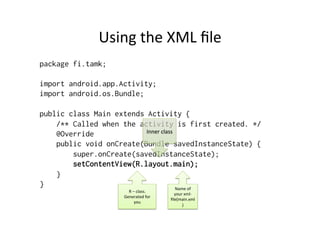
Using  the  XML  file
package fi.tamk;
import android.app.Activity;
import android.os.Bundle;
public class Main extends Activity {
/** Called when the activity is first created. */
@Override
public void onCreate(Bundle savedInstanceState) {
super.onCreate(savedInstanceState);
setContentView(R.layout.main);
}
}
Name  of  
your  xml-­‐
file(main.xm
l)
R  – class.  
Generated  for  
you
Inner  class
XML  and  R  -­‐ class
• XML  file  will  be  compiled  to  a  Java  object
• Reference  to  that  object  is  made  through  R  –
class
• R  – class  is  generated  automatically  by  the  
Eclipse  plugin
• R  – class:  gen/some.package/R.java
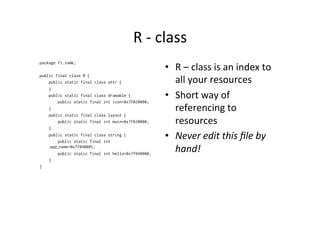
R  -­‐ class
package fi.tamk;
public final class R {
public static final class attr {
}
public static final class drawable {
public static final int icon=0x7f020000;
}
public static final class layout {
public static final int main=0x7f030000;
}
public static final class string {
public static final int app_name=0x7f040001;
public static final int hello=0x7f040000;
}
}
• R  – class  is  an  index  to  
all  your  resources
• Short  way  of  
referencing  to  resources
• Never  edit  this  file  by  
hand!
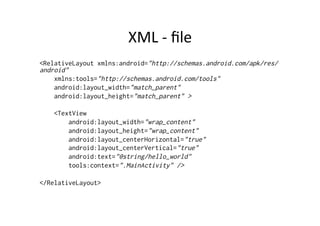
XML  -­‐ file
<RelativeLayout
xmlns:android="http://schemas.android.com/apk/res/android"
xmlns:tools="http://schemas.android.com/tools"
android:layout_width="match_parent"
android:layout_height="match_parent" >
<TextView
android:layout_width="wrap_content"
android:layout_height="wrap_content"
android:layout_centerHorizontal="true"
android:layout_centerVertical="true"
android:text="@string/hello_world"
tools:context=".MainActivity" />
</RelativeLayout>
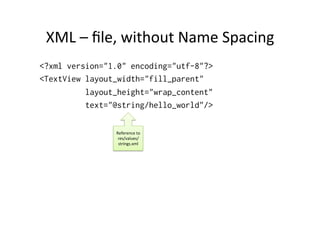
XML  – file,  without  Name  Spacing
<?xml version="1.0" encoding="utf-8"?>
<TextView layout_width="fill_parent"
layout_height="wrap_content"
text="@string/hello_world"/>
Reference  to  
res/values/strings.xml
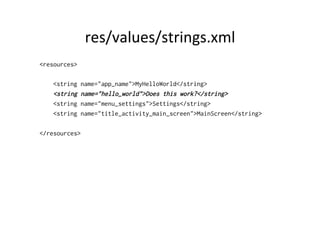
<resources>
<string name="app_name">MyHelloWorld</string>
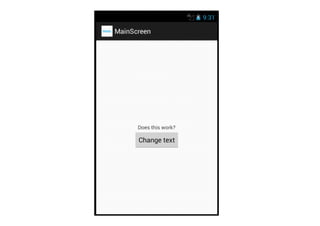
<string name="hello_world">Does this work?</string>
<string name="menu_settings">Settings</string>
<string name="title_activity_main_screen">MainScreen</string>
</resources>
Result
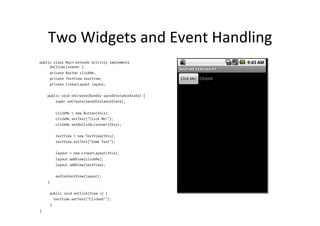
Two  Widgets  and  Event  Handling
public class Main extends Activity implements OnClickListener {
private Button clickMe;
private TextView textView;
private LinearLayout layout;
public void onCreate(Bundle savedInstanceState) {
super.onCreate(savedInstanceState);
clickMe = new Button(this);
clickMe.setText("Click Me!");
clickMe.setOnClickListener(this);
textView = new TextView(this);
textView.setText("Some Text");
layout = new LinearLayout(this);
layout.addView(clickMe);
layout.addView(textView);
setContentView(layout);
}
public void onClick(View v) {
textView.setText("Clicked!");
}
}
Two  Widgest and  Event  Handling  via  XML
<RelativeLayout xmlns:android="http://schemas.android.com/apk/res/android"
xmlns:tools="http://schemas.android.com/tools"
android:layout_width="match_parent"
android:layout_height="match_parent" >
<TextView
android:id="@+id/textView1"
android:layout_width="wrap_content"
android:layout_height="wrap_content"
android:layout_centerHorizontal="true"
android:layout_centerVertical="true"
android:text="@string/hello_world"
tools:context=".MainScreen" />
<Button
android:id="@+id/button1"
android:layout_width="wrap_content"
android:layout_height="wrap_content"
android:layout_below="@+id/textView1"
android:layout_centerHorizontal="true"
android:text="Change text" />
</RelativeLayout>
R  – class  updates  automatically
public final class R {
public static final class attr {
}
public static final class drawable {
public static final int ic_action_search=0x7f020000;
public static final int ic_launcher=0x7f020001;
}
public static final class id {
public static final int button1=0x7f070001;
public static final int menu_settings=0x7f070002;
public static final int textView1=0x7f070000;
}
public static final class layout {
public static final int activity_main_screen=0x7f030000;
}
public static final class menu {
public static final int activity_main_screen=0x7f060000;
}
public static final class string {
public static final int app_name=0x7f040000;
public static final int hello_world=0x7f040001;
public static final int menu_settings=0x7f040002;
public static final int title_activity_main_screen=0x7f040003;
}
public static final class style {
public static final int AppTheme=0x7f050000;
}
}
..  And  the  Code
public class Main extends Activity implements OnClickListener {
private Button clickMe;
private TextView textView;
public void onCreate(Bundle savedInstanceState) {
super.onCreate(savedInstanceState);
setContentView(R.layout.main);
clickMe = (Button) findViewById(R.id.button1);
textView = (TextView) findViewById(R.id.textView1);
clickMe.setOnClickListener(this);
}
public void onClick(View v) {
textView.setText("Clicked!");
}
}
About  Delegation  Event  Model
• Separation  between  application  and  UI  code
• Example:  
– somebutton.setOnClickListener(OnClickListener);
• Source:  somebutton
• Listener:  some  object  that  implements  
OnClickListener
• There  is  a  easier  way  to  do  basic  event  
handling..
Listeners  in  XML
<?xml version="1.0" encoding="utf-8"?>
<LinearLayout xmlns:android="http://schemas.android.com/apk/res/android"
android:orientation="vertical"
android:layout_width="fill_parent"
android:layout_height="fill_parent">
<Button android:text="Click 1" android:id="@+id/button1"
android:layout_width="fill_parent"
android:layout_height="wrap_content"
android:onClick="click" />
<Button android:text="Click 2" android:id="@+id/button2"
android:layout_width="fill_parent"
android:layout_height="wrap_content"
android:onClick="click" />
</LinearLayout>
And  the  Java  Code
public class EventHandlingDemo extends Activity {
/** Called when the activity is first created. */
@Override
public void onCreate(Bundle savedInstanceState) {
super.onCreate(savedInstanceState);
setContentView(R.layout.main);
}
public void click(View source) {
switch ( source.getId() ) {
case R.id.button1:
// do something
break;
case R.id.button2:
// do something
break;
}
}
}
LOGCAT
logcat
• Collecting  and  viewing  system  debug  output
• Command  line  app
– adb logcat
• Can  be  opened  also  in  Eclipse
– Window > Show View > Other… > Logcat
Android  Studio  and  Logcat
Reading  and  Writing  Logs
• Log is  a  logging  class  for  printing stuff  to  logcat
– Common  methods:  
• v(String, String) - verbose
• d(String, String) - debug
• i(String, String) - info
• w(String, String) - warning
• e(String, String) – error
– Example
• Log.d(“MainScreen”, “Just printing stuff”);
• logging
Logcat outputs  everything
Filtering  Output
• Log  message  contains
– Tag – short  String,  example  "MainScreen"
– Priority– following  chars  from  lowest  to  highest  
priority:  
• v(erbose) – lowest priority
• d(ebug)
• i(nfo)
• w(arning)
• e(rror)
• f(atal)
• s(ilent) – highest priority, nothing is printed
Filtering  Output
• Example  output
– D/MainScreen( 903): User clicked some view
object: android.widget.Button@411fe148
• Priority  level  is  D  and  tag  is  MainScreen
Restricting  output
• To  restrict  output,  use  filter  expressions
• Format
– tag : priority
– priority  is  the  minimum  level  of  priority  to  report
• Example
– adb logcat
– tag1:priority1 // show this and..
– tag2:priority2 // this..
– *:S // Set all other tags silent
Real  World  Usage
• Example
– $ adb logcat MainScreen:D *:S
– D/MainScreen( 903): User clicked some
view object:
android.widget.Button@411fe148
• Display  output  from  MainScreen tag  with  
priority  debug  or  above  and  restrict  
everything  else
From  Eclipse
Good  Practice
• Published  app  should  not  contain  logging  code
• BuildConfig.DEBUG flag  is  here  to  help!
• Flag  is  set  automatically  to  false,  when  
exporting  your  app
• How?
– if(BuildConfig.DEBUG) { Log.e(…); }
Create  a  Debug  Class!
package fi.tamk.tiko.pohjolainen.utilities;
class Debug {
public static void print(String tagName, String msg) {
if(BuildConfig.DEBUG) {
Log.d(tagName, msg);
}
}
}
// And in code
Debug.print("MainScreen", "Something");