Python for Informatics
Exploring Information
Version 2.7.0
Charles Severance
Copyright © 2009- Charles Severance.
Printing history:
May 2014: Editorial pass thanks to Sue Blumenberg.
October 2013: Major revision to Chapters 13 and 14 to switch to JSON and use OAuth.
Added new chapter on Visualization.
September 2013: Published book on Amazon CreateSpace
January 2010: Published book using the University of Michigan Espresso Book ma-
chine.
December 2009: Major revision to chapters 2-10 from Think Python: How to Think Like
a Computer Scientist and writing chapters 1 and 11-15 to produce Python for In-
formatics: Exploring Information
June 2008: Major revision, changed title to Think Python: How to Think Like a Com-
puter Scientist.
August 2007: Major revision, changed title to How to Think Like a (Python) Program-
mer.
April 2002: First edition of How to Think Like a Computer Scientist.
This work is licensed under a Creative Common Attribution-NonCommercial-ShareAlike
3.0 Unported License. This license is available at creativecommons.org/licenses/
by-nc-sa/3.0/. You can see what the author considers commercial and non-commercial
uses of this material as well as license exemptions in the Appendix titled Copyright Detail.
The LATEX source for the Think Python: How to Think Like a Computer Scientist version
of this book is available from http://www.thinkpython.com.
Preface
Python for Informatics: Remixing an Open Book
It is quite natural for academics who are continuously told to “publish or perish”
to want to always create something from scratch that is their own fresh creation.
This book is an experiment in not starting from scratch, but instead “remixing”
the book titled Think Python: How to Think Like a Computer Scientist written by
Allen B. Downey, Jeff Elkner, and others.
In December of 2009, I was preparing to teach SI502 - Networked Programming
at the University of Michigan for the fifth semester in a row and decided it was time
to write a Python textbook that focused on exploring data instead of understanding
algorithms and abstractions. My goal in SI502 is to teach people lifelong data
handling skills using Python. Few of my students were planning to be professional
computer programmers. Instead, they planned to be librarians, managers, lawyers,
biologists, economists, etc., who happened to want to skillfully use technology in
their chosen field.
I never seemed to find the perfect data-oriented Python book for my course, so I
set out to write just such a book. Luckily at a faculty meeting three weeks before
I was about to start my new book from scratch over the holiday break, Dr. Atul
Prakash showed me the Think Python book which he had used to teach his Python
course that semester. It is a well-written Computer Science text with a focus on
short, direct explanations and ease of learning.
The overall book structure has been changed to get to doing data analysis problems
as quickly as possible and have a series of running examples and exercises about
data analysis from the very beginning.
Chapters 2–10 are similar to the Think Python book, but there have been major
changes. Number-oriented examples and exercises have been replaced with data-
oriented exercises. Topics are presented in the order needed to build increasingly
sophisticated data analysis solutions. Some topics like try and except are pulled
forward and presented as part of the chapter on conditionals. Functions are given
very light treatment until they are needed to handle program complexity rather
than introduced as an early lesson in abstraction. Nearly all user-defined functions
iv Chapter 0. Preface
have been removed from the example code and exercises outside of Chapter 4.
The word “recursion”1 does not appear in the book at all.
In chapters 1 and 11–16, all of the material is brand new, focusing on real-world
uses and simple examples of Python for data analysis including regular expres-
sions for searching and parsing, automating tasks on your computer, retrieving
data across the network, scraping web pages for data, using web services, parsing
XML and JSON data, and creating and using databases using Structured Query
Language.
The ultimate goal of all of these changes is a shift from a Computer Science to an
Informatics focus is to only include topics into a first technology class that can be
useful even if one chooses not to become a professional programmer.
Students who find this book interesting and want to further explore should look
at Allen B. Downey’s Think Python book. Because there is a lot of overlap be-
tween the two books, students will quickly pick up skills in the additional areas of
technical programming and algorithmic thinking that are covered in Think Python.
And given that the books have a similar writing style, they should be able to move
quickly through Think Python with a minimum of effort.
As the copyright holder of Think Python, Allen has given me permission to change
the book’s license on the material from his book that remains in this book from the
GNU Free Documentation License to the more recent Creative Commons Attri-
bution — Share Alike license. This follows a general shift in open documentation
licenses moving from the GFDL to the CC-BY-SA (e.g., Wikipedia). Using the
CC-BY-SA license maintains the book’s strong copyleft tradition while making it
even more straightforward for new authors to reuse this material as they see fit.
I feel that this book serves an example of why open materials are so important
to the future of education, and want to thank Allen B. Downey and Cambridge
University Press for their forward-looking decision to make the book available
under an open copyright. I hope they are pleased with the results of my efforts and
I hope that you the reader are pleased with our collective efforts.
I would like to thank Allen B. Downey and Lauren Cowles for their help, patience,
and guidance in dealing with and resolving the copyright issues around this book.
Charles Severance
www.dr-chuck.com
Ann Arbor, MI, USA
September 9, 2013
Charles Severance is a Clinical Associate Professor at the University of Michigan
School of Information.
1Except, of course, for this line.
Contents
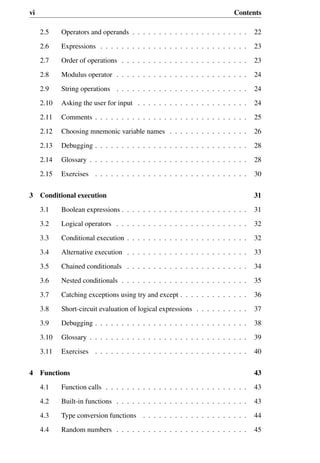
Preface iii
1 Why should you learn to write programs? 1
1.1 Creativity and motivation . . . . . . . . . . . . . . . . . . . . . 2
1.2 Computer hardware architecture . . . . . . . . . . . . . . . . . 3
1.3 Understanding programming . . . . . . . . . . . . . . . . . . . 4
1.4 Words and sentences . . . . . . . . . . . . . . . . . . . . . . . 5
1.5 Conversing with Python . . . . . . . . . . . . . . . . . . . . . . 6
1.6 Terminology: interpreter and compiler . . . . . . . . . . . . . . 8
1.7 Writing a program . . . . . . . . . . . . . . . . . . . . . . . . . 10
1.8 What is a program? . . . . . . . . . . . . . . . . . . . . . . . . 11
1.9 The building blocks of programs . . . . . . . . . . . . . . . . . 12
1.10 What could possibly go wrong? . . . . . . . . . . . . . . . . . . 13
1.11 The learning journey . . . . . . . . . . . . . . . . . . . . . . . 14
1.12 Glossary . . . . . . . . . . . . . . . . . . . . . . . . . . . . . . 15
1.13 Exercises . . . . . . . . . . . . . . . . . . . . . . . . . . . . . 16
2 Variables, expressions, and statements 19
2.1 Values and types . . . . . . . . . . . . . . . . . . . . . . . . . . 19
2.2 Variables . . . . . . . . . . . . . . . . . . . . . . . . . . . . . . 20
2.3 Variable names and keywords . . . . . . . . . . . . . . . . . . . 21
2.4 Statements . . . . . . . . . . . . . . . . . . . . . . . . . . . . . 21
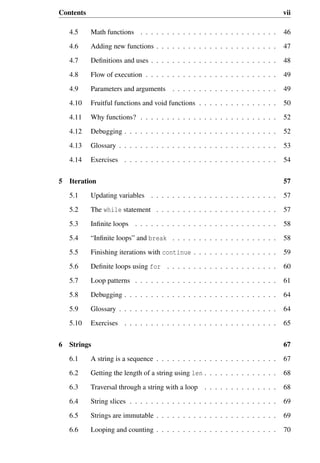
vi Contents
2.5 Operators and operands . . . . . . . . . . . . . . . . . . . . . . 22
2.6 Expressions . . . . . . . . . . . . . . . . . . . . . . . . . . . . 23
2.7 Order of operations . . . . . . . . . . . . . . . . . . . . . . . . 23
2.8 Modulus operator . . . . . . . . . . . . . . . . . . . . . . . . . 24
2.9 String operations . . . . . . . . . . . . . . . . . . . . . . . . . 24
2.10 Asking the user for input . . . . . . . . . . . . . . . . . . . . . 24
2.11 Comments . . . . . . . . . . . . . . . . . . . . . . . . . . . . . 25
2.12 Choosing mnemonic variable names . . . . . . . . . . . . . . . 26
2.13 Debugging . . . . . . . . . . . . . . . . . . . . . . . . . . . . . 28
2.14 Glossary . . . . . . . . . . . . . . . . . . . . . . . . . . . . . . 28
2.15 Exercises . . . . . . . . . . . . . . . . . . . . . . . . . . . . . 30
3 Conditional execution 31
3.1 Boolean expressions . . . . . . . . . . . . . . . . . . . . . . . . 31
3.2 Logical operators . . . . . . . . . . . . . . . . . . . . . . . . . 32
3.3 Conditional execution . . . . . . . . . . . . . . . . . . . . . . . 32
3.4 Alternative execution . . . . . . . . . . . . . . . . . . . . . . . 33
3.5 Chained conditionals . . . . . . . . . . . . . . . . . . . . . . . 34
3.6 Nested conditionals . . . . . . . . . . . . . . . . . . . . . . . . 35
3.7 Catching exceptions using try and except . . . . . . . . . . . . . 36
3.8 Short-circuit evaluation of logical expressions . . . . . . . . . . 37
3.9 Debugging . . . . . . . . . . . . . . . . . . . . . . . . . . . . . 38
3.10 Glossary . . . . . . . . . . . . . . . . . . . . . . . . . . . . . . 39
3.11 Exercises . . . . . . . . . . . . . . . . . . . . . . . . . . . . . 40
4 Functions 43
4.1 Function calls . . . . . . . . . . . . . . . . . . . . . . . . . . . 43
4.2 Built-in functions . . . . . . . . . . . . . . . . . . . . . . . . . 43
4.3 Type conversion functions . . . . . . . . . . . . . . . . . . . . 44
4.4 Random numbers . . . . . . . . . . . . . . . . . . . . . . . . . 45
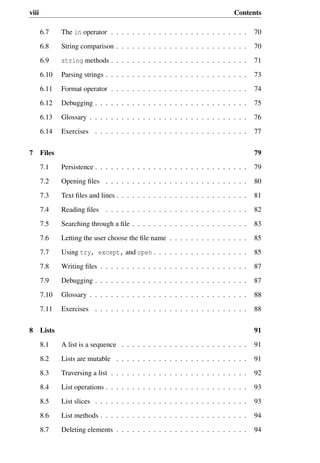
Contents vii
4.5 Math functions . . . . . . . . . . . . . . . . . . . . . . . . . . 46
4.6 Adding new functions . . . . . . . . . . . . . . . . . . . . . . . 47
4.7 Definitions and uses . . . . . . . . . . . . . . . . . . . . . . . . 48
4.8 Flow of execution . . . . . . . . . . . . . . . . . . . . . . . . . 49
4.9 Parameters and arguments . . . . . . . . . . . . . . . . . . . . 49
4.10 Fruitful functions and void functions . . . . . . . . . . . . . . . 50
4.11 Why functions? . . . . . . . . . . . . . . . . . . . . . . . . . . 52
4.12 Debugging . . . . . . . . . . . . . . . . . . . . . . . . . . . . . 52
4.13 Glossary . . . . . . . . . . . . . . . . . . . . . . . . . . . . . . 53
4.14 Exercises . . . . . . . . . . . . . . . . . . . . . . . . . . . . . 54
5 Iteration 57
5.1 Updating variables . . . . . . . . . . . . . . . . . . . . . . . . 57
5.2 The while statement . . . . . . . . . . . . . . . . . . . . . . . 57
5.3 Infinite loops . . . . . . . . . . . . . . . . . . . . . . . . . . . 58
5.4 “Infinite loops” and break . . . . . . . . . . . . . . . . . . . . 58
5.5 Finishing iterations with continue . . . . . . . . . . . . . . . . 59
5.6 Definite loops using for . . . . . . . . . . . . . . . . . . . . . 60
5.7 Loop patterns . . . . . . . . . . . . . . . . . . . . . . . . . . . 61
5.8 Debugging . . . . . . . . . . . . . . . . . . . . . . . . . . . . . 64
5.9 Glossary . . . . . . . . . . . . . . . . . . . . . . . . . . . . . . 64
5.10 Exercises . . . . . . . . . . . . . . . . . . . . . . . . . . . . . 65
6 Strings 67
6.1 A string is a sequence . . . . . . . . . . . . . . . . . . . . . . . 67
6.2 Getting the length of a string using len . . . . . . . . . . . . . . 68
6.3 Traversal through a string with a loop . . . . . . . . . . . . . . 68
6.4 String slices . . . . . . . . . . . . . . . . . . . . . . . . . . . . 69
6.5 Strings are immutable . . . . . . . . . . . . . . . . . . . . . . . 69
6.6 Looping and counting . . . . . . . . . . . . . . . . . . . . . . . 70
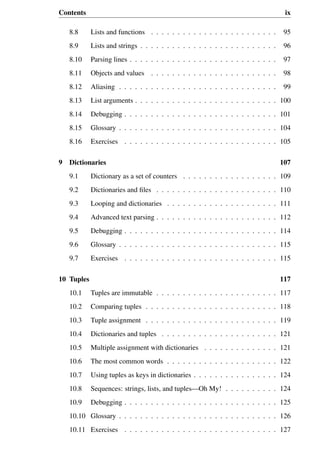
viii Contents
6.7 The in operator . . . . . . . . . . . . . . . . . . . . . . . . . . 70
6.8 String comparison . . . . . . . . . . . . . . . . . . . . . . . . . 70
6.9 string methods . . . . . . . . . . . . . . . . . . . . . . . . . . 71
6.10 Parsing strings . . . . . . . . . . . . . . . . . . . . . . . . . . . 73
6.11 Format operator . . . . . . . . . . . . . . . . . . . . . . . . . . 74
6.12 Debugging . . . . . . . . . . . . . . . . . . . . . . . . . . . . . 75
6.13 Glossary . . . . . . . . . . . . . . . . . . . . . . . . . . . . . . 76
6.14 Exercises . . . . . . . . . . . . . . . . . . . . . . . . . . . . . 77
7 Files 79
7.1 Persistence . . . . . . . . . . . . . . . . . . . . . . . . . . . . . 79
7.2 Opening files . . . . . . . . . . . . . . . . . . . . . . . . . . . 80
7.3 Text files and lines . . . . . . . . . . . . . . . . . . . . . . . . . 81
7.4 Reading files . . . . . . . . . . . . . . . . . . . . . . . . . . . 82
7.5 Searching through a file . . . . . . . . . . . . . . . . . . . . . . 83
7.6 Letting the user choose the file name . . . . . . . . . . . . . . . 85
7.7 Using try, except, and open . . . . . . . . . . . . . . . . . . 85
7.8 Writing files . . . . . . . . . . . . . . . . . . . . . . . . . . . . 87
7.9 Debugging . . . . . . . . . . . . . . . . . . . . . . . . . . . . . 87
7.10 Glossary . . . . . . . . . . . . . . . . . . . . . . . . . . . . . . 88
7.11 Exercises . . . . . . . . . . . . . . . . . . . . . . . . . . . . . 88
8 Lists 91
8.1 A list is a sequence . . . . . . . . . . . . . . . . . . . . . . . . 91
8.2 Lists are mutable . . . . . . . . . . . . . . . . . . . . . . . . . 91
8.3 Traversing a list . . . . . . . . . . . . . . . . . . . . . . . . . . 92
8.4 List operations . . . . . . . . . . . . . . . . . . . . . . . . . . . 93
8.5 List slices . . . . . . . . . . . . . . . . . . . . . . . . . . . . . 93
8.6 List methods . . . . . . . . . . . . . . . . . . . . . . . . . . . . 94
8.7 Deleting elements . . . . . . . . . . . . . . . . . . . . . . . . . 94
Contents ix
8.8 Lists and functions . . . . . . . . . . . . . . . . . . . . . . . . 95
8.9 Lists and strings . . . . . . . . . . . . . . . . . . . . . . . . . . 96
8.10 Parsing lines . . . . . . . . . . . . . . . . . . . . . . . . . . . . 97
8.11 Objects and values . . . . . . . . . . . . . . . . . . . . . . . . 98
8.12 Aliasing . . . . . . . . . . . . . . . . . . . . . . . . . . . . . . 99
8.13 List arguments . . . . . . . . . . . . . . . . . . . . . . . . . . . 100
8.14 Debugging . . . . . . . . . . . . . . . . . . . . . . . . . . . . . 101
8.15 Glossary . . . . . . . . . . . . . . . . . . . . . . . . . . . . . . 104
8.16 Exercises . . . . . . . . . . . . . . . . . . . . . . . . . . . . . 105
9 Dictionaries 107
9.1 Dictionary as a set of counters . . . . . . . . . . . . . . . . . . 109
9.2 Dictionaries and files . . . . . . . . . . . . . . . . . . . . . . . 110
9.3 Looping and dictionaries . . . . . . . . . . . . . . . . . . . . . 111
9.4 Advanced text parsing . . . . . . . . . . . . . . . . . . . . . . . 112
9.5 Debugging . . . . . . . . . . . . . . . . . . . . . . . . . . . . . 114
9.6 Glossary . . . . . . . . . . . . . . . . . . . . . . . . . . . . . . 115
9.7 Exercises . . . . . . . . . . . . . . . . . . . . . . . . . . . . . 115
10 Tuples 117
10.1 Tuples are immutable . . . . . . . . . . . . . . . . . . . . . . . 117
10.2 Comparing tuples . . . . . . . . . . . . . . . . . . . . . . . . . 118
10.3 Tuple assignment . . . . . . . . . . . . . . . . . . . . . . . . . 119
10.4 Dictionaries and tuples . . . . . . . . . . . . . . . . . . . . . . 121
10.5 Multiple assignment with dictionaries . . . . . . . . . . . . . . 121
10.6 The most common words . . . . . . . . . . . . . . . . . . . . . 122
10.7 Using tuples as keys in dictionaries . . . . . . . . . . . . . . . . 124
10.8 Sequences: strings, lists, and tuples—Oh My! . . . . . . . . . . 124
10.9 Debugging . . . . . . . . . . . . . . . . . . . . . . . . . . . . . 125
10.10 Glossary . . . . . . . . . . . . . . . . . . . . . . . . . . . . . . 126
10.11 Exercises . . . . . . . . . . . . . . . . . . . . . . . . . . . . . 127
x Contents
11 Regular expressions 129
11.1 Character matching in regular expressions . . . . . . . . . . . . 130
11.2 Extracting data using regular expressions . . . . . . . . . . . . . 131
11.3 Combining searching and extracting . . . . . . . . . . . . . . . 133
11.4 Escape character . . . . . . . . . . . . . . . . . . . . . . . . . . 137
11.5 Summary . . . . . . . . . . . . . . . . . . . . . . . . . . . . . 137
11.6 Bonus section for Unix users . . . . . . . . . . . . . . . . . . . 138
11.7 Debugging . . . . . . . . . . . . . . . . . . . . . . . . . . . . . 139
11.8 Glossary . . . . . . . . . . . . . . . . . . . . . . . . . . . . . . 140
11.9 Exercises . . . . . . . . . . . . . . . . . . . . . . . . . . . . . 140
12 Networked programs 143
12.1 HyperText Transport Protocol - HTTP . . . . . . . . . . . . . . 143
12.2 The World’s Simplest Web Browser . . . . . . . . . . . . . . . 144
12.3 Retrieving an image over HTTP . . . . . . . . . . . . . . . . . 145
12.4 Retrieving web pages with urllib . . . . . . . . . . . . . . . . 148
12.5 Parsing HTML and scraping the web . . . . . . . . . . . . . . . 148
12.6 Parsing HTML using regular expressions . . . . . . . . . . . . . 149
12.7 Parsing HTML using BeautifulSoup . . . . . . . . . . . . . . . 150
12.8 Reading binary files using urllib . . . . . . . . . . . . . . . . . 152
12.9 Glossary . . . . . . . . . . . . . . . . . . . . . . . . . . . . . . 153
12.10 Exercises . . . . . . . . . . . . . . . . . . . . . . . . . . . . . 153
13 Using Web Services 155
13.1 eXtensible Markup Language - XML . . . . . . . . . . . . . . . 155
13.2 Parsing XML . . . . . . . . . . . . . . . . . . . . . . . . . . . 156
13.3 Looping through nodes . . . . . . . . . . . . . . . . . . . . . . 156
13.4 JavaScript Object Notation - JSON . . . . . . . . . . . . . . . . 157
13.5 Parsing JSON . . . . . . . . . . . . . . . . . . . . . . . . . . . 158
13.6 Application Programming Interfaces . . . . . . . . . . . . . . . 159
Contents xi
13.7 Google geocoding web service . . . . . . . . . . . . . . . . . . 160
13.8 Security and API usage . . . . . . . . . . . . . . . . . . . . . . 162
13.9 Glossary . . . . . . . . . . . . . . . . . . . . . . . . . . . . . . 166
13.10 Exercises . . . . . . . . . . . . . . . . . . . . . . . . . . . . . 167
14 Using databases and Structured Query Language (SQL) 169
14.1 What is a database? . . . . . . . . . . . . . . . . . . . . . . . . 169
14.2 Database concepts . . . . . . . . . . . . . . . . . . . . . . . . . 170
14.3 SQLite manager Firefox add-on . . . . . . . . . . . . . . . . . 170
14.4 Creating a database table . . . . . . . . . . . . . . . . . . . . . 170
14.5 Structured Query Language summary . . . . . . . . . . . . . . 173
14.6 Spidering Twitter using a database . . . . . . . . . . . . . . . . 175
14.7 Basic data modeling . . . . . . . . . . . . . . . . . . . . . . . . 180
14.8 Programming with multiple tables . . . . . . . . . . . . . . . . 182
14.9 Three kinds of keys . . . . . . . . . . . . . . . . . . . . . . . . 186
14.10 Using JOIN to retrieve data . . . . . . . . . . . . . . . . . . . . 187
14.11 Summary . . . . . . . . . . . . . . . . . . . . . . . . . . . . . 189
14.12 Debugging . . . . . . . . . . . . . . . . . . . . . . . . . . . . . 189
14.13 Glossary . . . . . . . . . . . . . . . . . . . . . . . . . . . . . . 190
15 Visualizing data 193
15.1 Building a Google map from geocoded data . . . . . . . . . . . 193
15.2 Visualizing networks and interconnections . . . . . . . . . . . . 195
15.3 Visualizing mail data . . . . . . . . . . . . . . . . . . . . . . . 198
16 Automating common tasks on your computer 203
16.1 File names and paths . . . . . . . . . . . . . . . . . . . . . . . 203
16.2 Example: Cleaning up a photo directory . . . . . . . . . . . . . 204
16.3 Command-line arguments . . . . . . . . . . . . . . . . . . . . . 209
16.4 Pipes . . . . . . . . . . . . . . . . . . . . . . . . . . . . . . . . 210
16.5 Glossary . . . . . . . . . . . . . . . . . . . . . . . . . . . . . . 211
16.6 Exercises . . . . . . . . . . . . . . . . . . . . . . . . . . . . . 212
xii Contents
A Python Programming on Windows 215
B Python Programming on Macintosh 217
C Contributions 219
D Copyright Detail 223
Chapter 1
Why should you learn to write
programs?
Writing programs (or programming) is a very creative and rewarding activity. You
can write programs for many reasons, ranging from making your living to solving
a difficult data analysis problem to having fun to helping someone else solve a
problem. This book assumes that everyone needs to know how to program, and
that once you know how to program you will figure out what you want to do with
your newfound skills.
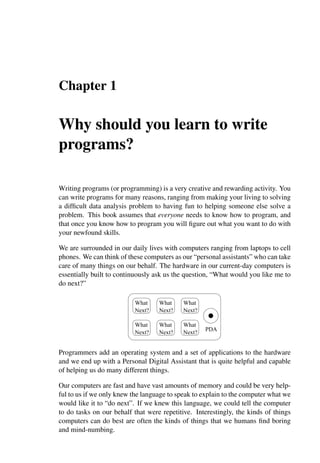
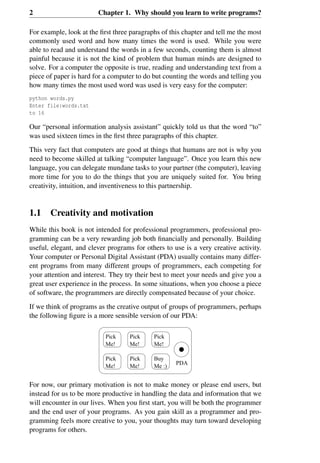
We are surrounded in our daily lives with computers ranging from laptops to cell
phones. We can think of these computers as our “personal assistants” who can take
care of many things on our behalf. The hardware in our current-day computers is
essentially built to continuously ask us the question, “What would you like me to
do next?”
PDA
Next?
What
Next?
What
Next?
What
Next?
What
Next?
What
Next?
What
Programmers add an operating system and a set of applications to the hardware
and we end up with a Personal Digital Assistant that is quite helpful and capable
of helping us do many different things.
Our computers are fast and have vast amounts of memory and could be very help-
ful to us if we only knew the language to speak to explain to the computer what we
would like it to “do next”. If we knew this language, we could tell the computer
to do tasks on our behalf that were repetitive. Interestingly, the kinds of things
computers can do best are often the kinds of things that we humans find boring
and mind-numbing.
2 Chapter 1. Why should you learn to write programs?
For example, look at the first three paragraphs of this chapter and tell me the most
commonly used word and how many times the word is used. While you were
able to read and understand the words in a few seconds, counting them is almost
painful because it is not the kind of problem that human minds are designed to
solve. For a computer the opposite is true, reading and understanding text from a
piece of paper is hard for a computer to do but counting the words and telling you
how many times the most used word was used is very easy for the computer:
python words.py
Enter file:words.txt
to 16
Our “personal information analysis assistant” quickly told us that the word “to”
was used sixteen times in the first three paragraphs of this chapter.
This very fact that computers are good at things that humans are not is why you
need to become skilled at talking “computer language”. Once you learn this new
language, you can delegate mundane tasks to your partner (the computer), leaving
more time for you to do the things that you are uniquely suited for. You bring
creativity, intuition, and inventiveness to this partnership.
1.1 Creativity and motivation
While this book is not intended for professional programmers, professional pro-
gramming can be a very rewarding job both financially and personally. Building
useful, elegant, and clever programs for others to use is a very creative activity.
Your computer or Personal Digital Assistant (PDA) usually contains many differ-
ent programs from many different groups of programmers, each competing for
your attention and interest. They try their best to meet your needs and give you a
great user experience in the process. In some situations, when you choose a piece
of software, the programmers are directly compensated because of your choice.
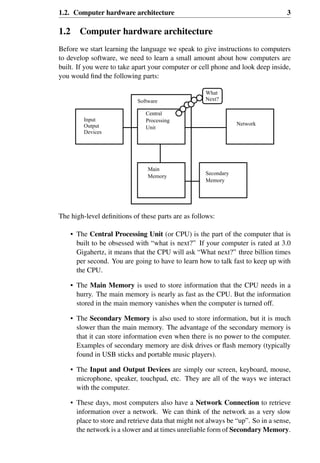
If we think of programs as the creative output of groups of programmers, perhaps
the following figure is a more sensible version of our PDA:
Me!
PDA
Me!
Pick Pick Pick
BuyPickPick
Me!
Me!
Me :)
Me!
For now, our primary motivation is not to make money or please end users, but
instead for us to be more productive in handling the data and information that we
will encounter in our lives. When you first start, you will be both the programmer
and the end user of your programs. As you gain skill as a programmer and pro-
gramming feels more creative to you, your thoughts may turn toward developing
programs for others.
1.2. Computer hardware architecture 3
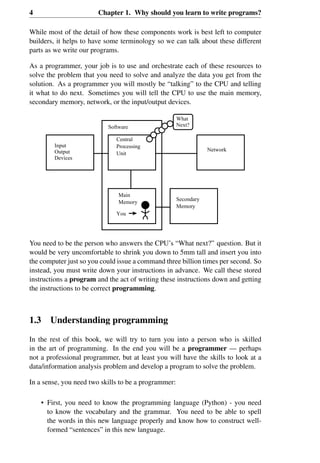
1.2 Computer hardware architecture
Before we start learning the language we speak to give instructions to computers
to develop software, we need to learn a small amount about how computers are
built. If you were to take apart your computer or cell phone and look deep inside,
you would find the following parts:
Next?
Network
Input
Software
Output
Devices
What
Central
Processing
Unit
Main
Memory
Secondary
Memory
The high-level definitions of these parts are as follows:
• The Central Processing Unit (or CPU) is the part of the computer that is
built to be obsessed with “what is next?” If your computer is rated at 3.0
Gigahertz, it means that the CPU will ask “What next?” three billion times
per second. You are going to have to learn how to talk fast to keep up with
the CPU.
• The Main Memory is used to store information that the CPU needs in a
hurry. The main memory is nearly as fast as the CPU. But the information
stored in the main memory vanishes when the computer is turned off.
• The Secondary Memory is also used to store information, but it is much
slower than the main memory. The advantage of the secondary memory is
that it can store information even when there is no power to the computer.
Examples of secondary memory are disk drives or flash memory (typically
found in USB sticks and portable music players).
• The Input and Output Devices are simply our screen, keyboard, mouse,
microphone, speaker, touchpad, etc. They are all of the ways we interact
with the computer.
• These days, most computers also have a Network Connection to retrieve
information over a network. We can think of the network as a very slow
place to store and retrieve data that might not always be “up”. So in a sense,
the network is a slower and at times unreliable form of Secondary Memory.
4 Chapter 1. Why should you learn to write programs?
While most of the detail of how these components work is best left to computer
builders, it helps to have some terminology so we can talk about these different
parts as we write our programs.
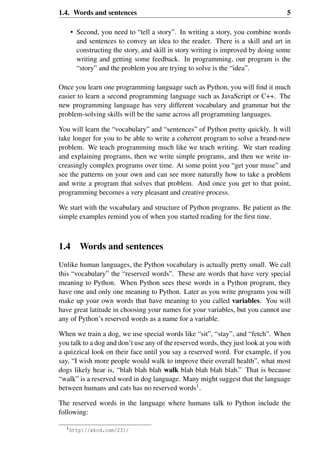
As a programmer, your job is to use and orchestrate each of these resources to
solve the problem that you need to solve and analyze the data you get from the
solution. As a programmer you will mostly be “talking” to the CPU and telling
it what to do next. Sometimes you will tell the CPU to use the main memory,
secondary memory, network, or the input/output devices.
You
Input
Software
Output
Devices
What
Next?
Central
Processing
Unit
Main
Memory
Secondary
Memory
Network
You need to be the person who answers the CPU’s “What next?” question. But it
would be very uncomfortable to shrink you down to 5mm tall and insert you into
the computer just so you could issue a command three billion times per second. So
instead, you must write down your instructions in advance. We call these stored
instructions a program and the act of writing these instructions down and getting
the instructions to be correct programming.
1.3 Understanding programming
In the rest of this book, we will try to turn you into a person who is skilled
in the art of programming. In the end you will be a programmer — perhaps
not a professional programmer, but at least you will have the skills to look at a
data/information analysis problem and develop a program to solve the problem.
In a sense, you need two skills to be a programmer:
• First, you need to know the programming language (Python) - you need
to know the vocabulary and the grammar. You need to be able to spell
the words in this new language properly and know how to construct well-
formed “sentences” in this new language.
1.4. Words and sentences 5
• Second, you need to “tell a story”. In writing a story, you combine words
and sentences to convey an idea to the reader. There is a skill and art in
constructing the story, and skill in story writing is improved by doing some
writing and getting some feedback. In programming, our program is the
“story” and the problem you are trying to solve is the “idea”.
Once you learn one programming language such as Python, you will find it much
easier to learn a second programming language such as JavaScript or C++. The
new programming language has very different vocabulary and grammar but the
problem-solving skills will be the same across all programming languages.
You will learn the “vocabulary” and “sentences” of Python pretty quickly. It will
take longer for you to be able to write a coherent program to solve a brand-new
problem. We teach programming much like we teach writing. We start reading
and explaining programs, then we write simple programs, and then we write in-
creasingly complex programs over time. At some point you “get your muse” and
see the patterns on your own and can see more naturally how to take a problem
and write a program that solves that problem. And once you get to that point,
programming becomes a very pleasant and creative process.
We start with the vocabulary and structure of Python programs. Be patient as the
simple examples remind you of when you started reading for the first time.
1.4 Words and sentences
Unlike human languages, the Python vocabulary is actually pretty small. We call
this “vocabulary” the “reserved words”. These are words that have very special
meaning to Python. When Python sees these words in a Python program, they
have one and only one meaning to Python. Later as you write programs you will
make up your own words that have meaning to you called variables. You will
have great latitude in choosing your names for your variables, but you cannot use
any of Python’s reserved words as a name for a variable.
When we train a dog, we use special words like “sit”, “stay”, and “fetch”. When
you talk to a dog and don’t use any of the reserved words, they just look at you with
a quizzical look on their face until you say a reserved word. For example, if you
say, “I wish more people would walk to improve their overall health”, what most
dogs likely hear is, “blah blah blah walk blah blah blah blah.” That is because
“walk” is a reserved word in dog language. Many might suggest that the language
between humans and cats has no reserved words1.
The reserved words in the language where humans talk to Python include the
following:
1http://xkcd.com/231/
6 Chapter 1. Why should you learn to write programs?
and del from not while
as elif global or with
assert else if pass yield
break except import print
class exec in raise
continue finally is return
def for lambda try
That is it, and unlike a dog, Python is already completely trained. When you say
“try”, Python will try every time you say it without fail.
We will learn these reserved words and how they are used in good time, but for
now we will focus on the Python equivalent of “speak” (in human-to-dog lan-
guage). The nice thing about telling Python to speak is that we can even tell it
what to say by giving it a message in quotes:
print 'Hello world!'
And we have even written our first syntactically correct Python sentence. Our
sentence starts with the reserved word print followed by a string of text of our
choosing enclosed in single quotes.
1.5 Conversing with Python
Now that we have a word and a simple sentence that we know in Python, we need
to know how to start a conversation with Python to test our new language skills.
Before you can converse with Python, you must first install the Python software on
your computer and learn how to start Python on your computer. That is too much
detail for this chapter so I suggest that you consult www.pythonlearn.com where
I have detailed instructions and screencasts of setting up and starting Python on
Macintosh and Windows systems. At some point, you will be in a terminal or
command window and you will type python and the Python interpreter will start
executing in interactive mode and appear somewhat as follows:
Python 2.6.1 (r261:67515, Jun 24 2010, 21:47:49)
[GCC 4.2.1 (Apple Inc. build 5646)] on darwin
Type "help", "copyright", "credits" or "license" for more information.
>>>
The >>> prompt is the Python interpreter’s way of asking you, “What do you want
me to do next?” Python is ready to have a conversation with you. All you have to
know is how to speak the Python language.
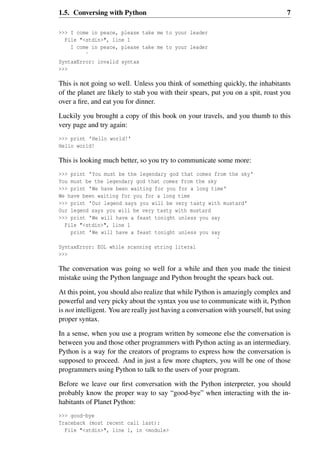
Let’s say for example that you did not know even the simplest Python language
words or sentences. You might want to use the standard line that astronauts use
when they land on a faraway planet and try to speak with the inhabitants of the
planet:
1.5. Conversing with Python 7
>>> I come in peace, please take me to your leader
File "<stdin>", line 1
I come in peace, please take me to your leader
ˆ
SyntaxError: invalid syntax
>>>
This is not going so well. Unless you think of something quickly, the inhabitants
of the planet are likely to stab you with their spears, put you on a spit, roast you
over a fire, and eat you for dinner.
Luckily you brought a copy of this book on your travels, and you thumb to this
very page and try again:
>>> print 'Hello world!'
Hello world!
This is looking much better, so you try to communicate some more:
>>> print 'You must be the legendary god that comes from the sky'
You must be the legendary god that comes from the sky
>>> print 'We have been waiting for you for a long time'
We have been waiting for you for a long time
>>> print 'Our legend says you will be very tasty with mustard'
Our legend says you will be very tasty with mustard
>>> print 'We will have a feast tonight unless you say
File "<stdin>", line 1
print 'We will have a feast tonight unless you say
ˆ
SyntaxError: EOL while scanning string literal
>>>
The conversation was going so well for a while and then you made the tiniest
mistake using the Python language and Python brought the spears back out.
At this point, you should also realize that while Python is amazingly complex and
powerful and very picky about the syntax you use to communicate with it, Python
is not intelligent. You are really just having a conversation with yourself, but using
proper syntax.
In a sense, when you use a program written by someone else the conversation is
between you and those other programmers with Python acting as an intermediary.
Python is a way for the creators of programs to express how the conversation is
supposed to proceed. And in just a few more chapters, you will be one of those
programmers using Python to talk to the users of your program.
Before we leave our first conversation with the Python interpreter, you should
probably know the proper way to say “good-bye” when interacting with the in-
habitants of Planet Python:
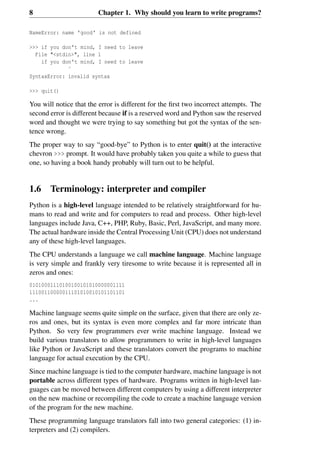
>>> good-bye
Traceback (most recent call last):
File "<stdin>", line 1, in <module>
8 Chapter 1. Why should you learn to write programs?
NameError: name 'good' is not defined
>>> if you don't mind, I need to leave
File "<stdin>", line 1
if you don't mind, I need to leave
ˆ
SyntaxError: invalid syntax
>>> quit()
You will notice that the error is different for the first two incorrect attempts. The
second error is different because if is a reserved word and Python saw the reserved
word and thought we were trying to say something but got the syntax of the sen-
tence wrong.
The proper way to say “good-bye” to Python is to enter quit() at the interactive
chevron >>> prompt. It would have probably taken you quite a while to guess that
one, so having a book handy probably will turn out to be helpful.
1.6 Terminology: interpreter and compiler
Python is a high-level language intended to be relatively straightforward for hu-
mans to read and write and for computers to read and process. Other high-level
languages include Java, C++, PHP, Ruby, Basic, Perl, JavaScript, and many more.
The actual hardware inside the Central Processing Unit (CPU) does not understand
any of these high-level languages.
The CPU understands a language we call machine language. Machine language
is very simple and frankly very tiresome to write because it is represented all in
zeros and ones:
01010001110100100101010000001111
11100110000011101010010101101101
...
Machine language seems quite simple on the surface, given that there are only ze-
ros and ones, but its syntax is even more complex and far more intricate than
Python. So very few programmers ever write machine language. Instead we
build various translators to allow programmers to write in high-level languages
like Python or JavaScript and these translators convert the programs to machine
language for actual execution by the CPU.
Since machine language is tied to the computer hardware, machine language is not
portable across different types of hardware. Programs written in high-level lan-
guages can be moved between different computers by using a different interpreter
on the new machine or recompiling the code to create a machine language version
of the program for the new machine.
These programming language translators fall into two general categories: (1) in-
terpreters and (2) compilers.
1.6. Terminology: interpreter and compiler 9
An interpreter reads the source code of the program as written by the program-
mer, parses the source code, and interprets the instructions on the fly. Python is
an interpreter and when we are running Python interactively, we can type a line
of Python (a sentence) and Python processes it immediately and is ready for us to
type another line of Python.
Some of the lines of Python tell Python that you want it to remember some value
for later. We need to pick a name for that value to be remembered and we can use
that symbolic name to retrieve the value later. We use the term variable to refer
to the labels we use to refer to this stored data.
>>> x = 6
>>> print x
6
>>> y = x * 7
>>> print y
42
>>>
In this example, we ask Python to remember the value six and use the label x so
we can retrieve the value later. We verify that Python has actually remembered
the value using print. Then we ask Python to retrieve x and multiply it by seven
and put the newly computed value in y. Then we ask Python to print out the value
currently in y.
Even though we are typing these commands into Python one line at a time, Python
is treating them as an ordered sequence of statements with later statements able
to retrieve data created in earlier statements. We are writing our first simple para-
graph with four sentences in a logical and meaningful order.
It is the nature of an interpreter to be able to have an interactive conversation
as shown above. A compiler needs to be handed the entire program in a file,
and then it runs a process to translate the high-level source code into machine
language and then the compiler puts the resulting machine language into a file for
later execution.
If you have a Windows system, often these executable machine language programs
have a suffix of “.exe” or “.dll” which stand for “executable” and “dynamic link
library” respectively. In Linux and Macintosh, there is no suffix that uniquely
marks a file as executable.
If you were to open an executable file in a text editor, it would look completely
crazy and be unreadable:
ˆ?ELFˆAˆAˆAˆ@ˆ@ˆ@ˆ@ˆ@ˆ@ˆ@ˆ@ˆ@ˆBˆ@ˆCˆ@ˆAˆ@ˆ@ˆ@xa0x82
ˆDˆH4ˆ@ˆ@ˆ@x90ˆ]ˆ@ˆ@ˆ@ˆ@ˆ@ˆ@4ˆ@ ˆ@ˆGˆ@(ˆ@$ˆ@!ˆ@ˆFˆ@
ˆ@ˆ@4ˆ@ˆ@ˆ@4x80ˆDˆH4x80ˆDˆHxe0ˆ@ˆ@ˆ@xe0ˆ@ˆ@ˆ@ˆE
ˆ@ˆ@ˆ@ˆDˆ@ˆ@ˆ@ˆCˆ@ˆ@ˆ@ˆTˆAˆ@ˆ@ˆTx81ˆDˆHˆTx81ˆDˆHˆS
ˆ@ˆ@ˆ@ˆSˆ@ˆ@ˆ@ˆDˆ@ˆ@ˆ@ˆAˆ@ˆ@ˆ@ˆAˆDˆHQVhTx83ˆDˆHxe8
....
10 Chapter 1. Why should you learn to write programs?
It is not easy to read or write machine language, so it is nice that we have inter-
preters and compilers that allow us to write in high-level languages like Python
or C.
Now at this point in our discussion of compilers and interpreters, you should be
wondering a bit about the Python interpreter itself. What language is it written
in? Is it written in a compiled language? When we type “python”, what exactly is
happening?
The Python interpreter is written in a high-level language called “C”. You can look
at the actual source code for the Python interpreter by going to www.python.org
and working your way to their source code. So Python is a program itself and it
is compiled into machine code. When you installed Python on your computer (or
the vendor installed it), you copied a machine-code copy of the translated Python
program onto your system. In Windows, the executable machine code for Python
itself is likely in a file with a name like:
C:Python27python.exe
That is more than you really need to know to be a Python programmer, but some-
times it pays to answer those little nagging questions right at the beginning.
1.7 Writing a program
Typing commands into the Python interpreter is a great way to experiment with
Python’s features, but it is not recommended for solving more complex problems.
When we want to write a program, we use a text editor to write the Python in-
structions into a file, which is called a script. By convention, Python scripts have
names that end with .py.
To execute the script, you have to tell the Python interpreter the name of the file.
In a Unix or Windows command window, you would type python hello.py as
follows:
csev$ cat hello.py
print 'Hello world!'
csev$ python hello.py
Hello world!
csev$
The “csev$” is the operating system prompt, and the “cat hello.py” is showing us
that the file “hello.py” has a one-line Python program to print a string.
We call the Python interpreter and tell it to read its source code from the file
“hello.py” instead of prompting us for lines of Python code interactively.
You will notice that there was no need to have quit() at the end of the Python
program in the file. When Python is reading your source code from a file, it knows
to stop when it reaches the end of the file.
1.8. What is a program? 11
1.8 What is a program?
The definition of a program at its most basic is a sequence of Python statements
that have been crafted to do something. Even our simple hello.py script is a pro-
gram. It is a one-line program and is not particularly useful, but in the strictest
definition, it is a Python program.
It might be easiest to understand what a program is by thinking about a problem
that a program might be built to solve, and then looking at a program that would
solve that problem.
Lets say you are doing Social Computing research on Facebook posts and you are
interested in the most frequently used word in a series of posts. You could print out
the stream of Facebook posts and pore over the text looking for the most common
word, but that would take a long time and be very mistake prone. You would be
smart to write a Python program to handle the task quickly and accurately so you
can spend the weekend doing something fun.
For example, look at the following text about a clown and a car. Look at the text
and figure out the most common word and how many times it occurs.
the clown ran after the car and the car ran into the tent
and the tent fell down on the clown and the car
Then imagine that you are doing this task looking at millions of lines of text.
Frankly it would be quicker for you to learn Python and write a Python program
to count the words than it would be to manually scan the words.
The even better news is that I already came up with a simple program to find the
most common word in a text file. I wrote it, tested it, and now I am giving it to
you to use so you can save some time.
name = raw_input('Enter file:')
handle = open(name, 'r')
text = handle.read()
words = text.split()
counts = dict()
for word in words:
counts[word] = counts.get(word,0) + 1
bigcount = None
bigword = None
for word,count in counts.items():
if bigcount is None or count > bigcount:
bigword = word
bigcount = count
print bigword, bigcount
You don’t even need to know Python to use this program. You will need to get
through Chapter 10 of this book to fully understand the awesome Python tech-
niques that were used to make the program. You are the end user, you simply use
12 Chapter 1. Why should you learn to write programs?
the program and marvel at its cleverness and how it saved you so much manual
effort. You simply type the code into a file called words.py and run it or you
download the source code from http://www.pythonlearn.com/code/ and run
it.
This is a good example of how Python and the Python language are acting as an
intermediary between you (the end user) and me (the programmer). Python is a
way for us to exchange useful instruction sequences (i.e., programs) in a common
language that can be used by anyone who installs Python on their computer. So
neither of us are talking to Python, instead we are communicating with each other
through Python.
1.9 The building blocks of programs
In the next few chapters, we will learn more about the vocabulary, sentence struc-
ture, paragraph structure, and story structure of Python. We will learn about the
powerful capabilities of Python and how to compose those capabilities together to
create useful programs.
There are some low-level conceptual patterns that we use to construct programs.
These constructs are not just for Python programs, they are part of every program-
ming language from machine language up to the high-level languages.
input: Get data from the “outside world”. This might be reading data from a
file, or even some kind of sensor like a microphone or GPS. In our initial
programs, our input will come from the user typing data on the keyboard.
output: Display the results of the program on a screen or store them in a file or
perhaps write them to a device like a speaker to play music or speak text.
sequential execution: Perform statements one after another in the order they are
encountered in the script.
conditional execution: Check for certain conditions and then execute or skip a
sequence of statements.
repeated execution: Perform some set of statements repeatedly, usually with
some variation.
reuse: Write a set of instructions once and give them a name and then reuse those
instructions as needed throughout your program.
It sounds almost too simple to be true, and of course it is never so simple. It is like
saying that walking is simply “putting one foot in front of the other”. The “art” of
writing a program is composing and weaving these basic elements together many
times over to produce something that is useful to its users.
The word counting program above directly uses all of these patterns except for
one.
1.10. What could possibly go wrong? 13
1.10 What could possibly go wrong?
As we saw in our earliest conversations with Python, we must communicate very
precisely when we write Python code. The smallest deviation or mistake will
cause Python to give up looking at your program.
Beginning programmers often take the fact that Python leaves no room for errors
as evidence that Python is mean, hateful, and cruel. While Python seems to like
everyone else, Python knows them personally and holds a grudge against them.
Because of this grudge, Python takes our perfectly written programs and rejects
them as “unfit” just to torment us.
>>> primt 'Hello world!'
File "<stdin>", line 1
primt 'Hello world!'
ˆ
SyntaxError: invalid syntax
>>> primt 'Hello world'
File "<stdin>", line 1
primt 'Hello world'
ˆ
SyntaxError: invalid syntax
>>> I hate you Python!
File "<stdin>", line 1
I hate you Python!
ˆ
SyntaxError: invalid syntax
>>> if you come out of there, I would teach you a lesson
File "<stdin>", line 1
if you come out of there, I would teach you a lesson
ˆ
SyntaxError: invalid syntax
>>>
There is little to be gained by arguing with Python. It is just a tool. It has no
emotions and it is happy and ready to serve you whenever you need it. Its error
messages sound harsh, but they are just Python’s call for help. It has looked at
what you typed, and it simply cannot understand what you have entered.
Python is much more like a dog, loving you unconditionally, having a few key
words that it understands, looking you with a sweet look on its face (>>>), and
waiting for you to say something it understands. When Python says “SyntaxEr-
ror: invalid syntax”, it is simply wagging its tail and saying, “You seemed to say
something but I just don’t understand what you meant, but please keep talking to
me (>>>).”
As your programs become increasingly sophisticated, you will encounter three
general types of errors:
Syntax errors: These are the first errors you will make and the easiest to fix. A
syntax error means that you have violated the “grammar” rules of Python.
14 Chapter 1. Why should you learn to write programs?
Python does its best to point right at the line and character where it noticed it
was confused. The only tricky bit of syntax errors is that sometimes the mis-
take that needs fixing is actually earlier in the program than where Python
noticed it was confused. So the line and character that Python indicates in a
syntax error may just be a starting point for your investigation.
Logic errors: A logic error is when your program has good syntax but there is
a mistake in the order of the statements or perhaps a mistake in how the
statements relate to one another. A good example of a logic error might be,
“take a drink from your water bottle, put it in your backpack, walk to the
library, and then put the top back on the bottle.”
Semantic errors: A semantic error is when your description of the steps to take
is syntactically perfect and in the right order, but there is simply a mistake
in the program. The program is perfectly correct but it does not do what
you intended for it to do. A simple example would be if you were giving a
person directions to a restaurant and said, “...when you reach the intersection
with the gas station, turn left and go one mile and the restaurant is a red
building on your left.” Your friend is very late and calls you to tell you that
they are on a farm and walking around behind a barn, with no sign of a
restaurant. Then you say “did you turn left or right at the gas station?” and
they say, “I followed your directions perfectly, I have them written down, it
says turn left and go one mile at the gas station.” Then you say, “I am very
sorry, because while my instructions were syntactically correct, they sadly
contained a small but undetected semantic error.”.
Again in all three types of errors, Python is merely trying its hardest to do exactly
what you have asked.
1.11 The learning journey
As you progress through the rest of the book, don’t be afraid if the concepts don’t
seem to fit together well the first time. When you were learning to speak, it was
not a problem for your first few years that you just made cute gurgling noises. And
it was OK if it took six months for you to move from simple vocabulary to simple
sentences and took 5-6 more years to move from sentences to paragraphs, and a
few more years to be able to write an interesting complete short story on your own.
We want you to learn Python much more rapidly, so we teach it all at the same
time over the next few chapters. But it is like learning a new language that takes
time to absorb and understand before it feels natural. That leads to some confusion
as we visit and revisit topics to try to get you to see the big picture while we are
defining the tiny fragments that make up that big picture. While the book is written
linearly, and if you are taking a course it will progress in a linear fashion, don’t
hesitate to be very nonlinear in how you approach the material. Look forwards
1.12. Glossary 15
and backwards and read with a light touch. By skimming more advanced material
without fully understanding the details, you can get a better understanding of the
“why?” of programming. By reviewing previous material and even redoing earlier
exercises, you will realize that you actually learned a lot of material even if the
material you are currently staring at seems a bit impenetrable.
Usually when you are learning your first programming language, there are a few
wonderful “Ah Hah!” moments where you can look up from pounding away at
some rock with a hammer and chisel and step away and see that you are indeed
building a beautiful sculpture.
If something seems particularly hard, there is usually no value in staying up all
night and staring at it. Take a break, take a nap, have a snack, explain what you
are having a problem with to someone (or perhaps your dog), and then come back
to it with fresh eyes. I assure you that once you learn the programming concepts
in the book you will look back and see that it was all really easy and elegant and
it simply took you a bit of time to absorb it.
1.12 Glossary
bug: An error in a program.
central processing unit: The heart of any computer. It is what runs the software
that we write; also called “CPU” or “the processor”.
compile: To translate a program written in a high-level language into a low-level
language all at once, in preparation for later execution.
high-level language: A programming language like Python that is designed to be
easy for humans to read and write.
interactive mode: A way of using the Python interpreter by typing commands
and expressions at the prompt.
interpret: To execute a program in a high-level language by translating it one line
at a time.
low-level language: A programming language that is designed to be easy for a
computer to execute; also called “machine code” or “assembly language”.
machine code: The lowest-level language for software, which is the language
that is directly executed by the central processing unit (CPU).
main memory: Stores programs and data. Main memory loses its information
when the power is turned off.
parse: To examine a program and analyze the syntactic structure.
16 Chapter 1. Why should you learn to write programs?
portability: A property of a program that can run on more than one kind of com-
puter.
print statement: An instruction that causes the Python interpreter to display a
value on the screen.
problem solving: The process of formulating a problem, finding a solution, and
expressing the solution.
program: A set of instructions that specifies a computation.
prompt: When a program displays a message and pauses for the user to type
some input to the program.
secondary memory: Stores programs and data and retains its information even
when the power is turned off. Generally slower than main memory. Ex-
amples of secondary memory include disk drives and flash memory in USB
sticks.
semantics: The meaning of a program.
semantic error: An error in a program that makes it do something other than
what the programmer intended.
source code: A program in a high-level language.
1.13 Exercises
Exercise 1.1 What is the function of the secondary memory in a computer?
a) Execute all of the computation and logic of the program
b) Retrieve web pages over the Internet
c) Store information for the long term – even beyond a power cycle
d) Take input from the user
Exercise 1.2 What is a program?
Exercise 1.3 What is the difference between a compiler and an interpreter?
Exercise 1.4 Which of the following contains “machine code”?
a) The Python interpreter
b) The keyboard
c) Python source file
d) A word processing document
Exercise 1.5 What is wrong with the following code:
1.13. Exercises 17
>>> primt 'Hello world!'
File "<stdin>", line 1
primt 'Hello world!'
ˆ
SyntaxError: invalid syntax
>>>
Exercise 1.6 Where in the computer is a variable such as “X” stored after the
following Python line finishes?
x = 123
a) Central processing unit
b) Main Memory
c) Secondary Memory
d) Input Devices
e) Output Devices
Exercise 1.7 What will the following program print out:
x = 43
x = x + 1
print x
a) 43
b) 44
c) x + 1
d) Error because x = x + 1 is not possible mathematically
Exercise 1.8 Explain each of the following using an example of a human capa-
bility: (1) Central processing unit, (2) Main Memory, (3) Secondary Memory, (4)
Input Device, and (5) Output Device. For example, “What is the human equivalent
to a Central Processing Unit”?
Exercise 1.9 How do you fix a “Syntax Error”?
18 Chapter 1. Why should you learn to write programs?
Chapter 2
Variables, expressions, and
statements
2.1 Values and types
A value is one of the basic things a program works with, like a letter or a number.
The values we have seen so far are 1, 2, and 'Hello, World!'
These values belong to different types: 2 is an integer, and 'Hello, World!' is a
string, so called because it contains a “string” of letters. You (and the interpreter)
can identify strings because they are enclosed in quotation marks.
The print statement also works for integers. We use the python command to
start the interpreter.
python
>>> print 4
4
If you are not sure what type a value has, the interpreter can tell you.
>>> type('Hello, World!')
<type 'str'>
>>> type(17)
<type 'int'>
Not surprisingly, strings belong to the type str and integers belong to the type
int. Less obviously, numbers with a decimal point belong to a type called float,
because these numbers are represented in a format called floating point.
>>> type(3.2)
<type 'float'>
What about values like '17' and '3.2'? They look like numbers, but they are in
quotation marks like strings.
20 Chapter 2. Variables, expressions, and statements
>>> type('17')
<type 'str'>
>>> type('3.2')
<type 'str'>
They’re strings.
When you type a large integer, you might be tempted to use commas between
groups of three digits, as in 1,000,000. This is not a legal integer in Python, but
it is legal:
>>> print 1,000,000
1 0 0
Well, that’s not what we expected at all! Python interprets 1,000,000 as a comma-
separated sequence of integers, which it prints with spaces between.
This is the first example we have seen of a semantic error: the code runs without
producing an error message, but it doesn’t do the “right” thing.
2.2 Variables
One of the most powerful features of a programming language is the ability to
manipulate variables. A variable is a name that refers to a value.
An assignment statement creates new variables and gives them values:
>>> message = 'And now for something completely different'
>>> n = 17
>>> pi = 3.1415926535897931
This example makes three assignments. The first assigns a string to a new vari-
able named message; the second assigns the integer 17 to n; the third assigns the
(approximate) value of π to pi.
To display the value of a variable, you can use a print statement:
>>> print n
17
>>> print pi
3.14159265359
The type of a variable is the type of the value it refers to.
>>> type(message)
<type 'str'>
>>> type(n)
<type 'int'>
>>> type(pi)
<type 'float'>
2.3. Variable names and keywords 21
2.3 Variable names and keywords
Programmers generally choose names for their variables that are meaningful and
document what the variable is used for.
Variable names can be arbitrarily long. They can contain both letters and numbers,
but they cannot start with a number. It is legal to use uppercase letters, but it is a
good idea to begin variable names with a lowercase letter (you’ll see why later).
The underscore character (_) can appear in a name. It is often used in names with
multiple words, such as my_name or airspeed_of_unladen_swallow. Variable
names can start with an underscore character, but we generally avoid doing this
unless we are writing library code for others to use.
If you give a variable an illegal name, you get a syntax error:
>>> 76trombones = 'big parade'
SyntaxError: invalid syntax
>>> more@ = 1000000
SyntaxError: invalid syntax
>>> class = 'Advanced Theoretical Zymurgy'
SyntaxError: invalid syntax
76trombones is illegal because it begins with a number. more@ is illegal because
it contains an illegal character, @. But what’s wrong with class?
It turns out that class is one of Python’s keywords. The interpreter uses keywords
to recognize the structure of the program, and they cannot be used as variable
names.
Python reserves 31 keywords1 for its use:
and del from not while
as elif global or with
assert else if pass yield
break except import print
class exec in raise
continue finally is return
def for lambda try
You might want to keep this list handy. If the interpreter complains about one of
your variable names and you don’t know why, see if it is on this list.
2.4 Statements
A statement is a unit of code that the Python interpreter can execute. We have
seen two kinds of statements: print and assignment.
When you type a statement in interactive mode, the interpreter executes it and
displays the result, if there is one.
1In Python 3.0, exec is no longer a keyword, but nonlocal is.
22 Chapter 2. Variables, expressions, and statements
A script usually contains a sequence of statements. If there is more than one
statement, the results appear one at a time as the statements execute.
For example, the script
print 1
x = 2
print x
produces the output
1
2
The assignment statement produces no output.
2.5 Operators and operands
Operators are special symbols that represent computations like addition and mul-
tiplication. The values the operator is applied to are called operands.
The operators +, -, *, /, and ** perform addition, subtraction, multiplication,
division, and exponentiation, as in the following examples:
20+32 hour-1 hour*60+minute minute/60 5**2 (5+9)*(15-7)
The division operator might not do what you expect:
>>> minute = 59
>>> minute/60
0
The value of minute is 59, and in conventional arithmetic 59 divided by 60 is
0.98333, not 0. The reason for the discrepancy is that Python is performing floor
division2.
When both of the operands are integers, the result is also an integer; floor division
chops off the fractional part, so in this example it truncates the answer to zero.
If either of the operands is a floating-point number, Python performs floating-point
division, and the result is a float:
>>> minute/60.0
0.98333333333333328
2In Python 3.0, the result of this division is a float. In Python 3.0, the new operator // performs
integer division.
2.6. Expressions 23
2.6 Expressions
An expression is a combination of values, variables, and operators. A value all
by itself is considered an expression, and so is a variable, so the following are all
legal expressions (assuming that the variable x has been assigned a value):
17
x
x + 17
If you type an expression in interactive mode, the interpreter evaluates it and
displays the result:
>>> 1 + 1
2
But in a script, an expression all by itself doesn’t do anything! This is a common
source of confusion for beginners.
Exercise 2.1 Type the following statements in the Python interpreter to see what
they do:
5
x = 5
x + 1
2.7 Order of operations
When more than one operator appears in an expression, the order of evaluation
depends on the rules of precedence. For mathematical operators, Python follows
mathematical convention. The acronym PEMDAS is a useful way to remember
the rules:
• Parentheses have the highest precedence and can be used to force an expres-
sion to evaluate in the order you want. Since expressions in parentheses are
evaluated first, 2 * (3-1) is 4, and (1+1)**(5-2) is 8. You can also use
parentheses to make an expression easier to read, as in (minute * 100) /
60, even if it doesn’t change the result.
• Exponentiation has the next highest precedence, so 2**1+1 is 3, not 4, and
3*1**3 is 3, not 27.
• Multiplication and Division have the same precedence, which is higher than
Addition and Subtraction, which also have the same precedence. So 2*3-1
is 5, not 4, and 6+4/2 is 8, not 5.
• Operators with the same precedence are evaluated from left to right. So the
expression 5-3-1 is 1, not 3, because the 5-3 happens first and then 1 is
subtracted from 2.
24 Chapter 2. Variables, expressions, and statements
When in doubt, always put parentheses in your expressions to make sure the com-
putations are performed in the order you intend.
2.8 Modulus operator
The modulus operator works on integers and yields the remainder when the first
operand is divided by the second. In Python, the modulus operator is a percent
sign (%). The syntax is the same as for other operators:
>>> quotient = 7 / 3
>>> print quotient
2
>>> remainder = 7 % 3
>>> print remainder
1
So 7 divided by 3 is 2 with 1 left over.
The modulus operator turns out to be surprisingly useful. For example, you can
check whether one number is divisible by another—if x % y is zero, then x is
divisible by y.
You can also extract the right-most digit or digits from a number. For example, x
% 10 yields the right-most digit of x (in base 10). Similarly, x % 100 yields the
last two digits.
2.9 String operations
The + operator works with strings, but it is not addition in the mathematical sense.
Instead it performs concatenation, which means joining the strings by linking
them end to end. For example:
>>> first = 10
>>> second = 15
>>> print first+second
25
>>> first = '100'
>>> second = '150'
>>> print first + second
100150
The output of this program is 100150.
2.10 Asking the user for input
Sometimes we would like to take the value for a variable from the user via their
keyboard. Python provides a built-in function called raw_input that gets input
2.11. Comments 25
from the keyboard3. When this function is called, the program stops and waits for
the user to type something. When the user presses Return or Enter, the program
resumes and raw_input returns what the user typed as a string.
>>> input = raw_input()
Some silly stuff
>>> print input
Some silly stuff
Before getting input from the user, it is a good idea to print a prompt telling the
user what to input. You can pass a string to raw_input to be displayed to the user
before pausing for input:
>>> name = raw_input('What is your name?n')
What is your name?
Chuck
>>> print name
Chuck
The sequence n at the end of the prompt represents a newline, which is a special
character that causes a line break. That’s why the user’s input appears below the
prompt.
If you expect the user to type an integer, you can try to convert the return value to
int using the int() function:
>>> prompt = 'What...is the airspeed velocity of an unladen swallow?n'
>>> speed = raw_input(prompt)
What...is the airspeed velocity of an unladen swallow?
17
>>> int(speed)
17
>>> int(speed) + 5
22
But if the user types something other than a string of digits, you get an error:
>>> speed = raw_input(prompt)
What...is the airspeed velocity of an unladen swallow?
What do you mean, an African or a European swallow?
>>> int(speed)
ValueError: invalid literal for int()
We will see how to handle this kind of error later.
2.11 Comments
As programs get bigger and more complicated, they get more difficult to read.
Formal languages are dense, and it is often difficult to look at a piece of code and
figure out what it is doing, or why.
3In Python 3.0, this function is named input.
26 Chapter 2. Variables, expressions, and statements
For this reason, it is a good idea to add notes to your programs to explain in
natural language what the program is doing. These notes are called comments,
and in Python they start with the # symbol:
# compute the percentage of the hour that has elapsed
percentage = (minute * 100) / 60
In this case, the comment appears on a line by itself. You can also put comments
at the end of a line:
percentage = (minute * 100) / 60 # percentage of an hour
Everything from the # to the end of the line is ignored—it has no effect on the
program.
Comments are most useful when they document non-obvious features of the code.
It is reasonable to assume that the reader can figure out what the code does; it is
much more useful to explain why.
This comment is redundant with the code and useless:
v = 5 # assign 5 to v
This comment contains useful information that is not in the code:
v = 5 # velocity in meters/second.
Good variable names can reduce the need for comments, but long names can make
complex expressions hard to read, so there is a trade-off.
2.12 Choosing mnemonic variable names
As long as you follow the simple rules of variable naming, and avoid reserved
words, you have a lot of choice when you name your variables. In the beginning,
this choice can be confusing both when you read a program and when you write
your own programs. For example, the following three programs are identical in
terms of what they accomplish, but very different when you read them and try to
understand them.
a = 35.0
b = 12.50
c = a * b
print c
hours = 35.0
rate = 12.50
pay = hours * rate
print pay
x1q3z9ahd = 35.0
x1q3z9afd = 12.50
x1q3p9afd = x1q3z9ahd * x1q3z9afd
print x1q3p9afd
2.12. Choosing mnemonic variable names 27
The Python interpreter sees all three of these programs as exactly the same but
humans see and understand these programs quite differently. Humans will most
quickly understand the intent of the second program because the programmer has
chosen variable names that reflect their intent regarding what data will be stored
in each variable.
We call these wisely chosen variable names “mnemonic variable names”. The
word mnemonic4 means “memory aid”. We choose mnemonic variable names to
help us remember why we created the variable in the first place.
While this all sounds great, and it is a very good idea to use mnemonic variable
names, mnemonic variable names can get in the way of a beginning programmer’s
ability to parse and understand code. This is because beginning programmers have
not yet memorized the reserved words (there are only 31 of them) and sometimes
variables with names that are too descriptive start to look like part of the language
and not just well-chosen variable names.
Take a quick look at the following Python sample code which loops through some
data. We will cover loops soon, but for now try to just puzzle through what this
means:
for word in words:
print word
What is happening here? Which of the tokens (for, word, in, etc.) are reserved
words and which are just variable names? Does Python understand at a funda-
mental level the notion of words? Beginning programmers have trouble separating
what parts of the code must be the same as this example and what parts of the code
are simply choices made by the programmer.
The following code is equivalent to the above code:
for slice in pizza:
print slice
It is easier for the beginning programmer to look at this code and know which
parts are reserved words defined by Python and which parts are simply variable
names chosen by the programmer. It is pretty clear that Python has no fundamental
understanding of pizza and slices and the fact that a pizza consists of a set of one
or more slices.
But if our program is truly about reading data and looking for words in the data,
pizza and slice are very un-mnemonic variable names. Choosing them as vari-
able names distracts from the meaning of the program.
After a pretty short period of time, you will know the most common reserved
words and you will start to see the reserved words jumping out at you:
4See http://en.wikipedia.org/wiki/Mnemonic for an extended description of the word
“mnemonic”.
28 Chapter 2. Variables, expressions, and statements
for word in words:
print word
The parts of the code that are defined by Python (for, in, print, and :) are in bold
and the programmer-chosen variables (word and words) are not in bold. Many text
editors are aware of Python syntax and will color reserved words differently to give
you clues to keep your variables and reserved words separate. After a while you
will begin to read Python and quickly determine what is a variable and what is a
reserved word.
2.13 Debugging
At this point, the syntax error you are most likely to make is an illegal variable
name, like class and yield, which are keywords, or odd˜job and US$, which
contain illegal characters.
If you put a space in a variable name, Python thinks it is two operands without an
operator:
>>> bad name = 5
SyntaxError: invalid syntax
For syntax errors, the error messages don’t help much. The most common
messages are SyntaxError: invalid syntax and SyntaxError: invalid
token, neither of which is very informative.
The runtime error you are most likely to make is a “use before def;” that is, trying
to use a variable before you have assigned a value. This can happen if you spell a
variable name wrong:
>>> principal = 327.68
>>> interest = principle * rate
NameError: name 'principle' is not defined
Variables names are case sensitive, so LaTeX is not the same as latex.
At this point, the most likely cause of a semantic error is the order of operations.
For example, to evaluate 1
2π, you might be tempted to write
>>> 1.0 / 2.0 * pi
But the division happens first, so you would get π/2, which is not the same thing!
There is no way for Python to know what you meant to write, so in this case you
don’t get an error message; you just get the wrong answer.
2.14 Glossary
assignment: A statement that assigns a value to a variable.
2.14. Glossary 29
concatenate: To join two operands end to end.
comment: Information in a program that is meant for other programmers (or any-
one reading the source code) and has no effect on the execution of the pro-
gram.
evaluate: To simplify an expression by performing the operations in order to yield
a single value.
expression: A combination of variables, operators, and values that represents a
single result value.
floating point: A type that represents numbers with fractional parts.
floor division: The operation that divides two numbers and chops off the frac-
tional part.
integer: A type that represents whole numbers.
keyword: A reserved word that is used by the compiler to parse a program; you
cannot use keywords like if, def, and while as variable names.
mnemonic: A memory aid. We often give variables mnemonic names to help us
remember what is stored in the variable.
modulus operator: An operator, denoted with a percent sign (%), that works on
integers and yields the remainder when one number is divided by another.
operand: One of the values on which an operator operates.
operator: A special symbol that represents a simple computation like addition,
multiplication, or string concatenation.
rules of precedence: The set of rules governing the order in which expressions
involving multiple operators and operands are evaluated.
statement: A section of code that represents a command or action. So far, the
statements we have seen are assignments and print statements.
string: A type that represents sequences of characters.
type: A category of values. The types we have seen so far are integers (type int),
floating-point numbers (type float), and strings (type str).
value: One of the basic units of data, like a number or string, that a program
manipulates.
variable: A name that refers to a value.
30 Chapter 2. Variables, expressions, and statements
2.15 Exercises
Exercise 2.2 Write a program that uses raw_input to prompt a user for their
name and then welcomes them.
Enter your name: Chuck
Hello Chuck
Exercise 2.3 Write a program to prompt the user for hours and rate per hour to
compute gross pay.
Enter Hours: 35
Enter Rate: 2.75
Pay: 96.25
We won’t worry about making sure our pay has exactly two digits after the decimal
place for now. If you want, you can play with the built-in Python round function
to properly round the resulting pay to two decimal places.
Exercise 2.4 Assume that we execute the following assignment statements:
width = 17
height = 12.0
For each of the following expressions, write the value of the expression and the
type (of the value of the expression).
1. width/2
2. width/2.0
3. height/3
4. 1 + 2 * 5
Use the Python interpreter to check your answers.
Exercise 2.5 Write a program which prompts the user for a Celsius temperature,
convert the temperature to Fahrenheit, and print out the converted temperature.
Chapter 3
Conditional execution
3.1 Boolean expressions
A boolean expression is an expression that is either true or false. The following
examples use the operator ==, which compares two operands and produces True
if they are equal and False otherwise:
>>> 5 == 5
True
>>> 5 == 6
False
True and False are special values that belong to the type bool; they are not
strings:
>>> type(True)
<type 'bool'>
>>> type(False)
<type 'bool'>
The == operator is one of the comparison operators; the others are:
x != y # x is not equal to y
x > y # x is greater than y
x < y # x is less than y
x >= y # x is greater than or equal to y
x <= y # x is less than or equal to y
x is y # x is the same as y
x is not y # x is not the same as y
Although these operations are probably familiar to you, the Python symbols are
different from the mathematical symbols for the same operations. A common error
is to use a single equal sign (=) instead of a double equal sign (==). Remember
that = is an assignment operator and == is a comparison operator. There is no such
thing as =< or =>.
32 Chapter 3. Conditional execution
3.2 Logical operators
There are three logical operators: and, or, and not. The semantics (meaning) of
these operators is similar to their meaning in English. For example,
x > 0 and x < 10
is true only if x is greater than 0 and less than 10.
n%2 == 0 or n%3 == 0 is true if either of the conditions is true, that is, if the
number is divisible by 2 or 3.
Finally, the not operator negates a boolean expression, so not (x > y) is true if
x > y is false; that is, if x is less than or equal to y.
Strictly speaking, the operands of the logical operators should be boolean expres-
sions, but Python is not very strict. Any nonzero number is interpreted as “true.”
>>> 17 and True
True
This flexibility can be useful, but there are some subtleties to it that might be
confusing. You might want to avoid it until you are sure you know what you are
doing.
3.3 Conditional execution
In order to write useful programs, we almost always need the ability to check con-
ditions and change the behavior of the program accordingly. Conditional state-
ments give us this ability. The simplest form is the if statement:
if x > 0 :
print 'x is positive'
The boolean expression after the if statement is called the condition. We end the
if statement with a colon character (:) and the line(s) after the if statement are
indented.
x > 0
print 'x is positive'
yes
no
If the logical condition is true, then the indented statement gets executed. If the
logical condition is false, the indented statement is skipped.
3.4. Alternative execution 33
if statements have the same structure as function definitions or for loops1.The
statement consists of a header line that ends with the colon character (:) followed
by an indented block. Statements like this are called compound statements be-
cause they stretch across more than one line.
There is no limit on the number of statements that can appear in the body, but there
must be at least one. Occasionally, it is useful to have a body with no statements
(usually as a placekeeper for code you haven’t written yet). In that case, you can
use the pass statement, which does nothing.
if x < 0 :
pass # need to handle negative values!
If you enter an if statement in the Python interpreter, the prompt will change
from three chevrons to three dots to indicate you are in the middle of a block of
statements, as shown below:
>>> x = 3
>>> if x < 10:
... print 'Small'
...
Small
>>>
3.4 Alternative execution
A second form of the if statement is alternative execution, in which there are two
possibilities and the condition determines which one gets executed. The syntax
looks like this:
if x%2 == 0 :
print 'x is even'
else :
print 'x is odd'
If the remainder when x is divided by 2 is 0, then we know that x is even, and the
program displays a message to that effect. If the condition is false, the second set
of statements is executed.
x%2 == 0
print 'x is even'
yesno
print 'x is odd'
1We will learn about functions in Chapter 4 and loops in Chapter 5.
34 Chapter 3. Conditional execution
Since the condition must either be true or false, exactly one of the alternatives will
be executed. The alternatives are called branches, because they are branches in
the flow of execution.
3.5 Chained conditionals
Sometimes there are more than two possibilities and we need more than two
branches. One way to express a computation like that is a chained conditional:
if x < y:
print 'x is less than y'
elif x > y:
print 'x is greater than y'
else:
print 'x and y are equal'
elif is an abbreviation of “else if.” Again, exactly one branch will be executed.
x < y print 'less'
yes
yes
x > y
print 'equal'
print 'greater'
There is no limit on the number of elif statements. If there is an else clause, it
has to be at the end, but there doesn’t have to be one.
if choice == 'a':
print 'Bad guess'
elif choice == 'b':
print 'Good guess'
elif choice == 'c':
print 'Close, but not correct'
Each condition is checked in order. If the first is false, the next is checked, and so
on. If one of them is true, the corresponding branch executes, and the statement
ends. Even if more than one condition is true, only the first true branch executes.
3.6. Nested conditionals 35
3.6 Nested conditionals
One conditional can also be nested within another. We could have written the
three-branch example like this:
if x == y:
print 'x and y are equal'
else:
if x < y:
print 'x is less than y'
else:
print 'x is greater than y'
The outer conditional contains two branches. The first branch contains a sim-
ple statement. The second branch contains another if statement, which has two
branches of its own. Those two branches are both simple statements, although
they could have been conditional statements as well.
x == y
print 'greater'
yes
print 'less'
x < y
print 'equal'
no
noyes
Although the indentation of the statements makes the structure apparent, nested
conditionals become difficult to read very quickly. In general, it is a good idea to
avoid them when you can.
Logical operators often provide a way to simplify nested conditional statements.
For example, we can rewrite the following code using a single conditional:
if 0 < x:
if x < 10:
print 'x is a positive single-digit number.'
The print statement is executed only if we make it past both conditionals, so we
can get the same effect with the and operator:
if 0 < x and x < 10:
print 'x is a positive single-digit number.'
36 Chapter 3. Conditional execution
3.7 Catching exceptions using try and except
Earlier we saw a code segment where we used the raw_input and int functions to
read and parse an integer number entered by the user. We also saw how treacherous
doing this could be:
>>> speed = raw_input(prompt)
What...is the airspeed velocity of an unladen swallow?
What do you mean, an African or a European swallow?
>>> int(speed)
ValueError: invalid literal for int()
>>>
When we are executing these statements in the Python interpreter, we get a new
prompt from the interpreter, think “oops”, and move on to our next statement.
However if you place this code in a Python script and this error occurs, your script
immediately stops in its tracks with a traceback. It does not execute the following
statement.
Here is a sample program to convert a Fahrenheit temperature to a Celsius tem-
perature:
inp = raw_input('Enter Fahrenheit Temperature:')
fahr = float(inp)
cel = (fahr - 32.0) * 5.0 / 9.0
print cel
If we execute this code and give it invalid input, it simply fails with an unfriendly
error message:
python fahren.py
Enter Fahrenheit Temperature:72
22.2222222222
python fahren.py
Enter Fahrenheit Temperature:fred
Traceback (most recent call last):
File "fahren.py", line 2, in <module>
fahr = float(inp)
ValueError: invalid literal for float(): fred
There is a conditional execution structure built into Python to handle these types of
expected and unexpected errors called “try / except”. The idea of try and except
is that you know that some sequence of instruction(s) may have a problem and
you want to add some statements to be executed if an error occurs. These extra
statements (the except block) are ignored if there is no error.
You can think of the try and except feature in Python as an “insurance policy”
on a sequence of statements.
We can rewrite our temperature converter as follows:
3.8. Short-circuit evaluation of logical expressions 37
inp = raw_input('Enter Fahrenheit Temperature:')
try:
fahr = float(inp)
cel = (fahr - 32.0) * 5.0 / 9.0
print cel
except:
print 'Please enter a number'
Python starts by executing the sequence of statements in the try block. If all goes
well, it skips the except block and proceeds. If an exception occurs in the try
block, Python jumps out of the try block and executes the sequence of statements
in the except block.
python fahren2.py
Enter Fahrenheit Temperature:72
22.2222222222
python fahren2.py
Enter Fahrenheit Temperature:fred
Please enter a number
Handling an exception with a try statement is called catching an exception. In
this example, the except clause prints an error message. In general, catching an
exception gives you a chance to fix the problem, or try again, or at least end the
program gracefully.
3.8 Short-circuit evaluation of logical expressions
When Python is processing a logical expression such as x >= 2 and (x/y) >
2, it evaluates the expression from left to right. Because of the definition of and,
if x is less than 2, the expression x >= 2 is False and so the whole expression is
False regardless of whether (x/y) > 2 evaluates to True or False.
When Python detects that there is nothing to be gained by evaluating the rest of
a logical expression, it stops its evaluation and does not do the computations in
the rest of the logical expression. When the evaluation of a logical expression
stops because the overall value is already known, it is called short-circuiting the
evaluation.
While this may seem like a fine point, the short-circuit behavior leads to a clever
technique called the guardian pattern. Consider the following code sequence in
the Python interpreter:
>>> x = 6
>>> y = 2
>>> x >= 2 and (x/y) > 2
True
>>> x = 1
>>> y = 0
>>> x >= 2 and (x/y) > 2
38 Chapter 3. Conditional execution
False
>>> x = 6
>>> y = 0
>>> x >= 2 and (x/y) > 2
Traceback (most recent call last):
File "<stdin>", line 1, in <module>
ZeroDivisionError: integer division or modulo by zero
>>>
The third calculation failed because Python was evaluating (x/y) and y was zero,
which causes a runtime error. But the second example did not fail because the
first part of the expression x >= 2 evaluated to False so the (x/y) was not ever
executed due to the short-circuit rule and there was no error.
We can construct the logical expression to strategically place a guard evaluation
just before the evaluation that might cause an error as follows:
>>> x = 1
>>> y = 0
>>> x >= 2 and y != 0 and (x/y) > 2
False
>>> x = 6
>>> y = 0
>>> x >= 2 and y != 0 and (x/y) > 2
False
>>> x >= 2 and (x/y) > 2 and y != 0
Traceback (most recent call last):
File "<stdin>", line 1, in <module>
ZeroDivisionError: integer division or modulo by zero
>>>
In the first logical expression, x >= 2 is False so the evaluation stops at the and.
In the second logical expression, x >= 2 is True but y != 0 is False so we never
reach (x/y).
In the third logical expression, the y != 0 is after the (x/y) calculation so the
expression fails with an error.
In the second expression, we say that y != 0 acts as a guard to insure that we
only execute (x/y) if y is non-zero.
3.9 Debugging
The traceback Python displays when an error occurs contains a lot of information,
but it can be overwhelming. The most useful parts are usually:
• What kind of error it was, and
• Where it occurred.
3.10. Glossary 39
Syntax errors are usually easy to find, but there are a few gotchas. Whitespace er-
rors can be tricky because spaces and tabs are invisible and we are used to ignoring
them.
>>> x = 5
>>> y = 6
File "<stdin>", line 1
y = 6
ˆ
SyntaxError: invalid syntax
In this example, the problem is that the second line is indented by one space. But
the error message points to y, which is misleading. In general, error messages
indicate where the problem was discovered, but the actual error might be earlier
in the code, sometimes on a previous line.
The same is true of runtime errors. Suppose you are trying to compute a signal-to-
noise ratio in decibels. The formula is SNRdb = 10log10(Psignal/Pnoise). In Python,
you might write something like this:
import math
signal_power = 9
noise_power = 10
ratio = signal_power / noise_power
decibels = 10 * math.log10(ratio)
print decibels
But when you run it, you get an error message2:
Traceback (most recent call last):
File "snr.py", line 5, in ?
decibels = 10 * math.log10(ratio)
OverflowError: math range error
The error message indicates line 5, but there is nothing wrong with that line. To
find the real error, it might be useful to print the value of ratio, which turns
out to be 0. The problem is in line 4, because dividing two integers does floor
division. The solution is to represent signal power and noise power with floating-
point values.
In general, error messages tell you where the problem was discovered, but that is
often not where it was caused.
3.10 Glossary
body: The sequence of statements within a compound statement.
boolean expression: An expression whose value is either True or False.
2In Python 3.0, you no longer get an error message; the division operator performs floating-point
division even with integer operands.
40 Chapter 3. Conditional execution
branch: One of the alternative sequences of statements in a conditional state-
ment.
chained conditional: A conditional statement with a series of alternative
branches.
comparison operator: One of the operators that compares its operands: ==, !=,
>, <, >=, and <=.
conditional statement: A statement that controls the flow of execution depend-
ing on some condition.
condition: The boolean expression in a conditional statement that determines
which branch is executed.
compound statement: A statement that consists of a header and a body. The
header ends with a colon (:). The body is indented relative to the header.
guardian pattern: Where we construct a logical expression with additional com-
parisons to take advantage of the short-circuit behavior.
logical operator: One of the operators that combines boolean expressions: and,
or, and not.
nested conditional: A conditional statement that appears in one of the branches
of another conditional statement.
traceback: A list of the functions that are executing, printed when an exception
occurs.
short circuit: When Python is part-way through evaluating a logical expression
and stops the evaluation because Python knows the final value for the ex-
pression without needing to evaluate the rest of the expression.
3.11 Exercises
Exercise 3.1 Rewrite your pay computation to give the employee 1.5 times the
hourly rate for hours worked above 40 hours.
Enter Hours: 45
Enter Rate: 10
Pay: 475.0
Exercise 3.2 Rewrite your pay program using try and except so that your pro-
gram handles non-numeric input gracefully by printing a message and exiting the
program. The following shows two executions of the program:
3.11. Exercises 41
Enter Hours: 20
Enter Rate: nine
Error, please enter numeric input
Enter Hours: forty
Error, please enter numeric input
Exercise 3.3 Write a program to prompt for a score between 0.0 and 1.0. If the
score is out of range, print an error message. If the score is between 0.0 and 1.0,
print a grade using the following table:
Score Grade
>= 0.9 A
>= 0.8 B
>= 0.7 C
>= 0.6 D
< 0.6 F
Enter score: 0.95
A
Enter score: perfect
Bad score
Enter score: 10.0
Bad score
Enter score: 0.75
C
Enter score: 0.5
F
Run the program repeatedly as shown above to test the various different values for
input.
42 Chapter 3. Conditional execution
Chapter 4
Functions
4.1 Function calls
In the context of programming, a function is a named sequence of statements that
performs a computation. When you define a function, you specify the name and
the sequence of statements. Later, you can “call” the function by name. We have
already seen one example of a function call:
>>> type(32)
<type 'int'>
The name of the function is type. The expression in parentheses is called the
argument of the function. The argument is a value or variable that we are passing
into the function as input to the function. The result, for the type function, is the
type of the argument.
It is common to say that a function “takes” an argument and “returns” a result.
The result is called the return value.
4.2 Built-in functions
Python provides a number of important built-in functions that we can use without
needing to provide the function definition. The creators of Python wrote a set of
functions to solve common problems and included them in Python for us to use.
The max and min functions give us the largest and smallest values in a list, respec-
tively:
>>> max('Hello world')
'w'
>>> min('Hello world')
' '
>>>
44 Chapter 4. Functions
The max function tells us the “largest character” in the string (which turns out to be
the letter “w”) and the min function shows us the smallest character (which turns
out to be a space).
Another very common built-in function is the len function which tells us how
many items are in its argument. If the argument to len is a string, it returns the
number of characters in the string.
>>> len('Hello world')
11
>>>
These functions are not limited to looking at strings. They can operate on any set
of values, as we will see in later chapters.
You should treat the names of built-in functions as reserved words (i.e., avoid
using “max” as a variable name).
4.3 Type conversion functions
Python also provides built-in functions that convert values from one type to an-
other. The int function takes any value and converts it to an integer, if it can, or
complains otherwise:
>>> int('32')
32
>>> int('Hello')
ValueError: invalid literal for int(): Hello
int can convert floating-point values to integers, but it doesn’t round off; it chops
off the fraction part:
>>> int(3.99999)
3
>>> int(-2.3)
-2
float converts integers and strings to floating-point numbers:
>>> float(32)
32.0
>>> float('3.14159')
3.14159
Finally, str converts its argument to a string:
>>> str(32)
'32'
>>> str(3.14159)
'3.14159'
4.4. Random numbers 45
4.4 Random numbers
Given the same inputs, most computer programs generate the same outputs every
time, so they are said to be deterministic. Determinism is usually a good thing,
since we expect the same calculation to yield the same result. For some applica-
tions, though, we want the computer to be unpredictable. Games are an obvious
example, but there are more.
Making a program truly nondeterministic turns out to be not so easy, but there
are ways to make it at least seem nondeterministic. One of them is to use algo-
rithms that generate pseudorandom numbers. Pseudorandom numbers are not
truly random because they are generated by a deterministic computation, but just
by looking at the numbers it is all but impossible to distinguish them from random.
The random module provides functions that generate pseudorandom numbers
(which I will simply call “random” from here on).
The function random returns a random float between 0.0 and 1.0 (including 0.0
but not 1.0). Each time you call random, you get the next number in a long series.
To see a sample, run this loop:
import random
for i in range(10):
x = random.random()
print x
This program produces the following list of 10 random numbers between 0.0 and
up to but not including 1.0.
0.301927091705
0.513787075867
0.319470430881
0.285145917252
0.839069045123
0.322027080731
0.550722110248
0.366591677812
0.396981483964
0.838116437404
Exercise 4.1 Run the program on your system and see what numbers you get.
Run the program more than once and see what numbers you get.
The random function is only one of many functions that handle random numbers.
The function randint takes the parameters low and high, and returns an integer
between low and high (including both).
>>> random.randint(5, 10)
5
>>> random.randint(5, 10)
9
46 Chapter 4. Functions
To choose an element from a sequence at random, you can use choice:
>>> t = [1, 2, 3]
>>> random.choice(t)
2
>>> random.choice(t)
3
The random module also provides functions to generate random values from con-
tinuous distributions including Gaussian, exponential, gamma, and a few more.
4.5 Math functions
Python has a math module that provides most of the familiar mathematical func-
tions. Before we can use the module, we have to import it:
>>> import math
This statement creates a module object named math. If you print the module
object, you get some information about it:
>>> print math
<module 'math' from '/usr/lib/python2.5/lib-dynload/math.so'>
The module object contains the functions and variables defined in the module. To
access one of the functions, you have to specify the name of the module and the
name of the function, separated by a dot (also known as a period). This format is
called dot notation.
>>> ratio = signal_power / noise_power
>>> decibels = 10 * math.log10(ratio)
>>> radians = 0.7
>>> height = math.sin(radians)
The first example computes the logarithm base 10 of the signal-to-noise ratio. The
math module also provides a function called log that computes logarithms base e.
The second example finds the sine of radians. The name of the variable is a hint
that sin and the other trigonometric functions (cos, tan, etc.) take arguments in
radians. To convert from degrees to radians, divide by 360 and multiply by 2π:
>>> degrees = 45
>>> radians = degrees / 360.0 * 2 * math.pi
>>> math.sin(radians)
0.707106781187
The expression math.pi gets the variable pi from the math module. The value of
this variable is an approximation of π, accurate to about 15 digits.
If you know your trigonometry, you can check the previous result by comparing it
to the square root of two divided by two:
4.6. Adding new functions 47
>>> math.sqrt(2) / 2.0
0.707106781187
4.6 Adding new functions
So far, we have only been using the functions that come with Python, but it is also
possible to add new functions. A function definition specifies the name of a new
function and the sequence of statements that execute when the function is called.
Once we define a function, we can reuse the function over and over throughout
our program.
Here is an example:
def print_lyrics():
print "I'm a lumberjack, and I'm okay."
print 'I sleep all night and I work all day.'
def is a keyword that indicates that this is a function definition. The name of
the function is print_lyrics. The rules for function names are the same as
for variable names: letters, numbers and some punctuation marks are legal, but
the first character can’t be a number. You can’t use a keyword as the name of a
function, and you should avoid having a variable and a function with the same
name.
The empty parentheses after the name indicate that this function doesn’t take any
arguments. Later we will build functions that take arguments as their inputs.
The first line of the function definition is called the header; the rest is called
the body. The header has to end with a colon and the body has to be indented.
By convention, the indentation is always four spaces. The body can contain any
number of statements.
The strings in the print statements are enclosed in quotes. Single quotes and double
quotes do the same thing; most people use single quotes except in cases like this
where a single quote (which is also an apostrophe) appears in the string.
If you type a function definition in interactive mode, the interpreter prints ellipses
(...) to let you know that the definition isn’t complete:
>>> def print_lyrics():
... print "I'm a lumberjack, and I'm okay."
... print 'I sleep all night and I work all day.'
...
To end the function, you have to enter an empty line (this is not necessary in a
script).
Defining a function creates a variable with the same name.
48 Chapter 4. Functions
>>> print print_lyrics
<function print_lyrics at 0xb7e99e9c>
>>> print type(print_lyrics)
<type 'function'>
The value of print_lyrics is a function object, which has type 'function'.
The syntax for calling the new function is the same as for built-in functions:
>>> print_lyrics()
I'm a lumberjack, and I'm okay.
I sleep all night and I work all day.
Once you have defined a function, you can use it inside another function.
For example, to repeat the previous refrain, we could write a function called
repeat_lyrics:
def repeat_lyrics():
print_lyrics()
print_lyrics()
And then call repeat_lyrics:
>>> repeat_lyrics()
I'm a lumberjack, and I'm okay.
I sleep all night and I work all day.
I'm a lumberjack, and I'm okay.
I sleep all night and I work all day.
But that’s not really how the song goes.
4.7 Definitions and uses
Pulling together the code fragments from the previous section, the whole program
looks like this:
def print_lyrics():
print "I'm a lumberjack, and I'm okay."
print 'I sleep all night and I work all day.'
def repeat_lyrics():
print_lyrics()
print_lyrics()
repeat_lyrics()
This program contains two function definitions: print_lyrics and
repeat_lyrics. Function definitions get executed just like other statements, but
the effect is to create function objects. The statements inside the function do not
get executed until the function is called, and the function definition generates no
output.
4.8. Flow of execution 49
As you might expect, you have to create a function before you can execute it. In
other words, the function definition has to be executed before the first time it is
called.
Exercise 4.2 Move the last line of this program to the top, so the function call
appears before the definitions. Run the program and see what error message you
get.
Exercise 4.3 Move the function call back to the bottom and move the definition of
print_lyrics after the definition of repeat_lyrics. What happens when you
run this program?
4.8 Flow of execution
In order to ensure that a function is defined before its first use, you have to know
the order in which statements are executed, which is called the flow of execution.
Execution always begins at the first statement of the program. Statements are
executed one at a time, in order from top to bottom.
Function definitions do not alter the flow of execution of the program, but remem-
ber that statements inside the function are not executed until the function is called.
A function call is like a detour in the flow of execution. Instead of going to the next
statement, the flow jumps to the body of the function, executes all the statements
there, and then comes back to pick up where it left off.
That sounds simple enough, until you remember that one function can call another.
While in the middle of one function, the program might have to execute the state-
ments in another function. But while executing that new function, the program
might have to execute yet another function!
Fortunately, Python is good at keeping track of where it is, so each time a function
completes, the program picks up where it left off in the function that called it.
When it gets to the end of the program, it terminates.
What’s the moral of this sordid tale? When you read a program, you don’t always
want to read from top to bottom. Sometimes it makes more sense if you follow
the flow of execution.
4.9 Parameters and arguments
Some of the built-in functions we have seen require arguments. For example,
when you call math.sin you pass a number as an argument. Some functions take
more than one argument: math.pow takes two, the base and the exponent.
50 Chapter 4. Functions
Inside the function, the arguments are assigned to variables called parameters.
Here is an example of a user-defined function that takes an argument:
def print_twice(bruce):
print bruce
print bruce
This function assigns the argument to a parameter named bruce. When the func-
tion is called, it prints the value of the parameter (whatever it is) twice.
This function works with any value that can be printed.
>>> print_twice('Spam')
Spam
Spam
>>> print_twice(17)
17
17
>>> print_twice(math.pi)
3.14159265359
3.14159265359
The same rules of composition that apply to built-in functions also apply to user-
defined functions, so we can use any kind of expression as an argument for
print_twice:
>>> print_twice('Spam '*4)
Spam Spam Spam Spam
Spam Spam Spam Spam
>>> print_twice(math.cos(math.pi))
-1.0
-1.0
The argument is evaluated before the function is called, so in the examples the
expressions 'Spam '*4 and math.cos(math.pi) are only evaluated once.
You can also use a variable as an argument:
>>> michael = 'Eric, the half a bee.'
>>> print_twice(michael)
Eric, the half a bee.
The name of the variable we pass as an argument (michael) has nothing to do
with the name of the parameter (bruce). It doesn’t matter what the value was
called back home (in the caller); here in print_twice, we call everybody bruce.
4.10 Fruitful functions and void functions
Some of the functions we are using, such as the math functions, yield results;
for lack of a better name, I call them fruitful functions. Other functions, like
4.10. Fruitful functions and void functions 51
print_twice, perform an action but don’t return a value. They are called void
functions.
When you call a fruitful function, you almost always want to do something with
the result; for example, you might assign it to a variable or use it as part of an
expression:
x = math.cos(radians)
golden = (math.sqrt(5) + 1) / 2
When you call a function in interactive mode, Python displays the result:
>>> math.sqrt(5)
2.2360679774997898
But in a script, if you call a fruitful function and do not store the result of the
function in a variable, the return value vanishes into the mist!
math.sqrt(5)
This script computes the square root of 5, but since it doesn’t store the result in a
variable or display the result, it is not very useful.
Void functions might display something on the screen or have some other effect,
but they don’t have a return value. If you try to assign the result to a variable, you
get a special value called None.
>>> result = print_twice('Bing')
Bing
Bing
>>> print result
None
The value None is not the same as the string 'None'. It is a special value that has
its own type:
>>> print type(None)
<type 'NoneType'>
To return a result from a function, we use the return statement in our function.
For example, we could make a very simple function called addtwo that adds two
numbers together and returns a result.
def addtwo(a, b):
added = a + b
return added
x = addtwo(3, 5)
print x
When this script executes, the print statement will print out “8” because the
addtwo function was called with 3 and 5 as arguments. Within the function, the
parameters a and b were 3 and 5 respectively. The function computed the sum of
52 Chapter 4. Functions
the two numbers and placed it in the local function variable named added. Then
it used the return statement to send the computed value back to the calling code
as the function result, which was assigned to the variable x and printed out.
4.11 Why functions?
It may not be clear why it is worth the trouble to divide a program into functions.
There are several reasons:
• Creating a new function gives you an opportunity to name a group of state-
ments, which makes your program easier to read, understand, and debug.
• Functions can make a program smaller by eliminating repetitive code. Later,
if you make a change, you only have to make it in one place.
• Dividing a long program into functions allows you to debug the parts one at
a time and then assemble them into a working whole.
• Well-designed functions are often useful for many programs. Once you
write and debug one, you can reuse it.
Throughout the rest of the book, often we will use a function definition to explain
a concept. Part of the skill of creating and using functions is to have a function
properly capture an idea such as “find the smallest value in a list of values”. Later
we will show you code that finds the smallest in a list of values and we will present
it to you as a function named min which takes a list of values as its argument and
returns the smallest value in the list.
4.12 Debugging
If you are using a text editor to write your scripts, you might run into problems
with spaces and tabs. The best way to avoid these problems is to use spaces
exclusively (no tabs). Most text editors that know about Python do this by default,
but some don’t.
Tabs and spaces are usually invisible, which makes them hard to debug, so try to
find an editor that manages indentation for you.
Also, don’t forget to save your program before you run it. Some development
environments do this automatically, but some don’t. In that case, the program you
are looking at in the text editor is not the same as the program you are running.
Debugging can take a long time if you keep running the same incorrect program
over and over!
Make sure that the code you are looking at is the code you are running. If you’re
not sure, put something like print 'hello' at the beginning of the program and
run it again. If you don’t see hello, you’re not running the right program!
4.13. Glossary 53
4.13 Glossary
algorithm: A general process for solving a category of problems.
argument: A value provided to a function when the function is called. This value
is assigned to the corresponding parameter in the function.
body: The sequence of statements inside a function definition.
composition: Using an expression as part of a larger expression, or a statement
as part of a larger statement.
deterministic: Pertaining to a program that does the same thing each time it runs,
given the same inputs.
dot notation: The syntax for calling a function in another module by specifying
the module name followed by a dot (period) and the function name.
flow of execution: The order in which statements are executed during a program
run.
fruitful function: A function that returns a value.
function: A named sequence of statements that performs some useful operation.
Functions may or may not take arguments and may or may not produce a
result.
function call: A statement that executes a function. It consists of the function
name followed by an argument list.
function definition: A statement that creates a new function, specifying its name,
parameters, and the statements it executes.
function object: A value created by a function definition. The name of the func-
tion is a variable that refers to a function object.
header: The first line of a function definition.
import statement: A statement that reads a module file and creates a module
object.
module object: A value created by an import statement that provides access to
the data and code defined in a module.
parameter: A name used inside a function to refer to the value passed as an
argument.
pseudorandom: Pertaining to a sequence of numbers that appear to be random,
but are generated by a deterministic program.
return value: The result of a function. If a function call is used as an expression,
the return value is the value of the expression.
void function: A function that does not return a value.
54 Chapter 4. Functions
4.14 Exercises
Exercise 4.4 What is the purpose of the ”def” keyword in Python?
a) It is slang that means ”the following code is really cool”
b) It indicates the start of a function
c) It indicates that the following indented section of code is to be stored for later
d) b and c are both true
e) None of the above
Exercise 4.5 What will the following Python program print out?
def fred():
print "Zap"
def jane():
print "ABC"
jane()
fred()
jane()
a) Zap ABC jane fred jane
b) Zap ABC Zap
c) ABC Zap jane
d) ABC Zap ABC
e) Zap Zap Zap
Exercise 4.6 Rewrite your pay computation with time-and-a-half for overtime
and create a function called computepay which takes two parameters (hours and
rate).
Enter Hours: 45
Enter Rate: 10
Pay: 475.0
Exercise 4.7 Rewrite the grade program from the previous chapter using a func-
tion called computegrade that takes a score as its parameter and returns a grade
as a string.
Score Grade
> 0.9 A
> 0.8 B
> 0.7 C
> 0.6 D
<= 0.6 F
Program Execution:
Enter score: 0.95
4.14. Exercises 55
A
Enter score: perfect
Bad score
Enter score: 10.0
Bad score
Enter score: 0.75
C
Enter score: 0.5
F
Run the program repeatedly to test the various different values for input.
56 Chapter 4. Functions
Chapter 5
Iteration
5.1 Updating variables
A common pattern in assignment statements is an assignment statement that up-
dates a variable – where the new value of the variable depends on the old.
x = x+1
This means “get the current value of x, add 1, and then update x with the new
value.”
If you try to update a variable that doesn’t exist, you get an error, because Python
evaluates the right side before it assigns a value to x:
>>> x = x+1
NameError: name 'x' is not defined
Before you can update a variable, you have to initialize it, usually with a simple
assignment:
>>> x = 0
>>> x = x+1
Updating a variable by adding 1 is called an increment; subtracting 1 is called a
decrement.
5.2 The while statement
Computers are often used to automate repetitive tasks. Repeating identical or sim-
ilar tasks without making errors is something that computers do well and people
do poorly. Because iteration is so common, Python provides several language
features to make it easier.
One form of iteration in Python is the while statement. Here is a simple program
that counts down from five and then says “Blastoff!”.
58 Chapter 5. Iteration
n = 5
while n > 0:
print n
n = n-1
print 'Blastoff!'
You can almost read the while statement as if it were English. It means, “While n
is greater than 0, display the value of n and then reduce the value of n by 1. When
you get to 0, exit the while statement and display the word Blastoff!”
More formally, here is the flow of execution for a while statement:
1. Evaluate the condition, yielding True or False.
2. If the condition is false, exit the while statement and continue execution at
the next statement.
3. If the condition is true, execute the body and then go back to step 1.
This type of flow is called a loop because the third step loops back around to the
top. We call each time we execute the body of the loop an iteration. For the above
loop, we would say, “It had five iterations”, which means that the body of the loop
was executed five times.
The body of the loop should change the value of one or more variables so that
eventually the condition becomes false and the loop terminates. We call the vari-
able that changes each time the loop executes and controls when the loop finishes
the iteration variable. If there is no iteration variable, the loop will repeat forever,
resulting in an infinite loop.
5.3 Infinite loops
An endless source of amusement for programmers is the observation that the di-
rections on shampoo, “Lather, rinse, repeat,” are an infinite loop because there is
no iteration variable telling you how many times to execute the loop.
In the case of countdown, we can prove that the loop terminates because we know
that the value of n is finite, and we can see that the value of n gets smaller each
time through the loop, so eventually we have to get to 0. Other times a loop is
obviously infinite because it has no iteration variable at all.
5.4 “Infinite loops” and break
Sometimes you don’t know it’s time to end a loop until you get half way through
the body. In that case you can write an infinite loop on purpose and then use the
break statement to jump out of the loop.
5.5. Finishing iterations with continue 59
This loop is obviously an infinite loop because the logical expression on the while
statement is simply the logical constant True:
n = 10
while True:
print n,
n = n - 1
print 'Done!'
If you make the mistake and run this code, you will learn quickly how to stop
a runaway Python process on your system or find where the power-off button is
on your computer. This program will run forever or until your battery runs out
because the logical expression at the top of the loop is always true by virtue of the
fact that the expression is the constant value True.
While this is a dysfunctional infinite loop, we can still use this pattern to build
useful loops as long as we carefully add code to the body of the loop to explicitly
exit the loop using break when we have reached the exit condition.
For example, suppose you want to take input from the user until they type done.
You could write:
while True:
line = raw_input('> ')
if line == 'done':
break
print line
print 'Done!'
The loop condition is True, which is always true, so the loop runs repeatedly until
it hits the break statement.
Each time through, it prompts the user with an angle bracket. If the user types
done, the break statement exits the loop. Otherwise the program echoes whatever
the user types and goes back to the top of the loop. Here’s a sample run:
> hello there
hello there
> finished
finished
> done
Done!
This way of writing while loops is common because you can check the condition
anywhere in the loop (not just at the top) and you can express the stop condition
affirmatively (“stop when this happens”) rather than negatively (“keep going until
that happens.”).
5.5 Finishing iterations with continue
Sometimes you are in an iteration of a loop and want to finish the current iteration
and immediately jump to the next iteration. In that case you can use the continue
60 Chapter 5. Iteration
statement to skip to the next iteration without finishing the body of the loop for
the current iteration.
Here is an example of a loop that copies its input until the user types “done”, but
treats lines that start with the hash character as lines not to be printed (kind of like
Python comments).
while True:
line = raw_input('> ')
if line[0] == '#' :
continue
if line == 'done':
break
print line
print 'Done!'
Here is a sample run of this new program with continue added.
> hello there
hello there
> # don't print this
> print this!
print this!
> done
Done!
All the lines are printed except the one that starts with the hash sign because when
the continue is executed, it ends the current iteration and jumps back to the while
statement to start the next iteration, thus skipping the print statement.
5.6 Definite loops using for
Sometimes we want to loop through a set of things such as a list of words, the lines
in a file, or a list of numbers. When we have a list of things to loop through, we
can construct a definite loop using a for statement. We call the while statement
an indefinite loop because it simply loops until some condition becomes False,
whereas the for loop is looping through a known set of items so it runs through
as many iterations as there are items in the set.
The syntax of a for loop is similar to the while loop in that there is a for state-
ment and a loop body:
friends = ['Joseph', 'Glenn', 'Sally']
for friend in friends:
print 'Happy New Year:', friend
print 'Done!'
In Python terms, the variable friends is a list1 of three strings and the for loop
goes through the list and executes the body once for each of the three strings in
the list resulting in this output:
1We will examine lists in more detail in a later chapter.
5.7. Loop patterns 61
Happy New Year: Joseph
Happy New Year: Glenn
Happy New Year: Sally
Done!
Translating this for loop to English is not as direct as the while, but if you think
of friends as a set, it goes like this: “Run the statements in the body of the for loop
once for each friend in the set named friends.”
Looking at the for loop, for and in are reserved Python keywords, and friend
and friends are variables.
for friend in friends:
print ’Happy New Year’, friend
In particular, friend is the iteration variable for the for loop. The variable
friend changes for each iteration of the loop and controls when the for loop
completes. The iteration variable steps successively through the three strings
stored in the friends variable.
5.7 Loop patterns
Often we use a for or while loop to go through a list of items or the contents of
a file and we are looking for something such as the largest or smallest value of the
data we scan through.
These loops are generally constructed by:
• Initializing one or more variables before the loop starts
• Performing some computation on each item in the loop body, possibly
changing the variables in the body of the loop
• Looking at the resulting variables when the loop completes
We will use a list of numbers to demonstrate the concepts and construction of
these loop patterns.
5.7.1 Counting and summing loops
For example, to count the number of items in a list, we would write the following
for loop:
count = 0
for itervar in [3, 41, 12, 9, 74, 15]:
count = count + 1
print 'Count: ', count
62 Chapter 5. Iteration
We set the variable count to zero before the loop starts, then we write a for loop
to run through the list of numbers. Our iteration variable is named itervar and
while we do not use itervar in the loop, it does control the loop and cause the
loop body to be executed once for each of the values in the list.
In the body of the loop, we add 1 to the current value of count for each of the
values in the list. While the loop is executing, the value of count is the number of
values we have seen “so far”.
Once the loop completes, the value of count is the total number of items. The
total number “falls in our lap” at the end of the loop. We construct the loop so that
we have what we want when the loop finishes.
Another similar loop that computes the total of a set of numbers is as follows:
total = 0
for itervar in [3, 41, 12, 9, 74, 15]:
total = total + itervar
print 'Total: ', total
In this loop we do use the iteration variable. Instead of simply adding one to the
count as in the previous loop, we add the actual number (3, 41, 12, etc.) to the
running total during each loop iteration. If you think about the variable total, it
contains the “running total of the values so far”. So before the loop starts total
is zero because we have not yet seen any values, during the loop total is the
running total, and at the end of the loop total is the overall total of all the values
in the list.
As the loop executes, total accumulates the sum of the elements; a variable used
this way is sometimes called an accumulator.
Neither the counting loop nor the summing loop are particularly useful in practice
because there are built-in functions len() and sum() that compute the number of
items in a list and the total of the items in the list respectively.
5.7.2 Maximum and minimum loops
To find the largest value in a list or sequence, we construct the following loop:
largest = None
print 'Before:', largest
for itervar in [3, 41, 12, 9, 74, 15]:
if largest is None or itervar > largest :
largest = itervar
print 'Loop:', itervar, largest
print 'Largest:', largest
When the program executes, the output is as follows:
5.7. Loop patterns 63
Before: None
Loop: 3 3
Loop: 41 41
Loop: 12 41
Loop: 9 41
Loop: 74 74
Loop: 15 74
Largest: 74
The variable largest is best thought of as the “largest value we have seen so far”.
Before the loop, we set largest to the constant None. None is a special constant
value which we can store in a variable to mark the variable as “empty”.
Before the loop starts, the largest value we have seen so far is None since we
have not yet seen any values. While the loop is executing, if largest is None
then we take the first value we see as the largest so far. You can see in the first
iteration when the value of itervar is 3, since largest is None, we immediately
set largest to be 3.
After the first iteration, largest is no longer None, so the second part of the com-
pound logical expression that checks itervar > largest triggers only when we
see a value that is larger than the “largest so far”. When we see a new “even larger”
value we take that new value for largest. You can see in the program output that
largest progresses from 3 to 41 to 74.
At the end of the loop, we have scanned all of the values and the variable largest
now does contain the largest value in the list.
To compute the smallest number, the code is very similar with one small change:
smallest = None
print 'Before:', smallest
for itervar in [3, 41, 12, 9, 74, 15]:
if smallest is None or itervar < smallest:
smallest = itervar
print 'Loop:', itervar, smallest
print 'Smallest:', smallest
Again, smallest is the “smallest so far” before, during, and after the loop exe-
cutes. When the loop has completed, smallest contains the minimum value in
the list.
Again as in counting and summing, the built-in functions max() and min() make
writing these exact loops unnecessary.
The following is a simple version of the Python built-in min() function:
def min(values):
smallest = None
for value in values:
if smallest is None or value < smallest:
smallest = value
return smallest
64 Chapter 5. Iteration
In the function version of the smallest code, we removed all of the print state-
ments so as to be equivalent to the min function which is already built in to Python.
5.8 Debugging
As you start writing bigger programs, you might find yourself spending more time
debugging. More code means more chances to make an error and more places for
bugs to hide.
One way to cut your debugging time is “debugging by bisection.” For example,
if there are 100 lines in your program and you check them one at a time, it would
take 100 steps.
Instead, try to break the problem in half. Look at the middle of the program,
or near it, for an intermediate value you can check. Add a print statement (or
something else that has a verifiable effect) and run the program.
If the mid-point check is incorrect, the problem must be in the first half of the
program. If it is correct, the problem is in the second half.
Every time you perform a check like this, you halve the number of lines you have
to search. After six steps (which is much less than 100), you would be down to
one or two lines of code, at least in theory.
In practice it is not always clear what the “middle of the program” is and not
always possible to check it. It doesn’t make sense to count lines and find the exact
midpoint. Instead, think about places in the program where there might be errors
and places where it is easy to put a check. Then choose a spot where you think the
chances are about the same that the bug is before or after the check.
5.9 Glossary
accumulator: A variable used in a loop to add up or accumulate a result.
counter: A variable used in a loop to count the number of times something hap-
pened. We initialize a counter to zero and then increment the counter each
time we want to “count” something.
decrement: An update that decreases the value of a variable.
initialize: An assignment that gives an initial value to a variable that will be up-
dated.
increment: An update that increases the value of a variable (often by one).
infinite loop: A loop in which the terminating condition is never satisfied or for
which there is no terminating condition.
5.10. Exercises 65
iteration: Repeated execution of a set of statements using either a function that
calls itself or a loop.
5.10 Exercises
Exercise 5.1 Write a program which repeatedly reads numbers until the user en-
ters “done”. Once “done” is entered, print out the total, count, and average of
the numbers. If the user enters anything other than a number, detect their mistake
using try and except and print an error message and skip to the next number.
Enter a number: 4
Enter a number: 5
Enter a number: bad data
Invalid input
Enter a number: 7
Enter a number: done
16 3 5.33333333333
Exercise 5.2 Write another program that prompts for a list of numbers as above
and at the end prints out both the maximum and minimum of the numbers instead
of the average.
66 Chapter 5. Iteration
Chapter 6
Strings
6.1 A string is a sequence
A string is a sequence of characters. You can access the characters one at a time
with the bracket operator:
>>> fruit = 'banana'
>>> letter = fruit[1]
The second statement extracts the character at index position 1 from the fruit
variable and assigns it to the letter variable.
The expression in brackets is called an index. The index indicates which character
in the sequence you want (hence the name).
But you might not get what you expect:
>>> print letter
a
For most people, the first letter of 'banana' is b, not a. But in Python, the index
is an offset from the beginning of the string, and the offset of the first letter is zero.
>>> letter = fruit[0]
>>> print letter
b
So b is the 0th letter (“zero-eth”) of 'banana', a is the 1th letter (“one-eth”), and
n is the 2th (“two-eth”) letter.
b a n n aa
[0] [1] [2] [3] [4] [5]
You can use any expression, including variables and operators, as an index, but the
value of the index has to be an integer. Otherwise you get:
>>> letter = fruit[1.5]
TypeError: string indices must be integers
68 Chapter 6. Strings
6.2 Getting the length of a string using len
len is a built-in function that returns the number of characters in a string:
>>> fruit = 'banana'
>>> len(fruit)
6
To get the last letter of a string, you might be tempted to try something like this:
>>> length = len(fruit)
>>> last = fruit[length]
IndexError: string index out of range
The reason for the IndexError is that there is no letter in ’banana’ with the
index 6. Since we started counting at zero, the six letters are numbered 0 to 5. To
get the last character, you have to subtract 1 from length:
>>> last = fruit[length-1]
>>> print last
a
Alternatively, you can use negative indices, which count backward from the end
of the string. The expression fruit[-1] yields the last letter, fruit[-2] yields
the second to last, and so on.
6.3 Traversal through a string with a loop
A lot of computations involve processing a string one character at a time. Often
they start at the beginning, select each character in turn, do something to it, and
continue until the end. This pattern of processing is called a traversal. One way
to write a traversal is with a while loop:
index = 0
while index < len(fruit):
letter = fruit[index]
print letter
index = index + 1
This loop traverses the string and displays each letter on a line by itself. The
loop condition is index < len(fruit), so when index is equal to the length of
the string, the condition is false, and the body of the loop is not executed. The
last character accessed is the one with the index len(fruit)-1, which is the last
character in the string.
Exercise 6.1 Write a while loop that starts at the last character in the string and
works its way backwards to the first character in the string, printing each letter on
a separate line, except backwards.
Another way to write a traversal is with a for loop:
6.4. String slices 69
for char in fruit:
print char
Each time through the loop, the next character in the string is assigned to the
variable char. The loop continues until no characters are left.
6.4 String slices
A segment of a string is called a slice. Selecting a slice is similar to selecting a
character:
>>> s = 'Monty Python'
>>> print s[0:5]
Monty
>>> print s[6:12]
Python
The operator [n:m] returns the part of the string from the “n-eth” character to the
“m-eth” character, including the first but excluding the last.
If you omit the first index (before the colon), the slice starts at the beginning of
the string. If you omit the second index, the slice goes to the end of the string:
>>> fruit = 'banana'
>>> fruit[:3]
'ban'
>>> fruit[3:]
'ana'
If the first index is greater than or equal to the second the result is an empty string,
represented by two quotation marks:
>>> fruit = 'banana'
>>> fruit[3:3]
''
An empty string contains no characters and has length 0, but other than that, it is
the same as any other string.
Exercise 6.2 Given that fruit is a string, what does fruit[:] mean?
6.5 Strings are immutable
It is tempting to use the [] operator on the left side of an assignment, with the
intention of changing a character in a string. For example:
>>> greeting = 'Hello, world!'
>>> greeting[0] = 'J'
TypeError: object does not support item assignment
70 Chapter 6. Strings
The “object” in this case is the string and the “item” is the character you tried to
assign. For now, an object is the same thing as a value, but we will refine that
definition later. An item is one of the values in a sequence.
The reason for the error is that strings are immutable, which means you can’t
change an existing string. The best you can do is create a new string that is a
variation on the original:
>>> greeting = 'Hello, world!'
>>> new_greeting = 'J' + greeting[1:]
>>> print new_greeting
Jello, world!
This example concatenates a new first letter onto a slice of greeting. It has no
effect on the original string.
6.6 Looping and counting
The following program counts the number of times the letter a appears in a string:
word = 'banana'
count = 0
for letter in word:
if letter == 'a':
count = count + 1
print count
This program demonstrates another pattern of computation called a counter. The
variable count is initialized to 0 and then incremented each time an a is found.
When the loop exits, count contains the result—the total number of a’s.
Exercise 6.3 Encapsulate this code in a function named count, and generalize it
so that it accepts the string and the letter as arguments.
6.7 The in operator
The word in is a boolean operator that takes two strings and returns True if the
first appears as a substring in the second:
>>> 'a' in 'banana'
True
>>> 'seed' in 'banana'
False
6.8 String comparison
The comparison operators work on strings. To see if two strings are equal:
6.9. string methods 71
if word == 'banana':
print 'All right, bananas.'
Other comparison operations are useful for putting words in alphabetical order:
if word < 'banana':
print 'Your word,' + word + ', comes before banana.'
elif word > 'banana':
print 'Your word,' + word + ', comes after banana.'
else:
print 'All right, bananas.'
Python does not handle uppercase and lowercase letters the same way that people
do. All the uppercase letters come before all the lowercase letters, so:
Your word, Pineapple, comes before banana.
A common way to address this problem is to convert strings to a standard format,
such as all lowercase, before performing the comparison. Keep that in mind in
case you have to defend yourself against a man armed with a Pineapple.
6.9 string methods
Strings are an example of Python objects. An object contains both data (the actual
string itself) and methods, which are effectively functions that are built into the
object and are available to any instance of the object.
Python has a function called dir which lists the methods available for an object.
The type function shows the type of an object and the dir function shows the
available methods.
>>> stuff = 'Hello world'
>>> type(stuff)
<type 'str'>
>>> dir(stuff)
['capitalize', 'center', 'count', 'decode', 'encode',
'endswith', 'expandtabs', 'find', 'format', 'index',
'isalnum', 'isalpha', 'isdigit', 'islower', 'isspace',
'istitle', 'isupper', 'join', 'ljust', 'lower', 'lstrip',
'partition', 'replace', 'rfind', 'rindex', 'rjust',
'rpartition', 'rsplit', 'rstrip', 'split', 'splitlines',
'startswith', 'strip', 'swapcase', 'title', 'translate',
'upper', 'zfill']
>>> help(str.capitalize)
Help on method_descriptor:
capitalize(...)
S.capitalize() -> string
Return a copy of the string S with only its first character
capitalized.
>>>
72 Chapter 6. Strings
While the dir function lists the methods, and you can use help to get some
simple documentation on a method, a better source of documentation for string
methods would be https://docs.python.org/2/library/stdtypes.html#
string-methods.
Calling a method is similar to calling a function—it takes arguments and returns
a value—but the syntax is different. We call a method by appending the method
name to the variable name using the period as a delimiter.
For example, the method upper takes a string and returns a new string with all
uppercase letters:
Instead of the function syntax upper(word), it uses the method syntax
word.upper().
>>> word = 'banana'
>>> new_word = word.upper()
>>> print new_word
BANANA
This form of dot notation specifies the name of the method, upper, and the name
of the string to apply the method to, word. The empty parentheses indicate that
this method takes no argument.
A method call is called an invocation; in this case, we would say that we are
invoking upper on the word.
For example, there is a string method named find that searches for the position of
one string within another:
>>> word = 'banana'
>>> index = word.find('a')
>>> print index
1
In this example, we invoke find on word and pass the letter we are looking for as
a parameter.
The find method can find substrings as well as characters:
>>> word.find('na')
2
It can take as a second argument the index where it should start:
>>> word.find('na', 3)
4
One common task is to remove white space (spaces, tabs, or newlines) from the
beginning and end of a string using the strip method:
>>> line = ' Here we go '
>>> line.strip()
'Here we go'
6.10. Parsing strings 73
Some methods such as startswith return boolean values.
>>> line = 'Please have a nice day'
>>> line.startswith('Please')
True
>>> line.startswith('p')
False
You will note that startswith requires case to match, so sometimes we take a line
and map it all to lowercase before we do any checking using the lower method.
>>> line = 'Please have a nice day'
>>> line.startswith('p')
False
>>> line.lower()
'please have a nice day'
>>> line.lower().startswith('p')
True
In the last example, the method lower is called and then we use startswith to
see if the resulting lowercase string starts with the letter “p”. As long as we are
careful with the order, we can make multiple method calls in a single expression.
Exercise 6.4 There is a string method called count that is similar to the function
in the previous exercise. Read the documentation of this method at https://
docs.python.org/2/library/stdtypes.html#string-methods and write an
invocation that counts the number of times the letter a occurs in 'banana'.
6.10 Parsing strings
Often, we want to look into a string and find a substring. For example if we were
presented a series of lines formatted as follows:
From stephen.marquard@ uct.ac.za Sat Jan 5 09:14:16 2008
and we wanted to pull out only the second half of the address (i.e., uct.ac.za)
from each line, we can do this by using the find method and string slicing.
First, we will find the position of the at-sign in the string. Then we will find the
position of the first space after the at-sign. And then we will use string slicing to
extract the portion of the string which we are looking for.
>>> data = 'From stephen.marquard@uct.ac.za Sat Jan 5 09:14:16 2008'
>>> atpos = data.find('@')
>>> print atpos
21
>>> sppos = data.find(' ',atpos)
>>> print sppos
31
>>> host = data[atpos+1:sppos]
>>> print host
uct.ac.za
>>>
74 Chapter 6. Strings
We use a version of the find method which allows us to specify a position in
the string where we want find to start looking. When we slice, we extract the
characters from “one beyond the at-sign through up to but not including the space
character”.
The documentation for the find method is available at https://docs.python.
org/2/library/stdtypes.html#string-methods.
6.11 Format operator
The format operator, % allows us to construct strings, replacing parts of the
strings with the data stored in variables. When applied to integers, % is the modulus
operator. But when the first operand is a string, % is the format operator.
The first operand is the format string, which contains one or more format se-
quences that specify how the second operand is formatted. The result is a string.
For example, the format sequence '%d' means that the second operand should be
formatted as an integer (d stands for “decimal”):
>>> camels = 42
>>> '%d' % camels
'42'
The result is the string '42', which is not to be confused with the integer value
42.
A format sequence can appear anywhere in the string, so you can embed a value
in a sentence:
>>> camels = 42
>>> 'I have spotted %d camels.' % camels
'I have spotted 42 camels.'
If there is more than one format sequence in the string, the second argument has
to be a tuple1. Each format sequence is matched with an element of the tuple, in
order.
The following example uses '%d' to format an integer, '%g' to format a floating-
point number (don’t ask why), and '%s' to format a string:
>>> 'In %d years I have spotted %g %s.' % (3, 0.1, 'camels')
'In 3 years I have spotted 0.1 camels.'
The number of elements in the tuple must match the number of format sequences
in the string. The types of the elements also must match the format sequences:
1A tuple is a sequence of comma-separated values inside a pair of brackets. We will cover tuples
in Chapter 10
6.12. Debugging 75
>>> '%d %d %d' % (1, 2)
TypeError: not enough arguments for format string
>>> '%d' % 'dollars'
TypeError: illegal argument type for built-in operation
In the first example, there aren’t enough elements; in the second, the element is
the wrong type.
The format operator is powerful, but it can be difficult to use. You can read
more about it at https://docs.python.org/2/library/stdtypes.html#
string-formatting.
6.12 Debugging
A skill that you should cultivate as you program is always asking yourself, “What
could go wrong here?” or alternatively, “What crazy thing might our user do to
crash our (seemingly) perfect program?”
For example, look at the program which we used to demonstrate the while loop
in the chapter on iteration:
while True:
line = raw_input('> ')
if line[0] == '#' :
continue
if line == 'done':
break
print line
print 'Done!'
Look what happens when the user enters an empty line of input:
> hello there
hello there
> # don't print this
> print this!
print this!
>
Traceback (most recent call last):
File "copytildone.py", line 3, in <module>
if line[0] == '#' :
The code works fine until it is presented an empty line. Then there is no zero-th
character, so we get a traceback. There are two solutions to this to make line three
“safe” even if the line is empty.
One possibility is to simply use the startswith method which returns False if
the string is empty.
if line.startswith('#') :
76 Chapter 6. Strings
Another way is to safely write the if statement using the guardian pattern and
make sure the second logical expression is evaluated only where there is at least
one character in the string.:
if len(line) > 0 and line[0] == '#' :
6.13 Glossary
counter: A variable used to count something, usually initialized to zero and then
incremented.
empty string: A string with no characters and length 0, represented by two quo-
tation marks.
format operator: An operator, %, that takes a format string and a tuple and gen-
erates a string that includes the elements of the tuple formatted as specified
by the format string.
format sequence: A sequence of characters in a format string, like %d, that spec-
ifies how a value should be formatted.
format string: A string, used with the format operator, that contains format se-
quences.
flag: A boolean variable used to indicate whether a condition is true.
invocation: A statement that calls a method.
immutable: The property of a sequence whose items cannot be assigned.
index: An integer value used to select an item in a sequence, such as a character
in a string.
item: One of the values in a sequence.
method: A function that is associated with an object and called using dot nota-
tion.
object: Something a variable can refer to. For now, you can use “object” and
“value” interchangeably.
search: A pattern of traversal that stops when it finds what it is looking for.
sequence: An ordered set; that is, a set of values where each value is identified
by an integer index.
slice: A part of a string specified by a range of indices.
traverse: To iterate through the items in a sequence, performing a similar opera-
tion on each.
6.14. Exercises 77
6.14 Exercises
Exercise 6.5 Take the following Python code that stores a string:‘
str = 'X-DSPAM-Confidence: 0.8475'
Use find and string slicing to extract the portion of the string after the colon
character and then use the float function to convert the extracted string into a
floating point number.
Exercise 6.6 Read the documentation of the string methods at https://docs.
python.org/2/library/stdtypes.html#string-methods. You might want
to experiment with some of them to make sure you understand how they work.
strip and replace are particularly useful.
The documentation uses a syntax that might be confusing. For example, in
find(sub[, start[, end]]), the brackets indicate optional arguments. So sub
is required, but start is optional, and if you include start, then end is optional.
78 Chapter 6. Strings
Chapter 7
Files
7.1 Persistence
So far, we have learned how to write programs and communicate our intentions
to the Central Processing Unit using conditional execution, functions, and itera-
tions. We have learned how to create and use data structures in the Main Memory.
The CPU and memory are where our software works and runs. It is where all of
the “thinking” happens.
But if you recall from our hardware architecture discussions, once the power is
turned off, anything stored in either the CPU or main memory is erased. So up to
now, our programs have just been transient fun exercises to learn Python.
Unit
Main
Memory
Secondary
Memory
Network
Input
Software
Output
Devices
Central
Processing
In this chapter, we start to work with Secondary Memory (or files). Secondary
memory is not erased even when the power is turned off. Or in the case of a USB
flash drive, the data we write from our programs can be removed from the system
and transported to another system.
80 Chapter 7. Files
We will primarily focus on reading and writing text files such as those we create
in a text editor. Later we will see how to work with database files which are binary
files, specifically designed to be read and written through database software.
7.2 Opening files
When we want to read or write a file (say on your hard drive), we first must open
the file. Opening the file communicates with your operating system, which knows
where the data for each file is stored. When you open a file, you are asking the
operating system to find the file by name and make sure the file exists. In this
example, we open the file mbox.txt, which should be stored in the same folder
that you are in when you start Python. You can download this file from www.
py4inf.com/code/mbox.txt
>>> fhand = open('mbox.txt')
>>> print fhand
<open file 'mbox.txt', mode 'r' at 0x1005088b0>
If the open is successful, the operating system returns us a file handle. The file
handle is not the actual data contained in the file, but instead it is a “handle” that
we can use to read the data. You are given a handle if the requested file exists and
you have the proper permissions to read the file.
H
A
N
D
L
E
Your
Program
mbox.txt
open
read
write
close
From stephen.m..
Return-Path: <p..
Date: Sat, 5 Jan ..
To: source@coll..
From: stephen...
Subject: [sakai]...
Details: http:/...
...
If the file does not exist, open will fail with a traceback and you will not get a
handle to access the contents of the file:
>>> fhand = open('stuff.txt')
Traceback (most recent call last):
File "<stdin>", line 1, in <module>
IOError: [Errno 2] No such file or directory: 'stuff.txt'
Later we will use try and except to deal more gracefully with the situation where
we attempt to open a file that does not exist.
7.3. Text files and lines 81
7.3 Text files and lines
A text file can be thought of as a sequence of lines, much like a Python string can
be thought of as a sequence of characters. For example, this is a sample of a text
file which records mail activity from various individuals in an open source project
development team:
From stephen.marquard@uct.ac.za Sat Jan 5 09:14:16 2008
Return-Path: <postmaster@collab.sakaiproject.org>
Date: Sat, 5 Jan 2008 09:12:18 -0500
To: source@collab.sakaiproject.org
From: stephen.marquard@uct.ac.za
Subject: [sakai] svn commit: r39772 - content/branches/
Details: http://source.sakaiproject.org/viewsvn/?view=rev&rev=39772
...
The entire file of mail interactions is available from www.py4inf.com/code/
mbox.txt and a shortened version of the file is available from www.py4inf.com/
code/mbox-short.txt. These files are in a standard format for a file containing
multiple mail messages. The lines which start with “From ” separate the mes-
sages and the lines which start with “From:” are part of the messages. For more
information about the mbox format, see en.wikipedia.org/wiki/Mbox.
To break the file into lines, there is a special character that represents the “end of
the line” called the newline character.
In Python, we represent the newline character as a backslash-n in string constants.
Even though this looks like two characters, it is actually a single character. When
we look at the variable by entering “stuff” in the interpreter, it shows us the n
in the string, but when we use print to show the string, we see the string broken
into two lines by the newline character.
>>> stuff = 'HellonWorld!'
>>> stuff
'HellonWorld!'
>>> print stuff
Hello
World!
>>> stuff = 'XnY'
>>> print stuff
X
Y
>>> len(stuff)
3
You can also see that the length of the string 'XnY' is three characters because
the newline character is a single character.
So when we look at the lines in a file, we need to imagine that there is a special
invisible character called the newline at the end of each line that marks the end of
the line.
So the newline character separates the characters in the file into lines.
82 Chapter 7. Files
7.4 Reading files
While the file handle does not contain the data for the file, it is quite easy to
construct a for loop to read through and count each of the lines in a file:
fhand = open('mbox.txt')
count = 0
for line in fhand:
count = count + 1
print 'Line Count:', count
python open.py
Line Count: 132045
We can use the file handle as the sequence in our for loop. Our for loop simply
counts the number of lines in the file and prints them out. The rough translation
of the for loop into English is, “for each line in the file represented by the file
handle, add one to the count variable.”
The reason that the open function does not read the entire file is that the file might
be quite large with many gigabytes of data. The open statement takes the same
amount of time regardless of the size of the file. The for loop actually causes the
data to be read from the file.
When the file is read using a for loop in this manner, Python takes care of splitting
the data in the file into separate lines using the newline character. Python reads
each line through the newline and includes the newline as the last character in the
line variable for each iteration of the for loop.
Because the for loop reads the data one line at a time, it can efficiently read and
count the lines in very large files without running out of main memory to store
the data. The above program can count the lines in any size file using very little
memory since each line is read, counted, and then discarded.
If you know the file is relatively small compared to the size of your main memory,
you can read the whole file into one string using the read method on the file
handle.
>>> fhand = open('mbox-short.txt')
>>> inp = fhand.read()
>>> print len(inp)
94626
>>> print inp[:20]
From stephen.marquar
In this example, the entire contents (all 94,626 characters) of the file
mbox-short.txt are read directly into the variable inp. We use string slicing
to print out the first 20 characters of the string data stored in inp.
When the file is read in this manner, all the characters including all of the lines
and newline characters are one big string in the variable inp. Remember that this
7.5. Searching through a file 83
form of the open function should only be used if the file data will fit comfortably
in the main memory of your computer.
If the file is too large to fit in main memory, you should write your program to
read the file in chunks using a for or while loop.
7.5 Searching through a file
When you are searching through data in a file, it is a very common pattern to read
through a file, ignoring most of the lines and only processing lines which meet
a particular condition. We can combine the pattern for reading a file with string
methods to build simple search mechanisms.
For example, if we wanted to read a file and only print out lines which started with
the prefix “From:”, we could use the string method startswith to select only those
lines with the desired prefix:
fhand = open('mbox-short.txt')
for line in fhand:
if line.startswith('From:') :
print line
When this program runs, we get the following output:
From: stephen.marquard@uct.ac.za
From: louis@media.berkeley.edu
From: zqian@umich.edu
From: rjlowe@iupui.edu
...
The output looks great since the only lines we are seeing are those which start with
“From:”, but why are we seeing the extra blank lines? This is due to that invisible
newline character. Each of the lines ends with a newline, so the print statement
prints the string in the variable line which includes a newline and then print adds
another newline, resulting in the double spacing effect we see.
We could use line slicing to print all but the last character, but a simpler approach
is to use the rstrip method which strips whitespace from the right side of a string
as follows:
fhand = open('mbox-short.txt')
for line in fhand:
line = line.rstrip()
if line.startswith('From:') :
print line
When this program runs, we get the following output:
84 Chapter 7. Files
From: stephen.marquard@uct.ac.za
From: louis@media.berkeley.edu
From: zqian@umich.edu
From: rjlowe@iupui.edu
From: zqian@umich.edu
From: rjlowe@iupui.edu
From: cwen@iupui.edu
...
As your file processing programs get more complicated, you may want to structure
your search loops using continue. The basic idea of the search loop is that you
are looking for “interesting” lines and effectively skipping “uninteresting” lines.
And then when we find an interesting line, we do something with that line.
We can structure the loop to follow the pattern of skipping uninteresting lines as
follows:
fhand = open('mbox-short.txt')
for line in fhand:
line = line.rstrip()
# Skip 'uninteresting lines'
if not line.startswith('From:') :
continue
# Process our 'interesting' line
print line
The output of the program is the same. In English, the uninteresting lines are
those which do not start with “From:”, which we skip using continue. For the
“interesting” lines (i.e., those that start with “From:”) we perform the processing
on those lines.
We can use the find string method to simulate a text editor search that finds lines
where the search string is anywhere in the line. Since find looks for an occurrence
of a string within another string and either returns the position of the string or -1
if the string was not found, we can write the following loop to show lines which
contain the string “@uct.ac.za” (i.e., they come from the University of Cape Town
in South Africa):
fhand = open('mbox-short.txt')
for line in fhand:
line = line.rstrip()
if line.find('@uct.ac.za') == -1 :
continue
print line
Which produces the following output:
From stephen.marquard@uct.ac.za Sat Jan 5 09:14:16 2008
X-Authentication-Warning: set sender to stephen.marquard@uct.ac.za using -f
From: stephen.marquard@uct.ac.za
Author: stephen.marquard@uct.ac.za
From david.horwitz@uct.ac.za Fri Jan 4 07:02:32 2008
X-Authentication-Warning: set sender to david.horwitz@uct.ac.za using -f
7.6. Letting the user choose the file name 85
From: david.horwitz@uct.ac.za
Author: david.horwitz@uct.ac.za
...
7.6 Letting the user choose the file name
We really do not want to have to edit our Python code every time we want to
process a different file. It would be more usable to ask the user to enter the file
name string each time the program runs so they can use our program on different
files without changing the Python code.
This is quite simple to do by reading the file name from the user using raw_input
as follows:
fname = raw_input('Enter the file name: ')
fhand = open(fname)
count = 0
for line in fhand:
if line.startswith('Subject:') :
count = count + 1
print 'There were', count, 'subject lines in', fname
We read the file name from the user and place it in a variable named fname and
open that file. Now we can run the program repeatedly on different files.
python search6.py
Enter the file name: mbox.txt
There were 1797 subject lines in mbox.txt
python search6.py
Enter the file name: mbox-short.txt
There were 27 subject lines in mbox-short.txt
Before peeking at the next section, take a look at the above program and ask
yourself, “What could go possibly wrong here?” or “What might our friendly user
do that would cause our nice little program to ungracefully exit with a traceback,
making us look not-so-cool in the eyes of our users?”
7.7 Using try, except, and open
I told you not to peek. This is your last chance.
What if our user types something that is not a file name?
python search6.py
Enter the file name: missing.txt
Traceback (most recent call last):
File "search6.py", line 2, in <module>
fhand = open(fname)
IOError: [Errno 2] No such file or directory: 'missing.txt'
86 Chapter 7. Files
python search6.py
Enter the file name: na na boo boo
Traceback (most recent call last):
File "search6.py", line 2, in <module>
fhand = open(fname)
IOError: [Errno 2] No such file or directory: 'na na boo boo'
Do not laugh, users will eventually do every possible thing they can do to break
your programs—either on purpose or with malicious intent. As a matter of fact,
an important part of any software development team is a person or group called
Quality Assurance (or QA for short) whose very job it is to do the craziest things
possible in an attempt to break the software that the programmer has created.
The QA team is responsible for finding the flaws in programs before we have
delivered the program to the end users who may be purchasing the software or
paying our salary to write the software. So the QA team is the programmer’s best
friend.
So now that we see the flaw in the program, we can elegantly fix it using the
try/except structure. We need to assume that the open call might fail and add
recovery code when the open fails as follows:
fname = raw_input('Enter the file name: ')
try:
fhand = open(fname)
except:
print 'File cannot be opened:', fname
exit()
count = 0
for line in fhand:
if line.startswith('Subject:') :
count = count + 1
print 'There were', count, 'subject lines in', fname
The exit function terminates the program. It is a function that we call that never
returns. Now when our user (or QA team) types in silliness or bad file names, we
“catch” them and recover gracefully:
python search7.py
Enter the file name: mbox.txt
There were 1797 subject lines in mbox.txt
python search7.py
Enter the file name: na na boo boo
File cannot be opened: na na boo boo
Protecting the open call is a good example of the proper use of try and except in
a Python program. We use the term “Pythonic” when we are doing something the
“Python way”. We might say that the above example is the Pythonic way to open
a file.
7.8. Writing files 87
Once you become more skilled in Python, you can engage in repartee with other
Python programmers to decide which of two equivalent solutions to a problem
is “more Pythonic”. The goal to be “more Pythonic” captures the notion that
programming is part engineering and part art. We are not always interested in
just making something work, we also want our solution to be elegant and to be
appreciated as elegant by our peers.
7.8 Writing files
To write a file, you have to open it with mode 'w' as a second parameter:
>>> fout = open('output.txt', 'w')
>>> print fout
<open file 'output.txt', mode 'w' at 0xb7eb2410>
If the file already exists, opening it in write mode clears out the old data and starts
fresh, so be careful! If the file doesn’t exist, a new one is created.
The write method of the file handle object puts data into the file.
>>> line1 = "This here's the wattle,n"
>>> fout.write(line1)
Again, the file object keeps track of where it is, so if you call write again, it adds
the new data to the end.
We must make sure to manage the ends of lines as we write to the file by explicitly
inserting the newline character when we want to end a line. The print statement
automatically appends a newline, but the write method does not add the newline
automatically.
>>> line2 = 'the emblem of our land.n'
>>> fout.write(line2)
When you are done writing, you have to close the file to make sure that the last bit
of data is physically written to the disk so it will not be lost if the power goes off.
>>> fout.close()
We could close the files which we open for read as well, but we can be a little
sloppy if we are only opening a few files since Python makes sure that all open
files are closed when the program ends. When we are writing files, we want to
explicitly close the files so as to leave nothing to chance.
7.9 Debugging
When you are reading and writing files, you might run into problems with whites-
pace. These errors can be hard to debug because spaces, tabs, and newlines are
normally invisible:
88 Chapter 7. Files
>>> s = '1 2t 3n 4'
>>> print s
1 2 3
4
The built-in function repr can help. It takes any object as an argument and re-
turns a string representation of the object. For strings, it represents whitespace
characters with backslash sequences:
>>> print repr(s)
'1 2t 3n 4'
This can be helpful for debugging.
One other problem you might run into is that different systems use different char-
acters to indicate the end of a line. Some systems use a newline, represented n.
Others use a return character, represented r. Some use both. If you move files
between different systems, these inconsistencies might cause problems.
For most systems, there are applications to convert from one format to another.
You can find them (and read more about this issue) at wikipedia.org/wiki/
Newline. Or, of course, you could write one yourself.
7.10 Glossary
catch: To prevent an exception from terminating a program using the try and
except statements.
newline: A special character used in files and strings to indicate the end of a line.
Pythonic: A technique that works elegantly in Python. “Using try and except is
the Pythonic way to recover from missing files”.
Quality Assurance: A person or team focused on insuring the overall quality of a
software product. QA is often involved in testing a product and identifying
problems before the product is released.
text file: A sequence of characters stored in permanent storage like a hard drive.
7.11 Exercises
Exercise 7.1 Write a program to read through a file and print the contents of the
file (line by line) all in upper case. Executing the program will look as follows:
python shout.py
Enter a file name: mbox-short.txt
FROM STEPHEN.MARQUARD@UCT.AC.ZA SAT JAN 5 09:14:16 2008
RETURN-PATH: <POSTMASTER@COLLAB.SAKAIPROJECT.ORG>