What Readers Are Saying About
Practical Programming
Practical Programming is true to its name. The information it presents
is organized around useful tasks rather than abstract constructs, and
each chapter addresses a well-contained and important aspect of pro-
gramming in Python. A student wondering “How do I make the com-
puter do X?” would be able to find their answer very quickly with this
book.
Christine Alvarado
Associate professor of computer science, Harvey Mudd College
Science is about learning by performing experiments. This book
encourages computer science students to experiment with short,
interactive Python scripts and in the process learn fundamental con-
cepts such as data structures, sorting and searching algorithms,
object-oriented programming, accessing databases, graphical user
interfaces, and good program design. Clearly written text along with
numerous compelling examples, diagrams, and images make this an
excellent book for the beginning programmer.
Ronald Mak
Research staff member, IBM Almaden Research Center
Lecturer, Department of Computer Science, San Jose State
University
What, no compiler, no sample payroll application? What kind of pro-
gramming book is this? A great one, that’s what. It launches from a
“You don’t know anything yet” premise into a fearless romp through
the concepts and techniques of relevant programming technology.
And what fun students will have with the images and graphics in the
exercises!
Laura Wingerd
Author, Practical Perforce
Prepared exclusively for Trieu Nguyen
The debugging section is truly excellent. I know several practicing pro-
grammers who’d be rightfully offended by a suggestion to study the
whole book but who could really do with brushing up on this section
(and many others) once in a while.
Alex Martelli
Author, Python in a Nutshell
This book succeeds in two different ways. It is both a science-focused
CS1 text and a targeted Python reference. Even as it builds students’
computational insights, it also empowers and encourages them to
immediately apply their newfound programming skills in the lab or
on projects of their own.
Zachary Dodds
Associate professor of computer science, Harvey Mudd College
Prepared exclusively for Trieu Nguyen
Practical Programming
An Introduction to Computer Science Using Python
Jennifer Campbell
Paul Gries
Jason Montojo
Greg Wilson
The Pragmatic Bookshelf
Raleigh, North Carolina Dallas, Texas
Prepared exclusively for Trieu Nguyen
Many of the designations used by manufacturers and sellers to distinguish their prod-
ucts are claimed as trademarks. Where those designations appear in this book, and The
Pragmatic Programmers, LLC was aware of a trademark claim, the designations have
been printed in initial capital letters or in all capitals. The Pragmatic Starter Kit, The
Pragmatic Programmer, Pragmatic Programming, Pragmatic Bookshelf and the linking g
device are trademarks of The Pragmatic Programmers, LLC.
Every precaution was taken in the preparation of this book. However, the publisher
assumes no responsibility for errors or omissions, or for damages that may result from
the use of information (including program listings) contained herein.
Our Pragmatic courses, workshops, and other products can help you and your team
create better software and have more fun. For more information, as well as the latest
Pragmatic titles, please visit us at
http://www.pragprog.com
Copyright © 2009 Jennifer Campbell, Paul Gries, Jason Montojo, and Greg Wilson.
All rights reserved.
No part of this publication may be reproduced, stored in a retrieval system, or transmit-
ted, in any form, or by any means, electronic, mechanical, photocopying, recording, or
otherwise, without the prior consent of the publisher.
Printed in the United States of America.
ISBN-10: 1-934356-27-1
ISBN-13: 978-1-934356-27-2
Printed on acid-free paper.
P1.0 printing, April 2009
Version: 2009-5-6
Prepared exclusively for Trieu Nguyen
Contents
1 Introduction 11
1.1 Programs and Programming . . . . . . . . . . . . . . . . 13
1.2 A Few Definitions . . . . . . . . . . . . . . . . . . . . . . 14
1.3 What to Install . . . . . . . . . . . . . . . . . . . . . . . . 14
1.4 For Instructors . . . . . . . . . . . . . . . . . . . . . . . . 15
1.5 Summary . . . . . . . . . . . . . . . . . . . . . . . . . . . 16
2 Hello, Python 17
2.1 The Big Picture . . . . . . . . . . . . . . . . . . . . . . . 17
2.2 Expressions . . . . . . . . . . . . . . . . . . . . . . . . . 19
2.3 What Is a Type? . . . . . . . . . . . . . . . . . . . . . . . 22
2.4 Variables and the Assignment Statement . . . . . . . . 25
2.5 When Things Go Wrong . . . . . . . . . . . . . . . . . . 29
2.6 Function Basics . . . . . . . . . . . . . . . . . . . . . . . 30
2.7 Built-in Functions . . . . . . . . . . . . . . . . . . . . . . 33
2.8 Style Notes . . . . . . . . . . . . . . . . . . . . . . . . . . 34
2.9 Summary . . . . . . . . . . . . . . . . . . . . . . . . . . . 35
2.10 Exercises . . . . . . . . . . . . . . . . . . . . . . . . . . . 36
3 Strings 39
3.1 Strings . . . . . . . . . . . . . . . . . . . . . . . . . . . . 39
3.2 Escape Characters . . . . . . . . . . . . . . . . . . . . . 42
3.3 Multiline Strings . . . . . . . . . . . . . . . . . . . . . . . 43
3.4 Print . . . . . . . . . . . . . . . . . . . . . . . . . . . . . . 44
3.5 Formatted Printing . . . . . . . . . . . . . . . . . . . . . 45
3.6 User Input . . . . . . . . . . . . . . . . . . . . . . . . . . 46
3.7 Summary . . . . . . . . . . . . . . . . . . . . . . . . . . . 47
3.8 Exercises . . . . . . . . . . . . . . . . . . . . . . . . . . . 48
Prepared exclusively for Trieu Nguyen
CONTENTS 8
4 Modules 50
4.1 Importing Modules . . . . . . . . . . . . . . . . . . . . . 50
4.2 Defining Your Own Modules . . . . . . . . . . . . . . . . 54
4.3 Objects and Methods . . . . . . . . . . . . . . . . . . . . 60
4.4 Pixels and Colors . . . . . . . . . . . . . . . . . . . . . . 68
4.5 Testing . . . . . . . . . . . . . . . . . . . . . . . . . . . . 70
4.6 Style Notes . . . . . . . . . . . . . . . . . . . . . . . . . . 76
4.7 Summary . . . . . . . . . . . . . . . . . . . . . . . . . . . 77
4.8 Exercises . . . . . . . . . . . . . . . . . . . . . . . . . . . 78
5 Lists 81
5.1 Lists and Indices . . . . . . . . . . . . . . . . . . . . . . 81
5.2 Modifying Lists . . . . . . . . . . . . . . . . . . . . . . . . 85
5.3 Built-in Functions on Lists . . . . . . . . . . . . . . . . 87
5.4 Processing List Items . . . . . . . . . . . . . . . . . . . . 89
5.5 Slicing . . . . . . . . . . . . . . . . . . . . . . . . . . . . . 92
5.6 Aliasing . . . . . . . . . . . . . . . . . . . . . . . . . . . . 94
5.7 List Methods . . . . . . . . . . . . . . . . . . . . . . . . . 95
5.8 Nested Lists . . . . . . . . . . . . . . . . . . . . . . . . . 97
5.9 Other Kinds of Sequences . . . . . . . . . . . . . . . . . 99
5.10 Files as Lists . . . . . . . . . . . . . . . . . . . . . . . . . 100
5.11 Comments . . . . . . . . . . . . . . . . . . . . . . . . . . 103
5.12 Summary . . . . . . . . . . . . . . . . . . . . . . . . . . . 105
5.13 Exercises . . . . . . . . . . . . . . . . . . . . . . . . . . . 105
6 Making Choices 108
6.1 Boolean Logic . . . . . . . . . . . . . . . . . . . . . . . . 108
6.2 if Statements . . . . . . . . . . . . . . . . . . . . . . . . . 118
6.3 Storing Conditionals . . . . . . . . . . . . . . . . . . . . 125
6.4 Summary . . . . . . . . . . . . . . . . . . . . . . . . . . . 126
6.5 Exercises . . . . . . . . . . . . . . . . . . . . . . . . . . . 127
7 Repetition 131
7.1 Counted Loops . . . . . . . . . . . . . . . . . . . . . . . . 131
7.2 while Loops . . . . . . . . . . . . . . . . . . . . . . . . . . 140
7.3 User Input Loops . . . . . . . . . . . . . . . . . . . . . . 148
7.4 Controlling Loops . . . . . . . . . . . . . . . . . . . . . . 149
7.5 Style Notes . . . . . . . . . . . . . . . . . . . . . . . . . . 153
7.6 Summary . . . . . . . . . . . . . . . . . . . . . . . . . . . 154
7.7 Exercises . . . . . . . . . . . . . . . . . . . . . . . . . . . 155
Report erratum
this copy is (P1.0 printing, April 2009)
Prepared exclusively for Trieu Nguyen
CONTENTS 9
8 File Processing 159
8.1 One Record per Line . . . . . . . . . . . . . . . . . . . . 160
8.2 Records with Multiple Fields . . . . . . . . . . . . . . . . 171
8.3 Positional Data . . . . . . . . . . . . . . . . . . . . . . . 174
8.4 Multiline Records . . . . . . . . . . . . . . . . . . . . . . 177
8.5 Looking Ahead . . . . . . . . . . . . . . . . . . . . . . . . 179
8.6 Writing to Files . . . . . . . . . . . . . . . . . . . . . . . . 181
8.7 Summary . . . . . . . . . . . . . . . . . . . . . . . . . . . 183
8.8 Exercises . . . . . . . . . . . . . . . . . . . . . . . . . . . 183
9 Sets and Dictionaries 185
9.1 Sets . . . . . . . . . . . . . . . . . . . . . . . . . . . . . . 185
9.2 Dictionaries . . . . . . . . . . . . . . . . . . . . . . . . . 190
9.3 Inverting a Dictionary . . . . . . . . . . . . . . . . . . . . 197
9.4 Summary . . . . . . . . . . . . . . . . . . . . . . . . . . . 198
9.5 Exercises . . . . . . . . . . . . . . . . . . . . . . . . . . . 199
10 Algorithms 203
10.1 Searching . . . . . . . . . . . . . . . . . . . . . . . . . . . 204
10.2 Timing . . . . . . . . . . . . . . . . . . . . . . . . . . . . 211
10.3 Summary . . . . . . . . . . . . . . . . . . . . . . . . . . . 211
10.4 Exercises . . . . . . . . . . . . . . . . . . . . . . . . . . . 212
11 Searching and Sorting 214
11.1 Linear Search . . . . . . . . . . . . . . . . . . . . . . . . 214
11.2 Binary Search . . . . . . . . . . . . . . . . . . . . . . . . 218
11.3 Sorting . . . . . . . . . . . . . . . . . . . . . . . . . . . . 222
11.4 More Efficient Sorting Algorithms . . . . . . . . . . . . . 228
11.5 Mergesort: An Nlog2N Algorithm . . . . . . . . . . . . . 229
11.6 Summary . . . . . . . . . . . . . . . . . . . . . . . . . . . 233
11.7 Exercises . . . . . . . . . . . . . . . . . . . . . . . . . . . 234
12 Construction 237
12.1 More on Functions . . . . . . . . . . . . . . . . . . . . . 237
12.2 Exceptions . . . . . . . . . . . . . . . . . . . . . . . . . . 242
12.3 Testing . . . . . . . . . . . . . . . . . . . . . . . . . . . . 249
12.4 Debugging . . . . . . . . . . . . . . . . . . . . . . . . . . 254
12.5 Patterns . . . . . . . . . . . . . . . . . . . . . . . . . . . 256
12.6 Summary . . . . . . . . . . . . . . . . . . . . . . . . . . . 260
12.7 Exercises . . . . . . . . . . . . . . . . . . . . . . . . . . . 261
Report erratum
this copy is (P1.0 printing, April 2009)
Prepared exclusively for Trieu Nguyen
CONTENTS 10
13 Object-Oriented Programming 270
13.1 Class Color . . . . . . . . . . . . . . . . . . . . . . . . . . 271
13.2 Special Methods . . . . . . . . . . . . . . . . . . . . . . . 276
13.3 More About dir and help . . . . . . . . . . . . . . . . . . 278
13.4 A Little Bit of OO Theory . . . . . . . . . . . . . . . . . . 280
13.5 A Longer Example . . . . . . . . . . . . . . . . . . . . . . 288
13.6 Summary . . . . . . . . . . . . . . . . . . . . . . . . . . . 293
13.7 Exercises . . . . . . . . . . . . . . . . . . . . . . . . . . . 293
14 Graphical User Interfaces 294
14.1 The Tkinter Module . . . . . . . . . . . . . . . . . . . . . 295
14.2 Basic GUI Construction . . . . . . . . . . . . . . . . . . 296
14.3 Models, Views, and Controllers . . . . . . . . . . . . . . 301
14.4 Style . . . . . . . . . . . . . . . . . . . . . . . . . . . . . . 307
14.5 A Few More Widgets . . . . . . . . . . . . . . . . . . . . . 312
14.6 Object-Oriented GUIs . . . . . . . . . . . . . . . . . . . . 316
14.7 Summary . . . . . . . . . . . . . . . . . . . . . . . . . . . 317
14.8 Exercises . . . . . . . . . . . . . . . . . . . . . . . . . . . 318
15 Databases 321
15.1 The Big Picture . . . . . . . . . . . . . . . . . . . . . . . 321
15.2 First Steps . . . . . . . . . . . . . . . . . . . . . . . . . . 323
15.3 Retrieving Data . . . . . . . . . . . . . . . . . . . . . . . 327
15.4 Updating and Deleting . . . . . . . . . . . . . . . . . . . 330
15.5 Transactions . . . . . . . . . . . . . . . . . . . . . . . . . 331
15.6 Using NULL for Missing Data . . . . . . . . . . . . . . . 333
15.7 Using Joins to Combine Tables . . . . . . . . . . . . . . 334
15.8 Keys and Constraints . . . . . . . . . . . . . . . . . . . . 339
15.9 Advanced Features . . . . . . . . . . . . . . . . . . . . . 341
15.10 Summary . . . . . . . . . . . . . . . . . . . . . . . . . . . 346
15.11 Exercises . . . . . . . . . . . . . . . . . . . . . . . . . . . 347
A Bibliography 351
Index 353
Report erratum
this copy is (P1.0 printing, April 2009)
Prepared exclusively for Trieu Nguyen
Chapter 1
Introduction
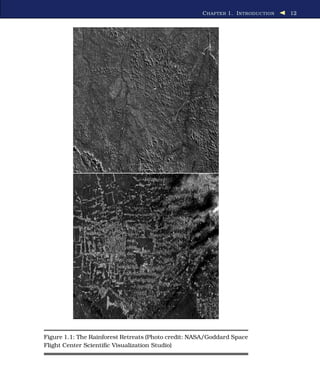
Take a look at the pictures in Figure 1.1, on the following page. The
first one shows forest cover in the Amazon basin in 1975. The second
one shows the same area 26 years later. Anyone can see that much of
the rainforest has been destroyed, but how much is “much”?
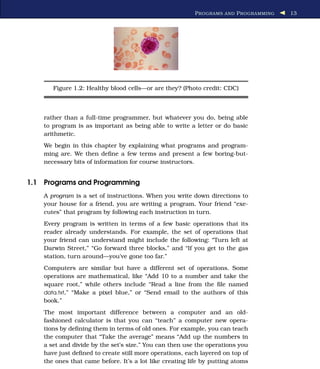
Now look at Figure 1.2, on page 13.
Are these blood cells healthy? Do any of them show signs of leukemia?
It would take an expert doctor a few minutes to tell. Multiply those
minutes by the number of people who need to be screened. There simply
aren’t enough human doctors in the world to check everyone.
This is where computers come in. Computer programs can measure the
differences between two pictures and count the number of oddly shaped
platelets in a blood sample. Geneticists use programs to analyze gene
sequences; statisticians, to analyze the spread of diseases; geologists, to
predict the effects of earthquakes; economists, to analyze fluctuations
in the stock market; and climatologists, to study global warming. More
and more scientists are writing programs to help them do their work. In
turn, those programs are making entirely new kinds of science possible.
Of course, computers are good for a lot more than just science. We used
computers to write this book; you have probably used one today to chat
with friends, find out where your lectures are, or look for a restaurant
that serves pizza and Chinese food. Every day, someone figures out how
to make a computer do something that has never been done before.
Together, those “somethings” are changing the world.
This book will teach you how to make computers do what you want
them to do. You may be planning to be a doctor, linguist, or physicist
Prepared exclusively for Trieu Nguyen
CHAPTER 1. INTRODUCTION 12
Figure 1.1: The Rainforest Retreats (Photo credit: NASA/Goddard Space
Flight Center Scientific Visualization Studio)
Report erratum
this copy is (P1.0 printing, April 2009)
Prepared exclusively for Trieu Nguyen
PROGRAMS AND PROGRAMMING 13
Figure 1.2: Healthy blood cells—or are they? (Photo credit: CDC)
rather than a full-time programmer, but whatever you do, being able
to program is as important as being able to write a letter or do basic
arithmetic.
We begin in this chapter by explaining what programs and program-
ming are. We then define a few terms and present a few boring-but-
necessary bits of information for course instructors.
1.1 Programs and Programming
A program is a set of instructions. When you write down directions to
your house for a friend, you are writing a program. Your friend “exe-
cutes” that program by following each instruction in turn.
Every program is written in terms of a few basic operations that its
reader already understands. For example, the set of operations that
your friend can understand might include the following: “Turn left at
Darwin Street,” “Go forward three blocks,” and “If you get to the gas
station, turn around—you’ve gone too far.”
Computers are similar but have a different set of operations. Some
operations are mathematical, like “Add 10 to a number and take the
square root,” while others include “Read a line from the file named
data.txt,” “Make a pixel blue,” or “Send email to the authors of this
book.”
The most important difference between a computer and an old-
fashioned calculator is that you can “teach” a computer new opera-
tions by defining them in terms of old ones. For example, you can teach
the computer that “Take the average” means “Add up the numbers in
a set and divide by the set’s size.” You can then use the operations you
have just defined to create still more operations, each layered on top of
the ones that came before. It’s a lot like creating life by putting atoms
Report erratum
this copy is (P1.0 printing, April 2009)
Prepared exclusively for Trieu Nguyen
A FEW DEFINITIONS 14
together to make proteins and then combining proteins to build cells
and giraffes.
Defining new operations, and combining them to do useful things, is
the heart and soul of programming. It is also a tremendously powerful
way to think about other kinds of problems. As Prof. Jeannette Wing
wrote [Win06], computational thinking is about the following:
• Conceptualizing, not programming. Computer science is not com-
puter programming. Thinking like a computer scientist means
more than being able to program a computer. It requires think-
ing at multiple levels of abstraction.
• A way that humans, not computers, think. Computational thinking
is a way humans solve problems; it is not trying to get humans
to think like computers. Computers are dull and boring; humans
are clever and imaginative. We humans make computers exciting.
Equipped with computing devices, we use our cleverness to tackle
problems we would not dare take on before the age of computing
and build systems with functionality limited only by our imagina-
tions.
• For everyone, everywhere. Computational thinking will be a reality
when it is so integral to human endeavors it disappears as an
explicit philosophy.
We hope that by the time you have finished reading this book, you will
see the world in a slightly different way.
1.2 A Few Definitions
One of the pieces of terminology that causes confusion is what to call
certain characters. The Python style guide (and several dictionaries) use
these names, so this book does too:
() Parentheses
[ ] Brackets
{} Braces
1.3 What to Install
For current installation instructions, please download the code from
the book website and open install/index.html in a browser. The book URL
is http://pragprog.com/titles/gwpy/practical-programming.
Report erratum
this copy is (P1.0 printing, April 2009)
Prepared exclusively for Trieu Nguyen
FOR INSTRUCTORS 15
1.4 For Instructors
This book uses the Python programming language to introduce stan-
dard CS1 topics and a handful of useful applications. We chose Python
for several reasons:
• It is free and well documented. In fact, Python is one of the largest
and best-organized open source projects going.
• It runs everywhere. The reference implementation, written in C, is
used on everything from cell phones to supercomputers, and it’s
supported by professional-quality installers for Windows, Mac OS,
and Linux.
• It has a clean syntax. Yes, every language makes this claim, but in
the four years we have been using it at the University of Toronto,
we have found that students make noticeably fewer “punctuation”
mistakes with Python than with C-like languages.
• It is relevant. Thousands of companies use it every day; it is one of
the three “official languages” at Google, and large portions of the
game Civilization IV are written in Python. It is also widely used
by academic research groups.
• It is well supported by tools. Legacy editors like Vi and Emacs all
have Python editing modes, and several professional-quality IDEs
are available. (We use a free-for-students version of one called
Wing IDE.)
We use an “objects first, classes second” approach: students are shown
how to use objects from the standard library early on but do not create
their own classes until after they have learned about flow control and
basic data structures. This compromise avoids the problem of explain-
ing Java’s public static void main(String[ ] args) to someone who has never
programmed.
We have organized the book into two parts. The first covers fundamen-
tal programming ideas: elementary data types (numbers, strings, lists,
sets, and dictionaries), modules, control flow, functions, testing, debug-
ging, and algorithms. Depending on the audience, this material can be
covered in nine or ten weeks.
The second part of the book consists of more or less independent chap-
ters on more advanced topics that assume all the basic material has
been covered. The first of these chapters shows students how to create
their own classes and introduces encapsulation, inheritance, and poly-
morphism; courses for computer science majors will want to include
Report erratum
this copy is (P1.0 printing, April 2009)
Prepared exclusively for Trieu Nguyen
SUMMARY 16
this material. The other chapters cover application areas, such as 3D
graphics, databases, GUI construction, and the basics of web program-
ming; these will appeal to both computer science majors and students
from the sciences and will allow the book to be used for both.
Lots of other good books on Python programming exist. Some are acces-
sible to novices [Guz04, Zel03], and others are for anyone with any
previous programming experience [DEM02, GL07, LA03]. You may also
want to take a look at [Pyt], the special interest group for educators
using Python.
1.5 Summary
In this book, we’ll do the following:
• We will show you how to develop and use programs that solve real-
world problems. Most of its examples will come from science and
engineering, but the ideas can be applied to any domain.
• We start by teaching you the core features of a programming lan-
guage called Python. These features are included in every modern
programming language, so you can use what you learn no matter
what you work on next.
• We will also teach you how to think methodically about program-
ming. In particular, we will show you how to break complex prob-
lems into simple ones and how to combine the solutions to those
simpler problems to create complete applications.
• Finally, we will introduce some tools that will help make your pro-
gramming more productive, as well as some others that will help
your applications cope with larger problems.
Report erratum
this copy is (P1.0 printing, April 2009)
Prepared exclusively for Trieu Nguyen
Chapter 2
Hello, Python
Programs are made up of commands that a computer can understand.
These commands are called statements, which the computer executes.
This chapter describes the simplest of Python’s statements and shows
how they can be used to do basic arithmetic. It isn’t very exciting in its
own right, but it’s the basis of almost everything that follows.
2.1 The Big Picture
In order to understand what happens when you’re programming, you
need to have a basic understanding of how a program gets executed on
a computer. The computer itself is assembled from pieces of hardware,
including a processor that can execute instructions and do arithmetic,
a place to store data such as a hard drive, and various other pieces such
as computer monitor, a keyboard, a card for connecting to a network,
and so on.
To deal with all these pieces, every computer runs some kind of operat-
ing system, such as Microsoft Windows, Linux, or Mac OS X. An oper-
ating system, or OS, is a program; what makes it special is that it’s the
only program on the computer that’s allowed direct access to the hard-
ware. When any other program on the computer wants to draw on the
screen, find out what key was just pressed on the keyboard, or fetch
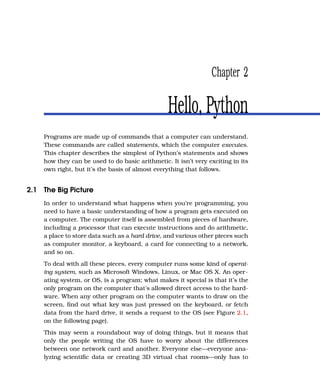
data from the hard drive, it sends a request to the OS (see Figure 2.1,
on the following page).
This may seem a roundabout way of doing things, but it means that
only the people writing the OS have to worry about the differences
between one network card and another. Everyone else—everyone ana-
lyzing scientific data or creating 3D virtual chat rooms—only has to
Prepared exclusively for Trieu Nguyen
THE BIG PICTURE 18
Hard Drive Monitor
Operating System
User Program
Figure 2.1: Talking to the operating system
learn their way around the OS, and their programs will then run on
thousands of different kinds of hardware.
Twenty-five years ago, that’s how most programmers worked. Today,
though, it’s common to add another layer between the programmer and
the computer’s hardware. When you write a program in Python, Java,
or Visual Basic, it doesn’t run directly on top of the OS. Instead, another
program, called an interpreter or virtual machine, takes your program
and runs it for you, translating your commands into a language the OS
understands. It’s a lot easier, more secure, and more portable across
operating systems than writing programs directly on top of the OS.
But an interpreter alone isn’t enough; it needs some way to interact
with the world. One way to do this is to run a text-oriented program
called a shell that reads commands from the keyboard, does what they
ask, and shows their output as text, all in one window. Shells exist for
various programming languages as well as for interacting with the OS;
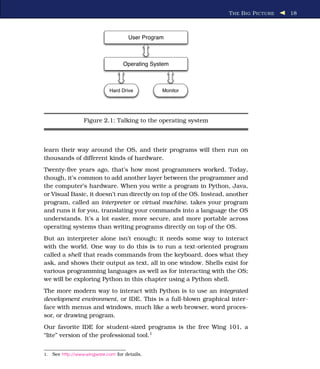
we will be exploring Python in this chapter using a Python shell.
The more modern way to interact with Python is to use an integrated
development environment, or IDE. This is a full-blown graphical inter-
face with menus and windows, much like a web browser, word proces-
sor, or drawing program.
Our favorite IDE for student-sized programs is the free Wing 101, a
“lite” version of the professional tool.1
1. See http://www.wingware.com for details.
Report erratum
this copy is (P1.0 printing, April 2009)
Prepared exclusively for Trieu Nguyen
EXPRESSIONS 19
Figure 2.2: A Python shell
Another fine IDE is IDLE, which comes bundled with Python. We prefer
Wing 101 because it was designed specifically for beginning program-
mers, but IDLE is a capable development environment.
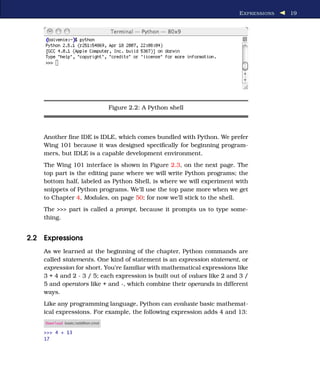
The Wing 101 interface is shown in Figure 2.3, on the next page. The
top part is the editing pane where we will write Python programs; the
bottom half, labeled as Python Shell, is where we will experiment with
snippets of Python programs. We’ll use the top pane more when we get
to Chapter 4, Modules, on page 50; for now we’ll stick to the shell.
The >>> part is called a prompt, because it prompts us to type some-
thing.
2.2 Expressions
As we learned at the beginning of the chapter, Python commands are
called statements. One kind of statement is an expression statement, or
expression for short. You’re familiar with mathematical expressions like
3 + 4 and 2 - 3 / 5; each expression is built out of values like 2 and 3 /
5 and operators like + and -, which combine their operands in different
ways.
Like any programming language, Python can evaluate basic mathemat-
ical expressions. For example, the following expression adds 4 and 13:
Download basic/addition.cmd
>>> 4 + 13
17
Report erratum
this copy is (P1.0 printing, April 2009)
Prepared exclusively for Trieu Nguyen
EXPRESSIONS 20
Figure 2.3: The Wing 101 interface
When an expression is evaluated, it produces a single result. In the
previous expression, 4 + 13 produced the result 17.
Type int
It’s not surprising that 4 + 13 is 17. However, computers do not always
play by the rules you learned in primary school. For example, look at
what happens when we divide 17 by 10:
Download basic/int_div.cmd
>>> 17 / 10
1
You would expect the result to be 1.7, but Python produces 1 instead.
This is because every value in Python has a particular type, and the
types of values determine how they behave when they’re combined.
Report erratum
this copy is (P1.0 printing, April 2009)
Prepared exclusively for Trieu Nguyen
EXPRESSIONS 21
Division in Python 3.0
In the latest version of Python (Python 3.0), 5 / 2 is 2.5 rather than
2. Python 3.0 is currently less widely used than its predecessors,
so the examples in this book use the “classic” behavior.
In Python, an expression involving values of a certain type produces
a value of that same type. For example, 17 and 10 are integers—in
Python, we say they are of type int. When we divide one by the other,
the result is also an int.
Notice that Python doesn’t round integer expressions. If it did, the
result would have been 2. Instead, it takes the floor of the interme-
diate result. If you want the leftovers, you can use Python’s modulo
operator (%) to return the remainder:
Download basic/int_mod.cmd
>>> 17 % 10
7
Be careful about using % and / with negative operands. Since Python
takes the floor of the result of an integer division, the result is one
smaller than you might expect:
Download basic/neg_int_div.cmd
>>> -17 / 10
-2
When using modulo, the sign of the result matches the sign of the
second operand:
Download basic/neg_int_mod.cmd
>>> -17 % 10
3
>>> 17 % -10
-3
Type float
Python has another type called float to represent numbers with frac-
tional parts. The word float is short for floating point, which refers to
the decimal point that moves around between digits of the number.
Report erratum
this copy is (P1.0 printing, April 2009)
Prepared exclusively for Trieu Nguyen
WHAT Is A TYPE? 22
An expression involving two floats produces a float:
Download basic/float_div_intro.cmd
>>> 17.0 / 10.0
1.7
When an expression’s operands are an int and a float, Python automati-
cally converts the int to a float. This is why the following two expressions
both return the same answer as the earlier one:
Download basic/float_division.cmd
>>> 17.0 / 10
1.7
>>> 17 / 10.0
1.7
If you want, you can omit the zero after the decimal point when writing
a floating-point number:
Download basic/float_division2.cmd
>>> 17 / 10.
1.7
>>> 17. / 10
1.7
However, most people think this is bad style, since it makes your pro-
grams harder to read: it’s very easy to miss a dot on the screen and see
“17” instead of “17.”
2.3 What Is a Type?
We’ve now seen two types of numbers, so we ought to explain exactly
what we mean by a type. In computing, a type is a set of values, along
with a set of operations that can be performed on those values. For
example, the type int is the values ..., -3, -2, -1, 0, 1, 2, 3, ..., along with
the operators +, -, *, /, and % (and a few others we haven’t introduced
yet). On the other hand, 84.2 is a member of the set of float values, but
it is not in the set of int values.
Arithmetic was invented before Python, so the int and float types have
exactly the same operators. We can see what happens when these are
applied to various values in Figure 2.4, on the next page.
Report erratum
this copy is (P1.0 printing, April 2009)
Prepared exclusively for Trieu Nguyen
WHAT Is A TYPE? 23
Operator Symbol Example Result
- Negation -5 -5
* Multiplication 8.5 * 2.5 29.75
/ Division 11 / 3 3
% Remainder 8.5 % 3.5 1.5
+ Addition 11 + 3 14
- Subtraction {5 - 19} -14
** Exponentiation 2 ** 5 32
Figure 2.4: Arithmetic operators
Finite Precision
Floating-point numbers are not exactly the fractions you learned in
grade school. For example, take a look at Python’s version of the frac-
tion 1
3 (remember to include a decimal point so that the result isn’t
truncated):
Download basic/rate.cmd
>>> 1.0 / 3.0
0.33333333333333331
What’s that 1 doing at the end? Shouldn’t it be a 3? The problem is
that real computers have a finite amount of memory, which limits how
much information they can store about any single number. The number
0.33333333333333331 turns out to be the closest value to 1
3 that the
computer can actually store.
Operator Precedence
Let’s put our knowledge of ints and floats to use to convert Fahrenheit to
Celsius. To do this, we subtract 32 from the temperature in Fahrenheit
and then multiply by 5
9 :
Download basic/precedence.cmd
>>> 212 - 32.0 * 5.0 / 9.0
194.22222222222223
Python claims the result is 194.222222222222232
degrees Celsius
when in fact it should be 100. The problem is that * and / have higher
2. This is another floating-point approximation.
Report erratum
this copy is (P1.0 printing, April 2009)
Prepared exclusively for Trieu Nguyen
WHAT Is A TYPE? 24
More on Numeric Precision
Computers use the same amount of memory to store an inte-
ger regardless of that integer’s value, which means that -22984,
-1, and 100000000 all take up the same amount of room.
Because of this, computers can store int values only in a certain
range. A modern desktop or laptop machine, for example, can
store the numbers only from -2147483648 to 2147483647. (We’ll
take a closer look in the exercises at where these bounds come
from.)
Computers can store only approximations to real numbers for
the same reason. For example, 1
4 can be stored exactly, but as
we’ve already seen, 1
3 cannot. Using more memory won’t solve
the problem, though it will make the approximation closer to
the real value, just as writing a larger number of 3s after the 0 in
0.333... doesn’t make it exactly equal to 1
3 .
The difference between 1
3 and 0.33333333333333331 may look
tiny. But if we use that value in a calculation, then the error
may get compounded. For example, if we add the float to
itself, the result ends in ...6662; that is a slightly worse approxima-
tion to 2
3 than 0.666.... As we do more calculations, the round-
ing errors can get larger and larger, particularly if we’re mix-
ing very large and very small numbers. For example, suppose
we add 10,000,000,000 and 0.00000000001. The result ought to
have twenty zeroes between the first and last significant digit,
but that’s too many for the computer to store, so the result is just
10,000,000,000—it’s as if the addition never took place. Adding
lots of small numbers to a large one can therefore have no
effect at all, which is not what a bank wants when it totals up
the values of its customers’ savings accounts.
It’s important to be aware of the floating-point issue so that
your programs don’t bite you unexpectedly, but the solutions to
this problem are beyond the scope of this text. In fact, numeri-
cal analysis, the study of algorithms to approximate continuous
mathematics, is one of the largest subfields of computer sci-
ence and mathematics.
Report erratum
this copy is (P1.0 printing, April 2009)
Prepared exclusively for Trieu Nguyen
VARIABLES AND THE ASSIGNMENT STATEMENT 25
Operator Symbol
** Exponentiation
- Negation
*, /, % Multiplication, division, and remainder
+- Addition and subtraction
Figure 2.5: Arithmetic operators by precedence
precedence than -; in other words, when an expression contains a mix
of operators, * and / are evaluated before - and +. This means that what
we actually calculated was 212 - ((32.0 * 5.0) / 9.0).
We can alter the order of precedence by putting parentheses around
parts of the expression, just as we did in Mrs. Singh’s fourth-grade
class:
Download basic/precedence_diff.cmd
>>> (212 - 32.0) * 5.0 / 9.0
100.0
The order of precedence for arithmetic operators is listed in Figure 2.5.
It’s a good rule to parenthesize complicated expressions even when you
don’t need to, since it helps the eye read things like 1+1.7+3.2*4.4-16/3.
2.4 Variables and the Assignment Statement
Most handheld calculators3
have one or more memory buttons. These
store a value so that it can be used later. In Python, we can do this
with a variable, which is just a name that has a value associated with
it. Variables’ names can use letters, digits, and the underscore symbol.
For example, X, species5618, and degrees_celsius are all allowed, but 777
isn’t (it would be confused with a number), and neither is no-way! (it
contains punctuation).
You create a new variable simply by giving it a value:
Download basic/assignment.cmd
>>> degrees_celsius = 26.0
3. And cell phones, and wristwatches, and...
Report erratum
this copy is (P1.0 printing, April 2009)
Prepared exclusively for Trieu Nguyen
VARIABLES AND THE ASSIGNMENT STATEMENT 26
degrees_celsius 26.0
Figure 2.6: Memory model for a variable and its associated value
This statement is called an assignment statement; we say that degrees_
celsius is assigned the value 26.0. An assignment statement is executed
as follows:
1. Evaluate the expression on the right of the = sign.
2. Store that value with the variable on the left of the = sign.
In Figure 2.6, we can see the memory model for the result of the assign-
ment statement. It’s pretty simple, but we will see more complicated
memory models later.
Once a variable has been created, we can use its value in other cal-
culations. For example, we can calculate the difference between the
temperature stored in degrees_celsius and the boiling point of water like
this:
Download basic/variable.cmd
>>> 100 - degrees_celsius
74.0
Whenever the variable’s name is used in an expression, Python uses
the variable’s value in the calculation. This means that we can create
new variables from old ones:
Download basic/assignment2.cmd
>>> difference = 100 - degrees_celsius
Typing in the name of a variable on its own makes Python display its
value:
Download basic/variable2.cmd
>>> difference
74.0
What happened here is that we gave Python a very simple expression—
one that had no operators at all—so Python evaluated it and showed us
the result.
Report erratum
this copy is (P1.0 printing, April 2009)
Prepared exclusively for Trieu Nguyen
VARIABLES AND THE ASSIGNMENT STATEMENT 27
It’s no more mysterious than asking Python what the value of 3 is:
Download basic/simplevalue.cmd
>>> 3
3
Variables are called variables because their values can change as the
program executes. For example, we can assign difference a new value:
Download basic/variable3.cmd
>>> difference = 100 - 15.5
>>> difference
84.5
This does not change the results of any calculations done with that
variable before its value was changed:
Download basic/variable4.cmd
>>> difference = 20
>>> double = 2 * difference
>>> double
40
>>> difference = 5
>>> double
40
As the memory models illustrate in Figure 2.7, on the following page,
once a value is associated with double, it stays associated until the pro-
gram explicitly overwrites it. Changes to other variables, like difference,
have no effect.
We can even use a variable on both sides of an assignment statement:
Download basic/variable5.cmd
>>> number = 3
>>> number
3
>>> number = 2 * number
>>> number
6
>>> number = number * number
>>> number
36
This wouldn’t make much sense in mathematics—a number cannot be
equal to twice its own value—but = in Python doesn’t mean “equals to.”
Instead, it means “assign a value to.”
Report erratum
this copy is (P1.0 printing, April 2009)
Prepared exclusively for Trieu Nguyen
VARIABLES AND THE ASSIGNMENT STATEMENT 28
difference 20
difference 20
double 40
difference 5
double 40
>>> difference = 20
>>> double = 2 * difference
>>> difference = 5
Figure 2.7: Changing a variable’s value
When a statement like number = 2 * number is evaluated, Python does the
following:
1. Gets the value currently associated with number
2. Multiplies it by 2 to create a new value
3. Assigns that value to number
Combined Operators
In the previous example, variable number appeared on both sides of
the assignment statement. This is so common that Python provides a
shorthand notation for this operation:
Download basic/variable6.cmd
>>> number = 100
>>> number -= 80
>>> number
20
Here is how a combined operator is evaluated:
1. Evaluate the expression to the right of the = sign.
2. Apply the operator attached to the = sign to the variable and the
result of the expression.
3. Assign the result to the variable to the left of the = sign.
Report erratum
this copy is (P1.0 printing, April 2009)
Prepared exclusively for Trieu Nguyen
WHEN THINGS GO WRONG 29
Note that the operator is applied after the expression on the right is
evaluated:
Download basic/variable7.cmd
>>> d = 2
>>> d *= 3 + 4
>>> d
14
All the operators in Figure 2.5, on page 25, have shorthand versions.
For example, we can square a number by multiplying it by itself:
Download basic/variable8.cmd
>>> number = 10
>>> number *= number
>>> number
100
which is equivalent to this:
Download basic/variable9.cmd
>>> number = 10
>>> number = number * number
>>> number
100
2.5 When Things Go Wrong
We said earlier that variables are created by assigning them values.
What happens if we try to use a variable that hasn’t been created yet?
Download basic/undefined_var.cmd
>>> 3 + something
Traceback (most recent call last):
File "<stdin>", line 1, in <module>
NameError: name 'something' is not defined
This is pretty cryptic. In fact, Python’s error messages are one of its few
weaknesses from the point of view of novice programmers. The first two
lines aren’t much use right now, though they’ll be indispensable when
we start writing longer programs. The last line is the one that tells us
what went wrong: the name something wasn’t recognized.
Report erratum
this copy is (P1.0 printing, April 2009)
Prepared exclusively for Trieu Nguyen
FUNCTION BASICS 30
Here’s another error message you might sometimes see:
Download basic/syntax_error.cmd
>>> 2 +
File "<stdin>", line 1
2 +
^
SyntaxError: invalid syntax
The rules governing what is and isn’t legal in a programming language
(or any other language) are called its syntax. What this message is
telling us is that we violated Python’s syntax rules—in this case, by
asking it to add something to 2 but not telling it what to add.
2.6 Function Basics
Earlier in this chapter, we converted 80 degrees Fahrenheit to Celsius.
A mathematician would write this as f(t)=5
9 (t-32), where t is the tem-
perature in Fahrenheit that we want to convert to Celsius. To find out
what 80 degrees Fahrenheit is in Celsius, we replace t with 80, which
gives us f (80) = 5
9 (80-32), or 262
3 .
We can write functions in Python, too. As in mathematics, they are used
to define common formulas. Here is the conversion function in Python:
Download basic/fahr_to_cel.cmd
>>> def to_celsius(t):
... return (t - 32.0) * 5.0 / 9.0
...
It has these major differences from its mathematical equivalent:
• A function definition is another kind of Python statement; it de-
fines a new name whose value can be rather complicated but is
still just a value.
• The keyword def is used to tell Python that we’re defining a new
function.
• We use a readable name like to_celsius for the function rather than
something like f whose meaning will be hard to remember an hour
later. (This isn’t actually a requirement, but it’s good style.)
• There is a colon instead of an equals sign.
• The actual formula for the function is defined on the next line. The
line is indented four spaces and marked with the keyword return.
Report erratum
this copy is (P1.0 printing, April 2009)
Prepared exclusively for Trieu Nguyen
FUNCTION BASICS 31
Python displays a triple-dot prompt automatically when you’re in the
middle of defining a new function; you do not type the dots any more
than you type the greater-than signs in the usual >>> prompt. If you’re
using a smart editor, like the one in Wing 101, it will automatically
indent the body of the function by the required amount. (This is another
reason to use Wing 101 instead of a basic text editor like Notepad or
Pico: it saves a lot of wear and tear on your spacebar and thumb.)
Here is what happens when we ask Python to evaluate to_celsius(80),
to_celsius(78.8), and to_celsius(10.4):
Download basic/fahr_to_cel_2.cmd
>>> to_celsius(80)
26.666666666666668
>>> to_celsius(78.8)
26.0
>>> to_celsius(10.4)
-12.0
Each of these three statements is called a function call, because we’re
calling up the function to do some work for us. We have to define a
function only once; we can call it any number of times.
The general form of a function definition is as follows:
def function_name(parameters):
block
As we’ve already seen, the def keyword tells Python that we’re defin-
ing a new function. The name of the function comes next, followed by
zero or more parameters in parentheses and a colon. A parameter is
a variable (like t in the function to_celsius) that is given a value when
the function is called. For example, 80 was assigned to t in the func-
tion call to_celsius(80), and then 78.8 in to_celsius(78.8), and then 10.4
in to_celsius(10.4). Those actual values are called the arguments to the
function.
What the function does is specified by the block of statements inside
it. to_celsius’s block consisted of just one statement, but as we’ll see
later, the blocks making up more complicated functions may be many
statements long.
Finally, the return statement has this general form:
return expression
Report erratum
this copy is (P1.0 printing, April 2009)
Prepared exclusively for Trieu Nguyen
FUNCTION BASICS 32
def to_celsius(t):
return (t - 32.0) * 5.0 / 9.0
to_celsius(80)
(rest of program)
1
2
3
4
Figure 2.8: Function control flow
and is executed as follows:
1. Evaluate the expression to the right of the keyword return.
2. Use that value as the result of the function.
It’s important to be clear on the difference between a function definition
and a function call. When a function is defined, Python records it but
doesn’t execute it. When the function is called, Python jumps to the
first line of that function and starts running it (see Figure 2.8). When
the function is finished, Python returns to the place where the function
was originally called.
Local Variables
Some computations are complex, and breaking them down into sepa-
rate steps can lead to clearer code. Here, we break down the evaluation
of the polynomial ax2
+ bx + c into several steps:
Download basic/multi_statement_block.cmd
>>> def polynomial(a, b, c, x):
... first = a * x * x
... second = b * x
... third = c
... return first + second + third
...
>>> polynomial(2, 3, 4, 0.5)
6.0
>>> polynomial(2, 3, 4, 1.5)
13.0
Variables like first, second, and third that are created within a function
are called local variables. These variables exist only during function
execution; when the function finishes executing, the variables no longer
exist. This means that trying to access a local variable from outside the
Report erratum
this copy is (P1.0 printing, April 2009)
Prepared exclusively for Trieu Nguyen
BUILT -IN FUNCTIONS 33
function is an error, just like trying to access a variable that has never
been defined:
Download basic/local_variable.cmd
>>> polynomial(2, 3, 4, 1.3)
11.280000000000001
>>> first
Traceback (most recent call last):
File "<stdin>", line 1, in <module>
NameError: name 'first' is not defined
>>> a
Traceback (most recent call last):
File "<stdin>", line 1, in <module>
NameError: name 'a' is not defined
As you can see from this example, a function’s parameters are also local
variables. When a function is called, Python assigns the argument val-
ues given in the call to the function’s parameters. As you might expect,
if a function is defined to take a certain number of parameters, it must
be passed the same number of arguments:4
Download basic/matching_args_params.cmd
>>> polynomial(1, 2, 3)
Traceback (most recent call last):
File "<stdin>", line 1, in <module>
TypeError: polynomial() takes exactly 4 arguments (3 given)
The scope of a variable is the area of the program that can access it.
For example, the scope of a local variable runs from the line on which
it is first defined to the end of the function.
2.7 Built-in Functions
Python comes with many built-in functions that perform common oper-
ations. One example is abs, which produces the absolute value of a
number:
Download basic/abs.cmd
>>> abs(-9)
9
4. We’ll see later how to create functions that take any number of arguments.
Report erratum
this copy is (P1.0 printing, April 2009)
Prepared exclusively for Trieu Nguyen
STYLE NOTES 34
Another is round, which rounds a floating-point number to the nearest
integer:
Download basic/round.cmd
>>> round(3.8)
4.0
>>> round(3.3)
3.0
>>> round(3.5)
4.0
Just like user-defined functions, Python’s built-in functions can take
more than one argument. For example, we can calculate 24
using the
power function pow:
Download basic/two_args.cmd
>>> pow(2, 4)
16
Some of the most useful built-in functions are ones that convert from
one type to another. The type names int and float can be used as if they
were functions:
Download basic/typeconvert.cmd
>>> int(34.6)
34
>>> float(21)
21.0
In this example, we see that when a floating-point number is converted
to an integer and truncated, not rounded.
2.8 Style Notes
Psychologists have discovered that people can keep track of only a
handful of things at any one time [Hoc04]. Since programs can get quite
complicated, it’s important that you choose names for your variables
that will help you remember what they’re for. X1, X2, and blah won’t
remind you of anything when you come back to look at your program
next week; use names like celsius, average, and final_result instead.
Other studies have shown that your brain automatically notices differ-
ences between things—in fact, there’s no way to stop it from doing this.
As a result, the more inconsistencies there are in a piece of text, the
longer it takes to read. (JuSt thInK a bout how long It w o u l d tAKE
you to rEa d this cHaPTer iF IT wAs fORmaTTeD like thIs.) It’s therefore
Report erratum
this copy is (P1.0 printing, April 2009)
Prepared exclusively for Trieu Nguyen
SUMMARY 35
also important to use consistent names for variables. If you call some-
thing maximum in one place, don’t call it max_val in another; if you use
the name max_val, don’t also use the name maxVal, and so on.
These rules are so important that many programming teams require
members to follow a style guide for whatever language they’re using,
just as newspapers and book publishers specify how to capitalize head-
ings and whether to use a comma before the last item in a list. If you
search the Internet for programming style guide, you’ll discover links to
hundreds of examples.
You will also discover that lots of people have wasted many hours argu-
ing over what the “best” style for code is. Some of your classmates may
have strong opinions about this as well. If they do, ask them what data
they have to back up their beliefs, in other words, whether they know of
any field studies that prove that spaces after commas make programs
easier to read than no spaces. If they can’t cite any studies, pat them
on the back and send them on their deluded way.
2.9 Summary
In this chapter, we learned the following:
• An operating system is a program that manages your computer’s
hardware on behalf of other programs. An interpreter or virtual
machine is a program that sits on top of the operating system and
runs your programs for you. Building layers like this is the best
way we have found so far for constructing complicated systems.
• Programs are made up of statements. These can be simple expres-
sions (which are evaluated immediately), assignment statements
(which create new variables or change the values of existing vari-
ables), and function definitions (which teach Python how to do
new things).
• Every value in Python has a specific type, which determines what
operations can be applied to it. The two types used to represent
numbers are int and float.
• Expressions are evaluated in a particular order. However, you can
change that order by putting parentheses around subexpressions.
• Variables must be given values before they are used.
Report erratum
this copy is (P1.0 printing, April 2009)
Prepared exclusively for Trieu Nguyen
EXERCISES 36
• When a function is called, the values of its arguments are assigned
to its parameters, the statements inside the function are executed,
and a value is returned. The values assigned to the function’s
parameters, and the values of any local variables created inside
the function, are forgotten after the function returns.
• Python comes with predefined functions called built-ins.
2.10 Exercises
Here are some exercises for you to try on your own:
1. For each of the following expressions, what value will the expres-
sion give? Verify your answers by typing the expressions into
Python.
a) 9 - 3
b) 8 * 2.5
c) 9 / 2
d) 9 / -2
e) 9 % 2
f) 9 % -2
g) -9 % 2
h) 9 / -2.0
i) 4 + 3 * 5
j) (4 + 3) * 5
2. Unary minus negates a number. Unary plus exists as well; for
example, Python understands +5. If x has the value -17, what do
you think +x should do? Should it leave the sign of the number
alone? Should it act like absolute value, removing any negation?
Use the Python shell to find out its behavior.
3. a) Create a new variable temp, and assign it the value 24.
b) Convert the value in temp from Celsius to Fahrenheit by mul-
tiplying by 1.8 and adding 32; associate the resulting value
with temp. What is temp’s new value?
4. a) Create a new variable x, and assign it the value 10.5.
Report erratum
this copy is (P1.0 printing, April 2009)
Prepared exclusively for Trieu Nguyen
EXERCISES 37
b) Create a new variable y, and assign it the value 4.
c) Sum x and y, and associate the resulting value with x. What
are x and y’s new values?
5. Write a bullet list description of what happens when Python eval-
uates the statement x += x - x when x has the value 3.
6. The function name to_celsius is problematic: it doesn’t mention the
original unit, and it isn’t a verb phrase. (Many function names
are verb phrases because functions actively do things.) We also
assumed the original unit was Fahrenheit, but Kelvin is a tem-
perature scale too, and there are many others (see Section 6.5,
Exercises, on page 127 for a discussion of them).
We could use a longer name such as fahrenheit_to_celsius or even
convert_fahrenheit_to_celsius. We could abbreviate it as fahr_to_cel,
make it much shorter and use f2c, or even just use f. Write a para-
graph describing which name you think is best and why. Consider
ease of remembering, ease of typing, and readability. Don’t forget
to consider people whose first language isn’t English.
7. In the United States, a car’s fuel efficiency is measured in miles
per gallon. In the metric system, it is usually measured in liters
per 100 kilometers.
a) Write a function called convert_mileage that converts from
miles per gallon to liters per 100 kilometers.
b) Test that your functions returns the right values for 20 and
40 miles per gallon.
c) How did you figure out what the right value was? How closely
do the computer’s results match the ones you expected?
8. Explain the difference between a parameter and an argument.
9. a) Define a function called liters_needed that takes a value repre-
senting a distance in kilometers and a value representing gas
mileage for a vehicle and returns the amount of gas needed
in liters to travel that distance. Your definition should call the
function convert_mileage that you defined as part of a previous
exercise.
b) Verify that liters_needed(150, 30) returns 11.761938367442955
and liters_needed(100, 30) returns 7.84129224496197.
Report erratum
this copy is (P1.0 printing, April 2009)
Prepared exclusively for Trieu Nguyen
EXERCISES 38
c) When liters_needed is called with arguments 100 and 30, what
is the value of the argument to convert_mileage?
d) The function call liters_needed(100, 30) results in a call to con-
vert_mileage. Which of those two functions finishes executing
first?
10. We’ve seen built-in functions abs, round, pow, int, and float. Using
these functions, write expressions that do the following:
a) Calculate 3 to the power of 7.
b) Convert 34.7 to an integer by truncating.
c) Convert 34.7 to an integer by rounding.
d) Take the absolute value of -86, then convert it to a floating-
point number.
Report erratum
this copy is (P1.0 printing, April 2009)
Prepared exclusively for Trieu Nguyen
Chapter 3
Strings
Numbers are fundamental to computing—in fact, crunching numbers
is what computers were invented to do—but there are many other kinds
of data in the world as well, such as addresses, pictures, and music.
Each of these can be represented as a data type, and knowing how to
manipulate those data types is a big part of being able to program. This
chapter introduces a non-numeric data type that represents text, such
as the words in this sentence or a strand of DNA. Along the way, we
will see how to make programs a little more interactive.
3.1 Strings
Computers may have been invented to do arithmetic, but these days,
most of them spend a lot of their time processing text. From desktop
chat programs to Google, computers create text, store it, search it, and
move it from one place to another.
In Python, a piece of text is represented as a string, which is a sequence
of characters (letters, numbers, and symbols). The simplest data type
for storing sequences of characters is str; it can store characters from
the Latin alphabet found on most North American keyboards. Another
data type called unicode can store strings containing any characters at
all, including Chinese ideograms, chemical symbols, and Klingon. We
will use the simpler type, str, in our examples.
Prepared exclusively for Trieu Nguyen
STRINGS 40
In Python, we indicate that a value is a string by putting either single
or double quotes around it:
Download strings/string.cmd
>>> 'Aristotle'
'Aristotle'
>>> "Isaac Newton"
'Isaac Newton'
The quotes must match:
Download strings/mismatched_quotes.cmd
>>> 'Charles Darwin"
File "<stdin>", line 1
'Charles Darwin"
^
SyntaxError: EOL while scanning single-quoted string
We can join two strings together by putting them side by side:
Download strings/concat.cmd
>>> 'Albert' 'Einstein'
'AlbertEinstein'
Notice that the words Albert and Einstein run together. If we want a space
between the words, then we can add a space either to the end of Albert
or to the beginning of Einstein:
Download strings/concat_space.cmd
>>> 'Albert ' 'Einstein'
'Albert Einstein'
>>> 'Albert' ' Einstein'
'Albert Einstein'
It’s almost always clearer to join strings with +. When + has two string
operands, then it is referred to as the concatenation operator:
Download strings/concat2.cmd
>>> 'Albert' + ' Einstein'
'Albert Einstein'
Since the + operator is used for both numeric addition and for string
concatenation, we call this an overloaded operator. It performs different
functions based on the type of operands that it is applied to.
The shortest string is the empty string, containing no characters at all.
Report erratum
this copy is (P1.0 printing, April 2009)
Prepared exclusively for Trieu Nguyen
STRINGS 41
As the following example shows, it’s the textual equivalent of 0—adding
it to another string has no effect:
Download strings/empty_string.cmd
>>> ''
''
>>> "Alan Turing" + ''
'Alan Turing'
>>> "" + 'Grace Hopper'
'Grace Hopper'
Here is an interesting question: can the + operator be applied to a string
and numeric value? If so, what function would be applied, addition or
concatenation? We’ll give it a try:
Download strings/concat3.cmd
>>> 'NH' + 3
Traceback (most recent call last):
File "<stdin>", line 1, in ?
TypeError: cannot concatenate 'str' and 'int' objects
>>> 9 + ' planets'
Traceback (most recent call last):
File "<stdin>", line 1, in ?
TypeError: unsupported operand type(s) for +: 'int' and 'str'
This is the second time Python has told us that we have a type error.
The first time, in Section 2.6, Local Variables, on page 32, the problem
was not passing the right number of parameters to a function. Here,
Python took exception to our attempts to add values of different data
types, because it doesn’t know which version of + we want: the one that
adds numbers or the one that concatenates strings.
In this case, it’s easy for a human being to see what the right answer
is. But what about this example?
Download strings/concat4.cmd
>>> '123' + 4
Should Python produce the string ’1234’ or the integer 127? The answer
is that it shouldn’t do either: if it guesses what we want, it’ll be wrong
at least some of the time, and we will have to try to track down the
problem without an error message to guide us.1
1. If you still aren’t convinced, consider this: in JavaScript (a language used for web
programming), ’7’+0 is the string ’70’, but ’7’-0 is 7.
Report erratum
this copy is (P1.0 printing, April 2009)
Prepared exclusively for Trieu Nguyen
ESCAPE CHARACTERS 42
If you want to put a number in the middle of a string, the easiest way is
to convert it via the built-in str function and then do the concatenation:
Download strings/concat4.cmd
>>> '123' + 4
The fact that Python will not combine strings and numbers using +
doesn’t mean that other operators can’t combine strings and integers.
In particular, we can repeat a string using the * operator, like this:
Download strings/repeat.cmd
>>> 'AT' * 5
'ATATATATAT'
>>> 4 * '-'
'----'
If the integer is less than or equals to zero, then this operator yields the
empty string (a string containing no characters):
Download strings/repeat2.cmd
>>> 'GC' * 0
''
>>> 'TATATATA' * -3
''
3.2 Escape Characters
Suppose you want to put a single quote inside a string. If you write it
directly, Python will complain:
Download strings/single_in_single.cmd
>>> 'that's not going to work'
File "<stdin>", line 1
'that's not going to work'
^
SyntaxError: invalid syntax
The problem is that when Python sees the second quote—the one that
you think of as being part of the string—it thinks the string is over. It
then doesn’t know what to do with all the stuff that comes after the
second quote.
One simple way to fix this is to use double quotes around the string:
Download strings/single_in_double.cmd
>>> "that's better"
"that's better"
Report erratum
this copy is (P1.0 printing, April 2009)
Prepared exclusively for Trieu Nguyen
MULTILINE STRINGS 43
Escape Sequence Description
n End of line
 Backslash
’ Single quote
" Double quote
t Tab
Figure 3.1: Escape sequences
If you need to put a double quote in a string, you can use single quotes
around the string. But what if you want to put both kinds of quote in
one string? You could do this:
Download strings/adding_quotes.cmd
>>> 'She said, "That' + "'" + 's hard to read."'
Luckily, there’s a better way. If you type the previous expression into
Python, the result is as follows:
Download strings/adding_quotes_output.cmd
'She said, "That's hard to read."'
The combination of the backslash and the single quote is called an
escape sequence. The name comes from the fact that we’re “escaping”
from Python’s usual syntax rules for a moment. When Python sees a
backslash inside a string, it means that the next character represents
something special—in this case, a single quote, rather than the end of
the string. The backslash is called an escape character, since it signals
the start of an escape sequence.
As shown in Figure 3.1, Python recognizes several escape sequences.
In order to see how most are used, we will have to introduce two more
ideas: multiline strings and printing.
3.3 Multiline Strings
If you create a string using single or double quotes, the whole string
must fit onto a single line.
Report erratum
this copy is (P1.0 printing, April 2009)
Prepared exclusively for Trieu Nguyen
PRINT 44
Here’s what happens when you try to stretch a string across multiple
lines:
Download strings/multi1.cmd
>>> 'one
Traceback (most recent call last):
File "<string>", line 1, in <string>
Could not execute because an error occurred:
EOL while scanning single-quoted string: <string>, line 1, pos 4:
'one
EOL stands for “end of line,” so in this error report, Python is saying
that it reached the end of the line before it found the end of the string.
To span multiple lines, put three single quotes or three double quotes
around the string instead of one of each. The string can then span as
many lines as you want:
Download strings/multi2.cmd
>>> '''one
... two
... three'''
'onentwonthree'
Notice that the string Python creates contains a n sequence every-
where our input started a new line. In reality, each of the three major
operating systems uses a different set of characters to indicate the end
of a line. This set of characters is called a newline. On Linux, a newline
is one ’n’ character; on Mac OS X, it is one ’r’; and on Windows, the
ends of lines are marked with both characters as ’rn’.
Python always uses a single n to indicate a newline, even on operating
systems like Windows that do things other ways. This is called normal-
izing the string; Python does this so that you can write exactly the same
program no matter what kind of machine you’re running on.
3.4 Print
So far, we have been able to display the value of only one variable or
expression at a time. Real programs often want to display more infor-
mation, such as the values of multiple variable values. This can be done
using a print statement:
Download strings/print3.cmd
>>> print 1 + 1
2
Report erratum
this copy is (P1.0 printing, April 2009)
Prepared exclusively for Trieu Nguyen
FORMATTED PRINTING 45
>>> print "The Latin 'oryctolagus cuniculus' means 'domestic rabbit'."
The Latin 'Oryctolagus cuniculus' means 'domestic rabbit'.
The first statement does what you’d expect from the numeric examples
we’ve seen previously, but the second does something slightly different
from previous string examples: it strips off the quotes around the string
and shows us the string’s contents, rather than its representation. This
example makes the difference between the two even clearer:
Download strings/print4.cmd
>>> print 'In 1859, Charles Darwin revolutionized biology'
In 1859, Charles Darwin revolutionized biology
>>> print 'and our understanding of ourselves'
and our understanding of ourselves
>>> print 'by publishing "On the Origin of Species".'
by publishing "On the Origin of Species".
And the following example shows that when Python prints a string, it
prints the values of any escape sequences in the string, rather than
their backslashed representations:
Download strings/print5.cmd
>>> print 'onettwonthreetfour'
one two
three four
This example shows how the tab character t can be used to lay values
out in columns. A print statement takes a comma-separated list of items
to print and displays them on a line of their own. If no values are given,
print simply displays a blank line. You can use any mix of types in the
list; Python always inserts a single space between each value:
Download strings/print_var.cmd
>>> area = 3.14159 * 5 * 5
>>> print "The area of the circle is", area, "sq cm."
The area of the circle is 78.539750 sq cm.
3.5 Formatted Printing
Sometimes, Python’s default printing rules aren’t what we want. In
these cases, we can specify the exact format we want for our output
by providing Python with a format string:
Download strings/print.cmd
>>> print "The area of the circle is %f sq cm." % area
The area of the circle is 78.539750 sq cm.
Report erratum
this copy is (P1.0 printing, April 2009)
Prepared exclusively for Trieu Nguyen
USER INPUT 46
In the previous statement, %f is a conversion specifier. It indicates where
the value of the variable area is to be inserted. Other markers that we
might use are %s, to insert a string value, and %d, to insert an integer.
The letter following the % is called the conversion type.
The % between the string and the value being inserted is another over-
loaded operator. We used % earlier for modulo; here, it is the string
formatting operator. It does not modify the string on its left side, any
more than the + in 3 + 5 changes the value of 3. Instead, the string
formatting operator returns a new string.
We can use the string formatting operator to lay out several values at
once. Here, for example, we are laying out a float and an int at the same
time:
Download strings/print2.cmd
>>> rabbits = 17
>>> cage = 10
>>> print "%f rabbits are in cage #%d." % (rabbits, cage)
17.000000 rabbits are in cage #10.
As we said earlier, print automatically puts a newline at the end of a
string. This isn’t necessarily what we want; for example, we might want
to print several pieces of data separately and have them all appear on
one line. To prevent the newline from being added, put a comma at the
end of the print statement:
Download strings/print_multiline2.cmd
>>> print rabbits,
17>>>
3.6 User Input
In an earlier chapter, we explored some built-in functions. Another
built-in function that you will find useful is raw_input, which reads a sin-
gle line of text from the keyboard. The “raw” part means that it returns
whatever the user enters as a string, even if it looks like a number:
Download strings/user_input.cmd
>>> line = raw_input()
Galapagos Islands
>>> print line
Galapagos Islands
>>> line = raw_input()
123
Report erratum
this copy is (P1.0 printing, April 2009)
Prepared exclusively for Trieu Nguyen
SUMMARY 47
>>> print line * 2
123123
If you are expecting the user to enter a number, you must use int or
float to convert the string to the required type:
Download strings/user_input2.cmd
>>> value = raw_input()
123
>>> value = int(value)
>>> print value * 2
246
>>> value = float(raw_input())
Galapagos
Traceback (most recent call last):
File "<stdin>", line 1, in <module>
ValueError: invalid literal for float(): Galapagos
Finally, raw_input can be given a string argument, which is used to
prompt the user for input:
Download strings/raw_input_param.cmd
>>> name = raw_input("Please enter a name: ")
Please enter a name: Darwin
>>> print name
Darwin
3.7 Summary
In this chapter, we learned the following:
• Python uses the string type str to represent text as sequences of
characters.
• Strings are usually created by placing pairs of single or double
quotes around the text. Multiline strings can be created using
matching pairs of triple quotes.
• Special characters like newline and tab are represented using es-
cape sequences that begin with a backslash.
• Values can be displayed on the screen using a print statement and
input can be provided by the user using raw_input.
Report erratum
this copy is (P1.0 printing, April 2009)
Prepared exclusively for Trieu Nguyen
EXERCISES 48
3.8 Exercises
Here are some exercises for you to try on your own:
1. For each of the following expressions, what value will the expres-
sion give? Verify your answers by typing the expressions into the
Python shell.
a) ’Comp’ ’Sci’
b) ’Computer’ + ’ Science’
c) ’H20’ * 3
d) ’C02’ * 0
2. For each of the following phrases, express them as Python strings
using the appropriate type of quotation marks (single, double or
triple) and, if necessary, escape sequences:
a) They’ll hibernate during the winter.
b) “Absolutely not,” he said.
c) “He said, ’Absolutely not,”’ recalled Mel.
d) hydrogen sulfide
e) leftright
3. Rewrite the following string using single or double quotes instead
of triple quotes:
'''A
B
C'''
4. Use the built-in function len to find the length of the empty string.
5. Given variables x and y, which refer to values 3 and 12.5 respec-
tively, use print to display the following messages. When numbers
appear in the messages, the variables x and y should be used in
the print statement.
a) The rabbit is 3.
b) The rabbit is 3 years old.
c) 12.5 is average.
d) 12.5 * 3
e) 12.5 * 3 is 37.5.
Report erratum
this copy is (P1.0 printing, April 2009)
Prepared exclusively for Trieu Nguyen
EXERCISES 49
6. State whether each expression listed here evaluates to True or False:
a) ’g’ == "g"
b) ’g’ == ’G’
c) ’a’ ≥ ’b’
d) ’ant’ < ’abc’
e) ’ant’ > ’Ant’
f) ’ant’ > ’Abc’
g) ’ant’ < ’anti’
7. Use raw_input to prompt the user for a number and store the num-
ber entered as a float in a variable named num, and then print the
contents of num.
8. If you enter two strings side by side in Python, it automatically
concatenates them:
>>> 'abc' 'def'
'abcdef'
If those same strings are stored in variables, though, putting them
side by side is a syntax error:
>>> left = 'abc'
>>> right = 'def'
>>> left right
File "<stdin>", line 1
left right
^
SyntaxError: invalid syntax
Why do you think Python doesn’t let you do this?
9. Some people believe that multiplying a string by a negative num-
ber ought to produce an error, rather than an empty string. Ex-
plain why they might think this. If you agree, explain why; if you
don’t, explain why not.
Report erratum
this copy is (P1.0 printing, April 2009)
Prepared exclusively for Trieu Nguyen
Chapter 4
Modules
Mathematicians don’t prove every theorem from scratch. Instead, they
build their proofs on the truths their predecessors have already estab-
lished. In the same way, it’s vanishingly rare for someone to write all of
a program herself; it’s much more common—and productive—to make
use of the millions of lines of code that other programmers have written
before.
A module is a collection of functions that are grouped together in a
single file. Functions in a module are usually related to each other in
some way; for example, the math module contains mathematical func-
tions such as cos (cosine) and sqrt (square root). This chapter shows you
how to use some of the hundreds of modules that come with Python and
how to create new modules of your own. You will also see how you can
use Python to explore and view images.
4.1 Importing Modules
When you want to refer to someone else’s work in a scientific paper, you
have to cite it in your bibliography. When you want to use a function
from a module, you have to import it. To tell Python that you want
to use functions in the math module, for example, you use this import
statement:
Download modules/import.cmd
>>> import math
Prepared exclusively for Trieu Nguyen
IMPORTING MODULES 51
Once you have imported a module, you can use the built-in help func-
tion to see what it contains:1
Download modules/help_math.cmd
>>> help(math)
Help on built-in module math:
NAME
math
FILE
(built-in)
DESCRIPTION
This module is always available. It provides access to the
mathematical functions defined by the C standard.
FUNCTIONS
acos(...)
acos(x)
Return the arc cosine (measured in radians) of x.
asin(...)
asin(x)
Return the arc sine (measured in radians) of x.
...
Great—our program can now use all the standard mathematical func-
tions. When we try to calculate a square root, though, we get an error
telling us that Python is still unable to find the function sqrt:
Download modules/sqrt.cmd
>>> sqrt(9)
Traceback (most recent call last):
File "<string>", line 1, in <string>
NameError: name 'sqrt' is not defined
The solution is to tell Python explicitly to look for the function in the
math module by combining the module’s name with the function’s name
using a dot:
Download modules/sqrt2.cmd
>>> math.sqrt(9)
3.0
1. When you do this interactively, Python displays only a screenful of information at a
time. Press the spacebar when you see the “More” prompt to go to the next page.
Report erratum
this copy is (P1.0 printing, April 2009)
Prepared exclusively for Trieu Nguyen
IMPORTING MODULES 52
floor
math
module
building
module
floor
floor(22.7)
?
Figure 4.1: How import works
The reason we have to join the function’s name with the module’s name
is that several modules might contain functions with the same name.
For example, does the following call to floor refer to the function from
the math module that rounds a number down or the function from the
(completely fictional) building module that calculates a price given an
area (see Figure 4.1)?
Download modules/import_ambiguity.cmd
>>> import math
>>> import building
>>> floor(22.7)
Once a module has been imported, it stays in memory until the program
ends. There are ways to “unimport” a module (in other words, to erase
it from memory) or to reimport a module that has changed while the
program is running, but they are rarely used. In practice, it’s almost
always simpler to stop the program and restart it.
Modules can contain more than just functions. The math module, for
example, also defines some variables like pi. Once the module has been
imported, you can use these variables like any others:
Download modules/pi.cmd
>>> math.pi
3.1415926535897931
>>> radius = 5
>>> print 'area is %6f' % (math.pi * radius ** 2)
area is 78.539816
Report erratum
this copy is (P1.0 printing, April 2009)
Prepared exclusively for Trieu Nguyen
IMPORTING MODULES 53
You can even assign to variables imported from modules:
Download modules/pi_change.cmd
>>> import math
>>> math.pi = 3 # would turn circles into hexagons
>>> radius = 5
>>> print 'circumference is', 2 * math.pi * radius
circumference is 30
Don’t do this! Changing the value of π is not a good idea. In fact, it’s
such a bad idea that many languages allow programmers to define
unchangeable constants as well as variables. As the name suggests,
the value of a constant cannot be changed after it has been defined:
π is always 3.14159 and a little bit, while SECONDS_PER_DAY is always
86,400. The fact that Python doesn’t allow programmers to “freeze” val-
ues like this is one of the language’s few significant flaws.
Combining the module’s name with the names of the things it contains
is safe, but it isn’t always convenient. For this reason, Python lets you
specify exactly what you want to import from a module, like this:
Download modules/from.cmd
>>> from math import sqrt, pi
>>> sqrt(9)
3.0
>>> radius = 5
>>> print 'circumference is %6f' % (2 * pi * radius)
circumference is 31.415927
This can lead to problems when different modules provide functions
that have the same name. If you import a function called spell from a
module called magic and then you import another function called spell
from the module grammar, the second replaces the first. It’s exactly
like assigning one value to a variable, then another: the most recent
assignment or import wins.
This is why it’s usually not a good idea to use import *, which brings in
everything from the module at once. It saves some typing:
Download modules/from2.cmd
>>> from math import *
>>> '%6f' % sqrt(8)
'2.828427'
but using it means that every time you add anything to a module, you
run the risk of breaking every program that uses it.
Report erratum
this copy is (P1.0 printing, April 2009)
Prepared exclusively for Trieu Nguyen
DEFINING YOUR OWN MODULES 54
The standard Python library contains several hundred modules to do
everything from figuring out what day of the week it is to fetching data
from a website. The full list is online at http://docs.python.org/modindex.
html; although it’s far too much to absorb in one sitting (or even one
course), knowing how to use the library well is one of the things that
distinguishes good programmers from poor ones.
4.2 Defining Your Own Modules
Section 2.1, The Big Picture, on page 17 explained that in order to save
code for later use, you can put it in a file with a .py extension. You
can then tell Python to run the code in that file, rather than typing
commands in at the interactive prompt. What we didn’t tell you then is
that every Python file can be used as a module. The name of the module
is the same as the name of the file, but without the .py extension.
For example, the following function is taken from Section 2.6, Function
Basics, on page 30:
Download modules/convert.py
def to_celsius(t):
return (t - 32.0) * 5.0 / 9.0
Put this function definition in a file called temperature.py, and then add
another function called above_freezing that returns True if its argument’s
value is above freezing (in Celsius), and False otherwise:
Download modules/freezing.py
def above_freezing(t):
return t > 0
Congratulations—you have now created a module called temperature:
Download modules/temperature.py
def to_celsius(t):
return (t - 32.0) * 5.0 / 9.0
def above_freezing(t):
return t > 0
Now that you’ve created this file, you can now import it like any other
module:
Download modules/import_temp.cmd
>>> import temperature
>>> temperature.above_freezing(temperature.to_celsius(33.3))
True
Report erratum
this copy is (P1.0 printing, April 2009)
Prepared exclusively for Trieu Nguyen
DEFINING YOUR OWN MODULES 55
The __builtins__ Module
Python’s built-in functions are actually in a module named
__builtins__. The double underscores before and after the name
signal that it’s part of Python; we’ll see this convention used
again later for other things. You can see what’s in the module
using help(__builtins__), or if you just want a directory, you can use
dir instead (which works on other modules as well):
Download modules/dir1.cmd
>>> dir(__builtins__)
['ArithmeticError', 'AssertionError', 'AttributeError',
'BaseException', 'DeprecationWarning', 'EOFError', 'Ellipsis',
'EnvironmentError', 'Exception', 'False', 'FloatingPointError',
'FutureWarning', 'GeneratorExit', 'IOError', 'ImportError',
'ImportWarning', 'IndentationError', 'IndexError', 'KeyError',
'KeyboardInterrupt', 'LookupError', 'MemoryError', 'NameError',
'None', 'NotImplemented', 'NotImplementedError', 'OSError',
'OverflowError', 'PendingDeprecationWarning', 'ReferenceError',
'RuntimeError', 'RuntimeWarning', 'StandardError',
'StopIteration', 'SyntaxError', 'SyntaxWarning', 'SystemError',
'SystemExit', 'TabError', 'True', 'TypeError',
'UnboundLocalError', 'UnicodeDecodeError', 'UnicodeEncodeError',
'UnicodeError', 'UnicodeTranslateError', 'UnicodeWarning',
'UserWarning', 'ValueError', 'Warning', 'ZeroDivisionError', '_',
'__debug__', '__doc__', '__import__', '__name__', 'abs', 'all',
'any', 'apply', 'basestring', 'bool', 'buffer', 'callable',
'chr', 'classmethod', 'cmp', 'coerce', 'compile', 'complex',
'copyright', 'credits', 'delattr', 'dict', 'dir', 'divmod',
'enumerate', 'eval', 'execfile', 'exit', 'file', 'filter',
'float', 'frozenset', 'getattr', 'globals', 'hasattr', 'hash',
'help', 'hex', 'id', 'input', 'int', 'intern', 'isinstance',
'issubclass', 'iter', 'len', 'license', 'list', 'locals', 'long',
'map', 'max', 'min', 'object', 'oct', 'open', 'ord', 'pow',
'property', 'quit', 'range', 'raw_input', 'reduce', 'reload',
'repr', 'reversed', 'round', 'set', 'setattr', 'slice', 'sorted',
'staticmethod', 'str', 'sum', 'super', 'tuple', 'type', 'unichr',
'unicode', 'vars', 'xrange', 'zip']
As of Python 2.5, 32 of the 135 things in __builtins__ are used to
signal errors of particular kinds, such as SyntaxError and ZeroDi-
visionError. There are also functions called copyright, which tells
you who holds the copyright on Python, and license, which dis-
plays Python’s rather complicated license. We’ll meet some of
this module’s other members in later chapters.
Report erratum
this copy is (P1.0 printing, April 2009)
Prepared exclusively for Trieu Nguyen
DEFINING YOUR OWN MODULES 56
Figure 4.2: The temperature module in Wing 101
What Happens During Import
Let’s try another experiment. Put the following in a file called experi-
ment.py:
Download modules/experiment.py
print "The panda's scientific name is 'Ailuropoda melanoleuca'"
and then import it (or click Wing 101’s Run button):
Download modules/import_experiment.cmd
>>> import experiment
The panda's scientific name is 'Ailuropoda melanoleuca'
What this shows is that Python executes modules as it imports them.
You can do anything in a module you would do in any other program,
because as far as Python is concerned, it’s just another bunch of state-
ments to be run.
Report erratum
this copy is (P1.0 printing, April 2009)
Prepared exclusively for Trieu Nguyen
DEFINING YOUR OWN MODULES 57
Let’s try another experiment. Start a fresh Python session, and try
importing the experiment module twice in a row:
Download modules/import_twice.cmd
>>> import experiment
The panda's scientific name is 'Ailuropoda melanoleuca'
>>> import experiment
>>>
Notice that the message wasn’t printed the second time. That’s because
Python loads modules only the first time they are imported. Internally,
Python keeps track of the modules it has already seen; when it is asked
to load one that’s already in that list, it just skips over it. This saves time
and will be particularly important when you start writing modules that
import other modules, which in turn import other modules—if Python
didn’t keep track of what was already in memory, it could wind up
loading commonly used modules like math dozens of times.
Using __main__
As we’ve now seen, every Python file can be run directly from the com-
mand line or IDE or can be imported and used by another program. It’s
sometimes useful to be able to tell inside a module which is happening,
in other words, whether the module is the main program that the user
asked to execute or whether some other module has that honor.
Python defines a special variable called __name__ in every module to
help us figure this out. Suppose we put the following into echo.py:
Download modules/echo.py
print "echo: __name__ is", __name__
If we run this file, its output is as follows:
Download modules/echo.out
echo: __name__ is __main__
As promised, Python has created the variable __name__. Its value is
"__main__", meaning, “This module is the main program.”
But look at what happens when we import echo.py, instead of running
it directly:
Download modules/echo.cmd
>>> import echo
echo: __name__ is echo
Report erratum
this copy is (P1.0 printing, April 2009)
Prepared exclusively for Trieu Nguyen
DEFINING YOUR OWN MODULES 58
The same thing happens if we write a program that does nothing but
import our echoing module:
Download modules/import_echo.py
import echo
print "After import, __name__ is", __name__, "and echo.__name__ is", echo.__name__
which, when run from the command line, produces this:
Download modules/import_echo.out
echo: __name__ is echo
After import, __name__ is __main__ and echo.__name__ is echo
What’s happening here is that when Python imports a module, it sets
that module’s __name__ variable to be the name of the module, rather
than the special string "__main__". This means that a module can tell
whether it is the main program:
Download modules/test_main.py
if __name__ == "__main__":
print "I am the main program"
else:
print "Someone is importing me"
Try it, and see what happens when you run it directly and when you
import it.
Knowing whether a module is being imported or not turns out to allow a
few handy programming tricks. One is to provide help on the command
line whenever someone tries to run a module that’s meant to be used
as a library. For example, think about what happens when you run the
following on the command line vs. importing it into another program:
Download modules/main_help.py
'''
This module guesses whether something is a dinosaur or not.
'''
def is_dinosaur(name):
'''
Return True if the named create is recognized as a dinosaur,
and False otherwise.
'''
return name in ['Tyrannosaurus', 'Triceratops']
if __name__ == '__main__':
help(__name__)
We will see other uses in the following sections and in later chapters.
Report erratum
this copy is (P1.0 printing, April 2009)
Prepared exclusively for Trieu Nguyen
DEFINING YOUR OWN MODULES 59
Providing Help
Let’s return to the temperature module for a moment and modify it to
round temperatures off. We’ll put the result in temp_round.py:
Download modules/temp_round.py
def to_celsius(t):
return round((t - 32.0) * 5.0 / 9.0)
def above_freezing(t):
return t > 0
What happens if we ask for help on the function to_celsius?
Download modules/help_temp.cmd
>>> import temp_round
>>> help(temp_round)
Help on module temp_round:
NAME
temp_round
FILE
/home/pybook/modules/temp_round.py
FUNCTIONS
above_freezing(t)
to_celsius(t)
That’s not much use: we know the names of the functions and how
many parameters they need, but not much else. To provide something
more useful, we should add docstrings to the module and the functions
it contains and save the result in temp_with_doc.py:
Download modules/temp_with_doc.py
'''Functions for working with temperatures.'''
def to_celsius(t):
'''Convert Fahrenheit to Celsius.'''
return round((t - 32.0) * 5.0 / 9.0)
def above_freezing(t):
'''True if temperature in Celsius is above freezing, False otherwise.'''
return t > 0
Asking for help on this module produces a much more useful result.
Report erratum
this copy is (P1.0 printing, April 2009)
Prepared exclusively for Trieu Nguyen
OBJECTS AND METHODS 60
Download modules/help_temp_with_doc.cmd
>>> import temp_with_doc
>>> help(temp_with_doc)
Help on module temp_with_doc:
NAME
temp_with_doc - Functions for working with temperatures.
FILE
/home/pybook/modules/temp_with_doc.py
FUNCTIONS
above_freezing(t)
True if temperature in Celsius is above freezing, False otherwise.
to_celsius(t)
Convert Fahrenheit to Celsius.
The term docstring is short for “documentation string.” Docstrings are
easy to create: if the first thing in a file or a function is a string that
isn’t assigned to anything, Python saves it so that help can print it later.
You might think that a module this small doesn’t need much documen-
tation. After all, it has only two functions, and their names are pretty
descriptive of what they do. But writing documentation is more than a
way to earn a few extra marks—it’s essential to making software usable.
Small programs have a way of turning into larger and more complicated
ones. If you don’t document as you go along and keep the documenta-
tion in the same file as the program itself, you will quickly lose track of
what does what.
4.3 Objects and Methods
Numbers and strings may have been enough to keep programmers
happy back in the twentieth century, but these days, people expect
to work with images, sound, and video as well. A Python module called
media provides functions for manipulating and viewing pictures; it isn’t
in the standard library, but it can be downloaded for free from http://
code.google.com/p/pygraphics/. (One of the exercises discusses why it
needs a separate download.)
In order to understand how media works, we first have to introduce two
concepts that are fundamental to modern program design. And to do
that, we have to back up and take another look at strings.
Report erratum
this copy is (P1.0 printing, April 2009)
Prepared exclusively for Trieu Nguyen
OBJECTS AND METHODS 61
So far, we have seen two operators that work on strings: concatena-
tion (+), which “adds” strings, and formatting (%), which gives you con-
trol over how values are displayed. There are dozens of other things
we might want to do to strings, such as capitalize them, strip off any
leading or trailing blanks, or find out whether one string is contained
inside another. Having single-character operators such as + and - for all
of these is impractical, because we would quickly run out of letters and
have to start using two- and three-character combinations that would
be impossible to remember.
We could put all the functions that work on strings in a module and
ask users to load that module, but there’s a simpler way to solve the
problem. Python strings “own” a set of special functions called methods.
These are called just like the functions inside a module. If we have a
string like ’hogwarts’, we can capitalize it by calling ’hogwarts’.capitalize(),
which returns ’Hogwarts’. Similarly, if the variable villain has been as-
signed the string ’malfoy’, the expression villain.capitalize() will return
the string ’Malfoy’.
Every string we create automatically shares all the methods that belong
to the string data type. The most commonly used ones are listed in
Figure 4.3, on the next page; you can find the complete list in Python’s
online documentation or type help(str) into the command prompt.
Using methods is almost the same as using functions, though a method
almost always does something to or with the thing that owns it. For
example, let’s call the startswith method on the string ’species’:
Download modules/startswith.cmd
>>> 'species'.startswith('a')
False
>>> 'species'.startswith('s')
True
The method startswith takes a string argument and returns a bool to tell
us whether the string whose method was called—the one on the left of
the dot—starts with the string that is given as an argument. String also
has an endswith method:
Download modules/endswith.cmd
>>> 'species'.endswith('a')
False
>>> 'species'.endswith('s')
True
Report erratum
this copy is (P1.0 printing, April 2009)
Prepared exclusively for Trieu Nguyen
OBJECTS AND METHODS 62
Method Description
capitalize() Returns a copy of the string with the first letter cap-
italized
find(s) Returns the index of the first occurrence of s in the
string, or -1 if s is not in the string
find(s, beg) Returns the index of the first occurrence of s after
index beg in the string, or -1 if s is not in the string
after index beg
find(s, beg, end) Returns the index of the first occurrence of s between
indices beg and end in the string, or -1 if s is not in
the string between indices beg and end
islower() Tests that all characters are lowercase
isupper() Tests that all characters are uppercase
lower() Returns a copy of the string with all characters con-
verted to lowercase
replace(old, new) Returns a copy of the string with all occurrences of
the substring old replaced with new
split() Returns the space-separated words as a list
split(del) Returns the del-separated words as a list
strip() Returns a copy of the string with leading and trailing
whitespace removed
strip(s) Returns a copy of the string with the characters in s
removed
upper() Returns a copy of the string with all characters con-
verted to uppercase
Figure 4.3: Common string methods
We can chain multiple method calls together in a single line by calling
a method of the value returned by another method call. To show how
this works, let’s start by calling swapcase to change lowercase letters to
uppercase and uppercase to lowercase:
Download modules/swap.cmd
>>> 'Computer Science'.swapcase()
'cOMPUTER sCIENCE'
Since the result of this method is a string, we can immediately call the
result’s endswith method to check that the first call did the right thing
to the last few letters of the original string.
Report erratum
this copy is (P1.0 printing, April 2009)
Prepared exclusively for Trieu Nguyen
OBJECTS AND METHODS 63
'Computer Science'.swapcase().endswith('ENCE')
.endswith('ENCE')
'cOMPUTER sCIENCE'
True
Figure 4.4: Chaining method calls
Download modules/swap_endswith.cmd
>>> 'Computer Science'.swapcase().endswith('ENCE')
True
In Figure 4.4, we can see what’s going on when we do this. Note that
Python automatically creates a temporary variable to hold the value of
the swapcase method call long enough for it to call that value’s endswith
method.
Something that has methods is called an object. It turns out that every-
thing in Python is an object, even the number zero:
Download modules/int_help.cmd
>>> help(0)
Help on int object:
class int(object)
| int(x[, base]) -> integer
|
| Convert a string or number to an integer, if possible. A floating point
| argument will be truncated towards zero (this does not include a string
| representation of a floating point number!) When converting a string, use
| the optional base. It is an error to supply a base when converting a
| non-string. If the argument is outside the integer range a long object
| will be returned instead.
|
| Methods defined here:
|
| __abs__(...)
| x.__abs__() <==> abs(x)
|
| __add__(...)
| x.__add__(y) <==> x+y
...
Report erratum
this copy is (P1.0 printing, April 2009)
Prepared exclusively for Trieu Nguyen
OBJECTS AND METHODS 64
Most modern programming languages are structured this way: the
“things” in the program are objects, and most of the code in the pro-
gram consists of methods that use the data stored in those objects.
Chapter 13, Object-Oriented Programming, on page 270 will show you
how to create new kinds of objects; for now, let’s take a look at the
objects Python uses to store and manipulate images.
Images
Now that we have seen the basic features of modules, objects, and
methods, let’s look at how they can solve real-world problems. For our
running example, we will write some programs that display and manip-
ulate pictures and other images.
Suppose you have a file called pic207.jpg on your hard drive and want
to display it on your screen. You could double-click to open it, but
what does that actually do? To start to answer that question, type the
following into a Python prompt:
Download modules/open_pic.cmd
>>> import media
>>> f = media.choose_file()
>>> pic = media.load_picture(f)
>>> media.show(pic)
When the file dialog box opens, navigate to pic207.jpg. The result should
be the awesomely cute photo shown in Figure 4.5, on the following
page. Here’s what the commands shown earlier actually did:
1. Import the functions from the media module.
2. Call that module’s choose_file function to open a file-choosing dia-
log box. This call returns a string that contains the path to the
picture file.
3. Call the module’s load_picture function to read the contents of the
picture file into memory. This creates a Python object, which is
assigned to the variable pic.
4. Call that module’s show function, which launches another pro-
gram to display the picture. Python has to launch another pro-
gram because it can’t print the picture out at the command line.
Double-clicking would definitely have been easier.
Report erratum
this copy is (P1.0 printing, April 2009)
Prepared exclusively for Trieu Nguyen
OBJECTS AND METHODS 65
Figure 4.5: Madeleine
But let’s see your mouse do this:
Download modules/pic_props.cmd
>>> pic.get_width()
500
>>> pic.get_height()
375
>>> pic.title
'modules/pic207.jpg'
The first two commands tell us how wide and high the picture is in
pixels. The third tells us the path to the file containing the picture.
Now try this:
Download modules/pic_crop.cmd
>>> media.crop_picture(pic, 150, 50, 450, 300)
>>> media.show(pic)
>>> media.save_as(pic, 'pic207cropped.jpg')
Report erratum
this copy is (P1.0 printing, April 2009)
Prepared exclusively for Trieu Nguyen
OBJECTS AND METHODS 66
Figure 4.6: Madeleine cropped
As you can guess from the name, crop crops the picture. The upper-
left corner is (150, 50), and the lower-right corner is (450, 300); the
resulting picture is shown in Figure 4.6.
The code also shows the new picture and then writes it to a new file.
This file is saved in the current working directory, which by default is the
directory in which the program is running. On our system this happens
to be ’/Users/pgries/’.
Now let’s put Madeleine’s name on her hat. To do that, we use picture’s
add_text function; the result is shown in Figure 4.7, on the following
page.
Download modules/pic_text.cmd
>>> media.add_text(pic, 115, 40, 'Madeleine', media.magenta)
>>> media.show(pic)
Report erratum
this copy is (P1.0 printing, April 2009)
Prepared exclusively for Trieu Nguyen
OBJECTS AND METHODS 67
Figure 4.7: Madeleine named
Function choose_file is useful for writing interactive programs, but when
we know exactly which files we want or we want more than one file, it’s
often easier to skip that navigation step. As an example, let’s open up
all three pictures of Madeleine in a single program:
Download modules/show_madeleine.py
import media
pic1 = media.load_picture('pic207.jpg')
media.show(pic1)
pic2 = media.load_picture('pic207cropped.jpg')
media.show(pic2)
pic3 = media.load_picture('pic207named.jpg')
media.show(pic3)
Since we haven’t specified what directory to find the files in, the pro-
gram looks for them in the current working directory. If the program
can’t find them there, it reports an error.
Report erratum
this copy is (P1.0 printing, April 2009)
Prepared exclusively for Trieu Nguyen
PIXELS AND COLORS 68
Color Value
black Color(0, 0, 0)
white Color(255, 255, 255)
red Color(255, 0, 0)
green Color(0, 255, 0)
blue Color(0, 0, 255)
magenta Color(255, 0, 255)
yellow Color(255, 255, 0)
aqua Color(0, 255, 255)
pink Color(255, 192, 203)
purple Color(128, 0, 128)
Figure 4.8: Example color values
4.4 Pixels and Colors
Most people want to do a lot more to pictures than just display them
and crop them. If you do a lot of digital photography, you may want to
remove the “red-eye” caused by your camera flash. You might also want
to convert pictures to black and white for printing, highlight certain
objects, and so on.
To do these things, you must work with the individual pixels that make
up the image. The media module represents pixels using the RGB color
model discussed in the sidebar on page 72. Module media provides a
Color type and more than 100 predefined Color values. Several of them
are listed in Figure 4.3, on page 62; black is represented as “no blue,
no green, no red,” white is the maximum possible amount of all three,
and other colors lie somewhere in between.
The media module provides functions for getting and changing the col-
ors in pixels (see Figure 4.9, on the next page) and for manipulating
colors themselves (see Figure 4.10, on page 70).
To see how these functions are used, let’s go through all the pixels in
Madeleine’s cropped and named picture and make it look like it was
taken at sunset. To do this, we’re going to remove some of the blue
and some of the green from each pixel, making the picture darker and
redder.2
2. We’re not actually adding any red, but reducing the amount of blue and green will
fool the eye into thinking we have.
Report erratum
this copy is (P1.0 printing, April 2009)
Prepared exclusively for Trieu Nguyen
PIXELS AND COLORS 69
Function Description
get_red(pixel) Gets the red component of pixel
set_red(pixel, value) Sets the red component of pixel to value
get_blue(pixel) Gets the red component of pixel
set_blue(pixel, value) Sets the blue component of pixel to value
get_green(pixel) Gets the red component of pixel
set_green(pixel, value) Sets the green component of pixel to value
get_color(pixel) Gets the color of pixel
set_color(pixel, color) Sets the color of pixel to color
Figure 4.9: Pixel-manipulation functions
Download modules/sunset.py
import media
pic = media.load_picture('pic207.jpg')
media.show(pic)
for p in media.get_pixels(pic):
new_blue = int(0.7 * media.get_blue(p))
new_green = int(0.7 * media.get_green(p))
media.set_blue(p, new_blue)
media.set_green(p, new_green)
media.show(pic)
Some things to note:
• Color values are integers, so we need to convert the result of mul-
tiplying the blue and green by 0.7 using the function int.
• The for loop does something to each pixel in the picture. We will
talk about for loops in detail in Section 5.4, Processing List Items,
on page 89, but just reading the code aloud will give you the idea
that it associates each pixel in turn with the variable p, extracts
the blue and green components, calculates new values for them,
and then resets the values in the pixel.
Try this code on a picture of your own, and see how convincing the
result is.
Report erratum
this copy is (P1.0 printing, April 2009)
Prepared exclusively for Trieu Nguyen
TESTING 70
Function Description
darken(color) Returns a color slightly darker than color
lighten(color) Returns a color slightly darker than color
create_color(red, green, blue) Returns color (red, green, blue)
distance(c1, c2) Returns how far apart colors c1 and c2
are
Figure 4.10: Color functions
4.5 Testing
Another use for modules in real-world Python programming is to make
sure that programs don’t just run but also produce the right answers.
In science, for example, the programs you use to analyze experimen-
tal data must be at least as reliable as the lab equipment you used to
collect that data, or there’s no point running the experiment. The pro-
grams that run CAT scanners and other medical equipment must be
even more reliable, since lives depend on them. As it happens, the tools
used to make sure that these programs are behaving correctly can also
be used by instructors to grade students’ assignments and by students
to check their programs before submitting them.
Checking that software is doing the right thing is called quality assur-
ance, or QA. Over the last fifty years, programmers have learned that
quality isn’t some kind of magic pixie dust that you can sprinkle on a
program after it has been written. Quality has to be designed in, and
software must be tested and retested to check that it meets standards.
The good news is that putting effort into QA actually makes you more
productive overall. The reason can be seen in Boehm’s curve in Fig-
ure 4.11, on the following page. The later you find a bug, the more
expensive it is to fix, so catching bugs early reduces overall effort.
Most good programmers today don’t just test their software while writ-
ing it; they build their tests so that other people can rerun them months
later and a dozen time zones away. This takes a little more time up
front but makes programmers more productive overall, since every hour
invested in preventing bugs saves two, three, or ten frustrating hours
tracking bugs down.
Report erratum
this copy is (P1.0 printing, April 2009)
Prepared exclusively for Trieu Nguyen
TESTING 71
Requirements Design Coding Testing Deployment
Cost
Figure 4.11: Boehm’s curve
One popular testing library for Python is called Nose, which can be
downloaded for free at http://code.google.com/p/python-nose/. To show
how it works, we will use it to test our temperature module. To start,
create a new Python file called test_temperature.py. The name is impor-
tant: when Nose runs, it automatically looks for files whose names start
with the letters test_. The second part of the name is up to us—we could
call it test_hagrid.py if we wanted to—but a sensible name will make it
easier for other people to find things in our code.
Every Nose test module should contain the following:
• Statements to import Nose and the module to be tested
• Functions that actually test our module
• A function call to trigger execution of those test functions
Like the name of the test module, the names of the test functions must
start with test_. Using the structure outlined earlier, our first sketch of
a testing module looks like this:
Download modules/structure.py
import nose
import temperature
def test_to_celsius():
'''Test function for to_celsius'''
pass # we'll fill this in later
def test_above_freezing():
'''Test function for above_freezing.'''
pass # we'll fill this in too
if __name__ == '__main__':
nose.runmodule()
Report erratum
this copy is (P1.0 printing, April 2009)
Prepared exclusively for Trieu Nguyen
TESTING 72
RGB and Hexadecimal
In the red-green-blue (or RGB) color system, each pixel in a pic-
ture has a certain amount of the three primary colors in it, and
each color component is specified by a number in the range
0–255 (which is the range of numbers that can be represented
in a single 8-bit byte).
By tradition, RGB values are represented in hexadecimal, or
base-16, rather than in the usual base-10 decimal system. The
“digits” in hexadecimal are the usual 0–9, plus the letters A–F (or
a–f). This means that the number after 916 is not 1016, but A16; the
number after A16 is B16, and so on, up to F16, which is followed
by 1016. Counting continues to 1F16, which is followed by 2016,
and so on, up to FF16 (which is 1510×1610 + 1510, or 25510).
An RGB color is therefore six hexadecimal digits: two for red,
two for green, and two for blue. Black is therefore #000000 (no
color of any kind), while white is #FFFFFF (all colors saturated),
and #008080 is a bluish-green (no red, half-strength green, half-
strength blue).
For now, each test function contains nothing except a docstring and
a pass statement. As the name suggests, this does nothing—it’s just a
placeholder to remind ourselves that we need to come back and write
some more code.
If you run the test module, the output starts with two dots to say
that two tests have run successfully. (If a test fails, Nose prints an
“F” instead to attract attention to the problem.) The summary after the
dashed line tells us that Nose found and ran two tests, that it took less
than a millisecond to do so, and that everything was OK:
Download modules/structure.out
..
----------------------------------------------------------------------
Ran 2 tests in 0.000s
OK
Two successful tests isn’t surprising, since our functions don’t actually
test anything yet. The next step is to fill them in so that they actually do
something useful. The goal of testing is to confirm that our code works
properly; for to_celsius, this means that given a value in Fahrenheit, the
function produces the corresponding value in Celsius.
Report erratum
this copy is (P1.0 printing, April 2009)
Prepared exclusively for Trieu Nguyen
TESTING 73
It’s clearly not practical to try every possible value—after all, there are a
lot of real numbers. Instead, we select a few representative values and
make sure the function does the right thing for them.
For example, let’s make sure that the round-off version of to_celsius from
Section 4.2, Providing Help, on page 59 returns the right result for two
reference values: 32 Fahrenheit (0 Celsius) and 212 Fahrenheit (100
Celsius). Just to be on the safe side, we should also check a value that
doesn’t translate so neatly. For example, 100 Fahrenheit is 37.777...
Celsius, so our function should return 38 (since it’s rounding off).
We can execute each test by comparing the actual value returned by
the function with the expected value that it’s supposed to return. In
this case, we use an assert statement to let Nose know that to_celsius(100)
should be 38:
Download modules/assert.py
import nose
from temp_with_doc import to_celsius
def test_freezing():
'''Test freezing point.'''
assert to_celsius(32) == 0
def test_boiling():
'''Test boiling point.'''
assert to_celsius(212) == 100
def test_roundoff():
'''Test that roundoff works.'''
assert to_celsius(100) == 38 # NOT 37.777...
if __name__ == '__main__':
nose.runmodule()
When the code is executed, each test will have one of three outcomes:
• Pass. The actual value matches the expected value.
• Fail. The actual value is different from the expected value.
• Error. Something went wrong inside the test itself; in other words,
the test code contains a bug. In this case, the test doesn’t tell us
anything about the system being tested.
Report erratum
this copy is (P1.0 printing, April 2009)
Prepared exclusively for Trieu Nguyen
TESTING 74
Run the test module; the output should be as follows:
Download modules/outcome.out
...
----------------------------------------------------------------------
Ran 3 tests in 0.002s
OK
As before, the dots tell us that the tests are passing.
Just to prove that Nose is doing the right thing, let’s compare to_celsius’s
result with 37.8 instead:
Download modules/assert2.py
import nose
from temp_with_doc import to_celsius
def test_to_celsius():
'''Test function for to_celsius'''
assert to_celsius(100) == 37.8
if __name__ == '__main__':
nose.runmodule()
This causes the test case to fail, so the dot corresponding to it is
replaced by an “F,” an error message is printed, and the number of
failures is listed in place of OK:
Download modules/fail.out
F
======================================================================
FAIL: Test function for to_celsius
----------------------------------------------------------------------
Traceback (most recent call last):
File "/python25/lib/site-packages/nose/case.py", line 202, in runTest
self.test(*self.arg)
File "assert2.py", line 6, in test_to_celsius
assert to_celsius(100) == 37.8
AssertionError
----------------------------------------------------------------------
Ran 1 test in 0.000s
FAILED (failures=1)
The error message tells us that the failure happened in test_to_celsius
on line 6. That is helpful, but the reason for failure can be made even
clearer by adding a description of what is being tested to each assert
statement.
Report erratum
this copy is (P1.0 printing, April 2009)
Prepared exclusively for Trieu Nguyen
TESTING 75
Download modules/assert3.py
import nose
from temp_with_doc import to_celsius
def test_to_celsius():
'''Test function for to_celsius'''
assert to_celsius(100) == 37.8, 'Returning an unrounded result'
if __name__ == '__main__':
nose.runmodule()
That message is then included in the output:
Download modules/fail_comment.out
F
======================================================================
FAIL: Test function for to_celsius
----------------------------------------------------------------------
Traceback (most recent call last):
File "c:Python25Libsite-packagesnosecase.py", line 202, in runTest
self.test(*self.arg)
File "assert3.py", line 6, in test_to_celsius
assert to_celsius(100) == 37.8, 'Returning an unrounded result'
AssertionError: Returning an unrounded result
----------------------------------------------------------------------
Ran 1 test in 0.000s
FAILED (failures=1)
Having tested test_to_celsius with one value, we need to decide whether
any other test cases are needed. The description of that test case states
that it is a positive value, which implies that we may also want to test
our code with a value of 0 or a negative value. The real question is
whether our code will behave differently for those values. Since all we’re
doing is some simple arithmetic, we probably don’t need to bother; in
future chapters, though, we will see functions that are complicated
enough to need several tests each.
Let’s move on to test_above_freezing. The function it is supposed to test,
above_freezing, is supposed to return True for any temperature above
freezing, so let’s make sure it does the right thing for 89.4. We should
also check that it does the right thing for a temperature below freezing,
so we’ll add a check for -42.
Finally, we should also test that the function does the right thing for the
dividing case, when the temperature is exactly freezing. Values like this
are often called boundary cases, since they lie on the boundary between
Report erratum
this copy is (P1.0 printing, April 2009)
Prepared exclusively for Trieu Nguyen
STYLE NOTES 76
two different possible behaviors of the function. Experience shows that
boundary cases are much more likely to contain bugs than other cases,
so it’s always worth figuring out what they are and testing them.
The test module, including comments, is now complete:
Download modules/test_freezing.py
import nose
from temp_with_doc import above_freezing
def test_above_freezing():
'''Test function for above_freezing.'''
assert above_freezing(89.4), 'A temperature above freezing.'
assert not above_freezing(-42), 'A temperature below freezing.'
assert not above_freezing(0), 'A temperature at freezing.'
if __name__ == '__main__':
nose.runmodule()
When we run it, its output is as follows:
Download modules/test_freezing.out
.
----------------------------------------------------------------------
Ran 1 test in 0.000s
OK
Whoops—Nose believes that only one test was run, even though there
are three assert statements in the file. The reason is that as far as Nose
is concerned, each function is one test. If some of those functions want
to check several things, that’s their business. The problem with this is
that as soon as one assertion fails, Python stops executing the func-
tion it’s in. As a result, if the first check in test_above_freezing failed,
we wouldn’t get any information from the ones after it. It is therefore
generally a good idea to write lots of small test functions, each of which
only checks a small number of things, rather than putting dozens of
assertions in each function.
4.6 Style Notes
Anything that can go in a Python program can go in a module, but that
doesn’t mean that anything should. If you have functions and variables
that logically belong together, you should put them in the same module.
If there isn’t some logical connection—for example, if one of the func-
tions calculates how much carbon monoxide different kinds of cars
Report erratum
this copy is (P1.0 printing, April 2009)
Prepared exclusively for Trieu Nguyen
SUMMARY 77
produce, while another figures out how strong bones are given their
diameter and density—then you shouldn’t put them in one module just
because you happen to be the author of both.
Of course, people often have different opinions about what is logical
and what isn’t. Take Python’s math module, for example; should func-
tions to multiply matrices go in there too or in a separate linear algebra
module? What about basic statistical functions? Going back to the pre-
vious paragraph, should a function that calculates gas mileage go in
the same module as one that calculates carbon monoxide emissions?
You can always find a reason why two functions should not be in the
same module, but 1,000 modules with one function each are going to
be hard for people (including you) to find their way around.
As a rule of thumb, if a module has less than half a dozen things in
it, it’s probably too small, and if you can’t sum up the contents and
purpose of a module in a one- or two-sentence docstring, it’s probably
too large. These are just guidelines, though; in the end, you will have
to decide based on how more experienced programmers have organized
modules like the ones in the Python standard library and eventually on
your own sense of style.
4.7 Summary
In this chapter, we learned the following:
• A module is a collection of functions and variables grouped
together in a file. To use a module, you must first import it. After
it has been imported, you refer to its contents using modulename.
thingname.
• Put docstrings at the start of modules or functions to describe
their contents and use.
• Every “thing” in a Python program is an object. Objects have meth-
ods, which work just like functions but are associated with the
object’s type. Methods are called using object.methodname, just
like the functions in a module.
• You can manipulate images using the picture module, which has
functions for loading, displaying, and manipulating entire images,
as well as inspecting and modifying individual pixels and colors.
Report erratum
this copy is (P1.0 printing, April 2009)
Prepared exclusively for Trieu Nguyen
EXERCISES 78
• Programs have to do more than just run to be useful; they have
to run correctly. One way to ensure that they do is to test them,
which you can do in Python using the Nose module. Since you
usually can’t test every possible case, you should focus your test-
ing on boundary cases.
4.8 Exercises
Here are some exercises for you to try on your own:
1. Import module math, and use its functions to complete the follow-
ing exercises:
a) Write a single expression that rounds the value of -4.3 and
then takes the absolute value of that result.
b) Write an expression that takes the ceiling of sine of 34.5.
2. In the following exercises, you will work with Python’s calendar
module:
a) Visit the Python documentation website at http://docs.python.
org/modindex.html, and look at the documentation on the cal-
endar module.
b) Import the calendar module.
c) Read the description of the function isLeap. Use isLeap to de-
termine the next leap year.
d) Find and use a function in module calendar to determine how
many leap years there will be between the years 2000 and
2050, inclusive.
e) Find and use a function in module calendar to determine
which day of the week July 29, 2016 will be.
3. Using string methods, write expressions that do the following:
a) Capitalize ’boolean’.
b) Find the first occurrence of ’2’ in ’C02 H20’.
c) Find the second occurrence of "2" in ’C02 H20’.
d) Determine whether ’Boolean’ begins with a lowercase.
Report erratum
this copy is (P1.0 printing, April 2009)
Prepared exclusively for Trieu Nguyen
EXERCISES 79
e) Convert "MoNDaY" to lowercase letters and then capitalize the
result.
f) Remove the leading whitespace from " Monday".
4. The example used to explain import * was as follows:
Download modules/from2.cmd
>>> from math import *
>>> '%6f' % sqrt(8)
'2.828427'
Explain why there are quotes around the value 2.828427.
5. Why do you think the media module mentioned in Section 4.3,
Objects and Methods, on page 60 isn’t part of the standard Python
library? How do you think Python’s developers decide what should
be in the standard library and what shouldn’t? If you need some-
thing that isn’t in the standard library, where and how can you
find it?
6. Write a program that allows the user to choose a file and then
shows the picture twice.
7. Write a program that allows the user to choose a file, sets the red
value of each pixel in the picture to 0, and shows the picture.
8. Write a program that allows the user to pick a file, halves the green
value of each pixel in the picture, and shows the picture.
9. Write a program that allows the user to pick a file and makes it
grayscale; it should calculate the average of red, green, and blue
values of each pixel and then set the red, green, and blue values
to that average.
10. Write a program that allows the user to pick a file, doubles the red
value of each pixel in the picture, and shows the picture. What
happens when a value larger than 255 is calculated?
11. Media outlets such as newspapers and TV stations sometimes
“enhance” photographs by recoloring them or digitally combine
pictures of two people to make them appear together. Do you think
they should be allowed to use only unmodified images? Given that
almost all pictures and TV footage are now digital and have to
be processed somehow for display, what would that rule actually
mean in practice?
Report erratum
this copy is (P1.0 printing, April 2009)
Prepared exclusively for Trieu Nguyen
EXERCISES 80
12. Suppose we want to test a function that calculates the distance
between two XY points:
Download modules/distance.py
import math
def distance(x0, y0, x1, y1):
'''Calculate the distance between (x0, y0) and (x1, y1).'''
return math.sqrt((x1 - x0) ** 2 + (y1 - y0) ** 2)
a) Unlike the rounding-off version of to_celsius, this returns a
floating-point number. Explain why this makes testing more
difficult.
b) A friend of yours suggests testing the function like this:
Download modules/test_distance.py
import nose
from distance import distance
def close(left, right):
'''Test if two floating-point values are close enough.'''
return abs(left - right) < 1.0e-6
def test_distance():
'''Test whether the distance function works correctly.'''
assert close(distance(1.0, 0.0, 1.0, 0.0), 0.0), 'Identical points fail.'
assert close(distance(0.0, 0.0, 1.0, 0.0), 1.0), 'Unit distance fails.'
if __name__ == '__main__':
nose.runmodule()
Explain what your friend is trying to do. As gently as you can,
point out two flaws in his approach.
Report erratum
this copy is (P1.0 printing, April 2009)
Prepared exclusively for Trieu Nguyen
Chapter 5
Lists
Up to this point, each variable we have created has referred to a single
number or string. In this chapter, we will work with collections of data
and use a Python type named list. Lists contain 0 or more objects, and
they allow us to store data such as 90 experiment measurements or
10,000 student IDs. We’ll also see how to access files and represent
their contents using lists.
5.1 Lists and Indices
Figure 5.1, on the next page, taken from http://www.acschannelislands.
org/2008CountDaily.pdf, shows the number of gray whales counted near
the Coal Oil Point Natural Reserve in a two-week period in the spring of
2008.
Using what we have seen so far, we would have to create fourteen vari-
ables to keep track of these numbers (see Figure 5.2, on the following
page). If we wanted to track an entire year’s worth of observations, we’d
need 366 (just in case it was a leap year). Even worse, if we didn’t know
in advance how long we wanted to watch the whales, we wouldn’t know
how many variables to create.
The solution is to store all the values together in a list. Lists show up
everywhere in the real world: students in a class, the kinds of birds
native to New Guinea, and so on. To create a list in Python, we put the
values, separated by commas, inside square brackets:
Download lists/whalelist.py
# Number of whales seen per day
[5, 4, 7, 3, 2, 3, 2, 6, 4, 2, 1, 7, 1, 3]
Prepared exclusively for Trieu Nguyen
LISTS AND INDICES 82
Day Number of Whales
1 5
2 4
3 7
4 3
5 2
6 3
7 2
8 6
9 4
10 2
11 1
12 7
13 1
14 3
Figure 5.1: Gray whale census
day1 5
day2 4
day3 7
day4 3
day5 2
day6 3
day7 2
day8 6
day9 4
day10 2
day11 1
day12 7
day13 1
day14 3
Figure 5.2: Life without lists
Report erratum
this copy is (P1.0 printing, April 2009)
Prepared exclusively for Trieu Nguyen
LISTS AND INDICES 83
0 1 2 3
5 4 7 3
whales
4 5 6 7
2 3 2 6
8 9 10 11
4 2 1 7
12 13
1 3
Figure 5.3: List example
A list is an object; like any other object, it can be assigned to a variable:
Download lists/whales1.cmd
>>> whales = [5, 4, 7, 3, 2, 3, 2, 6, 4, 2, 1, 7, 1, 3]
>>> whales
[5, 4, 7, 3, 2, 3, 2, 6, 4, 2, 1, 7, 1, 3]
In Figure 5.3, we can see a memory model of whales after this assign-
ment. It’s important to keep in mind that the list itself is one object but
may contain references to other objects (shown by the arrows).
So, how do we get at the objects in a list? By providing an index that
specifies the one we want. The first item in a list is at index 0, the
second at index 1, and so on.1
To refer to a particular item, we put the
index in square brackets after a reference to the list (such as the name
of a variable):
Download lists/whales2.cmd
>>> whales = [5, 4, 7, 3, 2, 3, 2, 6, 4, 2, 1, 7, 1, 3]
>>> whales[0]
5
>>> whales[1]
4
>>> whales[12]
1
>>> whales[13]
3
We can use only those indices that are in the range from zero up to one
less than the length of the list. In a fourteen-item list, the legal indices
are 0, 1, 2, and so on, up to 13. Trying to use an out-of-range index is
an error, just like trying to divide by zero.
1. Yes, it would be more natural to use 1 as the first index, as human languages do.
Python, however, uses the same convention as languages like C and Java and starts
counting at zero.
Report erratum
this copy is (P1.0 printing, April 2009)
Prepared exclusively for Trieu Nguyen
LISTS AND INDICES 84
Download lists/whales3.cmd
>>> whales = [5, 4, 7, 3, 2, 3, 2, 6, 4, 2, 1, 7, 1, 3]
>>> whales[1001]
Traceback (most recent call last):
File "<stdin>", line 1, in ?
IndexError: list index out of range
Unlike most programming languages, Python also lets us index back-
ward from the end of a list. The last item is at index -1, the one before
it at index -2, and so on:
Download lists/whales4.cmd
>>> whales = [5, 4, 7, 3, 2, 3, 2, 6, 4, 2, 1, 7, 1, 3]
>>> whales[-1]
3
>>> whales[-2]
1
>>> whales[-14]
5
We can assign the values in a list to other variables:
Download lists/whales5.cmd
>>> whales = [5, 4, 7, 3, 2, 3, 2, 6, 4, 2, 1, 7, 1, 3]
>>> third = whales[2]
>>> print 'Third day:', third
Third day: 7
The Empty List
Zero is a useful number, and as we saw in Chapter 3, Strings, on
page 39, the empty string is often useful as well. There is also an empty
list, in other words, a list with no items in it. As you might guess, it is
written [ ]. Trying to index an empty list always results in an error:
Download lists/whales6.cmd
>>> whales = []
>>> whales[0]
Traceback (most recent call last):
File "<stdin>", line 1, in <module>
IndexError: list index out of range
>>> whales[-1]
Traceback (most recent call last):
File "<stdin>", line 1, in <module>
IndexError: list index out of range
Report erratum
this copy is (P1.0 printing, April 2009)
Prepared exclusively for Trieu Nguyen
MODIFYING LISTS 85
This follows from the definition of legal index:
• Legal indices for a list of N items are the integers in the set {i: 0 ≤
i < N}.
• The length of the empty list is 0.
• Legal indices for the empty list are therefore the elements of the
set {i: 0 ≤ i < -1}.
• Since this set is empty, there are no legal indices for the empty
list.
Lists Are Heterogeneous
Lists can contain any type of data, including integers, strings, and even
other lists. Here is a list of information about the element Krypton,
including its name, symbol, melting point (in degrees Celsius), and
boiling point (also in degrees Celsius). Using a list to aggregate related
information is somewhat prone to error; a better, but more advanced,
way to do this is described in Chapter 13, Object-Oriented Programming,
on page 270.
Download lists/krypton1.cmd
>>> krypton = ['Krypton', 'Kr', -157.2, -153.4]
>>> krypton[1]
'Kr'
>>> krypton[2]
-157.19999999999999
5.2 Modifying Lists
Suppose we’re typing in a list of the noble gases2
and our fingers slip:
Download lists/nobles1.cmd
>>> nobles = ['helium', 'none', 'argon', 'krypton', 'xenon', 'radon']
The error here is that we typed ’none’ instead of ’neon’. Rather than
retyping the whole list, we can assign a new value to a specific element
of the list:
Download lists/nobles2.cmd
>>> nobles = ['helium', 'none', 'argon', 'krypton', 'xenon', 'radon']
>>> nobles[1] = 'neon'
>>> nobles
['helium', 'neon', 'argon', 'krypton', 'xenon', 'radon']
2. A noble gas is one whose outermost electron shell is completely full, which makes it
chemically inert.
Report erratum
this copy is (P1.0 printing, April 2009)
Prepared exclusively for Trieu Nguyen
BUILT -IN FUNCTIONS ON LISTS 86
0 1 2 3
'helium' 'none' 'argon' 'krypton'
nobles
4
'xenon'
Before
5
'radon'
After
0 1 2 3
'helium' 'none' 'argon' 'krypton'
nobles
4
'xenon'
5
'radon'
'neon'
Figure 5.4: List mutation
In Figure 5.4, we show what the assignment to nobles[1] did. It also
shows that lists are mutable, in other words, that their contents can be
changed after they have been created. In contrast, numbers and strings
are immutable. You cannot, for example, change a letter in a string after
you have created it. Methods that appear to, like upper, actually create
new strings:
Download lists/strings_immutable.cmd
>>> name = 'Darwin'
>>> capitalized = name.upper()
>>> print capitalized
'DARWIN'
>>> print name
'Darwin'
The expression L[i] behaves just like a simple variable (see Section 2.4,
Variables and the Assignment Statement, on page 25). If it’s on the right,
it means “Get the value of the item at location i in the list L.” If it’s on
the left, it means “Figure out where item i in the list L is located so that
we can overwrite it.”
Report erratum
this copy is (P1.0 printing, April 2009)
Prepared exclusively for Trieu Nguyen
BUILT -IN FUNCTIONS ON LISTS 87
Function Description
len(L) Returns the number of items in list L
max(L) Returns the maximum value in list L
min(L) Returns the minimum value in list L
sum(L) Returns the sum of the values in list L
Figure 5.5: List functions
5.3 Built-in Functions on Lists
Section 2.6, Function Basics, on page 30 introduced a few of Python’s
built-in functions. Some of these, such as len, can be applied to lists as
well, as can others that we haven’t seen before (see Figure 5.5). Here
they are in action working on a list of the half-lives3
of our plutonium
isotopes:
Download lists/plu4.cmd
>>> half_lives = [87.74, 24110.0, 6537.0, 14.4, 376000.0]
>>> len(half_lives)
5
>>> max(half_lives)
376000.0
>>> min(half_lives)
14.4
>>> sum(half_lives)
406749.14000000001
We can use the results of the built-in functions in expressions; for
example, the following code demonstrates that we can check whether
an index is in range:
Download lists/plu5.cmd
>>> half_lives = [87.74, 24110.0, 6537.0, 14.4, 376000.0]
>>> i = 2
>>> 0 <= i < len(half_lives)
True
>>> half_lives[i]
6537.0
>>> i = 5
>>> 0 <= i < len(half_lives)
False
3. The half-life of a radioactive substance is the time taken for half of it to decay. After
twice this time has gone by, three quarters of the material will have decayed; after three
times, seven eighths, and so on.
Report erratum
this copy is (P1.0 printing, April 2009)
Prepared exclusively for Trieu Nguyen
BUILT -IN FUNCTIONS ON LISTS 88
0 1 2 3
0 1
'H' 'He'
original
final
2
'Li'
0
'Be'
Figure 5.6: List concatenation
>>> half_lives[i]
Traceback (most recent call last):
File "<stdin>", line 1, in ?
IndexError: list index out of range
Like all other objects, lists have a particular type, and Python complains
if you try to combine types in inappropriate ways. Here’s what happens
if you try to “add” a list and a string:
Download lists/add_list_str.cmd
>>> ['H', 'He', 'Li'] + 'Be'
Traceback (most recent call last):
File "<stdin>", line 1, in <module>
TypeError: can only concatenate list (not "str") to list
That error report is interesting. It hints that we might be able to con-
catenate lists with lists to create new lists, just as we concatenated
strings to create new strings. A little experimentation shows that this
does in fact work:
Download lists/concat_lists.cmd
>>> original = ['H', 'He', 'Li']
>>> final = original + ['Be']
>>> final
['H', 'He', 'Li', 'Be']
As shown in Figure 5.6, this doesn’t modify either of the original lists.
Instead, it creates a new list whose entries refer to the entries of the
original lists.
Report erratum
this copy is (P1.0 printing, April 2009)
Prepared exclusively for Trieu Nguyen
PROCESSING LIST ITEMS 89
So if + works on lists, will sum work on lists of strings? After all, if sum([1,
2, 3]) is the same as 1 + 2 + 3, shouldn’t sum(’a’, ’b’, ’c’) be the same as
’a’ + ’b’ + ’c’, or ’abc’? The following code shows that the analogy can’t
be pushed that far:
Download lists/sum_of_str.cmd
>>> sum(['a', 'b', 'c'])
Traceback (most recent call last):
File "<stdin>", line 1, in <module>
TypeError: unsupported operand type(s) for +: 'int' and 'str'
On the other hand, you can multiply a list by an integer to get a new
list containing the elements from the original list repeated a certain
number of times:
Download lists/mult_lists.cmd
>>> metals = 'Fe Ni'.split()
>>> metals * 3
['Fe', 'Ni', 'Fe', 'Ni', 'Fe', 'Ni']
As with concatenation, the original list isn’t modified; instead, a new
list is created. Notice, by the way, how we use string.split to turn the
string ’Fe Ni’ into a two-element list [’Fe’, ’Ni’]. This is a common trick in
Python programs.
5.4 Processing List Items
Lists were invented so that we wouldn’t have to create 1,000 variables
to store a thousand values. For the same reason, Python has a for loop
that lets us process each element in a list in turn, without having to
write one statement per element. The general form of a for loop is as
follows:
for variable in list:
block
As we saw in Section 2.6, Function Basics, on page 30, a block is just a
sequence of one or more statements. variable and list are just a variable
and a list.
When Python encounters a loop, it executes the loop’s block once for
each value in the list. Each pass through the block is called an iteration,
and at the start of each iteration, Python assigns the next value in the
list to the specified variable. In this way, the program can do something
with each value in turn.
Report erratum
this copy is (P1.0 printing, April 2009)
Prepared exclusively for Trieu Nguyen
PROCESSING LIST ITEMS 90
For example, this code prints every velocity of a falling object in metric
and imperial units:
Download lists/velocity_loop.cmd
>>> velocities = [0.0, 9.81, 19.62, 29.43]
>>> for v in velocities:
... print "Metric:", v, "m/sec;",
... print "Imperial:", v * 3.28, "ft/sec"
...
Metric: 0.0 m/sec; Imperial: 0.0 ft/sec
Metric: 9.81 m/sec; Imperial: 32.1768 ft/sec
Metric: 19.62 m/sec; Imperial: 64.3536 ft/sec
Metric: 29.43 m/sec; Imperial: 96.5304 ft/sec
Here are two other things to notice about this loop:
• In English we would say “for each velocity in the list, print the
metric value, and then print the imperial value.” In Python, we
said roughly the same thing.
• As with function definitions, the statements in the loop block are
indented. (We use four spaces in this book; check with your in-
structors to find out whether they prefer something else.)
In this case, we created a new variable v to store the current value
taken from the list inside the loop. We could equally well have used an
existing variable. If we do this, the loop still starts with the first element
of the list—whatever value the variable had before the loop is lost:
Download lists/velocity_recycle.cmd
>>> speed = 2
>>> velocities = [0.0, 9.81, 19.62, 29.43]
>>> for speed in velocities:
... print "Metric:", speed, "m/sec;",
...
Metric: 0.0 m/sec
Metric: 9.81 m/sec
Metric: 19.62 m/sec
Metric: 29.43 m/sec
>>> print "Final:", speed
Final: 29.43
Either way, the variable is left holding its last value when the loop fin-
ishes. Notice, by the way, that the last print statement in this program
is not indented, so it is not part of the for loop. It is executed after the
for loop has finished and is executed only once.
Nested Loops
We said earlier that the block of statements inside a loop could contain
anything. This means that it can also contain another loop.
Report erratum
this copy is (P1.0 printing, April 2009)
Prepared exclusively for Trieu Nguyen
PROCESSING LIST ITEMS 91
This program, for example, loops over the list inner once for each ele-
ment of the list outer:
Download lists/nested_loops.cmd
>>> outer = ['Li', 'Na', 'K']
>>> inner = ['F', 'Cl', 'Br']
>>> for metal in outer:
... for gas in inner:
... print metal + gas
...
...
LiF
LiCl
LiBr
NaF
NaCl
NaBr
KF
KCl
KBr
If the outer loop has No iterations and the inner loop executes Ni times
for each of them, the inner loop will execute a total of NoNi times. One
special case of this is when the inner and outer loops are running over
the same list of length N, in which case the inner loop executes N2
times.
This can be used to generate a multiplication table; after printing the
header row, we use a nested loop to print each row of the table in turn,
using tabs to make the columns line up:
Download lists/multiplication_table.py
def print_table():
'''Print the multiplication table for numbers 1 through 5.'''
numbers = [1, 2, 3, 4, 5]
# Print the header row.
for i in numbers:
print 't' + str(i),
print # End the header row.
# Print the column number and the contents of the table.
for i in numbers:
print i,
for j in numbers:
print 't' + str(i * j),
print # End the current row.
Report erratum
this copy is (P1.0 printing, April 2009)
Prepared exclusively for Trieu Nguyen
SLICING 92
Here is print_table’s output:
Download lists/multiplication_out.txt
>>> from multiplication_table import *
>>> print_table()
1 2 3 4 5
1 1 2 3 4 5
2 2 4 6 8 10
3 3 6 9 12 15
4 4 8 12 16 20
5 5 10 15 20 25
Notice when the two different kinds of formatting are done: the print
statement at the bottom of the program prints a new line when outer
loop advances, while the inner loop includes a tab in front of each item.
5.5 Slicing
Geneticists describe C. elegans (nematodes, or microscopic worms)
using three-letter short-form markers. Examples include Emb (embry-
onic lethality), Him (High incidence of males), Unc (Uncoordinated), Dpy
(dumpy: short and fat), Sma (small), and Lon (long). We can thus keep
a list:
Download lists/celegans.cmd
>>> celegans_markers = ['Emb', 'Him', 'Unc', 'Lon', 'Dpy', 'Sma']
>>> celegans_markers
['Emb', 'Him', 'Unc', 'Lon', 'Dpy', 'Sma']
It turns out that Dpy worms and Sma worms are difficult to distin-
guish from each other, so they are not as useful as markers in complex
strains. We can produce a new list based on celegans_markers, but with-
out Dpy or Sma, by taking a slice of the list:
Download lists/celegans1.cmd
>>> celegans_markers = ['Emb', 'Him', 'Unc', 'Lon', 'Dpy', 'Sma']
>>> useful_markers = celegans_markers[0:4]
This creates a new list consisting of only the four distinguishable mark-
ers (see Figure 5.7, on the following page).
The first index in the slice is the starting point. The second index is one
more than the index of the last item we want to include. More rigorously,
Report erratum
this copy is (P1.0 printing, April 2009)
Prepared exclusively for Trieu Nguyen
SLICING 93
0 1 2 3
'Emb' 'Him' 'Unc' 'Lon'
celegans_markers
'Dpy'
4
1
useful_markers
0
'Sma'
5
3
2
Figure 5.7: Slicing doesn’t modify lists.
list[i:j] is a slice of the original list from index i (inclusive) up to, but not
including, index j (exclusive).4
The first index can be omitted if we want to slice from the beginning of
the list, and the last index can be omitted if we want to slice to the end:
Download lists/celegans2.cmd
>>> celegans_markers = ['Emb', 'Him', 'Unc', 'Lon', 'Dpy', 'Sma']
>>> celegans_markers[:4]
['Emb', 'Him', 'Unc', 'Lon']
>>> celegans_markers[4:]
['Dpy', 'Sma']
To create a copy of the entire list, we just omit both indices so that the
“slice” runs from the start of the list to its end:
Download lists/celegans3.cmd
>>> celegans_markers = ['Emb', 'Him', 'Unc', 'Lon', 'Dpy', 'Sma']
>>> celegans_copy = celegans_markers[:]
>>> celegans_markers[5] = 'Lvl'
>>> celegans_markers
['Emb', 'Him', 'Unc', 'Lon', 'Dpy', 'Lvl']
>>> celegans_copy
['Emb', 'Him', 'Unc', 'Lon', 'Dpy', 'Sma']
4. Python uses this convention to be consistent with the rule that the legal indices for a
list go from 0 up to one less than the list’s length.
Report erratum
this copy is (P1.0 printing, April 2009)
Prepared exclusively for Trieu Nguyen
ALIASING 94
0 1 2 3
'Emb' 'Him' 'Unc' 'Lon'
celegans_markers
'Dpy'
4
'Sma'
5
celegans_copy
Figure 5.8: Aliasing lists
5.6 Aliasing
An alias is an alternative name for something. In Python, two variables
are said to be aliases when they refer to the same value. For example,
the following code creates two variables, both of which refer to a single
list (see Figure 5.8). When we modify the list using one of the variables,
references through the other variable show the change as well:
Download lists/celegans4.cmd
>>> celegans_markers = ['Emb', 'Him', 'Unc', 'Lon', 'Dpy', 'Sma']
>>> celegans_copy = celegans_markers
>>> celegans_markers[5] = 'Lvl'
>>> celegans_markers
['Emb', 'Him', 'Unc', 'Lon', 'Dpy', 'Lvl']
>>> celegans_copy
['Emb', 'Him', 'Unc', 'Lon', 'Dpy', 'Lvl']
Aliasing is one of the reasons why the notion of mutability is important.
For example, if x and y refer to the same list, then any changes you
make to the list through x will be “seen” by y, and vice versa. This can
lead to all sorts of hard-to-find errors in which a list’s value changes
as if by magic, even though your program doesn’t appear to assign
anything to it. This can’t happen with immutable values like strings.
Since a string can’t be changed after it has been created, it’s safe to
have aliases for it.
Aliasing in Function Calls
Aliasing occurs when we use list parameters as well, since parameters
are variables.
Report erratum
this copy is (P1.0 printing, April 2009)
Prepared exclusively for Trieu Nguyen
LIST METHODS 95
Method Description
L.append(v) Appends value v to list L
L.insert(i, v) Inserts value v at index i in list L, shifting following items
to make room
L.remove(v) Removes the first occurrence of value v from list L
L.reverse() Reverses the order of the values in list L
L.sort() Sorts the values in list L in ascending order (for strings,
alphabetical order)
L.pop() Removes and returns the last element of L (which must be
nonempty)
Figure 5.9: List methods
Here is a simple function that takes a list, sorts it, and then reverses it:
Download lists/alias_parameters.cmd
>>> def sort_and_reverse(L):
... '''Return list L sorted and reversed.'''
... L.sort()
... L.reverse()
... return L
...
>>> celegans_markers = ['Emb', 'Him', 'Unc', 'Lon', 'Dpy', 'Lvl']
>>> sort_and_reverse(celegans_markers)
['Unc', 'Lvl', 'Lon', 'Him', 'Emb', 'Dpy']
>>> celegans_markers
['Unc', 'Lvl', 'Lon', 'Him', 'Emb', 'Dpy']
This function modifies list L, and since L is an alias of celegans_markers,
that list is modified as well.
5.7 List Methods
Lists are objects and thus have methods. Some of the most commonly
used are listed in Figure 5.9. Here is a sample interaction showing how
we can use these methods to construct a list containing all the colors
of the rainbow:
Download lists/colors.cmd
>>> colors = 'red orange green black blue'.split()
>>> colors.append('purple')
>>> colors
['red', 'orange', 'green', 'black', 'blue', 'purple']
Report erratum
this copy is (P1.0 printing, April 2009)
Prepared exclusively for Trieu Nguyen
LIST METHODS 96
Where Did My List Go?
Beginning programmers often forget that many list methods
return None rather than creating and returning a new list. (Expe-
rienced programmers sometimes forget too.) As a result, their
lists sometimes seem to disappear:
Download lists/colors2.cmd
>>> colors = 'red orange yellow green blue purple'.split()
>>> colors
['blue', 'green', 'orange', 'purple', 'red', 'yellow']
>>> sorted_colors = colors.sort()
>>> print sorted_colors
None
As we’ll discuss in Section 4.5, Testing, on page 70, mistakes like
these can quickly be caught by writing and running a few tests.
>>> colors.insert(2, 'yellow')
>>> colors
['red', 'orange', 'yellow', 'green', 'black', 'blue', 'black', 'purple']
>>> colors.remove('black')
>>> colors
['red', 'orange', 'yellow', 'green', 'blue', 'purple']
It is important to note that all these methods modify the list instead
of creating a new list. They do this because lists can grow very, very
large—a million patient records, for example, or a billion measurements
of a magnetic field. Creating a new list every time someone wanted to
make a change to such a list would slow Python down so much that it
would no longer be useful; having Python guess when it should make
a copy, and when it should operate on the list in place, would make it
impossible to figure out.
It’s just as important to remember that all of these methods except
pop return the special value None, which means “There is no useful
information” or “There’s nothing here.” Python doesn’t display anything
when asked to display the value None. Printing it, on the other hand,
shows us that it’s there:
Download lists/none.cmd
>>> x = None
>>> x
>>> print x
None
Report erratum
this copy is (P1.0 printing, April 2009)
Prepared exclusively for Trieu Nguyen
NESTED LISTS 97
0
life
1 2
0 1 0 1 0 1
'Canada' 80
'United States' 75.5
'Mexico' 72.0
Figure 5.10: Nested lists
Finally, a call to append is not the same as using +. First, append
appends a single value, while + expects two lists as operands. Second,
append modifies the list rather than creating a new one.
5.8 Nested Lists
We said in Section 5.1, Lists Are Heterogeneous, on page 85 that lists
can contain any type of data. That means that they can contain other
lists, just as the body of a loop can contain another loop. For example,
the following nested list describes life expectancies in different coun-
tries:
Download lists/lifelist.py
[['Canada', 76.5], ['United States', 75.5], ['Mexico', 72.0]]
As shown in Figure 5.10, each element of the outer list is itself a list
of two items. We use the standard notation to access the items in the
outer list:
Download lists/life0.cmd
>>> life = [['Canada', 76.5], ['United States', 75.5], ['Mexico', 72.0]]
>>> life[0]
['Canada', 76.5]
>>> life[1]
['United States', 75.5]
>>> life[2]
['Mexico', 72.0]
Report erratum
this copy is (P1.0 printing, April 2009)
Prepared exclusively for Trieu Nguyen
NESTED LISTS 98
0
life
1 2
0 1 0 1 0 1
'Canada' 76.5
'United States' 75.5
'Mexico' 72.0
canada
Figure 5.11: Aliasing sublists
Since each of these items is also a list, we can immediately index it
again, just as we can chain together method calls or pass the result of
one function call as an argument to another function:
Download lists/life1.cmd
>>> life = [['Canada', 76.5], ['United States', 75.5], ['Mexico', 72.0]]
>>> life[1]
['United States', 75.5]
>>> life[1][0]
'United States'
>>> life[1][1]
75.5
We can also assign sublists to variables:
Download lists/life2.cmd
>>> life = [['Canada', 76.5], ['United States', 75.5], ['Mexico', 72.0]]
>>> canada = life[0]
>>> canada
['Canada', 76.5]
>>> canada[0]
'Canada'
>>> canada[1]
76.5
Assigning a sublist to a variable creates an alias for that sublist (see
Figure 5.11). As before, any change we make through the sublist refer-
ence will show up when we access the main list, and vice versa:
Download lists/life3.cmd
>>> life = [['Canada', 76.5], ['United States', 75.5], ['Mexico', 72.0]]
>>> canada = life[0]
Report erratum
this copy is (P1.0 printing, April 2009)
Prepared exclusively for Trieu Nguyen
OTHER KINDS OF SEQUENCES 99
>>> canada[1] = 80.0
>>> canada
['Canada', 80.0]
>>> life
[['Canada', 80.0], ['United States', 75.5], ['Mexico', 72.0]]
5.9 Other Kinds of Sequences
Lists aren’t the only kind of sequence in Python. You’ve already met one
of the others: strings. Formally, a string is an immutable sequence of
characters. The “sequence” part of this definition means that it can be
indexed and sliced like a list to create new strings:
Download lists/string_seq.cmd
>>> rock = 'anthracite'
>>> rock[9]
'e'
>>> rock[0:3]
'ant'
>>> rock[-5:]
'acite'
>>> for character in rock[:5]:
... print character
...
a
n
t
h
r
Python also has an immutable sequence type called a tuple. Tuples are
written using parentheses instead of square brackets; like strings and
lists, they can be subscripted, sliced, and looped over:
Download lists/tuples1.cmd
>>> bases = ('A', 'C', 'G', 'T')
... for b in bases:
... print b
A
C
G
T
There is one small catch: although () represents the empty tuple, a tuple
with one element is not written as (x) but instead as (x,) (with a trailing
comma). This has to be done to avoid ambiguity. If the trailing comma
weren’t required, (5 + 3) could mean either 8 (under the normal rules of
Report erratum
this copy is (P1.0 printing, April 2009)
Prepared exclusively for Trieu Nguyen
FILES AS LISTS 100
arithmetic) or the tuple containing only the value 8. This is one of the
few places where Python’s syntax leaves something to be desired....
Once a tuple is created, it cannot be changed:
Download lists/life4.cmd
>>> life = (['Canada', 76.5], ['United States', 75.5], ['Mexico', 72.0])
>>> life[0] = life[1]
Traceback (most recent call last):
File "<stdin>", line 1, in ?
TypeError: object does not support item assignment
However, the objects inside it can still be changed:
Download lists/life5.cmd
>>> life = (['Canada', 76.5], ['United States', 75.5], ['Mexico', 72.0])
>>> life[0][1] = 80.0
>>> life
(['Canada', 80.0], ['United States', 75.5], ['Mexico', 72.0])
This is because it’s actually sloppy English to say that something is
“inside” a tuple. It would be more accurate to say this: “The references
contained in a tuple cannot be changed after the tuple has been cre-
ated, though the objects referred to may themselves change.”
Newcomers to Python often ask why tuples exist. The answer is that
they make some operations more efficient and others safer. We won’t
get far enough in this book to explain the former, but we will explore
the latter in Chapter 9, Sets and Dictionaries, on page 185.
5.10 Files as Lists
Most data is stored in files, which are just ordered sequences of bytes.
Those bytes may represent characters, pixels, or postal codes; the im-
portant thing is that they’re in a particular order, which means that
lists are usually a natural way to work with them.
In order to read data from a file, we must first open it using Python’s
built-in function open:
Download lists/open_basic.cmd
>>> file = open("data.txt", "r")
The first argument to open is a string containing the name of the file.
The second argument indicates a mode. The three options are "r" for
reading, "w" for writing, and "a" for appending. (The difference between
Report erratum
this copy is (P1.0 printing, April 2009)
Prepared exclusively for Trieu Nguyen