Outlook
What is Outlook?
• Microsoft Outlook is a personal information manager. Although often
used mainly as an email application, it also includes a calendar, task
manager, contact manager, note taking, journal, and web browsing.​
• Key features for everyday use: ​
• Mail​
• Calendar​
• Tasks
Your personal information manager
Mail
• Organise your Inbox
• Don’t leave the email client open.
• Process email periodically through the day.
• Delete or archive as many messages as possible.
• Forward those best answered by someone else.
• Respond straight away to those that can be answered in two minutes
• Schedule in calendar time to respond to the remaining emails
Shortcut – Ctrl and 1(one)
Zero inbox Process
Zero Inbox Ideas
• Only three or four folders:
• Action (Task)
• Action Support (Reference)
• Waiting For (Forwarded / actioned and waiting for a response)
• Archive every 3 months
• Delete all emails that are not useful
• Do an ‘unsubscribe Frenzy’
• Use a good CRM for history rather than stockpiling old emails
Choose Which Folder Displays on Outlook Launch
Flags
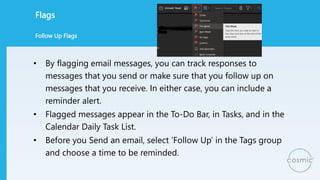
• By flagging email messages, you can track responses to
messages that you send or make sure that you follow up on
messages that you receive. In either case, you can include a
reminder alert.​
• Flagged messages appear in the To-Do Bar, in Tasks, and in the
Calendar Daily Task List.​
• Before you Send an email, select ‘Follow Up’ in the Tags group
and choose a time to be reminded.
Follow Up Flags
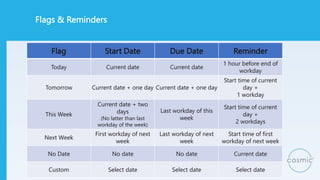
Flags & Reminders
Flag Start Date Due Date Reminder
Today Current date Current date
1 hour before end of
workday
Tomorrow Current date + one day Current date + one day
Start time of current
day +
1 workday
This Week
Current date + two
days
(No latter than last
workday of the week)
Last workday of this
week
Start time of current
day +
2 workdays
Next Week
First workday of next
week
Last workday of next
week
Start time of first
workday of next week
No Date No date No date Current date
Custom Select date Select date Select date
Tasks
• New tasks can be added by:
• Selecting ‘New item’ and Task
• Clicking on the task icon
• Open the task pane​
• Emails and other documents can be dragged into
the task​ to keep all the necessary supporting
material together.
• Once a task is created it can be assigned to
another person
Shortcut – Ctrl and 4
Calendars
• Scheduling activities
• The calendar supports three types of activity:
• Appointments – a scheduled block of time that only involves you.
• Events – appointments over 24 hours shows as a banner at the top of the
day / days. This does not block out your time but leaves it showing as
‘free’.
• Meetings – involve you and other people during the same blocked
period of time across other calendars and may included scheduled
resources.
Shortcut – Ctrl and 2
Creating an Event
Again, there are several ways to create an
appointment, event or meeting.
• Select one or more timeslots, right click and chose
the appropriate type
• Click the button in the ribbon
• Double click a timeslot to open the appointment
scheduling window
• Drag an email to the calendar icon
Meetings
• The scheduling assistant can be used to
invite those people who are required to be
at the meeting or whose attendance is
optional.
• You can also book rooms and resources.
• The scheduling assistant can be used to
check the calendars to ensure that the
people and rooms are available and will
suggest alternative times that may be
more suitable.
Appointment and Scheduling Assistant
Outlook
 Turn off notifications and set aside two ‘email windows’ each day to
read, process and reply to emails.
 Short and to the point – use the minimum necessary to make your
email clear and then stop.
 Call me – Consider whether email is the best means of
communication. You can always call someone, text, chat or meet
them.
 Create groups of contacts that you regularly have to communicate
with to avoid duplication.
Top Tips
Thank you
Please complete the feedback form for this course using
the QR code or this link.
https://forms.office.com/r/6G0cgGKLA1