Linux Fun
Paul Cobbaut
Linux Fun
Paul Cobbaut
lt-2.0

Published Tue Sep 13 01:02:39 2011

Abstract
This book is meant to be used in an instructor-led training. For self-study, the intent is to read this book next to a
working Linux computer so you can immediately do every subject, practicing each command.

This book is aimed at novice Linux system administrators (and might be interesting and useful for home users that
want to know a bit more about their Linux system). However, this book is not meant as an introduction to Linux
desktop applications like text editors, browsers, mail clients, multimedia or office applications.

More information and free .pdf available at http://linux-training.be .


Feel free to contact the authors:

• Paul Cobbaut: paul.cobbaut@gmail.com, http://www.linkedin.com/in/cobbaut


Contributors to the Linux Training project are:

• Serge van Ginderachter: serge@ginsys.be, build scripts; infrastructure setup; minor stuff

• Hendrik De Vloed: hendrik.devloed@ugent.be, buildheader.pl script


We'd also like to thank our reviewers:

• Wouter Verhelst: wouter@grep.be, http://grep.be

• Geert Goossens: mail.goossens.geert@gmail.com, http://www.linkedin.com/in/geertgoossens

• Elie De Brauwer: elie@de-brauwer.be, http://www.de-brauwer.be

• Christophe Vandeplas: christophe@vandeplas.com, http://christophe.vandeplas.com

• Bert Desmet: bert@devnox.be, http://bdesmet.be

• Rich Yonts: richyonts@gmail.com,


Copyright 2007-2011 Paul Cobbaut

Permission is granted to copy, distribute and/or modify this document under the terms of the GNU Free
Documentation License, Version 1.3 or any later version published by the Free Software Foundation; with no
Invariant Sections, no Front-Cover Texts, and no Back-Cover Texts. A copy of the license is included in the section
entitled 'GNU Free Documentation License'.
Table of Contents
I. introduction to Linux ........................................................................................ 1
      1. Unix history ................................................................................................ 2
      2. licensing ...................................................................................................... 6
      3. distributions ................................................................................................. 9
      4. online help ................................................................................................ 15
II. first steps on the command line .................................................................... 18
      5. man pages ................................................................................................. 19
      6. working with directories ........................................................................... 23
      7. working with files ..................................................................................... 33
      8. working with file contents ........................................................................ 42
      9. the Linux file tree ..................................................................................... 49
III. shell expansion .............................................................................................. 69
      10. commands and arguments ....................................................................... 70
      11. control operators ..................................................................................... 80
      12. variables .................................................................................................. 86
      13. shell history ............................................................................................. 96
      14. file globbing .......................................................................................... 102
IV. pipes and commands .................................................................................. 109
      15. redirection and pipes ............................................................................. 110
      16. filters ..................................................................................................... 118
      17. basic unix tools ..................................................................................... 130
V. vi ..................................................................................................................... 139
      18. Introduction to vi .................................................................................. 140
VI. scripting ....................................................................................................... 150
      19. scripting introduction ............................................................................ 151
      20. scripting loops ....................................................................................... 157
      21. scripting parameters .............................................................................. 164
      22. more scripting ....................................................................................... 171
VII. local user management ............................................................................. 178
      23. users ...................................................................................................... 179
      24. groups .................................................................................................... 200
VIII. file security ............................................................................................... 206
      25. standard file permissions ...................................................................... 207
      26. advanced file permissions ..................................................................... 217
      27. access control lists ................................................................................ 223
      28. file links ................................................................................................ 227
IX. process management ................................................................................... 234
      29. introduction to processes ...................................................................... 235
      30. process priorities ................................................................................... 247
      31. background jobs .................................................................................... 254
X. disk management .......................................................................................... 260
      32. disk devices ........................................................................................... 261
      33. disk partitions ........................................................................................ 274
      34. file systems ........................................................................................... 282
      35. mounting ............................................................................................... 290
      36. introduction to uuid's ............................................................................ 299


                                                      iii
Linux Fun

     37. introduction to raid ...............................................................................           304
     38. logical volume management .................................................................                    312
XI. boot management ........................................................................................            336
     39. bootloader ..............................................................................................      337
     40. init and runlevels ..................................................................................          349
XII. system management ..................................................................................               365
     41. scheduling .............................................................................................       366
     42. logging ..................................................................................................     373
     43. memory management ............................................................................                 384
     44. package management ............................................................................                391
XIII. network management ..............................................................................                 407
     45. general networking ................................................................................            408
     46. interface configuration ..........................................................................             417
     47. network sniffing ....................................................................................          432
     48. binding and bonding .............................................................................              438
     49. introduction to networking ....................................................................                447
XIV. kernel management .................................................................................                462
     50. the Linux kernel ....................................................................................          463
     51. library management ...............................................................................             480
XV. backup management .................................................................................                 483
     52. backup ...................................................................................................     484
XVI. samba ........................................................................................................     493
     53. samba ....................................................................................................     494
XVII. dns server ................................................................................................       545
     54. introduction to DNS ..............................................................................             546
     55. Introduction to DNS .............................................................................              553
     56. naamresolutie en DNS ..........................................................................                577
     57. advanced DNS ......................................................................................            590
XVIII. dhcp server ............................................................................................         597
     58. Introduction to DHCP ...........................................................................               598
XIX. dhcp server ...............................................................................................        605
XX. iptables firewall .........................................................................................         606
     59. introduction to routers ...........................................................................            607
     60. Firewall: iptables ...................................................................................         613
XXI. apache and squid .....................................................................................             621
     61. introduction to apache ...........................................................................             622
     62. introduction to squid .............................................................................            628
XXII. ipv6 ..........................................................................................................   632
     63. Introduction to ipv6 ..............................................................................            633
XXIII. mysql database ......................................................................................            642
     64. mysql .....................................................................................................    643
XXIV. selinux .....................................................................................................     652
     65. introduction to SELinux(draft) ..............................................................                  653
XXV. Appendices ..............................................................................................          662
     A. certifications ...........................................................................................      663
     B. keyboard settings ....................................................................................          665
     C. hardware .................................................................................................      667
     D. installing linux .......................................................................................        671


                                                     iv
Linux Fun

    E. disk quotas ..............................................................................................            674
    F. introduction to vnc ..................................................................................                675
    G. cloning ....................................................................................................          677
    H. License ...................................................................................................           679
Index ....................................................................................................................   686


                                                       v
List of Tables
1.1. Early Unix Timeline ........................................................................................ 3
1.2. Eighties Unix Timeline .................................................................................... 3
1.3. Current BSD Timeline ..................................................................................... 4
18.1. getting to command mode ......................................................................... 141
18.2. switch to insert mode ................................................................................. 141
18.3. replace and delete ...................................................................................... 142
18.4. undo and repeat .......................................................................................... 142
18.5. cut, copy and paste a line .......................................................................... 142
18.6. cut, copy and paste lines ............................................................................ 142
18.7. start and end of line ................................................................................... 143
18.8. join two lines ............................................................................................. 143
18.9. words .......................................................................................................... 144
18.10. save and exit vi ........................................................................................ 144
18.11. searching .................................................................................................. 145
18.12. replace ...................................................................................................... 145
18.13. read files and input .................................................................................. 145
18.14. text buffers ............................................................................................... 146
18.15. multiple files ............................................................................................ 146
18.16. abbreviations ............................................................................................ 146
23.1. Debian User Environment .......................................................................... 199
23.2. Red Hat User Environment ........................................................................ 199
25.1. Unix special files ....................................................................................... 209
25.2. standard Unix file permissions .................................................................. 209
25.3. Unix file permissions position ................................................................... 210
25.4. Octal permissions ....................................................................................... 212
32.1. ide device naming ...................................................................................... 264
32.2. scsi device naming ..................................................................................... 264
33.1. primary, extended and logical partitions .................................................... 275
33.2. Partition naming ......................................................................................... 275
38.1. disk partitioning example ........................................................................... 313
38.2. LVM Example ........................................................................................... 313
55.1. The first TLD's .......................................................................................... 557
55.2. new general purpose TLD's ....................................................................... 557
59.1. Packet Forwarding Exercise ...................................................................... 609
59.2. Packet Forwarding Solution ....................................................................... 611


                                                    vi
Part I. introduction to Linux
Chapter 1. Unix history

    Table of Contents
    1.1.   AT&T Bell Labs ..............................................................................................            3
    1.2.   The Unix Wars ................................................................................................           3
    1.3.   University of California, Berkeley ...................................................................                   4
    1.4.   GNU's not Unix ...............................................................................................           4
    1.5.   Linux ................................................................................................................   4

    This chapter briefly tells the history of Unix and where Linux fits in.


                                                           2
Unix history


1.1. AT&T Bell Labs
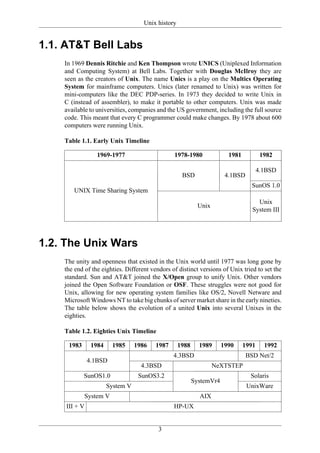
    In 1969 Dennis Ritchie and Ken Thompson wrote UNICS (Uniplexed Information
    and Computing System) at Bell Labs. Together with Douglas McIlroy they are
    seen as the creators of Unix. The name Unics is a play on the Multics Operating
    System for mainframe computers. Unics (later renamed to Unix) was written for
    mini-computers like the DEC PDP-series. In 1973 they decided to write Unix in
    C (instead of assembler), to make it portable to other computers. Unix was made
    available to universities, companies and the US government, including the full source
    code. This meant that every C programmer could make changes. By 1978 about 600
    computers were running Unix.

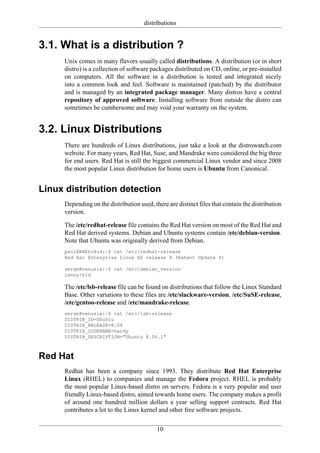
    Table 1.1. Early Unix Timeline

                  1969-1977                     1978-1980                1981           1982

                                                                                       4.1BSD
                                                     BSD                4.1BSD
                                                                                   SunOS 1.0
        UNIX Time Sharing System
                                                                                     Unix
                                                             Unix
                                                                                   System III


1.2. The Unix Wars
    The unity and openness that existed in the Unix world until 1977 was long gone by
    the end of the eighties. Different vendors of distinct versions of Unix tried to set the
    standard. Sun and AT&T joined the X/Open group to unify Unix. Other vendors
    joined the Open Software Foundation or OSF. These struggles were not good for
    Unix, allowing for new operating system families like OS/2, Novell Netware and
    Microsoft Windows NT to take big chunks of server market share in the early nineties.
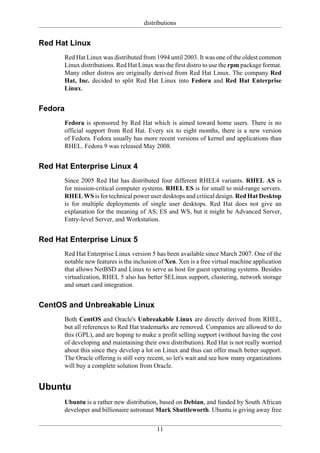
    The table below shows the evolution of a united Unix into several Unixes in the
    eighties.

    Table 1.2. Eighties Unix Timeline

     1983       1984      1985    1986   1987       1988     1989      1990     1991     1992
                                                4.3BSD                           BSD Net/2
               4.1BSD
                                    4.3BSD                          NeXTSTEP
            SunOS1.0               SunOS3.2                                       Solaris
                                                           SystemVr4
                       System V                                                  UnixWare
               System V                                      AIX
     III + V                                    HP-UX


                                          3
Unix history


1.3. University of California, Berkeley
     Students of Berkeley were happy to join in the development of Bell Labs Unix, but
     were not so happy with the restrictive licensing. Unix was open source software,
     but it still required purchase of a license. So during the eighties, they rewrote all
     the Unix tools until they had a complete Unix-like operating system. By 1991, the
     BSD (Berkeley Software Distribution) branch of Unix was completely separate from
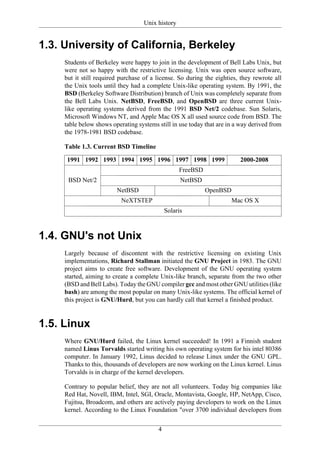
     the Bell Labs Unix. NetBSD, FreeBSD, and OpenBSD are three current Unix-
     like operating systems derived from the 1991 BSD Net/2 codebase. Sun Solaris,
     Microsoft Windows NT, and Apple Mac OS X all used source code from BSD. The
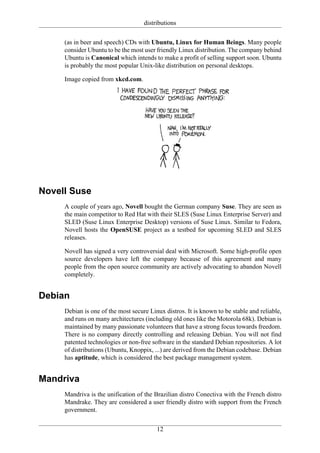
     table below shows operating systems still in use today that are in a way derived from
     the 1978-1981 BSD codebase.

     Table 1.3. Current BSD Timeline

      1991 1992 1993 1994 1995 1996 1997 1998 1999                       2000-2008
                                                   FreeBSD
      BSD Net/2                                    NetBSD
                         NetBSD                              OpenBSD
                           NeXTSTEP                                    Mac OS X
                                             Solaris


1.4. GNU's not Unix
     Largely because of discontent with the restrictive licensing on existing Unix
     implementations, Richard Stallman initiated the GNU Project in 1983. The GNU
     project aims to create free software. Development of the GNU operating system
     started, aiming to create a complete Unix-like branch, separate from the two other
     (BSD and Bell Labs). Today the GNU compiler gcc and most other GNU utilities (like
     bash) are among the most popular on many Unix-like systems. The official kernel of
     this project is GNU/Hurd, but you can hardly call that kernel a finished product.


1.5. Linux
     Where GNU/Hurd failed, the Linux kernel succeeded! In 1991 a Finnish student
     named Linus Torvalds started writing his own operating system for his intel 80386
     computer. In January 1992, Linus decided to release Linux under the GNU GPL.
     Thanks to this, thousands of developers are now working on the Linux kernel. Linus
     Torvalds is in charge of the kernel developers.

     Contrary to popular belief, they are not all volunteers. Today big companies like
     Red Hat, Novell, IBM, Intel, SGI, Oracle, Montavista, Google, HP, NetApp, Cisco,
     Fujitsu, Broadcom, and others are actively paying developers to work on the Linux
     kernel. According to the Linux Foundation "over 3700 individual developers from


                                         4
Unix history

over 200 different companies have contributed to the kernel between 2005 and april
2008". 1057 developers from 186 different companies contributed code to make
kernel version 2.6.23 into 2.6.24.


                                   5
Chapter 2. licensing

    Table of Contents
    2.1.   proprietary ........................................................................................................       7
    2.2.   bsd ....................................................................................................................   7
    2.3.   free software ....................................................................................................         7
    2.4.   GNU General Public License ..........................................................................                      7
    2.5.   open source ......................................................................................................         8
    2.6.   freeware ............................................................................................................      8
    2.7.   more licenses... .................................................................................................         8

    This chapter briefly explains the different licenses used for distributing operating
    systems software.


                                                            6
licensing


2.1. proprietary
     IBM's aix, HP's hp-ux and Sun's Solaris 9 are delivered in binary form after
     purchase. You are not authorized to install or use these operating systems without
     paying a licensing fee. You are not authorized to distribute these copies to other
     people and you are not authorized to look at or change the closed source code of
     the operating system. This software is usually protected by copyright, patents and an
     extensive software license.


2.2. bsd
     bsd style licenses are close to the public domain. They essentially state that you
     can copy the software and do whatever you like with it. But you have to leave the
     copyright notice that refers to bsd. This license gives a lot of freedom but offers few
     protection to someone copying and selling your work.


2.3. free software
     Free software (not to be confused with freeware!) is defined as software with four
     freedoms.

     0. The freedom to use the software for any purpose.

     1. The freedom to study how the program works, and the freedom to make changes
     to it. (This requires access to the source code).

     2. The freedom to distribute copies of the software to anyone else.

     3. The freedom to distribute your modified copy (see 1).

     Detailed information about these freedoms can be found here http://www.gnu.org/
     philosophy/free-sw.html.


2.4. GNU General Public License
     More and more software is being released under the GNU GPL (in 2006 Java was
     released under the GPL). The goal of the GPL is to guarantee that free software stays
     free. Everyone can work together on GPL software, knowing that the software will
     be freely available to everyone. The GPL can protect software, even in court.

     Free is to be understood as in freedom of speech, not to be confused with free as in
     not having to pay for your free beer. In other words, or even better, in other languages
     free software translates to vrije software (Dutch) or Logiciel Libre (French) whereas
     the free from free beer translates to gratis.


                                           7
licensing

     Briefly explained, the GPL allows you to copy software, the GPL allows you to
     distribute (sell or give away) that software, and the GPL grants you the right to read
     and change the source code. But the person receiving or buying the software from
     you has the same rights. And should you decide to distribute GPL software of which
     you modified the source code, then you are obligated to put the same license on the
     modifications (and provide the source code of your modifications).


2.5. open source
     Because of the confusion between free software and freeware, the term open source
     has been coined instead of free software. In general, when talking open source
     software, we actually mean software with the four freedoms.


2.6. freeware
     Freeware is software that you can download and use without paying for it. This
     (usually) does not include source code (so the four freedoms do not apply) and does
     not give you any additional rights on copyrighted or patented parts of that software.

     For example the game Command and Conquer: Tiberian Sun was sold as
     proprietary in 1999 and is now (in 2011) available as freeware.


2.7. more licenses...
     There are many other licenses on operating system software (think cddl for Solaris
     10). You should read and understand them before using any software.


                                          8
Chapter 3. distributions

    Table of Contents
    3.1.   What is a distribution ? ..................................................................................             10
    3.2.   Linux Distributions ........................................................................................            10
    3.3.   BSD Distributions ..........................................................................................            13
    3.4.   Major Vendors of Unix .................................................................................                 13
    3.5.   Solaris .............................................................................................................   13

    This chapter gives an overview of current Linux distributions and some Unix releases.


                                                           9
distributions


3.1. What is a distribution ?
     Unix comes in many flavors usually called distributions. A distribution (or in short
     distro) is a collection of software packages distributed on CD, online, or pre-installed
     on computers. All the software in a distribution is tested and integrated nicely
     into a common look and feel. Software is maintained (patched) by the distributor
     and is managed by an integrated package manager. Many distros have a central
     repository of approved software. Installing software from outside the distro can
     sometimes be cumbersome and may void your warranty on the system.


3.2. Linux Distributions
     There are hundreds of Linux distributions, just take a look at the distrowatch.com
     website. For many years, Red Hat, Suse, and Mandrake were considered the big three
     for end users. Red Hat is still the biggest commercial Linux vendor and since 2008
     the most popular Linux distribution for home users is Ubuntu from Canonical.


Linux distribution detection
     Depending on the distribution used, there are distinct files that contain the distribution
     version.

     The /etc/redhat-release file contains the Red Hat version on most of the Red Hat and
     Red Hat derived systems. Debian and Ubuntu systems contain /etc/debian-version.
     Note that Ubuntu was originally derived from Debian.
     paul@RHELv4u4:~$ cat /etc/redhat-release
     Red Hat Enterprise Linux AS release 4 (Nahant Update 4)

     serge@venusia:~$ cat /etc/debian_version
     lenny/sid

     The /etc/lsb-release file can be found on distributions that follow the Linux Standard
     Base. Other variations to these files are /etc/slackware-version, /etc/SuSE-release,
     /etc/gentoo-release and /etc/mandrake-release.
     serge@venusia:~$ cat /etc/lsb-release
     DISTRIB_ID=Ubuntu
     DISTRIB_RELEASE=8.04
     DISTRIB_CODENAME=hardy
     DISTRIB_DESCRIPTION="Ubuntu 8.04.1"


Red Hat
     Redhat has been a company since 1993. They distribute Red Hat Enterprise
     Linux (RHEL) to companies and manage the Fedora project. RHEL is probably
     the most popular Linux-based distro on servers. Fedora is a very popular and user
     friendly Linux-based distro, aimed towards home users. The company makes a profit
     of around one hundred million dollars a year selling support contracts. Red Hat
     contributes a lot to the Linux kernel and other free software projects.

                                           10
distributions


Red Hat Linux
      Red Hat Linux was distributed from 1994 until 2003. It was one of the oldest common
      Linux distributions. Red Hat Linux was the first distro to use the rpm package format.
      Many other distros are originally derived from Red Hat Linux. The company Red
      Hat, Inc. decided to split Red Hat Linux into Fedora and Red Hat Enterprise
      Linux.


Fedora
      Fedora is sponsored by Red Hat which is aimed toward home users. There is no
      official support from Red Hat. Every six to eight months, there is a new version
      of Fedora. Fedora usually has more recent versions of kernel and applications than
      RHEL. Fedora 9 was released May 2008.


Red Hat Enterprise Linux 4
      Since 2005 Red Hat has distributed four different RHEL4 variants. RHEL AS is
      for mission-critical computer systems. RHEL ES is for small to mid-range servers.
      RHEL WS is for technical power user desktops and critical design. Red Hat Desktop
      is for multiple deployments of single user desktops. Red Hat does not give an
      explanation for the meaning of AS, ES and WS, but it might be Advanced Server,
      Entry-level Server, and Workstation.


Red Hat Enterprise Linux 5
      Red Hat Enterprise Linux version 5 has been available since March 2007. One of the
      notable new features is the inclusion of Xen. Xen is a free virtual machine application
      that allows NetBSD and Linux to serve as host for guest operating systems. Besides
      virtualization, RHEL 5 also has better SELinux support, clustering, network storage
      and smart card integration.


CentOS and Unbreakable Linux
      Both CentOS and Oracle's Unbreakable Linux are directly derived from RHEL,
      but all references to Red Hat trademarks are removed. Companies are allowed to do
      this (GPL), and are hoping to make a profit selling support (without having the cost
      of developing and maintaining their own distribution). Red Hat is not really worried
      about this since they develop a lot on Linux and thus can offer much better support.
      The Oracle offering is still very recent, so let's wait and see how many organizations
      will buy a complete solution from Oracle.


Ubuntu
      Ubuntu is a rather new distribution, based on Debian, and funded by South African
      developer and billionaire astronaut Mark Shuttleworth. Ubuntu is giving away free

                                           11
distributions

     (as in beer and speech) CDs with Ubuntu, Linux for Human Beings. Many people
     consider Ubuntu to be the most user friendly Linux distribution. The company behind
     Ubuntu is Canonical which intends to make a profit of selling support soon. Ubuntu
     is probably the most popular Unix-like distribution on personal desktops.

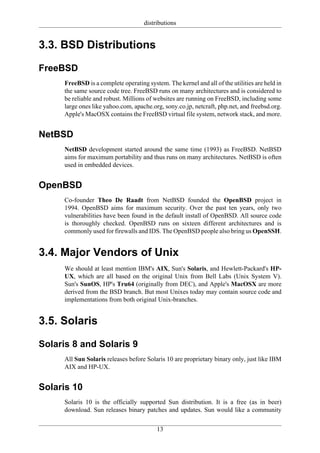
     Image copied from xkcd.com.


Novell Suse
     A couple of years ago, Novell bought the German company Suse. They are seen as
     the main competitor to Red Hat with their SLES (Suse Linux Enterprise Server) and
     SLED (Suse Linux Enterprise Desktop) versions of Suse Linux. Similar to Fedora,
     Novell hosts the OpenSUSE project as a testbed for upcoming SLED and SLES
     releases.

     Novell has signed a very controversial deal with Microsoft. Some high-profile open
     source developers have left the company because of this agreement and many
     people from the open source community are actively advocating to abandon Novell
     completely.


Debian
     Debian is one of the most secure Linux distros. It is known to be stable and reliable,
     and runs on many architectures (including old ones like the Motorola 68k). Debian is
     maintained by many passionate volunteers that have a strong focus towards freedom.
     There is no company directly controlling and releasing Debian. You will not find
     patented technologies or non-free software in the standard Debian repositories. A lot
     of distributions (Ubuntu, Knoppix, ...) are derived from the Debian codebase. Debian
     has aptitude, which is considered the best package management system.


Mandriva
     Mandriva is the unification of the Brazilian distro Conectiva with the French distro
     Mandrake. They are considered a user friendly distro with support from the French
     government.


                                         12
distributions


3.3. BSD Distributions

FreeBSD
     FreeBSD is a complete operating system. The kernel and all of the utilities are held in
     the same source code tree. FreeBSD runs on many architectures and is considered to
     be reliable and robust. Millions of websites are running on FreeBSD, including some
     large ones like yahoo.com, apache.org, sony.co.jp, netcraft, php.net, and freebsd.org.
     Apple's MacOSX contains the FreeBSD virtual file system, network stack, and more.


NetBSD
     NetBSD development started around the same time (1993) as FreeBSD. NetBSD
     aims for maximum portability and thus runs on many architectures. NetBSD is often
     used in embedded devices.


OpenBSD
     Co-founder Theo De Raadt from NetBSD founded the OpenBSD project in
     1994. OpenBSD aims for maximum security. Over the past ten years, only two
     vulnerabilities have been found in the default install of OpenBSD. All source code
     is thoroughly checked. OpenBSD runs on sixteen different architectures and is
     commonly used for firewalls and IDS. The OpenBSD people also bring us OpenSSH.


3.4. Major Vendors of Unix
     We should at least mention IBM's AIX, Sun's Solaris, and Hewlett-Packard's HP-
     UX, which are all based on the original Unix from Bell Labs (Unix System V).
     Sun's SunOS, HP's Tru64 (originally from DEC), and Apple's MacOSX are more
     derived from the BSD branch. But most Unixes today may contain source code and
     implementations from both original Unix-branches.


3.5. Solaris

Solaris 8 and Solaris 9
     All Sun Solaris releases before Solaris 10 are proprietary binary only, just like IBM
     AIX and HP-UX.


Solaris 10
     Solaris 10 is the officially supported Sun distribution. It is a free (as in beer)
     download. Sun releases binary patches and updates. Sun would like a community

                                          13
distributions

     built around the Solaris kernel, similar to the Linux community. Sun released the
     Solaris kernel under the CDDL, a license similar to the GPL, hoping this will happen.


Nevada and Solaris Express
     Nevada is the codename for the next release of Solaris (Solaris 11). It is currently
     under development by Sun and is based on the OpenSolaris code. Solaris Express
     Community Edition is an official, free binary release including open source
     OpenSolaris and some closed source technologies, updated twice a month without
     any support from Sun. Solaris Express Developer Edition is the same, but with some
     support, thorough testing before release, and is released twice a year.


OpenSolaris, Belenix and Nexenta
     OpenSolaris is an open source development project (yes, it is only source code).
     Future versions of the Solaris operating system are based on this source code. The
     Belenix LiveCD is based on OpenSolaris. Another famous OpenSolaris based distro
     is Nexenta. Nexenta (www.gnusolaris.org) looks like Ubuntu and feels like Debian.
     The goal of this GNU/Solaris project is to have the best Linux desktop (Ubuntu)
     including the aptitude package manager running on a Sun Solaris kernel.


                                         14
Chapter 4. online help

    Table of Contents
    4.1.   Google ............................................................................................................   16
    4.2.   Wikipedia .......................................................................................................     16
    4.3.   The Linux Documentation Project .................................................................                     16
    4.4.   Red Hat ..........................................................................................................    17
    4.5.   Ubuntu ............................................................................................................   17
    4.6.   linux-training.be .............................................................................................       17

    This chapters gives some tips on where to find help with Linux on the internet.


                                                          15
online help


4.1. Google
    Google is a powerful tool to find help about Unix, or anything else. Here are some
    tricks.

    Look for phrases instead of single words.


    Search only pages from the .be TLD (or substitute .be for any other Top Level
    Domain). You can also use "country:be" to search only pages from Belgium (based
    on ip rather than TLD).


    Search for pages inside one domain


    Search for pages not containing some words.


4.2. Wikipedia
    Wikipedia is a web-based, free-content encyclopedia. Its growth over the past two
    years has been astonishing. You have a good chance of finding a clear explanation
    by typing your search term behind http://en.wikipedia.org/wiki/ like this example
    shows.


4.3. The Linux Documentation Project
    You can find much documentation, faqs, howtos and man pages about Linux and
    many of the programs running on Linux on www.tldp.org .


                                         16
online help


4.4. Red Hat
     Red Hat has a lot of info online at http://www.redhat.com/docs/manuals/ in both
     pdf and html format. These manuals are good, but unfortunately are not always up
     to date.


4.5. Ubuntu
     Help for every Ubuntu release is available at https://help.ubuntu.com. Ubuntu also
     has video of how to perform tasks on Ubuntu at http://screencasts.ubuntu.com.


4.6. linux-training.be
     This book is available for free in .pdf and .html. Download it at http://linux-
     training.be and learn more about Linux fundamentals, system administration,
     networking, storage, security and more.


                                       17
Part II. first steps on
 the command line
Chapter 5. man pages

    Table of Contents
    5.1. man $command ..............................................................................................            20
    5.2. man $configfile ..............................................................................................         20
    5.3. man $daemon .................................................................................................          20
    5.4. man -k (apropos) ............................................................................................          20
    5.5. whatis .............................................................................................................   20
    5.6. whereis ...........................................................................................................    21
    5.7. man sections ...................................................................................................       21
    5.8. man $section $file ..........................................................................................          21
    5.9. man man ........................................................................................................       21
    5.10. mandb ...........................................................................................................     22

    This chapter will explain the use of man pages (also called manual pages) on your
    Unix or Linux computer.

    You will learn the man command together with related commands like whereis,
    whatis and mandb.

    Most Unix files and commands have pretty good man pages to explain their use. Man
    pages also come in handy when you are using multiple flavors of Unix or several
    Linux distributions since options and parameters sometimes vary.


                                                         19
man pages


5.1. man $command
     Type man followed by a command (for which you want help) and start reading. Press
     q to quit the manpage. Some man pages contain examples (near the end).

     paul@laika:~$ man whois
     Reformatting whois(1), please wait...


5.2. man $configfile
     Most configuration files have their own manual.

     paul@laika:~$ man syslog.conf
     Reformatting syslog.conf(5), please wait...


5.3. man $daemon
     This is also true for most daemons (background programs) on your system..

     paul@laika:~$ man syslogd
     Reformatting syslogd(8), please wait...


5.4. man -k (apropos)
     man -k (or apropos) shows a list of man pages containing a string.

     paul@laika:~$ man -k syslog
     lm-syslog-setup (8) - configure laptop mode to switch syslog.conf ...
     logger (1)           - a shell command interface to the syslog(3) ...
     syslog-facility (8) - Setup and remove LOCALx facility for sysklogd
     syslog.conf (5)      - syslogd(8) configuration file
     syslogd (8)          - Linux system logging utilities.
     syslogd-listfiles (8) - list system logfiles


5.5. whatis
     To see just the description of a manual page, use whatis followed by a string.

     paul@u810:~$ whatis route
     route (8)            - show / manipulate the IP routing table


                                        20
man pages


5.6. whereis
     The location of a manpage can be revealed with whereis.

     paul@laika:~$ whereis -m whois
     whois: /usr/share/man/man1/whois.1.gz


     This file is directly readable by man.

     paul@laika:~$ man /usr/share/man/man1/whois.1.gz


5.7. man sections
     By now you will have noticed the numbers between the round brackets. man man
     will explain to you that these are section numbers. Executable programs and shell
     commands reside in section one.

     1   Executable programs or shell commands
     2   System calls (functions provided by the kernel)
     3   Library calls (functions within program libraries)
     4   Special files (usually found in /dev)
     5   File formats and conventions eg /etc/passwd
     6   Games
     7   Miscellaneous (including macro packages and conventions), e.g. man(7)
     8   System administration commands (usually only for root)
     9   Kernel routines [Non standard]


5.8. man $section $file
     Therefor, when referring to the man page of the passwd command, you will see it
     written as passwd(1); when referringto the passwd file, you will see it written as
     passwd(5). The screenshot explains how to open the man page in the correct section.

     [paul@RHEL52 ~]$ man passwd          # opens the lowest section (1)
     [paul@RHEL52 ~]$ man 5 passwd        # opens a page from section 5


5.9. man man
     If you want to know more about man, then Read The Fantastic Manual (RTFM).

     Unfortunately, manual pages do not have the answer to everything...

     paul@laika:~$ man woman
     No manual entry for woman


                                         21
man pages


5.10. mandb
    Should you be convinced that a man page exists, but you can't access it, then try
    running mandb.

    root@laika:~# mandb
    0 man subdirectories contained newer manual pages.
    0 manual pages were added.
    0 stray cats were added.
    0 old database entries were purged.


                                      22
Chapter 6. working with directories

    Table of Contents
    6.1.   pwd .................................................................................................................      24
    6.2.   cd ....................................................................................................................    24
    6.3.   absolute and relative paths .............................................................................                  25
    6.4.   path completion ..............................................................................................             26
    6.5.   ls .....................................................................................................................   26
    6.6.   mkdir ..............................................................................................................       28
    6.7.   rmdir ...............................................................................................................      28
    6.8.   practice: working with directories .................................................................                       30
    6.9.   solution: working with directories .................................................................                       31

    To explore the Linux file tree, you will need some basic tools.

    This chapter is small overview of the most common commands to work with
    directories : pwd, cd, ls, mkdir, rmdir. These commands are available on any Linux
    (or Unix) system.

    This chapter also discusses absolute and relative paths and path completion in the
    bash shell.


                                                            23
working with directories


6.1. pwd
        The you are here sign can be displayed with the pwd command (Print Working
        Directory). Go ahead, try it: Open a command line interface (like gnome-terminal,
        konsole, xterm, or a tty) and type pwd. The tool displays your current directory.

        paul@laika:~$ pwd
        /home/paul


6.2. cd
        You can change your current directory with the cd command (Change Directory).

        paul@laika$   cd /etc
        paul@laika$   pwd
        /etc
        paul@laika$   cd /bin
        paul@laika$   pwd
        /bin
        paul@laika$   cd /home/paul/
        paul@laika$   pwd
        /home/paul


cd ~
        You can pull off a trick with cd. Just typing cd without a target directory, will put
        you in your home directory. Typing cd ~ has the same effect.

        paul@laika$   cd /etc
        paul@laika$   pwd
        /etc
        paul@laika$   cd
        paul@laika$   pwd
        /home/paul
        paul@laika$   cd ~
        paul@laika$   pwd
        /home/paul


cd ..
        To go to the parent directory (the one just above your current directory in the
        directory tree), type cd .. .

        paul@laika$ pwd
        /usr/share/games
        paul@laika$ cd ..
        paul@laika$ pwd


                                            24
working with directories

       /usr/share
       paul@laika$ cd ..
       paul@laika$ cd ..
       paul@laika$ pwd
       /


       To stay in the current directory, type cd . ;-) We will see useful use of the . character
       representing the current directory later.


cd -
       Another useful shortcut with cd is to just type cd - to go to the previous directory.

       paul@laika$   pwd
       /home/paul
       paul@laika$   cd /etc
       paul@laika$   pwd
       /etc
       paul@laika$   cd -
       /home/paul
       paul@laika$   cd -
       /etc


6.3. absolute and relative paths
       You should be aware of absolute and relative paths in the file tree. When you type
       a path starting with a slash (/), then the root of the file tree is assumed. If you don't
       start your path with a slash, then the current directory is the assumed starting point.

       The screenshot below first shows the current directory /home/paul. From within this
       directory, you have to type cd /home instead of cd home to go to the /home directory.

       paul@laika$ pwd
       /home/paul
       paul@laika$ cd home
       bash: cd: home: No such file or directory
       paul@laika$ cd /home
       paul@laika$ pwd
       /home


       When inside /home, you have to type cd paul instead of cd /paul to enter the
       subdirectory paul of the current directory /home.

       paul@laika$ pwd
       /home
       paul@laika$ cd /paul
       bash: cd: /paul: No such file or directory
       paul@laika$ cd paul
       paul@laika$ pwd
       /home/paul


                                            25
working with directories


        In case your current directory is the root directory /, then both cd /home and cd
        home will get you in the /home directory.

        paul@laika$   cd /
        paul@laika$   pwd
        /
        paul@laika$   cd home
        paul@laika$   pwd
        /home
        paul@laika$   cd /
        paul@laika$   pwd
        /
        paul@laika$   cd /home
        paul@laika$   pwd
        /home


        This was the last screenshot with pwd statements. From now on, the current directory
        will often be displayed in the prompt. Later in this book we will explain how the shell
        variable $PS1 can be configured to show this.


6.4. path completion
        The tab key can help you in typing a path without errors. Typing cd /et followed by
        the tab key will expand the command line to cd /etc/. When typing cd /Et followed
        by the tab key, nothing will happen because you typed the wrong path (uppercase E).

        You will need fewer key strokes when using the tab key, and you will be sure your
        typed path is correct!


6.5. ls
        You can list the contents of a directory with ls.

        paul@pasha:~$ ls
        allfiles.txt dmesg.txt       httpd.conf    stuff    summer.txt
        paul@pasha:~$


ls -a
        A frequently used option with ls is -a to show all files. Showing all files means
        including the hidden files. When a filename on a Unix file system starts with a dot,
        it is considered a hidden file and it doesn't show up in regular file listings.

        paul@pasha:~$ ls
        allfiles.txt dmesg.txt       httpd.conf    stuff    summer.txt
        paul@pasha:~$ ls -a


                                             26
working with directories

         .   allfiles.txt      .bash_profile     dmesg.txt       .lesshst   stuff
         .. .bash_history      .bashrc           httpd.conf      .ssh       summer.txt
         paul@pasha:~$


ls -l
         Many times you will be using options with ls to display the contents of the directory
         in different formats or to display different parts of the directory. Typing just ls gives
         you a list of files in the directory. Typing ls -l (that is a letter L, not the number 1)
         gives you a long listing (more information on the contents).

         paul@pasha:~$ ls -l
         total 23992
         -rw-r--r-- 1 paul paul 24506857 2006-03-30 22:53 allfiles.txt
         -rw-r--r-- 1 paul paul    14744 2006-09-27 11:45 dmesg.txt
         -rw-r--r-- 1 paul paul     8189 2006-03-31 14:01 httpd.conf
         drwxr-xr-x 2 paul paul     4096 2007-01-08 12:22 stuff
         -rw-r--r-- 1 paul paul        0 2006-03-30 22:45 summer.txt


ls -lh
         Another frequently used ls option is -h. It shows the numbers (file sizes) in a more
         human readable format. Also shown below is some variation in the way you can give
         the options to ls. We will explain the details of the output later in this book.

         paul@pasha:~$ ls -l -h
         total 24M
         -rw-r--r-- 1 paul paul      24M   2006-03-30   22:53   allfiles.txt
         -rw-r--r-- 1 paul paul      15K   2006-09-27   11:45   dmesg.txt
         -rw-r--r-- 1 paul paul     8.0K   2006-03-31   14:01   httpd.conf
         drwxr-xr-x 2 paul paul     4.0K   2007-01-08   12:22   stuff
         -rw-r--r-- 1 paul paul        0   2006-03-30   22:45   summer.txt
         paul@pasha:~$ ls -lh
         total 24M
         -rw-r--r-- 1 paul paul      24M   2006-03-30   22:53   allfiles.txt
         -rw-r--r-- 1 paul paul      15K   2006-09-27   11:45   dmesg.txt
         -rw-r--r-- 1 paul paul     8.0K   2006-03-31   14:01   httpd.conf
         drwxr-xr-x 2 paul paul     4.0K   2007-01-08   12:22   stuff
         -rw-r--r-- 1 paul paul        0   2006-03-30   22:45   summer.txt
         paul@pasha:~$ ls -hl
         total 24M
         -rw-r--r-- 1 paul paul      24M   2006-03-30   22:53   allfiles.txt
         -rw-r--r-- 1 paul paul      15K   2006-09-27   11:45   dmesg.txt
         -rw-r--r-- 1 paul paul     8.0K   2006-03-31   14:01   httpd.conf
         drwxr-xr-x 2 paul paul     4.0K   2007-01-08   12:22   stuff
         -rw-r--r-- 1 paul paul        0   2006-03-30   22:45   summer.txt
         paul@pasha:~$ ls -h -l
         total 24M
         -rw-r--r-- 1 paul paul      24M   2006-03-30   22:53   allfiles.txt
         -rw-r--r-- 1 paul paul      15K   2006-09-27   11:45   dmesg.txt
         -rw-r--r-- 1 paul paul     8.0K   2006-03-31   14:01   httpd.conf
         drwxr-xr-x 2 paul paul     4.0K   2007-01-08   12:22   stuff
         -rw-r--r-- 1 paul paul        0   2006-03-30   22:45   summer.txt


                                              27
working with directories


6.6. mkdir
     Walking around the Unix file tree is fun, but it is even more fun to create your own
     directories with mkdir. You have to give at least one parameter to mkdir, the name
     of the new directory to be created. Think before you type a leading / .

     paul@laika:~$ mkdir MyDir
     paul@laika:~$ cd MyDir
     paul@laika:~/MyDir$ ls -al
     total 8
     drwxr-xr-x 2 paul paul 4096 2007-01-10 21:13 .
     drwxr-xr-x 39 paul paul 4096 2007-01-10 21:13 ..
     paul@laika:~/MyDir$ mkdir stuff
     paul@laika:~/MyDir$ mkdir otherstuff
     paul@laika:~/MyDir$ ls -l
     total 8
     drwxr-xr-x 2 paul paul 4096 2007-01-10 21:14 otherstuff
     drwxr-xr-x 2 paul paul 4096 2007-01-10 21:14 stuff
     paul@laika:~/MyDir$


mkdir -p
     When given the option -p, then mkdir will create parent directories as needed.

     paul@laika:~$   mkdir -p MyDir2/MySubdir2/ThreeDeep
     paul@laika:~$   ls MyDir2
     MySubdir2
     paul@laika:~$   ls MyDir2/MySubdir2
     ThreeDeep
     paul@laika:~$   ls MyDir2/MySubdir2/ThreeDeep/


6.7. rmdir
     When a directory is empty, you can use rmdir to remove the directory.

     paul@laika:~/MyDir$ rmdir otherstuff
     paul@laika:~/MyDir$ ls
     stuff
     paul@laika:~/MyDir$ cd ..
     paul@laika:~$ rmdir MyDir
     rmdir: MyDir/: Directory not empty
     paul@laika:~$ rmdir MyDir/stuff
     paul@laika:~$ rmdir MyDir


rmdir -p
     And similar to the mkdir -p option, you can also use rmdir to recursively remove
     directories.


                                        28
working with directories


paul@laika:~$ mkdir -p dir/subdir/subdir2
paul@laika:~$ rmdir -p dir/subdir/subdir2
paul@laika:~$


                               29
working with directories


6.8. practice: working with directories
     1. Display your current directory.

     2. Change to the /etc directory.

     3. Now change to your home directory using only three key presses.

     4. Change to the /boot/grub directory using only eleven key presses.

     5. Go to the parent directory of the current directory.

     6. Go to the root directory.

     7. List the contents of the root directory.

     8. List a long listing of the root directory.

     9. Stay where you are, and list the contents of /etc.

     10. Stay where you are, and list the contents of /bin and /sbin.

     11. Stay where you are, and list the contents of ~.

     12. List all the files (including hidden files) in your home directory.

     13. List the files in /boot in a human readable format.

     14. Create a directory testdir in your home directory.

     15. Change to the /etc directory, stay here and create a directory newdir in your home
     directory.

     16. Create in one command the directories ~/dir1/dir2/dir3 (dir3 is a subdirectory
     from dir2, and dir2 is a subdirectory from dir1 ).

     17. Remove the directory testdir.

     18. If time permits (or if you are waiting for other students to finish this practice),
     use and understand pushd and popd. Use the man page of bash to find information
     about these commands.


                                           30
working with directories


6.9. solution: working with directories
     1. Display your current directory.
     pwd

     2. Change to the /etc directory.
     cd /etc

     3. Now change to your home directory using only three key presses.
     cd (and the enter key)

     4. Change to the /boot/grub directory using only eleven key presses.
     cd /boot/grub (use the tab key)

     5. Go to the parent directory of the current directory.
     cd .. (with space between cd and ..)

     6. Go to the root directory.
     cd /

     7. List the contents of the root directory.
     ls

     8. List a long listing of the root directory.
     ls -l

     9. Stay where you are, and list the contents of /etc.
     ls /etc

     10. Stay where you are, and list the contents of /bin and /sbin.
     ls /bin /sbin

     11. Stay where you are, and list the contents of ~.
     ls ~

     12. List all the files (including hidden files) in your home directory.
     ls -al ~

     13. List the files in /boot in a human readable format.
     ls -lh /boot

     14. Create a directory testdir in your home directory.
     mkdir ~/testdir

     15. Change to the /etc directory, stay here and create a directory newdir in your home
     directory.

                                           31
working with directories

cd /etc ; mkdir ~/newdir

16. Create in one command the directories ~/dir1/dir2/dir3 (dir3 is a subdirectory
from dir2, and dir2 is a subdirectory from dir1 ).
mkdir -p ~/dir1/dir2/dir3

17. Remove the directory testdir.
rmdir testdir

18. If time permits (or if you are waiting for other students to finish this practice),
use and understand pushd and popd. Use the man page of bash to find information
about these commands.
man bash

The Bash shell has two built-in commands called pushd and popd. Both commands
work with a common stack of previous directories. Pushd adds a directory to the stack
and changes to a new current directory, popd removes a directory from the stack and
sets the current directory.

paul@laika:/etc$ cd /bin
paul@laika:/bin$ pushd /lib
/lib /bin
paul@laika:/lib$ pushd /proc
/proc /lib /bin
paul@laika:/proc$
paul@laika:/proc$ popd
/lib /bin
paul@laika:/lib$
paul@laika:/lib$
paul@laika:/lib$ popd
/bin
paul@laika:/bin$


                                     32
Chapter 7. working with files

    Table of Contents
    7.1. all files are case sensitive ..............................................................................               34
    7.2. everything is a file .........................................................................................            34
    7.3. file ..................................................................................................................   34
    7.4. touch ...............................................................................................................     35
    7.5. rm ...................................................................................................................    35
    7.6. cp ....................................................................................................................   36
    7.7. mv ..................................................................................................................     38
    7.8. rename ............................................................................................................       38
    7.9. practice: working with files ...........................................................................                  39
    7.10. solution: working with files .........................................................................                   40

    In this chapter we learn how to recognise, create, remove, copy and move files using
    commands like file, touch, rm, cp, mv and rename.


                                                           33
working with files


7.1. all files are case sensitive
      Linux is case sensitive, this means that FILE1 is different from file1, and /etc/hosts
      is different from /etc/Hosts (the latter one does not exist on a typical Linux computer).

      This screenshot shows the difference between two files, one with uppercase W, the
      other with lowercase w.

      paul@laika:~/Linux$ ls
      winter.txt Winter.txt
      paul@laika:~/Linux$ cat winter.txt
      It is cold.
      paul@laika:~/Linux$ cat Winter.txt
      It is very cold!


7.2. everything is a file
      A directory is a special kind of file, but it is still a file. Even a terminal window (/
      dev/pts/4) or a hard disk (/dev/sdb) is represented somewhere in the file system as
      a file. It will become clear throughout this course that everything on Linux is a file.


7.3. file
      The file utility determines the file type. Linux does not use extensions to determine
      the file type. Your editor does not care whether a file ends in .TXT or .DOC. As a
      system administrator, you should use the file command to determine the file type.
      Here are some examples on a typical Linux system.

      paul@laika:~$ file pic33.png
      pic33.png: PNG image data, 3840 x 1200, 8-bit/color RGBA, non-interlaced
      paul@laika:~$ file /etc/passwd
      /etc/passwd: ASCII text
      paul@laika:~$ file HelloWorld.c
      HelloWorld.c: ASCII C program text


      Here's another example of the file utility. It shows different type of binaries on
      different architectures.

      # Solaris 9 on Intel
      bash-2.05$ file /bin/date
      /bin/date:       ELF 32-bit LSB executable 80386 Version 1, dynamically 
      linked, stripped

      # Ubuntu Linux on AMD64
      paul@laika:~$ file /bin/date
      /bin/date: ELF 64-bit LSB executable, AMD x86-64, version 1 (SYSV), for
       GNU/Linux 2.6.0, dynamically linked (uses shared libs), for GNU/Linux 
      2.6.0, stripped


                                           34
working with files

      # Debian Sarge on SPARC
      paul@pasha:~$ file /bin/date
      /bin/date: ELF 32-bit MSB executable, SPARC, version 1 (SYSV), for GNU/
      Linux 2.4.1, dynamically linked (uses shared libs), for GNU/Linux 2.4.1
      , stripped

      # AIX on RS/6000
      serena@AIX7 /home/serena$ file /bin/date
      /bin/date: executable (RISC System/6000) or object module


      The file command uses a magic file that contains patterns to recognize filetypes.
      The magic file is located in /usr/share/file/magic. Type man 5 magic for more
      information.


7.4. touch
      One easy way to create a file is with touch. (We will see many other ways for creating
      files later in this book.)

      paul@laika:~/test$ touch     file1
      paul@laika:~/test$ touch     file2
      paul@laika:~/test$ touch     file555
      paul@laika:~/test$ ls -l
      total 0
      -rw-r--r-- 1 paul paul 0     2007-01-10 21:40 file1
      -rw-r--r-- 1 paul paul 0     2007-01-10 21:40 file2
      -rw-r--r-- 1 paul paul 0     2007-01-10 21:40 file555


touch -t
      Of course, touch can do more than just create files. Can you determine what by
      looking at the next screenshot? If not, check the manual for touch.

      paul@laika:~/test$ touch     -t 200505050000 SinkoDeMayo
      paul@laika:~/test$ touch     -t 130207111630 BigBattle
      paul@laika:~/test$ ls -l
      total 0
      -rw-r--r-- 1 paul paul 0     1302-07-11 16:30 BigBattle
      -rw-r--r-- 1 paul paul 0     2005-05-05 00:00 SinkoDeMayo


7.5. rm
      When you no longer need a file, use rm to remove it. Unlike some graphical user
      interfaces, the command line in general does not have a waste bin or trashcan to
      recover files. When you use rm to remove a file, the file is gone. Therefore, be careful
      when removing files!

      paul@laika:~/test$ ls


                                           35
working with files

         BigBattle SinkoDeMayo
         paul@laika:~/test$ rm BigBattle
         paul@laika:~/test$ ls
         SinkoDeMayo


rm -i
         To prevent yourself from accidentally removing a file, you can type rm -i.

         paul@laika:~/Linux$ touch brel.txt
         paul@laika:~/Linux$ rm -i brel.txt
         rm: remove regular empty file `brel.txt'? y
         paul@laika:~/Linux$


rm -rf
         By default, rm will not remove non-empty directories. However rm accepts several
         options that will allow you to remove any directory. The rm -rf statement is famous
         because it will erase anything (providing that you have the permissions to do so).
         When you are logged on as root, be very careful with rm -rf (the f means force and
         the r means recursive) since being root implies that permissions don't apply to you,
         so you can literally erase your entire file system by accident.

         paul@laika:~$ ls test
         SinkoDeMayo
         paul@laika:~$ rm test
         rm: cannot remove `test': Is a directory
         paul@laika:~$ rm -rf test
         paul@laika:~$ ls test
         ls: test: No such file or directory


7.6. cp
         To copy a file, use cp with a source and a target argument. If the target is a directory,
         then the source files are copied to that target directory.

         paul@laika:~/test$ touch FileA
         paul@laika:~/test$ ls
         FileA
         paul@laika:~/test$ cp FileA FileB
         paul@laika:~/test$ ls
         FileA FileB
         paul@laika:~/test$ mkdir MyDir
         paul@laika:~/test$ ls
         FileA FileB MyDir
         paul@laika:~/test$ cp FileA MyDir/
         paul@laika:~/test$ ls MyDir/
         FileA


                                              36
working with files


cp -r
        To copy complete directories, use cp -r (the -r option forces recursive copying of
        all files in all subdirectories).

        paul@laika:~/test$ ls
        FileA FileB MyDir
        paul@laika:~/test$ ls MyDir/
        FileA
        paul@laika:~/test$ cp -r MyDir MyDirB
        paul@laika:~/test$ ls
        FileA FileB MyDir MyDirB
        paul@laika:~/test$ ls MyDirB
        FileA


cp multiple files to directory
        You can also use cp to copy multiple files into a directory. In this case, the last
        argument (aka the target) must be a directory.
        cp file1 file2 dir1/file3 dir1/file55 dir2


cp -i
        To prevent cp from overwriting existing files, use the -i (for interactive) option.

        paul@laika:~/test$ cp fire water
        paul@laika:~/test$ cp -i fire water
        cp: overwrite `water'? no
        paul@laika:~/test$


cp -p
        To preserve permissions and time stamps from source files, use cp -p.

        paul@laika:~/perms$ cp file* cp
        paul@laika:~/perms$ cp -p file* cpp
        paul@laika:~/perms$ ll *
        -rwx------ 1 paul paul    0 2008-08-25 13:26 file33
        -rwxr-x--- 1 paul paul    0 2008-08-25 13:26 file42

        cp:
        total 0
        -rwx------ 1 paul paul 0 2008-08-25 13:34 file33
        -rwxr-x--- 1 paul paul 0 2008-08-25 13:34 file42

        cpp:
        total 0
        -rwx------ 1 paul paul 0 2008-08-25 13:26 file33
        -rwxr-x--- 1 paul paul 0 2008-08-25 13:26 file42


                                             37
working with files


7.7. mv
    Use mv to rename a file or to move the file to another directory.

    paul@laika:~/test$    touch file100
    paul@laika:~/test$    ls
    file100
    paul@laika:~/test$    mv file100 ABC.txt
    paul@laika:~/test$    ls
    ABC.txt
    paul@laika:~/test$


    When you need to rename only one file then mv is the preferred command to use.


7.8. rename
    The rename command can also be used but it has a more complex syntax to enable
    renaming of many files at once. Below are two examples, the first switches all
    occurrences of txt to png for all filenames ending in .txt. The second example switches
    all occurrences of uppercase ABC in lowercase abc for all filenames ending in .png .
    The following syntax will work on debian and ubuntu (prior to Ubuntu 7.10).

    paul@laika:~/test$    ls
    123.txt ABC.txt
    paul@laika:~/test$    rename 's/txt/png/' *.txt
    paul@laika:~/test$    ls
    123.png ABC.png
    paul@laika:~/test$    rename 's/ABC/abc/' *.png
    paul@laika:~/test$    ls
    123.png abc.png
    paul@laika:~/test$


    On Red Hat Enterprise Linux (and many other Linux distributions like Ubuntu 8.04),
    the syntax of rename is a bit different. The first example below renames all *.conf
    files replacing any occurrence of conf with bak. The second example renames all (*)
    files replacing one with ONE.

    [paul@RHEL4a test]$    ls
    one.conf two.conf
    [paul@RHEL4a test]$    rename conf bak *.conf
    [paul@RHEL4a test]$    ls
    one.bak two.bak
    [paul@RHEL4a test]$    rename one ONE *
    [paul@RHEL4a test]$    ls
    ONE.bak two.bak
    [paul@RHEL4a test]$


                                         38
working with files


7.9. practice: working with files
     1. List the files in the /bin directory

     2. Display the type of file of /bin/cat, /etc/passwd and /usr/bin/passwd.

     3a. Download wolf.jpg and book.pdf from http://www.linux-training.be (wget http://
     linux-training.be/files/studentfiles/wolf.jpg and wget http://linux-training.be/files/
     books/LinuxFun.pdf)

     3b. Display the type of file of wolf.jpg and book.pdf

     3c. Rename wolf.jpg to wolf.pdf (use mv).

     3d. Display the type of file of wolf.pdf and book.pdf.

     4. Create a directory ~/touched and enter it.

     5. Create the files today.txt and yesterday.txt in touched.

     6. Change the date on yesterday.txt to match yesterday's date.

     7. Copy yesterday.txt to copy.yesterday.txt

     8. Rename copy.yesterday.txt to kim

     9. Create a directory called ~/testbackup and copy all files from ~/touched in it.

     10. Use one command to remove the directory ~/testbackup and all files in it.

     11. Create a directory ~/etcbackup and copy all *.conf files from /etc in it. Did you
     include all subdirectories of /etc ?

     12. Use rename to rename all *.conf files to *.backup . (if you have more than one
     distro available, try it on all!)


                                               39
working with files


7.10. solution: working with files
     1. List the files in the /bin directory
     ls /bin

     2. Display the type of file of /bin/cat, /etc/passwd and /usr/bin/passwd.
     file /bin/cat /etc/passwd /usr/bin/passwd

     3a. Download wolf.jpg and book.pdf from http://www.linux-training.be (wget http://
     linux-training.be/files/studentfiles/wolf.jpg and wget http://linux-training.be/files/
     books/LinuxFun.pdf)
     wget http://linux-training.be/files/studentfiles/wolf.jpg
     wget http://linux-training.be/files/studentfiles/wolf.png
     wget http://linux-training.be/files/books/LinuxFun.pdf

     3b. Display the type of file of wolf.jpg and book.pdf
     file wolf.jpg book.pdf

     3c. Rename wolf.jpg to wolf.pdf (use mv).
     mv wolf.jpg wolf.pdf

     3d. Display the type of file of wolf.pdf and book.pdf.
     file wolf.pdf book.pdf

     4. Create a directory ~/touched and enter it.
     mkdir ~/touched ; cd ~/touched

     5. Create the files today.txt and yesterday.txt in touched.
     touch today.txt yesterday.txt

     6. Change the date on yesterday.txt to match yesterday's date.
     touch -t 200810251405 yesterday.txt (substitute 20081025 with yesterday)

     7. Copy yesterday.txt to copy.yesterday.txt
     cp yesterday.txt copy.yesterday.txt

     8. Rename copy.yesterday.txt to kim
     mv copy.yesterday.txt kim

     9. Create a directory called ~/testbackup and copy all files from ~/touched in it.
     mkdir ~/testbackup ; cp -r ~/touched ~/testbackup/

     10. Use one command to remove the directory ~/testbackup and all files in it.
     rm -rf ~/testbackup

     11. Create a directory ~/etcbackup and copy all *.conf files from /etc in it. Did you
     include all subdirectories of /etc ?

                                               40
working with files

cp -r /etc/*.conf ~/etcbackup

Only *.conf files that are directly in /etc/ are copied.

12. Use rename to rename all *.conf files to *.backup . (if you have more than one
distro available, try it on all!)
On RHEL: touch 1.conf 2.conf ; rename conf backup *.conf

On Debian: touch 1.conf 2.conf ; rename 's/conf/backup/' *.conf


                                  41
Chapter 8. working with file contents

    Table of Contents
    8.1.   head ................................................................................................................     43
    8.2.   tail ..................................................................................................................   43
    8.3.   cat ...................................................................................................................   44
    8.4.   tac ...................................................................................................................   45
    8.5.   more and less .................................................................................................           45
    8.6.   strings .............................................................................................................     45
    8.7.   practice: file contents .....................................................................................             47
    8.8.   solution: file contents .....................................................................................             48

    In this chapter we will look at the contents of text files with head, tail, cat, tac, more,
    less and strings.

    We will also get a glimpse of the possibilities of tools like cat on the command line.


                                                           42
working with file contents


8.1. head
      You can use head to display the first ten lines of a file.

      paul@laika:~$ head /etc/passwd
      root:x:0:0:root:/root:/bin/bash
      daemon:x:1:1:daemon:/usr/sbin:/bin/sh
      bin:x:2:2:bin:/bin:/bin/sh
      sys:x:3:3:sys:/dev:/bin/sh
      sync:x:4:65534:sync:/bin:/bin/sync
      games:x:5:60:games:/usr/games:/bin/sh
      man:x:6:12:man:/var/cache/man:/bin/sh
      lp:x:7:7:lp:/var/spool/lpd:/bin/sh
      mail:x:8:8:mail:/var/mail:/bin/sh
      news:x:9:9:news:/var/spool/news:/bin/sh
      paul@laika:~$


      The head command can also display the first n lines of a file.

      paul@laika:~$ head -4 /etc/passwd
      root:x:0:0:root:/root:/bin/bash
      daemon:x:1:1:daemon:/usr/sbin:/bin/sh
      bin:x:2:2:bin:/bin:/bin/sh
      sys:x:3:3:sys:/dev:/bin/sh


      Head can also display the first n bytes.

      paul@laika:~$ head -c4 /etc/passwd
      rootpaul@laika:~$


8.2. tail
      Similar to head, the tail command will display the last ten lines of a file.

      paul@laika:~$ tail /etc/services
      vboxd           20012/udp
      binkp           24554/tcp                    # binkp fidonet protocol
      asp             27374/tcp                    # Address Search Protocol
      asp             27374/udp
      csync2          30865/tcp                    #   cluster synchronization tool
      dircproxy       57000/tcp                    #   Detachable IRC Proxy
      tfido           60177/tcp                    #   fidonet EMSI over telnet
      fido            60179/tcp                    #   fidonet EMSI over TCP

      # Local services
      paul@laika:~$


      You can give tail the number of lines you want to see.
      $ tail -3 count.txt
      six
      seven


                                           43
working with file contents

      eight

      The tail command has other useful options, some of which we will use some of them
      during this course.


8.3. cat
      The cat command is one of the most universal tools. All it does is copy standard
      input to standard output. In combination with the shell this can be very powerful and
      diverse. Some examples will give a glimpse into the possibilities. The first example
      is simple, you can use cat to display a file on the screen. If the file is longer than the
      screen, it will scroll to the end.

      paul@laika:~$ cat /etc/resolv.conf
      nameserver 194.7.1.4
      paul@laika:~$


concatenate
      cat is short for concatenate. One of the basic uses of cat is to concatenate files into
      a bigger (or complete) file.

      paul@laika:~$   echo one > part1
      paul@laika:~$   echo two > part2
      paul@laika:~$   echo three > part3
      paul@laika:~$   cat part1 part2 part3
      one
      two
      three
      paul@laika:~$


create files
      You can use cat to create files with one or more lines of text. Type the command as
      shown in the screenshot below. Then type one or more lines, finishing each line with
      the enter key. After the last line, type and hold the Control (Ctrl) key and press d.
      The Ctrl d key combination will send an EOF (End of File) to the running process
      ending the cat command.

      paul@laika:~/test$ cat > winter.txt
      It is very cold today!
      paul@laika:~/test$ cat winter.txt
      It is very cold today!
      paul@laika:~/test$


      You can choose this end marker for cat with << as is shown in this screenshot.


                                            44
working with file contents

      paul@laika:~/test$ cat > hot.txt <<stop
      > It is hot today!
      > Yes it is summer.
      > stop
      paul@laika:~/test$ cat hot.txt
      It is hot today!
      Yes it is summer.
      paul@laika:~/test$


copy files
      In the third example you will see that cat can be used to copy files. We will explain
      in detail what happens here in the bash shell chapter.

      paul@laika:~/test$ cat winter.txt
      It is very cold today!
      paul@laika:~/test$ cat winter.txt > cold.txt
      paul@laika:~/test$ cat cold.txt
      It is very cold today!
      paul@laika:~/test$


8.4. tac
      Just one example will show you the purpose of tac (as the opposite of cat).

      paul@laika:~/test$ cat count
      one
      two
      three
      four
      paul@laika:~/test$ tac count
      four
      three
      two
      one
      paul@laika:~/test$


8.5. more and less
      The more command is useful for displaying files that take up more than one screen.
      More will allow you to see the contents of the file page by page. Use the spacebar to
      see the next page, or q to quit. Some people prefer the less command to more.


8.6. strings
      With the strings command you can display readable ascii strings found in (binary)
      files. This example locates the ls binary then displays readable strings in the binary
      file (output is truncated).

                                          45
working with file contents


paul@laika:~$ which ls
/bin/ls
paul@laika:~$ strings /bin/ls
/lib/ld-linux.so.2
librt.so.1
__gmon_start__
_Jv_RegisterClasses
clock_gettime
libacl.so.1
...


                                46
working with file contents


8.7. practice: file contents
     1. Display the first 12 lines of /etc/services.

     2. Display the last line of /etc/passwd.

     3. Use cat to create a file named count.txt that looks like this:
     One
     Two
     Three
     Four
     Five

     4. Use cp to make a backup of this file to cnt.txt.

     5. Use cat to make a backup of this file to catcnt.txt.

     6. Display catcnt.txt, but with all lines in reverse order (the last line first).

     7. Use more to display /var/log/messages.

     8. Display the readable character strings from the /usr/bin/passwd command.

     9. Use ls to find the biggest file in /etc.


                                            47
working with file contents


8.8. solution: file contents
     1. Display the first 12 lines of /etc/services.
     head -12 /etc/services

     2. Display the last line of /etc/passwd.
     tail -1 /etc/passwd

     3. Use cat to create a file named count.txt that looks like this:
     One
     Two
     Three
     Four
     Five

     cat > count.txt

     4. Use cp to make a backup of this file to cnt.txt.
     cp count.txt cnt.txt

     5. Use cat to make a backup of this file to catcnt.txt.
     cat count.txt > catcnt.txt

     6. Display catcnt.txt, but with all lines in reverse order (the last line first).
     tac catcnt.txt

     7. Use more to display /var/log/messages.
     more /var/log/messages

     8. Display the readable character strings from the /usr/bin/passwd command.
     strings /usr/bin/passwd

     9. Use ls to find the biggest file in /etc.
     ls -lrS /etc


                                            48
Chapter 9. the Linux file tree

    Table of Contents
    9.1. filesystem hierarchy standard ........................................................................ 50
    9.2. man hier ......................................................................................................... 50
    9.3. the root directory / ......................................................................................... 50
    9.4. binary directories ........................................................................................... 51
    9.5. configuration directories ................................................................................ 53
    9.6. data directories ............................................................................................... 55
    9.7. in memory directories .................................................................................... 57
    9.8. /usr Unix System Resources .......................................................................... 61
    9.9. /var variable data ............................................................................................ 63
    9.10. practice: file system tree .............................................................................. 65
    9.11. solution: file system tree .............................................................................. 67

    This chapters takes a look at the most common directories in the Linux file tree. It
    also shows that on Unix everything is a file.


                                                       49
the Linux file tree


9.1. filesystem hierarchy standard
     Many Linux distributions partially follow the Filesystem Hierarchy Standard. The
     FHS may help make more Unix/Linux file system trees conform better in the future.
     The FHS is available online at http://www.pathname.com/fhs/ where we read: "The
     filesystem hierarchy standard has been designed to be used by Unix distribution
     developers, package developers, and system implementors. However, it is primarily
     intended to be a reference and is not a tutorial on how to manage a Unix filesystem
     or directory hierarchy."


9.2. man hier
     There are some differences in the filesystems between Linux distributions. For
     help about your machine, enter man hier to find information about the file system
     hierarchy. This manual will explain the directory structure on your computer.


9.3. the root directory /
     All Linux systems have a directory structure that starts at the root directory. The
     root directory is represented by a forward slash, like this: /. Everything that exists
     on your Linux system can be found below this root directory. Let's take a brief look
     at the contents of the root directory.

     [paul@RHELv4u3 ~]$ ls /
     bin   dev home media mnt         proc    sbin      srv   tftpboot   usr
     boot etc lib     misc   opt      root    selinux   sys   tmp        var


                                         50
the Linux file tree


9.4. binary directories
        Binaries are files that contain compiled source code (or machine code). Binaries can
        be executed on the computer. Sometimes binaries are called executables.


/bin
        The /bin directory contains binaries for use by all users. According to the FHS the /
        bin directory should contain /bin/cat and /bin/date (among others).

        In the screenshot below you see common Unix/Linux commands like cat, cp, cpio,
        date, dd, echo, grep, and so on. Many of these will be covered in this book.

        paul@laika:~$ ls /bin
        archdetect       egrep                   mt                setupcon
        autopartition    false                   mt-gnu            sh
        bash             fgconsole               mv                sh.distrib
        bunzip2          fgrep                   nano              sleep
        bzcat            fuser                   nc                stralign
        bzcmp            fusermount              nc.traditional    stty
        bzdiff           get_mountoptions        netcat            su
        bzegrep          grep                    netstat           sync
        bzexe            gunzip                  ntfs-3g           sysfs
        bzfgrep          gzexe                   ntfs-3g.probe     tailf
        bzgrep           gzip                    parted_devices    tar
        bzip2            hostname                parted_server     tempfile
        bzip2recover     hw-detect               partman           touch
        bzless           ip                      partman-commit    true
        bzmore           kbd_mode                perform_recipe    ulockmgr
        cat              kill                    pidof             umount
        ...


other /bin directories
        You can find a /bin subdirectory in many other directories. A user named Serena
        could put her own programs in /home/serena/bin.

        Some applications, often when installed directly from source will put themselves in
        /opt. A samba server installation can use /opt/samba/bin to store its binaries.


/sbin
        /sbin contains binaries to configure the operating system. Many of the system
        binaries require root privilege to perform certain tasks.

        Below a screenshot containing system binaries to change the ip-address, partition a
        disk and create an ext4 file system.

        paul@ubu1010:~$ ls -l /sbin/ifconfig /sbin/fdisk /sbin/mkfs.ext4
        -rwxr-xr-x 1 root root 97172 2011-02-02 09:56 /sbin/fdisk


                                            51
the Linux file tree

       -rwxr-xr-x 1 root root 65708 2010-07-02 09:27 /sbin/ifconfig
       -rwxr-xr-x 5 root root 55140 2010-08-18 18:01 /sbin/mkfs.ext4


/lib
       Binaries found in /bin and /sbin often use shared libraries located in /lib. Below is
       a screenshot of the partial contents of /lib.

       paul@laika:~$ ls /lib/libc*
       /lib/libc-2.5.so     /lib/libcfont.so.0.0.0          /lib/libcom_err.so.2.1
       /lib/libcap.so.1     /lib/libcidn-2.5.so             /lib/libconsole.so.0
       /lib/libcap.so.1.10 /lib/libcidn.so.1                /lib/libconsole.so.0.0.0
       /lib/libcfont.so.0   /lib/libcom_err.so.2            /lib/libcrypt-2.5.so


/lib/modules
       Typically, the Linux kernel loads kernel modules from /lib/modules/$kernel-
       version/. This directory is discussed in detail in the Linux kernel chapter.


/lib32 and /lib64
       We currently are in a transition between 32-bit and 64-bit systems. Therefore, you
       may encounter directories named /lib32 and /lib64 which clarify the register size used
       during compilation time of the libraries. A 64-bit computer may have some 32-bit
       binaries and libraries for compatibility with legacy applications. This screenshot uses
       the file utility to demonstrate the difference.

       paul@laika:~$ file /lib32/libc-2.5.so
       /lib32/libc-2.5.so: ELF 32-bit LSB shared object, Intel 80386, 
       version 1 (SYSV), for GNU/Linux 2.6.0, stripped
       paul@laika:~$ file /lib64/libcap.so.1.10
       /lib64/libcap.so.1.10: ELF 64-bit LSB shared object, AMD x86-64, 
       version 1 (SYSV), stripped


       The ELF (Executable and Linkable Format) is used in almost every Unix-like
       operating system since System V.


/opt
       The purpose of /opt is to store optional software. In many cases this is software from
       outside the distribution repository. You may find an empty /opt directory on many
       systems.

       A large package can install all its files in /bin, /lib, /etc subdirectories within /opt/
       $packagename/. If for example the package is called wp, then it installs in /opt/wp,
       putting binaries in /opt/wp/bin and manpages in /opt/wp/man.

                                            52
the Linux file tree


9.5. configuration directories

/boot
        The /boot directory contains all files needed to boot the computer. These files don't
        change very often. On Linux systems you typically find the /boot/grub directory
        here. /boot/grub contains /boot/grub/menu.lst (the grub configuration file is often
        linked to /boot/grub/grub.conf) which defines the boot menu that is displayed before
        the kernel starts.


/etc
        All of the machine-specific configuration files should be located in /etc. Historically
        /etc stood for etcetera, today people often use the Editable Text Configuration
        backronym.

        Many times the name of a configuration files is the same as the application, daemon,
        or protocol with .conf added as the extension.
        paul@laika:~$ ls /etc/*.conf
        /etc/adduser.conf        /etc/ld.so.conf               /etc/scrollkeeper.conf
        /etc/brltty.conf         /etc/lftp.conf                /etc/sysctl.conf
        /etc/ccertificates.conf /etc/libao.conf                /etc/syslog.conf
        /etc/cvs-cron.conf       /etc/logrotate.conf           /etc/ucf.conf
        /etc/ddclient.conf       /etc/ltrace.conf              /etc/uniconf.conf
        /etc/debconf.conf        /etc/mke2fs.conf              /etc/updatedb.conf
        /etc/deluser.conf        /etc/netscsid.conf            /etc/usplash.conf
        /etc/fdmount.conf        /etc/nsswitch.conf            /etc/uswsusp.conf
        /etc/hdparm.conf         /etc/pam.conf                 /etc/vnc.conf
        /etc/host.conf           /etc/pnm2ppa.conf             /etc/wodim.conf
        /etc/inetd.conf          /etc/povray.conf              /etc/wvdial.conf
        /etc/kernel-img.conf     /etc/resolv.conf
        paul@laika:~$

        There is much more to be found in /etc.


/etc/init.d/
        A lot of Unix/Linux distributions have an /etc/init.d directory that contains scripts to
        start and stop daemons. This directory could dissapear as Linux migrates to systems
        that replace the old init way of starting all daemons.


/etc/X11/
        The graphical display (aka X Window System or just X) is driven by software from
        the X.org foundation. The configuration file for your graphical display is /etc/X11/
        xorg.conf.


                                             53
the Linux file tree


/etc/skel/
       The skeleton directory /etc/skel is copied to the home directory of a newly created
       user. It usually contains hidden files like a .bashrc script.


/etc/sysconfig/
       This directory, which is not mentioned in the FHS, contains a lot of Red Hat
       Enterprise Linux configuration files. We will discuss some of them in greater
       detail. The screenshot below is the /etc/sysconfig directory from RHELv4u4 with
       everything installed.
       paul@RHELv4u4:~$ ls /etc/sysconfig/
       apmd         firstboot     irda                      network        saslauthd
       apm-scripts grub           irqbalance                networking     selinux
       authconfig   hidd          keyboard                  ntpd           spamassassin
       autofs       httpd         kudzu                     openib.conf    squid
       bluetooth    hwconf        lm_sensors                pand           syslog
       clock        i18n          mouse                     pcmcia         sys-config-sec
       console      init          mouse.B                   pgsql          sys-config-users
       crond        installinfo   named                     prelink        sys-logviewer
       desktop      ipmi          netdump                   rawdevices     tux
       diskdump     iptables      netdump_id_dsa            rhn            vncservers
       dund         iptables-cfg netdump_id_dsa.p           samba          xinetd
       paul@RHELv4u4:~$

       The file /etc/sysconfig/firstboot tells the Red Hat Setup Agent not to run at boot time.
       If you want to run the Red Hat Setup Agent at the next reboot, then simply remove
       this file, and run chkconfig --level 5 firstboot on. The Red Hat Setup Agent allows
       you to install the latest updates, create a user account, join the Red Hat Network and
       more. It will then create the /etc/sysconfig/firstboot file again.
       paul@RHELv4u4:~$ cat /etc/sysconfig/firstboot
       RUN_FIRSTBOOT=NO

       The /etc/sysconfig/harddisks file contains some parameters to tune the hard disks.
       The file explains itself.

       You can see hardware detected by kudzu in /etc/sysconfig/hwconf. Kudzu is
       software from Red Hat for automatic discovery and configuration of hardware.

       The keyboard type and keymap table are set in the /etc/sysconfig/keyboard file.
       For more console keyboard information, check the manual pages of keymaps(5),
       dumpkeys(1), loadkeys(1) and the directory /lib/kbd/keymaps/.
       root@RHELv4u4:/etc/sysconfig# cat keyboard
       KEYBOARDTYPE="pc"
       KEYTABLE="us"

       We will discuss networking files in this directory in the networking chapter.


                                            54
the Linux file tree


9.6. data directories

/home
        Users can store personal or project data under /home. It is common (but not
        mandatory by the fhs) practice to name the users home directory after the username
        in the format /home/$USERNAME. For example:
        paul@ubu606:~$ ls /home
        geert annik sandra paul           tom

        Besides giving every user (or every project or group) a location to store personal
        files, the home directory of a user also serves as a location to store the user profile. A
        typical Unix user profile contains many hidden files (files whose filename starts with
        a dot). The hidden files of the Unix user profiles contain settings specific for that user.

        paul@ubu606:~$ ls -d /home/paul/.*
        /home/paul/.              /home/paul/.bash_profile             /home/paul/.ssh
        /home/paul/..             /home/paul/.bashrc                   /home/paul/.viminfo
        /home/paul/.bash_history /home/paul/.lesshst


/root
        On many systems /root is the default location for personal data and profile of the
        root user. If it does not exist by default, then some administrators create it.


/srv
        You may use /srv for data that is served by your system. The FHS suggests locating
        cvs, rsync, ftp and www data in this location. The FHS also approves administrative
        naming in /srv, like /srv/project55/ftp and /srv/sales/www.

        On Sun Solaris (or Oracle Solaris) /export is used for this purpose.


/media
        The /media directory serves as a mount point for removable media devices such as
        CD-ROM's, digital cameras, and various usb-attached devices. Since /media is rather
        new in the Unix world, you could very well encounter systems running without this
        directory. Solaris 9 does not have it, Solaris 10 does. Most Linux distributions today
        mount all removable media in /media.
        paul@debian5:~$ ls /media/
        cdrom cdrom0 usbdisk


                                                55
the Linux file tree


/mnt
       The /mnt directory should be empty and should only be used for temporary mount
       points (according to the FHS).

       Unix and Linux administrators used to create many directories here, like /mnt/
       something/. You likely will encounter many systems with more than one directory
       created and/or mounted inside /mnt to be used for various local and remote
       filesystems.


/tmp
       Applications and users should use /tmp to store temporary data when needed. Data
       stored in /tmp may use either disk space or RAM. Both of which are managed by
       the operating system. Never use /tmp to store data that is important or which you
       wish to archive.


                                          56
the Linux file tree


9.7. in memory directories

/dev
       Device files in /dev appear to be ordinary files, but are not actually located on the hard
       disk. The /dev directory is populated with files as the kernel is recognizing hardware.


common physical devices

       Common hardware such as hard disk devices are represented by device files in /dev.
       Below a screenshot of SATA device files on a laptop and then IDE attached drives
       on a desktop. (The detailed meaning of these devices will be discussed later.)

       #
       # SATA or SCSI
       #
       paul@laika:~$ ls /dev/sd*
       /dev/sda /dev/sda1 /dev/sda2          /dev/sda3      /dev/sdb   /dev/sdb1    /dev/sdb2

       #
       # IDE or ATAPI
       #
       paul@barry:~$ ls /dev/hd*
       /dev/hda /dev/hda1 /dev/hda2          /dev/hdb      /dev/hdb1   /dev/hdb2    /dev/hdc


       Besides representing physical hardware, some device files are special. These special
       devices can be very useful.


/dev/tty and /dev/pts

       For example, /dev/tty1 represents a terminal or console attached to the system. (Don't
       break your head on the exact terminology of 'terminal' or 'console', what we mean
       here is a command line interface.) When typing commands in a terminal that is part
       of a graphical interface like Gnome or KDE, then your terminal will be represented
       as /dev/pts/1 (1 can be another number).


/dev/null

       On Linux you will find other special devices such as /dev/null which can be
       considered a black hole; it has unlimited storage, but nothing can be retrieved from
       it. Technically speaking, anything written to /dev/null will be discarded. /dev/null
       can be useful to discard unwanted output from commands. /dev/null is not a good
       location to store your backups ;-).


                                             57
the Linux file tree


/proc conversation with the kernel
     /proc is another special directory, appearing to be ordinary files, but not taking up
     disk space. It is actually a view of the kernel, or better, what the kernel manages, and
     is a means to interact with it directly. /proc is a proc filesystem.

     paul@RHELv4u4:~$ mount -t proc
     none on /proc type proc (rw)


     When listing the /proc directory you will see many numbers (on any Unix) and some
     interesting files (on Linux)

     mul@laika:~$ ls /proc
     1      2339   4724 5418       6587   7201          cmdline       mounts
     10175 2523    4729 5421       6596   7204          cpuinfo       mtrr
     10211 2783    4741 5658       6599   7206          crypto        net
     10239 2975    4873 5661       6638   7214          devices       pagetypeinfo
     141    29775 4874 5665        6652   7216          diskstats     partitions
     15045 29792 4878 5927         6719   7218          dma           sched_debug
     1519   2997   4879 6          6736   7223          driver        scsi
     1548   3      4881 6032       6737   7224          execdomains   self
     1551   30228 4882 6033        6755   7227          fb            slabinfo
     1554   3069   5     6145      6762   7260          filesystems   stat
     1557   31422 5073 6298        6774   7267          fs            swaps
     1606   3149   5147 6414       6816   7275          ide           sys
     180    31507 5203 6418        6991   7282          interrupts    sysrq-trigger
     181    3189   5206 6419       6993   7298          iomem         sysvipc
     182    3193   5228 6420       6996   7319          ioports       timer_list
     18898 3246    5272 6421       7157   7330          irq           timer_stats
     19799 3248    5291 6422       7163   7345          kallsyms      tty
     19803 3253    5294 6423       7164   7513          kcore         uptime
     19804 3372    5356 6424       7171   7525          key-users     version
     1987   4      5370 6425       7175   7529          kmsg          version_signature
     1989   42     5379 6426       7188   9964          loadavg       vmcore
     2      45     5380 6430       7189   acpi          locks         vmnet
     20845 4542    5412 6450       7191   asound        meminfo       vmstat
     221    46     5414 6551       7192   buddyinfo     misc          zoneinfo
     2338   4704   5416 6568       7199   bus           modules


     Let's investigate the file properties inside /proc. Looking at the date and time will
     display the current date and time showing the files are constantly updated (a view
     on the kernel).

     paul@RHELv4u4:~$ date
     Mon Jan 29 18:06:32 EST 2007
     paul@RHELv4u4:~$ ls -al /proc/cpuinfo
     -r--r--r-- 1 root root 0 Jan 29 18:06 /proc/cpuinfo
     paul@RHELv4u4:~$
     paul@RHELv4u4:~$ ...time passes...
     paul@RHELv4u4:~$
     paul@RHELv4u4:~$ date
     Mon Jan 29 18:10:00 EST 2007
     paul@RHELv4u4:~$ ls -al /proc/cpuinfo
     -r--r--r-- 1 root root 0 Jan 29 18:10 /proc/cpuinfo


                                          58
the Linux file tree

       Most files in /proc are 0 bytes, yet they contain data--sometimes a lot of data. You
       can see this by executing cat on files like /proc/cpuinfo, which contains information
       about the CPU.

       paul@RHELv4u4:~$ file /proc/cpuinfo
       /proc/cpuinfo: empty
       paul@RHELv4u4:~$ cat /proc/cpuinfo
       processor       : 0
       vendor_id       : AuthenticAMD
       cpu family      : 15
       model           : 43
       model name      : AMD Athlon(tm) 64 X2 Dual Core Processor 4600+
       stepping        : 1
       cpu MHz         : 2398.628
       cache size      : 512 KB
       fdiv_bug        : no
       hlt_bug         : no
       f00f_bug        : no
       coma_bug        : no
       fpu             : yes
       fpu_exception   : yes
       cpuid level     : 1
       wp              : yes
       flags           : fpu vme de pse tsc msr pae mce cx8 apic mtrr pge...
       bogomips        : 4803.54


       Just for fun, here is /proc/cpuinfo on a Sun Sunblade 1000...

       paul@pasha:~$ cat /proc/cpuinfo
       cpu : TI UltraSparc III (Cheetah)
       fpu : UltraSparc III integrated FPU
       promlib : Version 3 Revision 2
       prom : 4.2.2
       type : sun4u
       ncpus probed : 2
       ncpus active : 2
       Cpu0Bogo : 498.68
       Cpu0ClkTck : 000000002cb41780
       Cpu1Bogo : 498.68
       Cpu1ClkTck : 000000002cb41780
       MMU Type : Cheetah
       State:
       CPU0: online
       CPU1: online


       Most of the files in /proc are read only, some require root privileges, some files are
       writable, and many files in /proc/sys are writable. Let's discuss some of the files in /
       proc.


/proc/interrupts
       On the x86 architecture, /proc/interrupts displays the interrupts.

       paul@RHELv4u4:~$ cat /proc/interrupts
                  CPU0


                                            59
the Linux file tree

        0:    13876877      IO-APIC-edge    timer
        1:          15      IO-APIC-edge    i8042
        8:           1      IO-APIC-edge    rtc
        9:           0     IO-APIC-level    acpi
       12:          67      IO-APIC-edge    i8042
       14:         128      IO-APIC-edge    ide0
       15:      124320      IO-APIC-edge    ide1
      169:      111993     IO-APIC-level    ioc0
      177:        2428     IO-APIC-level    eth0
      NMI:           0
      LOC:    13878037
      ERR:           0
      MIS:           0

      On a machine with two CPU's, the file looks like this.

      paul@laika:~$ cat /proc/interrupts
                CPU0      CPU1
        0:    860013        0 IO-APIC-edge               timer
        1:      4533        0 IO-APIC-edge               i8042
        7:         0        0 IO-APIC-edge               parport0
        8:   6588227        0 IO-APIC-edge               rtc
       10:      2314        0 IO-APIC-fasteoi            acpi
       12:       133        0 IO-APIC-edge               i8042
       14:         0        0 IO-APIC-edge               libata
       15:     72269        0 IO-APIC-edge               libata
       18:         1        0 IO-APIC-fasteoi            yenta
       19:    115036        0 IO-APIC-fasteoi            eth0
       20:    126871        0 IO-APIC-fasteoi            libata, ohci1394
       21:     30204        0 IO-APIC-fasteoi            ehci_hcd:usb1, uhci_hcd:usb2
       22:      1334        0 IO-APIC-fasteoi            saa7133[0], saa7133[0]
       24:    234739        0 IO-APIC-fasteoi            nvidia
      NMI:        72       42
      LOC:    860000   859994
      ERR:         0


/proc/kcore
      The physical memory is represented in /proc/kcore. Do not try to cat this file, instead
      use a debugger. The size of /proc/kcore is the same as your physical memory, plus
      four bytes.

      paul@laika:~$ ls -lh /proc/kcore
      -r-------- 1 root root 2.0G 2007-01-30 08:57 /proc/kcore
      paul@laika:~$


/sys Linux 2.6 hot plugging
      The /sys directory was created for the Linux 2.6 kernel. Since 2.6, Linux uses sysfs
      to support usb and IEEE 1394 (FireWire) hot plug devices. See the manual pages
      of udev(8) (the successor of devfs) and hotplug(8) for more info (or visit http://linux-
      hotplug.sourceforge.net/ ).

      Basically the /sys directory contains kernel information about hardware.


                                           60
the Linux file tree


9.8. /usr Unix System Resources
      Although /usr is pronounced like user, remember that it stands for Unix System
      Resources. The /usr hierarchy should contain sharable, read only data. Some people
      choose to mount /usr as read only. This can be done from its own partition or from
      a read only NFS share.


/usr/bin
      The /usr/bin directory contains a lot of commands.
      paul@deb508:~$ ls /usr/bin | wc -l
      1395

      (On Solaris the /bin directory is a symbolic link to /usr/bin.)


/usr/include
      The /usr/include directory contains general use include files for C.
      paul@ubu1010:~$ ls /usr/include/
      aalib.h        expat_config.h            math.h              search.h
      af_vfs.h       expat_external.h          mcheck.h            semaphore.h
      aio.h          expat.h                   memory.h            setjmp.h
      AL             fcntl.h                   menu.h              sgtty.h
      aliases.h      features.h                mntent.h            shadow.h
      ...


/usr/lib
      The /usr/lib directory contains libraries that are not directly executed by users or
      scripts.
      paul@deb508:~$ ls /usr/lib | head -7
      4Suite
      ao
      apt
      arj
      aspell
      avahi
      bonobo


/usr/local
      The /usr/local directory can be used by an administrator to install software locally.
      paul@deb508:~$ ls /usr/local/
      bin etc games include lib man             sbin    share   src
      paul@deb508:~$ du -sh /usr/local/
      128K /usr/local/


                                          61
the Linux file tree


/usr/share
      The /usr/share directory contains architecture independent data. As you can see, this
      is a fairly large directory.
      paul@deb508:~$ ls /usr/share/ | wc -l
      263
      paul@deb508:~$ du -sh /usr/share/
      1.3G /usr/share/

      This directory typically contains /usr/share/man for manual pages.
      paul@deb508:~$ ls /usr/share/man
      cs fr     hu it.UTF-8 man2 man6 pl.ISO8859-2 sv
      de fr.ISO8859-1 id ja       man3 man7 pl.UTF-8     tr
      es fr.UTF-8    it ko    man4 man8 pt_BR      zh_CN
      fi gl     it.ISO8859-1 man1    man5 pl   ru     zh_TW

      And it contains /usr/share/games for all static game data (so no high-scores or play
      logs).
      paul@ubu1010:~$ ls /usr/share/games/
      openttd wesnoth


/usr/src
      The /usr/src directory is the recommended location for kernel source files.
      paul@deb508:~$ ls -l /usr/src/
      total 12
      drwxr-xr-x 4 root root 4096 2011-02-01 14:43 linux-headers-2.6.26-2-686
      drwxr-xr-x 18 root root 4096 2011-02-01 14:43 linux-headers-2.6.26-2-common
      drwxr-xr-x 3 root root 4096 2009-10-28 16:01 linux-kbuild-2.6.26


                                          62
the Linux file tree


9.9. /var variable data
      Files that are unpredictable in size, such as log, cache and spool files, should be
      located in /var.


/var/log
      The /var/log directory serves as a central point to contain all log files.
      [paul@RHEL4b ~]$ ls /var/log
      acpid           cron.2    maillog.2          quagga              secure.4
      amanda          cron.3    maillog.3          radius              spooler
      anaconda.log    cron.4    maillog.4          rpmpkgs             spooler.1
      anaconda.syslog cups      mailman            rpmpkgs.1           spooler.2
      anaconda.xlog   dmesg     messages           rpmpkgs.2           spooler.3
      audit           exim      messages.1         rpmpkgs.3           spooler.4
      boot.log        gdm       messages.2         rpmpkgs.4           squid
      boot.log.1      httpd     messages.3         sa                  uucp
      boot.log.2      iiim      messages.4         samba               vbox
      boot.log.3      iptraf    mysqld.log         scrollkeeper.log    vmware-tools-guestd
      boot.log.4      lastlog   news               secure              wtmp
      canna           mail      pgsql              secure.1            wtmp.1
      cron            maillog   ppp                secure.2            Xorg.0.log
      cron.1          maillog.1 prelink.log        secure.3            Xorg.0.log.old


/var/log/messages
      A typical first file to check when troubleshooting is the /var/log/messages file. By
      default this file will contain information on what just happened to the system.
      [root@RHEL4b ~]# tail /var/log/messages
      Jul 30 05:13:56 anacron: anacron startup succeeded
      Jul 30 05:13:56 atd: atd startup succeeded
      Jul 30 05:13:57 messagebus: messagebus startup succeeded
      Jul 30 05:13:57 cups-config-daemon: cups-config-daemon startup succeeded
      Jul 30 05:13:58 haldaemon: haldaemon startup succeeded
      Jul 30 05:14:00 fstab-sync[3560]: removed all generated mount points
      Jul 30 05:14:01 fstab-sync[3628]: added mount point /media/cdrom for...
      Jul 30 05:14:01 fstab-sync[3646]: added mount point /media/floppy for...
      Jul 30 05:16:46 sshd(pam_unix)[3662]: session opened for user paul by...
      Jul 30 06:06:37 su(pam_unix)[3904]: session opened for user root by paul


/var/cache
      The /var/cache directory can contain cache data for several applications.
      paul@ubu1010:~$ ls /var/cache/
      apt      dictionaries-common          gdm          man         software-center
      binfmts flashplugin-installer         hald         pm-utils
      cups     fontconfig                   jockey       pppconfig
      debconf fonts                         ldconfig     samba


                                           63
the Linux file tree


/var/spool
       The /var/spool directory typically contains spool directories for mail and cron, but
       also serves as a parent directory for other spool files (for example print spool files).

       The Red Hat Update Agent for example uses files in /var/spool/up2date. This
       location is also used when files are downloaded from the Red Hat Network.


/var/lib
       The /var/lib directory contains application state information.

       Red Hat Enterprise Linux for example keeps files pertaining to rpm in /var/lib/rpm/.


/var/...
       /var also contains Process ID files in /var/run and temporary files that survive a
       reboot in /var/tmp and information about file locks in /var/lock. There will be more
       examples of /var usage further in this book.


                                            64
the Linux file tree


9.10. practice: file system tree
     1. Does the file /bin/cat exist ? What about /bin/dd and /bin/echo. What is the type
     of these files ?

     2. What is the size of the Linux kernel file(s) (vmlinu*) in /boot ?

     3. Create a directory ~/test. Then issue the following commands:
     cd ~/test

     dd if=/dev/zero of=zeroes.txt count=1 bs=100

     od zeroes.txt

     dd will copy one times (count=1) a block of size 100 bytes (bs=100) from the file /
     dev/zero to ~/test/zeroes.txt. Can you describe the functionality of /dev/zero ?

     4. Now issue the following command:
     dd if=/dev/random of=random.txt count=1 bs=100 ; od random.txt

     dd will copy one times (count=1) a block of size 100 bytes (bs=100) from the file /
     dev/random to ~/test/random.txt. Can you describe the functionality of /dev/random
     ?

     5. Issue the following two commands, and look at the first character of each output
     line.
     ls -l /dev/sd* /dev/hd*

     ls -l /dev/tty* /dev/input/mou*

     The first ls will show block(b) devices, the second ls shows character(c) devices. Can
     you tell the difference between block and character devices ?

     6. Use cat to display /etc/hosts and /etc/resolv.conf. What is your idea about the
     purpose of these files ?

     7. Are there any files in /etc/skel/ ? Check also for hidden files.

     8. Display /proc/cpuinfo. On what architecture is your Linux running ?

     9. Display /proc/interrupts. What is the size of this file ? Where is this file stored ?

     10. Can you enter the /root directory ? Are there (hidden) files ?

     11. Are ifconfig, fdisk, parted, shutdown and grub-install present in /sbin ? Why are
     these binaries in /sbin and not in /bin ?

     12. Is /var/log a file or a directory ? What about /var/spool ?

     13. Open two command prompts (Ctrl-Shift-T in gnome-terminal) or terminals (Ctrl-
     Alt-F1, Ctrl-Alt-F2, ...) and issue the who am i in both. Then try to echo a word from
     one terminal to the other.

                                          65
the Linux file tree

14. Read the man page of random and explain the difference between /dev/random
and /dev/urandom.


                                  66
the Linux file tree


9.11. solution: file system tree
     1. Does the file /bin/cat exist ? What about /bin/dd and /bin/echo. What is the type
     of these files ?
     ls /bin/cat ; file /bin/cat

     ls /bin/dd ; file /bin/dd

     ls /bin/echo ; file /bin/echo

     2. What is the size of the Linux kernel file(s) (vmlinu*) in /boot ?
     ls -lh /boot/vm*

     3. Create a directory ~/test. Then issue the following commands:
     cd ~/test

     dd if=/dev/zero of=zeroes.txt count=1 bs=100

     od zeroes.txt

     dd will copy one times (count=1) a block of size 100 bytes (bs=100) from the file /
     dev/zero to ~/test/zeroes.txt. Can you describe the functionality of /dev/zero ?

     /dev/zero is a Linux special device. It can be considered a source of zeroes. You
     cannot send something to /dev/zero, but you can read zeroes from it.

     4. Now issue the following command:
     dd if=/dev/random of=random.txt count=1 bs=100 ; od random.txt

     dd will copy one times (count=1) a block of size 100 bytes (bs=100) from the file /
     dev/random to ~/test/random.txt. Can you describe the functionality of /dev/random
     ?

     /dev/random acts as a random number generator on your Linux machine.


     5. Issue the following two commands, and look at the first character of each output
     line.
     ls -l /dev/sd* /dev/hd*

     ls -l /dev/tty* /dev/input/mou*

     The first ls will show block(b) devices, the second ls shows character(c) devices. Can
     you tell the difference between block and character devices ?

     Block devices are always written to (or read from) in blocks. For hard disks, blocks
     of 512 bytes are common. Character devices act as a stream of characters (or bytes).
     Mouse and keyboard are typical character devices.

     6. Use cat to display /etc/hosts and /etc/resolv.conf. What is your idea about the
     purpose of these files ?


                                         67
the Linux file tree

/etc/hosts contains hostnames with their ip address

/etc/resolv.conf should contain the ip address of a DNS name server.

7. Are there any files in /etc/skel/ ? Check also for hidden files.
Issue "ls -al /etc/skel/". Yes, there should be hidden files there.

8. Display /proc/cpuinfo. On what architecture is your Linux running ?
The file should contain at least one line with Intel or other cpu.

9. Display /proc/interrupts. What is the size of this file ? Where is this file stored ?

The size is zero, yet the file contains data. It is not stored anywhere because /proc is
a virtual file system that allows you to talk with the kernel. (If you answered "stored
in RAM-memory, that is also correct...).

10. Can you enter the /root directory ? Are there (hidden) files ?
Try "cd /root". Yes there are (hidden) files there.

11. Are ifconfig, fdisk, parted, shutdown and grub-install present in /sbin ? Why are
these binaries in /sbin and not in /bin ?
Because those files are only meant for system administrators.

12. Is /var/log a file or a directory ? What about /var/spool ?
Both are directories.

13. Open two command prompts (Ctrl-Shift-T in gnome-terminal) or terminals (Ctrl-
Alt-F1, Ctrl-Alt-F2, ...) and issue the who am i in both. Then try to echo a word from
one terminal to the other.
tty-terminal: echo Hello > /dev/tty1

pts-terminal: echo Hello > /dev/pts/1

14. Read the man page of random and explain the difference between /dev/random
and /dev/urandom.
man 4 random


                                     68
Part III. shell expansion
Chapter 10. commands and arguments

    Table of Contents
    10.1.   echo ..............................................................................................................   71
    10.2.   arguments .....................................................................................................       71
    10.3.   commands ....................................................................................................         72
    10.4.   aliases ...........................................................................................................   73
    10.5.   displaying shell expansion ...........................................................................                75
    10.6.   practice: commands and arguments .............................................................                        76
    10.7.   solution: commands and arguments .............................................................                        78

    This chapter introduces you to shell expansion by taking a close look at commands
    and arguments. Knowing shell expansion is important because many commands
    on your Linux system are processed and most likely changed by the shell before they
    are executed.

    The command line interface or shell used on most Linux systems is called bash,
    which stands for Bourne again shell. The bash shell incorporates features from sh
    (the original Bourne shell), csh (the C shell), and ksh (the Korn shell).


                                                          70
commands and arguments


10.1. echo
     This chapter frequently uses the echo command to demonstrate shell features. The
     echo command is very simple: it echoes the input that it receives.
     paul@laika:~$ echo Burtonville
     Burtonville
     paul@laika:~$ echo Smurfs are blue
     Smurfs are blue


10.2. arguments
     One of the primary features of a shell is to perform a command line scan. When
     you enter a command at the shell's command prompt and press the enter key, then
     the shell will start scanning that line, cutting it up in arguments. While scanning the
     line, the shell may make many changes to the arguments you typed. This process
     is called shell expansion. When the shell has finished scanning and modifying that
     line, then it will be executed.


white space removal
     Parts that are separated by one or more consecutive white spaces (or tabs) are
     considered separate arguments, any white space is removed. The first argument is
     the command to be executed, the other arguments are given to the command. The
     shell effectively cuts your command into one or more arguments.

     This explains why the following four different command lines are the same after shell
     expansion.
     [paul@RHELv4u3   ~]$ echo Hello World
     Hello World
     [paul@RHELv4u3   ~]$ echo Hello       World
     Hello World
     [paul@RHELv4u3   ~]$ echo     Hello    World
     Hello World
     [paul@RHELv4u3   ~]$     echo         Hello       World
     Hello World

     The echo command will display each argument it receives from the shell. The echo
     command will also add a new whitespace between the arguments it received.


single quotes
     You can prevent the removal of white spaces by quoting the spaces. The contents of
     the quoted string are considered as one argument. In the screenshot below the echo
     receives only one argument.

     [paul@RHEL4b ~]$ echo 'A line with             single     quotes'
     A line with      single    quotes


                                           71
commands and arguments

       [paul@RHEL4b ~]$


double quotes
       You can also prevent the removal of white spaces by double quoting the spaces. Same
       as above, echo only receives one argument.

       [paul@RHEL4b ~]$ echo "A line with          double     quotes"
       A line with      double    quotes
       [paul@RHEL4b ~]$


echo and quotes
       Quoted lines can include special escaped characters recognized by the echo command
       (when using echo -e). The screenshot below shows how to use n for a newline and
       t for a tab (usually eight white spaces).
       [paul@RHEL4b   ~]$ echo -e "A line with na newline"
       A line with
       a newline
       [paul@RHEL4b   ~]$ echo -e 'A line with na newline'
       A line with
       a newline
       [paul@RHEL4b   ~]$ echo -e "A line with ta tab"
       A line with        a tab
       [paul@RHEL4b   ~]$ echo -e 'A line with ta tab'
       A line with        a tab
       [paul@RHEL4b   ~]$

       The echo command can generate more than white spaces, tabs and newlines. Look
       in the man page for a list of options.


10.3. commands

external or builtin commands ?
       Not all commands are external to the shell, some are builtin. External commands
       are programs that have their own binary and reside somewhere in the file system.
       Many external commands are located in /bin or /sbin. Builtin commands are an
       integral part of the shell program itself.


type
       To find out whether a command given to the shell will be executed as an external
       command or as a builtin command, use the type command.
       paul@laika:~$ type cd


                                          72
commands and arguments

      cd is a shell builtin
      paul@laika:~$ type cat
      cat is /bin/cat

      As you can see, the cd command is builtin and the cat command is external.

      You can also use this command to show you whether the command is aliased or not.
      paul@laika:~$ type ls
      ls is aliased to `ls --color=auto'


running external commands
      Some commands have both builtin and external versions. When one of these
      commands is executed, the builtin version takes priority. To run the external version,
      you must enter the full path to the command.
      paul@laika:~$ type -a echo
      echo is a shell builtin
      echo is /bin/echo
      paul@laika:~$ /bin/echo Running the external echo command...
      Running the external echo command...


which
      The which command will search for binaries in the $PATH environment variable
      (variables will be explained later). In the screenshot below, it is determined that cd
      is builtin, and ls, cp, rm, mv, mkdir, pwd, and which are external commands.
      [root@RHEL4b ~]# which cp ls mv rm cd mkdir pwd which
      /bin/cp
      /bin/ls
      /bin/mv
      /bin/rm
      /usr/bin/which: no cd in (/usr/kerberos/sbin:/usr/kerberos/bin:...
      /bin/mkdir
      /bin/pwd
      /usr/bin/which


10.4. aliases

create an alias
      The shell allows you to create aliases. Aliases are often used to create an easier to
      remember name for an existing command or to easily supply parameters.
      [paul@RHELv4u3 ~]$ cat count.txt
      one
      two
      three
      [paul@RHELv4u3 ~]$ alias dog=tac
      [paul@RHELv4u3 ~]$ dog count.txt


                                          73
commands and arguments

     three
     two
     one


abbreviate commands
     An alias can also be useful to abbreviate an existing command.
     paul@laika:~$ alias ll='ls -lh --color=auto'
     paul@laika:~$ alias c='clear'
     paul@laika:~$


default options
     Aliases can be used to supply commands with default options. The example below
     shows how to set the -i option default when typing rm.
     [paul@RHELv4u3 ~]$   rm -i winter.txt
     rm: remove regular   file `winter.txt'? no
     [paul@RHELv4u3 ~]$   rm winter.txt
     [paul@RHELv4u3 ~]$   ls winter.txt
     ls: winter.txt: No   such file or directory
     [paul@RHELv4u3 ~]$   touch winter.txt
     [paul@RHELv4u3 ~]$   alias rm='rm -i'
     [paul@RHELv4u3 ~]$   rm winter.txt
     rm: remove regular   empty file `winter.txt'? no
     [paul@RHELv4u3 ~]$

     Some distributions enable default aliases to protect users from accidentally erasing
     files ('rm -i', 'mv -i', 'cp -i')


viewing aliases
     You can provide one or more aliases as arguments to the alias command to get their
     definitions. Providing no arguments gives a complete list of current aliases.
     paul@laika:~$ alias c ll
     alias c='clear'
     alias ll='ls -lh --color=auto'


unalias
     You can undo an alias with the unalias command.
     [paul@RHEL4b ~]$   which rm
     /bin/rm
     [paul@RHEL4b ~]$   alias rm='rm -i'
     [paul@RHEL4b ~]$   which rm
     alias rm='rm -i'
             /bin/rm
     [paul@RHEL4b ~]$   unalias rm
     [paul@RHEL4b ~]$   which rm
     /bin/rm


                                        74
commands and arguments

    [paul@RHEL4b ~]$


10.5. displaying shell expansion
    You can display shell expansion with set -x, and stop displaying it with set +x. You
    might want to use this further on in this course, or when in doubt about exactly what
    the shell is doing with your command.
    [paul@RHELv4u3 ~]$ set -x
    ++ echo -ne '033]0;paul@RHELv4u3:~007'
    [paul@RHELv4u3 ~]$ echo $USER
    + echo paul
    paul
    ++ echo -ne '033]0;paul@RHELv4u3:~007'
    [paul@RHELv4u3 ~]$ echo $USER
    + echo '$USER'
    $USER
    ++ echo -ne '033]0;paul@RHELv4u3:~007'
    [paul@RHELv4u3 ~]$ set +x
    + set +x
    [paul@RHELv4u3 ~]$ echo $USER
    paul


                                        75
commands and arguments


10.6. practice: commands and arguments
    1. How many arguments are in this line (not counting the command itself).
    touch '/etc/cron/cron.allow' 'file 42.txt' "file 33.txt"

    2. Is tac a shell builtin command ?

    3. Is there an existing alias for rm ?

    4. Read the man page of rm, make sure you understand the -i option of rm. Create
    and remove a file to test the -i option.

    5. Execute: alias rm='rm -i' . Test your alias with a test file. Does this work as
    expected ?

    6. List all current aliases.

    7a. Create an alias called 'city' that echoes your hometown.

    7b. Use your alias to test that it works.

    8. Execute set -x to display shell expansion for every command.

    9. Test the functionality of set -x by executing your city and rm aliases.

    10 Execute set +x to stop displaying shell expansion.

    11. Remove your city alias.

    12. What is the location of the cat and the passwd commands ?

    13. Explain the difference between the following commands:
    echo

    /bin/echo

    14. Explain the difference between the following commands:
    echo Hello

    echo -n Hello

    15. Display A B C with two spaces between B and C.

    (optional)16. Complete the following command (do not use spaces) to display exactly
    the following output:
    4+4       =8
    10+14     =24

    18. Use echo to display the following exactly:
    ??


                                             76
commands and arguments

19. Use one echo command to display three words on three lines.


                                  77
commands and arguments


10.7. solution: commands and arguments
    1. How many arguments are in this line (not counting the command itself).
    touch '/etc/cron/cron.allow' 'file 42.txt' "file 33.txt"

    answer: three

    2. Is tac a shell builtin command ?
    type tac

    3. Is there an existing alias for rm ?
    alias rm

    4. Read the man page of rm, make sure you understand the -i option of rm. Create
    and remove a file to test the -i option.
    man rm

    touch testfile

    rm -i testfile

    5. Execute: alias rm='rm -i' . Test your alias with a test file. Does this work as
    expected ?
    touch testfile

    rm testfile (should ask for confirmation)

    6. List all current aliases.
    alias

    7a. Create an alias called 'city' that echoes your hometown.
    alias city='echo Antwerp'

    7b. Use your alias to test that it works.
    city (it should display Antwerp)

    8. Execute set -x to display shell expansion for every command.
    set -x

    9. Test the functionality of set -x by executing your city and rm aliases.
    shell should display the resolved aliases and then execute the command:
    paul@deb503:~$ set -x
    paul@deb503:~$ city
    + echo antwerp
    antwerp

    10 Execute set +x to stop displaying shell expansion.
    set +x

    11. Remove your city alias.

                                             78
commands and arguments

unalias city

12. What is the location of the cat and the passwd commands ?
which cat (probably /bin/cat)

which passwd (probably /usr/bin/passwd)

13. Explain the difference between the following commands:
echo

/bin/echo

The echo command will be interpreted by the shell as the built-in echo command.
The /bin/echo command will make the shell execute the echo binary located in the
/bin directory.

14. Explain the difference between the following commands:
echo Hello

echo -n Hello

The -n option of the echo command will prevent echo from echoing a trailing newline.
echo Hello will echo six characters in total, echo -n hello only echoes five characters.

(The -n option might not work in the Korn shell.)

15. Display A B C with two spaces between B and C.
echo "A B    C"

16. Complete the following command (do not use spaces) to display exactly the
following output:
4+4      =8
10+14    =24

The solution is to use tabs with t.
echo -e "4+4t=8" ; echo -e "10+14t=24"

18. Use echo to display the following exactly:
??
echo '??'

19. Use one echo command to display three words on three lines.
echo -e "one ntwo nthree"


                                       79
Chapter 11. control operators

    Table of Contents
    11.1. ; semicolon ...................................................................................................   81
    11.2. & ampersand ................................................................................................      81
    11.3. $? dollar question mark ...............................................................................           81
    11.4. && double ampersand .................................................................................             82
    11.5. || double vertical bar ....................................................................................       82
    11.6. combining && and || ...................................................................................           82
    11.7. # pound sign ................................................................................................     83
    11.8.  escaping special characters ........................................................................            83
    11.9. practice: control operators ...........................................................................           84
    11.10. solution: control operators .........................................................................            85

    In this chapter we put more than one command on the command line using control
    operators. We also briefly discuss related parameters ($?) and similar special
    characters(&).


                                                        80
control operators


11.1. ; semicolon
    You can put two or more commands on the same line separated by a semicolon ; .
    The shell will scan the line until it reaches the semicolon. All the arguments before
    this semicolon will be considered a separate command from all the arguments after
    the semicolon. Both series will be executed sequentially with the shell waiting for
    each command to finish before starting the next one.
    [paul@RHELv4u3   ~]$ echo Hello
    Hello
    [paul@RHELv4u3   ~]$ echo World
    World
    [paul@RHELv4u3   ~]$ echo Hello ; echo World
    Hello
    World
    [paul@RHELv4u3   ~]$


11.2. & ampersand
    When a line ends with an ampersand &, the shell will not wait for the command
    to finish. You will get your shell prompt back, and the command is executed in
    background. You will get a message when this command has finished executing in
    background.
    [paul@RHELv4u3 ~]$ sleep 20 &
    [1] 7925
    [paul@RHELv4u3 ~]$
    ...wait 20 seconds...
    [paul@RHELv4u3 ~]$
    [1]+ Done                          sleep 20


    The technical explanation of what happens in this case is explained in the chapter
    about processes.


11.3. $? dollar question mark
    The exit code of the previous command is stored in the shell variable $?. Actually $?
    is a shell parameter and not a variable, since you cannot assign a value to $?.
    paul@debian5:~/test$ touch file1
    paul@debian5:~/test$ echo $?
    0
    paul@debian5:~/test$ rm file1
    paul@debian5:~/test$ echo $?
    0
    paul@debian5:~/test$ rm file1
    rm: cannot remove `file1': No such file or directory
    paul@debian5:~/test$ echo $?
    1
    paul@debian5:~/test$


                                        81
control operators


11.4. && double ampersand
     The shell will interprete && as a logical AND. When using && the second command
     is executed only if the first one succeeds (returns a zero exit status).
     paul@barry:~$ echo first && echo second
     first
     second
     paul@barry:~$ zecho first && echo second
     -bash: zecho: command not found

     Another example of the same logical AND principle. This example starts with a
     working cd followed by ls, then a non-working cd which is not followed by ls.
     [paul@RHELv4u3 ~]$ cd gen && ls
     file1 file3 File55 fileab FileAB       fileabc
     file2 File4 FileA     Fileab fileab2
     [paul@RHELv4u3 gen]$ cd gen && ls
     -bash: cd: gen: No such file or directory
     [paul@RHELv4u3 gen]$


11.5. || double vertical bar
     The || represents a logical OR. The second command is executed only when the first
     command fails (returns a non-zero exit status).
     paul@barry:~$ echo first || echo second ; echo third
     first
     third
     paul@barry:~$ zecho first || echo second ; echo third
     -bash: zecho: command not found
     second
     third
     paul@barry:~$


     Another example of the same logical OR principle.
     [paul@RHELv4u3 ~]$ cd gen || ls
     [paul@RHELv4u3 gen]$ cd gen || ls
     -bash: cd: gen: No such file or directory
     file1 file3 File55 fileab FileAB       fileabc
     file2 File4 FileA     Fileab fileab2
     [paul@RHELv4u3 gen]$


11.6. combining && and ||
     You can use this logical AND and logical OR to write an if-then-else structure on
     the command line. This example uses echo to display whether the rm command was
     successful.
     paul@laika:~/test$ rm file1 && echo It worked! || echo It failed!
     It worked!
     paul@laika:~/test$ rm file1 && echo It worked! || echo It failed!
     rm: cannot remove `file1': No such file or directory


                                       82
control operators

     It failed!
     paul@laika:~/test$


11.7. # pound sign
     Everything written after a pound sign (#) is ignored by the shell. This is useful to
     write a shell comment, but has no influence on the command execution or shell
     expansion.
     paul@debian4:~$ mkdir test         # we create a directory
     paul@debian4:~$ cd test            #### we enter the directory
     paul@debian4:~/test$ ls            # is it empty ?
     paul@debian4:~/test$


11.8.  escaping special characters
     The backslash  character enables the use of control characters, but without the shell
     interpreting it, this is called escaping characters.
     [paul@RHELv4u3   ~]$ echo hello ; world
     hello ; world
     [paul@RHELv4u3   ~]$ echo hello   world
     hello   world
     [paul@RHELv4u3   ~]$ echo escaping  # & " '
     escaping  # &   " '
     [paul@RHELv4u3   ~]$ echo escaping ?*"'
     escaping ?*"'


end of line backslash
     Lines ending in a backslash are continued on the next line. The shell does not interpret
     the newline character and will wait on shell expansion and execution of the command
     line until a newline without backslash is encountered.
     [paul@RHEL4b ~]$ echo This command line 
     > is split in three 
     > parts
     This command line is split in three parts
     [paul@RHEL4b ~]$


                                          83
control operators


11.9. practice: control operators
     0. Each question can be answered by one command line!

     1. When you type passwd, which file is executed ?

     2. What kind of file is that ?

     3. Execute the pwd command twice. (remember 0.)

     4. Execute ls after cd /etc, but only if cd /etc did not error.

     5. Execute cd /etc after cd etc, but only if cd etc fails.

     6. Echo it worked when touch test42 works, and echo it failed when the touch
     failed. All on one command line as a normal user (not root). Test this line in your
     home directory and in /bin/ .

     7. Execute sleep 6, what is this command doing ?

     8. Execute sleep 200 in background (do not wait for it to finish).

     9. Write a command line that executes rm file55. Your command line should print
     'success' if file55 is removed, and print 'failed' if there was a problem.

     (optional)10. Use echo to display "Hello World with strange' characters  * [ } ~ 
      ." (including all quotes)


                                             84
control operators


11.10. solution: control operators
    0. Each question can be answered by one command line!

    1. When you type passwd, which file is executed ?
    which passwd

    2. What kind of file is that ?
    file /usr/bin/passwd

    3. Execute the pwd command twice. (remember 0.)
    pwd ; pwd

    4. Execute ls after cd /etc, but only if cd /etc did not error.
    cd /etc && ls

    5. Execute cd /etc after cd etc, but only if cd etc fails.
    cd etc || cd /etc

    6. Echo it worked when touch test42 works, and echo it failed when the touch
    failed. All on one command line as a normal user (not root). Test this line in your
    home directory and in /bin/ .
    paul@deb503:~$ cd ; touch test42 && echo it worked || echo it failed
    it worked
    paul@deb503:~$ cd /bin; touch test42 && echo it worked || echo it failed
    touch: cannot touch `test42': Permission denied
    it failed

    7. Execute sleep 6, what is this command doing ?
    pausing for six seconds

    8. Execute sleep 200 in background (do not wait for it to finish).
    sleep 200 &

    9. Write a command line that executes rm file55. Your command line should print
    'success' if file55 is removed, and print 'failed' if there was a problem.
    rm file55 && echo success || echo failed

    (optional)10. Use echo to display "Hello World with strange' characters  * [ } ~ 
     ." (including all quotes)
    echo "Hello World with strange' characters  * [ } ~  . "

    or

    echo ""Hello World with strange' characters  * [ } ~  . ""


                                            85
Chapter 12. variables

    Table of Contents
    12.1. about variables .............................................................................................           87
    12.2. quotes ...........................................................................................................      88
    12.3. set .................................................................................................................   89
    12.4. unset .............................................................................................................     89
    12.5. env ................................................................................................................    89
    12.6. export ...........................................................................................................      90
    12.7. delineate variables ........................................................................................            90
    12.8. unbound variables ........................................................................................              90
    12.9. shell options .................................................................................................         91
    12.10. shell embedding .........................................................................................              91
    12.11. practice: shell variables ..............................................................................               93
    12.12. solution: shell variables .............................................................................                94

    In this chapter we learn to manage environment variables in the shell. These
    variables are often read by applications.

    We also take a brief look at child shells, embedded shells and shell options.


                                                          86
variables


12.1. about variables

$ dollar sign
       Another important character interpreted by the shell is the dollar sign $. The shell
       will look for an environment variable named like the string following the dollar
       sign and replace it with the value of the variable (or with nothing if the variable does
       not exist).

       These are some examples using $HOSTNAME, $USER, $UID, $SHELL, and
       $HOME.
       [paul@RHELv4u3 ~]$ echo This is the $SHELL shell
       This is the /bin/bash shell
       [paul@RHELv4u3 ~]$ echo This is $SHELL on computer $HOSTNAME
       This is /bin/bash on computer RHELv4u3.localdomain
       [paul@RHELv4u3 ~]$ echo The userid of $USER is $UID
       The userid of paul is 500
       [paul@RHELv4u3 ~]$ echo My homedir is $HOME
       My homedir is /home/paul


case sensitive
       This example shows that shell variables are case sensitive!
       [paul@RHELv4u3 ~]$ echo Hello $USER
       Hello paul
       [paul@RHELv4u3 ~]$ echo Hello $user
       Hello


$PS1
       The $PS1 variable determines your shell prompt. You can use backslash escaped
       special characters like u for the username or w for the working directory. The bash
       manual has a complete reference.

       In this example we change the value of $PS1 a couple of times.
       paul@deb503:~$ PS1=prompt
       prompt
       promptPS1='prompt '
       prompt
       prompt PS1='> '
       >
       > PS1='u@h$ '
       paul@deb503$
       paul@deb503$ PS1='u@h:W$'
       paul@deb503:~$


                                            87
variables


$PATH
     The $PATH variable is determines where the shell is looking for commands to
     execute (unless the command is builtin or aliased). This variable contains a list of
     directories, separated by colons.
     [[paul@RHEL4b ~]$ echo $PATH
     /usr/kerberos/bin:/usr/local/bin:/bin:/usr/bin:

     The shell will not look in the current directory for commands to execute! (Looking
     for executables in the current directory provided an easy way to hack PC-DOS
     computers). If you want the shell to look in the current directory, then add a . at the
     end of your $PATH.
     [paul@RHEL4b ~]$ PATH=$PATH:.
     [paul@RHEL4b ~]$ echo $PATH
     /usr/kerberos/bin:/usr/local/bin:/bin:/usr/bin:.
     [paul@RHEL4b ~]$

     Your path might be different when using su instead of su - because the latter will take
     on the environment of the target user. The root user typically has /sbin directories
     added to the $PATH variable.
     [paul@RHEL3 ~]$ su
     Password:
     [root@RHEL3 paul]# echo $PATH
     /usr/local/bin:/bin:/usr/bin:/usr/X11R6/bin
     [root@RHEL3 paul]# exit
     [paul@RHEL3 ~]$ su -
     Password:
     [root@RHEL3 ~]# echo $PATH
     /usr/local/sbin:/usr/local/bin:/sbin:/bin:/usr/sbin:/usr/bin:
     [root@RHEL3 ~]#


creating variables
     This example creates the variable $MyVar and sets its value. It then uses echo to
     verify the value.
     [paul@RHELv4u3 gen]$ MyVar=555
     [paul@RHELv4u3 gen]$ echo $MyVar
     555
     [paul@RHELv4u3 gen]$


12.2. quotes
     Notice that double quotes still allow the parsing of variables, whereas single quotes
     prevent this.
     [paul@RHELv4u3 ~]$ MyVar=555
     [paul@RHELv4u3 ~]$ echo $MyVar
     555
     [paul@RHELv4u3 ~]$ echo "$MyVar"
     555


                                          88
variables

     [paul@RHELv4u3 ~]$ echo '$MyVar'
     $MyVar

     The bash shell will replace variables with their value in double quoted lines, but not
     in single quoted lines.
     paul@laika:~$ city=Burtonville
     paul@laika:~$ echo "We are in $city today."
     We are in Burtonville today.
     paul@laika:~$ echo 'We are in $city today.'
     We are in $city today.


12.3. set
     You can use the set command to display a list of environment variables. On Ubuntu
     and Debian systems, the set command will also list shell functions after the shell
     variables. Use set | more to see the variables then.


12.4. unset
     Use the unset command to remove a variable from your shell environment.
     [paul@RHEL4b   ~]$ MyVar=8472
     [paul@RHEL4b   ~]$ echo $MyVar
     8472
     [paul@RHEL4b   ~]$ unset MyVar
     [paul@RHEL4b   ~]$ echo $MyVar

     [paul@RHEL4b ~]$


12.5. env
     The env command without options will display a list of exported variables. The
     difference with set with options is that set lists all variables, inlcuding those not
     exported to child shells.

     But env can also be used to start a clean shell (a shell without any inherited
     environment). The env -i command clears the environment for the subshell.

     Notice in this screenshot that bash will set the $SHELL variable on startup.
     [paul@RHEL4b ~]$ bash -c 'echo $SHELL $HOME $USER'
     /bin/bash /home/paul paul
     [paul@RHEL4b ~]$ env -i bash -c 'echo $SHELL $HOME $USER'
     /bin/bash
     [paul@RHEL4b ~]$

     You can use the env command to set the $LANG, or any other, variable for just
     one instance of bash with one command. The example below uses this to show the
     influence of the $LANG variable on file globbing (see the chapter on file globbing).
     [paul@RHEL4b test]$ env LANG=C bash -c 'ls File[a-z]'


                                         89
variables

     Filea Fileb
     [paul@RHEL4b test]$ env LANG=en_US.UTF-8 bash -c 'ls File[a-z]'
     Filea FileA Fileb FileB
     [paul@RHEL4b test]$


12.6. export
     You can export shell variables to other shells with the export command. This will
     export the variable to child shells.
     [paul@RHEL4b   ~]$   var3=three
     [paul@RHEL4b   ~]$   var4=four
     [paul@RHEL4b   ~]$   export var4
     [paul@RHEL4b   ~]$   echo $var3 $var4
     three four
     [paul@RHEL4b   ~]$ bash
     [paul@RHEL4b   ~]$ echo $var3 $var4
     four

     But it will not export to the parent shell (previous screenshot continued).
     [paul@RHEL4b   ~]$ export var5=five
     [paul@RHEL4b   ~]$ echo $var3 $var4 $var5
     four five
     [paul@RHEL4b   ~]$ exit
     exit
     [paul@RHEL4b   ~]$ echo $var3 $var4 $var5
     three four
     [paul@RHEL4b   ~]$


12.7. delineate variables
     Until now, we have seen that bash interpretes a variable starting from a dollar sign,
     continuing until the first occurrence of a non-alphanumeric character that is not an
     underscore. In some situations, this can be a problem. This issue can be resolved with
     curly braces like in this example.
     [paul@RHEL4b ~]$ prefix=Super
     [paul@RHEL4b ~]$ echo Hello $prefixman and $prefixgirl
     Hello and
     [paul@RHEL4b ~]$ echo Hello ${prefix}man and ${prefix}girl
     Hello Superman and Supergirl
     [paul@RHEL4b ~]$


12.8. unbound variables
     The example below tries to display the value of the $MyVar variable, but it fails
     because the variable does not exist. By default the shell will display nothing when a
     variable is unbound (does not exist).
     [paul@RHELv4u3 gen]$ echo $MyVar

     [paul@RHELv4u3 gen]$


                                         90
variables

     There is, however, the nounset shell option that you can use to generate an error
     when a variable does not exist.
     paul@laika:~$ set -u
     paul@laika:~$ echo $Myvar
     bash: Myvar: unbound variable
     paul@laika:~$ set +u
     paul@laika:~$ echo $Myvar

     paul@laika:~$

     In the bash shell set -u is identical to set -o nounset and likewise set +u is identical
     to set +o nounset.


12.9. shell options
     Both set and unset are builtin shell commands. They can be used to set options of
     the bash shell itself. The next example will clarify this. By default, the shell will treat
     unset variables as a variable having no value. By setting the -u option, the shell will
     treat any reference to unset variables as an error. See the man page of bash for more
     information.
     [paul@RHEL4b ~]$ echo $var123

     [paul@RHEL4b ~]$ set -u
     [paul@RHEL4b ~]$ echo $var123
     -bash: var123: unbound variable
     [paul@RHEL4b ~]$ set +u
     [paul@RHEL4b ~]$ echo $var123

     [paul@RHEL4b ~]$

     To list all the set options for your shell, use echo $-. The noclobber (or -C) option
     will be explained later in this book (in the I/O redirection chapter).
     [paul@RHEL4b   ~]$ echo $-
     himBH
     [paul@RHEL4b   ~]$ set -C ; set -u
     [paul@RHEL4b   ~]$ echo $-
     himuBCH
     [paul@RHEL4b   ~]$ set +C ; set +u
     [paul@RHEL4b   ~]$ echo $-
     himBH
     [paul@RHEL4b   ~]$

     When typing set without options, you get a list of all variables without function when
     the shell is on posix mode. You can set bash in posix mode typing set -o posix.


12.10. shell embedding
     Shells can be embedded on the command line, or in other words, the command line
     scan can spawn new processes containing a fork of the current shell. You can use
     variables to prove that new shells are created. In the screenshot below, the variable
     $var1 only exists in the (temporary) sub shell.

                                           91
variables

     [paul@RHELv4u3 gen]$ echo $var1

     [paul@RHELv4u3 gen]$ echo $(var1=5;echo $var1)
     5
     [paul@RHELv4u3 gen]$ echo $var1

     [paul@RHELv4u3 gen]$

     You can embed a shell in an embedded shell, this is called nested embedding of
     shells.

     This screenshot shows an embedded shell inside an embedded shell.
     paul@deb503:~$ A=shell
     paul@deb503:~$ echo $C$B$A $(B=sub;echo $C$B$A; echo $(A=sub;echo $C$B$A))
     shell subshell subsub


back ticks
     Single embedding can be useful to avoid changing your current directory. The
     screenshot below uses back ticks instead of dollar-bracket to embed.
     [paul@RHELv4u3 ~]$ echo `cd /etc; ls -d * | grep pass`
     passwd passwd- passwd.OLD
     [paul@RHELv4u3 ~]$

     You can only use the $() notation to nest embedded shells, backticks cannot do this.


back ticks or single quotes
     Placing the embedding between backticks uses one character less than the dollar
     and parenthesis combo. Be careful however, backticks are often confused with single
     quotes. The technical difference between ' and ` is significant!
     [paul@RHELv4u3 gen]$ echo `var1=5;echo $var1`
     5
     [paul@RHELv4u3 gen]$ echo 'var1=5;echo $var1'
     var1=5;echo $var1
     [paul@RHELv4u3 gen]$


                                        92
variables


12.11. practice: shell variables
     1. Use echo to display Hello followed by your username. (use a bash variable!)

     2. Create a variable answer with a value of 42.

     3. Copy the value of $LANG to $MyLANG.

     4. List all current shell variables.

     5. List all exported shell variables.

     6. Do the env and set commands display your variable ?

     6. Destroy your answer variable.

     7. Find the list of shell options in the man page of bash. What is the difference
     between set -u and set -o nounset?

     8. Create two variables, and export one of them.

     9. Display the exported variable in an interactive child shell.

     10. Create a variable, give it the value 'Dumb', create another variable with value 'do'.
     Use echo and the two variables to echo Dumbledore.

     11. Activate nounset in your shell. Test that it shows an error message when using
     non-existing variables.

     12. Deactivate nounset.

     13. Find the list of backslash escaped characters in the manual of bash. Add the time
     to your PS1 prompt.

     14. Execute cd /var and ls in an embedded shell.

     15. Create the variable embvar in an embedded shell and echo it. Does the variable
     exist in your current shell now ?

     16. Explain what "set -x" does. Can this be useful ?

     (optional)17. Given the following screenshot, add exactly four characters to that
     command line so that the total output is FirstMiddleLast.
     [paul@RHEL4b ~]$ echo       First; echo      Middle; echo   Last

     18. Display a long listing (ls -l) of the passwd command using the which command
     inside back ticks.


                                             93
variables


12.12. solution: shell variables
     1. Use echo to display Hello followed by your username. (use a bash variable!)
     echo Hello $USER

     2. Create a variable answer with a value of 42.
     answer=42

     3. Copy the value of $LANG to $MyLANG.
     MyLANG=$LANG

     4. List all current shell variables.
     set

     set|more on Ubuntu/Debian

     5. List all exported shell variables.
     env

     6. Do the env and set commands display your variable ?
     env | more
     set | more

     6. Destroy your answer variable.
     unset answer

     7. Find the list of shell options in the man page of bash. What is the difference
     between set -u and set -o nounset?

     read the manual of bash (man bash), search for nounset -- both mean the same thing.

     8. Create two variables, and export one of them.
     var1=1; export var2=2

     9. Display the exported variable in an interactive child shell.
     bash
     echo $var2

     10. Create a variable, give it the value 'Dumb', create another variable with value 'do'.
     Use echo and the two variables to echo Dumbledore.
     varx=Dumb; vary=do

     echo ${varx}le${vary}re
     solution by Yves from Dexia : echo $varx'le'$vary're'
     solution by Erwin from Telenet : echo "$varx"le"$vary"re

     11. Activate nounset in your shell. Test that it shows an error message when using
     non-existing variables.


                                             94