Introduction to JavaScript
Table of Contents
 What is DHTML?
 DHTMLTechnologies
 HTML, CSS, JavaScript, DOM
2
Table of Contents (2)
 Introduction to JavaScript
 What is JavaScript
 Implementing JavaScript into Web pages
 In <head> part
 In <body> part
 In external .js file
3
Table of Contents (3)
 JavaScript Syntax
 JavaScript operators
 JavaScript DataTypes
 JavaScript Pop-up boxes
 alert, confirm and prompt
 Conditional and switch statements, loops and
functions
4
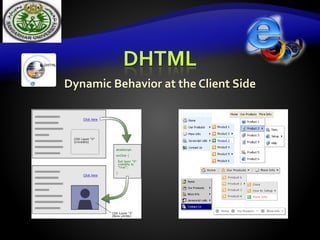
DHTML
Dynamic Behavior at the Client Side
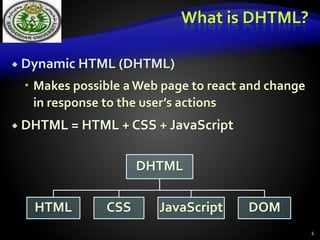
What is DHTML?
 Dynamic HTML (DHTML)
 Makes possible a Web page to react and change
in response to the user’s actions
 DHTML = HTML + CSS + JavaScript
6
DHTML
HTML CSS JavaScript DOM
DTHML = HTML + CSS + JavaScript
 HTML defines Web sites content through
semantic tags (headings, paragraphs, lists, …)
 CSS defines 'rules' or 'styles' for presenting
every aspect of an HTML document
 Font (family, size, color, weight, etc.)
 Background (color, image, position, repeat)
 Position and layout (of any object on the page)
 JavaScript defines dynamic behavior
 Programming logic for interaction with the user,
to handle events, etc. 7
JavaScript
Dynamic Behavior in a Web Page
JavaScript
 JavaScript is a front-end scripting language
developed by Netscape for dynamic content
 Lightweight, but with limited capabilities
 Can be used as object-oriented language
 Client-side technology
 Embedded in your HTML page
 Interpreted by theWeb browser
 Simple and flexible
 Powerful to manipulate the DOM 9
JavaScript Advantages
 JavaScript allows interactivity such as:
 Implementing form validation
 React to user actions, e.g. handle keys
 Changing an image on moving mouse over it
 Sections of a page appearing and disappearing
 Content loading and changing dynamically
 Performing complex calculations
 Custom HTML controls, e.g. scrollable table
 Implementing AJAX functionality 10
What Can JavaScript Do?
 Can handle events
 Can read and write HTML elements and
modify the DOM tree
 Can validate form data
 Can access / modify browser cookies
 Can be used as object-oriented language
 Can handle exceptions
 Can perform asynchronous server calls (AJAX)
11
JavaScript Output
12
 JavaScript Display Possibilities
 JavaScript can "display" data in different ways:
 Writing into an HTML element, using
innerHTML.
 Writing into the HTML output using
document.write().
 Writing into an alert box, using window.alert().
 Writing into the browser console, using
console.log().
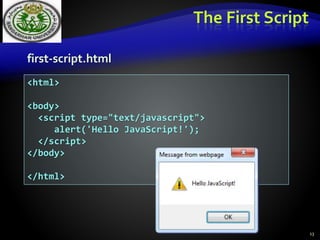
The First Script
first-script.html
13
<html>
<body>
<script type="text/javascript">
alert('Hello JavaScript!');
</script>
</body>
</html>
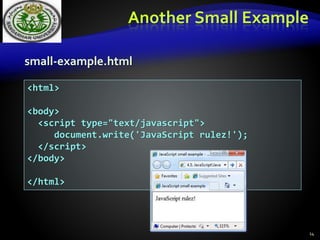
Another Small Example
small-example.html
14
<html>
<body>
<script type="text/javascript">
document.write('JavaScript rulez!');
</script>
</body>
</html>
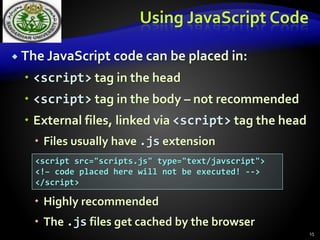
Using JavaScript Code
 The JavaScript code can be placed in:
 <script> tag in the head
 <script> tag in the body – not recommended
 External files, linked via <script> tag the head
 Files usually have .js extension
 Highly recommended
 The .js files get cached by the browser
15
<script src="scripts.js" type="text/javscript">
<!– code placed here will not be executed! -->
</script>
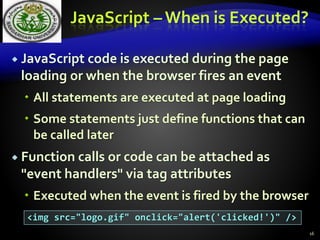
JavaScript – When is Executed?
 JavaScript code is executed during the page
loading or when the browser fires an event
 All statements are executed at page loading
 Some statements just define functions that can
be called later
 Function calls or code can be attached as
"event handlers" via tag attributes
 Executed when the event is fired by the browser
16
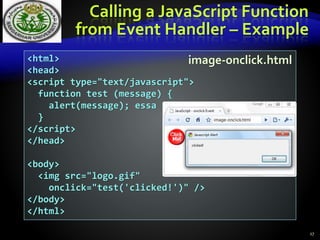
<img src="logo.gif" onclick="alert('clicked!')" />
<html>
<head>
<script type="text/javascript">
function test (message) {
alert(message); essa
}
</script>
</head>
<body>
<img src="logo.gif"
onclick="test('clicked!')" />
</body>
</html>
Calling a JavaScript Function
from Event Handler – Example
image-onclick.html
17
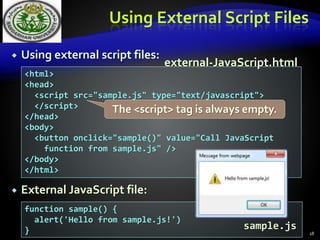
Using External Script Files
 Using external script files:
 External JavaScript file:
18
<html>
<head>
<script src="sample.js" type="text/javascript">
</script>
</head>
<body>
<button onclick="sample()" value="Call JavaScript
function from sample.js" />
</body>
</html>
function sample() {
alert('Hello from sample.js!')
}
external-JavaScript.html
sample.js
The <script> tag is always empty.
The JavaScript
Syntax
JavaScript Syntax
 The JavaScript syntax is similar to C# and Java
 Operators (+, *, =, !=, &&, ++, …)
 Variables (typeless)
 Conditional statements (if, else)
 Loops (for, while)
 Arrays (my_array[]) and associative arrays
(my_array['abc'])
 Functions (can return value)
 Function variables
20
Variables
21
 All JavaScript variables must be identified with unique names.
 These unique names are called identifiers.
 Identifiers can be short names (like x and y) or more descriptive names
(age, sum, totalVolume).
 The general rules for constructing names for variables (unique
identifiers) are:
 Names can contain letters, digits, underscores, and dollar signs.
 Names must begin with a letter
 Names can also begin with $ and _ (but we will not use it in this tutorial)
 Names are case sensitive (y and Y are different variables)
 Reserved words (like JavaScript keywords) cannot be used as names
DataTypes
 JavaScript data types:
 Numbers (integer, floating-point)
 Boolean (true / false)
 String type – string of characters
 Arrays
 Associative arrays (hash tables)
22
var myName = "You can use both single or double
quotes for strings";
var my_array = [1, 5.3, "aaa"];
var my_hash = {a:2, b:3, c:"text"};
Greater than
<=
Symbol Meaning
>
< Less than
>= Greater than or equal to
Less than or equal to
== Equal
!= Not equal
Conditional Statement (if)
23
unitPrice = 1.30;
if (quantity > 100) {
unitPrice = 1.20;
}
Conditional Statement (if) (2)
 Very often when you write code, you want to perform diff
 You can use conditional statements in your code to do this.
In JavaScript we have the following conditional statements:
24
Use if to specify a block of code to be executed, if a specified condition is true
Use else to specify a block of code to be executed, if the same condition is false
Use else if to specify a new condition to test, if the first condition is false
Use switch to specify many alternative blocks of code to be executed
The if Statement syntax
if (condition) {
block of code to be executed if the condition is true
}
25
Conditional Statement (else,
else if)
if (condition) {
block of code to be executed if the condition is true
} else {
block of code to be executed if the condition is false
}
The else Statement syntax
The else if Statement syntax
if (condition1) {
block of code to be executed if condition1 is true
} else if (condition2) {
block of code to be executed if the condition1 is false and condition2 is true
} else {
block of code to be executed if the condition1 is false and condition2 is false
}
Switch Statement
 The switch statement works like in C#:
26
switch (variable) {
case 1:
// do something
break;
case 'a':
// do something else
break;
case 3.14:
// another code
break;
default:
// something completely different
}
switch-statements.html
Loops
 Like in C#
 for loop
 while loop
 do … while loop
27
var counter;
for (counter=0; counter<4; counter++) {
alert(counter);
}
while (counter < 5) {
alert(++counter);
} loops.html
28
Interactivity with HTML Elements
UsingText box
29
<FORM name="F1" path=" ">
Name: <input type=“text" name=“txt1" >
Class: <input type=“text" name=“txt2" >
<input TYPE="button" value="CLICK"
ONCLICK = "clk()">
</FORM>
30
<html> <head>
<script language=“javascript”>
function clk()
{
Var x=document.F1.txt1.value;
Var z=document.F1.txt2.value;
Document.write (“your name is”+x+”your class is “+z);
}
</script></head>
<body>
<FORM name="F1" path=" ">
Name: <input type=“text" name=“txt1" >
Class: <input type=“text" name=“txt2" >
<input TYPE="button" value="CLICK" ONCLICK = "clk()">
</FORM></body>
31
UsingText box
<FORM name="F1" path=" ">
NO1: <input type=“text" name=“txt1" >
NO2: <input type=“text" name=“txt2" >
<input TYPE="button" value=“Add"
ONCLICK = "clk()">
</FORM>
32
function clk() {
Var x=document.F1.txt1.value;
Var z=document.F1.txt2.value;
A=ParseInt(x);
B= ParseInt(z);
C=A+B;
Alert(c);
}
<FORM name="F1" path=" ">
N01: <input type=“text" name=“txt1" >
No2: <input type=“text" name=“txt2" >
<input TYPE="button" value="CLICK" ONCLICK = "clk()">
</FORM>
33
Using Radio buttons
<FORM name="F1" path=" ">
<input type="radio" name="MS" > Single
<input type="radio" name="MS" > Married
<inputTYPE="button" value="CLICK" ONCLICK = "clk()">
</FORM>
34
 function clk()
 {
 if ( document.F1.MS[0].checked == true )
 alert ("Single");
 else if ( document.F1.MS[1].checked == true )
 alert ("Married");
 }
 <FORM name="F1" path=" ">
 <input type="radio" name="MS" > Single
 <input type="radio" name="MS" > Married
 <input TYPE="button" value="CLICK" ONCLICK = "clk()">
 </FORM>
35
getElementById
Now we get the data from HTML elements by it’s id
For this purpose we using getElementById
Function
Like this:
document.getElementById(“ Id of HTML elements")
36
function clk(){
var x= document.getElementById("txt").value;
alert(x);
}
<body>
<form id="form1" name="form1" method="post"
action="">
<input type="text" id="txt" name="text1" />
<input type="button" value="ok" onclick="clk()"
/>
</form> </body>
Example:
HTML Events
37
HTML events are "things" that happen to HTML elements.
When JavaScript is used in HTML pages, JavaScript can
"react" on these events.
An HTML event can be something the browser does, or
something a user does.
Here are some examples of HTML events:
• An HTML web page has finished loading
• An HTML input field was changed
• An HTML button was clicked
Often, when events happen, you may want to do
something.
JavaScript lets you execute code when events are
detected.
38
HTML allows event handler attributes, with JavaScript code,
to be added to HTML elements.
With single quotes:
<element event='some JavaScript‘>
With double quotes:
<element event="some JavaScript">
HTML Events..
<p>Click the button to display the date.</p>
<input type = “button” onclick="displayDate()“ value =“The time is?”>
<script>
function displayDate() {
document.getElementById("demo").innerHTML = Date();
}
</script>
In the following example, an onclick attribute (with code), is added to
a <button> element:
Standard Popup Boxes
 Alert box with text and [OK] button
 Just a message shown in a dialog box:
 Confirmation box
 Contains text, [OK] button and [Cancel] button:
 Prompt box
 Contains text, input field with default value:
39
alert("Some text here");
confirm("Are you sure?”,”defaualt text”);
prompt ("enter amount", 10);
Sum of Numbers – Example
sum-of-numbers.html
40
<html>
<head>
<title>JavaScript Demo</title>
<script type="text/javascript">
function calcSum() {
value1 =
parseInt(document.mainForm.textBox1.value);
value2 =
parseInt(document.mainForm.textBox2.value);
sum = value1 + value2;
document.mainForm.textBoxSum.value = sum;
}
</script>
</head>
Sum of Numbers – Example (2)
sum-of-numbers.html (cont.)
41
<body>
<form name="mainForm">
<input type="text" name="textBox1" /> <br/>
<input type="text" name="textBox2" /> <br/>
<input type="button" value="Process"
onclick="javascript: calcSum()" />
<input type="text" name="textBoxSum"
readonly="readonly"/>
</form>
</body>
</html>
JavaScript Prompt – Example
prompt.html
42
price = prompt("Enter the price", "10.00");
alert('Price + VAT = ' + price * 1.2);
43
var r = confirm("Press a button");
if (r == true) {
x = "You pressed OK!";
} else {
x = "You pressed Cancel!";
}
JavaScript Confirm– Example
The window.confirm() method can be written without the window prefix.
Confirmation Box
A confirm box is often used if you want the user to verify or accept something.
When a confirm box pops up, the user will have to click either "OK" or "Cancel" to
proceed.
If the user clicks "OK", the box returns true. If the user clicks "Cancel", the box
returns false.
var person = prompt("Please enter your name",
“Ahmad Mahmood");
if (person != null) {
document.getElementById("demo").innerHTML =
"Hello " + person + "! How are you today?"; }
A prompt box is often used if you want the user to input a
value before entering a page.
When a prompt box pops up, the user will have to click
either "OK" or "Cancel" to proceed after entering an input
value.
If the user clicks "OK" the box returns the input value. If the
user clicks "Cancel" the box returns null.
Array
44
JavaScript arrays are used to store multiple values in a single
variable.
var cars = ["Saab", "Volvo", "BMW"];
Definition :
An array is a special variable, which can hold more than one value
at a time.
If a list of items (a list of car names, for example), storing the cars
in single variables could look like this:
var car1 = "Saab";
var car2 = "Volvo";
var car3 = "BMW";
Creating an Array
Using an array literal is the easiest way to create
a JavaScriptArray.
Syntax:
var array_name = [item1, item2, ...];
var cars = ["Saab", "Volvo", "BMW"];
Array..
45
Using the JavaScript Keyword new:
var cars = new Array("Saab", "Volvo", "BMW");
Access the Elements of an Array:
array element is accessing by referring to the index number.
This statement accesses the value of the first element in cars:
var name = cars[0];
Changing an Array Element:
This statement changes the value of the first element in cars:
cars[0] = "Opel";
Functions
 Code structure – splitting code into parts
 Data comes in, processed, result returned
46
function average(a, b, c)
{
var total;
total = a+b+c;
return total/3;
}
Parameters come
in here.
Declaring variables
is optional.Type is
never declared.
Value returned
here.
Function Arguments
and ReturnValue
 Functions are not required to return a value
 When calling function it is not obligatory to
specify all of its arguments
 The function has access to all the arguments
passed via arguments array
47
function sum() {
var sum = 0;
for (var i = 0; i < arguments.length; i ++)
sum += parseInt(arguments[i]);
return sum;
}
alert(sum(1, 2, 4));
functions-demo.html
String Operations
 The + operator joins strings
 What is "9" + 9?
 Converting string to number:
48
string1 = "fat ";
string2 = "cats";
alert(string1 + string2); // fat cats
alert("9" + 9); // 99
alert(parseInt("9") + 9); // 18
Some string common function
49
The length property returns the number of
characters that are in a string, using an integer.
Below is the basic code for accessing this
property.
var myString = "123456";
var length = myString.length;
document.write("The string is this long: " + length);
Out put:
The string is this long: 6
Length
Spilt
50
The ability to split up a string into separate
chunks has been supported in many
programming languages, and it is available in
JavaScript as well. If you have a long string
like “this is computer science faculty" and
want to store each name separately, you can
specify the space character " " and have the
split function create a new chunk every time
it sees a space.
51
Let's start off with a little example that takes a string of
numbers and splits when it sees the number 5.That means
the delimiter for this example is 5. Notice that the split
function returns an array that we store into mySplitResult.
var myString = "123456789";
var mySplitResult = myString.split("5");
document.write("The first element is " + mySplitResult[0]);
document.write("<br />The second element is "
+ mySplitResult[1]);
Out put:
The first element is 1234
The second element is 6789
Search
52
The search() method searches a string for a
specified value and returns the position of
the match:
var str = "Please locate where 'locate' occurs!";
var pos = str.search("locate");
Out put: 7
53
The most important thing to remember when creating a regular
expression is that it must be surrounded with slashes /regular
expression/.With that knowledge let's search a string to see if a
common name “2001" is inside it.
var myRegExp = /2001/;
var string1 = “the computer science facultyi s established in 2001 in IUST.";
var matchPos1 = string1.search(myRegExp);
if(matchPos1 != -1)
document.write("There was a match at position " + matchPos1);
else document.write("There was no match in the first string");
Out put: There was a match at position 44
For powerful search use regular expression
Extracting String Parts
54
There are 3 methods for extracting a part
of a string:
•slice(start, end)
•substring(start, end)
•substr(start, length)
Slice
55
slice() extracts a part of a string and returns the
extracted part in a new string.
The method takes 2 parameters: the start
position, and the end position (end not included).
This example slices out a portion of a string from
position 7 to position 12 (13-1):
var str = "Apple, Banana, Kiwi";
var res = str.slice(7, 13);
The result of res will be: Banana
Slice…
56
If a parameter is negative, the position is counted
from the end of the string.
This example slices out a portion of a string from
position -12 to position -6:
var str = "Apple, Banana, Kiwi";
var res = str.slice(-12, -6);
The result of res will be: Banana
If you omit the second parameter, the method will slice out the rest of the string:
var res = str.slice(7);
var res = str.slice(-12);
Substring
57
substring() is similar to slice().
The difference is that substring() cannot accept
negative indexes.
var str = "Apple, Banana, Kiwi";
var res = str.substring(7, 13);
The result of res will be: Banana
If you omit the second parameter, substring() will slice out the rest of the string.
substr
58
substr() is similar to Substring().
The difference is that the second parameter
specifies the length of the extracted part.
var str = "Apple, Banana, Kiwi";
var res = str.substr(7, 6);
The result of res will be: Banana
If you omit the second parameter, substr() will slice out the rest of the string.
If the first parameter is negative, the position counts from the end of the string.
Replace
59
The replace() method replaces a specified value with
another value in a string:
var str = "Please visit Microsoft!";
var n = str.replace("Microsoft", "W3Schools");
Output Please visit W3Schools!
By default, the replace() method replaces only the
first match:
var str = "Please visit Microsoft and Microsoft!";
var n = str.replace("Microsoft", "W3Schools");
60
Replace…
By default, the replace() method is case sensitive. Writing
MICROSOFT (with upper-case) will not work:
var str = "Please visit Microsoft!";
var n = str.replace("MICROSOFT", "W3Schools");
To replace case insensitive, use a regular expression with
an /i (insensitive):
var str = "Please visit Microsoft!";
var n = str.replace(/MICROSOFT/i, "W3Schools");
To replace all matches, use a regular expression with a /g
str = "Please visit Microsoft and Microsoft!";
n = str.replace(/Microsoft/g, "W3Schools");
Index of
61
The indexOf() method returns the index of (the position
of) the first occurrence of a specified text in a string:
JavaScript counts positions from zero.
0 is the first position in a string, 1 is the second, 2 is
the third ...
The lastIndexOf() method returns the index of
the last occurrence of a specified text in a string:
62
var str = "Please locate where 'locate' occurs!";
var pos = str.lastIndexOf("locate");
Output 22
<script type="text/javascript">
var aURL = "http://www.tizag.com/";
var aPosition = aURL.indexOf("www");
document.write("The position of www = " + aPosition);
</script >
Out put: The position of www = 7
Both methods accept a second parameter as the starting position
for the search:
var aURL = http://www.webtizag.com/";
var aPosition = aURL.indexOf(“w", 10);
document.write("The position of www = " + aPosition);
The position of www = 11
Search and IndexOf
 The two methods, indexOf() and search(), are equal?
 They accept the same arguments (parameters), and
return the same value?
 But the differences are:
 The search() method cannot take a second start
position argument.
 The indexOf() method cannot take powerful search
values (regular expressions).
 We will learn more about regular expressions later.
63
Search and IndexOf
 The two methods, indexOf() and search(), are equal?
 They accept the same arguments (parameters), and
return the same value?
 But the differences are:
 The search() method cannot take a second start
position argument.
 The indexOf() method cannot take powerful search
values (regular expressions).
 We will learn more about regular expressions in a later
chapter. 64
Converting to Upper and Lower Case
A string is converted to upper case with toUpperCase():
var text1 = "Hello World!";
var text2 = text1.toUpperCase();
A string is converted to lower case with toLowerCase():
var text1 = "Hello World!";
var text2 = text1.toLowerCase();
65
charAt and charCodeAt
66
The charAt() method returns the character at a specified
index (position) in a string:
var str = "HELLO WORLD";
str.charAt(0); // returns H
The charCodeAt() method returns the unicode of the
character at a specified index in a string.
The method returns a UTF-16 code (an integer between 0
and 65535).
var str = "HELLO WORLD";
str.charCodeAt(0); // returns 72
innerHTML
67
The easiest way to get or change the content of an
element is by using the innerHTML property.
The innerHTML property is useful for getting or replacing
the content of HTML elements.
The innerHTML property can be used to get or change
any HTML element, including <html> and <body>.
Return the innerHTML property:
HTMLElementObject.innerHTML
Set the innerHTML property:
HTMLElementObject.innerHTML = text
Everything is Object
 Every variable can be considered as object
 For example strings and arrays have member
functions:
68
var test = "some string";
alert(test[7]); // shows letter 'r'
alert(test.charAt(5)); // shows letter 's'
alert("test".charAt(1)); //shows letter 'e'
alert("test".substring(1,3)); //shows 'es'
var arr = [1,3,4];
alert (arr.length); // shows 3
arr.push(7); // appends 7 to end of array
alert (arr[3]); // shows 7
objects.html
JavaScript Objects
69
Real Life Objects, Properties, and Methods
In real life, a car is an object.
A car has properties like weight and color, and methods like start and stop:
Object Properties Methods
car.name = Fiat
car.model = 500
car.weight = 850kg
car.color = white
car.start()
car.drive()
car.brake()
car.stop()
All cars have the same properties, but the property values differ from car to car.
All cars have the same methods, but the methods are performed at different times.
JavaScript Objects…
70
Objects are variables too. But objects can contain many values.
This code assigns many values (Fiat, 500, white) to a variable named car:
var car = {type:“Toyota", model:"500", color:"white"};
The values are written as name:value pairs (name and value separated by a colon).
Object Properties
The name:values pairs (in JavaScript objects) are called properties.
var person = {firstName:"John", lastName:"Doe", age:50,
eyeColor:"blue"};
Property PropertyValue
firstName John
lastName Doe
age 50
eyeColor blue
JavaScript Objects…
71
Spaces and line breaks are not important. An object definition can span multiple lines:
var person = {firstName:"John", lastName:"Doe", age:50,
eyeColor:"blue"};
Object Definition
You define (and create) a JavaScript object with an object literal:
var person = {
firstName:"John",
lastName:"Doe",
age:50,
eyeColor:"blue"
};
JavaScript Objects…
72
objectName.propertyName
Accessing Object Properties
You can access object properties in two ways:
objectName["propertyName"]
<body>
<p>
There are two different ways to access an object property:
</p>
<p>You can use person.property or person["property"].</p>
<p id="demo"></p>
<script>
var person = {
firstName: "John",
lastName : "Doe",
id : 5566
};
document.getElementById("demo").innerHTML =
person.firstName + " " + person.lastName;
</script>
document.getElementById("demo"
).innerHTML =
person["firstName"] + " " +
person["lastName"];
HTML Document Object Model
(HDOM)
When a web page is loaded, the browser creates
a Document Object Model of the page.
The HTML DOM model is constructed as a tree of Objects:
Document Object Model (DOM)
74
With the object model, JavaScript gets all the
power it needs to create dynamic HTML:
JavaScript can change all the HTML elements in the page
JavaScript can change all the HTML attributes in the page
JavaScript can change all the CSS styles in the page
JavaScript can remove existing HTML elements and attributes
JavaScript can add new HTML elements and attributes
JavaScript can react to all existing HTML events in the page
JavaScript can create new HTML events in the page
75
The DOM is a W3C (World Wide Web Consortium) standard.
The DOM defines a standard for accessing documents:
"TheW3C Document Object Model (DOM) is a platform and
language-neutral interface that allows programs and scripts to
dynamically access and update the content, structure, and style of
a document.“
The W3C DOM standard is separated into 3 different parts:
Core DOM - standard model for all document types
XML DOM - standard model for XML documents
HTML DOM - standard model for HTML documents
What is the DOM?
What is the HDOM?
 The HTML DOM is a standard object model
and programming interface for HTML.
 It defines:
76
The HTML elements as objects
The properties of all HTML elements
The methods to access all HTML elements
The events for all HTML elements
In other words:The HTML DOM is a standard for how to get,
change, add, or delete HTML elements.
JavaScript HTML DOM Methods
 HTML DOM methods are actions you can perform (on HTML
Elements).
 HTML DOM properties are values (of HTML Elements) that you
can set or change.
77
The DOM Programming Interface
The HTML DOM can be accessed with JavaScript (and with
other programming languages).
In the DOM, all HTML elements are defined as objects.
The programming interface is the properties and methods of each object.
A property is a value that you can get or set (like changing the content of an HTML
element).
A method is an action you can do (like add or deleting an HTML element).
JavaScript HTML DOM Methods…
The getElementById Method
 The most common way to access an HTML
element is to use the id of the element.
The innerHTML Property
 The easiest way to get the content of an element
is by using the innerHTML property.
 The innerHTML property is useful for getting or
replacing the content of HTML elements.
78
<p id="demo"></p>
<script>
document.getElementById("demo").innerHTML = "HelloWorld!";
</script>
JavaScript HTML DOM Documen
The HTML DOM document object is the owner of
all other objects in your web page.
The HTML DOM Document Object
 The document object represents your web page.
 If you want to access any element in an HTML
page, you always start with accessing the
document object.
 Next slide: some examples of how you can use
the document object to access and manipulate
HTML. 79
80
Finding HTML Elements
Method Description
document.getElementById(id) Find an element by element id
document.getElementsByTagName(name) Find elements by tag name
document.getElementsByClassName(name) Find elements by class name
Changing HTML Elements
Method Description
element.innerHTML = new html content Change the inner HTML of an element
element.attribute = new value Change the attribute value of an HTML element
element.setAttribute(attribute, value) Change the attribute value of an HTML element
element.style.property = new style Change the style of an HTML element
Adding and Deleting Elements
Method Description
document.createElement(element) Create an HTML element
document.removeChild(element) Remove an HTML element
document.appendChild(element) Add an HTML element
document.replaceChild(element) Replace an HTML element
document.write(text) Write into the HTML output stream
Adding Events Handlers
Method Description
document.getElementById(id).onclick = function(){code} Adding event handler code to an onclick
event
Note : that you don't use the "on" prefix for the event; use "click" instead of "onclick".
Syntax element.addEventListener(event, function, useCapture);
The first parameter is the type of the event (like "click" or "mousedown").
The second parameter is the function we want to call when the event occurs.
The third parameter is a boolean value specifying whether to use event bubbling
or event capturing.This parameter is optional.
DOM Nodes
According to the W3C HTML DOM standard, everything in an HTML
document is a node:
 The entire document is a document node
 Every HTML element is an element node
 The text inside HTML elements are text nodes
 Every HTML attribute is an attribute node
 All comments are comment
nodes
82
With the HTML DOM, all nodes in the
node tree can be accessed by JavaScript.
New nodes can be created, and all nodes
can be modified or deleted.
Node Relationships
83
The nodes in the node tree have a hierarchical relationship to each other.
The terms parent, child, and sibling are used to describe the relationships.
In a node tree, the top node is called the root (or root node)
Every node has exactly one parent, except the root (which has no
parent)
A node can have a number of children
Siblings (brothers or sisters) are nodes with the same parent
<head>
<title>DOMTutorial</title>
</head>
<body>
<h1>DOM Lesson one</h1>
<p>Hello world!</p>
</body>
84
Node Relationships…
From the HTML above you can read:
<html> is the root node
<html> has no parents
<html> is the parent of <head> and <body>
<head> is the first child of <html>
<body> is the last child of <html>
and:
<head> has one child: <title>
<title> has one child (a text node): "DOM
Tutorial"
<body> has two children: <h1> and <p>
<h1> has one child: "DOM Lesson one"
<p> has one child: "Hello world!"
<h1> and <p> are siblings
and
Navigating Between Nodes
You can use the following node properties to navigate between nodes with JavaScript:
parentNode
childNodes[nodenumber]
firstChild
lastChild
nextSibling
previousSibling
Warning !
A common error in DOM processing is to
expect an element node to contain text.
The value of the text node can be accessed by the
node's innerHTML property, or the nodeValue.
Node Relationships…
85
Child Nodes and NodeValues
In addition to the innerHTML property, you can also use the childNodes and
nodeValue properties to get the content of an element.
The following example collects the node value of an <h1> element and copies it
into a <p> element:
<script>
var myText =
document.getElementById("intro").childNodes[0].nodeValue;
document.getElementById("demo").innerHTML = myText;
</script>
<h1 id="intro">My First Page</h1> <p id="demo">Hello!</p>
In the example above, getElementById is a method, while childNodes and nodeValue are
properties.
In this tutorial we use the innerHTML property. However, learning the method above is
useful for understanding the tree structure and the navigation of the DOM.
Node Relationships…
 Using the firstChild property is the same as using childNodes[0]:
86
<script>
myText =
document.getElementById("intro").firstChild.nodeValue;
document.getElementById("demo").innerHTML = myText;
</script>
<h1 id="intro">My First Page</h1>
<p id="demo">Hello World!</p>
DOM Root Nodes
There are two special properties that
allow access to the full document:
document.body -The body of the
document
document.documentElement –The
full document
<p>Hello World!</p>
<div>
<p>The DOM is very useful!</p>
<p>This example demonstrates
the <b>document.body</b>
property.</p>
</div>
<script>
alert(document.body.innerHTML);
</script>
Node Relationships…
87
Creating New HTML Elements (Nodes)
To add a new element to the HTML DOM, you must create the element (element
node) first, and then append it to an existing element.
var para = document.createElement("p");
var node = document.createTextNode("This is new.");
para.appendChild(node);
var element = document.getElementById("div1");
element.appendChild(para);
<div id="div1">
<p id="p1">This is
a paragraph.</p>
<p id="p2">This is
another paragraph.
</p>
</div>
Creating new HTML Elements - insertBefore()
The appendChild() method in the previous example, appended the new element as the last
child of the parent.
If you don't want that you can use the insertBefore() method:
var element = document.getElementById("div1");
var child = document.getElementById("p1");
element.insertBefore(para,child);
Node Relationships…
88
Removing Existing HTML Elements
To remove an HTML element, you must know the parent of the element:
<div id="div1">
<p id="p1">This is a paragraph.</p>
<p id="p2">This is another paragraph.</p>
</div>
<script>
var parent = document.getElementById("div1");
var child = document.getElementById("p1");
parent.removeChild(child);
The method
node.remove() is
implemented in the DOM
4 specification.
But because of poor
browser support, you
should not use it.
Replacing HTML Elements
To replace an element to the HTML DOM, use the replaceChild() method:
<div id="div1">
<p id="p1">This is a
paragraph.</p>
<p id="p2">This is another
paragraph.</p>
</div>
var para = document.createElement("p");
var node =
document.createTextNode("This is
new.");
para.appendChild(node);
var parent = document.getElementById("div1");
var child = document.getElementById("p1");
parent.replaceChild(para,child);
The Built-In
Browser Objects
Built-in Browser Objects
 The browser provides some read-only data via:
 window
 The top node of the DOM tree
 Represents the browser's window
 document
 holds information the current loaded document
 screen
 Holds the user’s display properties
 navigtor
 Holds information about the browser
 History
 Contain the browser history
 location
 Contain the current page URL
90
DOM Hierarchy – Example
91
window
navigator screen document history location
form
button form
form
Window Object Details
 Properties
 status: Specifies a temporary message that
appears on the status bar on the bottom of the
browser window.
Browser support
 location: Identifies the URL associated with a
window object. It can be used to redirect the
client to another URL.
 document: Refers to the current document
being displayed in the window. 92
Methods of Windows object
open(): Opens a new window with a specified document or opens the
document in the specified named window.
window.open("URL", "windowName", "featureList");
close(): Closes the current window. window.close();
alert(): Displays a message in a dialog box with an OK button.
confirm(): Displays a Confirm dialog box with OK and Cancel buttons.
prompt(): Displays a Prompt dialog box with a text field for entering a
value, with a OK & Cancel button.
blur() & focus(): Removes focus from or gives focus to a window.
93
94
<INPUT TYPE="button"VALUE="Open Window“
onClick = " NW = window.open (‘ ‘ , 'NewWin‘ ,
'toolbar=no, status=no, width=200,height=100‘ );” >
<INPUTTYPE="button"VALUE="Close Window"
onClick="NW.close();" >
<INPUTTYPE="button"VALUE="Close Main Window"
onClick="window.close();">
Window. open example
Window .prompt example
95
<html>
<head>
<script language="javascript">
document.write("This illustrates the Prompt
method");
var username=prompt("What is your name?","")
alert("Hello," + username + "!")
</script>
</head>
<body> </body> </html>
Opening New Window – Example
 window.open()
96
var newWindow = window.open("", "sampleWindow",
"width=300, height=100, menubar=yes,
status=yes, resizable=yes");
newWindow.document.write(
"<html><head><title>
Sample Title</title>
</head><body><h1>Sample
Text</h1></body>");
newWindow.status =
"Hello folks";
window-open.html
The Navigator Object
97
alert(window.navigator.userAgent);
The navigator in the
browser window
The userAgent
(browser ID)
The browser
window
Document and Location
 document object
 Provides some built-in arrays of specific objects
on the currently loaded Web page
 document.location
 Used to access the currently open URL or
redirect the browser
98
document.links[0].href = "yahoo.com";
document.write(
"This is some <b>bold text</b>");
document.location = "http://www.yahoo.com/";
The Screen Object
 The screen object contains information about
the display
99
window.moveTo(0, 0);
x = screen.availWidth;
y = screen.availHeight;
window.resizeTo(x, y);
<html>
<body>
<p id="demo"></p>
<script>
document.getElementById("demo").innerHTML =
"Screen width is " + screen.width;
</script>
</body>
</html>
ScreenWidth: 1440
Regular Expressions
If you use HTML forms on your
website, and want to make sure
that your visitors submit valid data
on those forms, you might want to
consider using some regular
expressions in JavaScript