
FORM TWO
DESKTOP APPLICATIONS
  MICROSOFT WORD
  MICROSOFT POWERPOINT
  MICROSOFT EXCEL
Microsoft Office
  Introduction to Microsoft Office
  Desktop applications
  Server applications
  Web Services
  Common features
  File formats and metadata
  Supported operating systems
  Version history
Introduction to
Microsoft Office
•   is an office suite of desktop applications, servers and services
    for the Microsoft Windows and Mac OS X operating systems,
    introduced by Microsoft on August 1, 1989.
•   First version of Office contained Microsoft Word, Microsoft
    Excel and Microsoft PowerPoint. Over the years, Office
    applications have grown substantially closer with shared
    features such as a common spell checker, OLE data integration
    and Microsoft Visual Basic for Applications scripting
    language. Microsoft also positions Office as a development
    platform for line-of-business software under the Office
    Business Applications brand. Office is reported to now be
    used by over a billion people worldwide.
•   The current versions are Office 2013 for Windows, released on
    October 11, 2012; and Office 2011 for Mac OS X, released
    October 26, 2010. On 24 October 2012, the RTM final code of
    Office 2013 Professional Plus has been released to TechNet and
    MSDN subscribers for download.
•   On 15 November 2012, the 60-day trial version of Office 2013
    Professional Plus was released for download.
DESKTOP APPLICATIONS
  MICROSOFT WORD
  MICROSOFT POWERPOINT
  MICROSOFT EXCEL
WORD
•   is a word processor and was previously considered the
    main program in Office. Its proprietary DOC format is
    considered a de facto standard, although Word 2007 can
    also use a new XML-based.
•   Microsoft Office-optimized format called .DOCX, which has
    been standardized by Ecma International as Office Open
    XML and its SP2 update supports PDF and a limited ODF.
    Word is also available in some editions of Microsoft
    Works. It is available for the Windows and Mac platforms.
•   The first version of Word, released in the autumn of 1983,
    designed by Microsoft was for the MS-DOS operating
    system and had the distinction of introducing the mouse to
    a broad population. Word 1.0 could be purchased with a
    bundled mouse, though none was required. Following the
    precedents of LisaWrite and MacWrite, Word for
    Macintosh attempted to add closer WYSIWYG features into
    its package. Word for Mac was released in 1985. Word for
    Mac was the first graphical version of Microsoft Word.
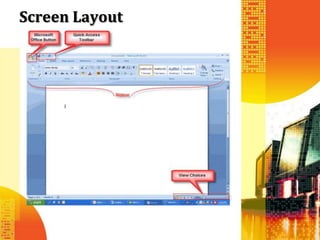
Screen Layout
Menus
• When you begin to explore Word 2007 you
  will notice a new look to the menu bar.
  There are three features that you should
  remember as you work within Word 2007:
   – Microsoft Office Button
   – Quick Access Toolbar
   – Ribbon
• These three features contain many of the
  functions that were in the menu of previous
  versions of Word. The functions of these
  three features will be more fully explored
  below.
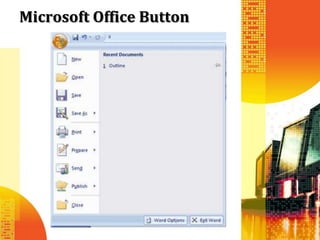
Microsoft Office Button
• The Microsoft Office button performs many
  of the functions that were located in the File
  menu of older versions of Word.
• This button allows you to create a new
  document, open an existing document, save
  or save as, print, send (through email or
  fax), publish or close.
The Ribbon

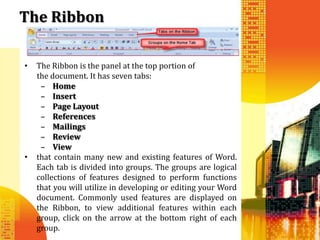
•   The Ribbon is the panel at the top portion of
    the document. It has seven tabs:
     – Home
     – Insert
     – Page Layout
     – References
     – Mailings
     – Review
     – View
•   that contain many new and existing features of Word.
    Each tab is divided into groups. The groups are logical
    collections of features designed to perform functions
    that you will utilize in developing or editing your Word
    document. Commonly used features are displayed on
    the Ribbon, to view additional features within each
    group, click on the arrow at the bottom right of each
    group.
The Ribbon


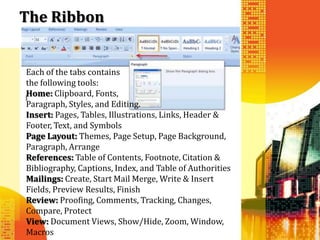
Each of the tabs contains
the following tools:
Home: Clipboard, Fonts,
Paragraph, Styles, and Editing.
Insert: Pages, Tables, Illustrations, Links, Header &
Footer, Text, and Symbols
Page Layout: Themes, Page Setup, Page Background,
Paragraph, Arrange
References: Table of Contents, Footnote, Citation &
Bibliography, Captions, Index, and Table of Authorities
Mailings: Create, Start Mail Merge, Write & Insert
Fields, Preview Results, Finish
Review: Proofing, Comments, Tracking, Changes,
Compare, Protect
View: Document Views, Show/Hide, Zoom, Window,
Macros
Quick Access Toolbar


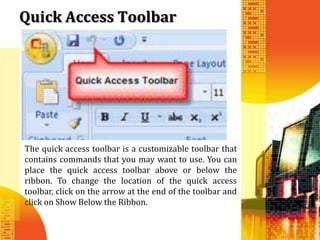
The quick access toolbar is a customizable toolbar that
contains commands that you may want to use. You can
place the quick access toolbar above or below the
ribbon. To change the location of the quick access
toolbar, click on the arrow at the end of the toolbar and
click on Show Below the Ribbon.
Quick Access Toolbar


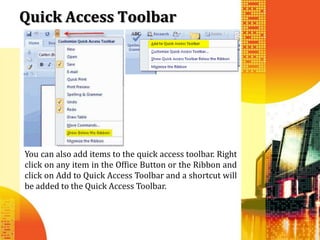
You can also add items to the quick access toolbar. Right
click on any item in the Office Button or the Ribbon and
click on Add to Quick Access Toolbar and a shortcut will
be added to the Quick Access Toolbar.
WORKING WITH DOCUMENTS
  CREATE A NEW DOCUMENTS
  OPENING AN EXISTING DOCUMENTS
  SAVING A DOCUMENTS
  RENAMING DOCUMENTS
  WORKING IN MULTIPLE DOCS
  DOCUMENT VIEWS
  CLOSE A DOCUMENT
Create A New Documents
There are several ways to create new documents, open
existing documents, and save documents in Word:

• Click the Microsoft Office Button  and Click
  New or;
• Press CTRL+N (Depress the CTRL key while
  pressing the “N”) on the keyboard.

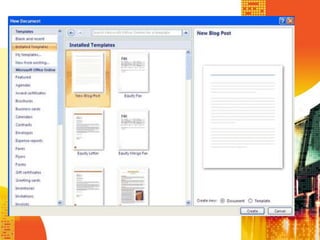
• You will notice that when you click on the Microsoft
  Office Button and Click New, you have many choices
  about the types of documents you can create. If you
  wish to start from a blank document, click Blank. If
  you wish to start from a template you can browse
  through your choices on the left, see the choices on
  center screen, and preview the selection on the right
  screen.
Opening An Existing Documents
  There are several ways to create new documents, open
  existing documents, and save documents in Word:

  • Click the Microsoft Office Button          and Click
    Open, or;
  • Press CTRL+O (Depress the CTRL key while
    pressing the “O”) on the keyboard, or
  • If you have recently used the document you can click
    the Microsoft Office Button and click the name of
    the document in the Recent Documents section of
    the window Insert picture of recent docs
Saving A Documents
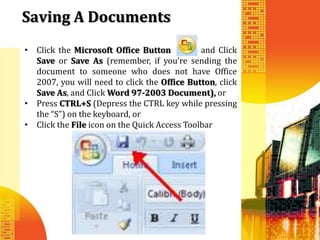
• Click the Microsoft Office Button           and Click
  Save or Save As (remember, if you’re sending the
  document to someone who does not have Office
  2007, you will need to click the Office Button, click
  Save As, and Click Word 97-2003 Document), or
• Press CTRL+S (Depress the CTRL key while pressing
  the “S”) on the keyboard, or
• Click the File icon on the Quick Access Toolbar
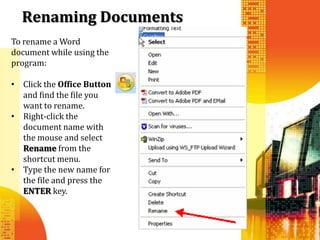
Renaming Documents
To rename a Word
document while using the
program:

• Click the Office Button
  and find the file you
  want to rename.
• Right-click the
  document name with
  the mouse and select
  Rename from the
  shortcut menu.
• Type the new name for
  the file and press the
  ENTER key.
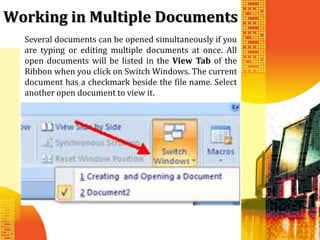
Working in Multiple Documents
  Several documents can be opened simultaneously if you
  are typing or editing multiple documents at once. All
  open documents will be listed in the View Tab of the
  Ribbon when you click on Switch Windows. The current
  document has a checkmark beside the file name. Select
  another open document to view it.
Document Views
There are many ways to view a document in Word.
• Print Layout: This is a view of the document as it
  would appear when printed. It includes all tables,
  text, graphics, and images.
• Full Screen Reading: This is a full view length view
  of a document. Good for viewing two pages at a time.
• Web Layout: This is a view of the document as it
  would appear in a web browser.
• Outline: This is an outline form of the document in
  the form of bullets.
• Draft: This view does not display pictures or layouts,
  just text.
To view a document in different forms, click the
document views shortcuts at the bottom of the screen
                       or:


• Click the View Tab on the Ribbon
• Click on the appropriate document view.
Close A Document
To close a document:
• Click the Office Button
• Click Close
FIN
       NEXT LESSON :
“CUSTOMIZE THE WORD ENVIRONMENT”