GIT Introduction
Version Control System
Dian Sigit Prastowo & Agastyo Satriaji Idam
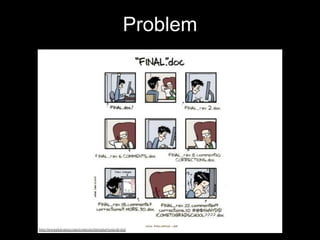
Problem
Version Control System
“A version control system (sometimes called revision
control) is a tool that lets you track the history and
attribution of your project files over time (stored in a
repository), and which helps the developers in the team to
work together. Modern version control systems help them
work simultaneously, in a non-blocking way, by giving
each developer his or her own sandbox, preventing their
work in progress from conflicting, and all the while
providing a mechanism to merge changes and
synchronize work.”
“Mastering Git.”
Version Control System
What is GIT?
Git is Distributed Version Control System
“Distributed means that there is no main server and all
of the full history of the project is available once you
cloned the project”
A Brief History
• In 2002, the Linux kernel project bega using a DVCS
calld BitKeeper.
• In 2005, the commercial company that developed
BitKeeper broke down, and the tool’s free-of-charge
status was revoked.
• This prompted the Linux development community
(and in particular Linux Trovalds, the creator of Linux)
to develop their own tool - GIT
First of all, definitions
• Working tree
A directory in your filesystem that is
associated with a repository, containing files &
sub-directories
• Repository
A collection of commits & branches, saved
in the .git directory
• Commit
A Snapshot of your working tree at a certain
point in time, identified by a revision number.
• HEAD
The name for the commit thats currently
checked out in.
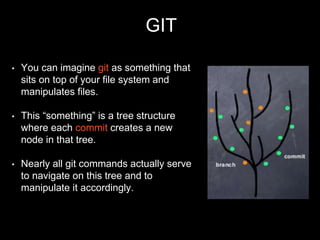
GIT
• You can imagine git as something that
sits on top of your file system and
manipulates files.
• This “something” is a tree structure
where each commit creates a new
node in that tree.
• Nearly all git commands actually serve
to navigate on this tree and to
manipulate it accordingly.
GIT Commands
Version Control System
Dian Sigit Prastowo & Agastyo Satriaji Idam
Commands
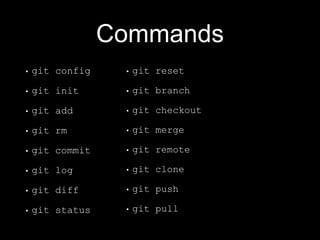
• git config
• git init
• git add
• git rm
• git commit
• git log
• git diff
• git status
• git reset
• git branch
• git checkout
• git merge
• git remote
• git clone
• git push
• git pull
Install Git on Windows
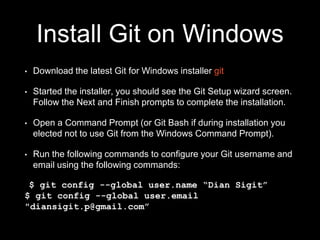
• Download the latest Git for Windows installer git
• Started the installer, you should see the Git Setup wizard screen.
Follow the Next and Finish prompts to complete the installation.
• Open a Command Prompt (or Git Bash if during installation you
elected not to use Git from the Windows Command Prompt).
• Run the following commands to configure your Git username and
email using the following commands:
$ git config --global user.name “Dian Sigit”
$ git config --global user.email
"diansigit.p@gmail.com”
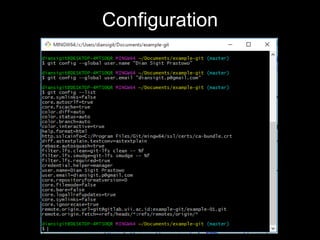
Configuration
Local Repository
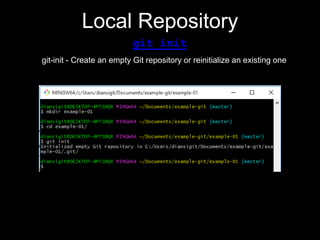
git init
git-init - Create an empty Git repository or reinitialize an existing one
Local Repository
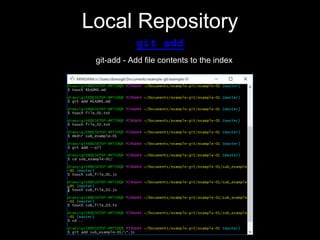
git add
git-add - Add file contents to the index
Local Repository
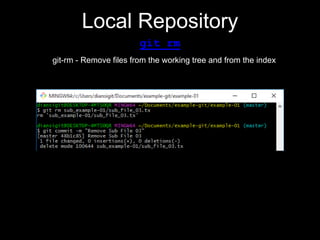
git rm
git-rm - Remove files from the working tree and from the index
Local Repository
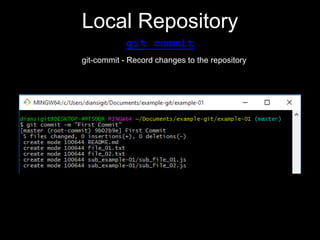
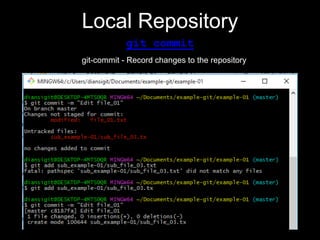
git commit
git-commit - Record changes to the repository
Local Repository
git commit
git-commit - Record changes to the repository
Local Repository
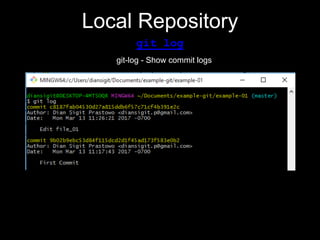
git log
git-log - Show commit logs
Local Repository
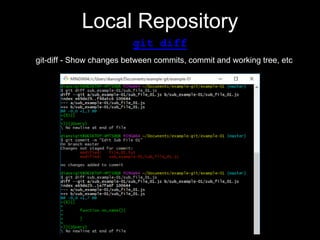
git diff
git-diff - Show changes between commits, commit and working tree, etc
Local Repository
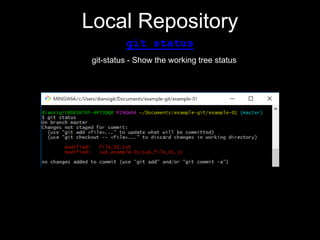
git status
git-status - Show the working tree status
Local Repository
git reset
git-reset - Reset current HEAD to the specified state
Local Repository
git branch
git-branch - List, create, or delete branches
Local Repository
git checkout
git-checkout - Switch branches or restore working tree files
Local Repository
git merge
git-merge - Join two or more development histories together
Installing SSH keys on
Windows
• To access your Git repositories you will need to create and
install SSH keys
• Generating a key pair, ssh-keygen -t rsa
• Copy the public key, and paste on gitlab SSH Key Settings,
cat ~/.ssh/id_rsa.pub | clip
• Checking your connection, ssh git@gitlab.uii.ac.id
Collaboration Repository
git remote
git-remote - Manage set of tracked repositories
Collaboration Repository
git clone
git-clone - Clone a repository into a new directory
Collaboration Repository
git push
git-push - Update remote refs along with associated objects
Collaboration Repository
git pull
git-pull - Fetch from and integrate with another repository or a local branch