HTML Tutorial
BY : AHMAD AL-AMMAR
HTML Introduction
 What is HTML?
 HTML is a markup language for describing web documents (web
pages).
 HTML stands for Hyper Text Markup Language
 A markup language is a set of markup tags
 HTML documents are described by HTML tags
 Each HTML tag describes different document content
HTML Tags
 <tagname> content </tagname>
Web Browser
 The purpose of a web browser (Chrome, IE, Firefox, Safari) is to read
HTML documents and display them.
 The browser does not display the HTML tags, but uses them to
determine how to display the document .
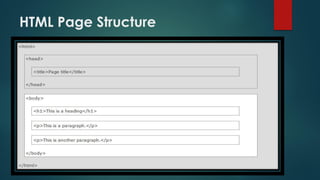
HTML Page Structure
HTML Editor
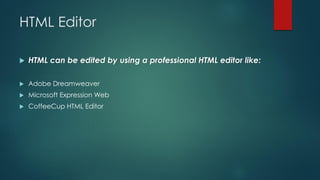
 HTML can be edited by using a professional HTML editor like:
 Adobe Dreamweaver
 Microsoft Expression Web
 CoffeeCup HTML Editor
HTML Using Notepad
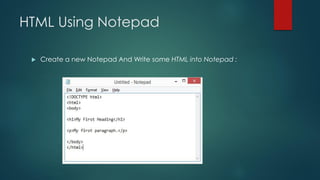
 Create a new Notepad And Write some HTML into Notepad :
HTML Using Notepad
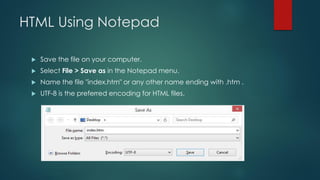
 Save the file on your computer.
 Select File > Save as in the Notepad menu.
 Name the file "index.htm" or any other name ending with .htm .
 UTF-8 is the preferred encoding for HTML files.
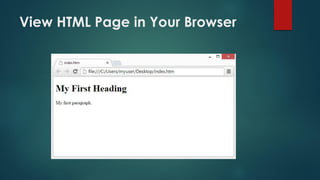
View HTML Page in Your Browser
HTML elements
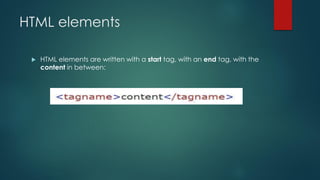
 HTML elements are written with a start tag, with an end tag, with the
content in between:
HTML Attributes
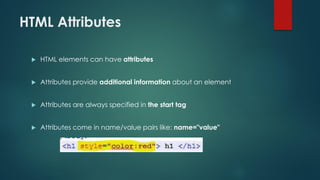
 HTML elements can have attributes
 Attributes provide additional information about an element
 Attributes are always specified in the start tag
 Attributes come in name/value pairs like: name="value"
HTML Styling
 Every HTML element has a default style (background color is white
and text color is black).
 Changing the default style of an HTML element, can be done with
the style attribute.
 The HTML style attribute has the following syntax:
style="property:value"
 The property is a CSS property. The value is a CSS value.
HTML Text Formatting Elements
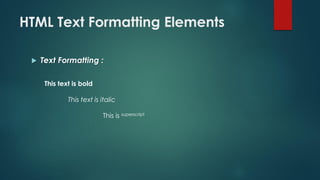
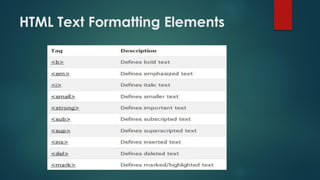
 Text Formatting :
This text is bold
This text is italic
This is superscript
HTML Text Formatting Elements
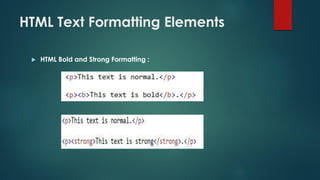
 HTML Bold and Strong Formatting :
HTML Text Formatting Elements
HTML Headings
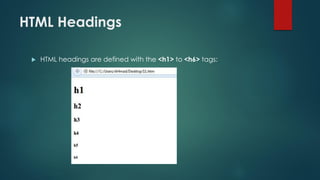
 HTML headings are defined with the <h1> to <h6> tags:
HTML Headings
 Headings Are Important
 Search engines use your headings to index the
structure and content of your web pages.
 Users skim your pages by its headings. It is important
to use headings to show the document structure.
 h1 headings should be main headings, followed by
h2 headings, then the less important h3, and so on.
HTML Paragraphs
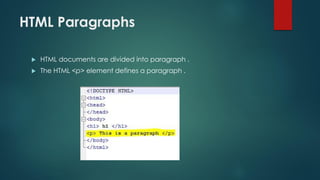
 HTML documents are divided into paragraph .
 The HTML <p> element defines a paragraph .
HTML Quotations, Citations, and
Definition Elements
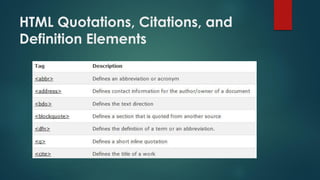
HTML Quotations, Citations, and
Definition Elements
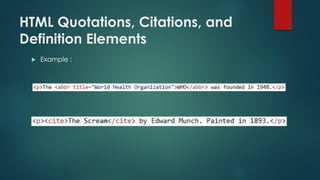
 Example :
HTML Computer Code Elements
HTML Links
 HTML links are hyperlinks.
 A hyperlink is a text or an image you can click on, and jump to
another document.
Local Links
 A local link (link to the same web site) is specified with a relative URL
(without http://www....).
HTML Links - The target Attribute
 The target attribute specifies where to open the linked document.
HTML Images
 HTML Images Syntax :
 The alt attribute specifies an alternate text for the image, if it cannot
be displayed.
 The value of the alt attribute should describe the image in words.
HTML Tables
Defining HTML Tables
An HTML Table With a Caption
HTML Lists
HTML Lists
Unordered HTML Lists
 An unordered list starts with the <ul> tag. Each list item starts with the
<li> tag.
Unordered HTML Lists - The Style
Attribute
Unordered HTML Lists - The Style
Attribute
Ordered HTML Lists
 An ordered list starts with the <ol> tag. Each list item starts with the
<li> tag.
Ordered HTML Lists - The Type
Attribute
Ordered HTML Lists - The Type
Attribute
HTML Description Lists
 A description list, is a list of terms, with a description of each term.
 The <dl> tag defines a description list.
 The <dt> tag defines the term (name), and the <dd> tag defines the
data (description).
Nested HTML Lists
 List items can contain new list, and other HTML elements, like images
and links, etc.
HTML Block Elements
The HTML <div> Element
 The HTML <div> element is a block level element that can be used
as a container for other HTML elements.
 The <div> element has no special meaning. It has no required
attributes, but style and class are common.
 Because it is a block level element, the browser will display line
breaks before and after it.
 When used together with CSS, the <div> element can be used to
style blocks of content.
The HTML <span> Element
 The HTML <span> element is an inline element that can be used as a
container for text.
 The <span> element has no special meaning. It has no required
attributes, but style and class are common.
 Unlike <div>, which is formatted with line breaks, the <span>
element does not have any automatic formatting.
 When used together with CSS, the <span> element can be used to
style parts of the text:
HTML Styles - CSS
Styling HTML with CSS
 CSS stands for Cascading Style Sheets
 Styling can be added to HTML elements in 3 ways:
 Inline - using a style attribute in HTML elements
 Internal - using a <style> element in the HTML <head> section
 External - using one or more external CSS files
Inline Styling (Inline CSS)
 Inline styling is useful for applying a unique style to a single HTML
element.
 Inline styling uses the style attribute.
Internal Styling (Internal CSS)
 An internal style sheet can be used to define a common style for all
HTML elements on a page.
 Internal styling is defined in the <head> section of an HTML page,
using a <style> element:
External Styling (External CSS)
 External style sheet are ideal when the style is applied to many
pages.
 With external style sheets, you can change the look of an entire web
site by changing one file.
 External styles are defined in an external CSS file, and then linked to
in the <head> section of an HTML page:
The CSS Box Model
 Every HTML element has a box around it, even if you cannot see it.
 The CSS border property defines a visible border around an HTML
element:
 The CSS padding property defines a padding (space) inside the
border:
The CSS Box Model
 The CSS margin property defines a margin (space) outside the
border:
The id Attribute
 first add an id attribute to the element:
 then define a different style for the (identified) element:
The class Attribute
 To define a style for a special type (class) of elements, add a class
attribute to the element:
 Now you can define a different style for all elements with the
specified class:
HTML Styles - CSS
 Use the HTML style attribute for inline styling
 Use the HTML <style> element to define internal CSS
 Use the HTML <link> element to refer to an external CSS file
 Use the HTML <head> element to store <style> and <link> elements
 Use the CSS color property for text colors
 Use the CSS font-family property for text fonts
 Use the CSS font-size property for text sizes
 Use the CSS border property for visible element borders
 Use the CSS padding property for space inside the border
 Use the CSS margin property for space outside the border
HTML Classes & Blocks
Use id to address single elements. Use class to address groups of
elements.
HTML Iframes
 An iframe is used to display a web page within a web page.
 The syntax for adding an iframe is:
Iframe - Remove the Border
 By default, an iframe has a black border around it.
 To remove the border, add the style attribute and use the CSS
border property:
HTML Scripts
 JavaScripts make HTML pages more dynamic and interactive.
 The <script> tag is used to define a client-side script.
 Common uses for JavaScript are image manipulation, form
validation, and dynamic changes of content.
HTML Scripts
 JavaScript can change HTML styles :
HTML Scripts
 JavaScript can change HTML attributes:
HTML Scripts
 JavaScript can change HTML content:
HTML Head
 The <head> element is a container for meta data (data about
data).
 HTML meta data is data about the HTML document. Metadata is not
displayed.
 Meta data typically define document title, styles, links, scripts, and
other meta information.
 The following tags describes meta data: <title>, <style>, <meta>,
<link>, <script>, and <base>.
The HTML <meta> Element
 The <meta> element is used to specify page description, keywords,
author, and other metadata.
 Meta data is used by browsers (how to display content), by search
engines (keywords), and other web services.
 Define keywords for search engines:
The HTML <meta> Element
 Define a description of your web page:
 Define the character set used :
 Define the author of a page:
HTML Symbols
 Many mathematical, technical, and currency symbols, are not
present on a normal keyboard.
 To add these symbols to an HTML page, you can use an HTML entity
name.
HTML Symbols
 Some Mathematical Symbols Supported by HTML :
HTML Symbols
 Some Greek Letters Supported by HTML :
HTML Symbols
 Some Other Entities
Supported by HTML :
HTML Encoding (Character Sets)
 To display an HTML page correctly, a web browser must know the
character set (character encoding) to use.
 What is Character Encoding?
 ASCII was the first character encoding standard (also called character
set). It defines 127 different alphanumeric characters that could be
used on the internet.
 ASCII supported numbers (0-9), English letters (A-Z), and some special
characters like ! $ + - ( ) @ < > .
 ANSI (Windows-1252) was the original Windows character set. It
supported 256 different character codes.
 ISO-8859-1 was the default character set for HTML 4. It also supported
256 different character codes.
 Because ANSI and ISO was limited, the default character encoding was
changed to UTF-8 in HTML5.
 UTF-8 (Unicode) covers almost all of the characters and symbols in the
world.
HTML Unicode (UTF-8)
 Their goal is to replace the existing character sets with its standard
Unicode Transformation Format (UTF).
 The Unicode Standard has become a success and is implemented
in HTML, XML, Java, JavaScript, E-mail, ASP, PHP, etc. The Unicode
standard is also supported in many operating systems and all
modern browsers.
The Unicode Character Sets
 HTML 4 supports UTF-8. HTML 5 supports both UTF-8 and UTF-16!
The Difference Between Unicode
and UTF-8
 Unicode is a character set. UTF-8 is encoding.
 Unicode is a list of characters with unique numbers (code points). A
= 41, B = 42, C = 43, and so on.
 This list of numbers represent the string "hello": 104 101 108 108 111
 Encoding is how these numbers are translated into binary numbers
to be stored in a computer:
 UTF-8 encoding will store"hello" like this (binary): 01101000 01100101
01101100 01101100 01101111
Encoding translates numbers into binary.
Character sets translates characters to
numbers.
HTML Forms
 HTML forms are used to collect user input.
 HTML forms contain form elements.
 Form elements are different types of input elements, checkboxes,
radio buttons, submit buttons, and more.
Text Input
 <input type="text"> defines a one-line input field for text input :
Radio Button Input
 <input type="radio"> defines a radio button.
 Radio buttons let a user select ONE of a limited number of choices:
The Submit Button
 <input type="submit"> defines a button for submitting a form to a
form-handler.
 The form-handler is typically a server page with a script for
processing input data.
 The form-handler is specified in the form's action attribute:
The Action Attribute
 The action attribute defines the action to be performed when the
form is submitted.
 The common way to submit a form to a server, is by using a submit
button.
 Normally, the form is submitted to a web page on a web server.
 In the example above, a server-side script is specified to handle the
submitted form:
The Method Attribute
 The method attribute specifies the HTTP method (GET or POST) to be
used when submitting the forms:
 Or :
When to Use GET?
 You can use GET (the default method) .
 If the form submission is passive (like a search engine query), and
without sensitive information.
 When you use GET, the form data will be visible in the page address:
When to Use POST?
 If the form is updating data, or includes sensitive information
(password).
 POST offers better security because the submitted data is not visible
in the page address.
The Name Attribute
 To be submitted correctly, each input field must have a name
attribute.
 This example will only submit the "Last name" input field:
The Name Attribute
Grouping Form Data with <fieldset>
 The <fieldset> element groups related data in a form.
 The <legend> element defines a caption for the <fieldset> element.
Grouping Form Data with <fieldset>
HTML Form Attributes