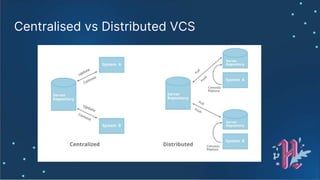
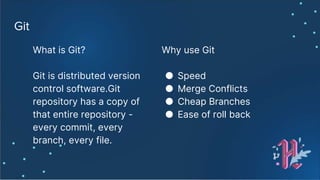
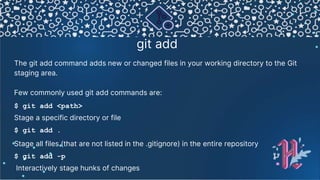
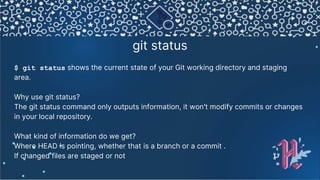
This document provides an introduction and overview of Git and GitHub. It discusses version control systems and the differences between centralized and distributed version control. Key Git concepts and commands are explained such as configuring Git, creating repositories, adding and committing files, branches, pulling and pushing changes. GitHub is introduced as a platform for hosting Git repositories and collaborating on projects. The document provides instructions for adding collaborators to a GitHub repository.




![Configure Tooling
Configure user information for all local repositories
$ git config --global user.name "[name]"
Sets the name you want attached to your commit transactions
$ git config --global user.email "[email address]"
Sets the email you want attached to your commit transactions
⚙](https://image.slidesharecdn.com/skh2luwtxu7v5egvq6b5-signature-3ce0fd690f3f409ac730d3e85c8f7e05194567b6865525f393f47fc8238013ca-poli-201018142304/85/Hacktoberfest-intro-to-Git-and-GitHub-7-320.jpg)
![Creating Repository
When starting out with a new repository, you only need to do it once; either
locally, then push to GitHub, or by cloning an existing repository.
$ git init
Or
$ git clone [url]
Clone (download) a repository that already exists on GitHub,
including all of the files, branches, and commits](https://image.slidesharecdn.com/skh2luwtxu7v5egvq6b5-signature-3ce0fd690f3f409ac730d3e85c8f7e05194567b6865525f393f47fc8238013ca-poli-201018142304/85/Hacktoberfest-intro-to-Git-and-GitHub-8-320.jpg)

![git push
$ git push uploads all local branch commits to the corresponding
remote branch. You can think of git push as “update” or “publish”. It only
updates the corresponding branch on the remote.
Common usages for git push
● $ git push -f
● $ git push -u origin [branch]
● $ git push --all](https://image.slidesharecdn.com/skh2luwtxu7v5egvq6b5-signature-3ce0fd690f3f409ac730d3e85c8f7e05194567b6865525f393f47fc8238013ca-poli-201018142304/85/Hacktoberfest-intro-to-Git-and-GitHub-13-320.jpg)

![Make changes
$ git log
Lists version history for the current branch
$ git log --follow [file]
Lists version history for a file, including renames
$ git diff [first-branch]...[second-branch]
Shows content differences between two branches
$ git show [commit]
Outputs metadata and content changes of the specified commit](https://image.slidesharecdn.com/skh2luwtxu7v5egvq6b5-signature-3ce0fd690f3f409ac730d3e85c8f7e05194567b6865525f393f47fc8238013ca-poli-201018142304/85/Hacktoberfest-intro-to-Git-and-GitHub-17-320.jpg)



![Configure Tooling
Configure user information for all local repositories
$ git config --global user.name "[name]"
Sets the name you want attached to your commit transactions
$ git config --global user.email "[email address]"
Sets the email you want attached to your commit transactions
⚙](/p?url=https%3A%2F%2Fimage.slidesharecdn.com%2Fskh2luwtxu7v5egvq6b5-signature-3ce0fd690f3f409ac730d3e85c8f7e05194567b6865525f393f47fc8238013ca-poli-201018142304%2F85%2FHacktoberfest-intro-to-Git-and-GitHub-7-320.jpg&__src=https%3A%2F%2Fwww.slideshare.net%2Fslideshow%2Fhacktoberfest-intro-to-git-and-github%2F238906145&__type=image)
![Creating Repository
When starting out with a new repository, you only need to do it once; either
locally, then push to GitHub, or by cloning an existing repository.
$ git init
Or
$ git clone [url]
Clone (download) a repository that already exists on GitHub,
including all of the files, branches, and commits](/p?url=https%3A%2F%2Fimage.slidesharecdn.com%2Fskh2luwtxu7v5egvq6b5-signature-3ce0fd690f3f409ac730d3e85c8f7e05194567b6865525f393f47fc8238013ca-poli-201018142304%2F85%2FHacktoberfest-intro-to-Git-and-GitHub-8-320.jpg&__src=https%3A%2F%2Fwww.slideshare.net%2Fslideshow%2Fhacktoberfest-intro-to-git-and-github%2F238906145&__type=image)


![git push
$ git push uploads all local branch commits to the corresponding
remote branch. You can think of git push as “update” or “publish”. It only
updates the corresponding branch on the remote.
Common usages for git push
● $ git push -f
● $ git push -u origin [branch]
● $ git push --all](/p?url=https%3A%2F%2Fimage.slidesharecdn.com%2Fskh2luwtxu7v5egvq6b5-signature-3ce0fd690f3f409ac730d3e85c8f7e05194567b6865525f393f47fc8238013ca-poli-201018142304%2F85%2FHacktoberfest-intro-to-Git-and-GitHub-13-320.jpg&__src=https%3A%2F%2Fwww.slideshare.net%2Fslideshow%2Fhacktoberfest-intro-to-git-and-github%2F238906145&__type=image)


![Make changes
$ git log
Lists version history for the current branch
$ git log --follow [file]
Lists version history for a file, including renames
$ git diff [first-branch]...[second-branch]
Shows content differences between two branches
$ git show [commit]
Outputs metadata and content changes of the specified commit](/p?url=https%3A%2F%2Fimage.slidesharecdn.com%2Fskh2luwtxu7v5egvq6b5-signature-3ce0fd690f3f409ac730d3e85c8f7e05194567b6865525f393f47fc8238013ca-poli-201018142304%2F85%2FHacktoberfest-intro-to-Git-and-GitHub-17-320.jpg&__src=https%3A%2F%2Fwww.slideshare.net%2Fslideshow%2Fhacktoberfest-intro-to-git-and-github%2F238906145&__type=image)


