Learning About JavaScript
…and its little buddy, JQuery!
GWU Libraries ● 26 June 2012
Julie Meloni // @jcmeloni // jcmeloni@gmail.com
Today’s General Outline
• Understanding JavaScript Basics
• About the DOM (Document Object Model)
• Where JQuery Fits in and How it Works
The Very Very Basics
• Developed in 1995 – it’s no spring chicken
• No relation to the Java programming language
• An interpreted rather than a compiled language
▫ Interpreted by the web browser software
• 98% of web traffic is JavaScript-enabled
▫ 2% made up of old screenreader software and
ultra-security-conscious people
Practical Uses
• Improving navigation
• Offering dynamic text display
• Creating special effects in response to user
• As the basis for remote scripting (the J in AJAX)
• Offering more interactivity than static HTML
▫ But less dynamism than a server-side language
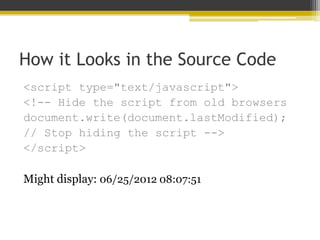
How it Looks in the Source Code
<script type="text/javascript">
<!-- Hide the script from old browsers
document.write(document.lastModified);
// Stop hiding the script -->
</script>
Might display: 06/25/2012 08:07:51
How it Looks in the Source Code v2
<!DOCTYPE html>
<html>
<head>
<title>JS Test</title>
</head>
<body>
<h1>JS Test</h1>
<p style=“color: red”>
<script type="text/javascript">
<!-- Hide the script from old browsers
document.write(document.lastModified);
// Stop hiding the script -->
</script>
</p>
</body>
</html>
Moving Into Programming Basics
• Like other programming languages, JavaScript
has:
▫ Variables (& Arrays)
▫ Operators
▫ Flow Control
▫ Objects
About JavaScript Variables
• A variable is a bucket that holds one piece of
information.
• Examples:
• var string_variable = “The Library”;
• var numeric_variable = 4;
• var myname = “Julie”;
About JavaScript Arrays
• An array is a type of variable (or bucket) that
holds many pieces of information.
• Example:
• rainbow = new array(“red”, “orange”, “yellow”,
“green”, “blue”, “indigo”, “violet”);
 rainbow[0] holds “red”
 rainbow[1] holds “orange”
About JavaScript Operators
• Arithmetic
• +, -, *, / (add, subtract, multiply, divide)
• Assignment
• = (“Assign the value of 4 to the variable called a”)
 var a = 4;
• += (“Add the value of 5 to the variable that
already holds 4”)
 var a += 5; // a now holds 9
• -= (“Subtract the value of 3 to the variable that
already holds 4”)
 var a -= 3; // a now holds 1
About JavaScript Operators
• Comparison
• == (“when I compare the value in variable a to the
value in variable be, that comparison is true”)
 a == b
• != (“when I compare the value in variable a to the
value in variable be, that comparison is not true”)
• a != b
• >, >= (“the value of variable a is greater than (or
greater than or equal to) the value of variable b”)
 a > b
• <, <= (“the value of variable a is less than (or less
than or equal to) the value of variable b”)
 a < b
About JavaScript Operators
• Concatenation
• + (“this”+ “is a test”= “thisisatest”)
• Logical
• && (and)
• || (or)
• ! (not)
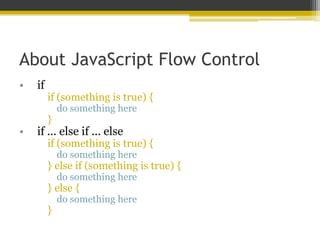
About JavaScript Flow Control
• if
if (something is true) {
do something here
}
• if ... else if ... else
if (something is true) {
do something here
} else if (something is true) {
do something here
} else {
do something here
}
About JavaScript Flow Control
• switch
switch (something) {
case “blue”:
do something here
break;
case “apple”:
do something else here
break;
case “fire truck”:
do something else here
break;
default:
do something else here
break;
}
About JavaScript Flow Control
• while
while (something is true) {
do something here
}
• for
for (something is true) {
do something here
}
About JavaScript Objects
• Objects can store multiple pieces of data,
but the internal structure of the data is
different than that of an array.
• The items of data stored in an object are called the properties of the
object.
 People objects in an address book might include a name, an address, and a
telephone number (Bob.address, Bob.phone, etc)
• Objects can use methods.
 Methods are built-in functions that work with the object's data, e.g. Bob.display()
• JavaScript supports three kinds of objects:
• Built-in to the JavaScript language.
• Custom objects you create.
• DOM (Document Object Model) -- components of the browser and the
current HTML document.
(The Document Object Model)
What is the DOM?
• The DOM is the invisible structure of all HTML
documents
▫ The overall container object is called the
document.
 Any container within the document that has an ID is
referenced by that ID.
 For example, if you have a <div> with an ID called
wrapper, then in the DOM that element is referenced
by document.wrapper
But it actually starts before that…
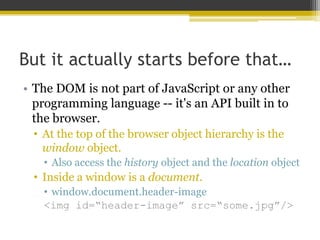
• The DOM is not part of JavaScript or any other
programming language -- it's an API built in to
the browser.
• At the top of the browser object hierarchy is the
window object.
• Also access the history object and the location object
• Inside a window is a document.
• window.document.header-image
<img id=“header-image” src=“some.jpg”/>
So what about document?
• The document object has several properties,
such as:
• document.URL
• document.title
• document.lastModified
• document.cookie
• document.images
• …and more!
And within document?
• The document object contains…containers (also called
nodes).
<!DOCTYPE html>
<html>
<head>
<title>A Simple HTML Document</title>
</head>
<body>
<h1>This is a Level-1 Heading.</h1>
<p>This is a simple paragraph.</p>
</body>
</html>
Nodes Have Properties Too!
<h1>This is a Level-1 Heading.</h1>
• nodeName is the name of the node, e.g. h1
• innerHTML is the text within the node, e.g. “This is
a Level-1 Heading”
So…events?
• JavaScript can be used to detect events and react
to them
• Events include clicked buttons, mouse pointers moving, etc.
• The script that you use to detect and respond to
an event is called an event handler.
• You don't need the <script> tag to define an event handler; you
can add an event handler attribute to an individual HTML tag.
<a href="http://www.google.com/"
onmouseover="alert('You moved!');">
I’m a link.</a>
<a href="" onmouseover="DoIt();">Move Me</a>
A Few Event Examples
• Mouse
• onmouseover
• onmouseout
• onmouseup
• onmousedown
• onclick
• ondblclick
• Keyboard
• onkeydown
• onkeyup
• Form Elements
• onblur
• onchange
• onsubmit
Why JQuery (or any library?)
• Using a third-party library
• enables you to implement cross-browser scripting and sophisticated
UI elements without being a JavaScript expert.
• enables you to avoid reinventing the wheel for common tasks
• Execute code when the DOM is ready
• Collect elements
• Modify display
• Listen for events and enact upon them
• Execute AJAX requests
• …and more!
Loading JQuery
• Must be present in each calling page.
• You can download and host your own, or use a remotely hosted
version.
<!DOCTYPE html>
<html>
<head>
<title>JQuery</title>
<script
src="https://ajax.googleapis.com/ajax/libs/jquery/1.7.2/jq
uery.min.js" type="text/javascript"></script>
</head>
<body>
<!-- more html -->
</body>
</html>
Then What?
• jQuery has at its heart sophisticated, cross-browser methods for
selection of page elements.
• Selectors used to obtain elements; based on simple CSS-like selector
styles.
• To get an element that has an ID of someElement, use:
 $("#someElement")
• To reference a collection of elements that use the someClass class name, use:
 $(".someClass")
• You can manipulate HTML and CSS properties using built-in methods.
• To append the phrase "powered by jQuery" to all paragraph elements, for
example, we would simply write:
 $("p").append(" powered by jQuery");
• To then change the background color of those same elements, we can
manipulate their CSS properties directly:
 $("p").css("background-color","yellow");
• To hide all elements having in class hideMe, use:
 $(".hideMe").hide();
Moving Forward
• Understanding what you want to do will help
you find the JQuery examples to do it.
▫ Everything is based on interactions (and events)
▫ Everything is rooted in things you want to do with
HTML and CSS
 Even if it’s AJAX
Getting the Document Ready
<!DOCTYPE html>
<html>
<head>
<title>JQuery</title>
<script
src="https://ajax.googleapis.com/ajax/libs/jquery/1.7.2/jquery.min.js
" type="text/javascript"></script>
</head>
<body>
<script type="text/javascript">
$(document).ready(function(){
// Your code here
});
</script>
</body>
</html>
Getting the Document Ready – Alert!
<!DOCTYPE html>
<html>
<head>
<title>JQuery</title>
<script
src="https://ajax.googleapis.com/ajax/libs/jquery/1.7.2/jquery.min.js"
type="text/javascript"></script>
</head>
<body>
<script type="text/javascript">
$(document).ready(function(){
$("a").click(function(event){
alert("Hi!");
event.preventDefault();
});
});
</script>
<a href="http://www.google.com">Go to Google</a>
</body>
</html>
Fading In – An Effect Example
<!DOCTYPE html>
<html>
<head>
<title>JQuery</title>
<script
src="https://ajax.googleapis.com/ajax/libs/jquery/1.7.2/jquery.min.js"
type="text/javascript"></script>
</head>
<body>
<div id="clickme">Click here to fade in</div>
<img id="logo" src="logo.jpg"
height="112" width="241" alt="logo"
style="display:none" />
<script type="text/javascript">
$('#clickme').click(function() {
$('#logo').fadeIn('slow', function() {});
});
</script>
</body>
</html>
Where to Go From Here?
• ANYWHERE
• Hopefully right to the JQuery API documentation
at http://api.jquery.com