Git is aversion control system that helps developers track changes in
their code over time. Instead of overwriting files or keeping multiple
copies of a project, Git records every meaningful change as a
snapshot called a commit. This makes it easy to understand how a
project has evolved and to return to any previous version whenever
needed.
Git works locally on your computer and does not require an internet
connection to function. It allows developers to experiment safely by
creating separate branches for new features or fixes, without
affecting the main codebase. Once the changes are tested and
ready, they can be merged back, ensuring the project remains stable
and organized.
What is Git ?
3.
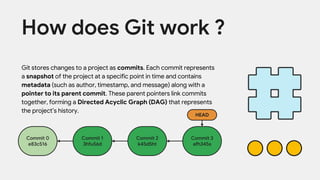
Git stores changesto a project as commits. Each commit represents
a snapshot of the project at a specific point in time and contains
metadata (such as author, timestamp, and message) along with a
pointer to its parent commit. These parent pointers link commits
together, forming a Directed Acyclic Graph (DAG) that represents
the project’s history.
How does Git work ?
Commit 0
e83c516
Commit 1
3hfu56d
Commit 2
k45d5ht
Commit 3
afh345s
HEAD
4.
COMMIT : Acommit in Git represents a saved version of your project at a
specific point in time. When you make a commit, Git captures a snapshot of all the
tracked files in your project and stores it in the repository along with a message
describing what was changed. Commits allow you to track the progress of your
project, understand its history, and return to any previous version if something
goes wrong.
HASH : A hash is a unique identifier that Git assigns to each commit. It is
generated using a cryptographic hashing algorithm based on the contents of the
commit, including the files, commit message, author information, and parent
commit. Because of this, even a small change results in a completely different
hash. Git uses this hash to accurately identify and refer to specific commits in the
project’s history.
HEAD : HEAD is a pointer that indicates the current position in the Git history. It
tells Git which commit you are currently working on. Usually, HEAD points to the
most recent commit on the current branch, but it can also point to an older
commit if you move back in history. In simple terms, HEAD acts like a marker or
bookmark that shows where you are in the project’s timeline.
5.
The basic Gitworkflow
Working Directory
Staging Area
Repository
6.
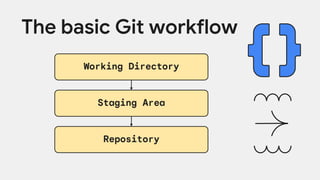
Working Directory :Working Directory is the place where you actually write
and edit your code. It is the folder on your computer that contains your project
files. Any changes you make—editing a file, adding a new file, or deleting one—
first happen in the working directory. At this stage, Git is only aware that
something has changed, but nothing is saved permanently in Git’s history yet.
Staging Area : The Staging Area acts like a preparation or selection area.
Here, you choose which changes you want Git to save in the next commit. This
allows you to be selective—for example, if you changed multiple files but only
want to save some of them now, you can stage only those files. The staging area
gives you control over what goes into each commit instead of saving everything
at once.
Repository : The Repository is where Git permanently stores your project’s
history. When you commit staged changes, Git saves a snapshot of the project in
the repository along with metadata such as the author, time, and message. The
repository keeps a complete record of all commits, allowing you to view history,
compare versions, and go back to earlier states whenever needed.
Installing Git Bash
Step1: Visit https://git-scm.com
Step 2: Download Git for your operating
system
Step 3: Run the installer and keep default
options
Step 4: Open Git Bash and verify installation
9.
git init :Initializes a new Git
repository in the current
folderens.
git status : Shows the
current state of files in the
repository.
Git Commands
git add : Adds a file to the
staging area
git commit : Saves staged
changes as a commit
git log : Shows the commit
history of the repository
10.
Branches in Gitare independent lines of development that
allow you to work on new features, experiments, or fixes
without affecting the main codebase. Instead of changing
the main project directly, you create a branch and safely
make your changes there.
Each branch points to a specific commit and moves forward
as you add new commits. This makes branches very
lightweight and fast to create. When your work is complete
and tested, the branch can be merged back into the main
branch, combining changes without losing history.
What are branches ?
git checkout :Switches to
another branch (or
commit)ens.
git branch : Shows all local
branches and highlights the
current branch
Git Commands
git reflog : Shows a log of
where HEAD and branch
pointers have been
git merge : Merges the
specified branch into the
current branch
When you messup in Git, git reset is one of the main tools used to undo
mistakes by moving your branch back to an earlier commit. It changes where
the branch pointer (and sometimes your files) point, helping you recover from
wrong commits, accidental adds, or bad changes.
There are different modes of git reset, and each one affects Git at a different
level. git reset --soft moves the branch pointer back but keeps all your changes
staged, which is useful if you want to rewrite a commit message or combine
commits. git reset --mixed (the default) moves the branch back and unstages
the changes but keeps them in your files, letting you re-add and re-commit
properly.
The most powerful and dangerous option is git reset --hard. This resets the
branch pointer, staging area, and working directory all at once, completely
discarding changes. It should be used carefully, because once changes are
removed this way, they are usually lost. In short, git reset helps you go back in
time, but you must choose the right mode depending on whether you want to
keep or discard your work.
What happens if you mess-up ?
15.
How do wemerge branches ?
To merge branches in Git, you always merge into the branch you are
currently on. First, switch to the branch that should receive the changes
(most commonly main). Then run the merge command with the name of
the branch whose changes you want to bring in.
When you execute the merge, Git compares the histories of both
branches from their common ancestor. If the changes do not overlap, Git
automatically combines them and completes the merge. If both branches
have modified the same part of a file differently, Git pauses and asks you
to resolve a merge conflict before finishing.
Merge conflicts occurwhen Git cannot automatically
combine changes from two branches during a merge.
This happens when both branches modify the same part of
the same file in different ways after they split from a
common ancestor. Since Git does not know which change is
correct, it pauses the merge and asks the developer to
manually decide how the final version should look.
During a merge conflict, Git marks the conflicting sections in
the file with special markers and waits for you to resolve
them. Once the conflicts are fixed, the files are added and
committed to complete the merge. In short, merge conflicts
are Git asking for human help instead of guessing.
What are merge conflicts ?
18.
Getting started with
GitHub
Step1: Visit https://github.com and create a
GitHub account
Step 2: Verify your email address after
signup
Step 3: Set up your Git profile (username &
profile details)
Step 4: Create your first repository on
GitHub
//Git will be connected to GitHub using HTTPS
in the next steps.
19.
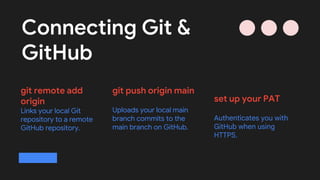
git push originmain
Uploads your local main
branch commits to the
main branch on GitHub.
git remote add
origin
Links your local Git
repository to a remote
GitHub repository.
set up your PAT
Authenticates you with
GitHub when using
HTTPS.
Connecting Git &
GitHub
20.
FORK : Afork is a personal copy of an existing GitHub repository
created in your own GitHub account. When you fork a repository, you
get an independent version of the project that you can freely modify
without affecting the original repository. Forking is commonly used in
open-source projects to experiment, add features, or fix bugs before
proposing changes back to the original project.
CLONE : Cloning is the process of downloading a GitHub repository
to your local system. When you clone a repository, Git creates a local
copy of the entire project, including all files, branches, and commit
history. This allows you to work on the project locally using Git
commands and later synchronize your changes with GitHub.
PUSH : Pushing is the action of sending your local commits from your
computer to a remote repository on GitHub. When you push, Git
uploads the changes you have committed so that they are saved
online and visible to others. Pushing ensures that your work is backed
up and shared with collaborators working on the same project.
21.
PULL : Pullingis the process of fetching the latest changes from a
remote GitHub repository and merging them into your local branch. It
helps keep your local code up to date with changes made by others. In
simple terms, pulling brings new commits from GitHub to your local
system so everyone stays synchronized.
PULL REQUESTS : A pull request is a way to request that your
changes be reviewed and merged into another branch or repository,
usually on GitHub. When you create a pull request, you are telling
others, “I have made some changes, please review them and decide if
they should be added.” It shows the differences between branches,
allows discussion, code review, and suggestions, and ensures that
changes are checked before becoming part of the main codebase.
Pull requests are a key part of collaboration and open-source
development, helping teams maintain code quality and avoid
mistakes.








![[2015/2016] Collaborative software development with Git](https://cdn.slidesharecdn.com/ss_thumbnails/04secollaborativedevelopment-151120174340-lva1-app6891-thumbnail.jpg?width=640&height=640&fit=bounds)


