COLLABORATION IN
PROJECTS USING GIT
Ivelin Yanev
23.02.2019
OUTLINE
Motivation
1. 4
Differences between SVN and Git
2. 7
Git setup (on Windows)
3. 11
Tools 11
3.1.
Config 13
3.2.
Git metadata and internal files
4. 16
Git submodules
5. 18
Start work on an issue
6. 20
Local work - commit strategy
7. 22
OUTLINE
Remote work - Review process with iRepo/Stash
8. 28
Before Review 28
8.1.
During Review 32
8.2.
Closing the Review 37
8.3.
Demo
9. 44
OUTLINE
Motivation
1. 4
Differences between SVN and Git
2. 7
Git setup (on Windows)
3. 11
Tools
3.1. 11
Config
3.2. 13
Git metadata and internal files
4. 16
Git submodules
5. 18
Start work on an issue
6. 20
Local work - commit strategy
7. 22
MOTIVATION
• Origin/Remote repository used by all team members and CI
à coordination and collaboration is essential
• Problems in case of ignorance
– Difficult merge conflicts
– Unexpected behavior of merged code
– Unclear history of changes
– Barrier for following progress
– Bad traceability of bugs
– …
WHY SHOULD I CARE ABOUT COLLABORATION IN GIT? (1/2)
MOTIVATION
• Personal advantages
– Proper working with git is state-of-the-art for
• Good/best IT companies
• Open-source communities
– Signalize professionalism and discipline
– GitHub as part of own CV
WHY SHOULD I CARE ABOUT COLLABORATION IN GIT? (2/2)
OUTLINE
Motivation
1. 4
Differences between SVN and Git
2. 7
Git setup (on Windows)
3. 11
Tools
3.1. 11
Config
3.2. 13
Git metadata and internal files
4. 16
Git submodules
5. 18
Start work on an issue
6. 20
Local work - commit strategy
7. 22
GIT VS. SVN
SVN GIT
Centralized VCS (Client/Server) Decentralized VCS (Peer-to-Peer, each clone is the
complete repo)
Each branch a separate repo Repo contains all branches
commit affects remote/server commit modifies local repo
push modifies remote/server
Not suitable for code review Suitable for code review
Hard to rewrite history Easy to rewrite history
Few commands (e.g. in TortoiseSVN) A lot of commands, very powerful
Easy to start with Steeper learning curve
WHAT TO KEEP IN MIND
GIT VS. SVN
POPULARITY OF COMMON VCS
Source: https://www.google.com/trends/explore?q=%2Fm%2F05vqwg,%2Fm%2F012ct9,%2Fm%2F08441_,%2Fm%2F08w6d6,%2Fm%2F09d6g&hl=en-US
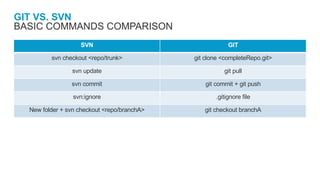
GIT VS. SVN
SVN GIT
svn checkout <repo/trunk> git clone <completeRepo.git>
svn update git pull
svn commit git commit + git push
svn:ignore .gitignore file
New folder + svn checkout <repo/branchA> git checkout branchA
BASIC COMMANDS COMPARISON
OUTLINE
Motivation
1. 4
Differences between SVN and Git
2. 7
Git setup (on Windows)
3. 11
Tools
3.1. 11
Config
3.2. 13
Git metadata and internal files
4. 16
Git submodules
5. 18
Start work on an issue
6. 20
Local work - commit strategy
7. 22
TOOLS
• Official git client: https://git-scm.com/
– Install with recommended options
– Windows context menu entry
– Git Bash
• git CLI with auto-completion
• Handy Linux commands
(find, grep, ssh-keygen etc.)
• gitk (history tree visualization)
– Git GUI (optional)
• All other tools/clients optional as well
– Eclipse EGit, Atlassian SourceTree etc.
WHAT/ HOW TO INSTALL AND USE
OUTLINE
Motivation
1. 4
Differences between SVN and Git
2. 7
Git setup (on Windows)
3. 11
Tools
3.1. 11
Config
3.2. 13
Git metadata and internal files
4. 16
Git submodules
5. 18
Start work on an issue
6. 20
Local work - commit strategy
7. 22
CONFIG
• System
– File location: (Linux)/etc/gitconfig, (Win)C:/ProgramData/Git/config
– Command: git config --list –system (Does not work on Windows L)
• Global (for user)
– File location: Z:/.gitconfig
– Command: git config --list --global
• Local (repo)
– File location: <REPO_ROOT>/.git/config
– Command: git config --list --local
• Overall configuration
– Command: git config --list
GIT CONFIGURATION FILES
Priority
CONFIG
• Username and email
– git config --global user.name "John Doe“
– git config --global user.email johndoe@example.com
• Handling of line endings (CRLF vs. LF)
– Set in System config during git client installation
– Recommended option: core.autocrlf=true
• SSH keys
– Location: Z:.ssh
– Connect simply and safely to repositories
(http://irepo/plugins/servlet/ssh/account/keys)
IMPORTANT INITIAL SETTINGS
OUTLINE
Motivation
1. 4
Differences between SVN and Git
2. 7
Git setup (on Windows)
3. 11
Tools
3.1. 11
Config
3.2. 13
Git metadata and internal files
4. 16
Git submodules
5. 18
Start work on an issue
6. 20
Local work - commit strategy
7. 22
GIT METADATA AND INTERNAL FILES
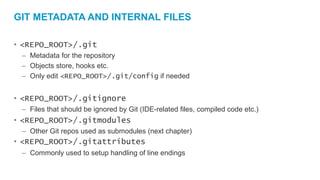
• <REPO_ROOT>/.git
– Metadata for the repository
– Objects store, hooks etc.
– Only edit <REPO_ROOT>/.git/config if needed
• <REPO_ROOT>/.gitignore
– Files that should be ignored by Git (IDE-related files, compiled code etc.)
• <REPO_ROOT>/.gitmodules
– Other Git repos used as submodules (next chapter)
• <REPO_ROOT>/.gitattributes
– Commonly used to setup handling of line endings
OUTLINE
Motivation
1. 4
Differences between SVN and Git
2. 7
Git setup (on Windows)
3. 11
Tools
3.1. 11
Config
3.2. 13
Git metadata and internal files
4. 16
Git submodules
5. 18
Start work on an issue
6. 20
Local work - commit strategy
7. 22
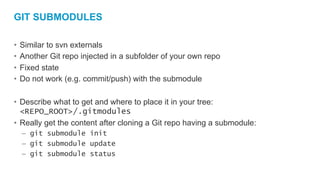
GIT SUBMODULES
• Similar to svn externals
• Another Git repo injected in a subfolder of your own repo
• Fixed state
• Do not work (e.g. commit/push) with the submodule
• Describe what to get and where to place it in your tree:
<REPO_ROOT>/.gitmodules
• Really get the content after cloning a Git repo having a submodule:
– git submodule init
– git submodule update
– git submodule status
OUTLINE
Motivation
1. 4
Differences between SVN and Git
2. 7
Git setup (on Windows)
3. 11
Tools
3.1. 11
Config
3.2. 13
Git metadata and internal files
4. 16
Git submodules
5. 18
Start work on an issue
6. 20
Local work - commit strategy
7. 22
START WORK ON AN ISSUE
• Make sure your repository is up-to-date with remote
1. git fetch –p //clean up branch references
2. git checkout develop //go to the main dev branch
3. git pull //make sure it perfoms fast-forward
• Start a new local branch
//iTrac key as name
1. git branch RGHOGI-XXXX
2. git checkout RGHOGI-XXXX
3. …start your work…
OUTLINE
Motivation
1. 4
Differences between SVN and Git
2. 7
Git setup (on Windows)
3. 11
Tools
3.1. 11
Config
3.2. 13
Git metadata and internal files
4. 16
Git submodules
5. 18
Start work on an issue
6. 20
Local work - commit strategy
7. 22
BEST STRATEGY - SMALL COMMITS
MOTIVATION
• Easy to understand
• Simpler resolution of
merge/rebase conflicts
• Your own review
• Separation of formatting and
content changes
• Small, Distinct Commits Say You Care
BEST STRATEGY - SMALL COMMITS
HOW-TO (1/2)
• Small commits - reason for git to have a staging area (index)
• Useful commands for building the index:
– git add <file> //add new or modified file to index
– git add –p <file> //partially add a modified file
– git add -N <new_file> //partially add a new file
git add –p <new_file> //
– git rm <file> //add deleted file to index
BEST STRATEGY - SMALL COMMITS
HOW-TO (2/2)
• How to commit changes placed in index:
– git commit //don’t be lazy to use option ‘-m’,
//write good commit messages instead
– git commit --amend //add changes from index to last commit
COMMIT MESSAGE
DOCUMENTATION ROLE
ORGANIZE MULTIPLE COMMITS
TELL THE DEVELOPMENT STORY
• Reorder, edit, squash, delete etc. commits to form a meaningful commit history
• Useful commands:
– git rebase –i develop //Review/edit all commits in your
//new branch RGHOGI-XXXX
– git rebase –i HEAD~4 //Review/edit last 4 commits in your
//new branch RGHOGI-XXXX
– git rebase --abort //In case things go wrong
OUTLINE
Remote work - Review process with iRepo/Stash
8. 28
Before Review
8.1. 28
During Review
8.2. 32
Closing the Review
8.3. 37
Demo
9. 44
STEP I: REBASE ON LATEST STATE OF DEVELOP BRANCH
THE MOST IMPORTANT SLIDE IN THIS PRESENTATION
• Key to keeping the history clean and clear
• Do this from time to time while working on your branch:
1. …commit or stash your changes…
2. git checkout develop
3. git pull
4. …have a look at the incoming changes…
5. …think if they are relevant for your work…
6. git checkout RGHOGI-XXXX
7. git rebase develop
8. …resolve possible conflicts…
RESOLVE MERGE CONFLICTS
• Git can not resolve all conflicts automatically
• Brain and context information required
• Developer decides what the last state should be
1. git status
2. …look for ‘both modified’ files…
3. …edit the files accordingly…
4. git add <all repaired files>
5. git rebase --continue
STEP II: CREATE NEW PULL REQUEST
PUSH NEW BRANCH AND OPEN PULL REQUEST
• Local repo
– git push --set-upstream origin RGHOGI-XXXX
• iRepo/Stash
– Open pull request from
RGHOGI-XXXX to develop
– Add reviewers
– Start review
OUTLINE
Remote work - Review process with iRepo/Stash
8. 28
Before Review
8.1. 28
During Review
8.2. 32
Closing the Review
8.3. 37
Demo
9. 44
CODE REVIEW GUIDELINES
REVIEWER PART
• Option I: Comment the complete diff (‘Diff’ tab in iRepo)
– Pro:
• More visibility
• Does not disappear after pull request update
– Contra:
• Bulk change
• Many advantages of small commits lost
• Difficult to understand
CODE REVIEW GUIDELINES
REVIEWER PART
• Option II: Comment separate commits (‘Commits’ tab in iRepo)
– Pro:
• Follow the developer’s logic
• Smaller changes
• Easy to understand in case of small commits
– Contra:
• A bit hidden
• Comments disappear after pull request update
CODE REVIEW GUIDELINES
DEVELOPER PART
• Option I: Add new commits for code review remarks
– Pro:
• Easy-to-follow small changes added to the pull request
• Easy to do for the developer
• Other reviewers see what was already discussed/remarked
– Contra:
• Longer commit history
• Interrupted logic flow
• Redundancy
– Hint: Better commit messages than “Fix review comments” preferred
CODE REVIEW GUIDELINES
DEVELOPER PART
• Option II: Edit/Rewrite existing commits for code review remarks
– Pro:
• Condensed commit history
• Logical steps preserved
• Pull request does not grow continuously
– Contra:
• Initial state of pull request lost
• More difficult for the developer to implement
– Hint: Create new commit, rebase interactive and fixup with the corresponding one
OUTLINE
Remote work - Review process with iRepo/Stash
8. 28
Before Review
8.1. 28
During Review
8.2. 32
Closing the Review
8.3. 37
Demo
9. 44
COMPLETE PULL REQUEST (1/2)
• Rebase your branch on develop one last time if needed
– Push branch to update pull request
• iRepo/Stash
– Complete pull request &
delete the RGHOGI-XXXX branch
• Clean-up: Update local repo
1. git checkout develop
2. git pull
3. git branch –d RGHOGI-XXXX
4. git fetch –p
COMPLETE PULL REQUEST (2/2)
• Master branch
//if desired update master with your changes
1. git checkout master
2. git rebase develop OR
git merge develop
3. git push
OUTLINE
Remote work - Review process with iRepo/Stash
8. 28
Before Review
8.1. 28
During Review
8.2. 32
Closing the Review
8.3. 37
Demo
9. 44
DEMO
HANDS-ON (1/2)
• Use case I:
– Work alone on an issue
– Rewrite your commits, reorder, squash
• Use case II:
– Work on an issue
– Colleagues work in the develop branch
– Rebase your work before merging to develop branch
– No conflicts
DEMO
HANDS-ON (2/2)
• Use case III:
– Work on an issue
– Colleagues work in the develop branch
– Rebase your work before merging to develop branch
– Resolve conflicts
• Use case IV:
– Work with colleagues on the same issue
– Depending branches
EXTRA HINT I: GIT EMERGENCY HELP
IN CASE OF TROUBLE
• Case I: No valuable local changes
– Delete everything
– Clone the repo again
• Case II: Valuable local changes
– git reflog
– git reset --hard <id>
– History of issued git commands
EXTRA HINT II: COPY COMMITS TO ANOTHER BRANCH
E.G. COPY FROM DEVELOP TO RELEASE
1. Checkout target branch
(e.g. release)
2. Note the ID of the top commit M
3. Copy commits with ID
P, Q and R from develop