Git and GitHub
Table of Contents
Git and GitHub
1. Version Control
2. Git
3. GitHub
Deep Dive into Git
1. Snapshot
2. Repository
3. Commit
4. Branch
5. Merge
Deep Dive into GitHub
1. Forks
2. Pull Requests
3. Authentication
a. PAT
b. GitHub CLI
N.B.
Lines starting with ">" sign signify a CLI command.
Arguments written in all CAPS and Italicized signify arguments to be filled in.
Git and GitHub
1.Version Control (Source Control)
• Tracking and managing changes to software code
• Eases the distribution of work load and facilitates efficient team
collaboration
• Aids in the resolution of conflict in concurrent work
• Provides a fallback mechanism in case of breaking changes
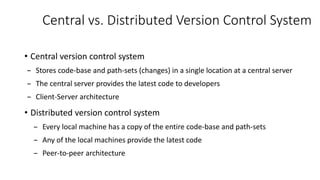
Central vs. Distributed Version Control System
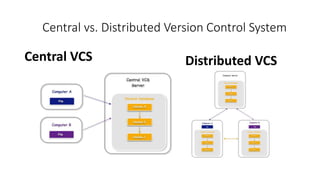
• Central version control system
– Stores code-base and path-sets (changes) in a single location at a central server
– The central server provides the latest code to developers
– Client-Server architecture
• Distributed version control system
– Every local machine has a copy of the entire code-base and path-sets
– Any of the local machines provide the latest code
– Peer-to-peer architecture
Central vs. Distributed Version Control System
Central VCS Distributed VCS
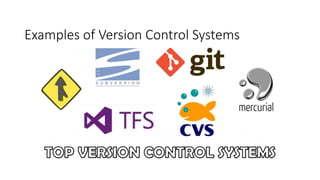
Examples of Version Control Systems
2.Git
• Free and open source distributed version control system written in C
• Released in 2005
• Originally authored by Linus Torvalds (founder of Linux) for the
development of the Linux kernel
Installation
• Windows
• Download installer from https://gitforwindows.org/ and follow the
prompts to complete the installati0n
• Mac OS X
• Download installer from https://sourceforge.net/projects/git-osx-
installer/files/ and follow the prompts to complete the installation
• Linux
• Should be pre-installed but use your preferred package manager
to install it if not
• Finally, run the following command in the cli to configure
the global email config (optional)
> git config --global user.email EMAIL
3.GitHub
• Development started in 2007 and launched in 2008
• Recently acquired by Microsoft in 2018
• World's largest web-based git repository hosting services
• Uses git as version control
• Adds additional functionality on top of git such as bug tracking,
feature requests, pull requests and so on
Deep Dive into
Git
1.Snapshot
• The way git keeps track of code
• The developer decides when to take a snapshot
• Mostly done by commits (covered in coming sections)
• Rollback to previous snapshots can be done at any point in time
• Git includes all the files in a snapshot for each commit but will store a
reference to content that is already present or unchanged
2.Repository
• A collection of all the files in the source code and the history or
commits of those files
• Can exist on a local machine or on a remote server like GitHub
• Can be private or public (GitHub)
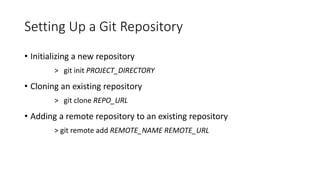
Setting Up a Git Repository
• Initializing a new repository
> git init PROJECT_DIRECTORY
• Cloning an existing repository
> git clone REPO_URL
• Adding a remote repository to an existing repository
> git remote add REMOTE_NAME REMOTE_URL
Inspecting a Git Repository
• Check current branch and list staged, unstaged, and untracked files
> git status
• List committed snapshots
> git log
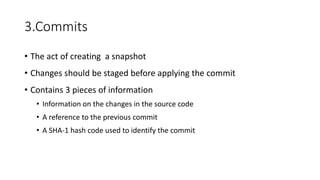
3.Commits
• The act of creating a snapshot
• Changes should be staged before applying the commit
• Contains 3 pieces of information
• Information on the changes in the source code
• A reference to the previous commit
• A SHA-1 hash code used to identify the commit
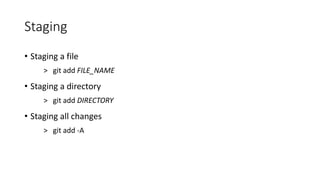
Staging
• Staging a file
> git add FILE_NAME
• Staging a directory
> git add DIRECTORY
• Staging all changes
> git add -A
Committing Changes
• Commit changes with a message
> git commit -m "COMMIT_MESSAGE"
• Commit all changes in the working directory with a message (doesn't
include untracked files)
> git commit -am "COMMIT_MESSAGE"
Push, Pull, and Fetch
• Pushing to a remote repository
> git push -u REMOTE_NAME BRANCH_NAME
• Fetching changes from a remote repository
> git fetch REMOTE_NAME(optional)
• Fetching and pulling changes
> git pull REMOTE_NAME(optional)
4.Branch
• Divergence from the main line of development
• New or separate version from the main repository
• The main branch used to be known as the master branch
• Uses
• when adding new features
• for concurrent workflow
• bug fix
• any change in the source code that requires comparison with previous versions
Working With Branches
• List all branches
> git branch (local)
> git branch -a (local and remote)
• Create a new branch
> git branch BRANCH_NAME
• Delete an existing branch
> git branch -d BRANCH_NAME
> git branch -D BRANCH_NAME (force delete)
• Rename current branch
> git branch -m NEW_BRANCH_NAME
Navigating Through Branches
• Switch to an existing branch
> git checkout BRANCH_NAME
• Switch to a new branch (create it simultaneously)
> git checkout -b BRANCH_NAME
• Switch to a remote branch
> git checkout REMOTE_BRANCH
5.Merging
• Process of combining multiple commits into a unified snapshot
• Mostly used to combine two branches
• Requires the working tree to be clean or all changes are committed or
stashed
• Conflicts arise
– When two or more developers change the same lines in a file
– When a file is deleted while another developer is modifying it
Merging Continued...
• Merge a branch with the current branch
> git merge BRANCH_NAME
• An example of a merge conflict
<<<<<<< main
this is conflicted text from main
=======
this is conflicted text from feature branch
>>>>>>> feature branch;
Handling Merge Conflicts
• Accept local version before merge
> git merge --strategy-option ours
• Accept local version during merge
> git checkout --ours FILE_NAME
• Accept remote version before merge
> git merge --strategy-0ption theirs
• Accept remote version after merge
> git checkout --theirs FILE_NAME
• Review changes individually
Deep Dive into
GitHub
1.Fork
• Process of duplicating a GitHub repository
• Copy of the entire source code, branches (optional), and history of
the repository
• To fork a repository, click the fork button displayed below
2.Pull Request
• A request to the maintainer of a repository to pull in some code.
• When contributing to a repository, you submit a pull request upon
which the maintainer of the repository can accept, reject or ask for
more changes to be made.
• Can be made from a branch of the repository or from the branch of a
fork of the repository
Creating a Pull Request From a Branch
• On GitHub.com, navigate to the main page of the repository
• Navigate to the branch that contains your commits
Creating a Pull Request From a Branch
• Click on "Open pull request" from the contribute dropdown
• Choose the branch to merge to and the branch to merge from
Creating a Pull Request From a Branch
• Provide a title and a description for the pull request and submit it
Creating a Pull Request from a Fork
• On GitHub.com, navigate to the pull request page of the original
repository
• Click on new pull request
• Click "compare against forks"
• Choose the base branch and the head fork branch to merge
Create a Pull Request from a Fork
• Click "Create pull request"
• Submit the pull request
3.Authentication
A) PAT (Personal Access Token)
• Token generated by GitHub to access a user account
• Can be used as a password when prompted by git
B) GitHub CLI
• Command line interface developed by GitHub
• Securely stores authentication keys for use with git
• Can be used with PAT or Browser with OAuth
Sources
• https://www.atlassian.com/git/tutorials/
• https://en.wikipedia.org/wiki/Git
• https://www.toolsqa.com/git/distributed-version-control-systems/
• https://en.wikipedia.org/wiki/GitHub