®        ®
Microsoft Outlook 2010 Training

Getting Started with Outlook

                      NaveenKumar Namachivayam
                        Founder - testTalk Academy
                             http://naveenkumarn.in
Course contents
• Introduction
• The Outlook Interface
• Outlook Today
• Identify the Backstage
• Use the Ribbons and the Quick Access Toolbar
• Customize the Ribbons and the Quick Access Toolbar
• Summary
Course goals
• The Outlook Interface
• Customization of Ribbons and the Quick Access
  Toolbar
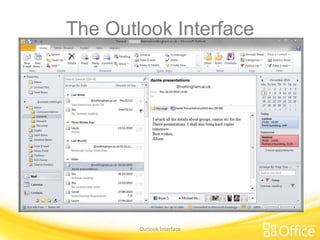
The Outlook Interface


        Outlook Interface
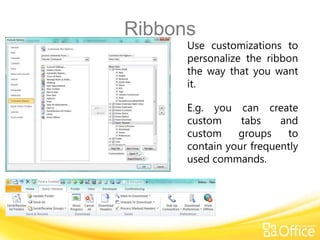
Ribbons
      Use customizations to
      personalize the ribbon
      the way that you want
      it.

      E.g. you can create
      custom     tabs    and
      custom    groups    to
      contain your frequently
      used commands.
Summary
• Outlook Today

• Identify the Backstage

• Customization the Ribbons and the Quick Access Toolbar


               Manage your mail and more with conditional formatting
Test question 1
Where do you find the button that opens the Outlook
Options dialog box? (Pick one answer.)

1. In the Layout group on the View tab of the ribbon.
2. On the Windows Start menu.
3. In the left pane in Backstage view.
4. On the Quick Access Toolbar.
Test question 1
Where do you find the button that opens the Outlook
Options dialog box?


                       Answer:
3. In the left pane in Backstage view.


It’s right there in Backstage view.
Test question 2
How do you view Outlook Today? (Pick one answer.)


1. Clicking on the folder
2. Clicking on the root folder
3. View > Folder
4. File > Outlook Today
Test question 2
How do you view Outlook Today?


                      Answer:
3. Clicking on the root folder