

Django Documentation
Release 1.9.3.dev20160224120324
Django Software Foundation
February 24, 2016
Contents
i
ii
CHAPTER 1
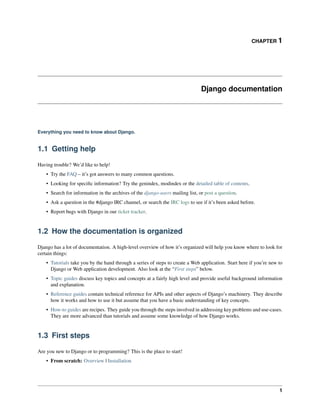
Django documentation
Everything you need to know about Django.
1.1 Getting help
Having trouble? We’d like to help!
• Try the FAQ – it’s got answers to many common questions.
• Looking for specific information? Try the genindex, modindex or the detailed table of contents.
• Search for information in the archives of the django-users mailing list, or post a question.
• Ask a question in the #django IRC channel, or search the IRC logs to see if it’s been asked before.
• Report bugs with Django in our ticket tracker.
1.2 How the documentation is organized
Django has a lot of documentation. A high-level overview of how it’s organized will help you know where to look for
certain things:
• Tutorials take you by the hand through a series of steps to create a Web application. Start here if you’re new to
Django or Web application development. Also look at the “First steps” below.
• Topic guides discuss key topics and concepts at a fairly high level and provide useful background information
and explanation.
• Reference guides contain technical reference for APIs and other aspects of Django’s machinery. They describe
how it works and how to use it but assume that you have a basic understanding of key concepts.
• How-to guides are recipes. They guide you through the steps involved in addressing key problems and use-cases.
They are more advanced than tutorials and assume some knowledge of how Django works.
1.3 First steps
Are you new to Django or to programming? This is the place to start!
• From scratch: Overview | Installation
1
Django Documentation, Release 1.9.3.dev20160224120324
• Tutorial: Part 1: Requests and responses | Part 2: Models and the admin site | Part 3: Views and templates | Part
4: Forms and generic views | Part 5: Testing | Part 6: Static files | Part 7: Customizing the admin site
• Advanced Tutorials: How to write reusable apps | Writing your first patch for Django
1.4 The model layer
Django provides an abstraction layer (the “models”) for structuring and manipulating the data of your Web application.
Learn more about it below:
• Models: Introduction to models | Field types | Meta options | Model class
• QuerySets: Executing queries | QuerySet method reference | Lookup expressions
• Model instances: Instance methods | Accessing related objects
• Migrations: Introduction to Migrations | Operations reference | SchemaEditor | Writing migrations
• Advanced: Managers | Raw SQL | Transactions | Aggregation | Custom fields | Multiple databases | Custom
lookups | Query Expressions | Conditional Expressions | Database Functions
• Other: Supported databases | Legacy databases | Providing initial data | Optimize database access | PostgreSQL
specific features
1.5 The view layer
Django has the concept of “views” to encapsulate the logic responsible for processing a user’s request and for returning
the response. Find all you need to know about views via the links below:
• The basics: URLconfs | View functions | Shortcuts | Decorators
• Reference: Built-in Views | Request/response objects | TemplateResponse objects
• File uploads: Overview | File objects | Storage API | Managing files | Custom storage
• Class-based views: Overview | Built-in display views | Built-in editing views | Using mixins | API reference |
Flattened index
• Advanced: Generating CSV | Generating PDF
• Middleware: Overview | Built-in middleware classes
1.6 The template layer
The template layer provides a designer-friendly syntax for rendering the information to be presented to the user. Learn
how this syntax can be used by designers and how it can be extended by programmers:
• The basics: Overview
• For designers: Language overview | Built-in tags and filters | Humanization
• For programmers: Template API | Custom tags and filters
2 Chapter 1. Django documentation
Django Documentation, Release 1.9.3.dev20160224120324
1.7 Forms
Django provides a rich framework to facilitate the creation of forms and the manipulation of form data.
• The basics: Overview | Form API | Built-in fields | Built-in widgets
• Advanced: Forms for models | Integrating media | Formsets | Customizing validation
1.8 The development process
Learn about the various components and tools to help you in the development and testing of Django applications:
• Settings: Overview | Full list of settings
• Applications: Overview
• Exceptions: Overview
• django-admin and manage.py: Overview | Adding custom commands
• Testing: Introduction | Writing and running tests | Included testing tools | Advanced topics
• Deployment: Overview | WSGI servers | Deploying static files | Tracking code errors by email
1.9 The admin
Find all you need to know about the automated admin interface, one of Django’s most popular features:
• Admin site
• Admin actions
• Admin documentation generator
1.10 Security
Security is a topic of paramount importance in the development of Web applications and Django provides multiple
protection tools and mechanisms:
• Security overview
• Disclosed security issues in Django
• Clickjacking protection
• Cross Site Request Forgery protection
• Cryptographic signing
• Security Middleware
1.7. Forms 3
Django Documentation, Release 1.9.3.dev20160224120324
1.11 Internationalization and localization
Django offers a robust internationalization and localization framework to assist you in the development of applications
for multiple languages and world regions:
• Overview | Internationalization | Localization | Localized Web UI formatting and form input
• Time zones
1.12 Performance and optimization
There are a variety of techniques and tools that can help get your code running more efficiently - faster, and using
fewer system resources.
• Performance and optimization overview
1.13 Python compatibility
Django aims to be compatible with multiple different flavors and versions of Python:
• Jython support
• Python 3 compatibility
1.14 Geographic framework
GeoDjango intends to be a world-class geographic Web framework. Its goal is to make it as easy as possible to build
GIS Web applications and harness the power of spatially enabled data.
1.15 Common Web application tools
Django offers multiple tools commonly needed in the development of Web applications:
• Authentication: Overview | Using the authentication system | Password management | Customizing authenti-
cation | API Reference
• Caching
• Logging
• Sending emails
• Syndication feeds (RSS/Atom)
• Pagination
• Messages framework
• Serialization
• Sessions
• Sitemaps
• Static files management
4 Chapter 1. Django documentation
Django Documentation, Release 1.9.3.dev20160224120324
• Data validation
1.16 Other core functionalities
Learn about some other core functionalities of the Django framework:
• Conditional content processing
• Content types and generic relations
• Flatpages
• Redirects
• Signals
• System check framework
• The sites framework
• Unicode in Django
1.17 The Django open-source project
Learn about the development process for the Django project itself and about how you can contribute:
• Community: How to get involved | The release process | Team organization | Meet the team | Current roles |
The Django source code repository | Security policies | Mailing lists
• Design philosophies: Overview
• Documentation: About this documentation
• Third-party distributions: Overview
• Django over time: API stability | Release notes and upgrading instructions | Deprecation Timeline
1.16. Other core functionalities 5
Django Documentation, Release 1.9.3.dev20160224120324
6 Chapter 1. Django documentation
CHAPTER 2
Getting started
New to Django? Or to Web development in general? Well, you came to the right place: read this material to quickly
get up and running.
2.1 Django at a glance
Because Django was developed in a fast-paced newsroom environment, it was designed to make common Web-
development tasks fast and easy. Here’s an informal overview of how to write a database-driven Web app with Django.
The goal of this document is to give you enough technical specifics to understand how Django works, but this isn’t
intended to be a tutorial or reference – but we’ve got both! When you’re ready to start a project, you can start with the
tutorial or dive right into more detailed documentation.
2.1.1 Design your model
Although you can use Django without a database, it comes with an object-relational mapper in which you describe
your database layout in Python code.
The data-model syntax offers many rich ways of representing your models – so far, it’s been solving many years’
worth of database-schema problems. Here’s a quick example:
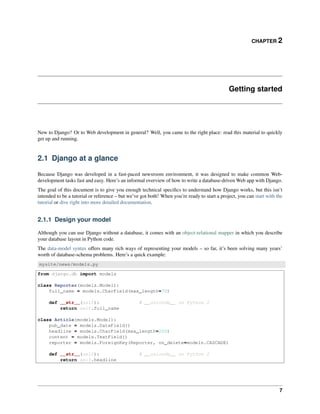
mysite/news/models.py
from django.db import models
class Reporter(models.Model):
full_name = models.CharField(max_length=70)
def __str__(self): # __unicode__ on Python 2
return self.full_name
class Article(models.Model):
pub_date = models.DateField()
headline = models.CharField(max_length=200)
content = models.TextField()
reporter = models.ForeignKey(Reporter, on_delete=models.CASCADE)
def __str__(self): # __unicode__ on Python 2
return self.headline
7
Django Documentation, Release 1.9.3.dev20160224120324
2.1.2 Install it
Next, run the Django command-line utility to create the database tables automatically:
$ python manage.py migrate
The migrate command looks at all your available models and creates tables in your database for whichever tables
don’t already exist, as well as optionally providing much richer schema control.
2.1.3 Enjoy the free API
With that, you’ve got a free, and rich, Python API to access your data. The API is created on the fly, no code generation
necessary:
# Import the models we created from our "news" app
>>> from news.models import Reporter, Article
# No reporters are in the system yet.
>>> Reporter.objects.all()
[]
# Create a new Reporter.
>>> r = Reporter(full_name='John Smith')
# Save the object into the database. You have to call save() explicitly.
>>> r.save()
# Now it has an ID.
>>> r.id
1
# Now the new reporter is in the database.
>>> Reporter.objects.all()
[<Reporter: John Smith>]
# Fields are represented as attributes on the Python object.
>>> r.full_name
'John Smith'
# Django provides a rich database lookup API.
>>> Reporter.objects.get(id=1)
<Reporter: John Smith>
>>> Reporter.objects.get(full_name__startswith='John')
<Reporter: John Smith>
>>> Reporter.objects.get(full_name__contains='mith')
<Reporter: John Smith>
>>> Reporter.objects.get(id=2)
Traceback (most recent call last):
...
DoesNotExist: Reporter matching query does not exist.
# Create an article.
>>> from datetime import date
>>> a = Article(pub_date=date.today(), headline='Django is cool',
... content='Yeah.', reporter=r)
>>> a.save()
8 Chapter 2. Getting started
Django Documentation, Release 1.9.3.dev20160224120324
# Now the article is in the database.
>>> Article.objects.all()
[<Article: Django is cool>]
# Article objects get API access to related Reporter objects.
>>> r = a.reporter
>>> r.full_name
'John Smith'
# And vice versa: Reporter objects get API access to Article objects.
>>> r.article_set.all()
[<Article: Django is cool>]
# The API follows relationships as far as you need, performing efficient
# JOINs for you behind the scenes.
# This finds all articles by a reporter whose name starts with "John".
>>> Article.objects.filter(reporter__full_name__startswith='John')
[<Article: Django is cool>]
# Change an object by altering its attributes and calling save().
>>> r.full_name = 'Billy Goat'
>>> r.save()
# Delete an object with delete().
>>> r.delete()
2.1.4 A dynamic admin interface: it’s not just scaffolding – it’s the whole house
Once your models are defined, Django can automatically create a professional, production ready administrative inter-
face – a website that lets authenticated users add, change and delete objects. It’s as easy as registering your model in
the admin site:
mysite/news/models.py
from django.db import models
class Article(models.Model):
pub_date = models.DateField()
headline = models.CharField(max_length=200)
content = models.TextField()
reporter = models.ForeignKey(Reporter, on_delete=models.CASCADE)
mysite/news/admin.py
from django.contrib import admin
from . import models
admin.site.register(models.Article)
The philosophy here is that your site is edited by a staff, or a client, or maybe just you – and you don’t want to have to
deal with creating backend interfaces just to manage content.
One typical workflow in creating Django apps is to create models and get the admin sites up and running as fast as
possible, so your staff (or clients) can start populating data. Then, develop the way data is presented to the public.
2.1. Django at a glance 9
Django Documentation, Release 1.9.3.dev20160224120324
2.1.5 Design your URLs
A clean, elegant URL scheme is an important detail in a high-quality Web application. Django encourages beautiful
URL design and doesn’t put any cruft in URLs, like .php or .asp.
To design URLs for an app, you create a Python module called a URLconf. A table of contents for your app, it contains
a simple mapping between URL patterns and Python callback functions. URLconfs also serve to decouple URLs from
Python code.
Here’s what a URLconf might look like for the Reporter/Article example above:
mysite/news/urls.py
from django.conf.urls import url
from . import views
urlpatterns = [
url(r'^articles/([0-9]{4})/$', views.year_archive),
url(r'^articles/([0-9]{4})/([0-9]{2})/$', views.month_archive),
url(r'^articles/([0-9]{4})/([0-9]{2})/([0-9]+)/$', views.article_detail),
]
The code above maps URLs, as simple regular expressions, to the location of Python callback functions (“views”).
The regular expressions use parenthesis to “capture” values from the URLs. When a user requests a page, Django runs
through each pattern, in order, and stops at the first one that matches the requested URL. (If none of them matches,
Django calls a special-case 404 view.) This is blazingly fast, because the regular expressions are compiled at load
time.
Once one of the regexes matches, Django imports and calls the given view, which is a simple Python function. Each
view gets passed a request object – which contains request metadata – and the values captured in the regex.
For example, if a user requested the URL “/articles/2005/05/39323/”, Django would call the function
news.views.article_detail(request, ’2005’, ’05’, ’39323’).
2.1.6 Write your views
Each view is responsible for doing one of two things: Returning an HttpResponse object containing the content
for the requested page, or raising an exception such as Http404. The rest is up to you.
Generally, a view retrieves data according to the parameters, loads a template and renders the template with the
retrieved data. Here’s an example view for year_archive from above:
mysite/news/views.py
from django.shortcuts import render
from .models import Article
def year_archive(request, year):
a_list = Article.objects.filter(pub_date__year=year)
context = {'year': year, 'article_list': a_list}
return render(request, 'news/year_archive.html', context)
This example uses Django’s template system, which has several powerful features but strives to stay simple enough
for non-programmers to use.
10 Chapter 2. Getting started
Django Documentation, Release 1.9.3.dev20160224120324
2.1.7 Design your templates
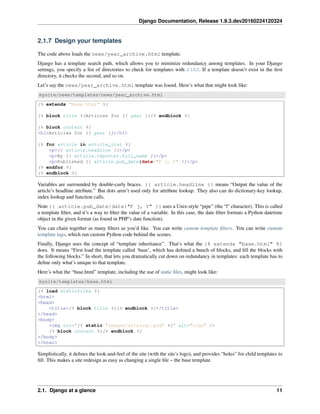
The code above loads the news/year_archive.html template.
Django has a template search path, which allows you to minimize redundancy among templates. In your Django
settings, you specify a list of directories to check for templates with DIRS. If a template doesn’t exist in the first
directory, it checks the second, and so on.
Let’s say the news/year_archive.html template was found. Here’s what that might look like:
mysite/news/templates/news/year_archive.html
{% extends "base.html" %}
{% block title %}Articles for {{ year }}{% endblock %}
{% block content %}
<h1>Articles for {{ year }}</h1>
{% for article in article_list %}
<p>{{ article.headline }}</p>
<p>By {{ article.reporter.full_name }}</p>
<p>Published {{ article.pub_date|date:"F j, Y" }}</p>
{% endfor %}
{% endblock %}
Variables are surrounded by double-curly braces. {{ article.headline }} means “Output the value of the
article’s headline attribute.” But dots aren’t used only for attribute lookup. They also can do dictionary-key lookup,
index lookup and function calls.
Note {{ article.pub_date|date:"F j, Y" }} uses a Unix-style “pipe” (the “|” character). This is called
a template filter, and it’s a way to filter the value of a variable. In this case, the date filter formats a Python datetime
object in the given format (as found in PHP’s date function).
You can chain together as many filters as you’d like. You can write custom template filters. You can write custom
template tags, which run custom Python code behind the scenes.
Finally, Django uses the concept of “template inheritance”. That’s what the {% extends "base.html" %}
does. It means “First load the template called ‘base’, which has defined a bunch of blocks, and fill the blocks with
the following blocks.” In short, that lets you dramatically cut down on redundancy in templates: each template has to
define only what’s unique to that template.
Here’s what the “base.html” template, including the use of static files, might look like:
mysite/templates/base.html
{% load staticfiles %}
<html>
<head>
<title>{% block title %}{% endblock %}</title>
</head>
<body>
<img src="{% static "images/sitelogo.png" %}" alt="Logo" />
{% block content %}{% endblock %}
</body>
</html>
Simplistically, it defines the look-and-feel of the site (with the site’s logo), and provides “holes” for child templates to
fill. This makes a site redesign as easy as changing a single file – the base template.
2.1. Django at a glance 11
Django Documentation, Release 1.9.3.dev20160224120324
It also lets you create multiple versions of a site, with different base templates, while reusing child templates. Django’s
creators have used this technique to create strikingly different mobile versions of sites – simply by creating a new base
template.
Note that you don’t have to use Django’s template system if you prefer another system. While Django’s template
system is particularly well-integrated with Django’s model layer, nothing forces you to use it. For that matter, you
don’t have to use Django’s database API, either. You can use another database abstraction layer, you can read XML
files, you can read files off disk, or anything you want. Each piece of Django – models, views, templates – is decoupled
from the next.
2.1.8 This is just the surface
This has been only a quick overview of Django’s functionality. Some more useful features:
• A caching framework that integrates with memcached or other backends.
• A syndication framework that makes creating RSS and Atom feeds as easy as writing a small Python class.
• More sexy automatically-generated admin features – this overview barely scratched the surface.
The next obvious steps are for you to download Django, read the tutorial and join the community. Thanks for your
interest!
2.2 Quick install guide
Before you can use Django, you’ll need to get it installed. We have a complete installation guide that covers all
the possibilities; this guide will guide you to a simple, minimal installation that’ll work while you walk through the
introduction.
2.2.1 Install Python
Being a Python Web framework, Django requires Python. See What Python version can I use with Django? for details.
Python includes a lightweight database called SQLite so you won’t need to set up a database just yet.
Get the latest version of Python at https://www.python.org/download/ or with your operating system’s package man-
ager.
Django on Jython
If you use Jython (a Python implementation for the Java platform), you’ll need to follow a few additional steps. See
Running Django on Jython for details.
You can verify that Python is installed by typing python from your shell; you should see something like:
Python 3.4.x
[GCC 4.x] on linux
Type "help", "copyright", "credits" or "license" for more information.
>>>
2.2.2 Set up a database
This step is only necessary if you’d like to work with a “large” database engine like PostgreSQL, MySQL, or Oracle.
To install such a database, consult the database installation information.
12 Chapter 2. Getting started
Django Documentation, Release 1.9.3.dev20160224120324
2.2.3 Remove any old versions of Django
If you are upgrading your installation of Django from a previous version, you will need to uninstall the old Django
version before installing the new version.
2.2.4 Install Django
You’ve got three easy options to install Django:
• Install a version of Django provided by your operating system distribution. This is the quickest option for those
who have operating systems that distribute Django.
• Install an official release. This is the best approach for most users.
• Install the latest development version. This option is for enthusiasts who want the latest-and-greatest features
and aren’t afraid of running brand new code. You might encounter new bugs in the development version, but
reporting them helps the development of Django. Also, releases of third-party packages are less likely to be
compatible with the development version than with the latest stable release.
Always refer to the documentation that corresponds to the version of Django you’re using!
If you do either of the first two steps, keep an eye out for parts of the documentation marked new in development
version. That phrase flags features that are only available in development versions of Django, and they likely won’t
work with an official release.
2.2.5 Verifying
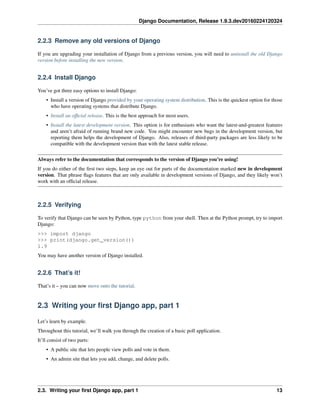
To verify that Django can be seen by Python, type python from your shell. Then at the Python prompt, try to import
Django:
>>> import django
>>> print(django.get_version())
1.9
You may have another version of Django installed.
2.2.6 That’s it!
That’s it – you can now move onto the tutorial.
2.3 Writing your first Django app, part 1
Let’s learn by example.
Throughout this tutorial, we’ll walk you through the creation of a basic poll application.
It’ll consist of two parts:
• A public site that lets people view polls and vote in them.
• An admin site that lets you add, change, and delete polls.
2.3. Writing your first Django app, part 1 13
Django Documentation, Release 1.9.3.dev20160224120324
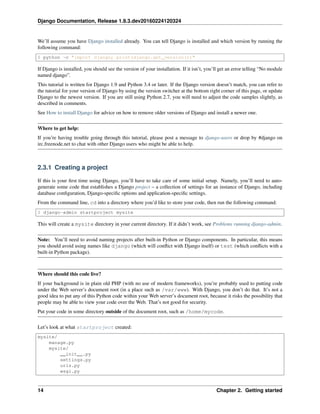
We’ll assume you have Django installed already. You can tell Django is installed and which version by running the
following command:
$ python -c "import django; print(django.get_version())"
If Django is installed, you should see the version of your installation. If it isn’t, you’ll get an error telling “No module
named django”.
This tutorial is written for Django 1.9 and Python 3.4 or later. If the Django version doesn’t match, you can refer to
the tutorial for your version of Django by using the version switcher at the bottom right corner of this page, or update
Django to the newest version. If you are still using Python 2.7, you will need to adjust the code samples slightly, as
described in comments.
See How to install Django for advice on how to remove older versions of Django and install a newer one.
Where to get help:
If you’re having trouble going through this tutorial, please post a message to django-users or drop by #django on
irc.freenode.net to chat with other Django users who might be able to help.
2.3.1 Creating a project
If this is your first time using Django, you’ll have to take care of some initial setup. Namely, you’ll need to auto-
generate some code that establishes a Django project – a collection of settings for an instance of Django, including
database configuration, Django-specific options and application-specific settings.
From the command line, cd into a directory where you’d like to store your code, then run the following command:
$ django-admin startproject mysite
This will create a mysite directory in your current directory. If it didn’t work, see Problems running django-admin.
Note: You’ll need to avoid naming projects after built-in Python or Django components. In particular, this means
you should avoid using names like django (which will conflict with Django itself) or test (which conflicts with a
built-in Python package).
Where should this code live?
If your background is in plain old PHP (with no use of modern frameworks), you’re probably used to putting code
under the Web server’s document root (in a place such as /var/www). With Django, you don’t do that. It’s not a
good idea to put any of this Python code within your Web server’s document root, because it risks the possibility that
people may be able to view your code over the Web. That’s not good for security.
Put your code in some directory outside of the document root, such as /home/mycode.
Let’s look at what startproject created:
mysite/
manage.py
mysite/
__init__.py
settings.py
urls.py
wsgi.py
14 Chapter 2. Getting started
Django Documentation, Release 1.9.3.dev20160224120324
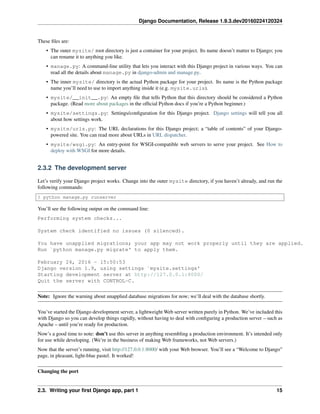
These files are:
• The outer mysite/ root directory is just a container for your project. Its name doesn’t matter to Django; you
can rename it to anything you like.
• manage.py: A command-line utility that lets you interact with this Django project in various ways. You can
read all the details about manage.py in django-admin and manage.py.
• The inner mysite/ directory is the actual Python package for your project. Its name is the Python package
name you’ll need to use to import anything inside it (e.g. mysite.urls).
• mysite/__init__.py: An empty file that tells Python that this directory should be considered a Python
package. (Read more about packages in the official Python docs if you’re a Python beginner.)
• mysite/settings.py: Settings/configuration for this Django project. Django settings will tell you all
about how settings work.
• mysite/urls.py: The URL declarations for this Django project; a “table of contents” of your Django-
powered site. You can read more about URLs in URL dispatcher.
• mysite/wsgi.py: An entry-point for WSGI-compatible web servers to serve your project. See How to
deploy with WSGI for more details.
2.3.2 The development server
Let’s verify your Django project works. Change into the outer mysite directory, if you haven’t already, and run the
following commands:
$ python manage.py runserver
You’ll see the following output on the command line:
Performing system checks...
System check identified no issues (0 silenced).
You have unapplied migrations; your app may not work properly until they are applied.
Run `python manage.py migrate' to apply them.
February 24, 2016 - 15:50:53
Django version 1.9, using settings `mysite.settings'
Starting development server at http://127.0.0.1:8000/
Quit the server with CONTROL-C.
Note: Ignore the warning about unapplied database migrations for now; we’ll deal with the database shortly.
You’ve started the Django development server, a lightweight Web server written purely in Python. We’ve included this
with Django so you can develop things rapidly, without having to deal with configuring a production server – such as
Apache – until you’re ready for production.
Now’s a good time to note: don’t use this server in anything resembling a production environment. It’s intended only
for use while developing. (We’re in the business of making Web frameworks, not Web servers.)
Now that the server’s running, visit http://127.0.0.1:8000/ with your Web browser. You’ll see a “Welcome to Django”
page, in pleasant, light-blue pastel. It worked!
Changing the port
2.3. Writing your first Django app, part 1 15
Django Documentation, Release 1.9.3.dev20160224120324
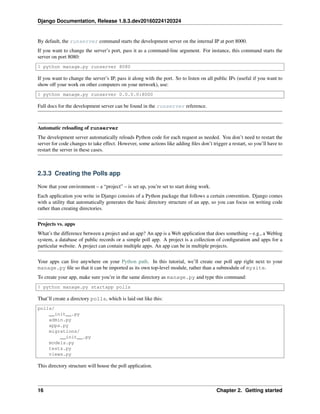
By default, the runserver command starts the development server on the internal IP at port 8000.
If you want to change the server’s port, pass it as a command-line argument. For instance, this command starts the
server on port 8080:
$ python manage.py runserver 8080
If you want to change the server’s IP, pass it along with the port. So to listen on all public IPs (useful if you want to
show off your work on other computers on your network), use:
$ python manage.py runserver 0.0.0.0:8000
Full docs for the development server can be found in the runserver reference.
Automatic reloading of runserver
The development server automatically reloads Python code for each request as needed. You don’t need to restart the
server for code changes to take effect. However, some actions like adding files don’t trigger a restart, so you’ll have to
restart the server in these cases.
2.3.3 Creating the Polls app
Now that your environment – a “project” – is set up, you’re set to start doing work.
Each application you write in Django consists of a Python package that follows a certain convention. Django comes
with a utility that automatically generates the basic directory structure of an app, so you can focus on writing code
rather than creating directories.
Projects vs. apps
What’s the difference between a project and an app? An app is a Web application that does something – e.g., a Weblog
system, a database of public records or a simple poll app. A project is a collection of configuration and apps for a
particular website. A project can contain multiple apps. An app can be in multiple projects.
Your apps can live anywhere on your Python path. In this tutorial, we’ll create our poll app right next to your
manage.py file so that it can be imported as its own top-level module, rather than a submodule of mysite.
To create your app, make sure you’re in the same directory as manage.py and type this command:
$ python manage.py startapp polls
That’ll create a directory polls, which is laid out like this:
polls/
__init__.py
admin.py
apps.py
migrations/
__init__.py
models.py
tests.py
views.py
This directory structure will house the poll application.
16 Chapter 2. Getting started
Django Documentation, Release 1.9.3.dev20160224120324
2.3.4 Write your first view
Let’s write the first view. Open the file polls/views.py and put the following Python code in it:
polls/views.py
from django.http import HttpResponse
def index(request):
return HttpResponse("Hello, world. You're at the polls index.")
This is the simplest view possible in Django. To call the view, we need to map it to a URL - and for this we need a
URLconf.
To create a URLconf in the polls directory, create a file called urls.py. Your app directory should now look like:
polls/
__init__.py
admin.py
apps.py
migrations/
__init__.py
models.py
tests.py
urls.py
views.py
In the polls/urls.py file include the following code:
polls/urls.py
from django.conf.urls import url
from . import views
urlpatterns = [
url(r'^$', views.index, name='index'),
]
The next step is to point the root URLconf at the polls.urls module. In mysite/urls.py, add an import for
django.conf.urls.include and insert an include() in the urlpatterns list, so you have:
mysite/urls.py
from django.conf.urls import include, url
from django.contrib import admin
urlpatterns = [
url(r'^polls/', include('polls.urls')),
url(r'^admin/', admin.site.urls),
]
When to use include()
You should always use include() when you include other URL patterns. admin.site.urls is the only excep-
tion to this.
Doesn’t match what you see?
2.3. Writing your first Django app, part 1 17
Django Documentation, Release 1.9.3.dev20160224120324
If you’re seeing include(admin.site.urls) instead of just admin.site.urls, you’re probably using a
version of Django that doesn’t match this tutorial version. You’ll want to either switch to the older tutorial or the
newer Django version.
You have now wired an index view into the URLconf. Lets verify it’s working, run the following command:
$ python manage.py runserver
Go to http://localhost:8000/polls/ in your browser, and you should see the text “Hello, world. You’re at the polls
index.”, which you defined in the index view.
The url() function is passed four arguments, two required: regex and view, and two optional: kwargs, and
name. At this point, it’s worth reviewing what these arguments are for.
url() argument: regex
The term “regex” is a commonly used short form meaning “regular expression”, which is a syntax for matching
patterns in strings, or in this case, url patterns. Django starts at the first regular expression and makes its way down the
list, comparing the requested URL against each regular expression until it finds one that matches.
Note that these regular expressions do not search GET and POST parameters, or the domain name. For example,
in a request to https://www.example.com/myapp/, the URLconf will look for myapp/. In a request to
https://www.example.com/myapp/?page=3, the URLconf will also look for myapp/.
If you need help with regular expressions, see Wikipedia’s entry and the documentation of the re module. Also, the
O’Reilly book “Mastering Regular Expressions” by Jeffrey Friedl is fantastic. In practice, however, you don’t need to
be an expert on regular expressions, as you really only need to know how to capture simple patterns. In fact, complex
regexes can have poor lookup performance, so you probably shouldn’t rely on the full power of regexes.
Finally, a performance note: these regular expressions are compiled the first time the URLconf module is loaded.
They’re super fast (as long as the lookups aren’t too complex as noted above).
url() argument: view
When Django finds a regular expression match, Django calls the specified view function, with an HttpRequest
object as the first argument and any “captured” values from the regular expression as other arguments. If the regex
uses simple captures, values are passed as positional arguments; if it uses named captures, values are passed as keyword
arguments. We’ll give an example of this in a bit.
url() argument: kwargs
Arbitrary keyword arguments can be passed in a dictionary to the target view. We aren’t going to use this feature of
Django in the tutorial.
url() argument: name
Naming your URL lets you refer to it unambiguously from elsewhere in Django especially templates. This powerful
feature allows you to make global changes to the url patterns of your project while only touching a single file.
When you’re comfortable with the basic request and response flow, read part 2 of this tutorial to start working with the
database.
18 Chapter 2. Getting started
Django Documentation, Release 1.9.3.dev20160224120324
2.4 Writing your first Django app, part 2
This tutorial begins where Tutorial 1 left off. We’ll setup the database, create your first model, and get a quick
introduction to Django’s automatically-generated admin site.
2.4.1 Database setup
Now, open up mysite/settings.py. It’s a normal Python module with module-level variables representing
Django settings.
By default, the configuration uses SQLite. If you’re new to databases, or you’re just interested in trying Django, this is
the easiest choice. SQLite is included in Python, so you won’t need to install anything else to support your database.
When starting your first real project, however, you may want to use a more robust database like PostgreSQL, to avoid
database-switching headaches down the road.
If you wish to use another database, install the appropriate database bindings and change the following keys in the
DATABASES ’default’ item to match your database connection settings:
• ENGINE – Either ’django.db.backends.sqlite3’, ’django.db.backends.postgresql’,
’django.db.backends.mysql’, or ’django.db.backends.oracle’. Other backends are also
available.
• NAME – The name of your database. If you’re using SQLite, the database will be a file on your computer;
in that case, NAME should be the full absolute path, including filename, of that file. The default value,
os.path.join(BASE_DIR, ’db.sqlite3’), will store the file in your project directory.
If you are not using SQLite as your database, additional settings such as USER, PASSWORD, and HOST must be added.
For more details, see the reference documentation for DATABASES.
Note: If you’re using PostgreSQL or MySQL, make sure you’ve created a database by this point. Do that with
“CREATE DATABASE database_name;” within your database’s interactive prompt.
If you’re using SQLite, you don’t need to create anything beforehand - the database file will be created automatically
when it is needed.
While you’re editing mysite/settings.py, set TIME_ZONE to your time zone.
Also, note the INSTALLED_APPS setting at the top of the file. That holds the names of all Django applications that
are activated in this Django instance. Apps can be used in multiple projects, and you can package and distribute them
for use by others in their projects.
By default, INSTALLED_APPS contains the following apps, all of which come with Django:
• django.contrib.admin – The admin site. You’ll use it shortly.
• django.contrib.auth – An authentication system.
• django.contrib.contenttypes – A framework for content types.
• django.contrib.sessions – A session framework.
• django.contrib.messages – A messaging framework.
• django.contrib.staticfiles – A framework for managing static files.
These applications are included by default as a convenience for the common case.
Some of these applications make use of at least one database table, though, so we need to create the tables in the
database before we can use them. To do that, run the following command:
2.4. Writing your first Django app, part 2 19
Django Documentation, Release 1.9.3.dev20160224120324
$ python manage.py migrate
The migrate command looks at the INSTALLED_APPS setting and creates any necessary database tables according
to the database settings in your mysite/settings.py file and the database migrations shipped with the app (we’ll
cover those later). You’ll see a message for each migration it applies. If you’re interested, run the command-line
client for your database and type dt (PostgreSQL), SHOW TABLES; (MySQL), .schema (SQLite), or SELECT
TABLE_NAME FROM USER_TABLES; (Oracle) to display the tables Django created.
For the minimalists
Like we said above, the default applications are included for the common case, but not everybody needs them. If you
don’t need any or all of them, feel free to comment-out or delete the appropriate line(s) from INSTALLED_APPS
before running migrate. The migrate command will only run migrations for apps in INSTALLED_APPS.
2.4.2 Creating models
Now we’ll define your models – essentially, your database layout, with additional metadata.
Philosophy
A model is the single, definitive source of truth about your data. It contains the essential fields and behaviors of
the data you’re storing. Django follows the DRY Principle. The goal is to define your data model in one place and
automatically derive things from it.
This includes the migrations - unlike in Ruby On Rails, for example, migrations are entirely derived from your models
file, and are essentially just a history that Django can roll through to update your database schema to match your
current models.
In our simple poll app, we’ll create two models: Question and Choice. A Question has a question and a
publication date. A Choice has two fields: the text of the choice and a vote tally. Each Choice is associated with a
Question.
These concepts are represented by simple Python classes. Edit the polls/models.py file so it looks like this:
polls/models.py
from django.db import models
class Question(models.Model):
question_text = models.CharField(max_length=200)
pub_date = models.DateTimeField('date published')
class Choice(models.Model):
question = models.ForeignKey(Question, on_delete=models.CASCADE)
choice_text = models.CharField(max_length=200)
votes = models.IntegerField(default=0)
The code is straightforward. Each model is represented by a class that subclasses django.db.models.Model.
Each model has a number of class variables, each of which represents a database field in the model.
Each field is represented by an instance of a Field class – e.g., CharField for character fields and
DateTimeField for datetimes. This tells Django what type of data each field holds.
20 Chapter 2. Getting started
Django Documentation, Release 1.9.3.dev20160224120324
The name of each Field instance (e.g. question_text or pub_date) is the field’s name, in machine-friendly
format. You’ll use this value in your Python code, and your database will use it as the column name.
You can use an optional first positional argument to a Field to designate a human-readable name. That’s used in a
couple of introspective parts of Django, and it doubles as documentation. If this field isn’t provided, Django will use the
machine-readable name. In this example, we’ve only defined a human-readable name for Question.pub_date.
For all other fields in this model, the field’s machine-readable name will suffice as its human-readable name.
Some Field classes have required arguments. CharField, for example, requires that you give it a max_length.
That’s used not only in the database schema, but in validation, as we’ll soon see.
A Field can also have various optional arguments; in this case, we’ve set the default value of votes to 0.
Finally, note a relationship is defined, using ForeignKey. That tells Django each Choice is related to a single
Question. Django supports all the common database relationships: many-to-one, many-to-many, and one-to-one.
2.4.3 Activating models
That small bit of model code gives Django a lot of information. With it, Django is able to:
• Create a database schema (CREATE TABLE statements) for this app.
• Create a Python database-access API for accessing Question and Choice objects.
But first we need to tell our project that the polls app is installed.
Philosophy
Django apps are “pluggable”: You can use an app in multiple projects, and you can distribute apps, because they don’t
have to be tied to a given Django installation.
Edit the mysite/settings.py file again, and change the INSTALLED_APPS setting to include the string
’polls.apps.PollsConfig’. It’ll look like this:
mysite/settings.py
INSTALLED_APPS = [
'polls.apps.PollsConfig',
'django.contrib.admin',
'django.contrib.auth',
'django.contrib.contenttypes',
'django.contrib.sessions',
'django.contrib.messages',
'django.contrib.staticfiles',
]
Now Django knows to include the polls app. Let’s run another command:
$ python manage.py makemigrations polls
You should see something similar to the following:
Migrations for 'polls':
0001_initial.py:
- Create model Choice
- Create model Question
- Add field question to choice
2.4. Writing your first Django app, part 2 21
Django Documentation, Release 1.9.3.dev20160224120324
By running makemigrations, you’re telling Django that you’ve made some changes to your models (in this case,
you’ve made new ones) and that you’d like the changes to be stored as a migration.
Migrations are how Django stores changes to your models (and thus your database schema) - they’re just files on disk.
You can read the migration for your new model if you like; it’s the file polls/migrations/0001_initial.py.
Don’t worry, you’re not expected to read them every time Django makes one, but they’re designed to be human-editable
in case you want to manually tweak how Django changes things.
There’s a command that will run the migrations for you and manage your database schema automatically - that’s
called migrate, and we’ll come to it in a moment - but first, let’s see what SQL that migration would run. The
sqlmigrate command takes migration names and returns their SQL:
$ python manage.py sqlmigrate polls 0001
You should see something similar to the following (we’ve reformatted it for readability):
BEGIN;
--
-- Create model Choice
--
CREATE TABLE "polls_choice" (
"id" serial NOT NULL PRIMARY KEY,
"choice_text" varchar(200) NOT NULL,
"votes" integer NOT NULL
);
--
-- Create model Question
--
CREATE TABLE "polls_question" (
"id" serial NOT NULL PRIMARY KEY,
"question_text" varchar(200) NOT NULL,
"pub_date" timestamp with time zone NOT NULL
);
--
-- Add field question to choice
--
ALTER TABLE "polls_choice" ADD COLUMN "question_id" integer NOT NULL;
ALTER TABLE "polls_choice" ALTER COLUMN "question_id" DROP DEFAULT;
CREATE INDEX "polls_choice_7aa0f6ee" ON "polls_choice" ("question_id");
ALTER TABLE "polls_choice"
ADD CONSTRAINT "polls_choice_question_id_246c99a640fbbd72_fk_polls_question_id"
FOREIGN KEY ("question_id")
REFERENCES "polls_question" ("id")
DEFERRABLE INITIALLY DEFERRED;
COMMIT;
Note the following:
• The exact output will vary depending on the database you are using. The example above is generated for
PostgreSQL.
• Table names are automatically generated by combining the name of the app (polls) and the lowercase name
of the model – question and choice. (You can override this behavior.)
• Primary keys (IDs) are added automatically. (You can override this, too.)
• By convention, Django appends "_id" to the foreign key field name. (Yes, you can override this, as well.)
• The foreign key relationship is made explicit by a FOREIGN KEY constraint. Don’t worry about the
22 Chapter 2. Getting started
Django Documentation, Release 1.9.3.dev20160224120324
DEFERRABLE parts; that’s just telling PostgreSQL to not enforce the foreign key until the end of the trans-
action.
• It’s tailored to the database you’re using, so database-specific field types such as auto_increment (MySQL),
serial (PostgreSQL), or integer primary key autoincrement (SQLite) are handled for you au-
tomatically. Same goes for the quoting of field names – e.g., using double quotes or single quotes.
• The sqlmigrate command doesn’t actually run the migration on your database - it just prints it to the screen
so that you can see what SQL Django thinks is required. It’s useful for checking what Django is going to do or
if you have database administrators who require SQL scripts for changes.
If you’re interested, you can also run python manage.py check; this checks for any problems in your project
without making migrations or touching the database.
Now, run migrate again to create those model tables in your database:
$ python manage.py migrate
Operations to perform:
Apply all migrations: admin, contenttypes, polls, auth, sessions
Running migrations:
Rendering model states... DONE
Applying polls.0001_initial... OK
The migrate command takes all the migrations that haven’t been applied (Django tracks which ones are applied us-
ing a special table in your database called django_migrations) and runs them against your database - essentially,
synchronizing the changes you made to your models with the schema in the database.
Migrations are very powerful and let you change your models over time, as you develop your project, without the need
to delete your database or tables and make new ones - it specializes in upgrading your database live, without losing
data. We’ll cover them in more depth in a later part of the tutorial, but for now, remember the three-step guide to
making model changes:
• Change your models (in models.py).
• Run python manage.py makemigrations to create migrations for those changes
• Run python manage.py migrate to apply those changes to the database.
The reason that there are separate commands to make and apply migrations is because you’ll commit migrations to
your version control system and ship them with your app; they not only make your development easier, they’re also
useable by other developers and in production.
Read the django-admin documentation for full information on what the manage.py utility can do.
2.4.4 Playing with the API
Now, let’s hop into the interactive Python shell and play around with the free API Django gives you. To invoke the
Python shell, use this command:
$ python manage.py shell
We’re using this instead of simply typing “python”, because manage.py sets the DJANGO_SETTINGS_MODULE
environment variable, which gives Django the Python import path to your mysite/settings.py file.
Bypassing manage.py
If you’d rather not use manage.py, no problem. Just set the DJANGO_SETTINGS_MODULE environment variable
to mysite.settings, start a plain Python shell, and set up Django:
2.4. Writing your first Django app, part 2 23
Django Documentation, Release 1.9.3.dev20160224120324
>>> import django
>>> django.setup()
If this raises an AttributeError, you’re probably using a version of Django that doesn’t match this tutorial
version. You’ll want to either switch to the older tutorial or the newer Django version.
You must run python from the same directory manage.py is in, or ensure that directory is on the Python path, so
that import mysite works.
For more information on all of this, see the django-admin documentation.
Once you’re in the shell, explore the database API:
>>> from polls.models import Question, Choice # Import the model classes we just wrote.
# No questions are in the system yet.
>>> Question.objects.all()
[]
# Create a new Question.
# Support for time zones is enabled in the default settings file, so
# Django expects a datetime with tzinfo for pub_date. Use timezone.now()
# instead of datetime.datetime.now() and it will do the right thing.
>>> from django.utils import timezone
>>> q = Question(question_text="What's new?", pub_date=timezone.now())
# Save the object into the database. You have to call save() explicitly.
>>> q.save()
# Now it has an ID. Note that this might say "1L" instead of "1", depending
# on which database you're using. That's no biggie; it just means your
# database backend prefers to return integers as Python long integer
# objects.
>>> q.id
1
# Access model field values via Python attributes.
>>> q.question_text
"What's new?"
>>> q.pub_date
datetime.datetime(2012, 2, 26, 13, 0, 0, 775217, tzinfo=<UTC>)
# Change values by changing the attributes, then calling save().
>>> q.question_text = "What's up?"
>>> q.save()
# objects.all() displays all the questions in the database.
>>> Question.objects.all()
[<Question: Question object>]
Wait a minute. <Question: Question object> is, utterly, an unhelpful representation of this object. Let’s
fix that by editing the Question model (in the polls/models.py file) and adding a __str__() method to
both Question and Choice:
polls/models.py
from django.db import models
from django.utils.encoding import python_2_unicode_compatible
24 Chapter 2. Getting started
Django Documentation, Release 1.9.3.dev20160224120324
@python_2_unicode_compatible # only if you need to support Python 2
class Question(models.Model):
# ...
def __str__(self):
return self.question_text
@python_2_unicode_compatible # only if you need to support Python 2
class Choice(models.Model):
# ...
def __str__(self):
return self.choice_text
It’s important to add __str__() methods to your models, not only for your own convenience when dealing with the
interactive prompt, but also because objects’ representations are used throughout Django’s automatically-generated
admin.
Note these are normal Python methods. Let’s add a custom method, just for demonstration:
polls/models.py
import datetime
from django.db import models
from django.utils import timezone
class Question(models.Model):
# ...
def was_published_recently(self):
return self.pub_date >= timezone.now() - datetime.timedelta(days=1)
Note the addition of import datetime and from django.utils import timezone, to reference
Python’s standard datetime module and Django’s time-zone-related utilities in django.utils.timezone,
respectively. If you aren’t familiar with time zone handling in Python, you can learn more in the time zone support
docs.
Save these changes and start a new Python interactive shell by running python manage.py shell again:
>>> from polls.models import Question, Choice
# Make sure our __str__() addition worked.
>>> Question.objects.all()
[<Question: What's up?>]
# Django provides a rich database lookup API that's entirely driven by
# keyword arguments.
>>> Question.objects.filter(id=1)
[<Question: What's up?>]
>>> Question.objects.filter(question_text__startswith='What')
[<Question: What's up?>]
# Get the question that was published this year.
>>> from django.utils import timezone
>>> current_year = timezone.now().year
>>> Question.objects.get(pub_date__year=current_year)
<Question: What's up?>
# Request an ID that doesn't exist, this will raise an exception.
>>> Question.objects.get(id=2)
2.4. Writing your first Django app, part 2 25
Django Documentation, Release 1.9.3.dev20160224120324
Traceback (most recent call last):
...
DoesNotExist: Question matching query does not exist.
# Lookup by a primary key is the most common case, so Django provides a
# shortcut for primary-key exact lookups.
# The following is identical to Question.objects.get(id=1).
>>> Question.objects.get(pk=1)
<Question: What's up?>
# Make sure our custom method worked.
>>> q = Question.objects.get(pk=1)
>>> q.was_published_recently()
True
# Give the Question a couple of Choices. The create call constructs a new
# Choice object, does the INSERT statement, adds the choice to the set
# of available choices and returns the new Choice object. Django creates
# a set to hold the "other side" of a ForeignKey relation
# (e.g. a question's choice) which can be accessed via the API.
>>> q = Question.objects.get(pk=1)
# Display any choices from the related object set -- none so far.
>>> q.choice_set.all()
[]
# Create three choices.
>>> q.choice_set.create(choice_text='Not much', votes=0)
<Choice: Not much>
>>> q.choice_set.create(choice_text='The sky', votes=0)
<Choice: The sky>
>>> c = q.choice_set.create(choice_text='Just hacking again', votes=0)
# Choice objects have API access to their related Question objects.
>>> c.question
<Question: What's up?>
# And vice versa: Question objects get access to Choice objects.
>>> q.choice_set.all()
[<Choice: Not much>, <Choice: The sky>, <Choice: Just hacking again>]
>>> q.choice_set.count()
3
# The API automatically follows relationships as far as you need.
# Use double underscores to separate relationships.
# This works as many levels deep as you want; there's no limit.
# Find all Choices for any question whose pub_date is in this year
# (reusing the 'current_year' variable we created above).
>>> Choice.objects.filter(question__pub_date__year=current_year)
[<Choice: Not much>, <Choice: The sky>, <Choice: Just hacking again>]
# Let's delete one of the choices. Use delete() for that.
>>> c = q.choice_set.filter(choice_text__startswith='Just hacking')
>>> c.delete()
For more information on model relations, see Accessing related objects. For more on how to use double underscores
to perform field lookups via the API, see Field lookups. For full details on the database API, see our Database API
reference.
26 Chapter 2. Getting started
Django Documentation, Release 1.9.3.dev20160224120324
2.4.5 Introducing the Django Admin
Philosophy
Generating admin sites for your staff or clients to add, change, and delete content is tedious work that doesn’t require
much creativity. For that reason, Django entirely automates creation of admin interfaces for models.
Django was written in a newsroom environment, with a very clear separation between “content publishers” and the
“public” site. Site managers use the system to add news stories, events, sports scores, etc., and that content is displayed
on the public site. Django solves the problem of creating a unified interface for site administrators to edit content.
The admin isn’t intended to be used by site visitors. It’s for site managers.
Creating an admin user
First we’ll need to create a user who can login to the admin site. Run the following command:
$ python manage.py createsuperuser
Enter your desired username and press enter.
Username: admin
You will then be prompted for your desired email address:
Email address: admin@example.com
The final step is to enter your password. You will be asked to enter your password twice, the second time as a
confirmation of the first.
Password: **********
Password (again): *********
Superuser created successfully.
Start the development server
The Django admin site is activated by default. Let’s start the development server and explore it.
If the server is not running start it like so:
$ python manage.py runserver
Now, open a Web browser and go to “/admin/” on your local domain – e.g., http://127.0.0.1:8000/admin/. You should
see the admin’s login screen:
2.4. Writing your first Django app, part 2 27
Django Documentation, Release 1.9.3.dev20160224120324
Since translation is turned on by default, the login screen may be displayed in your own language, depending on your
browser’s settings and if Django has a translation for this language.
Enter the admin site
Now, try logging in with the superuser account you created in the previous step. You should see the Django admin
index page:
You should see a few types of editable content: groups and users. They are provided by django.contrib.auth,
the authentication framework shipped by Django.
Make the poll app modifiable in the admin
But where’s our poll app? It’s not displayed on the admin index page.
28 Chapter 2. Getting started
Django Documentation, Release 1.9.3.dev20160224120324
Just one thing to do: we need to tell the admin that Question objects have an admin interface. To do this, open the
polls/admin.py file, and edit it to look like this:
polls/admin.py
from django.contrib import admin
from .models import Question
admin.site.register(Question)
Explore the free admin functionality
Now that we’ve registered Question, Django knows that it should be displayed on the admin index page:
Click “Questions”. Now you’re at the “change list” page for questions. This page displays all the questions in the
database and lets you choose one to change it. There’s the “What’s up?” question we created earlier:
Click the “What’s up?” question to edit it:
2.4. Writing your first Django app, part 2 29
Django Documentation, Release 1.9.3.dev20160224120324
Things to note here:
• The form is automatically generated from the Question model.
• The different model field types (DateTimeField, CharField) correspond to the appropriate HTML input
widget. Each type of field knows how to display itself in the Django admin.
• Each DateTimeField gets free JavaScript shortcuts. Dates get a “Today” shortcut and calendar popup, and
times get a “Now” shortcut and a convenient popup that lists commonly entered times.
The bottom part of the page gives you a couple of options:
• Save – Saves changes and returns to the change-list page for this type of object.
• Save and continue editing – Saves changes and reloads the admin page for this object.
• Save and add another – Saves changes and loads a new, blank form for this type of object.
• Delete – Displays a delete confirmation page.
If the value of “Date published” doesn’t match the time when you created the question in Tutorial 1, it probably means
you forgot to set the correct value for the TIME_ZONE setting. Change it, reload the page and check that the correct
value appears.
Change the “Date published” by clicking the “Today” and “Now” shortcuts. Then click “Save and continue editing.”
Then click “History” in the upper right. You’ll see a page listing all changes made to this object via the Django admin,
with the timestamp and username of the person who made the change:
When you’re comfortable with the models API and have familiarized yourself with the admin site, read part 3 of this
tutorial to learn about how to add more views to our polls app.
30 Chapter 2. Getting started
Django Documentation, Release 1.9.3.dev20160224120324
2.5 Writing your first Django app, part 3
This tutorial begins where Tutorial 2 left off. We’re continuing the Web-poll application and will focus on creating the
public interface – “views.”
2.5.1 Overview
A view is a “type” of Web page in your Django application that generally serves a specific function and has a specific
template. For example, in a blog application, you might have the following views:
• Blog homepage – displays the latest few entries.
• Entry “detail” page – permalink page for a single entry.
• Year-based archive page – displays all months with entries in the given year.
• Month-based archive page – displays all days with entries in the given month.
• Day-based archive page – displays all entries in the given day.
• Comment action – handles posting comments to a given entry.
In our poll application, we’ll have the following four views:
• Question “index” page – displays the latest few questions.
• Question “detail” page – displays a question text, with no results but with a form to vote.
• Question “results” page – displays results for a particular question.
• Vote action – handles voting for a particular choice in a particular question.
In Django, web pages and other content are delivered by views. Each view is represented by a simple Python function
(or method, in the case of class-based views). Django will choose a view by examining the URL that’s requested (to
be precise, the part of the URL after the domain name).
Now in your time on the web you may have come across such beauties as
“ME2/Sites/dirmod.asp?sid=&type=gen&mod=Core+Pages&gid=A6CD4967199A42D9B65B1B”. You will be
pleased to know that Django allows us much more elegant URL patterns than that.
A URL pattern is simply the general form of a URL - for example: /newsarchive/<year>/<month>/.
To get from a URL to a view, Django uses what are known as ‘URLconfs’. A URLconf maps URL patterns (described
as regular expressions) to views.
This tutorial provides basic instruction in the use of URLconfs, and you can refer to
django.core.urlresolvers for more information.
2.5.2 Writing more views
Now let’s add a few more views to polls/views.py. These views are slightly different, because they take an
argument:
polls/views.py
def detail(request, question_id):
return HttpResponse("You're looking at question %s." % question_id)
def results(request, question_id):
response = "You're looking at the results of question %s."
return HttpResponse(response % question_id)
2.5. Writing your first Django app, part 3 31
Django Documentation, Release 1.9.3.dev20160224120324
def vote(request, question_id):
return HttpResponse("You're voting on question %s." % question_id)
Wire these new views into the polls.urls module by adding the following url() calls:
polls/urls.py
from django.conf.urls import url
from . import views
urlpatterns = [
# ex: /polls/
url(r'^$', views.index, name='index'),
# ex: /polls/5/
url(r'^(?P<question_id>[0-9]+)/$', views.detail, name='detail'),
# ex: /polls/5/results/
url(r'^(?P<question_id>[0-9]+)/results/$', views.results, name='results'),
# ex: /polls/5/vote/
url(r'^(?P<question_id>[0-9]+)/vote/$', views.vote, name='vote'),
]
Take a look in your browser, at “/polls/34/”. It’ll run the detail() method and display whatever ID you provide
in the URL. Try “/polls/34/results/” and “/polls/34/vote/” too – these will display the placeholder results and voting
pages.
When somebody requests a page from your website – say, “/polls/34/”, Django will load the mysite.urls Python
module because it’s pointed to by the ROOT_URLCONF setting. It finds the variable named urlpatterns and
traverses the regular expressions in order. The include() functions we are using simply reference other URLconfs.
Note that the regular expressions for the include() functions don’t have a $ (end-of-string match character) but
rather a trailing slash. Whenever Django encounters include(), it chops off whatever part of the URL matched up
to that point and sends the remaining string to the included URLconf for further processing.
The idea behind include() is to make it easy to plug-and-play URLs. Since polls are in their own URLconf
(polls/urls.py), they can be placed under “/polls/”, or under “/fun_polls/”, or under “/content/polls/”, or any
other path root, and the app will still work.
Here’s what happens if a user goes to “/polls/34/” in this system:
• Django will find the match at ’^polls/’
• Then, Django will strip off the matching text ("polls/") and send the remaining text – "34/" – to the
‘polls.urls’ URLconf for further processing which matches r’^(?P<question_id>[0-9]+)/$’ resulting
in a call to the detail() view like so:
detail(request=<HttpRequest object>, question_id='34')
The question_id=’34’ part comes from (?P<question_id>[0-9]+). Using parentheses around a pattern
“captures” the text matched by that pattern and sends it as an argument to the view function; ?P<question_id>
defines the name that will be used to identify the matched pattern; and [0-9]+ is a regular expression to match a
sequence of digits (i.e., a number).
Because the URL patterns are regular expressions, there really is no limit on what you can do with them. And there’s
no need to add URL cruft such as .html – unless you want to, in which case you can do something like this:
url(r'^polls/latest.html$', views.index),
But, don’t do that. It’s silly.
32 Chapter 2. Getting started
Django Documentation, Release 1.9.3.dev20160224120324
2.5.3 Write views that actually do something
Each view is responsible for doing one of two things: returning an HttpResponse object containing the content for
the requested page, or raising an exception such as Http404. The rest is up to you.
Your view can read records from a database, or not. It can use a template system such as Django’s – or a third-party
Python template system – or not. It can generate a PDF file, output XML, create a ZIP file on the fly, anything you
want, using whatever Python libraries you want.
All Django wants is that HttpResponse. Or an exception.
Because it’s convenient, let’s use Django’s own database API, which we covered in Tutorial 2. Here’s one stab at
a new index() view, which displays the latest 5 poll questions in the system, separated by commas, according to
publication date:
polls/views.py
from django.http import HttpResponse
from .models import Question
def index(request):
latest_question_list = Question.objects.order_by('-pub_date')[:5]
output = ', '.join([q.question_text for q in latest_question_list])
return HttpResponse(output)
# Leave the rest of the views (detail, results, vote) unchanged
There’s a problem here, though: the page’s design is hard-coded in the view. If you want to change the way the page
looks, you’ll have to edit this Python code. So let’s use Django’s template system to separate the design from Python
by creating a template that the view can use.
First, create a directory called templates in your polls directory. Django will look for templates in there.
Your project’s TEMPLATES setting describes how Django will load and render templates. The default set-
tings file configures a DjangoTemplates backend whose APP_DIRS option is set to True. By convention
DjangoTemplates looks for a “templates” subdirectory in each of the INSTALLED_APPS.
Within the templates directory you have just created, create another directory called polls,
and within that create a file called index.html. In other words, your template should be at
polls/templates/polls/index.html. Because of how the app_directories template loader
works as described above, you can refer to this template within Django simply as polls/index.html.
Template namespacing
Now we might be able to get away with putting our templates directly in polls/templates (rather than creating
another polls subdirectory), but it would actually be a bad idea. Django will choose the first template it finds whose
name matches, and if you had a template with the same name in a different application, Django would be unable to
distinguish between them. We need to be able to point Django at the right one, and the easiest way to ensure this is by
namespacing them. That is, by putting those templates inside another directory named for the application itself.
Put the following code in that template:
polls/templates/polls/index.html
{% if latest_question_list %}
<ul>
{% for question in latest_question_list %}
2.5. Writing your first Django app, part 3 33
Django Documentation, Release 1.9.3.dev20160224120324
<li><a href="/polls/{{ question.id }}/">{{ question.question_text }}</a></li>
{% endfor %}
</ul>
{% else %}
<p>No polls are available.</p>
{% endif %}
Now let’s update our index view in polls/views.py to use the template:
polls/views.py
from django.http import HttpResponse
from django.template import loader
from .models import Question
def index(request):
latest_question_list = Question.objects.order_by('-pub_date')[:5]
template = loader.get_template('polls/index.html')
context = {
'latest_question_list': latest_question_list,
}
return HttpResponse(template.render(context, request))
That code loads the template called polls/index.html and passes it a context. The context is a dictionary
mapping template variable names to Python objects.
Load the page by pointing your browser at “/polls/”, and you should see a bulleted-list containing the “What’s up”
question from Tutorial 2. The link points to the question’s detail page.
A shortcut: render()
It’s a very common idiom to load a template, fill a context and return an HttpResponse object with the result of the
rendered template. Django provides a shortcut. Here’s the full index() view, rewritten:
polls/views.py
from django.shortcuts import render
from .models import Question
def index(request):
latest_question_list = Question.objects.order_by('-pub_date')[:5]
context = {'latest_question_list': latest_question_list}
return render(request, 'polls/index.html', context)
Note that once we’ve done this in all these views, we no longer need to import loader and HttpResponse (you’ll
want to keep HttpResponse if you still have the stub methods for detail, results, and vote).
The render() function takes the request object as its first argument, a template name as its second argument and a
dictionary as its optional third argument. It returns an HttpResponse object of the given template rendered with
the given context.
2.5.4 Raising a 404 error
Now, let’s tackle the question detail view – the page that displays the question text for a given poll. Here’s the view:
34 Chapter 2. Getting started
Django Documentation, Release 1.9.3.dev20160224120324
polls/views.py
from django.http import Http404
from django.shortcuts import render
from .models import Question
# ...
def detail(request, question_id):
try:
question = Question.objects.get(pk=question_id)
except Question.DoesNotExist:
raise Http404("Question does not exist")
return render(request, 'polls/detail.html', {'question': question})
The new concept here: The view raises the Http404 exception if a question with the requested ID doesn’t exist.
We’ll discuss what you could put in that polls/detail.html template a bit later, but if you’d like to quickly get
the above example working, a file containing just:
polls/templates/polls/detail.html
{{ question }}
will get you started for now.
A shortcut: get_object_or_404()
It’s a very common idiom to use get() and raise Http404 if the object doesn’t exist. Django provides a shortcut.
Here’s the detail() view, rewritten:
polls/views.py
from django.shortcuts import get_object_or_404, render
from .models import Question
# ...
def detail(request, question_id):
question = get_object_or_404(Question, pk=question_id)
return render(request, 'polls/detail.html', {'question': question})
The get_object_or_404() function takes a Django model as its first argument and an arbitrary number of
keyword arguments, which it passes to the get() function of the model’s manager. It raises Http404 if the object
doesn’t exist.
Philosophy
Why do we use a helper function get_object_or_404() instead of automatically catching the
ObjectDoesNotExist exceptions at a higher level, or having the model API raise Http404 instead of
ObjectDoesNotExist?
Because that would couple the model layer to the view layer. One of the foremost design goals of Django is to maintain
loose coupling. Some controlled coupling is introduced in the django.shortcuts module.
There’s also a get_list_or_404() function, which works just as get_object_or_404() – except using
filter() instead of get(). It raises Http404 if the list is empty.
2.5. Writing your first Django app, part 3 35
Django Documentation, Release 1.9.3.dev20160224120324
2.5.5 Use the template system
Back to the detail() view for our poll application. Given the context variable question, here’s what the
polls/detail.html template might look like:
polls/templates/polls/detail.html
<h1>{{ question.question_text }}</h1>
<ul>
{% for choice in question.choice_set.all %}
<li>{{ choice.choice_text }}</li>
{% endfor %}
</ul>
The template system uses dot-lookup syntax to access variable attributes. In the example of {{
question.question_text }}, first Django does a dictionary lookup on the object question. Failing that,
it tries an attribute lookup – which works, in this case. If attribute lookup had failed, it would’ve tried a list-index
lookup.
Method-calling happens in the {% for %} loop: question.choice_set.all is interpreted as the Python code
question.choice_set.all(), which returns an iterable of Choice objects and is suitable for use in the {%
for %} tag.
See the template guide for more about templates.
2.5.6 Removing hardcoded URLs in templates
Remember, when we wrote the link to a question in the polls/index.html template, the link was partially
hardcoded like this:
<li><a href="/polls/{{ question.id }}/">{{ question.question_text }}</a></li>
The problem with this hardcoded, tightly-coupled approach is that it becomes challenging to change URLs on projects
with a lot of templates. However, since you defined the name argument in the url() functions in the polls.urls
module, you can remove a reliance on specific URL paths defined in your url configurations by using the {% url
%} template tag:
<li><a href="{% url 'detail' question.id %}">{{ question.question_text }}</a></li>
The way this works is by looking up the URL definition as specified in the polls.urls module. You can see exactly
where the URL name of ‘detail’ is defined below:
...
# the 'name' value as called by the {% url %} template tag
url(r'^(?P<question_id>[0-9]+)/$', views.detail, name='detail'),
...
If you want to change the URL of the polls detail view to something else, perhaps to something like
polls/specifics/12/ instead of doing it in the template (or templates) you would change it in
polls/urls.py:
...
# added the word 'specifics'
url(r'^specifics/(?P<question_id>[0-9]+)/$', views.detail, name='detail'),
...
36 Chapter 2. Getting started
Django Documentation, Release 1.9.3.dev20160224120324
2.5.7 Namespacing URL names
The tutorial project has just one app, polls. In real Django projects, there might be five, ten, twenty apps or more.
How does Django differentiate the URL names between them? For example, the polls app has a detail view, and
so might an app on the same project that is for a blog. How does one make it so that Django knows which app view to
create for a url when using the {% url %} template tag?
The answer is to add namespaces to your URLconf. In the polls/urls.py file, go ahead and add an app_name
to set the application namespace:
polls/urls.py
from django.conf.urls import url
from . import views
app_name = 'polls'
urlpatterns = [
url(r'^$', views.index, name='index'),
url(r'^(?P<question_id>[0-9]+)/$', views.detail, name='detail'),
url(r'^(?P<question_id>[0-9]+)/results/$', views.results, name='results'),
url(r'^(?P<question_id>[0-9]+)/vote/$', views.vote, name='vote'),
]
Now change your polls/index.html template from:
polls/templates/polls/index.html
<li><a href="{% url 'detail' question.id %}">{{ question.question_text }}</a></li>
to point at the namespaced detail view:
polls/templates/polls/index.html
<li><a href="{% url 'polls:detail' question.id %}">{{ question.question_text }}</a></li>
When you’re comfortable with writing views, read part 4 of this tutorial to learn about simple form processing and
generic views.
2.6 Writing your first Django app, part 4
This tutorial begins where Tutorial 3 left off. We’re continuing the Web-poll application and will focus on simple form
processing and cutting down our code.
2.6.1 Write a simple form
Let’s update our poll detail template (“polls/detail.html”) from the last tutorial, so that the template contains an HTML
<form> element:
polls/templates/polls/detail.html
<h1>{{ question.question_text }}</h1>
{% if error_message %}<p><strong>{{ error_message }}</strong></p>{% endif %}
<form action="{% url 'polls:vote' question.id %}" method="post">
{% csrf_token %}
2.6. Writing your first Django app, part 4 37
Django Documentation, Release 1.9.3.dev20160224120324
{% for choice in question.choice_set.all %}
<input type="radio" name="choice" id="choice{{ forloop.counter }}" value="{{ choice.id }}" />
<label for="choice{{ forloop.counter }}">{{ choice.choice_text }}</label><br />
{% endfor %}
<input type="submit" value="Vote" />
</form>
A quick rundown:
• The above template displays a radio button for each question choice. The value of each radio button is the
associated question choice’s ID. The name of each radio button is "choice". That means, when somebody
selects one of the radio buttons and submits the form, it’ll send the POST data choice=# where # is the ID of
the selected choice. This is the basic concept of HTML forms.
• We set the form’s action to {% url ’polls:vote’ question.id %}, and we set
method="post". Using method="post" (as opposed to method="get") is very important, be-
cause the act of submitting this form will alter data server-side. Whenever you create a form that alters data
server-side, use method="post". This tip isn’t specific to Django; it’s just good Web development practice.
• forloop.counter indicates how many times the for tag has gone through its loop
• Since we’re creating a POST form (which can have the effect of modifying data), we need to worry about Cross
Site Request Forgeries. Thankfully, you don’t have to worry too hard, because Django comes with a very easy-
to-use system for protecting against it. In short, all POST forms that are targeted at internal URLs should use
the {% csrf_token %} template tag.
Now, let’s create a Django view that handles the submitted data and does something with it. Remember, in Tutorial 3,
we created a URLconf for the polls application that includes this line:
polls/urls.py
url(r'^(?P<question_id>[0-9]+)/vote/$', views.vote, name='vote'),
We also created a dummy implementation of the vote() function. Let’s create a real version. Add the following to
polls/views.py:
polls/views.py
from django.shortcuts import get_object_or_404, render
from django.http import HttpResponseRedirect, HttpResponse
from django.core.urlresolvers import reverse
from .models import Choice, Question
# ...
def vote(request, question_id):
question = get_object_or_404(Question, pk=question_id)
try:
selected_choice = question.choice_set.get(pk=request.POST['choice'])
except (KeyError, Choice.DoesNotExist):
# Redisplay the question voting form.
return render(request, 'polls/detail.html', {
'question': question,
'error_message': "You didn't select a choice.",
})
else:
selected_choice.votes += 1
selected_choice.save()
# Always return an HttpResponseRedirect after successfully dealing
# with POST data. This prevents data from being posted twice if a
38 Chapter 2. Getting started
Django Documentation, Release 1.9.3.dev20160224120324
# user hits the Back button.
return HttpResponseRedirect(reverse('polls:results', args=(question.id,)))
This code includes a few things we haven’t covered yet in this tutorial:
• request.POST is a dictionary-like object that lets you access submitted data by key name. In this case,
request.POST[’choice’] returns the ID of the selected choice, as a string. request.POST values are
always strings.
Note that Django also provides request.GET for accessing GET data in the same way – but we’re explicitly
using request.POST in our code, to ensure that data is only altered via a POST call.
• request.POST[’choice’] will raise KeyError if choice wasn’t provided in POST data. The above
code checks for KeyError and redisplays the question form with an error message if choice isn’t given.
• After incrementing the choice count, the code returns an HttpResponseRedirect rather than a normal
HttpResponse. HttpResponseRedirect takes a single argument: the URL to which the user will be
redirected (see the following point for how we construct the URL in this case).
As the Python comment above points out, you should always return an HttpResponseRedirect after
successfully dealing with POST data. This tip isn’t specific to Django; it’s just good Web development practice.
• We are using the reverse() function in the HttpResponseRedirect constructor in this example. This
function helps avoid having to hardcode a URL in the view function. It is given the name of the view that we
want to pass control to and the variable portion of the URL pattern that points to that view. In this case, using
the URLconf we set up in Tutorial 3, this reverse() call will return a string like
'/polls/3/results/'
where the 3 is the value of question.id. This redirected URL will then call the ’results’ view to display
the final page.
As mentioned in Tutorial 3, request is an HttpRequest object. For more on HttpRequest objects, see the
request and response documentation.
After somebody votes in a question, the vote() view redirects to the results page for the question. Let’s write that
view:
polls/views.py
from django.shortcuts import get_object_or_404, render
def results(request, question_id):
question = get_object_or_404(Question, pk=question_id)
return render(request, 'polls/results.html', {'question': question})
This is almost exactly the same as the detail() view from Tutorial 3. The only difference is the template name.
We’ll fix this redundancy later.
Now, create a polls/results.html template:
polls/templates/polls/results.html
<h1>{{ question.question_text }}</h1>
<ul>
{% for choice in question.choice_set.all %}
<li>{{ choice.choice_text }} -- {{ choice.votes }} vote{{ choice.votes|pluralize }}</li>
{% endfor %}
</ul>
2.6. Writing your first Django app, part 4 39
Django Documentation, Release 1.9.3.dev20160224120324
<a href="{% url 'polls:detail' question.id %}">Vote again?</a>
Now, go to /polls/1/ in your browser and vote in the question. You should see a results page that gets updated
each time you vote. If you submit the form without having chosen a choice, you should see the error message.
Note: The code for our vote() view does have a small problem. It first gets the selected_choice object from
the database, then computes the new value of votes, and then saves it back to the database. If two users of your
website try to vote at exactly the same time, this might go wrong: The same value, let’s say 42, will be retrieved for
votes. Then, for both users the new value of 43 is computed and saved, but 44 would be the expected value.
This is called a race condition. If you are interested, you can read Avoiding race conditions using F() to learn how you
can solve this issue.
2.6.2 Use generic views: Less code is better
The detail() (from Tutorial 3) and results() views are very simple – and, as mentioned above, redundant. The
index() view, which displays a list of polls, is similar.
These views represent a common case of basic Web development: getting data from the database according to a
parameter passed in the URL, loading a template and returning the rendered template. Because this is so common,
Django provides a shortcut, called the “generic views” system.
Generic views abstract common patterns to the point where you don’t even need to write Python code to write an app.
Let’s convert our poll app to use the generic views system, so we can delete a bunch of our own code. We’ll just have
to take a few steps to make the conversion. We will:
1. Convert the URLconf.
2. Delete some of the old, unneeded views.
3. Introduce new views based on Django’s generic views.
Read on for details.
Why the code-shuffle?
Generally, when writing a Django app, you’ll evaluate whether generic views are a good fit for your problem, and
you’ll use them from the beginning, rather than refactoring your code halfway through. But this tutorial intentionally
has focused on writing the views “the hard way” until now, to focus on core concepts.
You should know basic math before you start using a calculator.
Amend URLconf
First, open the polls/urls.py URLconf and change it like so:
polls/urls.py
from django.conf.urls import url
from . import views
app_name = 'polls'
urlpatterns = [
40 Chapter 2. Getting started
Django Documentation, Release 1.9.3.dev20160224120324
url(r'^$', views.IndexView.as_view(), name='index'),
url(r'^(?P<pk>[0-9]+)/$', views.DetailView.as_view(), name='detail'),
url(r'^(?P<pk>[0-9]+)/results/$', views.ResultsView.as_view(), name='results'),
url(r'^(?P<question_id>[0-9]+)/vote/$', views.vote, name='vote'),
]
Note that the name of the matched pattern in the regexes of the second and third patterns has changed from
<question_id> to <pk>.
Amend views
Next, we’re going to remove our old index, detail, and results views and use Django’s generic views instead.
To do so, open the polls/views.py file and change it like so:
polls/views.py
from django.shortcuts import get_object_or_404, render
from django.http import HttpResponseRedirect
from django.core.urlresolvers import reverse
from django.views import generic
from .models import Choice, Question
class IndexView(generic.ListView):
template_name = 'polls/index.html'
context_object_name = 'latest_question_list'
def get_queryset(self):
"""Return the last five published questions."""
return Question.objects.order_by('-pub_date')[:5]
class DetailView(generic.DetailView):
model = Question
template_name = 'polls/detail.html'
class ResultsView(generic.DetailView):
model = Question
template_name = 'polls/results.html'
def vote(request, question_id):
... # same as above, no changes needed.
We’re using two generic views here: ListView and DetailView. Respectively, those two views abstract the
concepts of “display a list of objects” and “display a detail page for a particular type of object.”
• Each generic view needs to know what model it will be acting upon. This is provided using the model attribute.
• The DetailView generic view expects the primary key value captured from the URL to be called "pk", so
we’ve changed question_id to pk for the generic views.
By default, the DetailView generic view uses a template called <app name>/<model
name>_detail.html. In our case, it would use the template "polls/question_detail.html".
The template_name attribute is used to tell Django to use a specific template name instead of the autogenerated
default template name. We also specify the template_name for the results list view – this ensures that the
2.6. Writing your first Django app, part 4 41
Django Documentation, Release 1.9.3.dev20160224120324
results view and the detail view have a different appearance when rendered, even though they’re both a DetailView
behind the scenes.
Similarly, the ListView generic view uses a default template called <app name>/<model
name>_list.html; we use template_name to tell ListView to use our existing "polls/index.html"
template.
In previous parts of the tutorial, the templates have been provided with a context that contains the question
and latest_question_list context variables. For DetailView the question variable is provided
automatically – since we’re using a Django model (Question), Django is able to determine an appropri-
ate name for the context variable. However, for ListView, the automatically generated context variable is
question_list. To override this we provide the context_object_name attribute, specifying that we want to
use latest_question_list instead. As an alternative approach, you could change your templates to match the
new default context variables – but it’s a lot easier to just tell Django to use the variable you want.
Run the server, and use your new polling app based on generic views.
For full details on generic views, see the generic views documentation.
When you’re comfortable with forms and generic views, read part 5 of this tutorial to learn about testing our polls app.
2.7 Writing your first Django app, part 5
This tutorial begins where Tutorial 4 left off. We’ve built a Web-poll application, and we’ll now create some automated
tests for it.
2.7.1 Introducing automated testing
What are automated tests?
Tests are simple routines that check the operation of your code.
Testing operates at different levels. Some tests might apply to a tiny detail (does a particular model method return
values as expected?) while others examine the overall operation of the software (does a sequence of user inputs on the
site produce the desired result?). That’s no different from the kind of testing you did earlier in Tutorial 2, using the
shell to examine the behavior of a method, or running the application and entering data to check how it behaves.
What’s different in automated tests is that the testing work is done for you by the system. You create a set of tests
once, and then as you make changes to your app, you can check that your code still works as you originally intended,
without having to perform time consuming manual testing.
Why you need to create tests
So why create tests, and why now?
You may feel that you have quite enough on your plate just learning Python/Django, and having yet another thing
to learn and do may seem overwhelming and perhaps unnecessary. After all, our polls application is working quite
happily now; going through the trouble of creating automated tests is not going to make it work any better. If creating
the polls application is the last bit of Django programming you will ever do, then true, you don’t need to know how to
create automated tests. But, if that’s not the case, now is an excellent time to learn.
42 Chapter 2. Getting started
Django Documentation, Release 1.9.3.dev20160224120324
Tests will save you time
Up to a certain point, ‘checking that it seems to work’ will be a satisfactory test. In a more sophisticated application,
you might have dozens of complex interactions between components.
A change in any of those components could have unexpected consequences on the application’s behavior. Checking
that it still ‘seems to work’ could mean running through your code’s functionality with twenty different variations of
your test data just to make sure you haven’t broken something - not a good use of your time.
That’s especially true when automated tests could do this for you in seconds. If something’s gone wrong, tests will
also assist in identifying the code that’s causing the unexpected behavior.
Sometimes it may seem a chore to tear yourself away from your productive, creative programming work to face the
unglamorous and unexciting business of writing tests, particularly when you know your code is working properly.
However, the task of writing tests is a lot more fulfilling than spending hours testing your application manually or
trying to identify the cause of a newly-introduced problem.
Tests don’t just identify problems, they prevent them
It’s a mistake to think of tests merely as a negative aspect of development.
Without tests, the purpose or intended behavior of an application might be rather opaque. Even when it’s your own
code, you will sometimes find yourself poking around in it trying to find out what exactly it’s doing.
Tests change that; they light up your code from the inside, and when something goes wrong, they focus light on the
part that has gone wrong - even if you hadn’t even realized it had gone wrong.
Tests make your code more attractive
You might have created a brilliant piece of software, but you will find that many other developers will simply refuse
to look at it because it lacks tests; without tests, they won’t trust it. Jacob Kaplan-Moss, one of Django’s original
developers, says “Code without tests is broken by design.”
That other developers want to see tests in your software before they take it seriously is yet another reason for you to
start writing tests.
Tests help teams work together
The previous points are written from the point of view of a single developer maintaining an application. Complex
applications will be maintained by teams. Tests guarantee that colleagues don’t inadvertently break your code (and
that you don’t break theirs without knowing). If you want to make a living as a Django programmer, you must be good
at writing tests!
2.7.2 Basic testing strategies
There are many ways to approach writing tests.
Some programmers follow a discipline called “test-driven development”; they actually write their tests before they
write their code. This might seem counter-intuitive, but in fact it’s similar to what most people will often do anyway:
they describe a problem, then create some code to solve it. Test-driven development simply formalizes the problem in
a Python test case.
More often, a newcomer to testing will create some code and later decide that it should have some tests. Perhaps it
would have been better to write some tests earlier, but it’s never too late to get started.
2.7. Writing your first Django app, part 5 43
Django Documentation, Release 1.9.3.dev20160224120324
Sometimes it’s difficult to figure out where to get started with writing tests. If you have written several thousand lines
of Python, choosing something to test might not be easy. In such a case, it’s fruitful to write your first test the next
time you make a change, either when you add a new feature or fix a bug.
So let’s do that right away.
2.7.3 Writing our first test
We identify a bug
Fortunately, there’s a little bug in the polls application for us to fix right away: the
Question.was_published_recently() method returns True if the Question was published within the
last day (which is correct) but also if the Question’s pub_date field is in the future (which certainly isn’t).
To check if the bug really exists, using the Admin create a question whose date lies in the future and check the method
using the shell:
>>> import datetime
>>> from django.utils import timezone
>>> from polls.models import Question
>>> # create a Question instance with pub_date 30 days in the future
>>> future_question = Question(pub_date=timezone.now() + datetime.timedelta(days=30))
>>> # was it published recently?
>>> future_question.was_published_recently()
True
Since things in the future are not ‘recent’, this is clearly wrong.
Create a test to expose the bug
What we’ve just done in the shell to test for the problem is exactly what we can do in an automated test, so let’s
turn that into an automated test.
A conventional place for an application’s tests is in the application’s tests.py file; the testing system will automat-
ically find tests in any file whose name begins with test.
Put the following in the tests.py file in the polls application:
polls/tests.py
import datetime
from django.utils import timezone
from django.test import TestCase
from .models import Question
class QuestionMethodTests(TestCase):
def test_was_published_recently_with_future_question(self):
"""
was_published_recently() should return False for questions whose
pub_date is in the future.
"""
time = timezone.now() + datetime.timedelta(days=30)
future_question = Question(pub_date=time)
self.assertEqual(future_question.was_published_recently(), False)
44 Chapter 2. Getting started
Django Documentation, Release 1.9.3.dev20160224120324
What we have done here is created a django.test.TestCase subclass with a method that creates a Question
instance with a pub_date in the future. We then check the output of was_published_recently() - which
ought to be False.
Running tests
In the terminal, we can run our test:
$ python manage.py test polls
and you’ll see something like:
Creating test database for alias 'default'...
F
======================================================================
FAIL: test_was_published_recently_with_future_question (polls.tests.QuestionMethodTests)
----------------------------------------------------------------------
Traceback (most recent call last):
File "/path/to/mysite/polls/tests.py", line 16, in test_was_published_recently_with_future_question
self.assertEqual(future_question.was_published_recently(), False)
AssertionError: True != False
----------------------------------------------------------------------
Ran 1 test in 0.001s
FAILED (failures=1)
Destroying test database for alias 'default'...
What happened is this:
• python manage.py test polls looked for tests in the polls application
• it found a subclass of the django.test.TestCase class
• it created a special database for the purpose of testing
• it looked for test methods - ones whose names begin with test
• in test_was_published_recently_with_future_question it created a Question instance
whose pub_date field is 30 days in the future
• ... and using the assertEqual() method, it discovered that its was_published_recently() returns
True, though we wanted it to return False
The test informs us which test failed and even the line on which the failure occurred.
Fixing the bug
We already know what the problem is: Question.was_published_recently() should return False if its
pub_date is in the future. Amend the method in models.py, so that it will only return True if the date is also in
the past:
polls/models.py
def was_published_recently(self):
now = timezone.now()
return now - datetime.timedelta(days=1) <= self.pub_date <= now
and run the test again:
2.7. Writing your first Django app, part 5 45
Django Documentation, Release 1.9.3.dev20160224120324
Creating test database for alias 'default'...
.
----------------------------------------------------------------------
Ran 1 test in 0.001s
OK
Destroying test database for alias 'default'...
After identifying a bug, we wrote a test that exposes it and corrected the bug in the code so our test passes.
Many other things might go wrong with our application in the future, but we can be sure that we won’t inadvertently
reintroduce this bug, because simply running the test will warn us immediately. We can consider this little portion of
the application pinned down safely forever.
More comprehensive tests
While we’re here, we can further pin down the was_published_recently() method; in fact, it would be posi-
tively embarrassing if in fixing one bug we had introduced another.
Add two more test methods to the same class, to test the behavior of the method more comprehensively:
polls/tests.py
def test_was_published_recently_with_old_question(self):
"""
was_published_recently() should return False for questions whose
pub_date is older than 1 day.
"""
time = timezone.now() - datetime.timedelta(days=30)
old_question = Question(pub_date=time)
self.assertEqual(old_question.was_published_recently(), False)
def test_was_published_recently_with_recent_question(self):
"""
was_published_recently() should return True for questions whose
pub_date is within the last day.
"""
time = timezone.now() - datetime.timedelta(hours=1)
recent_question = Question(pub_date=time)
self.assertEqual(recent_question.was_published_recently(), True)
And now we have three tests that confirm that Question.was_published_recently() returns sensible values
for past, recent, and future questions.
Again, polls is a simple application, but however complex it grows in the future and whatever other code it interacts
with, we now have some guarantee that the method we have written tests for will behave in expected ways.
2.7.4 Test a view
The polls application is fairly undiscriminating: it will publish any question, including ones whose pub_date field
lies in the future. We should improve this. Setting a pub_date in the future should mean that the Question is
published at that moment, but invisible until then.
46 Chapter 2. Getting started
Django Documentation, Release 1.9.3.dev20160224120324
A test for a view
When we fixed the bug above, we wrote the test first and then the code to fix it. In fact that was a simple example of
test-driven development, but it doesn’t really matter in which order we do the work.
In our first test, we focused closely on the internal behavior of the code. For this test, we want to check its behavior as
it would be experienced by a user through a web browser.
Before we try to fix anything, let’s have a look at the tools at our disposal.
The Django test client
Django provides a test Client to simulate a user interacting with the code at the view level. We can use it in
tests.py or even in the shell.
We will start again with the shell, where we need to do a couple of things that won’t be necessary in tests.py.
The first is to set up the test environment in the shell:
>>> from django.test.utils import setup_test_environment
>>> setup_test_environment()
setup_test_environment() installs a template renderer which will allow us to examine some additional at-
tributes on responses such as response.context that otherwise wouldn’t be available. Note that this method does
not setup a test database, so the following will be run against the existing database and the output may differ slightly
depending on what questions you already created.
Next we need to import the test client class (later in tests.py we will use the django.test.TestCase class,
which comes with its own client, so this won’t be required):
>>> from django.test import Client
>>> # create an instance of the client for our use
>>> client = Client()
With that ready, we can ask the client to do some work for us:
>>> # get a response from '/'
>>> response = client.get('/')
>>> # we should expect a 404 from that address
>>> response.status_code
404
>>> # on the other hand we should expect to find something at '/polls/'
>>> # we'll use 'reverse()' rather than a hardcoded URL
>>> from django.core.urlresolvers import reverse
>>> response = client.get(reverse('polls:index'))
>>> response.status_code
200
>>> response.content
b'nnn <p>No polls are available.</p>nn'
>>> # note - you might get unexpected results if your ``TIME_ZONE``
>>> # in ``settings.py`` is not correct. If you need to change it,
>>> # you will also need to restart your shell session
>>> from polls.models import Question
>>> from django.utils import timezone
>>> # create a Question and save it
>>> q = Question(question_text="Who is your favorite Beatle?", pub_date=timezone.now())
>>> q.save()
>>> # check the response once again
>>> response = client.get('/polls/')
>>> response.content
2.7. Writing your first Django app, part 5 47
Django Documentation, Release 1.9.3.dev20160224120324
b'nnn <ul>n n <li><a href="/polls/1/">Who is your favorite Beatle?</a></li>n n
>>> # If the following doesn't work, you probably omitted the call to
>>> # setup_test_environment() described above
>>> response.context['latest_question_list']
[<Question: Who is your favorite Beatle?>]
Improving our view
The list of polls shows polls that aren’t published yet (i.e. those that have a pub_date in the future). Let’s fix that.
In Tutorial 4 we introduced a class-based view, based on ListView:
polls/views.py
class IndexView(generic.ListView):
template_name = 'polls/index.html'
context_object_name = 'latest_question_list'
def get_queryset(self):
"""Return the last five published questions."""
return Question.objects.order_by('-pub_date')[:5]
We need to amend the get_queryset() method and change it so that it also checks the date by comparing it with
timezone.now(). First we need to add an import:
polls/views.py
from django.utils import timezone
and then we must amend the get_queryset method like so:
polls/views.py
def get_queryset(self):
"""
Return the last five published questions (not including those set to be
published in the future).
"""
return Question.objects.filter(
pub_date__lte=timezone.now()
).order_by('-pub_date')[:5]
Question.objects.filter(pub_date__lte=timezone.now()) returns a queryset containing
Questions whose pub_date is less than or equal to - that is, earlier than or equal to - timezone.now.
Testing our new view
Now you can satisfy yourself that this behaves as expected by firing up the runserver, loading the site in your browser,
creating Questions with dates in the past and future, and checking that only those that have been published are
listed. You don’t want to have to do that every single time you make any change that might affect this - so let’s also
create a test, based on our shell session above.
Add the following to polls/tests.py:
polls/tests.py
from django.core.urlresolvers import reverse
48 Chapter 2. Getting started
Django Documentation, Release 1.9.3.dev20160224120324
and we’ll create a shortcut function to create questions as well as a new test class:
polls/tests.py
def create_question(question_text, days):
"""
Creates a question with the given `question_text` and published the
given number of `days` offset to now (negative for questions published
in the past, positive for questions that have yet to be published).
"""
time = timezone.now() + datetime.timedelta(days=days)
return Question.objects.create(question_text=question_text,
pub_date=time)
class QuestionViewTests(TestCase):
def test_index_view_with_no_questions(self):
"""
If no questions exist, an appropriate message should be displayed.
"""
response = self.client.get(reverse('polls:index'))
self.assertEqual(response.status_code, 200)
self.assertContains(response, "No polls are available.")
self.assertQuerysetEqual(response.context['latest_question_list'], [])
def test_index_view_with_a_past_question(self):
"""
Questions with a pub_date in the past should be displayed on the
index page.
"""
create_question(question_text="Past question.", days=-30)
response = self.client.get(reverse('polls:index'))
self.assertQuerysetEqual(
response.context['latest_question_list'],
['<Question: Past question.>']
)
def test_index_view_with_a_future_question(self):
"""
Questions with a pub_date in the future should not be displayed on
the index page.
"""
create_question(question_text="Future question.", days=30)
response = self.client.get(reverse('polls:index'))
self.assertContains(response, "No polls are available.",
status_code=200)
self.assertQuerysetEqual(response.context['latest_question_list'], [])
def test_index_view_with_future_question_and_past_question(self):
"""
Even if both past and future questions exist, only past questions
should be displayed.
"""
create_question(question_text="Past question.", days=-30)
create_question(question_text="Future question.", days=30)
response = self.client.get(reverse('polls:index'))
self.assertQuerysetEqual(
response.context['latest_question_list'],
['<Question: Past question.>']
2.7. Writing your first Django app, part 5 49
Django Documentation, Release 1.9.3.dev20160224120324
)
def test_index_view_with_two_past_questions(self):
"""
The questions index page may display multiple questions.
"""
create_question(question_text="Past question 1.", days=-30)
create_question(question_text="Past question 2.", days=-5)
response = self.client.get(reverse('polls:index'))
self.assertQuerysetEqual(
response.context['latest_question_list'],
['<Question: Past question 2.>', '<Question: Past question 1.>']
)
Let’s look at some of these more closely.
First is a question shortcut function, create_question, to take some repetition out of the process of creating
questions.
test_index_view_with_no_questions doesn’t create any questions, but checks the message: “No polls
are available.” and verifies the latest_question_list is empty. Note that the django.test.TestCase
class provides some additional assertion methods. In these examples, we use assertContains() and
assertQuerysetEqual().
In test_index_view_with_a_past_question, we create a question and verify that it appears in the list.
In test_index_view_with_a_future_question, we create a question with a pub_date in the future.
The database is reset for each test method, so the first question is no longer there, and so again the index shouldn’t
have any questions in it.
And so on. In effect, we are using the tests to tell a story of admin input and user experience on the site, and checking
that at every state and for every new change in the state of the system, the expected results are published.
Testing the DetailView
What we have works well; however, even though future questions don’t appear in the index, users can still reach them
if they know or guess the right URL. So we need to add a similar constraint to DetailView:
polls/views.py
class DetailView(generic.DetailView):
...
def get_queryset(self):
"""
Excludes any questions that aren't published yet.
"""
return Question.objects.filter(pub_date__lte=timezone.now())
And of course, we will add some tests, to check that a Question whose pub_date is in the past can be displayed,
and that one with a pub_date in the future is not:
polls/tests.py
class QuestionIndexDetailTests(TestCase):
def test_detail_view_with_a_future_question(self):
"""
The detail view of a question with a pub_date in the future should
return a 404 not found.
"""
50 Chapter 2. Getting started
Django Documentation, Release 1.9.3.dev20160224120324
future_question = create_question(question_text='Future question.',
days=5)
response = self.client.get(reverse('polls:detail',
args=(future_question.id,)))
self.assertEqual(response.status_code, 404)
def test_detail_view_with_a_past_question(self):
"""
The detail view of a question with a pub_date in the past should
display the question's text.
"""
past_question = create_question(question_text='Past Question.',
days=-5)
response = self.client.get(reverse('polls:detail',
args=(past_question.id,)))
self.assertContains(response, past_question.question_text,
status_code=200)
Ideas for more tests
We ought to add a similar get_queryset method to ResultsView and create a new test class for that view. It’ll
be very similar to what we have just created; in fact there will be a lot of repetition.
We could also improve our application in other ways, adding tests along the way. For example, it’s silly that
Questions can be published on the site that have no Choices. So, our views could check for this, and exclude
such Questions. Our tests would create a Question without Choices and then test that it’s not published, as
well as create a similar Question with Choices, and test that it is published.
Perhaps logged-in admin users should be allowed to see unpublished Questions, but not ordinary visitors. Again:
whatever needs to be added to the software to accomplish this should be accompanied by a test, whether you write the
test first and then make the code pass the test, or work out the logic in your code first and then write a test to prove it.
At a certain point you are bound to look at your tests and wonder whether your code is suffering from test bloat, which
brings us to:
2.7.5 When testing, more is better
It might seem that our tests are growing out of control. At this rate there will soon be more code in our tests than in
our application, and the repetition is unaesthetic, compared to the elegant conciseness of the rest of our code.
It doesn’t matter. Let them grow. For the most part, you can write a test once and then forget about it. It will continue
performing its useful function as you continue to develop your program.
Sometimes tests will need to be updated. Suppose that we amend our views so that only Questions with Choices
are published. In that case, many of our existing tests will fail - telling us exactly which tests need to be amended to
bring them up to date, so to that extent tests help look after themselves.
At worst, as you continue developing, you might find that you have some tests that are now redundant. Even that’s not
a problem; in testing redundancy is a good thing.
As long as your tests are sensibly arranged, they won’t become unmanageable. Good rules-of-thumb include having:
• a separate TestClass for each model or view
• a separate test method for each set of conditions you want to test
• test method names that describe their function
2.7. Writing your first Django app, part 5 51
Django Documentation, Release 1.9.3.dev20160224120324
2.7.6 Further testing
This tutorial only introduces some of the basics of testing. There’s a great deal more you can do, and a number of very
useful tools at your disposal to achieve some very clever things.
For example, while our tests here have covered some of the internal logic of a model and the way our views publish
information, you can use an “in-browser” framework such as Selenium to test the way your HTML actually renders in
a browser. These tools allow you to check not just the behavior of your Django code, but also, for example, of your
JavaScript. It’s quite something to see the tests launch a browser, and start interacting with your site, as if a human
being were driving it! Django includes LiveServerTestCase to facilitate integration with tools like Selenium.
If you have a complex application, you may want to run tests automatically with every commit for the purposes of
continuous integration, so that quality control is itself - at least partially - automated.
A good way to spot untested parts of your application is to check code coverage. This also helps identify fragile or
even dead code. If you can’t test a piece of code, it usually means that code should be refactored or removed. Coverage
will help to identify dead code. See Integration with coverage.py for details.
Testing in Django has comprehensive information about testing.
2.7.7 What’s next?
For full details on testing, see Testing in Django.
When you’re comfortable with testing Django views, read part 6 of this tutorial to learn about static files management.
2.8 Writing your first Django app, part 6
This tutorial begins where Tutorial 5 left off. We’ve built a tested Web-poll application, and we’ll now add a stylesheet
and an image.
Aside from the HTML generated by the server, web applications generally need to serve additional files — such as
images, JavaScript, or CSS — necessary to render the complete web page. In Django, we refer to these files as “static
files”.
For small projects, this isn’t a big deal, because you can just keep the static files somewhere your web server can find
it. However, in bigger projects – especially those comprised of multiple apps – dealing with the multiple sets of static
files provided by each application starts to get tricky.
That’s what django.contrib.staticfiles is for: it collects static files from each of your applications (and
any other places you specify) into a single location that can easily be served in production.
2.8.1 Customize your app’s look and feel
First, create a directory called static in your polls directory. Django will look for static files there, similarly to
how Django finds templates inside polls/templates/.
Django’s STATICFILES_FINDERS setting contains a list of finders that know how to discover static files from
various sources. One of the defaults is AppDirectoriesFinder which looks for a “static” subdirectory in each
of the INSTALLED_APPS, like the one in polls we just created. The admin site uses the same directory structure
for its static files.
Within the static directory you have just created, create another directory called polls and within that create a file
called style.css. In other words, your stylesheet should be at polls/static/polls/style.css. Because
of how the AppDirectoriesFinder staticfile finder works, you can refer to this static file in Django simply as
polls/style.css, similar to how you reference the path for templates.
52 Chapter 2. Getting started
Django Documentation, Release 1.9.3.dev20160224120324
Static file namespacing
Just like templates, we might be able to get away with putting our static files directly in polls/static (rather than
creating another polls subdirectory), but it would actually be a bad idea. Django will choose the first static file it
finds whose name matches, and if you had a static file with the same name in a different application, Django would be
unable to distinguish between them. We need to be able to point Django at the right one, and the easiest way to ensure
this is by namespacing them. That is, by putting those static files inside another directory named for the application
itself.
Put the following code in that stylesheet (polls/static/polls/style.css):
polls/static/polls/style.css
li a {
color: green;
}
Next, add the following at the top of polls/templates/polls/index.html:
polls/templates/polls/index.html
{% load staticfiles %}
<link rel="stylesheet" type="text/css" href="{% static 'polls/style.css' %}" />
{% load staticfiles %} loads the {% static %} template tag from the staticfiles template library.
The {% static %} template tag generates the absolute URL of the static file.
That’s all you need to do for development. Reload http://localhost:8000/polls/ and you should see that
the question links are green (Django style!) which means that your stylesheet was properly loaded.
2.8.2 Adding a background-image
Next, we’ll create a subdirectory for images. Create an images subdirectory in the polls/static/polls/
directory. Inside this directory, put an image called background.gif. In other words, put your image in
polls/static/polls/images/background.gif.
Then, add to your stylesheet (polls/static/polls/style.css):
polls/static/polls/style.css
body {
background: white url("images/background.gif") no-repeat right bottom;
}
Reload http://localhost:8000/polls/ and you should see the background loaded in the bottom right of the
screen.
Warning: Of course the {% static %} template tag is not available for use in static files like your stylesheet
which aren’t generated by Django. You should always use relative paths to link your static files between each
other, because then you can change STATIC_URL (used by the static template tag to generate its URLs)
without having to modify a bunch of paths in your static files as well.
These are the basics. For more details on settings and other bits included with the framework see the static files howto
and the staticfiles reference. Deploying static files discusses how to use static files on a real server.
When you’re comfortable with the static files, read part 7 of this tutorial to learn how to customize Django’s
automatically-generated admin site.
2.8. Writing your first Django app, part 6 53
Django Documentation, Release 1.9.3.dev20160224120324
2.9 Writing your first Django app, part 7
This tutorial begins where Tutorial 6 left off. We’re continuing the Web-poll application and will focus on customizing
the Django’s automatically-generated admin site that we first explored in Tutorial 2.
2.9.1 Customize the admin form
By registering the Question model with admin.site.register(Question), Django was able to construct
a default form representation. Often, you’ll want to customize how the admin form looks and works. You’ll do this by
telling Django the options you want when you register the object.
Let’s see how this works by reordering the fields on the edit form. Replace the
admin.site.register(Question) line with:
polls/admin.py
from django.contrib import admin
from .models import Question
class QuestionAdmin(admin.ModelAdmin):
fields = ['pub_date', 'question_text']
admin.site.register(Question, QuestionAdmin)
You’ll follow this pattern – create a model admin class, then pass it as the second argument to
admin.site.register() – any time you need to change the admin options for an model.
This particular change above makes the “Publication date” come before the “Question” field:
This isn’t impressive with only two fields, but for admin forms with dozens of fields, choosing an intuitive order is an
important usability detail.
And speaking of forms with dozens of fields, you might want to split the form up into fieldsets:
polls/admin.py
54 Chapter 2. Getting started
Django Documentation, Release 1.9.3.dev20160224120324
from django.contrib import admin
from .models import Question
class QuestionAdmin(admin.ModelAdmin):
fieldsets = [
(None, {'fields': ['question_text']}),
('Date information', {'fields': ['pub_date']}),
]
admin.site.register(Question, QuestionAdmin)
The first element of each tuple in fieldsets is the title of the fieldset. Here’s what our form looks like now:
2.9.2 Adding related objects
OK, we have our Question admin page, but a Question has multiple Choices, and the admin page doesn’t display
choices.
Yet.
There are two ways to solve this problem. The first is to register Choice with the admin just as we did with
Question. That’s easy:
polls/admin.py
from django.contrib import admin
from .models import Choice, Question
# ...
admin.site.register(Choice)
2.9. Writing your first Django app, part 7 55
Django Documentation, Release 1.9.3.dev20160224120324
Now “Choices” is an available option in the Django admin. The “Add choice” form looks like this:
In that form, the “Question” field is a select box containing every question in the database. Django knows that a
ForeignKey should be represented in the admin as a <select> box. In our case, only one question exists at this
point.
Also note the “Add Another” link next to “Question.” Every object with a ForeignKey relationship to another gets
this for free. When you click “Add Another”, you’ll get a popup window with the “Add question” form. If you add a
question in that window and click “Save”, Django will save the question to the database and dynamically add it as the
selected choice on the “Add choice” form you’re looking at.
But, really, this is an inefficient way of adding Choice objects to the system. It’d be better if you could add a bunch
of Choices directly when you create the Question object. Let’s make that happen.
Remove the register() call for the Choice model. Then, edit the Question registration code to read:
polls/admin.py
from django.contrib import admin
from .models import Choice, Question
class ChoiceInline(admin.StackedInline):
model = Choice
extra = 3
class QuestionAdmin(admin.ModelAdmin):
fieldsets = [
(None, {'fields': ['question_text']}),
('Date information', {'fields': ['pub_date'], 'classes': ['collapse']}),
]
inlines = [ChoiceInline]
admin.site.register(Question, QuestionAdmin)
This tells Django: “Choice objects are edited on the Question admin page. By default, provide enough fields for
56 Chapter 2. Getting started
Django Documentation, Release 1.9.3.dev20160224120324
3 choices.”
Load the “Add question” page to see how that looks:
It works like this: There are three slots for related Choices – as specified by extra – and each time you come back
to the “Change” page for an already-created object, you get another three extra slots.
At the end of the three current slots you will find an “Add another Choice” link. If you click on it, a new slot will be
added. If you want to remove the added slot, you can click on the X to the top right of the added slot. Note that you
can’t remove the original three slots. This image shows an added slot:
2.9. Writing your first Django app, part 7 57
Django Documentation, Release 1.9.3.dev20160224120324
One small problem, though. It takes a lot of screen space to display all the fields for entering related Choice
objects. For that reason, Django offers a tabular way of displaying inline related objects; you just need to change the
ChoiceInline declaration to read:
polls/admin.py
class ChoiceInline(admin.TabularInline):
#...
With that TabularInline (instead of StackedInline), the related objects are displayed in a more compact,
table-based format:
Note that there is an extra “Delete?” column that allows removing rows added using the “Add Another Choice” button
and rows that have already been saved.
58 Chapter 2. Getting started
Django Documentation, Release 1.9.3.dev20160224120324
2.9.3 Customize the admin change list
Now that the Question admin page is looking good, let’s make some tweaks to the “change list” page – the one that
displays all the questions in the system.
Here’s what it looks like at this point:
By default, Django displays the str() of each object. But sometimes it’d be more helpful if we could display
individual fields. To do that, use the list_display admin option, which is a tuple of field names to display, as
columns, on the change list page for the object:
polls/admin.py
class QuestionAdmin(admin.ModelAdmin):
# ...
list_display = ('question_text', 'pub_date')
Just for good measure, let’s also include the was_published_recently() method from Tutorial 2:
polls/admin.py
class QuestionAdmin(admin.ModelAdmin):
# ...
list_display = ('question_text', 'pub_date', 'was_published_recently')
Now the question change list page looks like this:
You can click on the column headers to sort by those values – except in the case of the was_published_recently
header, because sorting by the output of an arbitrary method is not supported. Also note that the column header for
was_published_recently is, by default, the name of the method (with underscores replaced with spaces), and
that each line contains the string representation of the output.
2.9. Writing your first Django app, part 7 59
Django Documentation, Release 1.9.3.dev20160224120324
You can improve that by giving that method (in polls/models.py) a few attributes, as follows:
polls/models.py
class Question(models.Model):
# ...
def was_published_recently(self):
return self.pub_date >= timezone.now() - datetime.timedelta(days=1)
was_published_recently.admin_order_field = 'pub_date'
was_published_recently.boolean = True
was_published_recently.short_description = 'Published recently?'
For more information on these method properties, see list_display.
Edit your polls/admin.py file again and add an improvement to the Question change list page: filters using
the list_filter. Add the following line to QuestionAdmin:
list_filter = ['pub_date']
That adds a “Filter” sidebar that lets people filter the change list by the pub_date field:
The type of filter displayed depends on the type of field you’re filtering on. Because pub_date is a
DateTimeField, Django knows to give appropriate filter options: “Any date”, “Today”, “Past 7 days”, “This
month”, “This year”.
This is shaping up well. Let’s add some search capability:
search_fields = ['question_text']
That adds a search box at the top of the change list. When somebody enters search terms, Django will search the
question_text field. You can use as many fields as you’d like – although because it uses a LIKE query behind
the scenes, limiting the number of search fields to a reasonable number will make it easier for your database to do the
search.
Now’s also a good time to note that change lists give you free pagination. The default is to display 100
items per page. Change list pagination, search boxes, filters, date-hierarchies, and
column-header-ordering all work together like you think they should.
2.9.4 Customize the admin look and feel
Clearly, having “Django administration” at the top of each admin page is ridiculous. It’s just placeholder text.
That’s easy to change, though, using Django’s template system. The Django admin is powered by Django itself, and
its interfaces use Django’s own template system.
60 Chapter 2. Getting started
Django Documentation, Release 1.9.3.dev20160224120324
Customizing your project’s templates
Create a templates directory in your project directory (the one that contains manage.py). Templates can live
anywhere on your filesystem that Django can access. (Django runs as whatever user your server runs.) However,
keeping your templates within the project is a good convention to follow.
Open your settings file (mysite/settings.py, remember) and add a DIRS option in the TEMPLATES setting:
mysite/settings.py
TEMPLATES = [
{
'BACKEND': 'django.template.backends.django.DjangoTemplates',
'DIRS': [os.path.join(BASE_DIR, 'templates')],
'APP_DIRS': True,
'OPTIONS': {
'context_processors': [
'django.template.context_processors.debug',
'django.template.context_processors.request',
'django.contrib.auth.context_processors.auth',
'django.contrib.messages.context_processors.messages',
],
},
},
]
DIRS is a list of filesystem directories to check when loading Django templates; it’s a search path.
Organizing templates
Just like the static files, we could have all our templates together, in one big templates directory, and it would work
perfectly well. However, templates that belongs to a particular application, we should put in the application’s template
directory (e.g. polls/templates) rather than the project’s (templates). We’ll discuss in more detail in the
reusable apps tutorial why we do this.
Now create a directory called admin inside templates, and copy the template admin/base_site.html
from within the default Django admin template directory in the source code of Django itself
(django/contrib/admin/templates) into that directory.
Where are the Django source files?
If you have difficulty finding where the Django source files are located on your system, run the following command:
$ python -c "import django; print(django.__path__)"
Then, just edit the file and replace {{ site_header|default:_(’Django administration’) }} (in-
cluding the curly braces) with your own site’s name as you see fit. You should end up with a section of code like:
{% block branding %}
<h1 id="site-name"><a href="{% url 'admin:index' %}">Polls Administration</a></h1>
{% endblock %}
We use this approach to teach you how to override templates. In an actual project, you would probably use
the django.contrib.admin.AdminSite.site_header attribute to more easily make this particular cus-
tomization.
2.9. Writing your first Django app, part 7 61
Django Documentation, Release 1.9.3.dev20160224120324
This template file contains lots of text like {% block branding %} and {{ title }}. The {% and {{ tags
are part of Django’s template language. When Django renders admin/base_site.html, this template language
will be evaluated to produce the final HTML page, just like we saw in Tutorial 3.
Note that any of Django’s default admin templates can be overridden. To override a template, just do the same thing
you did with base_site.html – copy it from the default directory into your custom directory, and make changes.
Customizing your application’s templates
Astute readers will ask: But if DIRS was empty by default, how was Django finding the default admin templates? The
answer is that, since APP_DIRS is set to True, Django automatically looks for a templates/ subdirectory within
each application package, for use as a fallback (don’t forget that django.contrib.admin is an application).
Our poll application is not very complex and doesn’t need custom admin templates. But if it grew more sophisticated
and required modification of Django’s standard admin templates for some of its functionality, it would be more sensible
to modify the application’s templates, rather than those in the project. That way, you could include the polls application
in any new project and be assured that it would find the custom templates it needed.
See the template loading documentation for more information about how Django finds its templates.
2.9.5 Customize the admin index page
On a similar note, you might want to customize the look and feel of the Django admin index page.
By default, it displays all the apps in INSTALLED_APPS that have been registered with the admin application, in
alphabetical order. You may want to make significant changes to the layout. After all, the index is probably the most
important page of the admin, and it should be easy to use.
The template to customize is admin/index.html. (Do the same as with admin/base_site.html in the
previous section – copy it from the default directory to your custom template directory). Edit the file, and you’ll see it
uses a template variable called app_list. That variable contains every installed Django app. Instead of using that,
you can hard-code links to object-specific admin pages in whatever way you think is best.
2.9.6 What’s next?
The beginner tutorial ends here. In the meantime, you might want to check out some pointers on where to go from
here.
If you are familiar with Python packaging and interested in learning how to turn polls into a “reusable app”, check out
Advanced tutorial: How to write reusable apps.
2.10 Advanced tutorial: How to write reusable apps
This advanced tutorial begins where Tutorial 6 left off. We’ll be turning our Web-poll into a standalone Python package
you can reuse in new projects and share with other people.
If you haven’t recently completed Tutorials 1–6, we encourage you to review these so that your example project
matches the one described below.
62 Chapter 2. Getting started
Django Documentation, Release 1.9.3.dev20160224120324
2.10.1 Reusability matters
It’s a lot of work to design, build, test and maintain a web application. Many Python and Django projects share
common problems. Wouldn’t it be great if we could save some of this repeated work?
Reusability is the way of life in Python. The Python Package Index (PyPI) has a vast range of packages you can use
in your own Python programs. Check out Django Packages for existing reusable apps you could incorporate in your
project. Django itself is also just a Python package. This means that you can take existing Python packages or Django
apps and compose them into your own web project. You only need to write the parts that make your project unique.
Let’s say you were starting a new project that needed a polls app like the one we’ve been working on. How do you
make this app reusable? Luckily, you’re well on the way already. In Tutorial 3, we saw how we could decouple polls
from the project-level URLconf using an include. In this tutorial, we’ll take further steps to make the app easy to
use in new projects and ready to publish for others to install and use.
Package? App?
A Python package provides a way of grouping related Python code for easy reuse. A package contains one or more
files of Python code (also known as “modules”).
A package can be imported with import foo.bar or from foo import bar. For a directory (like polls)
to form a package, it must contain a special file __init__.py, even if this file is empty.
A Django application is just a Python package that is specifically intended for use in a Django project. An application
may use common Django conventions, such as having models, tests, urls, and views submodules.
Later on we use the term packaging to describe the process of making a Python package easy for others to install. It
can be a little confusing, we know.
2.10.2 Your project and your reusable app
After the previous tutorials, our project should look like this:
mysite/
manage.py
mysite/
__init__.py
settings.py
urls.py
wsgi.py
polls/
__init__.py
admin.py
migrations/
__init__.py
0001_initial.py
models.py
static/
polls/
images/
background.gif
style.css
templates/
polls/
detail.html
index.html
results.html
2.10. Advanced tutorial: How to write reusable apps 63
Django Documentation, Release 1.9.3.dev20160224120324
tests.py
urls.py
views.py
templates/
admin/
base_site.html
You created mysite/templates in Tutorial 7, and polls/templates in Tutorial 3. Now perhaps it is clearer
why we chose to have separate template directories for the project and application: everything that is part of the polls
application is in polls. It makes the application self-contained and easier to drop into a new project.
The polls directory could now be copied into a new Django project and immediately reused. It’s not quite ready to
be published though. For that, we need to package the app to make it easy for others to install.
2.10.3 Installing some prerequisites
The current state of Python packaging is a bit muddled with various tools. For this tutorial, we’re going to use
setuptools to build our package. It’s the recommended packaging tool (merged with the distribute fork). We’ll
also be using pip to install and uninstall it. You should install these two packages now. If you need help, you can refer
to how to install Django with pip. You can install setuptools the same way.
2.10.4 Packaging your app
Python packaging refers to preparing your app in a specific format that can be easily installed and used. Django itself
is packaged very much like this. For a small app like polls, this process isn’t too difficult.
1. First, create a parent directory for polls, outside of your Django project. Call this directory django-polls.
Choosing a name for your app
When choosing a name for your package, check resources like PyPI to avoid naming conflicts with existing
packages. It’s often useful to prepend django- to your module name when creating a package to distribute.
This helps others looking for Django apps identify your app as Django specific.
Application labels (that is, the final part of the dotted path to application packages) must be unique in
INSTALLED_APPS. Avoid using the same label as any of the Django contrib packages, for example auth,
admin, or messages.
2. Move the polls directory into the django-polls directory.
3. Create a file django-polls/README.rst with the following contents:
django-polls/README.rst
=====
Polls
=====
Polls is a simple Django app to conduct Web-based polls. For each
question, visitors can choose between a fixed number of answers.
Detailed documentation is in the "docs" directory.
Quick start
-----------
64 Chapter 2. Getting started
Django Documentation, Release 1.9.3.dev20160224120324
1. Add "polls" to your INSTALLED_APPS setting like this::
INSTALLED_APPS = [
...
'polls',
]
2. Include the polls URLconf in your project urls.py like this::
url(r'^polls/', include('polls.urls')),
3. Run `python manage.py migrate` to create the polls models.
4. Start the development server and visit http://127.0.0.1:8000/admin/
to create a poll (you'll need the Admin app enabled).
5. Visit http://127.0.0.1:8000/polls/ to participate in the poll.
4. Create a django-polls/LICENSE file. Choosing a license is beyond the scope of this tutorial, but suffice
it to say that code released publicly without a license is useless. Django and many Django-compatible apps
are distributed under the BSD license; however, you’re free to pick your own license. Just be aware that your
licensing choice will affect who is able to use your code.
5. Next we’ll create a setup.py file which provides details about how to build and install the app. A full
explanation of this file is beyond the scope of this tutorial, but the setuptools docs have a good explanation.
Create a file django-polls/setup.py with the following contents:
django-polls/setup.py
import os
from setuptools import find_packages, setup
with open(os.path.join(os.path.dirname(__file__), 'README.rst')) as readme:
README = readme.read()
# allow setup.py to be run from any path
os.chdir(os.path.normpath(os.path.join(os.path.abspath(__file__), os.pardir)))
setup(
name='django-polls',
version='0.1',
packages=find_packages(),
include_package_data=True,
license='BSD License', # example license
description='A simple Django app to conduct Web-based polls.',
long_description=README,
url='https://www.example.com/',
author='Your Name',
author_email='yourname@example.com',
classifiers=[
'Environment :: Web Environment',
'Framework :: Django',
'Framework :: Django :: X.Y', # replace "X.Y" as appropriate
'Intended Audience :: Developers',
'License :: OSI Approved :: BSD License', # example license
'Operating System :: OS Independent',
'Programming Language :: Python',
# Replace these appropriately if you are stuck on Python 2.
'Programming Language :: Python :: 3',
2.10. Advanced tutorial: How to write reusable apps 65
Django Documentation, Release 1.9.3.dev20160224120324
'Programming Language :: Python :: 3.4',
'Programming Language :: Python :: 3.5',
'Topic :: Internet :: WWW/HTTP',
'Topic :: Internet :: WWW/HTTP :: Dynamic Content',
],
)
6. Only Python modules and packages are included in the package by default. To include additional files,
we’ll need to create a MANIFEST.in file. The setuptools docs referred to in the previous step discuss
this file in more details. To include the templates, the README.rst and our LICENSE file, create a file
django-polls/MANIFEST.in with the following contents:
django-polls/MANIFEST.in
include LICENSE
include README.rst
recursive-include polls/static *
recursive-include polls/templates *
7. It’s optional, but recommended, to include detailed documentation with your app. Create an
empty directory django-polls/docs for future documentation. Add an additional line to
django-polls/MANIFEST.in:
recursive-include docs *
Note that the docs directory won’t be included in your package unless you add some files to it. Many Django
apps also provide their documentation online through sites like readthedocs.org.
8. Try building your package with python setup.py sdist (run from inside django-polls). This cre-
ates a directory called dist and builds your new package, django-polls-0.1.tar.gz.
For more information on packaging, see Python’s Tutorial on Packaging and Distributing Projects.
2.10.5 Using your own package
Since we moved the polls directory out of the project, it’s no longer working. We’ll now fix this by installing our
new django-polls package.
Installing as a user library
The following steps install django-polls as a user library. Per-user installs have a lot of advantages over installing
the package system-wide, such as being usable on systems where you don’t have administrator access as well as
preventing the package from affecting system services and other users of the machine.
Note that per-user installations can still affect the behavior of system tools that run as that user, so virtualenv is a
more robust solution (see below).
1. To install the package, use pip (you already installed it, right?):
pip install --user django-polls/dist/django-polls-0.1.tar.gz
2. With luck, your Django project should now work correctly again. Run the server again to confirm this.
3. To uninstall the package, use pip:
pip uninstall django-polls
66 Chapter 2. Getting started
Django Documentation, Release 1.9.3.dev20160224120324
2.10.6 Publishing your app
Now that we’ve packaged and tested django-polls, it’s ready to share with the world! If this wasn’t just an
example, you could now:
• Email the package to a friend.
• Upload the package on your website.
• Post the package on a public repository, such as the Python Package Index (PyPI). packaging.python.org has a
good tutorial for doing this.
2.10.7 Installing Python packages with virtualenv
Earlier, we installed the polls app as a user library. This has some disadvantages:
• Modifying the user libraries can affect other Python software on your system.
• You won’t be able to run multiple versions of this package (or others with the same name).
Typically, these situations only arise once you’re maintaining several Django projects. When they do, the best solution
is to use virtualenv. This tool allows you to maintain multiple isolated Python environments, each with its own copy
of the libraries and package namespace.
2.11 What to read next
So you’ve read all the introductory material and have decided you’d like to keep using Django. We’ve only just
scratched the surface with this intro (in fact, if you’ve read every single word, you’ve read about 5% of the overall
documentation).
So what’s next?
Well, we’ve always been big fans of learning by doing. At this point you should know enough to start a project of your
own and start fooling around. As you need to learn new tricks, come back to the documentation.
We’ve put a lot of effort into making Django’s documentation useful, easy to read and as complete as possible. The
rest of this document explains more about how the documentation works so that you can get the most out of it.
(Yes, this is documentation about documentation. Rest assured we have no plans to write a document about how to
read the document about documentation.)
2.11.1 Finding documentation
Django’s got a lot of documentation – almost 450,000 words and counting – so finding what you need can sometimes
be tricky. A few good places to start are the search and the genindex.
Or you can just browse around!
2.11.2 How the documentation is organized
Django’s main documentation is broken up into “chunks” designed to fill different needs:
• The introductory material is designed for people new to Django – or to Web development in general. It doesn’t
cover anything in depth, but instead gives a high-level overview of how developing in Django “feels”.
2.11. What to read next 67
Django Documentation, Release 1.9.3.dev20160224120324
• The topic guides, on the other hand, dive deep into individual parts of Django. There are complete guides to
Django’s model system, template engine, forms framework, and much more.
This is probably where you’ll want to spend most of your time; if you work your way through these guides you
should come out knowing pretty much everything there is to know about Django.
• Web development is often broad, not deep – problems span many domains. We’ve written a set of how-to
guides that answer common “How do I ...?” questions. Here you’ll find information about generating PDFs
with Django, writing custom template tags, and more.
Answers to really common questions can also be found in the FAQ.
• The guides and how-to’s don’t cover every single class, function, and method available in Django – that would
be overwhelming when you’re trying to learn. Instead, details about individual classes, functions, methods, and
modules are kept in the reference. This is where you’ll turn to find the details of a particular function or whatever
you need.
• If you are interested in deploying a project for public use, our docs have several guides for various deployment
setups as well as a deployment checklist for some things you’ll need to think about.
• Finally, there’s some “specialized” documentation not usually relevant to most developers. This includes the
release notes and internals documentation for those who want to add code to Django itself, and a few other
things that simply don’t fit elsewhere.
2.11.3 How documentation is updated
Just as the Django code base is developed and improved on a daily basis, our documentation is consistently improving.
We improve documentation for several reasons:
• To make content fixes, such as grammar/typo corrections.
• To add information and/or examples to existing sections that need to be expanded.
• To document Django features that aren’t yet documented. (The list of such features is shrinking but exists
nonetheless.)
• To add documentation for new features as new features get added, or as Django APIs or behaviors change.
Django’s documentation is kept in the same source control system as its code. It lives in the docs directory of our Git
repository. Each document online is a separate text file in the repository.
2.11.4 Where to get it
You can read Django documentation in several ways. They are, in order of preference:
On the Web
The most recent version of the Django documentation lives at https://docs.djangoproject.com/en/dev/. These HTML
pages are generated automatically from the text files in source control. That means they reflect the “latest and greatest”
in Django – they include the very latest corrections and additions, and they discuss the latest Django features, which
may only be available to users of the Django development version. (See “Differences between versions” below.)
We encourage you to help improve the docs by submitting changes, corrections and suggestions in the ticket system.
The Django developers actively monitor the ticket system and use your feedback to improve the documentation for
everybody.
68 Chapter 2. Getting started
Django Documentation, Release 1.9.3.dev20160224120324
Note, however, that tickets should explicitly relate to the documentation, rather than asking broad tech-support ques-
tions. If you need help with your particular Django setup, try the django-users mailing list or the #django IRC channel
instead.
In plain text
For offline reading, or just for convenience, you can read the Django documentation in plain text.
If you’re using an official release of Django, note that the zipped package (tarball) of the code includes a docs/
directory, which contains all the documentation for that release.
If you’re using the development version of Django (aka “trunk”), note that the docs/ directory contains all of the
documentation. You can update your Git checkout to get the latest changes.
One low-tech way of taking advantage of the text documentation is by using the Unix grep utility to search for a
phrase in all of the documentation. For example, this will show you each mention of the phrase “max_length” in any
Django document:
$ grep -r max_length /path/to/django/docs/
As HTML, locally
You can get a local copy of the HTML documentation following a few easy steps:
• Django’s documentation uses a system called Sphinx to convert from plain text to HTML. You’ll need to install
Sphinx by either downloading and installing the package from the Sphinx website, or with pip:
$ pip install Sphinx
• Then, just use the included Makefile to turn the documentation into HTML:
$ cd path/to/django/docs
$ make html
You’ll need GNU Make installed for this.
If you’re on Windows you can alternatively use the included batch file:
cd pathtodjangodocs
make.bat html
• The HTML documentation will be placed in docs/_build/html.
Note: Generation of the Django documentation will work with Sphinx version 0.6 or newer, but we recommend going
straight to Sphinx 1.0.2 or newer.
2.11.5 Differences between versions
As previously mentioned, the text documentation in our Git repository contains the “latest and greatest” changes and
additions. These changes often include documentation of new features added in the Django development version
– the Git (“trunk”) version of Django. For that reason, it’s worth pointing out our policy on keeping straight the
documentation for various versions of the framework.
We follow this policy:
2.11. What to read next 69
Django Documentation, Release 1.9.3.dev20160224120324
• The primary documentation on djangoproject.com is an HTML version of the latest docs in Git. These docs
always correspond to the latest official Django release, plus whatever features we’ve added/changed in the
framework since the latest release.
• As we add features to Django’s development version, we try to update the documentation in the same Git commit
transaction.
• To distinguish feature changes/additions in the docs, we use the phrase: “New in version X.Y”, being X.Y the
next release version (hence, the one being developed).
• Documentation fixes and improvements may be backported to the last release branch, at the discretion of the
committer, however, once a version of Django is no longer supported, that version of the docs won’t get any
further updates.
• The main documentation Web page includes links to documentation for all previous versions. Be sure you are
using the version of the docs corresponding to the version of Django you are using!
2.12 Writing your first patch for Django
2.12.1 Introduction
Interested in giving back to the community a little? Maybe you’ve found a bug in Django that you’d like to see fixed,
or maybe there’s a small feature you want added.
Contributing back to Django itself is the best way to see your own concerns addressed. This may seem daunting at
first, but it’s really pretty simple. We’ll walk you through the entire process, so you can learn by example.
Who’s this tutorial for?
See also:
If you are looking for a reference on how to submit patches, see the Submitting patches documentation.
For this tutorial, we expect that you have at least a basic understanding of how Django works. This means you should
be comfortable going through the existing tutorials on writing your first Django app. In addition, you should have
a good understanding of Python itself. But if you don’t, Dive Into Python is a fantastic (and free) online book for
beginning Python programmers.
Those of you who are unfamiliar with version control systems and Trac will find that this tutorial and its links include
just enough information to get started. However, you’ll probably want to read some more about these different tools if
you plan on contributing to Django regularly.
For the most part though, this tutorial tries to explain as much as possible, so that it can be of use to the widest
audience.
Where to get help:
If you’re having trouble going through this tutorial, please post a message to django-developers or drop by #django-dev
on irc.freenode.net to chat with other Django users who might be able to help.
What does this tutorial cover?
We’ll be walking you through contributing a patch to Django for the first time. By the end of this tutorial, you should
have a basic understanding of both the tools and the processes involved. Specifically, we’ll be covering the following:
70 Chapter 2. Getting started
Django Documentation, Release 1.9.3.dev20160224120324
• Installing Git.
• How to download a development copy of Django.
• Running Django’s test suite.
• Writing a test for your patch.
• Writing the code for your patch.
• Testing your patch.
• Generating a patch file for your changes.
• Where to look for more information.
Once you’re done with the tutorial, you can look through the rest of Django’s documentation on contributing. It
contains lots of great information and is a must read for anyone who’d like to become a regular contributor to Django.
If you’ve got questions, it’s probably got the answers.
Python 3 required!
This tutorial assumes you are using Python 3. Get the latest version at Python’s download page or with your operating
system’s package manager.
For Windows users
When installing Python on Windows, make sure you check the option “Add python.exe to Path”, so that it is always
available on the command line.
2.12.2 Code of Conduct
As a contributor, you can help us keep the Django community open and inclusive. Please read and follow our Code of
Conduct.
2.12.3 Installing Git
For this tutorial, you’ll need Git installed to download the current development version of Django and to generate
patch files for the changes you make.
To check whether or not you have Git installed, enter git into the command line. If you get messages saying that this
command could not be found, you’ll have to download and install it, see Git’s download page.
For Windows users
When installing Git on Windows, it is recommended that you pick the “Git Bash” option so that Git runs in its own
shell. This tutorial assumes that’s how you have installed it.
If you’re not that familiar with Git, you can always find out more about its commands (once it’s installed) by typing
git help into the command line.
2.12. Writing your first patch for Django 71
Django Documentation, Release 1.9.3.dev20160224120324
2.12.4 Getting a copy of Django’s development version
The first step to contributing to Django is to get a copy of the source code. From the command line, use the cd
command to navigate to the directory where you’ll want your local copy of Django to live.
Download the Django source code repository using the following command:
$ git clone https://github.com/django/django.git
Now that you have a local copy of Django, you can install it just like you would install any package using pip. The
most convenient way to do so is by using a virtual environment (or virtualenv) which is a feature built into Python that
allows you to keep a separate directory of installed packages for each of your projects so that they don’t interfere with
each other.
It’s a good idea to keep all your virtualenvs in one place, for example in .virtualenvs/ in your home directory.
Create it if it doesn’t exist yet:
$ mkdir ~/.virtualenvs
Now create a new virtualenv by running:
$ python3 -m venv ~/.virtualenvs/djangodev
The path is where the new environment will be saved on your computer.
For Windows users
Using the built-in venv module will not work if you are also using the Git Bash shell on Windows, since activation
scripts are only created for the system shell (.bat) and PowerShell (.ps1). Use the virtualenv package instead:
$ pip install virtualenv
$ virtualenv ~/.virtualenvs/djangodev
For Ubuntu users
On some versions of Ubuntu the above command might fail. Use the virtualenv package instead, first making
sure you have pip3:
$ sudo apt-get install python3-pip
$ # Prefix the next command with sudo if it gives a permission denied error
$ pip3 install virtualenv
$ virtualenv --python=`which python3` ~/.virtualenvs/djangodev
The final step in setting up your virtualenv is to activate it:
$ source ~/.virtualenvs/djangodev/bin/activate
If the source command is not available, you can try using a dot instead:
$ . ~/.virtualenvs/djangodev/bin/activate
For Windows users
To activate your virtualenv on Windows, run:
72 Chapter 2. Getting started
Django Documentation, Release 1.9.3.dev20160224120324
$ source ~/virtualenvs/djangodev/Scripts/activate
You have to activate the virtualenv whenever you open a new terminal window. virtualenvwrapper is a useful tool for
making this more convenient.
Anything you install through pip from now on will be installed in your new virtualenv, isolated from other environ-
ments and system-wide packages. Also, the name of the currently activated virtualenv is displayed on the command
line to help you keep track of which one you are using. Go ahead and install the previously cloned copy of Django:
$ pip install -e /path/to/your/local/clone/django/
The installed version of Django is now pointing at your local copy. You will immediately see any changes you make
to it, which is of great help when writing your first patch.
2.12.5 Rolling back to a previous revision of Django
For this tutorial, we’ll be using ticket #24788 as a case study, so we’ll rewind Django’s version history in git to before
that ticket’s patch was applied. This will allow us to go through all of the steps involved in writing that patch from
scratch, including running Django’s test suite.
Keep in mind that while we’ll be using an older revision of Django’s trunk for the purposes of the tutorial
below, you should always use the current development revision of Django when working on your own patch for
a ticket!
Note: The patch for this ticket was written by Paweł Marczewski, and it was applied to Django as commit
4df7e8483b2679fc1cba3410f08960bac6f51115. Consequently, we’ll be using the revision of Django just prior to
that, commit 4ccfc4439a7add24f8db4ef3960d02ef8ae09887.
Navigate into Django’s root directory (that’s the one that contains django, docs, tests, AUTHORS, etc.). You can
then check out the older revision of Django that we’ll be using in the tutorial below:
$ git checkout 4ccfc4439a7add24f8db4ef3960d02ef8ae09887
2.12.6 Running Django’s test suite for the first time
When contributing to Django it’s very important that your code changes don’t introduce bugs into other areas of
Django. One way to check that Django still works after you make your changes is by running Django’s test suite. If
all the tests still pass, then you can be reasonably sure that your changes haven’t completely broken Django. If you’ve
never run Django’s test suite before, it’s a good idea to run it once beforehand just to get familiar with what its output
is supposed to look like.
Before running the test suite, install its dependencies by first cd-ing into the Django tests/ directory and then
running:
$ pip install -r requirements/py3.txt
Now we are ready to run the test suite. If you’re using GNU/Linux, Mac OS X or some other flavor of Unix, run:
$ ./runtests.py
Now sit back and relax. Django’s entire test suite has over 9,600 different tests, so it can take anywhere from 5 to 15
minutes to run, depending on the speed of your computer.
2.12. Writing your first patch for Django 73
Django Documentation, Release 1.9.3.dev20160224120324
While Django’s test suite is running, you’ll see a stream of characters representing the status of each test as it’s run.
E indicates that an error was raised during a test, and F indicates that a test’s assertions failed. Both of these are
considered to be test failures. Meanwhile, x and s indicated expected failures and skipped tests, respectively. Dots
indicate passing tests.
Skipped tests are typically due to missing external libraries required to run the test; see Running all the tests for a list
of dependencies and be sure to install any for tests related to the changes you are making (we won’t need any for this
tutorial).
Once the tests complete, you should be greeted with a message informing you whether the test suite passed or failed.
Since you haven’t yet made any changes to Django’s code, the entire test suite should pass. If you get failures or
errors make sure you’ve followed all of the previous steps properly. See Running the unit tests for more information.
Note that the latest Django trunk may not always be stable. When developing against trunk, you can check Django’s
continuous integration builds to determine if the failures are specific to your machine or if they are also present in
Django’s official builds. If you click to view a particular build, you can view the “Configuration Matrix” which shows
failures broken down by Python version and database backend.
Note: For this tutorial and the ticket we’re working on, testing against SQLite is sufficient, however, it’s possible (and
sometimes necessary) to run the tests using a different database.
2.12.7 Writing some tests for your ticket
In most cases, for a patch to be accepted into Django it has to include tests. For bug fix patches, this means writing a
regression test to ensure that the bug is never reintroduced into Django later on. A regression test should be written in
such a way that it will fail while the bug still exists and pass once the bug has been fixed. For patches containing new
features, you’ll need to include tests which ensure that the new features are working correctly. They too should fail
when the new feature is not present, and then pass once it has been implemented.
A good way to do this is to write your new tests first, before making any changes to the code. This style of development
is called test-driven development and can be applied to both entire projects and single patches. After writing your tests,
you then run them to make sure that they do indeed fail (since you haven’t fixed that bug or added that feature yet). If
your new tests don’t fail, you’ll need to fix them so that they do. After all, a regression test that passes regardless of
whether a bug is present is not very helpful at preventing that bug from reoccurring down the road.
Now for our hands-on example.
Writing some tests for ticket #24788
Ticket #24788 proposes a small feature addition: the ability to specify the class level attribute prefix on Form
classes, so that:
[...] forms which ship with apps could effectively namespace themselves such
that N overlapping form fields could be POSTed at once and resolved to the
correct form.
In order to resolve this ticket, we’ll add a prefix attribute to the BaseForm class. When creating instances of this
class, passing a prefix to the __init__() method will still set that prefix on the created instance. But not passing a
prefix (or passing None) will use the class-level prefix. Before we make those changes though, we’re going to write a
couple tests to verify that our modification functions correctly and continues to function correctly in the future.
Navigate to Django’s tests/forms_tests/tests/ folder and open the test_forms.py file. Add the fol-
lowing code on line 1674 right before the test_forms_with_null_boolean function:
74 Chapter 2. Getting started
Django Documentation, Release 1.9.3.dev20160224120324
def test_class_prefix(self):
# Prefix can be also specified at the class level.
class Person(Form):
first_name = CharField()
prefix = 'foo'
p = Person()
self.assertEqual(p.prefix, 'foo')
p = Person(prefix='bar')
self.assertEqual(p.prefix, 'bar')
This new test checks that setting a class level prefix works as expected, and that passing a prefix parameter when
creating an instance still works too.
But this testing thing looks kinda hard...
If you’ve never had to deal with tests before, they can look a little hard to write at first glance. Fortunately, testing is a
very big subject in computer programming, so there’s lots of information out there:
• A good first look at writing tests for Django can be found in the documentation on Writing and running tests.
• Dive Into Python (a free online book for beginning Python developers) includes a great introduction to Unit
Testing.
• After reading those, if you want something a little meatier to sink your teeth into, there’s always the Python
unittest documentation.
Running your new test
Remember that we haven’t actually made any modifications to BaseForm yet, so our tests are going to fail. Let’s run
all the tests in the forms_tests folder to make sure that’s really what happens. From the command line, cd into
the Django tests/ directory and run:
$ ./runtests.py forms_tests
If the tests ran correctly, you should see one failure corresponding to the test method we added. If all of the tests
passed, then you’ll want to make sure that you added the new test shown above to the appropriate folder and class.
2.12.8 Writing the code for your ticket
Next we’ll be adding the functionality described in ticket #24788 to Django.
Writing the code for ticket #24788
Navigate to the django/django/forms/ folder and open the forms.py file. Find the BaseForm class on line
72 and add the prefix class attribute right after the field_order attribute:
class BaseForm(object):
# This is the main implementation of all the Form logic. Note that this
# class is different than Form. See the comments by the Form class for
# more information. Any improvements to the form API should be made to
# *this* class, not to the Form class.
2.12. Writing your first patch for Django 75
Django Documentation, Release 1.9.3.dev20160224120324
field_order = None
prefix = None
Verifying your test now passes
Once you’re done modifying Django, we need to make sure that the tests we wrote earlier pass, so we can see whether
the code we wrote above is working correctly. To run the tests in the forms_tests folder, cd into the Django
tests/ directory and run:
$ ./runtests.py forms_tests
Oops, good thing we wrote those tests! You should still see one failure with the following exception:
AssertionError: None != 'foo'
We forgot to add the conditional statement in the __init__ method. Go ahead and change self.prefix =
prefix that is now on line 87 of django/forms/forms.py, adding a conditional statement:
if prefix is not None:
self.prefix = prefix
Re-run the tests and everything should pass. If it doesn’t, make sure you correctly modified the BaseForm class as
shown above and copied the new test correctly.
2.12.9 Running Django’s test suite for the second time
Once you’ve verified that your patch and your test are working correctly, it’s a good idea to run the entire Django test
suite just to verify that your change hasn’t introduced any bugs into other areas of Django. While successfully passing
the entire test suite doesn’t guarantee your code is bug free, it does help identify many bugs and regressions that might
otherwise go unnoticed.
To run the entire Django test suite, cd into the Django tests/ directory and run:
$ ./runtests.py
As long as you don’t see any failures, you’re good to go.
2.12.10 Writing Documentation
This is a new feature, so it should be documented. Add the following section on line 1068 (at the end of the file) of
django/docs/ref/forms/api.txt:
The prefix can also be specified on the form class::
>>> class PersonForm(forms.Form):
... ...
... prefix = 'person'
.. versionadded:: 1.9
The ability to specify ``prefix`` on the form class was added.
Since this new feature will be in an upcoming release it is also added to the release notes for Django 1.9, on line 164
under the “Forms” section in the file docs/releases/1.9.txt:
76 Chapter 2. Getting started
Django Documentation, Release 1.9.3.dev20160224120324
* A form prefix can be specified inside a form class, not only when
instantiating a form. See :ref:`form-prefix` for details.
For more information on writing documentation, including an explanation of what the versionadded bit is all
about, see Writing documentation. That page also includes an explanation of how to build a copy of the documentation
locally, so you can preview the HTML that will be generated.
2.12.11 Generating a patch for your changes
Now it’s time to generate a patch file that can be uploaded to Trac or applied to another copy of Django. To get a look
at the content of your patch, run the following command:
$ git diff
This will display the differences between your current copy of Django (with your changes) and the revision that you
initially checked out earlier in the tutorial.
Once you’re done looking at the patch, hit the q key to exit back to the command line. If the patch’s content looked
okay, you can run the following command to save the patch file to your current working directory:
$ git diff > 24788.diff
You should now have a file in the root Django directory called 24788.diff. This patch file contains all your changes
and should look this:
diff --git a/django/forms/forms.py b/django/forms/forms.py
index 509709f..d1370de 100644
--- a/django/forms/forms.py
+++ b/django/forms/forms.py
@@ -75,6 +75,7 @@ class BaseForm(object):
# information. Any improvements to the form API should be made to *this*
# class, not to the Form class.
field_order = None
+ prefix = None
def __init__(self, data=None, files=None, auto_id='id_%s', prefix=None,
initial=None, error_class=ErrorList, label_suffix=None,
@@ -83,7 +84,8 @@ class BaseForm(object):
self.data = data or {}
self.files = files or {}
self.auto_id = auto_id
- self.prefix = prefix
+ if prefix is not None:
+ self.prefix = prefix
self.initial = initial or {}
self.error_class = error_class
# Translators: This is the default suffix added to form field labels
diff --git a/docs/ref/forms/api.txt b/docs/ref/forms/api.txt
index 3bc39cd..008170d 100644
--- a/docs/ref/forms/api.txt
+++ b/docs/ref/forms/api.txt
@@ -1065,3 +1065,13 @@ You can put several Django forms inside one ``<form>`` tag. To give each
>>> print(father.as_ul())
<li><label for="id_father-first_name">First name:</label> <input type="text" name="father-first_
<li><label for="id_father-last_name">Last name:</label> <input type="text" name="father-last_nam
+
+The prefix can also be specified on the form class::
+
2.12. Writing your first patch for Django 77
Django Documentation, Release 1.9.3.dev20160224120324
+ >>> class PersonForm(forms.Form):
+ ... ...
+ ... prefix = 'person'
+
+.. versionadded:: 1.9
+
+ The ability to specify ``prefix`` on the form class was added.
diff --git a/docs/releases/1.9.txt b/docs/releases/1.9.txt
index 5b58f79..f9bb9de 100644
--- a/docs/releases/1.9.txt
+++ b/docs/releases/1.9.txt
@@ -161,6 +161,9 @@ Forms
:attr:`~django.forms.Form.field_order` attribute, the ``field_order``
constructor argument , or the :meth:`~django.forms.Form.order_fields` method.
+* A form prefix can be specified inside a form class, not only when
+ instantiating a form. See :ref:`form-prefix` for details.
+
Generic Views
^^^^^^^^^^^^^
diff --git a/tests/forms_tests/tests/test_forms.py b/tests/forms_tests/tests/test_forms.py
index 690f205..e07fae2 100644
--- a/tests/forms_tests/tests/test_forms.py
+++ b/tests/forms_tests/tests/test_forms.py
@@ -1671,6 +1671,18 @@ class FormsTestCase(SimpleTestCase):
self.assertEqual(p.cleaned_data['last_name'], 'Lennon')
self.assertEqual(p.cleaned_data['birthday'], datetime.date(1940, 10, 9))
+ def test_class_prefix(self):
+ # Prefix can be also specified at the class level.
+ class Person(Form):
+ first_name = CharField()
+ prefix = 'foo'
+
+ p = Person()
+ self.assertEqual(p.prefix, 'foo')
+
+ p = Person(prefix='bar')
+ self.assertEqual(p.prefix, 'bar')
+
def test_forms_with_null_boolean(self):
# NullBooleanField is a bit of a special case because its presentation (widget)
# is different than its data. This is handled transparently, though.
2.12.12 So what do I do next?
Congratulations, you’ve generated your very first Django patch! Now that you’ve got that under your belt, you can
put those skills to good use by helping to improve Django’s codebase. Generating patches and attaching them to Trac
tickets is useful, however, since we are using git - adopting a more git oriented workflow is recommended.
Since we never committed our changes locally, perform the following to get your git branch back to a good starting
point:
$ git reset --hard HEAD
$ git checkout master
78 Chapter 2. Getting started
Django Documentation, Release 1.9.3.dev20160224120324
More information for new contributors
Before you get too into writing patches for Django, there’s a little more information on contributing that you should
probably take a look at:
• You should make sure to read Django’s documentation on claiming tickets and submitting patches. It covers
Trac etiquette, how to claim tickets for yourself, expected coding style for patches, and many other important
details.
• First time contributors should also read Django’s documentation for first time contributors. It has lots of good
advice for those of us who are new to helping out with Django.
• After those, if you’re still hungry for more information about contributing, you can always browse through the
rest of Django’s documentation on contributing. It contains a ton of useful information and should be your first
source for answering any questions you might have.
Finding your first real ticket
Once you’ve looked through some of that information, you’ll be ready to go out and find a ticket of your own to write
a patch for. Pay special attention to tickets with the “easy pickings” criterion. These tickets are often much simpler in
nature and are great for first time contributors. Once you’re familiar with contributing to Django, you can move on to
writing patches for more difficult and complicated tickets.
If you just want to get started already (and nobody would blame you!), try taking a look at the list of easy tickets that
need patches and the easy tickets that have patches which need improvement. If you’re familiar with writing tests, you
can also look at the list of easy tickets that need tests. Just remember to follow the guidelines about claiming tickets
that were mentioned in the link to Django’s documentation on claiming tickets and submitting patches.
What’s next?
After a ticket has a patch, it needs to be reviewed by a second set of eyes. After uploading a patch or submitting a
pull request, be sure to update the ticket metadata by setting the flags on the ticket to say “has patch”, “doesn’t need
tests”, etc, so others can find it for review. Contributing doesn’t necessarily always mean writing a patch from scratch.
Reviewing existing patches is also a very helpful contribution. See Triaging tickets for details.
See also:
If you’re new to Python, you might want to start by getting an idea of what the language is like. Django is 100%
Python, so if you’ve got minimal comfort with Python you’ll probably get a lot more out of Django.
If you’re new to programming entirely, you might want to start with this list of Python resources for non-programmers
If you already know a few other languages and want to get up to speed with Python quickly, we recommend Dive Into
Python. If that’s not quite your style, there are many other books about Python.
2.12. Writing your first patch for Django 79
Django Documentation, Release 1.9.3.dev20160224120324
80 Chapter 2. Getting started
CHAPTER 3
Using Django
Introductions to all the key parts of Django you’ll need to know:
3.1 How to install Django
This document will get you up and running with Django.
3.1.1 Install Python
Being a Python Web framework, Django requires Python. See What Python version can I use with Django? for details.
Get the latest version of Python at https://www.python.org/download/ or with your operating system’s package man-
ager.
Django on Jython
If you use Jython (a Python implementation for the Java platform), you’ll need to follow a few additional steps. See
Running Django on Jython for details.
Python on Windows
If you are just starting with Django and using Windows, you may find How to install Django on Windows useful.
3.1.2 Install Apache and mod_wsgi
If you just want to experiment with Django, skip ahead to the next section; Django includes a lightweight web server
you can use for testing, so you won’t need to set up Apache until you’re ready to deploy Django in production.
If you want to use Django on a production site, use Apache with mod_wsgi. mod_wsgi can operate in one of two
modes: an embedded mode and a daemon mode. In embedded mode, mod_wsgi is similar to mod_perl – it embeds
Python within Apache and loads Python code into memory when the server starts. Code stays in memory throughout
the life of an Apache process, which leads to significant performance gains over other server arrangements. In daemon
mode, mod_wsgi spawns an independent daemon process that handles requests. The daemon process can run as a
different user than the Web server, possibly leading to improved security, and the daemon process can be restarted
without restarting the entire Apache Web server, possibly making refreshing your codebase more seamless. Consult
81
Django Documentation, Release 1.9.3.dev20160224120324
the mod_wsgi documentation to determine which mode is right for your setup. Make sure you have Apache installed,
with the mod_wsgi module activated. Django will work with any version of Apache that supports mod_wsgi.
See How to use Django with mod_wsgi for information on how to configure mod_wsgi once you have it installed.
If you can’t use mod_wsgi for some reason, fear not: Django supports many other deployment options. One is uWSGI;
it works very well with nginx. Additionally, Django follows the WSGI spec (PEP 3333), which allows it to run on a
variety of server platforms.
3.1.3 Get your database running
If you plan to use Django’s database API functionality, you’ll need to make sure a database server is running. Django
supports many different database servers and is officially supported with PostgreSQL, MySQL, Oracle and SQLite.
If you are developing a simple project or something you don’t plan to deploy in a production environment, SQLite is
generally the simplest option as it doesn’t require running a separate server. However, SQLite has many differences
from other databases, so if you are working on something substantial, it’s recommended to develop with the same
database as you plan on using in production.
In addition to the officially supported databases, there are backends provided by 3rd parties that allow you to use other
databases with Django.
In addition to a database backend, you’ll need to make sure your Python database bindings are installed.
• If you’re using PostgreSQL, you’ll need the psycopg2 package. Refer to the PostgreSQL notes for further details.
• If you’re using MySQL, you’ll need a DB API driver like mysqlclient. See notes for the MySQL backend
for details.
• If you’re using SQLite you might want to read the SQLite backend notes.
• If you’re using Oracle, you’ll need a copy of cx_Oracle, but please read the notes for the Oracle backend for
details regarding supported versions of both Oracle and cx_Oracle.
• If you’re using an unofficial 3rd party backend, please consult the documentation provided for any additional
requirements.
If you plan to use Django’s manage.py migrate command to automatically create database tables for your models
(after first installing Django and creating a project), you’ll need to ensure that Django has permission to create and alter
tables in the database you’re using; if you plan to manually create the tables, you can simply grant Django SELECT,
INSERT, UPDATE and DELETE permissions. After creating a database user with these permissions, you’ll specify
the details in your project’s settings file, see DATABASES for details.
If you’re using Django’s testing framework to test database queries, Django will need permission to create a test
database.
3.1.4 Remove any old versions of Django
If you are upgrading your installation of Django from a previous version, you will need to uninstall the old Django
version before installing the new version.
If you installed Django using pip or easy_install previously, installing with pip or easy_install again will
automatically take care of the old version, so you don’t need to do it yourself.
If you previously installed Django using python setup.py install, uninstalling is as simple as deleting the
django directory from your Python site-packages. To find the directory you need to remove, you can run the
following at your shell prompt (not the interactive Python prompt):
82 Chapter 3. Using Django
Django Documentation, Release 1.9.3.dev20160224120324
$ python -c "import django; print(django.__path__)"
3.1.5 Install the Django code
Installation instructions are slightly different depending on whether you’re installing a distribution-specific package,
downloading the latest official release, or fetching the latest development version.
It’s easy, no matter which way you choose.
Installing an official release with pip
This is the recommended way to install Django.
1. Install pip. The easiest is to use the standalone pip installer. If your distribution already has pip installed, you
might need to update it if it’s outdated. If it’s outdated, you’ll know because installation won’t work.
2. Take a look at virtualenv and virtualenvwrapper. These tools provide isolated Python environments, which are
more practical than installing packages systemwide. They also allow installing packages without administrator
privileges. The contributing tutorial walks through how to create a virtualenv on Python 3.
3. After you’ve created and activated a virtual environment, enter the command pip install Django at the
shell prompt.
Installing a distribution-specific package
Check the distribution specific notes to see if your platform/distribution provides official Django packages/installers.
Distribution-provided packages will typically allow for automatic installation of dependencies and easy upgrade paths;
however, these packages will rarely contain the latest release of Django.
Installing the development version
Tracking Django development
If you decide to use the latest development version of Django, you’ll want to pay close attention to the development
timeline, and you’ll want to keep an eye on the release notes for the upcoming release. This will help you stay on top
of any new features you might want to use, as well as any changes you’ll need to make to your code when updating
your copy of Django. (For stable releases, any necessary changes are documented in the release notes.)
If you’d like to be able to update your Django code occasionally with the latest bug fixes and improvements, follow
these instructions:
1. Make sure that you have Git installed and that you can run its commands from a shell. (Enter git help at a
shell prompt to test this.)
2. Check out Django’s main development branch like so:
$ git clone git://github.com/django/django.git
This will create a directory django in your current directory.
3. Make sure that the Python interpreter can load Django’s code. The most convenient way to do this is to use
virtualenv, virtualenvwrapper, and pip. The contributing tutorial walks through how to create a virtualenv on
Python 3.
3.1. How to install Django 83
Django Documentation, Release 1.9.3.dev20160224120324
4. After setting up and activating the virtualenv, run the following command:
$ pip install -e django/
This will make Django’s code importable, and will also make the django-admin utility command available.
In other words, you’re all set!
When you want to update your copy of the Django source code, just run the command git pull from within the
django directory. When you do this, Git will automatically download any changes.
3.2 Models and databases
A model is the single, definitive source of data about your data. It contains the essential fields and behaviors of the
data you’re storing. Generally, each model maps to a single database table.
3.2.1 Models
A model is the single, definitive source of information about your data. It contains the essential fields and behaviors
of the data you’re storing. Generally, each model maps to a single database table.
The basics:
• Each model is a Python class that subclasses django.db.models.Model.
• Each attribute of the model represents a database field.
• With all of this, Django gives you an automatically-generated database-access API; see Making queries.
Quick example
This example model defines a Person, which has a first_name and last_name:
from django.db import models
class Person(models.Model):
first_name = models.CharField(max_length=30)
last_name = models.CharField(max_length=30)
first_name and last_name are fields of the model. Each field is specified as a class attribute, and each attribute
maps to a database column.
The above Person model would create a database table like this:
CREATE TABLE myapp_person (
"id" serial NOT NULL PRIMARY KEY,
"first_name" varchar(30) NOT NULL,
"last_name" varchar(30) NOT NULL
);
Some technical notes:
• The name of the table, myapp_person, is automatically derived from some model metadata but can be over-
ridden. See Table names for more details.
• An id field is added automatically, but this behavior can be overridden. See Automatic primary key fields.
• The CREATE TABLE SQL in this example is formatted using PostgreSQL syntax, but it’s worth noting Django
uses SQL tailored to the database backend specified in your settings file.
84 Chapter 3. Using Django
Django Documentation, Release 1.9.3.dev20160224120324
Using models
Once you have defined your models, you need to tell Django you’re going to use those models. Do this by editing
your settings file and changing the INSTALLED_APPS setting to add the name of the module that contains your
models.py.
For example, if the models for your application live in the module myapp.models (the package structure that is
created for an application by the manage.py startapp script), INSTALLED_APPS should read, in part:
INSTALLED_APPS = [
#...
'myapp',
#...
]
When you add new apps to INSTALLED_APPS, be sure to run manage.py migrate, optionally making migra-
tions for them first with manage.py makemigrations.
Fields
The most important part of a model – and the only required part of a model – is the list of database fields it defines.
Fields are specified by class attributes. Be careful not to choose field names that conflict with the models API like
clean, save, or delete.
Example:
from django.db import models
class Musician(models.Model):
first_name = models.CharField(max_length=50)
last_name = models.CharField(max_length=50)
instrument = models.CharField(max_length=100)
class Album(models.Model):
artist = models.ForeignKey(Musician, on_delete=models.CASCADE)
name = models.CharField(max_length=100)
release_date = models.DateField()
num_stars = models.IntegerField()
Field types
Each field in your model should be an instance of the appropriate Field class. Django uses the field class types to
determine a few things:
• The column type, which tells the database what kind of data to store (e.g. INTEGER, VARCHAR, TEXT).
• The default HTML widget to use when rendering a form field (e.g. <input type="text">, <select>).
• The minimal validation requirements, used in Django’s admin and in automatically-generated forms.
Django ships with dozens of built-in field types; you can find the complete list in the model field reference. You can
easily write your own fields if Django’s built-in ones don’t do the trick; see Writing custom model fields.
Field options
Each field takes a certain set of field-specific arguments (documented in the model field reference). For example,
CharField (and its subclasses) require a max_length argument which specifies the size of the VARCHAR database
3.2. Models and databases 85
Django Documentation, Release 1.9.3.dev20160224120324
field used to store the data.
There’s also a set of common arguments available to all field types. All are optional. They’re fully explained in the
reference, but here’s a quick summary of the most often-used ones:
null If True, Django will store empty values as NULL in the database. Default is False.
blank If True, the field is allowed to be blank. Default is False.
Note that this is different than null. null is purely database-related, whereas blank is validation-related. If
a field has blank=True, form validation will allow entry of an empty value. If a field has blank=False,
the field will be required.
choices An iterable (e.g., a list or tuple) of 2-tuples to use as choices for this field. If this is given, the default form
widget will be a select box instead of the standard text field and will limit choices to the choices given.
A choices list looks like this:
YEAR_IN_SCHOOL_CHOICES = (
('FR', 'Freshman'),
('SO', 'Sophomore'),
('JR', 'Junior'),
('SR', 'Senior'),
('GR', 'Graduate'),
)
The first element in each tuple is the value that will be stored in the database, the second element will be
displayed by the default form widget or in a ModelChoiceField. Given an instance of a model object, the
display value for a choices field can be accessed using the get_FOO_display method. For example:
from django.db import models
class Person(models.Model):
SHIRT_SIZES = (
('S', 'Small'),
('M', 'Medium'),
('L', 'Large'),
)
name = models.CharField(max_length=60)
shirt_size = models.CharField(max_length=1, choices=SHIRT_SIZES)
>>> p = Person(name="Fred Flintstone", shirt_size="L")
>>> p.save()
>>> p.shirt_size
'L'
>>> p.get_shirt_size_display()
'Large'
default The default value for the field. This can be a value or a callable object. If callable it will be called every
time a new object is created.
help_text Extra “help” text to be displayed with the form widget. It’s useful for documentation even if your field
isn’t used on a form.
primary_key If True, this field is the primary key for the model.
If you don’t specify primary_key=True for any fields in your model, Django will automatically add an
IntegerField to hold the primary key, so you don’t need to set primary_key=True on any of your
fields unless you want to override the default primary-key behavior. For more, see Automatic primary key fields.
The primary key field is read-only. If you change the value of the primary key on an existing object and then
save it, a new object will be created alongside the old one. For example:
86 Chapter 3. Using Django
Django Documentation, Release 1.9.3.dev20160224120324
from django.db import models
class Fruit(models.Model):
name = models.CharField(max_length=100, primary_key=True)
>>> fruit = Fruit.objects.create(name='Apple')
>>> fruit.name = 'Pear'
>>> fruit.save()
>>> Fruit.objects.values_list('name', flat=True)
['Apple', 'Pear']
unique If True, this field must be unique throughout the table.
Again, these are just short descriptions of the most common field options. Full details can be found in the common
model field option reference.
Automatic primary key fields
By default, Django gives each model the following field:
id = models.AutoField(primary_key=True)
This is an auto-incrementing primary key.
If you’d like to specify a custom primary key, just specify primary_key=True on one of your fields. If Django
sees you’ve explicitly set Field.primary_key, it won’t add the automatic id column.
Each model requires exactly one field to have primary_key=True (either explicitly declared or automatically
added).
Verbose field names
Each field type, except for ForeignKey, ManyToManyField and OneToOneField, takes an optional first
positional argument – a verbose name. If the verbose name isn’t given, Django will automatically create it using the
field’s attribute name, converting underscores to spaces.
In this example, the verbose name is "person’s first name":
first_name = models.CharField("person's first name", max_length=30)
In this example, the verbose name is "first name":
first_name = models.CharField(max_length=30)
ForeignKey, ManyToManyField and OneToOneField require the first argument to be a model class, so use
the verbose_name keyword argument:
poll = models.ForeignKey(
Poll,
on_delete=models.CASCADE,
verbose_name="the related poll",
)
sites = models.ManyToManyField(Site, verbose_name="list of sites")
place = models.OneToOneField(
Place,
on_delete=models.CASCADE,
verbose_name="related place",
)
3.2. Models and databases 87
Django Documentation, Release 1.9.3.dev20160224120324
The convention is not to capitalize the first letter of the verbose_name. Django will automatically capitalize the
first letter where it needs to.
Relationships
Clearly, the power of relational databases lies in relating tables to each other. Django offers ways to define the three
most common types of database relationships: many-to-one, many-to-many and one-to-one.
Many-to-one relationships To define a many-to-one relationship, use django.db.models.ForeignKey.
You use it just like any other Field type: by including it as a class attribute of your model.
ForeignKey requires a positional argument: the class to which the model is related.
For example, if a Car model has a Manufacturer – that is, a Manufacturer makes multiple cars but each Car
only has one Manufacturer – use the following definitions:
from django.db import models
class Manufacturer(models.Model):
# ...
pass
class Car(models.Model):
manufacturer = models.ForeignKey(Manufacturer, on_delete=models.CASCADE)
# ...
You can also create recursive relationships (an object with a many-to-one relationship to itself) and relationships to
models not yet defined; see the model field reference for details.
It’s suggested, but not required, that the name of a ForeignKey field (manufacturer in the example above) be
the name of the model, lowercase. You can, of course, call the field whatever you want. For example:
class Car(models.Model):
company_that_makes_it = models.ForeignKey(
Manufacturer,
on_delete=models.CASCADE,
)
# ...
See also:
ForeignKey fields accept a number of extra arguments which are explained in the model field reference. These
options help define how the relationship should work; all are optional.
For details on accessing backwards-related objects, see the Following relationships backward example.
For sample code, see the Many-to-one relationship model example.
Many-to-many relationships To define a many-to-many relationship, use ManyToManyField. You use it just
like any other Field type: by including it as a class attribute of your model.
ManyToManyField requires a positional argument: the class to which the model is related.
For example, if a Pizza has multiple Topping objects – that is, a Topping can be on multiple pizzas and each
Pizza has multiple toppings – here’s how you’d represent that:
88 Chapter 3. Using Django
Django Documentation, Release 1.9.3.dev20160224120324
from django.db import models
class Topping(models.Model):
# ...
pass
class Pizza(models.Model):
# ...
toppings = models.ManyToManyField(Topping)
As with ForeignKey, you can also create recursive relationships (an object with a many-to-many relationship to
itself) and relationships to models not yet defined.
It’s suggested, but not required, that the name of a ManyToManyField (toppings in the example above) be a
plural describing the set of related model objects.
It doesn’t matter which model has the ManyToManyField, but you should only put it in one of the models – not
both.
Generally, ManyToManyField instances should go in the object that’s going to be edited on a form. In the above
example, toppings is in Pizza (rather than Topping having a pizzas ManyToManyField ) because it’s
more natural to think about a pizza having toppings than a topping being on multiple pizzas. The way it’s set up above,
the Pizza form would let users select the toppings.
See also:
See the Many-to-many relationship model example for a full example.
ManyToManyField fields also accept a number of extra arguments which are explained in the model field reference.
These options help define how the relationship should work; all are optional.
Extra fields on many-to-many relationships When you’re only dealing with simple many-to-many relationships
such as mixing and matching pizzas and toppings, a standard ManyToManyField is all you need. However, some-
times you may need to associate data with the relationship between two models.
For example, consider the case of an application tracking the musical groups which musicians belong to. There
is a many-to-many relationship between a person and the groups of which they are a member, so you could use a
ManyToManyField to represent this relationship. However, there is a lot of detail about the membership that you
might want to collect, such as the date at which the person joined the group.
For these situations, Django allows you to specify the model that will be used to govern the many-to-many rela-
tionship. You can then put extra fields on the intermediate model. The intermediate model is associated with the
ManyToManyField using the through argument to point to the model that will act as an intermediary. For our
musician example, the code would look something like this:
from django.db import models
class Person(models.Model):
name = models.CharField(max_length=128)
def __str__(self): # __unicode__ on Python 2
return self.name
class Group(models.Model):
name = models.CharField(max_length=128)
members = models.ManyToManyField(Person, through='Membership')
def __str__(self): # __unicode__ on Python 2
return self.name
3.2. Models and databases 89
Django Documentation, Release 1.9.3.dev20160224120324
class Membership(models.Model):
person = models.ForeignKey(Person, on_delete=models.CASCADE)
group = models.ForeignKey(Group, on_delete=models.CASCADE)
date_joined = models.DateField()
invite_reason = models.CharField(max_length=64)
When you set up the intermediary model, you explicitly specify foreign keys to the models that are involved in the
many-to-many relationship. This explicit declaration defines how the two models are related.
There are a few restrictions on the intermediate model:
• Your intermediate model must contain one - and only one - foreign key to the source model (this would
be Group in our example), or you must explicitly specify the foreign keys Django should use for the re-
lationship using ManyToManyField.through_fields. If you have more than one foreign key and
through_fields is not specified, a validation error will be raised. A similar restriction applies to the foreign
key to the target model (this would be Person in our example).
• For a model which has a many-to-many relationship to itself through an intermediary model, two foreign keys
to the same model are permitted, but they will be treated as the two (different) sides of the many-to-many
relationship. If there are more than two foreign keys though, you must also specify through_fields as
above, or a validation error will be raised.
• When defining a many-to-many relationship from a model to itself, using an intermediary model, you must use
symmetrical=False (see the model field reference).
Now that you have set up your ManyToManyField to use your intermediary model (Membership, in this case),
you’re ready to start creating some many-to-many relationships. You do this by creating instances of the intermediate
model:
>>> ringo = Person.objects.create(name="Ringo Starr")
>>> paul = Person.objects.create(name="Paul McCartney")
>>> beatles = Group.objects.create(name="The Beatles")
>>> m1 = Membership(person=ringo, group=beatles,
... date_joined=date(1962, 8, 16),
... invite_reason="Needed a new drummer.")
>>> m1.save()
>>> beatles.members.all()
[<Person: Ringo Starr>]
>>> ringo.group_set.all()
[<Group: The Beatles>]
>>> m2 = Membership.objects.create(person=paul, group=beatles,
... date_joined=date(1960, 8, 1),
... invite_reason="Wanted to form a band.")
>>> beatles.members.all()
[<Person: Ringo Starr>, <Person: Paul McCartney>]
Unlike normal many-to-many fields, you can’t use add, create, or assignment (i.e., beatles.members =
[...]) to create relationships:
# THIS WILL NOT WORK
>>> beatles.members.add(john)
# NEITHER WILL THIS
>>> beatles.members.create(name="George Harrison")
# AND NEITHER WILL THIS
>>> beatles.members = [john, paul, ringo, george]
Why? You can’t just create a relationship between a Person and a Group - you need to specify all the detail for the
relationship required by the Membership model. The simple add, create and assignment calls don’t provide a
90 Chapter 3. Using Django
Django Documentation, Release 1.9.3.dev20160224120324
way to specify this extra detail. As a result, they are disabled for many-to-many relationships that use an intermediate
model. The only way to create this type of relationship is to create instances of the intermediate model.
The remove() method is disabled for similar reasons. However, the clear() method can be used to remove all
many-to-many relationships for an instance:
>>> # Beatles have broken up
>>> beatles.members.clear()
>>> # Note that this deletes the intermediate model instances
>>> Membership.objects.all()
[]
Once you have established the many-to-many relationships by creating instances of your intermediate model, you can
issue queries. Just as with normal many-to-many relationships, you can query using the attributes of the many-to-
many-related model:
# Find all the groups with a member whose name starts with 'Paul'
>>> Group.objects.filter(members__name__startswith='Paul')
[<Group: The Beatles>]
As you are using an intermediate model, you can also query on its attributes:
# Find all the members of the Beatles that joined after 1 Jan 1961
>>> Person.objects.filter(
... group__name='The Beatles',
... membership__date_joined__gt=date(1961,1,1))
[<Person: Ringo Starr]
If you need to access a membership’s information you may do so by directly querying the Membership model:
>>> ringos_membership = Membership.objects.get(group=beatles, person=ringo)
>>> ringos_membership.date_joined
datetime.date(1962, 8, 16)
>>> ringos_membership.invite_reason
'Needed a new drummer.'
Another way to access the same information is by querying the many-to-many reverse relationship from a Person
object:
>>> ringos_membership = ringo.membership_set.get(group=beatles)
>>> ringos_membership.date_joined
datetime.date(1962, 8, 16)
>>> ringos_membership.invite_reason
'Needed a new drummer.'
One-to-one relationships To define a one-to-one relationship, use OneToOneField. You use it just like any other
Field type: by including it as a class attribute of your model.
This is most useful on the primary key of an object when that object “extends” another object in some way.
OneToOneField requires a positional argument: the class to which the model is related.
For example, if you were building a database of “places”, you would build pretty standard stuff such as address, phone
number, etc. in the database. Then, if you wanted to build a database of restaurants on top of the places, instead of
repeating yourself and replicating those fields in the Restaurant model, you could make Restaurant have a
OneToOneField to Place (because a restaurant “is a” place; in fact, to handle this you’d typically use inheritance,
which involves an implicit one-to-one relation).
As with ForeignKey, a recursive relationship can be defined and references to as-yet undefined models can be
made.
3.2. Models and databases 91
Django Documentation, Release 1.9.3.dev20160224120324
See also:
See the One-to-one relationship model example for a full example.
OneToOneField fields also accept an optional parent_link argument.
OneToOneField classes used to automatically become the primary key on a model. This is no longer true (although
you can manually pass in the primary_key argument if you like). Thus, it’s now possible to have multiple fields of
type OneToOneField on a single model.
Models across files
It’s perfectly OK to relate a model to one from another app. To do this, import the related model at the top of the file
where your model is defined. Then, just refer to the other model class wherever needed. For example:
from django.db import models
from geography.models import ZipCode
class Restaurant(models.Model):
# ...
zip_code = models.ForeignKey(
ZipCode,
on_delete=models.SET_NULL,
blank=True,
null=True,
)
Field name restrictions
Django places only two restrictions on model field names:
1. A field name cannot be a Python reserved word, because that would result in a Python syntax error. For example:
class Example(models.Model):
pass = models.IntegerField() # 'pass' is a reserved word!
2. A field name cannot contain more than one underscore in a row, due to the way Django’s query lookup syntax
works. For example:
class Example(models.Model):
foo__bar = models.IntegerField() # 'foo__bar' has two underscores!
These limitations can be worked around, though, because your field name doesn’t necessarily have to match your
database column name. See the db_column option.
SQL reserved words, such as join, where or select, are allowed as model field names, because Django escapes all
database table names and column names in every underlying SQL query. It uses the quoting syntax of your particular
database engine.
Custom field types
If one of the existing model fields cannot be used to fit your purposes, or if you wish to take advantage of some less
common database column types, you can create your own field class. Full coverage of creating your own fields is
provided in Writing custom model fields.
92 Chapter 3. Using Django
Django Documentation, Release 1.9.3.dev20160224120324
Meta options
Give your model metadata by using an inner class Meta, like so:
from django.db import models
class Ox(models.Model):
horn_length = models.IntegerField()
class Meta:
ordering = ["horn_length"]
verbose_name_plural = "oxen"
Model metadata is “anything that’s not a field”, such as ordering options (ordering), database table name
(db_table), or human-readable singular and plural names (verbose_name and verbose_name_plural).
None are required, and adding class Meta to a model is completely optional.
A complete list of all possible Meta options can be found in the model option reference.
Model attributes
objects The most important attribute of a model is the Manager. It’s the interface through which database query
operations are provided to Django models and is used to retrieve the instances from the database. If no custom
Manager is defined, the default name is objects. Managers are only accessible via model classes, not the
model instances.
Model methods
Define custom methods on a model to add custom “row-level” functionality to your objects. Whereas Manager
methods are intended to do “table-wide” things, model methods should act on a particular model instance.
This is a valuable technique for keeping business logic in one place – the model.
For example, this model has a few custom methods:
from django.db import models
class Person(models.Model):
first_name = models.CharField(max_length=50)
last_name = models.CharField(max_length=50)
birth_date = models.DateField()
def baby_boomer_status(self):
"Returns the person's baby-boomer status."
import datetime
if self.birth_date < datetime.date(1945, 8, 1):
return "Pre-boomer"
elif self.birth_date < datetime.date(1965, 1, 1):
return "Baby boomer"
else:
return "Post-boomer"
def _get_full_name(self):
"Returns the person's full name."
return '%s %s' % (self.first_name, self.last_name)
full_name = property(_get_full_name)
3.2. Models and databases 93
Django Documentation, Release 1.9.3.dev20160224120324
The last method in this example is a property.
The model instance reference has a complete list of methods automatically given to each model. You can override
most of these – see overriding predefined model methods, below – but there are a couple that you’ll almost always
want to define:
__str__() (Python 3) A Python “magic method” that returns a unicode “representation” of any object. This is
what Python and Django will use whenever a model instance needs to be coerced and displayed as a plain
string. Most notably, this happens when you display an object in an interactive console or in the admin.
You’ll always want to define this method; the default isn’t very helpful at all.
__unicode__() (Python 2) Python 2 equivalent of __str__().
get_absolute_url() This tells Django how to calculate the URL for an object. Django uses this in its admin
interface, and any time it needs to figure out a URL for an object.
Any object that has a URL that uniquely identifies it should define this method.
Overriding predefined model methods
There’s another set of model methods that encapsulate a bunch of database behavior that you’ll want to customize. In
particular you’ll often want to change the way save() and delete() work.
You’re free to override these methods (and any other model method) to alter behavior.
A classic use-case for overriding the built-in methods is if you want something to happen whenever you save an object.
For example (see save() for documentation of the parameters it accepts):
from django.db import models
class Blog(models.Model):
name = models.CharField(max_length=100)
tagline = models.TextField()
def save(self, *args, **kwargs):
do_something()
super(Blog, self).save(*args, **kwargs) # Call the "real" save() method.
do_something_else()
You can also prevent saving:
from django.db import models
class Blog(models.Model):
name = models.CharField(max_length=100)
tagline = models.TextField()
def save(self, *args, **kwargs):
if self.name == "Yoko Ono's blog":
return # Yoko shall never have her own blog!
else:
super(Blog, self).save(*args, **kwargs) # Call the "real" save() method.
It’s important to remember to call the superclass method – that’s that super(Blog, self).save(*args,
**kwargs) business – to ensure that the object still gets saved into the database. If you forget to call the super-
class method, the default behavior won’t happen and the database won’t get touched.
It’s also important that you pass through the arguments that can be passed to the model method – that’s what the
*args, **kwargs bit does. Django will, from time to time, extend the capabilities of built-in model methods,
94 Chapter 3. Using Django
Django Documentation, Release 1.9.3.dev20160224120324
adding new arguments. If you use *args, **kwargs in your method definitions, you are guaranteed that your
code will automatically support those arguments when they are added.
Overridden model methods are not called on bulk operations
Note that the delete() method for an object is not necessarily called when deleting objects in bulk using a
QuerySet or as a result of a cascading delete. To ensure customized delete logic gets executed, you can use
pre_delete and/or post_delete signals.
Unfortunately, there isn’t a workaround when creating or updating objects in bulk, since none of save(),
pre_save, and post_save are called.
Executing custom SQL
Another common pattern is writing custom SQL statements in model methods and module-level methods. For more
details on using raw SQL, see the documentation on using raw SQL.
Model inheritance
Model inheritance in Django works almost identically to the way normal class inheritance works in Python, but
the basics at the beginning of the page should still be followed. That means the base class should subclass
django.db.models.Model.
The only decision you have to make is whether you want the parent models to be models in their own right (with their
own database tables), or if the parents are just holders of common information that will only be visible through the
child models.
There are three styles of inheritance that are possible in Django.
1. Often, you will just want to use the parent class to hold information that you don’t want to have to type out for
each child model. This class isn’t going to ever be used in isolation, so Abstract base classes are what you’re
after.
2. If you’re subclassing an existing model (perhaps something from another application entirely) and want each
model to have its own database table, Multi-table inheritance is the way to go.
3. Finally, if you only want to modify the Python-level behavior of a model, without changing the models fields in
any way, you can use Proxy models.
Abstract base classes
Abstract base classes are useful when you want to put some common information into a number of other models. You
write your base class and put abstract=True in the Meta class. This model will then not be used to create any
database table. Instead, when it is used as a base class for other models, its fields will be added to those of the child
class. It is an error to have fields in the abstract base class with the same name as those in the child (and Django will
raise an exception).
An example:
from django.db import models
class CommonInfo(models.Model):
name = models.CharField(max_length=100)
age = models.PositiveIntegerField()
3.2. Models and databases 95
Django Documentation, Release 1.9.3.dev20160224120324
class Meta:
abstract = True
class Student(CommonInfo):
home_group = models.CharField(max_length=5)
The Student model will have three fields: name, age and home_group. The CommonInfo model cannot be
used as a normal Django model, since it is an abstract base class. It does not generate a database table or have a
manager, and cannot be instantiated or saved directly.
For many uses, this type of model inheritance will be exactly what you want. It provides a way to factor out common
information at the Python level, while still only creating one database table per child model at the database level.
Meta inheritance When an abstract base class is created, Django makes any Meta inner class you declared in the
base class available as an attribute. If a child class does not declare its own Meta class, it will inherit the parent’s Meta.
If the child wants to extend the parent’s Meta class, it can subclass it. For example:
from django.db import models
class CommonInfo(models.Model):
# ...
class Meta:
abstract = True
ordering = ['name']
class Student(CommonInfo):
# ...
class Meta(CommonInfo.Meta):
db_table = 'student_info'
Django does make one adjustment to the Meta class of an abstract base class: before installing the Meta attribute,
it sets abstract=False. This means that children of abstract base classes don’t automatically become abstract
classes themselves. Of course, you can make an abstract base class that inherits from another abstract base class. You
just need to remember to explicitly set abstract=True each time.
Some attributes won’t make sense to include in the Meta class of an abstract base class. For example, including
db_table would mean that all the child classes (the ones that don’t specify their own Meta) would use the same
database table, which is almost certainly not what you want.
Be careful with related_name If you are using the related_name attribute on a ForeignKey or
ManyToManyField, you must always specify a unique reverse name for the field. This would normally cause a
problem in abstract base classes, since the fields on this class are included into each of the child classes, with exactly
the same values for the attributes (including related_name) each time.
To work around this problem, when you are using related_name in an abstract base class (only), part of the name
should contain ’%(app_label)s’ and ’%(class)s’.
• ’%(class)s’ is replaced by the lower-cased name of the child class that the field is used in.
• ’%(app_label)s’ is replaced by the lower-cased name of the app the child class is contained within. Each
installed application name must be unique and the model class names within each app must also be unique,
therefore the resulting name will end up being different.
For example, given an app common/models.py:
from django.db import models
96 Chapter 3. Using Django