Automatic Testing using the Coded UI Framework
Lesson 3 – Example - Calculator
Omer Karpas
1
Creating a Coded UI test
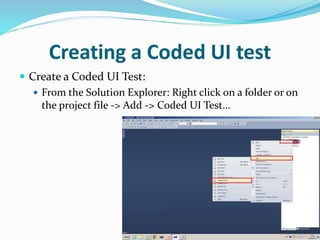
 Create a Coded UI Test:
 From the Solution Explorer: Right click on a folder or on
the project file -> Add -> Coded UI Test…
2
Creating a Coded UI test
 Select “Record action, edit UI map or add assertions”
and press OK, to use the “Coded UI Test builder” to
record the actions and add assertions.
3
Using the Coded UI Test Builder
 Press the record button. Each action we will do will be
recorded by the Coded UI Test Builder.
4
Recording the actions on the AUT
 Open Windows Calculator. By entering “calc” in the
search box of the Start menu.
5
Recording the actions on the AUD
 Each action we make is noted by the recorder.
6
Recording the actions on the AUT
 The selected application is marked with a special icon,
to show that this application actions are now being
recorded.
7
Recording the actions on the AUT
 Record a simple calculation: 2 + 3 =
 Press “Pause”.
 Press “Show Recorded Steps”.
8
Recording the actions on the AUT
 We can see all the actions we made.
 We can select any action, or several actions and delete
them using Right click or Del key.
9
Recording the actions on the AUT
 Press the “Generate Code” button.
 We can now enter a name for this scenario (Method).
And press “Add and Generate”.
 Close the Coded UI Test Builder.
10
Running the Coded UI Test
 Open the “Test View”: Test -> Windows -> Test View.
11
Running the Coded UI Test
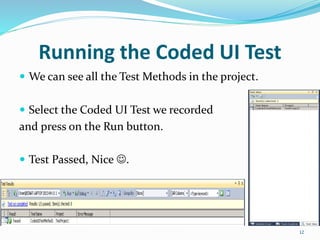
 We can see all the Test Methods in the project.
 Select the Coded UI Test we recorded
and press on the Run button.
 Test Passed, Nice .
12
Adding assertions
 Now we should add assertions in order to compare the
expected result with the actual result.
 Scenario with no assertions is not a test.
 Select the Test, Right click in it and Select “Generate code
for Coded UI Test” -> “Use Coded UI Test Builder”.
13
Adding assertions
 Lets drag the crosshair icon on top of the result label
of the calculator.
14
Adding assertions
 We see all the Properties the controls have that are
visible to us.
 Select the “DisplayText”
Parameter and press on the
“Add Assertion”.
15
Adding assertions
 Select “AreEqual” from the listBox and leave the value
as is. Press OK.
 Close the assertions window.
 Press on “Generate Code”, add a Method name And
press “Add and Generate”.
 Close the CUIT Builder.
16
Running the Coded UI Test
 Run again the Coded UI Test we recorded.
 Test Passed, Nice .
 But we didn’t see any difference – we will
see more later.
17
The generated code
 2 new lines were added to our Test Method:
 Those 2 lines are the names we gave the 2 methods we
generated via the CUIT Builder.
18
The generated code
 Lets go over the “SimpleCalculation” Method.
19
The generated code
 Here are defined the controls we use in the Method:
 Number two button (2).
 Add button (+)
 Number three button (3).
 Result button (=)
 We can see that the names are not very good.
20
The generated code
 Here we can see that we define the AUT and open it.
 Then we click the buttons.
21
The generated code
 Lets go over the “VerifyResault” Method:
 One Control is defined – the Result control.
 Then we Verify its “DisplayText” Property is equal to 5.
22
To be continued..
 We will go over the generated code in more details and
depth in the next lessons..
23