Microsoft PowerPoint Producing Quality Slides for Cable One
Cable One Quality Quality of .jpg image Content Information  Simplicity Branding Design Movement Text Space Color
Vocabulary Pixels/Dots  – The dots of color that make up your image.  Dpi/Ppi  - dots per inch/pixels per inch.  Jpeg - Probably the most common and popular way of saving picture files because the files are smaller.
PowerPoint does not give the user an option to set the DPI   PP default setting:  .jpgs with a lower dpi and file size appear to have Jagged edges because information is missing. How does this relate to PowerPoint? 96dpi (horizontal and vertical) 960x720 Dots-per-inch (dpi) Pixels
Sample Slide Address Price MLS number Details
 
Checking your image size Right-click on the .jpg image Select Properties
Checking your image size Look at file size (how many KB or MB it is.  Select the Summary tab. Select Advanced
Checking your image size You can now see the Width and Height of your photo in pixels as well as the dpi resolution.
http://support.microsoft.com/kb/322756 CLICK 1 2 3 6 5 4 4
 
Add the registry settings Exit your Microsoft Windows programs. Click  Start , and then click  Run .  In the  Open  box, type  regedit , and then click  OK .
Navigate through the folders to the options Software Microsoft Office 11.0 (2003) 12.0 (2007) Power Point   Options
With the  Options  key selected, go to  the  Edit  menu, select  NEW  and then click  DWORD Value .  Type  ExportBitmapResolution , and then press ENTER  With  ExportBitmapResolution  selected, go to the  Edit  menu, select  Modify .
Adjusting DPI In the  Value data  box, type the resolution value 150. The maximum resolution setting that  PowerPoint 2003 exports is 307 dpi  Click  Decimal , and then click  OK .  On the  File  menu, click  Exit  to exit Registry Editor
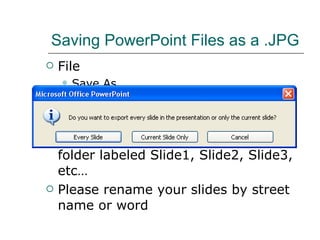
Saving PowerPoint Files as a .JPG File  Save As Save as Type: JPEG File Interchange Format .JPGS will be saved in a separate folder labeled Slide1, Slide2, Slide3, etc… Please rename your slides by street name or word
Quality: Content Content Keep it Simple Don’t give it all away Make them want to call Creativity “Grabber” Try something new Brand yourself (theme, repetition) Stand out in 15 seconds
Please take notes on the successful and/or negative components of the following 6 sides for discussion.
Examples


Text Font – get creative but  beware of script Bold, Italicize, Emboss, Highlight Find a balance between emphasis and distraction Color color scheme  Font – don’t lose your message due to blending Dark on Light  - or – Light on Dark Backgrounds Patterns – don’t distract from the information negative space is just as important  Too Sparse vs. Too Cluttered Simplicity & Legibility


Movement Stand back & look at your slide. Notice the line of the text and the images. Where are your eyes moving? A “ Z”  form is ideal for advertising with images and text. You want your customer to start at the top left corner and end in the bottom right corner.   If you notice something out of place or distracting then you need to rearrange a few items.  The path our eyes follow when looking at a design.


Feedback Phone Numbers!!! BIG BIG BIG Logos (do not need realtor logos) Keep inset from the edge  Don’t overlap text and images unless necessary.
Tips Master Slides One Time format creator  Format Painter Save time Add a Border Object Order