Gran Sasso Science Institute
Ivano Malavolta
Apache Cordova
Roadmap
•  The Cordova framework
•  Recurrent app architecture
•  Cordova CLI
•  Debugging Cordova applications
•  My development environment
•  Cordova APIs
PhoneGap VS Cordova
Adobe/Nitobi donated the PhoneGap codebase to the Apache foundation
à 
wider audience and contributors
à 
transparent governance


Better documentation
à 
easier contributions for companies


Apache Licensing
There was only one problem....


trademark ambiguity 

à CORDOVA
PhoneGap is a distribution of
Apache Cordova
Cordova
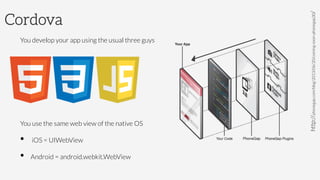
You develop your app using the usual three guys


You use the same web view of the native OS
•  iOS = UIWebView
•  Android = android.webkit.WebView

http://phonegap.com/blog/2013/06/20/coming-soon-phonegap30/
Cordova
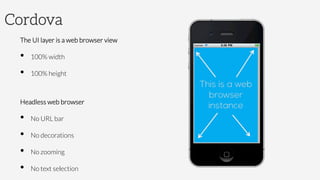
The UI layer is a web browser view
•  100% width
•  100% height

Headless web browser
•  No URL bar
•  No decorations
•  No zooming
•  No text selection
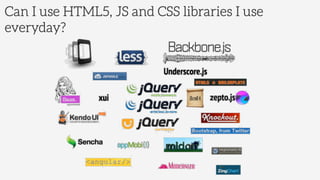
Can I use HTML5, JS and CSS libraries I use
everyday?
How does Cordova work?
Features 
coverage
When Cordova API is not enough...
Sometimes Cordova is not enough as is for our purposes
•  unsupported feature
•  heavyweight data processing is faster in native code


ex. images manipulation
•  background processing is better handled natively


ex. files sync
•  complex business logic

à You can develop a
Cordova plugin
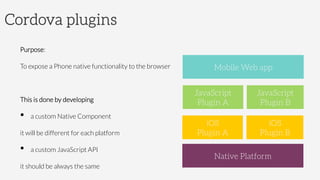
Cordova plugins
Purpose:
To expose a Phone native functionality to the browser

This is done by developing
•  a custom Native Component


it will be different for each platform 
•  a custom JavaScript API


it should be always the same
Mobile Web app
JavaScript 
Plugin A
JavaScript 
Plugin B
iOS
Plugin A
iOS
Plugin B
Native Platform
Cordova plugin architecture
Since the 3.0 version, Cordova has a slim core with only the very basic native to web bridge
technology
All other APIs are optionally installable 


Plugins are installed and removed using the Cordova CLI instrument
Developers

Can compose a version of
Cordova suited to their
project needs
Cordova contributors

Can revision APIs
independently + it is easier
to upgrade and extend APIs
Users

Smaller and faster apps
Cordova plugin architecture
Cordova core is now
composed of 17 repos
Comparing it to the old plugin architecture...
http://phonegap.com/blog/2013/06/20/coming-soon-phonegap30/
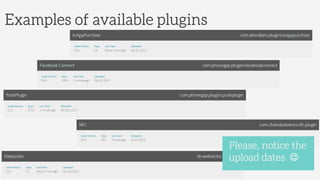
Examples of available plugins
Please, notice the
upload dates J
Roadmap
•  The Cordova framework
•  Recurrent app architecture
•  Cordova CLI
•  Debugging Cordova applications
•  My development environment
•  Cordova APIs
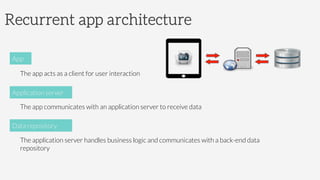
Recurrent app architecture


The app acts as a client for user interaction

The app communicates with an application server to receive data

The application server handles business logic and communicates with a back-end data
repository
App
Application server
Data repository
The app


It generally uses the single-page application model
•  the application logic is inside a single HTML page
•  this page is never unloaded from memory
•  data will be displayed by updating the HTML DOM
•  data is retrieved from the application server using Ajax
The server


It is a classical web server
•  server-side scripting language such as Java, .NET, PHP, etc…
•  communication can be based on:
- 
RESTful services (XML, JSON, etc.)
- 
SOAP
•  it performs business logic, and generally gets or pushes data from a separate repository 
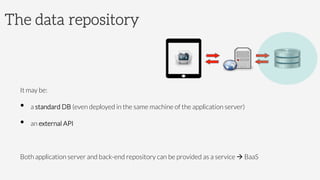
The data repository


It may be:
•  a standard DB (even deployed in the same machine of the application server)
•  an external API 

Both application server and back-end repository can be provided as a service à BaaS
Roadmap
•  The Cordova framework
•  Recurrent app architecture
•  Cordova CLI
•  Debugging Cordova applications
•  My development environment
•  Cordova APIs
Cordova CLI


The main tool to use for the cross-platform workflow
It allows you to:
•  create new projects
•  add platforms
•  build a project w.r.t. different platforms
•  emulate a project on platform-specific emulators
•  run a project on device
•  include specific plugins into a project
CLI = Command-Line Interface
If you prefer to use platform-
specific SDKs, you can still use it
to initialize your project
Creates template project
•  PATH 

the folder that will contain your project
•  ID 
 

package identifier in reverse-domain style (optional)
•  NAME 

display name of the app (optional)
Project creation
The create command creates a 
predefined project structure
•  merges

a mirror of the www folder containing platform-specific assets
•  platforms 
platform specific projects (ex. an Eclipse project for Android, XCode for iOS)
•  plugins 

installed plugins (both JS files and native resources)
•  www 

contains your HTML, JS, CSS files 
Project structure
config.xml contains core Cordova API
features, plugins, and platform-specific
settings. See here for the iOS values: 


http://goo.gl/1CcmyL
With this command you add a target platform of your project. 
The platform will appear as subfolder of platforms	
  containing the platform-specific project
mirroring the www folder	
  
•  PLATFORM_NAME


the name of the platform (e.g., ios, android, wp8)
Add platforms
If you do something like this:

cordova	
  platform	
  remove	
  ios	
  

you are removing a specific platform
You can use an SDK such as Eclipse or
Xcode to open the project you created
This generates platform-specific code within the project's platforms subdirectory

•  PLATFORM_NAME


the name of the platform to be built (e.g., ios, android, wp8)
Build the app
If you do not specify the
PLATFORM_NAME, Cordova will build for
all installed platforms
The emulate command will run the app on a platform-specific emulator
The run command will run the app on a previously setup device (e.g., connected via USB and
configured for being used as device for testing purposes)

•  PLATFORM_NAME


the name of the platform to be built (e.g., ios, android, wp8)
emulate/run the app
This generates platform-specific code within the project's platforms subdirectory

•  PLUGIN_ID 


the id of the repository containing the source code of the plugin to be added to the project
add plugins
If you do something like this:

cordova	
  plugin	
  remove	
  PLUGIN_NAME	
  

you are removing a specific plugin
The list of plugins can be found
here
http://plugins.cordova.io
If the plugin you want to add is
not in the cordova.io registry, you
can directly refer to the URL of his
GitHub repository
Sometimes it may happen to need different JavaScript code, CSS stylesheets or generic assets for
a specific platform
ex.

Android-specific CSS stylesheet


iOS-specific assets for managing the back button graphics


...

In these cases you can put the platform-specific assets into the merges/PLATFORM_NAME folder
Cordova’s build command will take care of integrating them in your deployed app for the specific
platform
Platform custom code
Roadmap
•  The Cordova framework
•  Recurrent app architecture
•  Cordova CLI
•  Debugging Cordova applications
•  My development environment
•  Cordova APIs
The killer app!
•  Check console
•  Breakpoints
•  Update the DOM at run-time
•  Access to all local DBs
•  Network profiling
•  CPU and memory profiling
•  Monitor event listeners
•  Monitor elements’ rendering time
Desktop Browser
•  very quick
•  very handy functions
•  see Chrome’s Web Development Tools
•  Breakpoints


PRO
•  browsers’ small differences and bugs
•  cannot test all Cordova’s specific functionalities
•  you need Phonegap shims 

CONS
Desktop Browser
Chrome Security Restriction
If you need to test your JSON calls from a local web app, you need to relax Chrome’s security policies
with respect to local files access and cross-domain resources access
•  OSX

open	
  -­‐a	
  Google	
  Chrome.app	
  -­‐-­‐args	
  “	
  -­‐-­‐disable-­‐web-­‐security“	
  
•  Windows

chrome.exe	
  -­‐-­‐disable-­‐web-­‐security	
  
DO IT ONLY FOR
DEBUGGING!
Desktop Browser - Tools
Browser’s extension for window dimensions

Resolution Test

http://goo.gl/fQpbH


PhoneGap Shims, there are many, this is the most used:

PhoneGap-Desktop

https://github.com/jxp/phonegap-desktop
Ripple
•  very quick
•  can use Chrome’s Web Development Tools
•  You can test Cordova’s API from the Desktop
•  browsers’ small differences and bugs
•  cannot test the interaction with external apps
PRO
CONS
It is based on Ripple, a Chrome
plugin for mobile dev 


from Cordova 3.0.0, you need to use
the Ripple available at Apache 
npm	
  install	
  -­‐g	
  ripple-­‐emulator	
  
ripple	
  emulate	
  
Apache Ripple
Simulator
•  Officially supported by platform vendors 

•  You use the “real” device’s browser
PRO
•  device’s performance is not considered 
•  this is iOS-specific
•  Android’s emulator is a joke
•  device’s capabilities are only simulated
CONS
On device
•  accurate
•  still handy
•  real performance tests
•  real browser tests
PRO
•  Deployment takes some time (~6 seconds for iOS)
CONS
Remote Debugging
From iOS 6, Apple provided Mobile Safari with a remote web inspector
à You can debug your app by using the classical web inspector of Desktop Safari

It can connect both to
•  The iOS emulator
•  The real device

Since Android 4.4, this feature is
available via Chrome’s web dev kit
Remote Debugging for older platforms

Weinre http://people.apache.org/~pmuellr/weinre/docs/latest/

3 main components: 
Debug Server
the HTTP server for debug data
Debug Target
the (web) app you are debugging
Debug Client
the Web Inspector user interface
Public debug server: 
debug.phonegap.com
Debugging reference table 
Make a favor to yourself, 
don’t debug craftsman way:

console.log()	
  +	
  alert()	
  

iOS
 Android
Desktop Browser
 
 
Ripple
 
 
Device/emulator
 
 
Weinre
 
 
Safari Web
Inspector

 X
Chrome Web
Inspector
X
Roadmap
•  The Cordova framework
•  Recurrent app architecture
•  Cordova CLI
•  Debugging Cordova applications
•  My development environment and workflow
•  Cordova APIs
My development environment
Sublime Text 2
http://www.sublimetext.com
SublimeText Package Control
http://wbond.net/sublime_packages/package_control
Sidebar Enhancer
https://github.com/titoBouzout/SideBarEnhancements
HTML Prettify
https://github.com/victorporof/Sublime-HTMLPrettify
SublimeLinter
https://github.com/SublimeLinter/SublimeLinter
JsFormat
https://github.com/jdc0589/JsFormat
My development workflow
1.  Code & test using Ripple (very quick)

Quick sketch of layout and complete business logic

2.  Run and debug in the XCode simulator (handy & accurate)

Complete the UI for iOS devices and ~99% confidence about business logic

3.  Run and debug on devices 
(complete control & confidence) 

Complete the UI for Android too and ~99% confidence about business logic
Remarks
These are MY development environment and development workflow

There are many tools and IDEs out there

à  Consider this as a starting point & feel free to use the ones that fit well with your
attitude
Roadmap
•  The Cordova framework
•  Recurrent app architecture
•  Cordova CLI
•  Debugging Cordova applications
•  My development environment
•  Cordova APIs

•  Accelerometer
•  Compass
•  Capturing audio and video & camera
•  Media playback
•  Contacts
•  Connection 
•  Device information
•  Events
•  Notification
Accelerometer
navigator.accelerometer	
  

It is a global object that captures device motion in the x, y, and z directions

You can call 3 methods on it:
getCurrentAcceleration	
  
watchAcceleration	
  
clearWatch	
  
Accelerometer
getCurrentAcceleration
getCurrentAcceleration(win,	
  fail);	
  
It gets the current acceleration along the x, y, and z axis

win

callback function with an Acceleration parameter
fail

error callback	
  
watchAcceleration
var	
  watchID	
  =	
  navigator.accelerometer.watchAcceleration(win,	
  fail,	
  [options]);	
  
It gets the device's current acceleration at a regular interval

win

callback function with an Acceleration parameter, it is called at regular intervals
fail

error callback
options 

the interval is specified in the frequency parameter 	
  
clearWatch
clearWatch(watchID);	
  
Stop watching the Acceleration referenced by the watch ID parameter

watchID

 ID returned by accelerometer.watchAcceleration
The Acceleration object

It contains accelerometer data captured at a specific point in time

Properties 
x (Number): Amount of acceleration on the x-axis. (in m/s^2)
y (Number): Amount of acceleration on the y-axis. (in m/s^2)
z (Number): Amount of acceleration on the z-axis. (in m/s^2)
timestamp (DOMTimestamp): Creation timestamp in milliseconds
these values include the effect 
of gravity (9.81 m/s^2)
Accelerometer example
var	
  options	
  =	
  {	
  frequency:	
  3000	
  };	
  
var	
  watchID	
  =	
  navigator.accelerometer.watchAcceleration(win,	
  fail,	
  options);	


function	
  win(acc)	
  {	
  
	
  if((acc.x	
  ==	
  0)	
  &&	
  (acc.y	
  ==	
  0)	
  &&	
  (acc.z	
  ==	
  9,81)) 	
  	
  {	


  console.log(“I	
  am	
  on	
  a	
  table”);	


  stop();	
  
	
  }	
  else	
  {	


  console.log(“Please,	
  leave	
  me	
  on	
  the	
  table”);	
  
	
  }	
  
}	
  
function	
  fail()	
  {	
  
	
  console.log(“error”);	
  
}	


function	
  stop()	
  {	
  
	
  if(watchID)	
  {	


  navigator.accelerometer.clearWatch(watchID);	


  watchID	
  =	
  null;	
  
	
  }	
  
}	


Shake detection
var	
  previousReading	
  =	
  {x:	
  null,	
  y:	
  null,	
  z:	
  null};	


navigator.accelerometer.watchAcceleration(function	
  (reading)	
  {	
  
	
  var	
  changes	
  =	
  {},	
  
	
  threshold	
  =	
  30;	
  
	
  if	
  (previousReading.x	
  !==	
  null)	
  {	


  changes.x	
  =	
  Math.abs(previousReading.x,	
  reading.x);	


  changes.y	
  =	
  Math.abs(previousReading.y,	
  reading.y);	


  changes.z	
  =	
  Math.abs(previousReading.z,	
  reading.z);	
  
	
  }	
  
	
  if	
  (changes.x	
  +	
  changes.y	
  +	
  changes.z	
  >	
  (threshold	
  *	
  3))	
  {	


  console.log(“shake	
  detected”);	
  
	
  }	
  
	
  previousReading	
  =	
  {	


  x:	
  reading.x,	


  y:	
  reading.y,	


  z:	
  reading.z	
  
	
  }	
  
},	
  errorCallback,	
  {	
  frequency:	
  300	
  });	
  
Accelerometer
navigator.device.capture	
  

Provides access for capturing directly from the device	
  
Audio
Image
Video

Capturing Audio and Video
Omogeneous APIs between audio, image, and video
capturing based on a W3C specification
Supported formats

The navigator.device.capture	
  object contains the supported formats it can record in
three properties 	
  
supportedAudioModes


The audio recording formats supported by the device
supportedImageModes


The recording image sizes and formats supported by 
the device
supportedVideoModes


The recording video resolutions and formats 
supported by the device
They all contain an array of 
ConfigurationData objects
The ConfigurationData object

It is used to describe media capture modes supported by the device
Properties
 type (String)
the string in lower case representing the media type
height (Number)
the height of the image or video in pixels
width (Number)
the height of the image or video in pixels
ex.
•  video/3gpp
•  video/quicktime
•  image/jpeg
•  audio/amr
•  audio/wav
Supported format example
var	
  imageModes	
  =	
  navigator.device.capture.supportedImageModes;	


  for(var	
  i=0;	
  i	
  <imageModes.length;	
  i++)	
  {	


  var	
  mode	
  =	
  imageModes[i];	


  console.log(mode.type);	


  console.log(mode.height);	


  console.log(mode.width);	


  }	
  
Audio capture
captureAudio(win,	
  [fail],	
  [options]);	
  
Starts the audio recorder app and returns information about captured audio clip files
win

callback function with an array of MediaFile parameter
fail

error or when the users cancels the capture operation before capturing any media file
options
audio capture options
It uses the device's default
audio recording app
The operation allows the device
user to capture multiple
recordings in a single session
Options

limit (Number)

the maximum number of audio clips the user can record in a single capture operation
duration (Number)

the maximum duration of an audio sound clip, in seconds
not supported in iOS
not supported in Android
Audio capture example
var	
  options	
  =	
  {	
  limit:	
  2,	
  duration:	
  5	
  };	


navigator.device.capture.captureAudio(win,	
  fail,	
  options);	


function	
  win(mediaFiles)	
  {	
  
	
  var	
  i;	
  
	
  for	
  (i=0;	
  i<mediaFiles.length;	
  i++)	
  {	


  console.log(mediaFiles[i]);	
  
	
  }	


}	


function	
  fail(error)	
  {	
  
	
  console.log(‘Error	
  with	
  code:	
  '	
  +	
  error.code);	
  
}	
  
Image capture
captureImage(win,	
  [fail],	
  [options]);	
  
Start the camera application and return information about captured image file(s)
win

callback function with an array of MediaFile parameter
fail

error or when the users cancels the capture operation before capturing any media file
options
image capture options
It uses the device's
default camera app
The operation allows the device
user to capture multiple images
in a single session
Options

limit (Number)

the maximum number of photos the user can take in a single capture operation

not supported in iOS
Video capture
captureVideo(win,	
  [fail],	
  [options]);	
  
Start the camera application and return information about captured video file(s)
win

callback function with an array of MediaFile parameter
fail

error or when the users cancels the capture operation before capturing any media file
options
video capture options
It uses the device's
default camera app
The operation allows the device
user to capture multiple videos
in a single session
Options

limit (Number)

the maximum number of videos the user can take in a single capture operation
duration (Number)

the maximum duration of each video, in seconds

not supported in iOS
The MediaFile object

A MediaFile encapsulates properties of a media capture file
Properties
name (String): the name of the file, without path information
fullPath (String) : the full path of the file, including the name
type (String): The file's mime type
lastModifiedDate (Date): the date and time that the file was last modified
size (Number): the size of the file, in bytes
MediaFile format data
mediaFile.getFormatData(win,	
  [fail]);	


It is used to get information about the format of a captured media file
win

callback function with a MediaFileData parameter
fail

error callback
The MediaFileData object

Encapsulates format information about a media file
Properties
codecs (String): The actual format of the audio and video content
bitrate (Number) : The average bitrate of the content (zero for images)
height (Number): the height of the image or video in pixels (zero for audio clips)
width (Number): the width of the image or video in pixels (zero for audio clips)
duration (Number): the length of the video or sound clip in seconds (zero for images)
Capture Error
Encapsulates the error code resulting from a failed media capture operation

It contains a pre-defined error code
CaptureError.CAPTURE_INTERNAL_ERR
CaptureError.CAPTURE_APPLICATION_BUSY
CaptureError.CAPTURE_INVALID_ARGUMENT
CaptureError.CAPTURE_NO_MEDIA_FILES
CaptureError.CAPTURE_NOT__SUPPORTED
Camera
navigator.camera	


It provides an home-grown API for capturing images from the device’s default camera
application 
It is developed in-house by Cordova in order to provide more options to developers
Methods:
getPicture
cleanup
Getting pictures from the camera
camera.getPicture(win,	
  [fail],	
  [options]);	
  
Takes a photo using the camera or retrieves a photo from the device's album
win

callback function with a image data parameter
fail

error callback
options

capture parameters
The result of getPicture can be:
•  a base64 encoded string
•  the URI of an image file

Encoding the image using Base64
can cause memory issues on some
devices
getPicture options

getPicture() can be called with the following options
getPicture options
quality (Number)

quality of saved image 
Range [0, 100]
allowEdit (boolean)

allow simple editing of the image before selection
destinationType (Number)
getPicture options
sourceType (Number)


encodingType (Number)
getPicture options
mediaType (Number)


correctOrientation (boolean)
Rotate the image to correct for the orientation of the device during capture
getPicture options
saveToPhotoAlbum (boolean)
Save the image to the photo album on the device after capture

popoverOptions (object)
iPad only
getPicture options
targetWidth, targetHeight (Number)

width/height in pixels to scale image

cameraDirection (Number)
Camera cleanup
camera.cleanup(win,	
  [fail]);	
  
Removes intermediate photos taken by the camera from temporary storage
win

callback function
fail

error callback

 Valid only when 
•  the value of Camera.sourceType === Camera.PictureSourceType.CAMERA
•  the Camera.destinationType === Camera.DestinationType.FILE_URI
iOS only
Camera example
var	
  options	
  =	
  {	
  quality:	
  50,	
  
	
  destinationType:	
  destinationType.FILE_URI,	
  
	
  sourceType:	
  pictureSource.PHOTOLIBRARY	
  	
  
});	


navigator.camera.getPicture(win,	
  fail,	
  options);	


function	
  win(imageURI)	
  {	
  
	
  var	
  element	
  =	
  $(“#block”);	
  
	
  element.src(imageURI);	
  
}	


function	
  fail	
  (error)	
  {	
  
	
  console.log(error);	
  //	
  this	
  is	
  provided	
  by	
  the	
  device’s	
  native	
  code	
  
}	
  
Accelerometer
Media	
  

The Media object provides the ability to record and play back audio files on a device


Media playback
It does not adhere to any W3C
specification, it is just a convenience API
provided by Cordova
The Media object
var	
  media	
  =	
  new	
  Media(src,	
  win,	
  [fail],	
  [status]);	
  
src (String): A URI containing the audio content

The URI can be local or can be a URL addressable by a standard HTTP get request
win: callback executed when the object executes a play, record, or stop action
fail: error callback
status: callback executed to indicate status changes

Media status possible parameters:

•  Media.MEDIA_NONE = 0;
•  Media.MEDIA_STARTING = 1;
•  Media.MEDIA_RUNNING = 2;
•  Media.MEDIA_PAUSED = 3;
•  Media.MEDIA_STOPPED = 4;
Media methods
Media Error
Encapsulates the error code resulting from a failed media operation

It contains a pre-defined error code
MediaError.MEDIA_ERR_ABORTED
MediaError.MEDIA_ERR_NETWORK
MediaError.MEDIA_ERR_DECODE
MediaError.MEDIA_ERR_NONE_SUPPORTED
Media example
var	
  media	
  =	
  new	
  Media(“http://path/to/mp3”,	
  win,	
  fail);	


//	
  every	
  second	
  we	
  log	
  the	
  position	
  
var	
  myTimer	
  =	
  setInterval(function	
  ()	
  {	
  
	
  media.getCurrentPosition(	


  function	
  (position)	
  {	


  if	
  (position	
  >	
  -­‐1)	
  {	


  console.log((position)	
  +	
  "	
  seconds");	


  }	


  });	
  
},	
  1000);	


function stopAudio() {
            if (media) {
                media.stop();
            }
            clearInterval(myTimer);
            myTimer = null;	

}	
  
Accelerometer
navigator.contacts	
  

A global object that provides access to the device contacts DB

You can call 2 methods on navigator.contacts
•  contacts.create
•  contacts.find

Contacts
Creating contacts
navigator.contacts.create(properties);	
  

One of the few synchronous functions of Cordova
It that returns a new Contact object

The properties parameter is a map of properties of the new Contact object

To persist the Contact object to the device, you have to invoke the Contact.save method
The Contact object
It contains all the properties that a contact can have

Every platform has its own quirks,
you better check them on the
Cordova documentation
The Contact object
A contact object provides the following methods:
clone()

returns a new Contact object that is a deep copy of the calling object, its id property is null 
remove(win, fail)

removes the contact from the device contacts database
save(win, fail)

saves a new contact to the device contacts database

updates an existing contact if a 
contact with the same id already exists
Create contact example
var	
  contact	
  =	
  navigator.contacts.create({	
  
	
  displayName:	
  “Ivano“	
  
});	


var	
  name	
  =	
  new	
  ContactName();	
  
name.givenName	
  =	
  “Ivano“;	
  
name.familyName	
  =	
  “Malavolta“;	
  
contact.name	
  =	
  name;	


contact.birthday	
  =	
  new	
  Date(“19	
  July	
  1983);	


contact.save(win,	
  fail);	


function	
  win(contact)	
  {	
  
	
  console.log(Save	
  Success);	
  
};	


function	
  fail(contactError)	
  {	
  
	
  console.log(Error	
  =	
  	
  +	
  contactError.code);	
  
};	


Finding contacts
navigator.contacts.find(fields,	
  win,	
  fail,	
  options);	
  
It queries the device contacts database and returns an array of Contact objects

fields: contact fields to be used as search qualifier. Only these fields will have values in the
resulting Contact objects
win: callback function with the array of contacts returned from the contacts database
fail: error callback
fail: search options to filter contacts
Contact fields
Specifies which fields should be included in the Contact objects resulting from a find
operation
var	
  fields	
  =	
  [displayName,	
  name];	
  //	
  or	
  [“*”]	
  
navigator.contacts.find(fields,	
  win,	
  fail);	
  
function	
  win(contacts)	
  {	
  
	
  console.log(‘ok');	
  
};	
  
function	
  fail(err)	
  {	


  console.log(err.code);	
  
};	
  
Contact find options
Contains properties that can be used to filter the results

filter (String) 

the search string used to find contacts, a case-insensitive, partial value match is applied

to each field specified in the contactFields parameter
multiple (Boolean) 

determines if the find operation should return multiple contacts
Contact Error
Encapsulates the error code resulting from a failed lookup operation in the contacts DB

It contains a pre-defined error code
ContactError.UNKNOWN_ERROR
ContactError.INVALID_ARGUMENT_ERROR
ContactError.TIMEOUT_ERROR
ContactError.PENDING_OPERATION_ERROR
ContactError.IO_ERROR
ContactError.NOT_SUPPORTED_ERROR
ContactError.PERMISSION_DENIED_ERROR
Contact find example
var	
  options	
  =	
  new	
  ContactFindOptions();	
  
options.filter	
  =	
  “Ivano;	
  
options.multiple	
  =	
  true;	


filter	
  =	
  [displayName,“birthday];	


navigator.contacts.find(filter,	
  win,	
  fail,	
  options);	


function	
  win(contacts)	
  {	
  
	
  for	
  (var	
  i=0;	
  icontacts.length;	
  i++)	
  {	


  console.log(contacts[i].displayName);	
  
	
  }	
  
};	


function	
  fail(contactError)	
  {	
  
	
  console.log(Error	
  =	
  	
  +	
  contactError.code);	
  
};	


Accelerometer
navigator.connection	
  

provides information about the device's cellular and wifi connection
it is synchronous and very fast

You can access a single property
•  connection.type

Connection
Connection.type
Encapsulates the error code resulting from a failed lookup operation in the contacts DB

Values:
Connection.UNKNOWN
Connection.ETHERNET
Connection.WIFI
Connection.CELL_2G
Connection.CELL_3G
Connection.CELL_4G
Connection.CELL
Connection.NONE
iOS can't detect the type of cellular network
connection, it will return always Connection.CELL_2G
Accelerometer
window.device	
  

Contains information about the device’s hardware and software

It is assigned to the window global object	
  
Device information
Device properties
A device object provides the following properties:

device.model

the name of the device's model or product (ex. “iPad 2”, “iPhone 5,1”, etc.)
device.cordova 

the version of Cordova running on the device
device.platform 

the devices’ operating system (ex. “Android”, “iOS”, etc.)
http://theiphonewiki.com/wiki/Models
Device properties
device.uuid

a unique identifier of the user’s device (UUID)

Android: a unique 64-bit integer generated at device’s first boot

iOS: a string of hash values created from multiple hardware identifies


device.version 

the OS version of the device (ex. “4.1”, “2.2”, etc.)
in iOS it is not reliable: The uuid on iOS is not unique to a
device, but varies for each application, for each installation
Device information example
function	
  getDeviceInfo()	
  {	
  
	
  var	
  element	
  =	
  document.getElementById('deviceProperties');	


  element.innerHTML	
  =	
  'Device	
  Model:	
  '	


  +	
  device.model	


  +	
  'br	
  /'	
  +	


  'Device	
  Cordova:	
  '	
  	
  +	
  device.cordova	
  	
  +	
  'br	
  /'	
  +	


  'Device	
  Platform:	
  '	
  +	
  device.platform	
  +	
  'br	
  /'	
  +	


  'Device	
  UUID:	
  '	


  +	
  device.uuid	


  +	
  'br	
  /'	
  +	


  'Device	
  Version:	
  '	
  	
  +	
  device.version	
  	
  +	
  'br	
  /';	
  
	
  }	
  
Accelerometer
An event is an action that can be detected by your JavaScript code

In traditional JS programs, any element of the page can have certain events

ontouchstart, onclick, ...

To use any event, you’ll want to use an event listener

document.addEventListener(EVENTNAME,	
  callback,	
  false);	
  

Events
Cordova events
•  deviceready
•  pause, resume
•  online, offline
•  batterycritical, batterylow, batterystatus
•  backbutton, menubutton, searchbutton
•  startcallbutton, endcallbutton
•  volumedownbutton, volumeupbutton
these work on Blackberry 10 only
Android buttons events