Downloaded 12 times

![12
© 2018 Brent Laster@BrentCLaster
12
@BrentCLaster
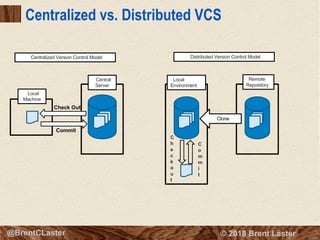
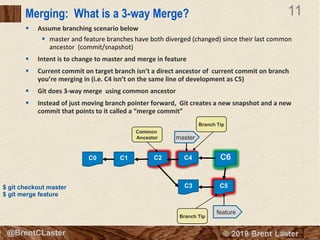
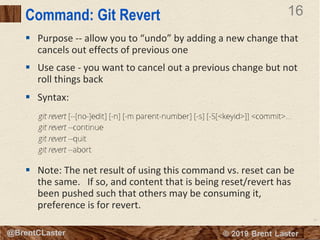
Merging: What is a Rebase?
§ Rebase – take all of the changes that were committed on one branch and replay them on
another one.
§ Concepts in simple syntax (git rebase branch2 [branch1]):
§ Move branchpoint of branch (carrying along all commits) to be off of a different commit (new base)
§ Current branch (or branch1 if supplied) is one having its branchpoint moved
§ Branch2 (or commit) provided as first/only argument is the new branchpoint
§ In simple case, think of it as “pick up branch1 entirely and move its branchpoint to be after the tip of branch2)”
§ Process:
§ Goes to the common ancestor of the two branches (the one you are on and the one you are rebasing onto)
§ Gets the diff introduced by each commit of the branch you are on, saving them to temporary files
§ Applies each change in turn
§ Moves the branch to the new rebase point
$ git checkout feature
$ git rebase master
C3
C4
C5
C0
Common
Ancestor
C2
feature
C1
C3’ C5’
C2
master](https://image.slidesharecdn.com/advanced-git-ato2019-191023175140/85/Advanced-Git-Functionality-and-Features-11-320.jpg)
![17
© 2018 Brent Laster@BrentCLaster
17
@BrentCLaster
Local Repository
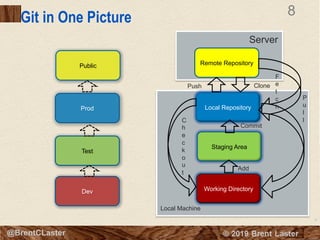
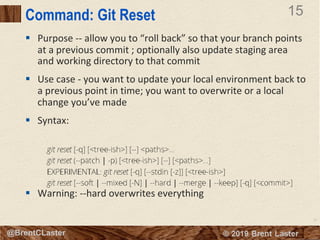
Reset and Revert
git reset --hard 87ba8bc
git reset current~1 [--mixed]
git revert HEAD
Line 1
Staging Area
Working Directory
XYZ
ABC
Line 1
87ba8bc 43bd3ef d21be2c
Line 1
Line 2
Line 3
c1c8bd4
Line 1
Line 2
Line 1
Line 2
Line 1Line 1 Line 1
Line 2
tag: current
Line 1
Line 2](https://image.slidesharecdn.com/advanced-git-ato2019-191023175140/85/Advanced-Git-Functionality-and-Features-16-320.jpg)


![12
© 2018 Brent Laster@BrentCLaster
12
@BrentCLaster
Merging: What is a Rebase?
§ Rebase – take all of the changes that were committed on one branch and replay them on
another one.
§ Concepts in simple syntax (git rebase branch2 [branch1]):
§ Move branchpoint of branch (carrying along all commits) to be off of a different commit (new base)
§ Current branch (or branch1 if supplied) is one having its branchpoint moved
§ Branch2 (or commit) provided as first/only argument is the new branchpoint
§ In simple case, think of it as “pick up branch1 entirely and move its branchpoint to be after the tip of branch2)”
§ Process:
§ Goes to the common ancestor of the two branches (the one you are on and the one you are rebasing onto)
§ Gets the diff introduced by each commit of the branch you are on, saving them to temporary files
§ Applies each change in turn
§ Moves the branch to the new rebase point
$ git checkout feature
$ git rebase master
C3
C4
C5
C0
Common
Ancestor
C2
feature
C1
C3’ C5’
C2
master](/p?url=https%3A%2F%2Fimage.slidesharecdn.com%2Fadvanced-git-ato2019-191023175140%2F85%2FAdvanced-Git-Functionality-and-Features-11-320.jpg&__src=https%3A%2F%2Fwww.slideshare.net%2Fslideshow%2Fadvanced-git-functionality-and-features-185891818%2F185891818&__type=image)


![17
© 2018 Brent Laster@BrentCLaster
17
@BrentCLaster
Local Repository
Reset and Revert
git reset --hard 87ba8bc
git reset current~1 [--mixed]
git revert HEAD
Line 1
Staging Area
Working Directory
XYZ
ABC
Line 1
87ba8bc 43bd3ef d21be2c
Line 1
Line 2
Line 3
c1c8bd4
Line 1
Line 2
Line 1
Line 2
Line 1Line 1 Line 1
Line 2
tag: current
Line 1
Line 2](/p?url=https%3A%2F%2Fimage.slidesharecdn.com%2Fadvanced-git-ato2019-191023175140%2F85%2FAdvanced-Git-Functionality-and-Features-16-320.jpg&__src=https%3A%2F%2Fwww.slideshare.net%2Fslideshow%2Fadvanced-git-functionality-and-features-185891818%2F185891818&__type=image)


![25
© 2018 Brent Laster@BrentCLaster
25
@BrentCLaster
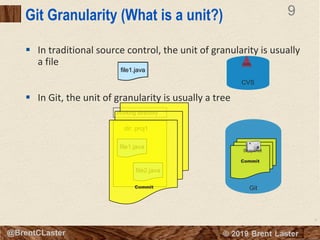
Worktrees - syntax and usage
§ Syntax
§ git worktree add [-f] [--detach] [-b <new-branch>] <path> [<branch>]
§ git worktree list [--porcelain]
§ git worktree prune [-n] [-v] [--expire <expire>]
§ Subcommands
§ Add - create a separate working tree for specified branch
» has checked out copy of the branch
» if no branch specified, uses same name as temp area
§ List - lists out current set of working trees active for this repo
» porcelain - consistent and backwards-compatible format
§ Prune - removes worktree information from the .git area
» only applies after worktree directory tree has been removed](/p?url=https%3A%2F%2Fimage.slidesharecdn.com%2Fadvanced-git-ato2019-191023175140%2F85%2FAdvanced-Git-Functionality-and-Features-24-320.jpg&__src=https%3A%2F%2Fwww.slideshare.net%2Fslideshow%2Fadvanced-git-functionality-and-features-185891818%2F185891818&__type=image)


![28
© 2018 Brent Laster@BrentCLaster
28
@BrentCLaster
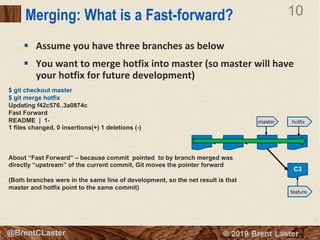
Command: Subtree
§ Purpose - Allows including a copy of a separate repository
with your current repository
§ Use case - include a copy of a Git repository for one or more
dependencies along with the original repository for a project
§ Syntax
§ Notes
§ No links like a submodule - just a copy in a subdirectory
§ Advantage - no links to maintain
§ Disadvantage - extra content to carry around with your project
git subtree add -P <prefix> <commit>
git subtree add -P <prefix> <repository> <ref>
git subtree pull -P <prefix> <repository> <ref>
git subtree push -P <prefix> <repository> <ref>
git subtree merge -P <prefix> <commit>
git subtree split -P <prefix> [OPTIONS] [<commit>]](/p?url=https%3A%2F%2Fimage.slidesharecdn.com%2Fadvanced-git-ato2019-191023175140%2F85%2FAdvanced-Git-Functionality-and-Features-27-320.jpg&__src=https%3A%2F%2Fwww.slideshare.net%2Fslideshow%2Fadvanced-git-functionality-and-features-185891818%2F185891818&__type=image)


![33
© 2018 Brent Laster@BrentCLaster
33
@BrentCLaster
Command: Notes
§ Purpose - Add additional information to objects in the Git repository or
look at such information
§ Use case - At some point after making a commit, you may decide that
there are additional comments or other non-code information that you’d
like to add with the commit - without changing the commit itself.
§ Syntax
git notes [list [<object>]]
git notes add [-f] [--allow-empty] [-F <file> | -m <msg> | (-c | -C) <object>] [<object>]
git notes copy [-f] ( --stdin | <from-object> <to-object> )
git notes append [--allow-empty] [-F <file> | -m <msg> | (-c | -C) <object>] [<object>]
git notes edit [--allow-empty] [<object>]
git notes show [<object>]
git notes merge [-v | -q] [-s <strategy> ] <notes-ref>
git notes merge --commit [-v | -q]
git notes merge --abort [-v | -q]
git notes remove [--ignore-missing] [--stdin] [<object>…]
git notes prune [-n | -v]
git notes get-ref](/p?url=https%3A%2F%2Fimage.slidesharecdn.com%2Fadvanced-git-ato2019-191023175140%2F85%2FAdvanced-Git-Functionality-and-Features-32-320.jpg&__src=https%3A%2F%2Fwww.slideshare.net%2Fslideshow%2Fadvanced-git-functionality-and-features-185891818%2F185891818&__type=image)

![35
© 2018 Brent Laster@BrentCLaster
35
@BrentCLaster
Command: grep
§ Purpose - provides a convenient (and probably familiar) way to search for regular
expressions in your local Git environment.
§ Use case - self-explanatory
§ Syntax
git grep [-a | --text] [-I] [--textconv] [-i | --ignore-case] [-w | --word-regexp]
[-v | --invert-match] [-h|-H] [--full-name]
[-E | --extended-regexp] [-G | --basic-regexp]
[-P | --perl-regexp]
[-F | --fixed-strings] [-n | --line-number]
[-l | --files-with-matches] [-L | --files-without-match]
[(-O | --open-files-in-pager) [<pager>]]
[-z | --null]
[-c | --count] [--all-match] [-q | --quiet]
[--max-depth <depth>] [--color[=<when>] | --no-color]
[--break] [--heading] [-p | --show-function]
[-A <post-context>] [-B <pre-context>] [-C <context>]
[-W | --function-context]
[--threads <num>]
[-f <file>] [-e] <pattern>
[--and|--or|--not|(|)|-e <pattern>…]
[ [--[no-]exclude-standard] [--cached | --no-index | --untracked] | <tree>…]
[--] [<pathspec>…]
§ Notes
§ Several options are similar to OS grep options](/p?url=https%3A%2F%2Fimage.slidesharecdn.com%2Fadvanced-git-ato2019-191023175140%2F85%2FAdvanced-Git-Functionality-and-Features-34-320.jpg&__src=https%3A%2F%2Fwww.slideshare.net%2Fslideshow%2Fadvanced-git-functionality-and-features-185891818%2F185891818&__type=image)


This document provides an overview and agenda for an Advanced Git talk. It introduces the speaker and their background and experience with Git. The talk will cover core Git concepts as a refresher and then dive into more advanced topics like merging, rebasing, stashing, resetting, reverting, bisecting, worktrees, subtrees, interactive rebasing, notes, and grep in Git.


