Microsoft
2013
13 Tips for Mastering
Created by:
Adam Voyton
Microsoft
2013
Topic: Changing the
Default Outlook Options
1. Open Email in a Pop-up Window
(like Outlook 2010 worked)
By default, when you reply to an email it will
open up inline instead of within a new
window. You can change this setting by
following these steps: Emails Pop out
automatically when you reply, instead of
clicking the pop out button!
2. Enable Automatic Spell Checking on
Emails Before Sending
You’ve probably heard the saying “we do our best proofreading after sending an email”. Well did
you know you can enable Automatic Spell Checking of Emails? To do this, click on Mail, then
check the box for “Always check spelling before sending”.
3. Import Holidays into your Calendar
This will copy in holidays that are celebrated in
the United States into your Outlook calendar.
4. Change the Default Search Setting
Finally, let’s
change the
default
Search
setting. By
default,
Outlook
only
searches
the current
folder your
in. If you
click
“Search”,
then change
“current
folder” to
“Current
Mailbox”,
Outlook will
now
5. Conversations Instead of Individual Emails
You can click the small triangle to expand the
conversation tree and see all of the previous
threads. You can then click on one of the
threads to read or reply to that message.
By default, each email and reply would
display as its own email by date. Because
this took up a lot of space, emails are now
grouped together into conversations
based on the subject of the message.
Microsoft
2013
Topic: Outlook Time
Savers
6. Saving and Inserting a Quick Part
Give your fingers a break and save text to your quick parts gallery. This lets you can easily insert
a block of commonly used text into an email. This is great for including the directions to your
office, or any arbitrary text that you often include in emails. First open up a new email, then
type the text you want to save. Now simply highlight that text, click the Insert tab, and click
Save to Quick parts gallery. Now in any email, you can go to your quick part gallery and insert
that text.
7. Creating a Contact GroupContact Group are a great way to email a group (such as your department or members of a
committee) of people in just a few clicks. The benefits are simple: save yourself time since you
won’t have to add each person and there’s a 0% chance that you’ll forget to add someone.
7. Emailing to a Contact Group
Using the Contact Group is easy. Simply open up a new email, then in the To field, start to
type the name of the contact group.
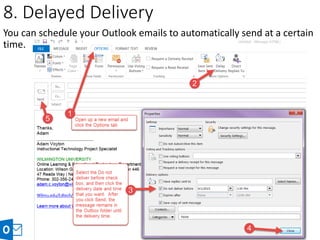
8. Delayed Delivery
You can schedule your Outlook emails to automatically send at a certain
time.
9. Look up a contact with the Global Address
List (requires Active Directory)
Microsoft
2013
Topic: Advanced Features
10. Rule to Automatically Color Code
Emails from Certain Employees
10. Rule to Automatically Color Code
Emails from Certain Employees
10. Rule to Automatically Color Code
Emails from Certain Employees
10. Filtering Emails by their Color (Category)
11. Insert a Picture into the Email
Message Body, Not as an Attachment
12. Adding Your Photo into Outlook
13. Social Integration – Pull in Facebook
and Other Social Networking Posts!
13. Social Integration – Pull in Facebook
and Other Social Networking Posts!
Microsoft
2013
13 Tips for Mastering
What is your favorite Microsoft
Outlook 2013 tip?
Thanks for
viewing!