Get Started with Confluent Cloud on the Azure Marketplace with Pay As You Go
To use Confluent Cloud with pay-as-you-go billing through the Azure Marketplace, subscribe to the Confluent Cloud - Pay As You Go plan in Azure and link or create a Confluent Cloud organization. With this billing model, you pay only for what you use and get billed directly through Azure.
Get Started for Free
Sign up for a Confluent Cloud trial and get $400 of free credit.
When you sign up through the Azure Marketplace, you can create a new Confluent organization or link to an existing Confluent Cloud account.
Tip
You can pay for Confluent Cloud through your cloud provider’s Marketplace using Confluent Consumption Units (CCUs). Pricing in the Marketplace is the same as direct purchase pricing. For more information, see Manage Billing in Confluent Cloud.
Prerequisites
An Azure Marketplace account. With Azure Marketplace, you can use Confluent Cloud and get billed directly through Azure.
Important
You cannot sign up for Confluent Cloud through a Microsoft Solutions Provider.
Confluent Cloud currently requires your email address to be unique across all organizations. If you already used your Azure AD email address to sign up for Confluent Cloud, you must first remove yourself as a user from the Confluent Cloud organization where you signed up earlier, so you can use your Azure AD email for single sign-on (SSO). One option is to invite an alternate email that you own as a user to the old organization, and then delete the user associated with your Azure AD email from the old organization. This way, you can sign up using SSO. As another option, a different user in the old organization can delete your Azure AD user ID. To find the email address associated with your Azure AD account, follow these steps:
Go to the Azure Active Directory portal.
Click the More Info link in the Tenant Information section.
Click View profile under My feed. Your Azure AD email address appears in the Identity section under User Principal Name. Also check the Alternate email entry in the Contact info section.
To buy a subscription, sign in to the Azure Marketplace. You must have permission to purchase, which means you must be the subscription owner or you must have contributor permissions. For more information, see Azure Marketplace purchasing in the Azure documentation.
Your Azure policy should allow you to provision resources in the region where you choose to set up the Confluent resource.
If you are using Azure AD (the default SSO) and you want to enable Confluent SSO, an Azure AD Global Admin for the tenant must grant you user consent. For more information, see Configure how end-users consent to applications in the Azure documentation.
Subscribe to Confluent Cloud through the Azure Marketplace
Navigate to the Azure Marketplace and search for “Apache Kafka® on Confluent Cloud.”
Find the Confluent Cloud tile and click it.

Select the Pay As You Go plan and click Subscribe.

Choose the correct subscription and either choose an existing resource group or create a new one.
In the Instance Details section, enter the Region where you want to launch your Azure resource and choose your Plan (Confluent Cloud - Pay As You Go).
Note
The region you select does not need to match the region where you run your Confluent Cloud clusters. Confluent Cloud uses the selected region to store metadata for this resource group, and you are not charged for this metadata storage.
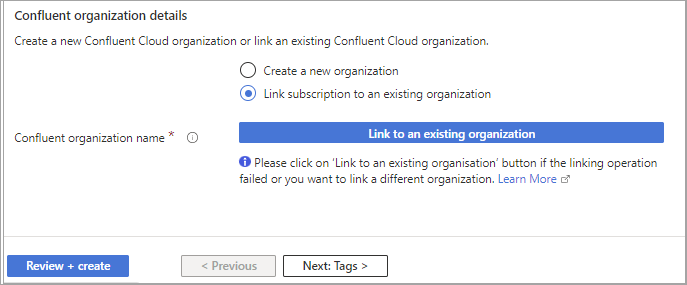
Under Confluent Organization details, choose Create a new Confluent organization or Link to an existing organization. If you link to your existing Azure Marketplace subscription, Confluent Cloud prompts you for your account credentials.
Enter the name for your new Confluent organization.

After you complete the Azure deployment, Confluent creates the new organization and links it to your Azure subscription.
Click Link to an existing organization to navigate to the Confluent Cloud login page.
Sign in with your existing Confluent Cloud credentials.
On the Confirm billing updates page, check each box to confirm that you understand the terms of service, billing terms, and SSO settings for both sections:
Current billing info shows the billing information before account linking.
Updated billing with Azure shows the new payment method for the account after linking.

Click Choose this organization. Once confirmed, the linked organization name appears next to Confluent Organization Name in the Azure portal.
Important
Linking to an existing organization automatically cancels any active commit subscription on that organization. Before you link, verify that the target organization has no active commit subscription.
Watch the following video for a walkthrough of linking an existing Confluent Cloud organization from the Azure Marketplace.
Optionally enter Tags for your project.
Click Review and create.
After organization validation completes, you can create the resource. Review the terms of your plan and click Create.

Your deployment starts. This could take up to a minute.

After Azure deploys your resources, a confirmation message appears. Click Go to resource to view the deployed resource on the Azure portal.

Click the Confluent SSO URL link or the Launch button to sign in to Confluent Cloud using your Azure AD account. You might be asked to choose an account for SSO.
If you want to enable Confluent SSO instead of the default Azure AD SSO, an Azure AD Global Admin for the tenant must grant you user consent.
If you are using Azure AD (the default SSO), click Accept to grant permission for Confluent Cloud. You are signed in.

You can now manage your resources on Confluent Cloud.
You can invite more users to your organization by creating a Confluent Cloud account. Use an Azure AD user, or a non-SSO user with an email address and password. For more information, see Add a local user account and Add an SSO user.
Important
Azure AD is the default SSO identity provider when you subscribe to Confluent Cloud through the Azure Marketplace. To change your SSO identity provider, see Use Single Sign-on with Azure Marketplace on Confluent Cloud and Switch from Azure Marketplace SSO to SAML SSO.


Manage Confluent Cloud from Azure
After you create or link a Confluent Cloud organization, you can manage access and resources:
Manage Kafka clusters in Confluent Cloud. For more information, see Manage Kafka Clusters on Confluent Cloud in the Confluent Cloud documentation.
Enable single sign-on (SSO) for your organization. For more information, see Single sign-on in the Azure documentation.
Enable just-in-time (JIT) user provisioning to automatically create Confluent Cloud user accounts in Azure. For more information, see Support for Azure Marketplace organizations.
Add users and assign permissions to your Confluent Cloud organization from within Azure. For more information, see Use Confluent Access Management in the Azure Portal in the Azure documentation.
Use Azure Functions and Azure Cosmos DB connectors. For more information, see Connect a Confluent Organization to Azure Compute Services in the Azure documentation.
Manage Confluent connectors from Azure Portal. For more information, see Use Confluent Connectors in Azure (preview) in the Azure documentation.
Use the Azure CLI to manage your Confluent Cloud organization. For more information, see az confluent command reference in the Azure documentation.
For more information on managing and using Confluent Cloud resources with Azure, see Apache Kafka & Apache Flink on Confluent Cloud, an Azure Native Integrations service in the Azure documentation.
Important
To manage Confluent Cloud users from within Azure, your Azure user account must be a member of at least the Azure RBAC Contributor role, in the Confluent Cloud organization linked to the Azure account, and using the same email address on Confluent Cloud as in Azure. For more information, see the Azure documentation.
Next steps
To create a Kafka cluster and start producing and consuming messages, see the Quick Start for Confluent Cloud.
For help with sign-up, linking, and subscription issues, see Troubleshoot Confluent Cloud Billing.