Get Started with Confluent Cloud on the Jio Marketplace with Commitments
A usage-based billing commitment lets you pre-commit to a minimum spend on Confluent Cloud through the Jio Marketplace in exchange for a discount on your committed usage. This topic shows you how to sign up.
Tip
You can pay for Confluent Cloud through your cloud provider’s Marketplace using Confluent Consumption Units (CCUs). Pricing in the Marketplace is the same as direct purchase pricing. For more information, see Manage Billing in Confluent Cloud.
Prerequisites
A Jio Marketplace account. You can use Confluent Cloud and get billed directly through Jio.
Confluent Cloud currently requires your email address to be unique across all organizations. If you already used your Jio email address to sign up for Confluent Cloud, you must first remove yourself as a user from the Confluent Cloud organization where you signed up.
To subscribe to an offer, you must sign in to the Azure Portal with your Jio account ID.
You must have Owner access to the subscription linked to the billing account.
Your Jio policy should allow you to provision resources in the region where you choose to set up the Confluent resource.
Subscribe to a Confluent Cloud private offer on the Jio Marketplace
Follow these steps to subscribe to Confluent Cloud on the Jio Marketplace under a private offer.
Sign in to the Azure portal with your Jio account.
Select the Confluent Cloud tile.

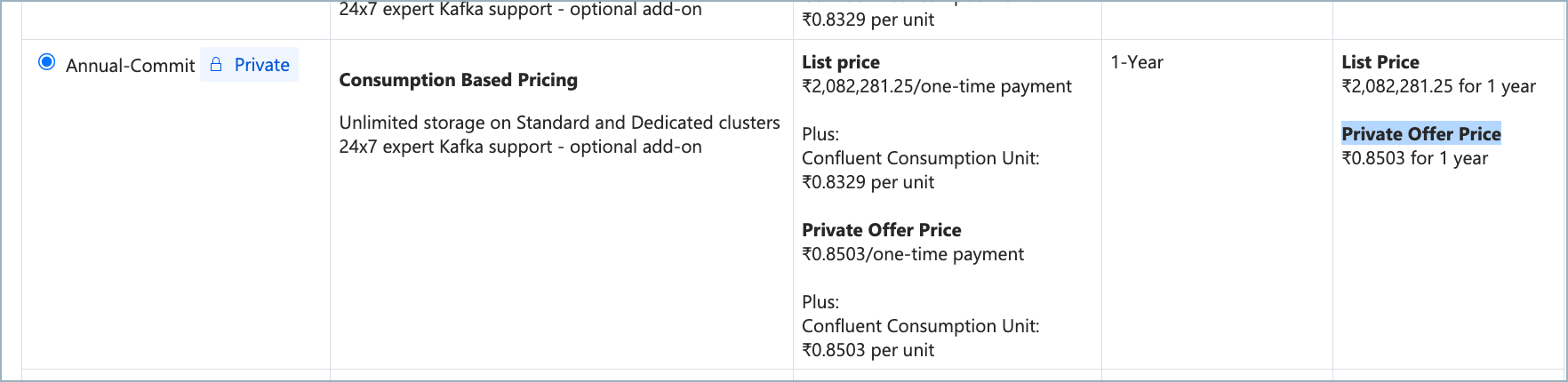
From Plan, select the required plan (Annual Commit or One-time Commit) and click Subscribe. You might have several plans available. To view a list of available plans and plan details, select Plans+Pricing.
Note
You can view the private offer pricing when selecting the Public Commit. The Private offer icon should also appear for public commit or the plan selected. Contact Confluent Support if the Private offer icon is not available, as this might affect your billing.
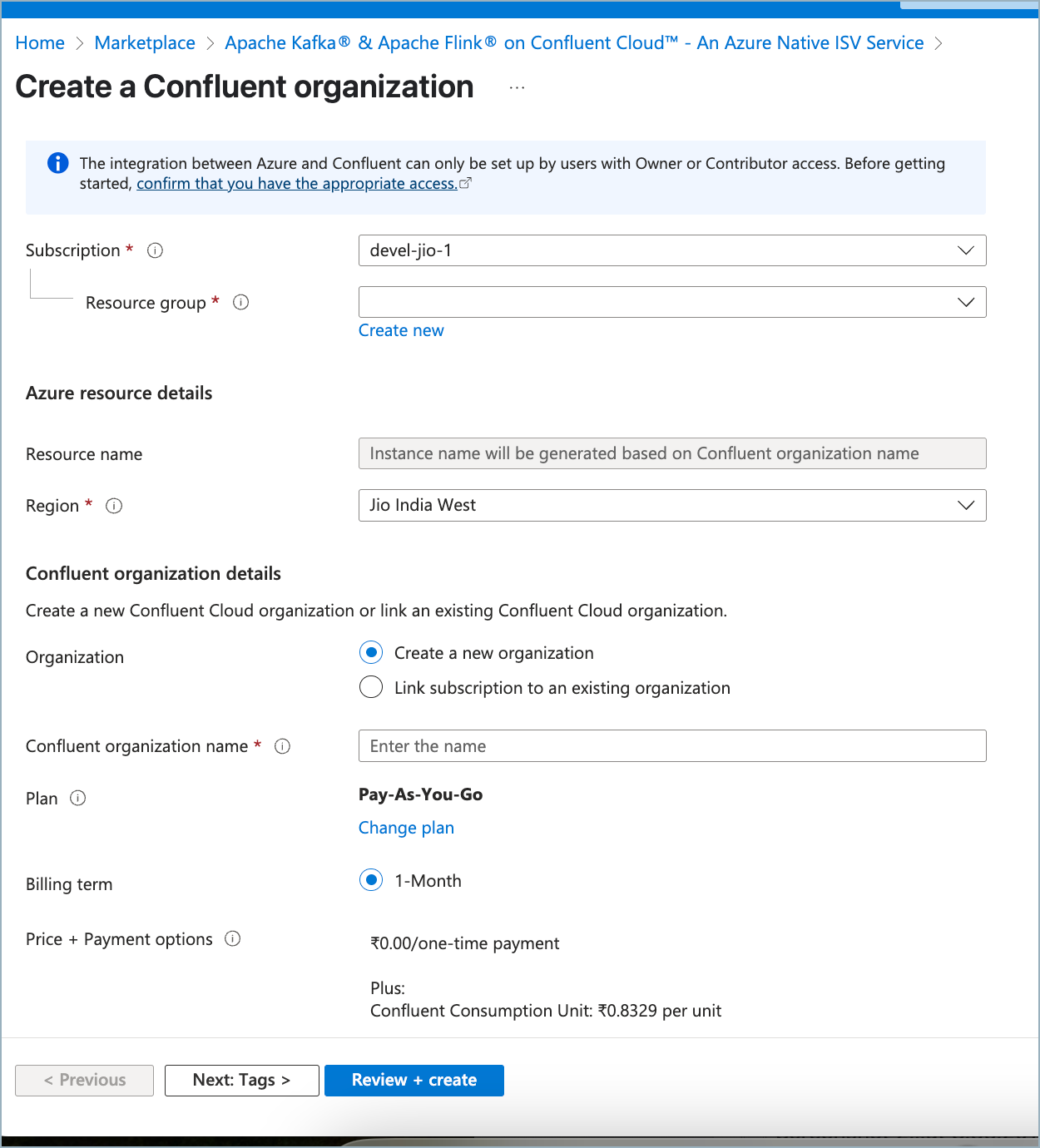
For Resource group, choose Create new and enter a Name or select any existing resource group.
Tip
To change your plan, select Change plan. A list of all available plans appears. Choose the plan you want and select Change plan.
In Region, under Azure Resource Details, select a Jio region for the software-as-a-service (SaaS) resource.
Under Confluent Organization details, choose Create a new Confluent organization or Link to an existing organization. If you link to your existing Azure Marketplace subscription, Confluent Cloud prompts you for your account credentials.
Enter the name for your new Confluent organization.

After you complete the Azure deployment, Confluent creates the new organization and links it to your Azure subscription.
Click Link to an existing organization to navigate to the Confluent Cloud login page.

Sign in with your existing Confluent Cloud credentials.
On the Confirm billing updates page, check each box to confirm that you understand the terms of service, billing terms, and SSO settings for both sections:
Current billing info shows the billing information before account linking.
Updated billing with Azure shows the new payment method for the account after linking.

Click Choose this organization. Once confirmed, the linked organization name appears next to Confluent Organization Name in the Azure portal.
Important
Linking to an existing organization automatically cancels any active commit subscription on that organization. Before you link, verify that the target organization has no active commit subscription.
Watch the following video for a walkthrough of linking an existing Confluent Cloud organization from the Azure Marketplace.
(Optional) Click the Tags tab to create tags for your project.
Click Review and create.
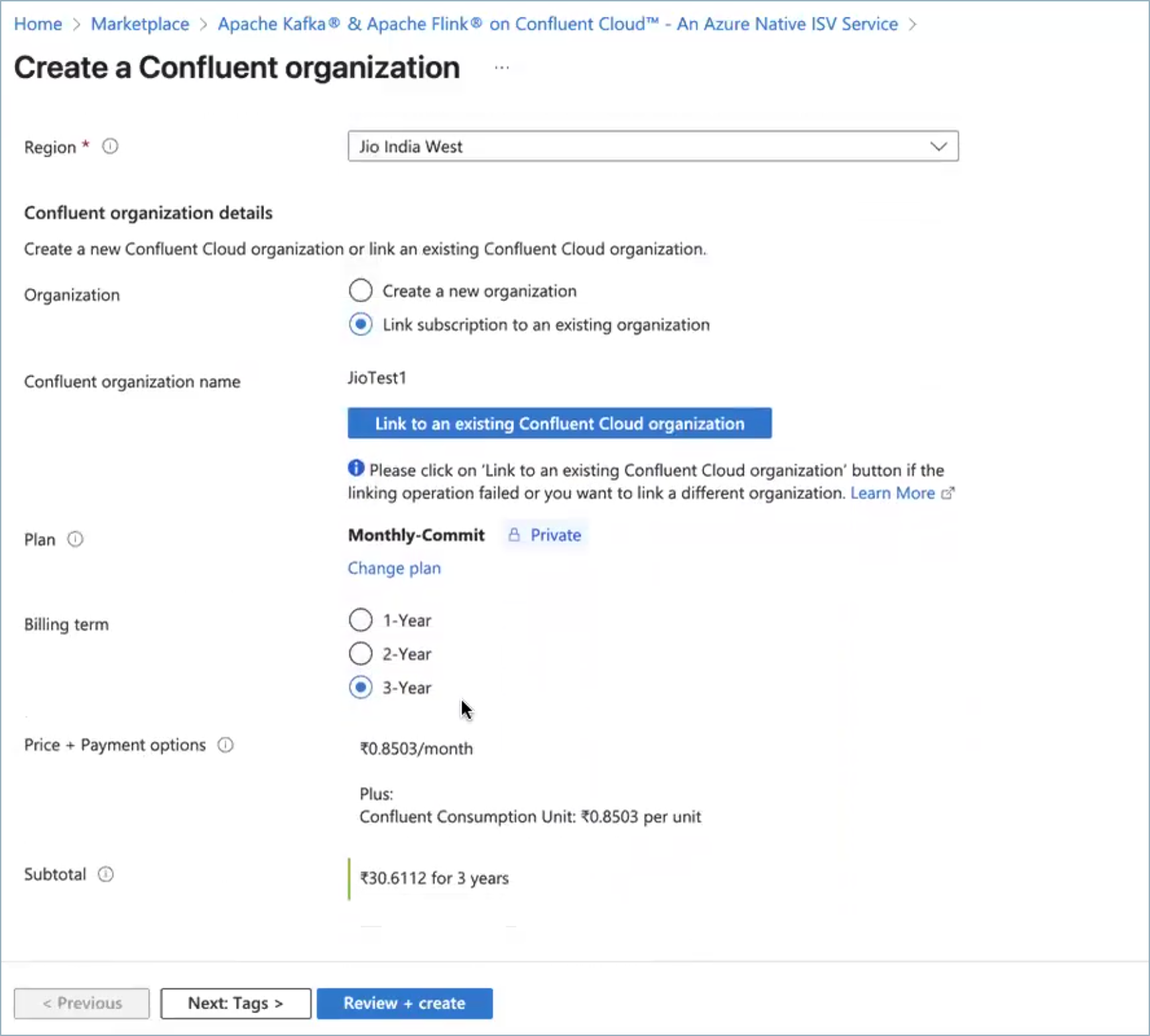
After validation completes, you can create the resource. Review the terms of your plan and click Create. Your deployment starts. This can take up to a minute.
After Azure deploys your resources, a confirmation message appears. Click Go to resource to view the deployed resource on the Azure portal.
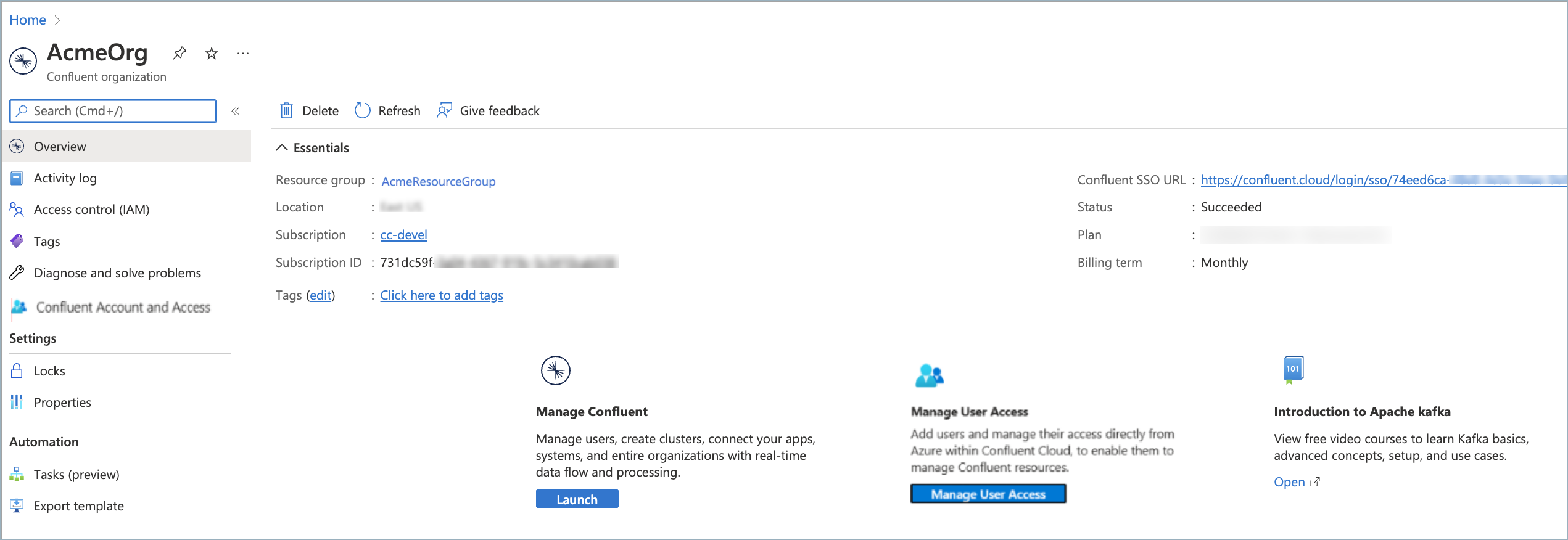
Click the Confluent SSO URL Manage on Confluent Cloud to sign on to Confluent Cloud using your Azure AD account. You might be asked to choose an account for SSO. Grant permission to the Confluent app on the Consent screen by clicking Accept. You are now signed in and can manage your resources on Confluent Cloud.
Note
Before SSO users can sign in, an Azure Tenant Administrator must grant permissions to the Confluent app.
You can invite more users to your organization by creating a Confluent Cloud account. Use an Azure AD user, or a non-SSO user with an email address and password. For more information, see Add a local user account and Add an SSO user.


Manage Confluent Cloud from Azure
After you create or link a Confluent Cloud organization, you can manage access and resources:
Manage Kafka clusters in Confluent Cloud. For more information, see Manage Kafka Clusters on Confluent Cloud in the Confluent Cloud documentation.
Enable single sign-on (SSO) for your organization. For more information, see Single sign-on in the Azure documentation.
Enable just-in-time (JIT) user provisioning to automatically create Confluent Cloud user accounts in Azure. For more information, see Support for Azure Marketplace organizations.
Add users and assign permissions to your Confluent Cloud organization from within Azure. For more information, see Use Confluent Access Management in the Azure Portal in the Azure documentation.
Use Azure Functions and Azure Cosmos DB connectors. For more information, see Connect a Confluent Organization to Azure Compute Services in the Azure documentation.
Manage Confluent connectors from Azure Portal. For more information, see Use Confluent Connectors in Azure (preview) in the Azure documentation.
Use the Azure CLI to manage your Confluent Cloud organization. For more information, see az confluent command reference in the Azure documentation.
Next steps
To create a Kafka cluster and start producing and consuming messages, see the Quick Start for Confluent Cloud.
For help with sign-up, linking, and subscription issues, see Troubleshoot Confluent Cloud Billing.